How to Add Video to Shopify Product Page in 4 Ways

Adding video to Shopify product page can enhance the user experience and complete your product descriptions. You can add videos as Shopify product media together with product images, or upload or embed videos in descriptions to give more context on what your brand is about. In this article, we will demonstrate 4 methods on how to add video to Shopify product page, and briefly touch on why and when product videos are important.
How to Add Video to Shopify Product Page: 4 Methods
Method 1: Add Video to Shopify Product Media
Add video to Shopify product page is simple and can be done by the following steps:
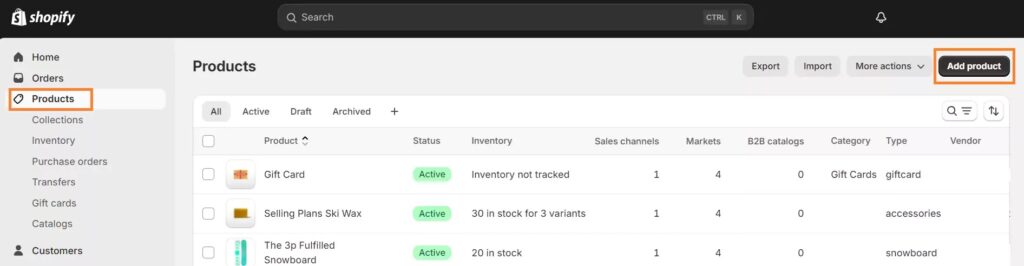
Step 1. In your Shopify admin, go to “Products” (left sidebar) and click “Add product”.
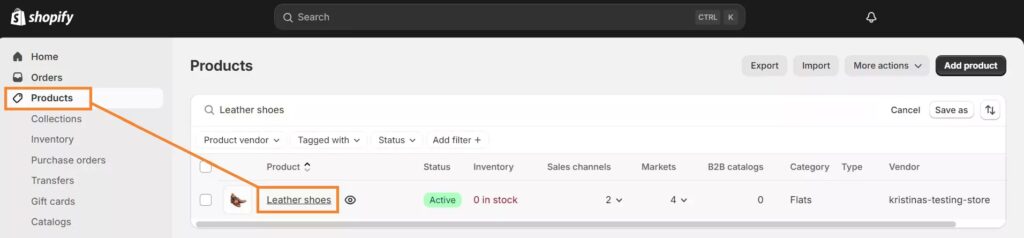
If you want to make changes to an existing product, just click the name of the product in the product list.
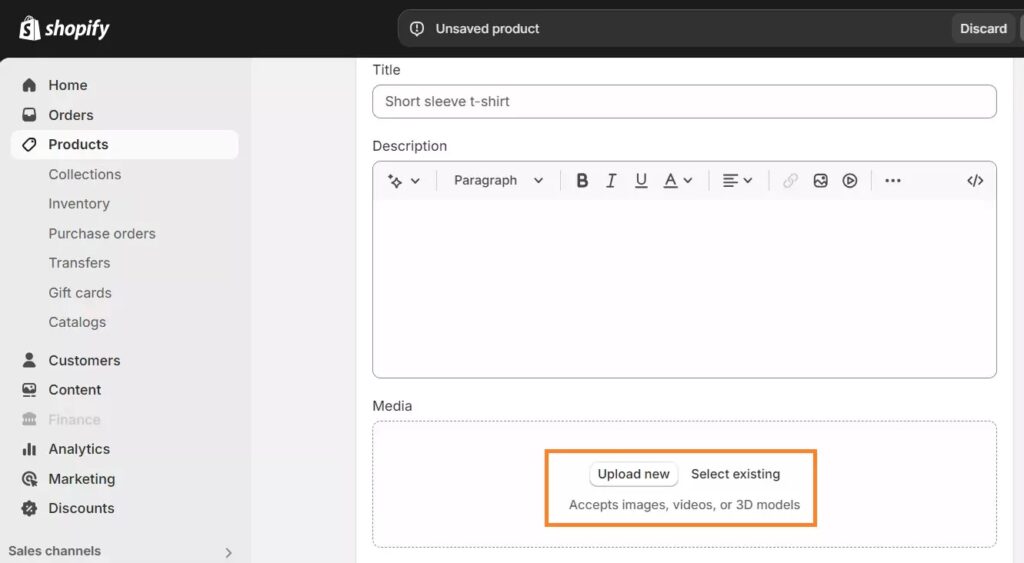
Step 2. In the Media section, click “Upload new”, and select the video that you wish to upload. Alternatively, you can upload videos from the URL by clicking Add from URL.
Step 3. When you are done, simply click Save.
Keep in mind that if you are uploading videos from your device, you should fulfill the following requirements:
- Video length: 10 minutes max
- Video size: 1 GB max
- Video resolution: 4K (4096 x 2160 px) max
Note: One advantage of this method is that it’s actually quite easy to do. However, depending on the video’s aspect ratio, you might need to edit some so the video looks consistent with other media in the product carousel.
>> YOU MAY MISS: SHOPIFY 1 DOLLAR FOR 3 MONTHS DEAL

Method 2: Embed Video in Shopify Product Description
You can add a video to YouTube and add it to your Shopify product description.
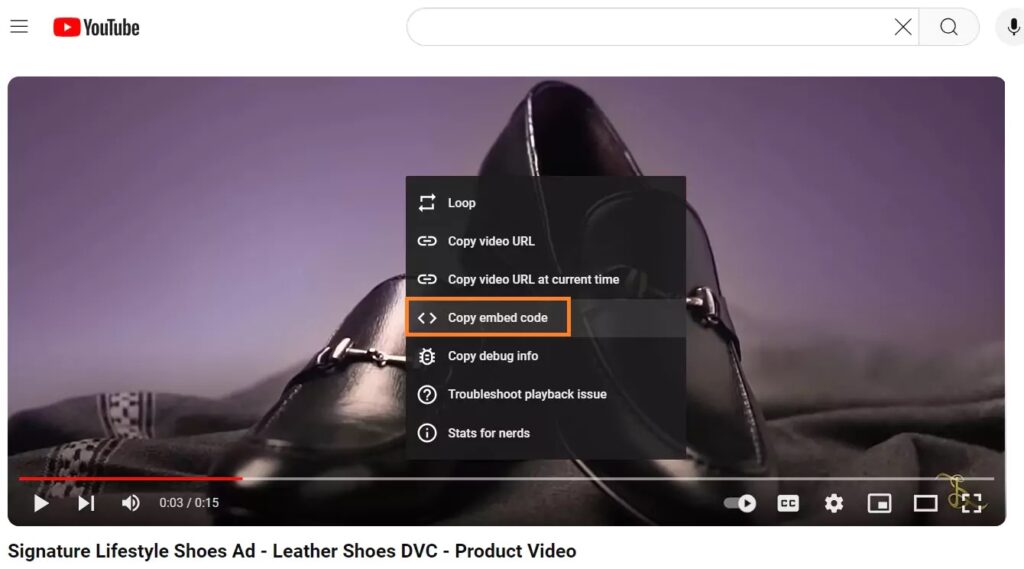
Step 1. Find your YouTube video, right-click on it, and select “Copy embedded code”.
Step 2. Go to your Shopify admin > Products, then select the product you want to put the video on.
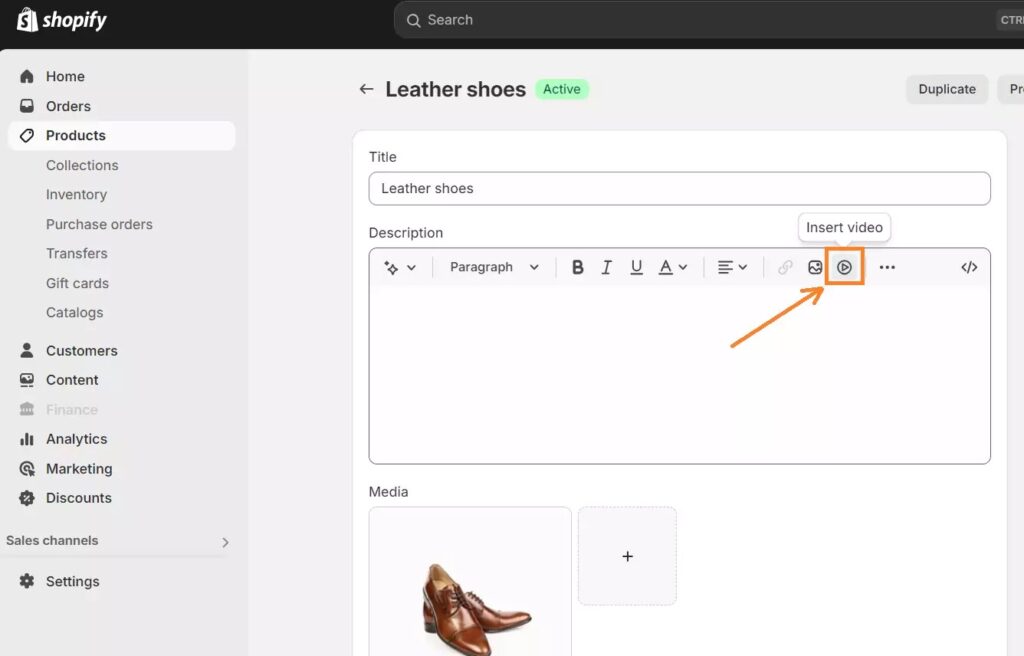
Step 3. In the description box, click on the small icon with a play button.
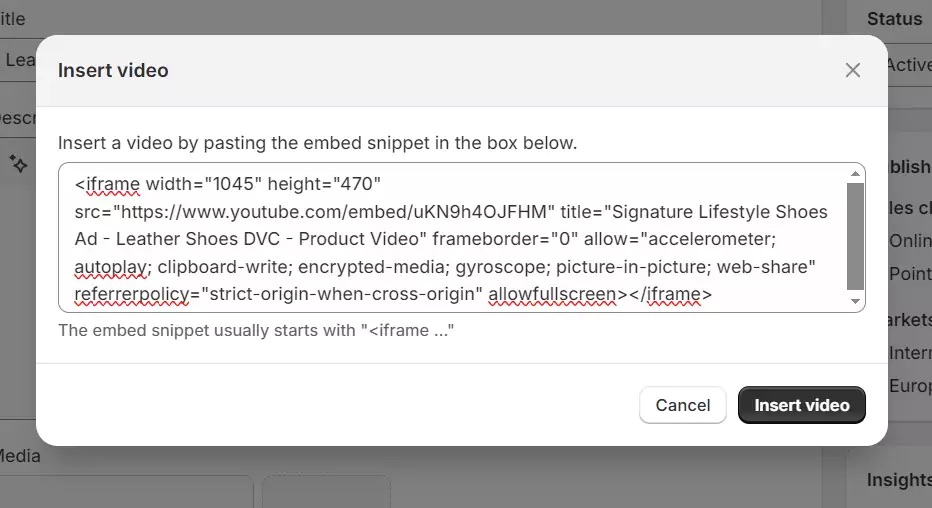
Step 4. Paste the code and click “Insert video”.
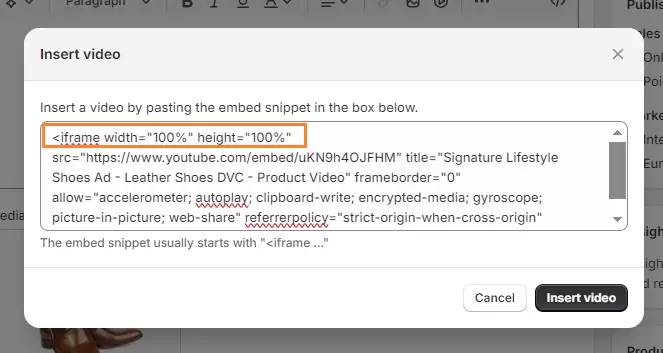
Step 5. It is suggested that you modify the embedded code slightly so that the video becomes responsive and not skewed. Simply replace the width and height attributes with 100%, as seen in the screenshot below.
Save your changes and you’re good to go!
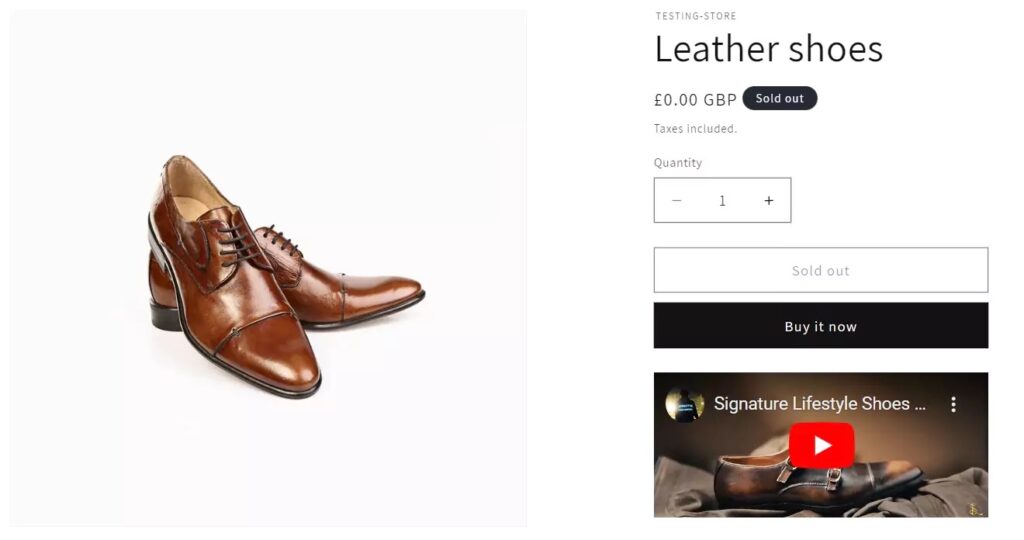
Note: When embedding a video on another site, you do not have to worry about video requirements, which can be a great advantage if you would like to upload a longer, high-quality video. This is not too popular a method,though, as videos tend to be added more frequently in a special section underneath the main product description.
Another thing to note here is that, sometimes, embedding can be an issue for mobile users since YouTube embed codes are not always responsive. It’s a very simple issue, though, since there are quite a number of free tools out there that make other platforms’ videos responsive.
>> Read more: How to Add Store Locator on Shopify In 3 Simple Ways
Method 3: Use The Video Section in Your Theme
You can embed videos using specific video sections in your Shopify theme’s builder.
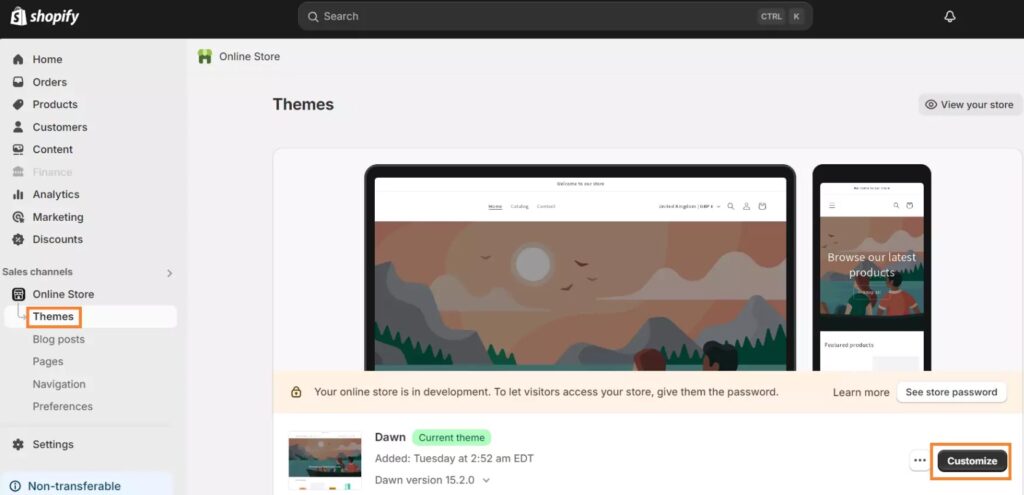
Step 1. In your Shopify admin, navigate to Online Store (left sidebar) > Themes and click “Customize”.
Step 2. On the left sidebar, click “Add section”, and then scroll down to Video. Click on it.
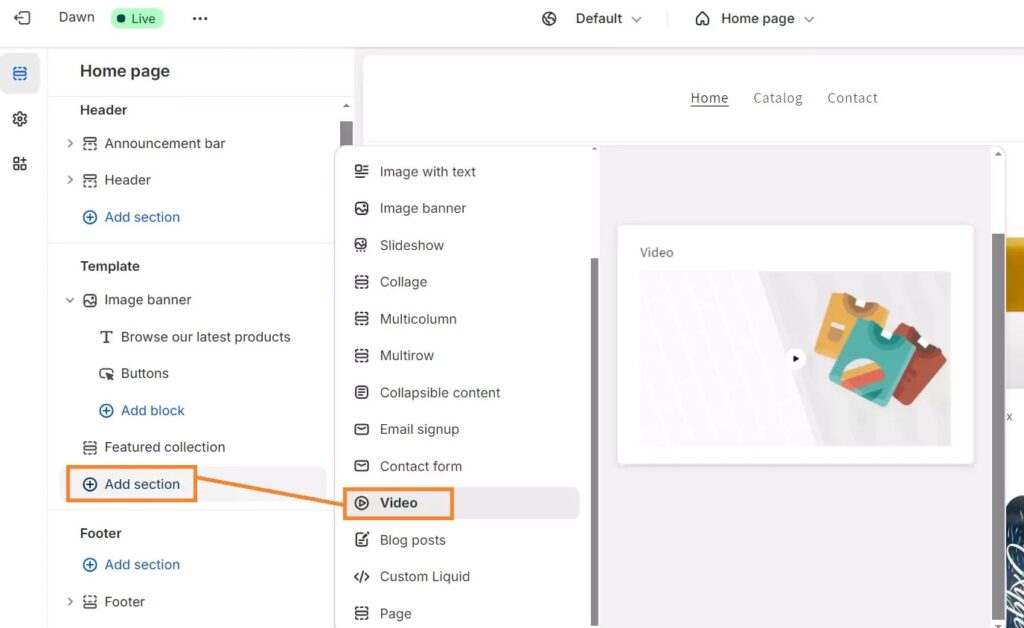
Step 3. Add your video from your library or a YouTube or Vimeo link. And you’re done!
Note: With specialized video sections in your Shopify theme, you can embed videos in about any section of your Shopify website. Keep in mind that such functionality is highly reliant on the theme you use. Free themes might restrict functionalities and allow inserting videos in locations you define, but not necessarily anywhere.
>> You may need: How to Add A Popup To Shopify Store: Detailed Guide
Method 4: Add Video to Shopify Product Page Using Metafields
You can add video to Shopify product page via metafields. We will not cover how to use metafields in this tutorial, but you can check out our Shopify metafields article to know more about it.
Step 1. Go to “Settings” > Custom data in your Shopify admin, and click “Products”.
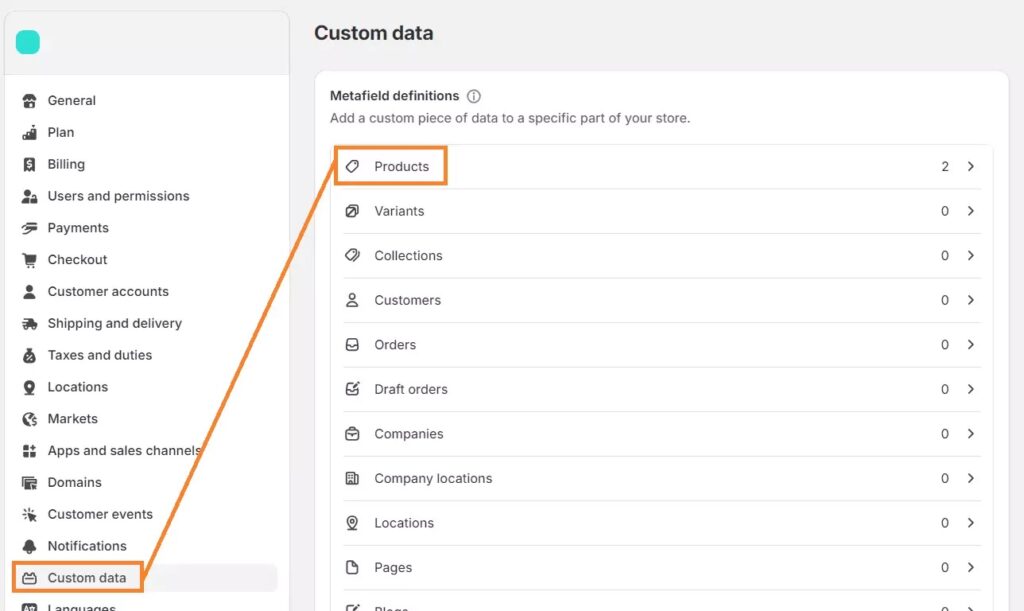
Step 2. Click “Add definition”.

Step 3. Define your new metafield. Keep it simple and understandable. For example, name it something like “Product video” or just “Video”.
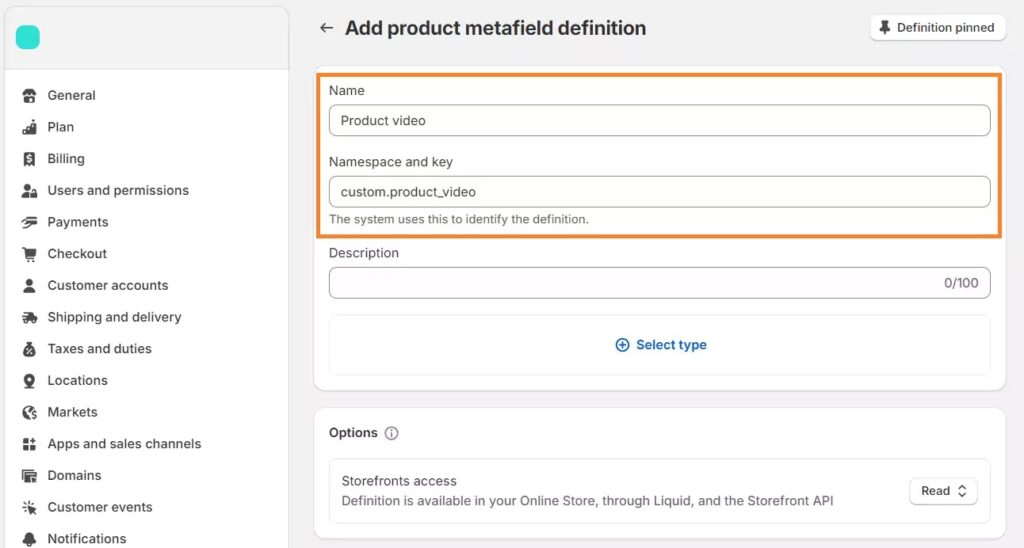
Step 4. Click “Select type”. Since we’re going to add code, choose “Multi-line text”.
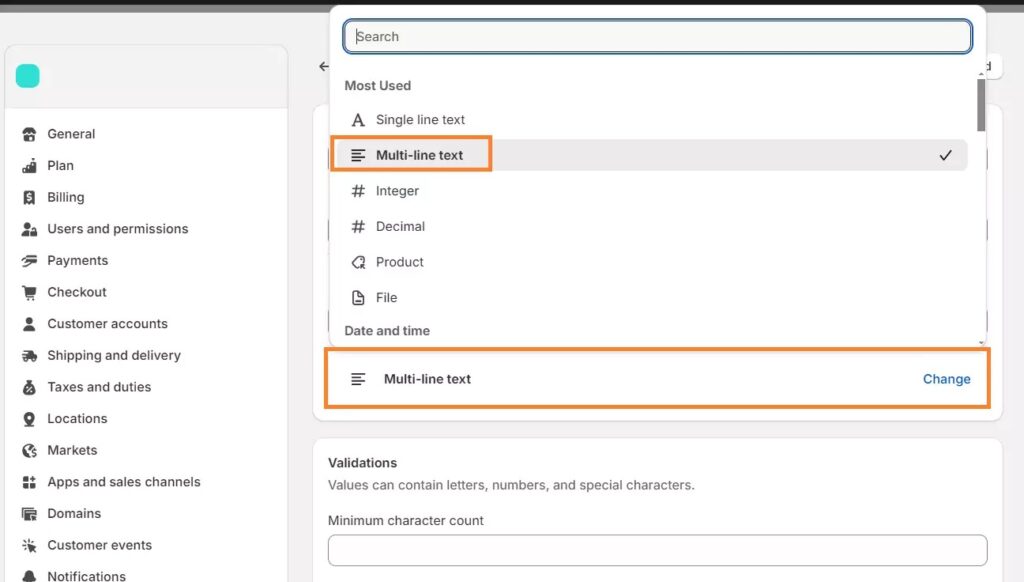
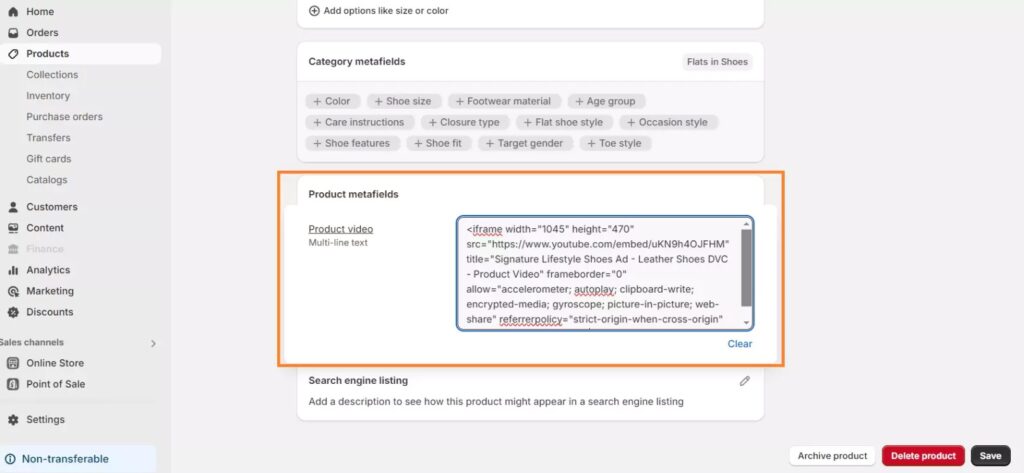
Step 5. Click “Save” and go back to your product page. Scroll down to Product metafields and click on your created metafield. Here, embed the YouTube video code. Click “Save”.
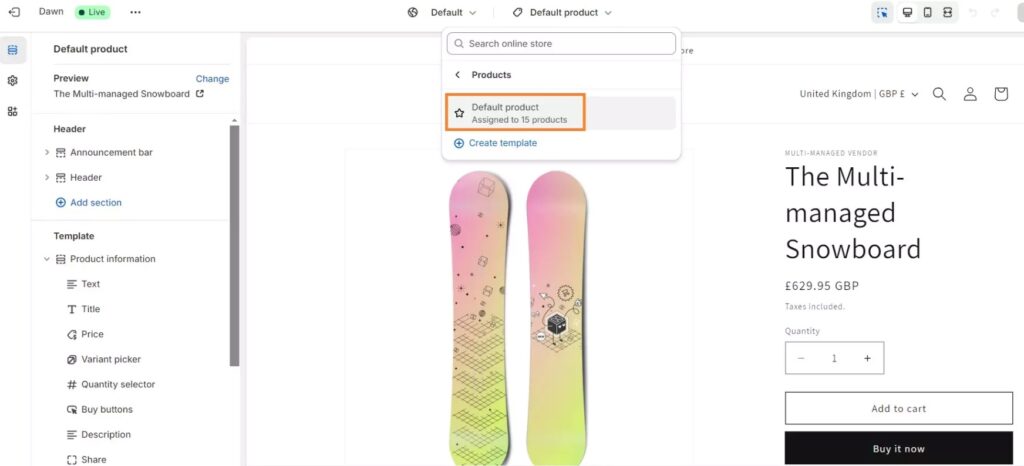
Step 6. Go to your theme edit page, at the top, scroll down menu, Products > Default product.
Step 7. In the left sidebar, go to the “Product information” section and click “Add block” > Custom liquid.
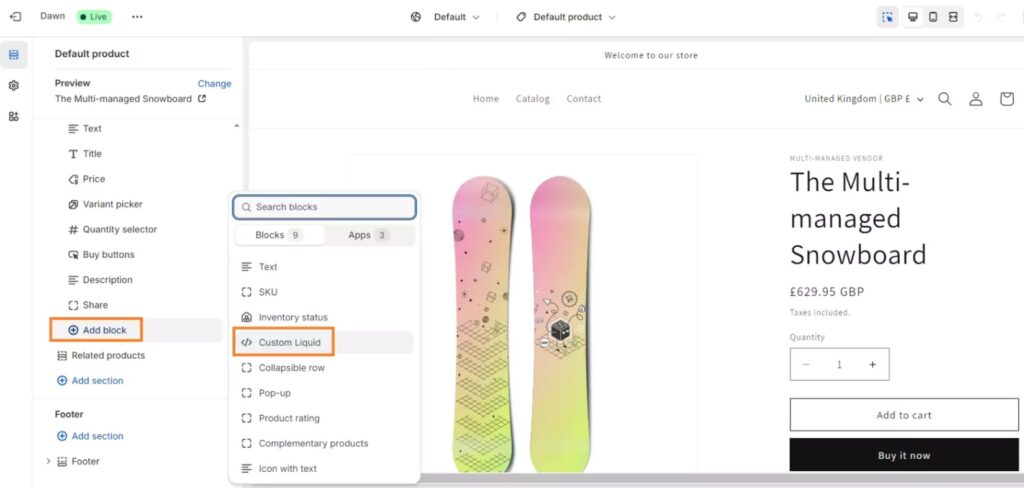
Step 8. Enter liquid code like it is in the screenshot. We named the metafield “Product video”. If yours was named something different, change that part accordingly.
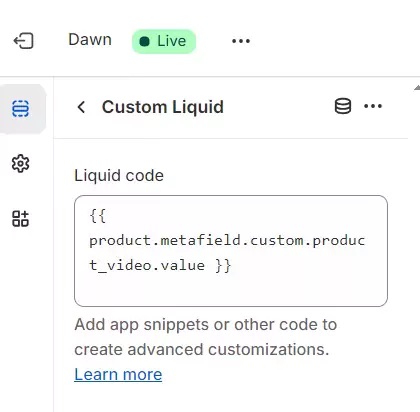
Step 9. You’ll see that your video now appears in the product description.
Note: One big advantage of adding video to Shopify product page using metafields is that you’ll be able to upload a unique video for a specific product page instead of having the same video appear across all of your product pages.
>> Read more: How to Add Product Labels & Badges on Shopify?
Why Should You Add Video to the Shopify Product Page?
Improve SEO Rankings
Search engines love video, so video is a potent SEO tool. Video thumbnails have been shown by Google in 26% of the search results in recent times, giving the results higher click-through rates. Statistics further indicate that video increases organic traffic from SERPs by 157%.
Also, by increasing “dwell time” – the amount of time people have spent on a web page, video helps websites with video content rank higher on Google and have a good chance of showing up on the first page of search results.
Increase Product Understanding
By showing your product in action and summing it up briefly and plainly, videos enable customers to imagine the product itself, its capabilities, and benefits more easily while also entertaining and captivating them.
Increase Conversion Rates
Greater awareness of a product helps consumers further when it is time to make a buying decision. In fact, according to a survey conducted by Animoto, 73% of the survey respondents report that they are more likely to purchase after watching a video that narrates the products.
Make Your Store Stand Out
While videos are very important, they are not usually used by e-commerce websites to market their products because they do not have the time and money. That’s why you should maximize such content to create your own selling point and sell more to your Shopify store.
Boost Your Brand Reach
Video is more shareable and clickable than bare text pages, and it also helps extend your reach, especially with the likes of social media such as Facebook, Twitter, TikTok, and YouTube.
Increase Trust
In providing a thorough description and good demonstration of your product, you are being truthful about what your product feels like, does, what the benefits are, and what it is worth, thus establishing customer trust.

When Should You Add Video to the Shopify Product Page?
- When you’re selling apparel products. Including videos will assist you in showing the material, thickness, softness, and drape. When selling a bag, a video is also great to show the inside of the bag and allow the viewer to visualize how much they could pack it with.
- When you’re selling beauty products. Whatever it is, make-up or skin care, the images are retouched via photo software. To stand out, you can show how the products are applied and how they look.
- When you need to show how the product works. If you’re selling something that is not that popular or is tricky to use, a video would be a great way to drive sales.

What Are the Best Practices for Add Video to Shopify Product Page?
Keep Video Length Short
Humans are busy, and their attention is fleeting, so don’t tune them out by making your video too long. Although ideal video length has something to do with product types, content types, video type, and audience, research has found that two-minute or shorter videos generate the most engagement and interaction. If you are producing videos to explain your product, just keep it short and straight to the point of what you wish to provide.
Use Video with High-quality Image and Audio
Besides great content, make sure your video image and audio quality are good. Good quality video production shows that you are serious about your business and product, thus increasing the perceived value of your product and trust among potential buyers. Additionally, high-definition videos with good audio can improve customer experience and interaction, thus increasing conversion rates.
>> Discover: 10 Best Shopify Video Slider Apps To Boost Conversions
Optimize Videos for Mobile Devices
As online consumers are now predominantly mobile users, optimizing your video for mobile viewing is crucial because you would not want to miss out on this huge chunk of potential buyers. Aside from that, with the roll-out of Google’s mobile-first indexing, e-commerce sites employing mobile-friendly videos will have a better chance to rank higher in search results.
Use A Compelling Thumbnail
A thumbnail is what your visitors see when they first hear about your video, so make one that is fabulous. Use a thumbnail that reflects the content of the video and will grab the visitors’ attention and make them click through and view the video.
Be Consistent across All Videos
If you desire to make people recognize your brand after watching your product videos, try to keep a consistent look, i.e., lighting and background, and tone in all your videos, even while demonstrating different kinds of products.
Include A CTA in Your Videos
At the end of the video, ensure to lead viewers to action by incorporating a call to action or a destination, such as your website URL or a link to order. That way, you’re making it easier for potential consumers to make a purchase.

FAQs
How to add your own video to Shopify?
You can add your own video to Shopify by uploading it as a Shopify product video, using a special Shopify theme video space, or uploading a video to a video host like YouTube, and then embedding the code into your Shopify store.
Can you add a YouTube video to Shopify?
Yes, you can add a YouTube video to Shopify by adding a video code into product descriptions or product media.
How to autoplay a video on Shopify product page?
You can autoplay videos on your Shopify product pages by transcoding video files (e.g., MP4) to WebP format via an online converter.
Bottom Up
The initial impression is always crucial as far as online purchasing is concerned, and with videos, you can kill two birds with one stone. Knowing how to add video to Shopify product page is one great method that you can utilize to explain your product while commanding customer attention at first glance and further encouraging their engagement and thus enhancing the conversion rate as well as increasing sales.
If you have been benefited by this blog, then just look no further than BSS Commerce for more eCommerce tutorials and blogs! CONTACT US NOW and let us know about your problems. We are always here to guide you whenever you need us.

Finn Nguyen
Finn is a Shopify expert with 5+ years of experience helping new business owners launch and grow online stores. Specializing in store setup, theme selection, and optimization, he provides practical guidance to turn ideas into successful eCommerce businesses