How to Remove Shop Pay From Shopify Product Page: A Comprehensive Guide
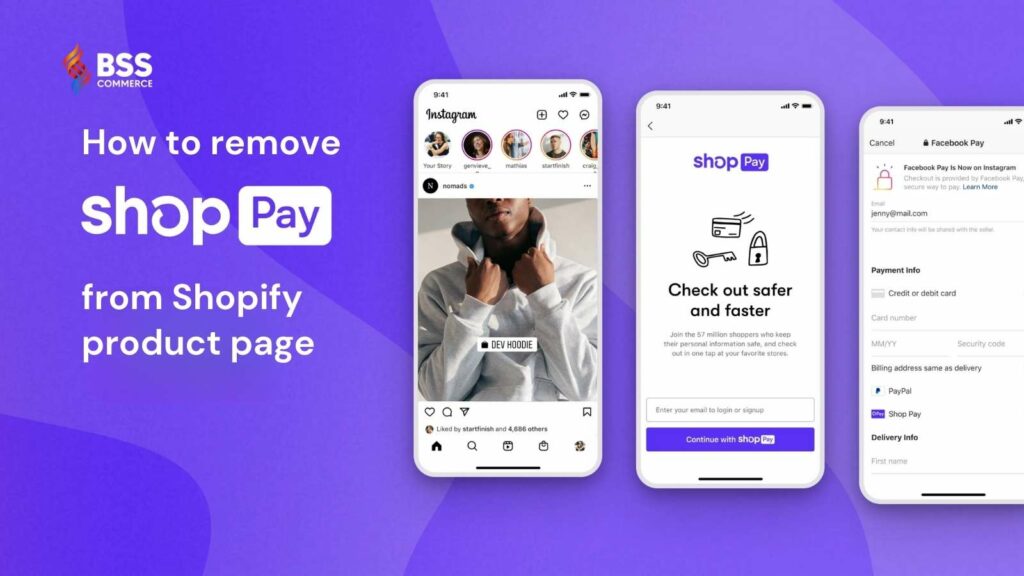
If you’ve ever thought about removing Shop Pay on your platform, you’re not alone. Deleting your Shop Pay account on Shopify can be an important step toward facilitating your business goals in e-commerce, whether that means improving your checkout process, adapting to changing business requirements, or finding different payment solutions. Over the next few sections, we will show you a step-by-step guide on how to remove Shop Pay from Shopify product page and empower you with the confidence and knowledge to gain control of your store payment system. Let’s dive in.
Why You May Want to Remove Shop Pay from Shopify Product Page?
Consolidate Your Payment Gateways
When you have multiple payment gateways for your Shopify store, you may want to simplify the checkout process. The end goal may be to create a clearer payment process, so ask yourself if options like Shop Pay are truly needed to create that.
Evaluate Your Effect on Conversions and User Experience
Much care must be taken on the impact of these changes on the user experience and conversion rate before you remove Shop Pay from product page. By removing Shop Pay, you can track these metrics carefully, and you can take action accordingly by making informed decisions about the right payment solutions based on your specific business needs. This is not always guaranteed, though, as Shop Pay will likely improve the conversion for most stores. The true impact (positive or negative) of Shop Pay on your conversion rate won’t be clear until you test removing it from your checkout.
Explore Alternative Payment Solutions
Ending your relationship with Shop Pay frees you all sorts of payment choices. This allows for access to a variety of extra features and benefits that could offer improved alignments to your specific customers and driving goals.
It Is Not in Accordance with Your Store Design
You won’t be able to customize the design of the Shop Pay widget. This also means it could conflict with the visual aesthetic of your store. You don’t need a jarring visual design at checkout. If you believe it is hurting your checkout experience, remove Shop Pay from product page and see how that affects your conversion rate.
Finally, remove Shop Pay from product page should be a strategic decision, considering your business model, customer preferences, and long-term goals. Good luck, and remember, the right payment system can improve your customer experience and add to your bottom line.
>> YOU MAY MISS: SHOPIFY 1 DOLLAR FOR 3 MONTHS DEAL
How to Remove Shop Pay From Shopify Product Page: 3 Methods
Method 1: Disable Shop Pay in Shopify Settings
The most straightforward approach for how to remove Shop Pay from Shopify product page would be your Shopify admin settings. No coding is needed for this method; thus, all users can utilize it. Here’s how to disable Shop Pay:
1/ Visit your Shopify admin panel and log in.
2/ Navigate to “Settings”.
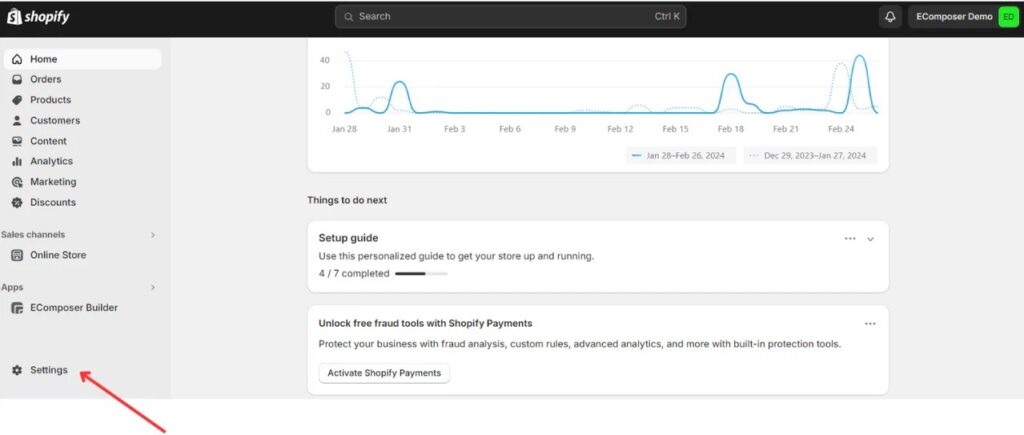
3/ Click on “Payments”.
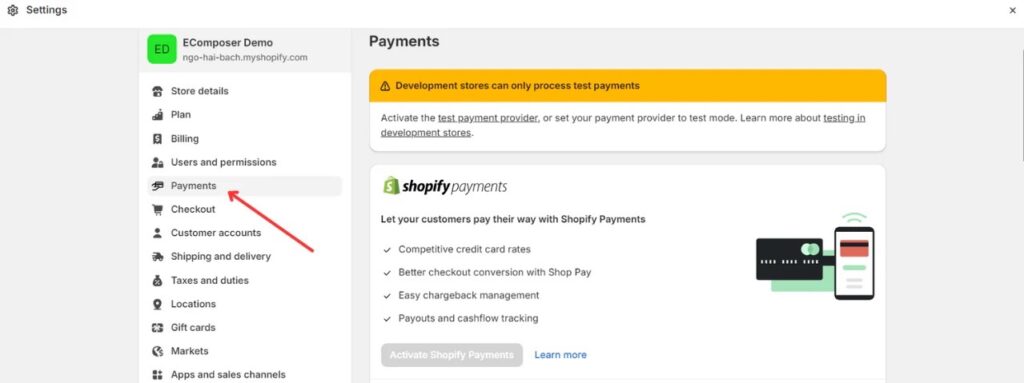
4/ Click “Manage” for “Shopify Payments”.
5/ Find the “Shop Pay” option, and deselect the box next to it.
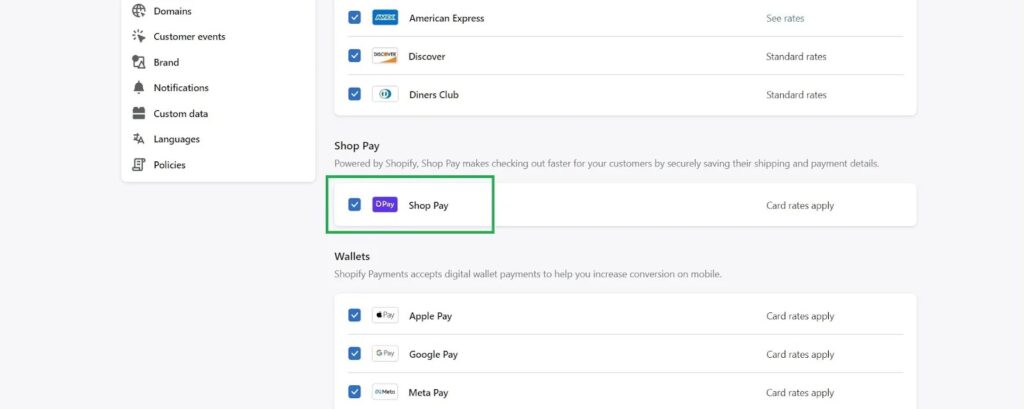
6/ Click “Save” to save your changes when finished.
These steps will remove Shop Pay as a payment option and make checkout easier for your customers.
>> You may concern: How to remove Powered by Shopify: Step-by-step Tutorial
Method 2: Editing Theme Code
If you’d like more control over your Shopify store or need to take Shop Pay away from one or several locations (not only your product page), editing the theme code will probably be required. This method is to be used by users familiar with basic coding practices. Here are the steps to edit the theme code:
- From your Shopify admin, go to Online Store > Themes.
- Next to your current theme, click “Actions” and select “Edit Code”.
- Locate the Sections folder and search for product-template.liquid or main-product. liquid, depending on your theme.
- Find the line with {{ form | payment_terms }}. This line usually generates the Shop Pay text and button.
- Remove this line from the code.
- Click “Save” so that the changes are applied.
Make a change in your code to enable/disable Shop Pay on your store, without affecting other payment methods.
Method 3: Utilizing CSS to Hide Shop Pay
Alternatively, if you don’t want to remove Shop Pay entirely but hide it from certain pages (product page in this case), you could use CSS. Therefore, it is an efficient way to mask components without affecting the actual working of your Shopify store. How to hide Shop Pay with CSS:
- Go to your theme and navigate to the “Assets” folder in the “Edit Code” section.
- Open your stylesheet file, which may be called theme. css, styles. css, or something similar.
- Insert the following CSS code towards the bottom of the file:
| .shop-pay {display: none !important; } |
- Click Save to save your settings.
Using this snippet, we remove Shop Pay from product page without removing it completely, which means you will have flexible control over your checkout settings.
>> Read more: How To Remove Tax Included On Shopify: A Complete Guide
Best Practices After Remove Shop Pay From Product Page
Notify Your Customers
If you are going to remove Shop Pay from product page, it is typically best practice to notify your customers. This increases transparency in the process. Implementing below best practices will help to ensure clear communication:
- Notify your customers by sending them an email about the removal of Shop Pay and the alternative payment methods you offer. Give clear instructions, step-by-step on how to use the new payment method, highlighting any additional advantages they may reap from using it.
- Make a new page or update your existing FAQ page with a complete guide on how to use the new payment method.
- Add pop-up notifications or banners on your website to raise awareness of the changes and signpost visitors to the updated payment options.
- Train your customer support team to answer any questions or concerns around removing Shop Pay, and to assist customers, if needed, with the new payment process.

Gather Customer Feedback
Conduct customer surveys on the updated checkout process using a thank you page survey. Their feedback can help you gain insight into their experience. Identify any consistent themes, worry spots, etc., that materialized as part of Shop Pay being removed, as well as the checkout experience more generally.
>> Discover: How to Collect Customer Feedback in 12 Best Effective Ways
Evaluate Checkout Completion Time
Set up a checkout flow without Shop Pay and compare the time it takes customers to complete the process to the previous version. This could be affecting the user experience – if not the drop-offs – if the process is now taking much longer than it should.
Review Customer Support Inquiries
Monitor customer support requests about the checkout process. More inquiries or issues could be a sign that customers are struggling with the new payment methods.
Seek Expert Advice
Feel free to inquire from Shopify experts or the Shopify community forums for visitors. They might have experienced the same and can provide great insights into how to adjust to the changes.

Measuring the effects after you remove Shop Pay from product page is a crucial part of making sure your checkout has a meaningful impact on your business. And last, remember that metrics are not just the numbers but rather the view into customer experience, so you need a little customer perspective. With constant monitoring of data and feedback, you will be able to make decisions that will ultimately be highly beneficial for your Shopify store.
Best Ways to Optimize Checkout After Remove Shop Pay From Product Page
Streamline the Checkout Process
A long, lengthy checkout can result in cart abandonment. Simplify the process by:
- Reduce the Number of Form Fields: Only capture required information. Every extra field reduces the likelihood of your customers completing the purchase.
- Option for Guest Checkout: Allow the guest checkout option. Customers need not create an account, thereby cutting friction.
Build Trust and Credibility
If the customers feel secure, they are more likely to make a purchase. Here is how you start building trust:
- Use Trust Badges: Adding trust badges like SSL certifications, payment icons, and secure checkout logos.
- Clear Policies: Make information on shipping, returns, and privacy policies easy to find to put customers at ease.
Provide Different Payment Methods
Offer multiple payment methods, including credit/debit cards, PayPal, and alternative methods like Apple Pay. This way, you can target a broader audience.
Implement Exit-Intent Pop-Ups
Display a specific offer or discount while allowing a visitor to leave the page (if they show signs of leaving the page).
>> Find out more: How To Delete Shopify Account And Cancel Shopify Subscription
FAQs
Will I lose sales when I remove Shop Pay from product page?
It might impact your sales because Shop Pay is optimized for a quicker checkout process. Analyze your store metrics and which products and customers are selling, then change it
If I change my mind, can I re-enable Shop Pay later?
Yes, it is simple to turn Shop Pay back on by going to the same settings page where you turned it off.
Can I only disable Shop Pay on certain products?
Yes, it is possible to hide the Shop Pay option for specific products while keeping it available for others by modifying your theme code.
Bottom Up
Remove Shop Pay from product page is a business choice that depends on your specific business needs, target audience, and branding goals. This tutorial is not only intended to assist you in how to remove Shop Pay from Shopify, but also to shed light on the nuances of making such a decision. By carefully considering the pros and cons and exploring other payment methods, you can tailor the checkout experience to better align with your business vision and customer requirements.
If this blog has been useful to you, then look no further than BSS Commerce for more eCommerce blogs and reviews! CONTACT US NOW and let us know what your problems are. We are always here to help you whenever you need our assistance.

Finn Nguyen
Finn is a Shopify expert with 5+ years of experience helping new business owners launch and grow online stores. Specializing in store setup, theme selection, and optimization, he provides practical guidance to turn ideas into successful eCommerce businesses