How To Make Shopify Show Discount on Product Pages In 4 Ways
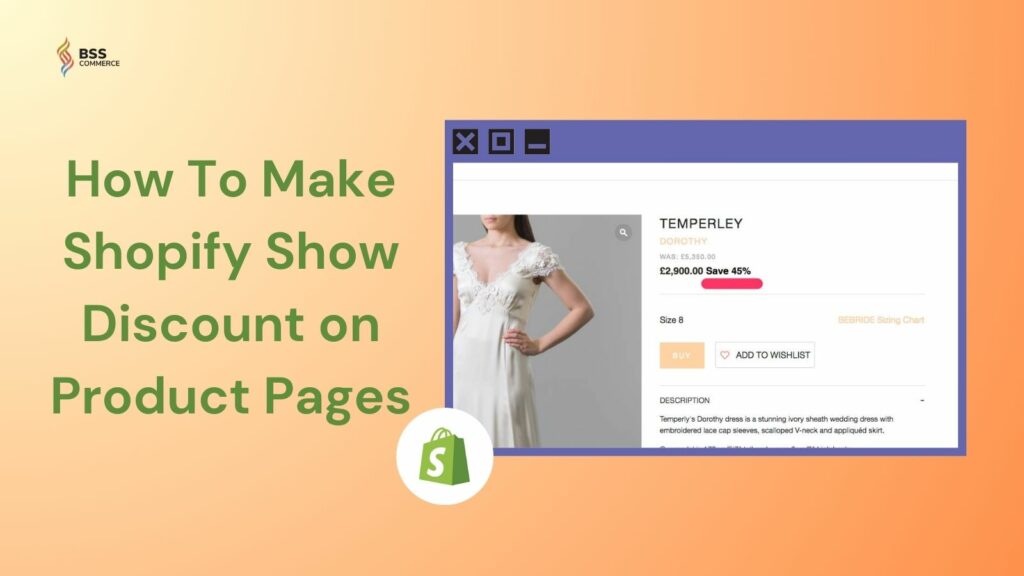
Despite being the leading e-commerce platform, Shopify does have its own problems. A common issue encountered is discount visibility. Discounts can appear on all sorts of pages except for the product page or product price. Such inconsistency restricts visitors from seeing promotions and could somehow affect conversion rates. In this article, we will show you the 4 easy methods on how to make Shopify show discount on product pages.
Why Showing Discounts on Shopify Product Pages Matters
Discounts and promotions are time-tested, highly effective marketing strategies. Its impact on sales boosting and conversion rate optimization is evident. For example, most shoppers agree that they will purchase a product if there is a discount. And the likelihood can go up to 99% if the discount rate is 50%.
Below are the reasons why you should make the discounts visible on the product page:
- To create a sense of urgency and encourage purchases.
- To add up to the perceived value of the product.
- To build trust and show transparency in pricing.
- To promote product discovery during seasonal or flash sales.
How to Show Discount on Product Page Shopify
On Shopify’s community forum and support threads, we’ve seen countless questions on how to show discounts on product pages in Shopify. In the following section, we will show you the 4 common fixes.
Method 1: Utilizing Built-In Compare at Price
When it comes to product discounts, Shopify has its own built-in features like Automatic Discount and Compare at Price. Although the first option is more often used, the case where it fails to reflect the price change on the product page is fairly common.
Compare at Price, on the other hand, showcases price drops visually across different pages better, including product and collection pages. This tool is also basic, easy to use, and works well with most Shopify themes right out of the box.
However, it’s important to be aware of the lack of depth. In other words, besides displaying a static price comparison, you cannot schedule promotions, apply advanced rules, or edit pricing in bulk.
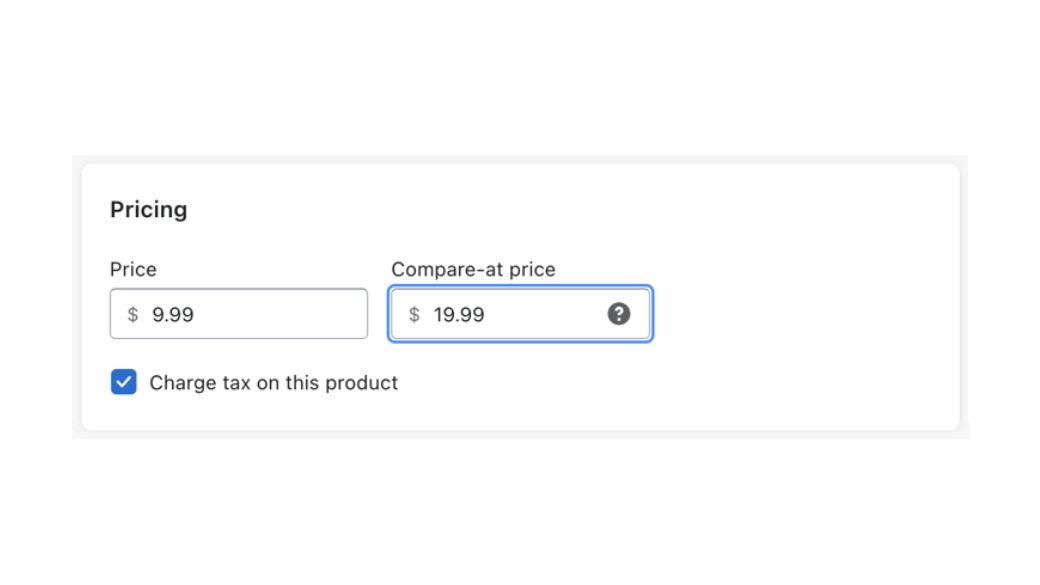
Here’s how you can use the Compare at Price feature to show discount on product page Shopify:
- Step 1: Go to Shopify Admin > Products.
- Step 2: Select a product that you want to show a discount on.
- Step 3: Fill the original price in the Compare at Price field under the Pricing section.
- Step 4: Set the Price to the actual discounted price.
- Step 5: Save changes and double-check.
*Please note that the Compare at Price field won’t appear at the main product level if the product has multiple variants. In that case, try to click on the specific variant to set it up.
Method 2: Customizing Theme Code to Display Discount Percentages
Another way to make Shopify show discount on product pages is to modify the theme code. Every Shopify theme has an editable structure within the theme editor. Essentially, you access and customize HTML and Liquid files within and add the % OFF sales label. However, you will have to set up the Compare at Price value first.
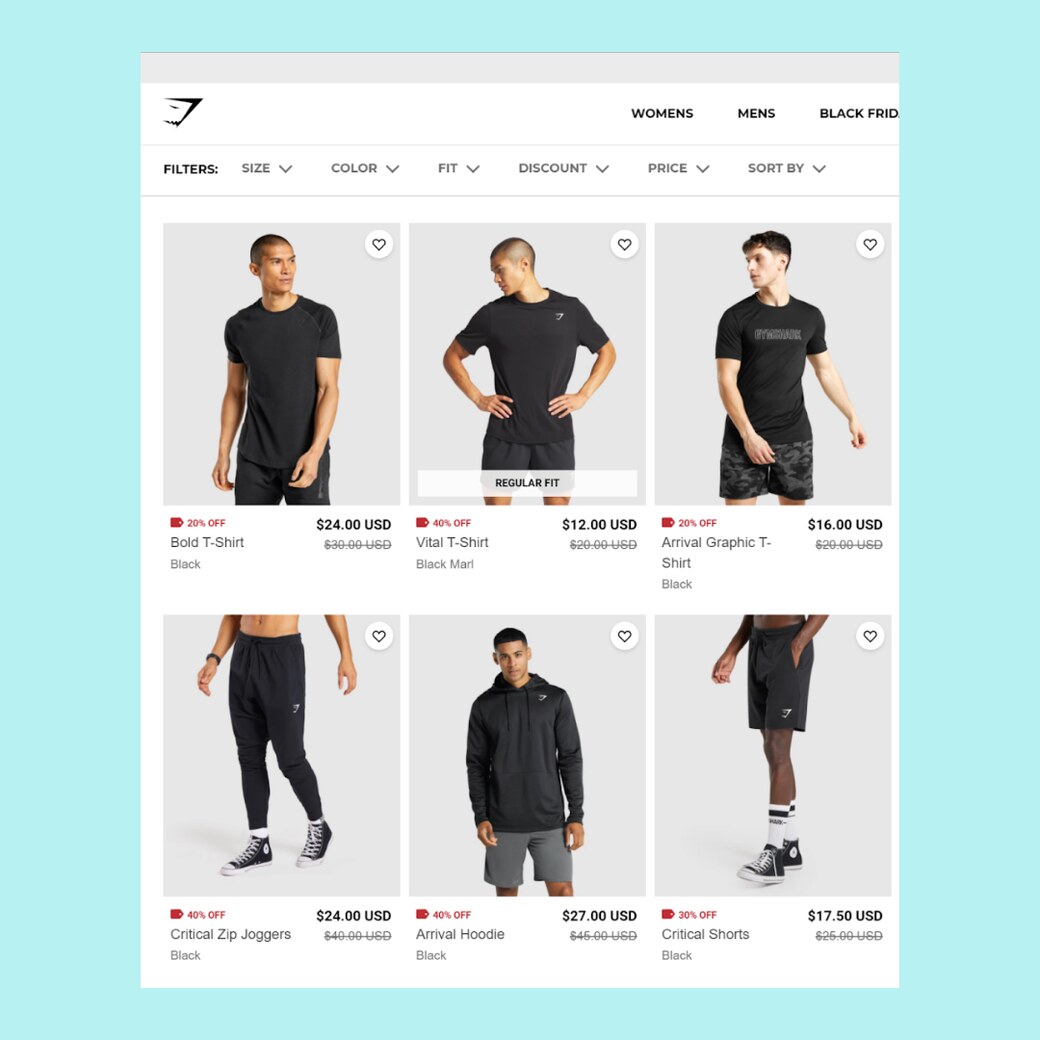
What’s interesting about this method is that it offers a broader and more flexible level of customization. Yet, non-technical users can find it a bit frustrating, as it involves a basic understanding of Liquid syntax. A small mistake in the code structure can break the layout.
Here’s a guide on how to make Shopify show discount price on product page using the default Dawn theme:
Step 1: Go to Shopify Admin > Online Store > Themes.
Step 2: On your current live theme, click on the three-dot symbol (⋯) > Edit code.
Step 3: Open the snippets folder and select the price.liquid file.
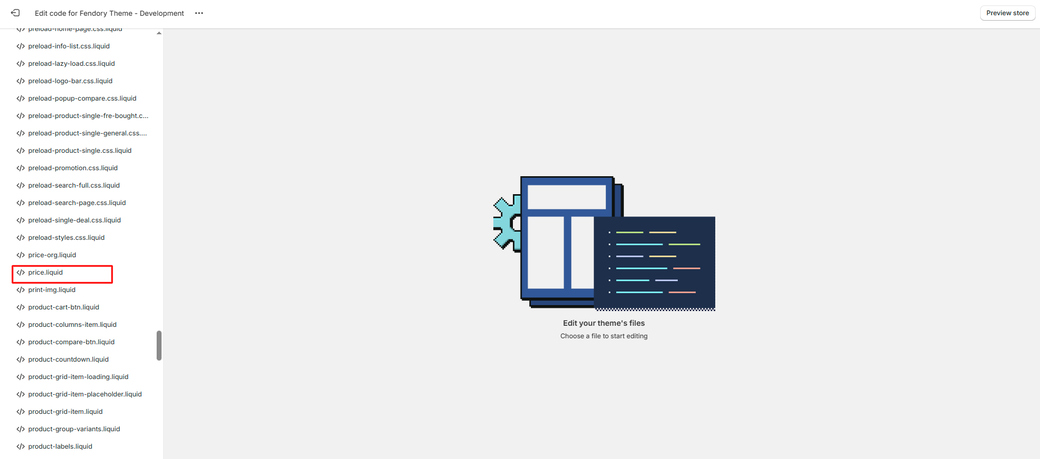
Step 4: Search for the following default Sale badge block (this block is around line 120):
<span class=”badge price__badge-sale color-{{ settings.sale_badge_color_scheme }}”>
{{ ‘products.product.on_sale’ | t }}
</span>
Step 5: Replace the Sale badge block with the new code:
{%- if compare_at_price > price -%}
{% assign discount = compare_at_price | minus: price | times: 100.0 | divided_by: compare_at_price | round %}
<span class=”badge price__badge-sale color-{{ settings.sale_badge_color_scheme }}”>
{{ discount }}% OFF
</span>
{% endif %}
{% comment %}
<span class=”badge price__badge-sale color-{{ settings.sale_badge_color_scheme }}”>
{{ ‘products.product.on_sale’ | t }}
</span>
{% endcomment %}
Step 6: Save and review the changes.
Overwhelmed by tech, apps, and confusing settings? Our Shopify Store Setup Service gives you a fully branded store that works perfectly from day one, starting from just $500. Learn more to see how easy it can be.
Method 3: Using Shopify Apps to Display Discounts
You can also use third-party apps to make Shopify show discount product page. Shopify has this vast app ecosystem that supports merchants. You can find and install various tools for pricing, promotions, and product display.
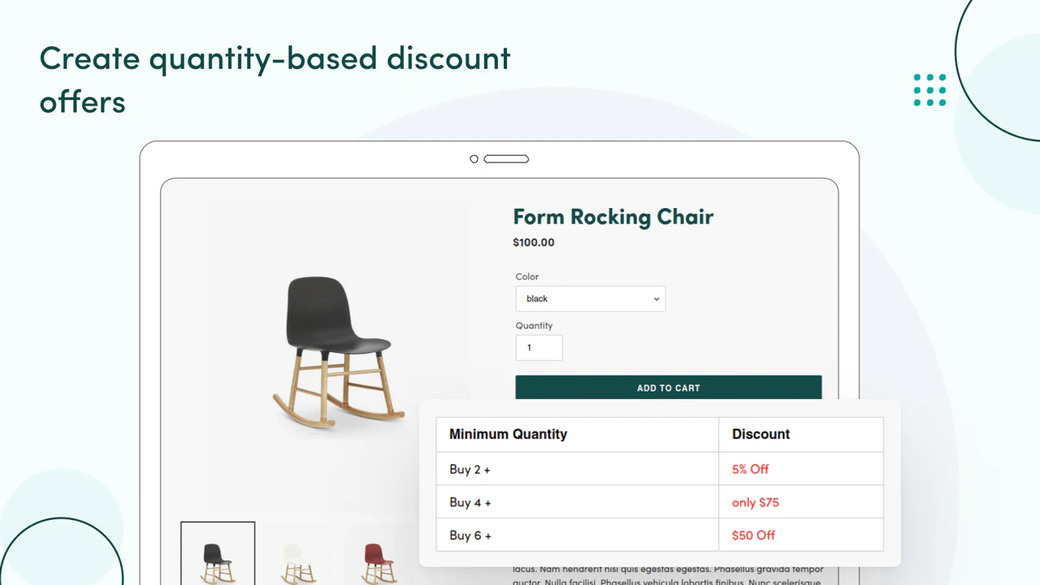
What’s great about this approach is that it’s hassle-free and convenient. Many of these apps allow you to automate discount logic, schedule campaigns, display countdown timers, and show % OFF badges without touching a single line of code. The trade-off is cost. Most high-functioning apps come with a monthly fee or freemium.
How to pick the right app? We recommend you look for the following features:
- Live % OFF display on product and collection pages
- Bulk discount management to update multiple SKUs at once
- Scheduling tools to run limited-time campaigns
- Targeting options for specific products, tags, or customer segments
- Good reviews and responsive support
Below are some of the best Shopify discount apps thus far:
BSS: Product Labels & Badges
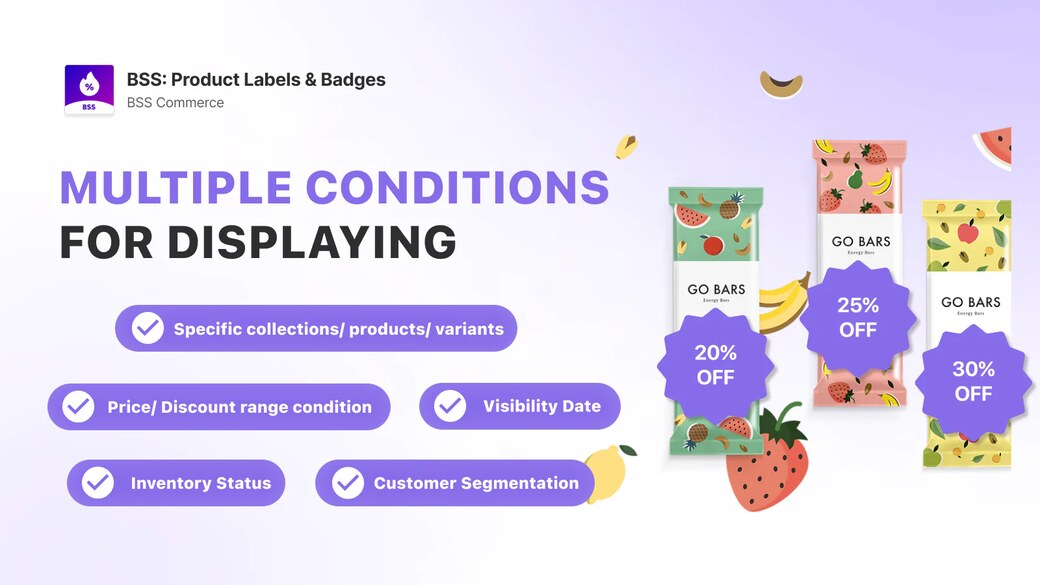
BSS Product Labels & Badges makes it super easy to highlight discounts and promotions. This free Shopify discount app has this intuitive, no-code interface that lets you control how and where badges appear. The vast pre-made designs and custom upload options allow you to create and show off your offerings with bold, eye-catching badges and labels.
Features:
- Dynamic % OFF badges based on real-time pricing
- Pre-made designs or custom label upload
- Smart display rules by product tag, price, or stock
- Fully compatible with most Shopify themes, including 2.0
Pricing:
- Free forever
- PRO PLAN: $9/month
- ADVANCED PLAN: $19/month
- PLATINUM PLAN: $29/month
Rating: 4.9/5 ⭐️ based on 1300+ ratings.
Rockit Sales & Discounts
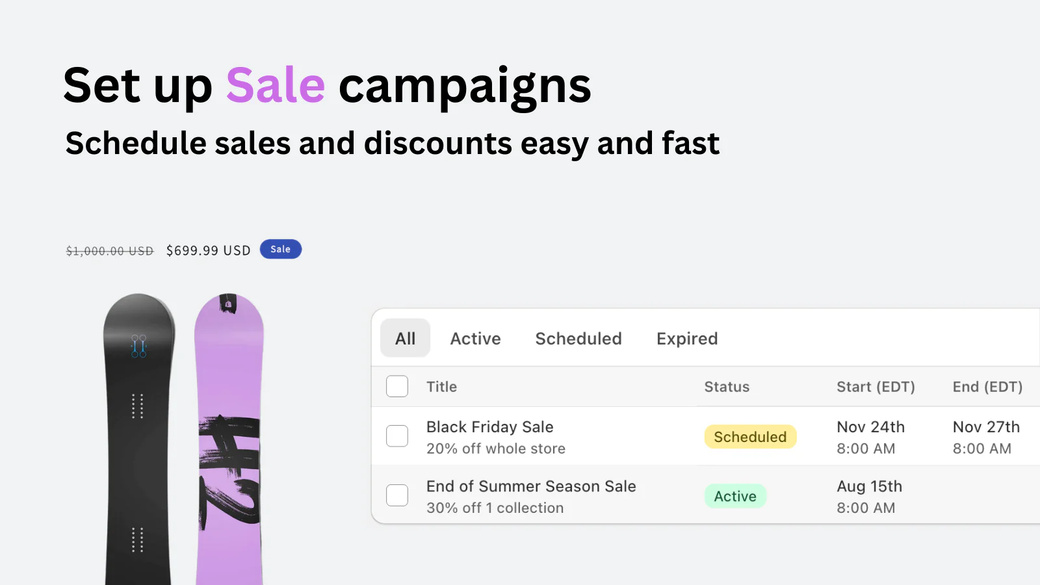
When it comes to a plugin that can make Shopify discount on product page, Rockit Sales Discounts never fails. This tool focuses on bulk discount scheduling and price automation. You can apply percentage or fixed discounts to individual products, collections, or your entire store. Alongside is the option to schedule start and end times and add countdown timers to create urgency.
Features:
- Bulk apply percentage or fixed discounts
- Schedule sales with automatic start and end times
- Display countdown timers on product pages
- Exclude specific products or collections from discounts
- Advanced filtering by tags, vendors, or categories
Pricing:
- Free
- Starter: $7.99/month
- Plus: $12.99/month
- Professional: $29.99/month
Rating: 4.9/5 ⭐️ based on 300+ ratings.
Klip Coupons: Discounts & BOGO
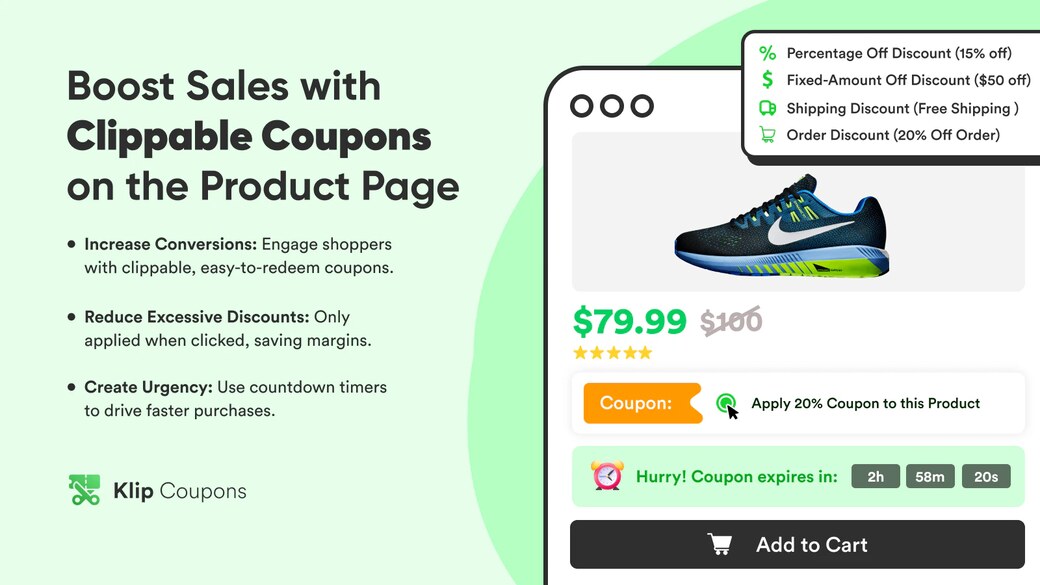
Another trusted Shopify discounts app is Klip. This tool offers an intuitive way to add clippable coupons directly on product, collection, and cart pages. It also supports coupon customization, the inclusion of countdown timers, and BOGO (Buy One Get One) promotions.
Features:
- Clippable coupons on product, collection, and cart pages
- Customization options for coupon appearance.
- Countdown timers setup
- BOGO and free gift offers
- Discounts targeting based on customer segments or UTM parameters
Pricing:
- Free
- Growth: $14.99/month
- Advanced: $29.99/month
- Professional: $59.99/month
Rating: 5.0/5 ⭐️ based on 100+ ratings.
Method 4: Displaying Automatic Discounts Without Compare at Price
This method involves using Shopify’s built-in Automatic Discount system. As we’ve covered, a common limitation is that automatic discounts don’t usually appear on the product page by default. But with a bit of theme code editing, you can make Shopify show the discount on the product page directly under the product price.
Those who don’t have the Compare at Price value can refer to this method as a workaround. But please be aware that the implementation is slightly more technical and takes some time. Also, the strike-through price won’t appear.
Here’s how to do it on the default Dawn theme:
Step 1: Set up your Automatic Discount
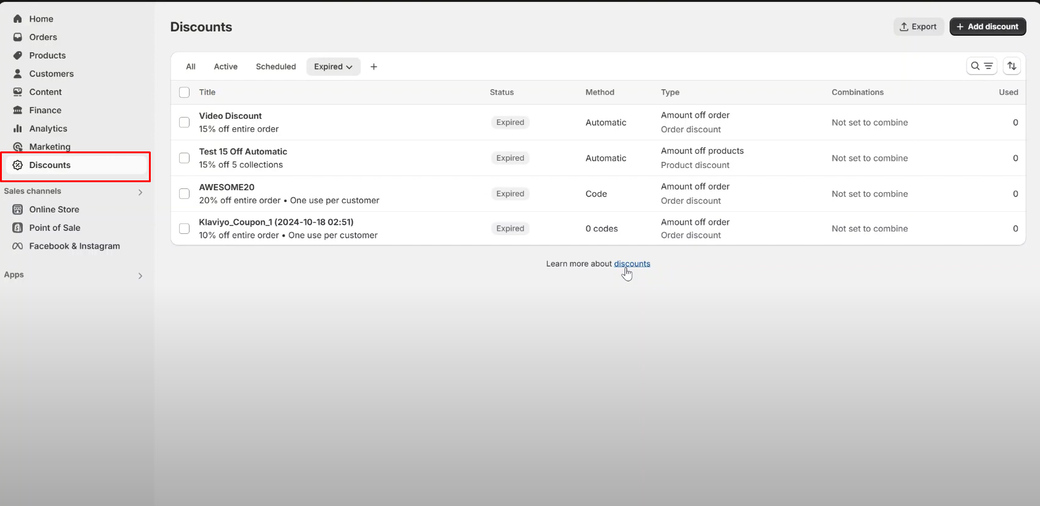
- Go to Shopify Admin > Discounts > Add Discount
- Select the discount type
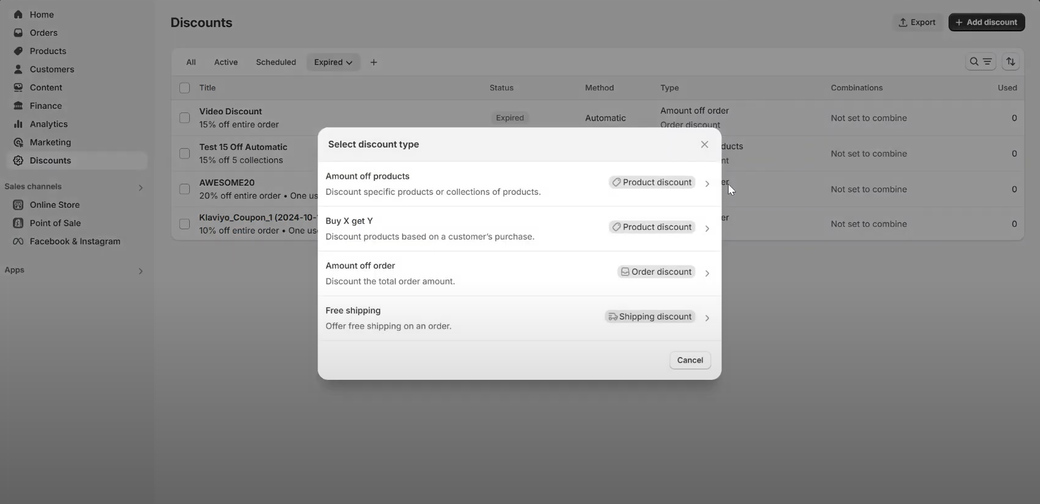
- Set conditions
- Save your settings
Step 2: Edit your theme’s product page layout
- Go to Online Store > Themes > … > Edit code
- Find the snippets folder and open price.liquid inside
- Scroll down to around line 22. You should see a line similar to this:
assign target = product
endif
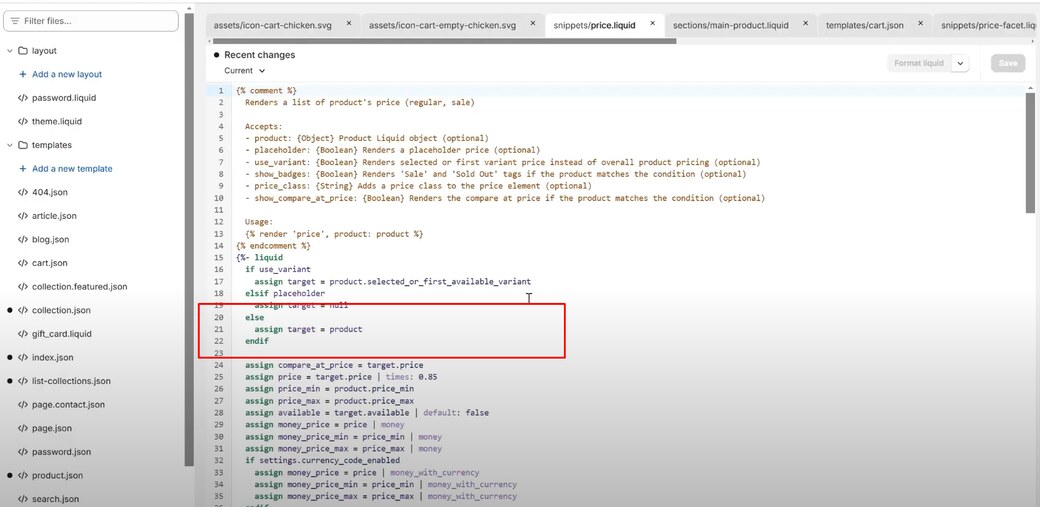
Step 3: Insert new scripts to fetch and display the discount
Below those lines, paste the following two lines of code:
assign compare_at_price = target.price
assign price = target.price | times: {{number}}
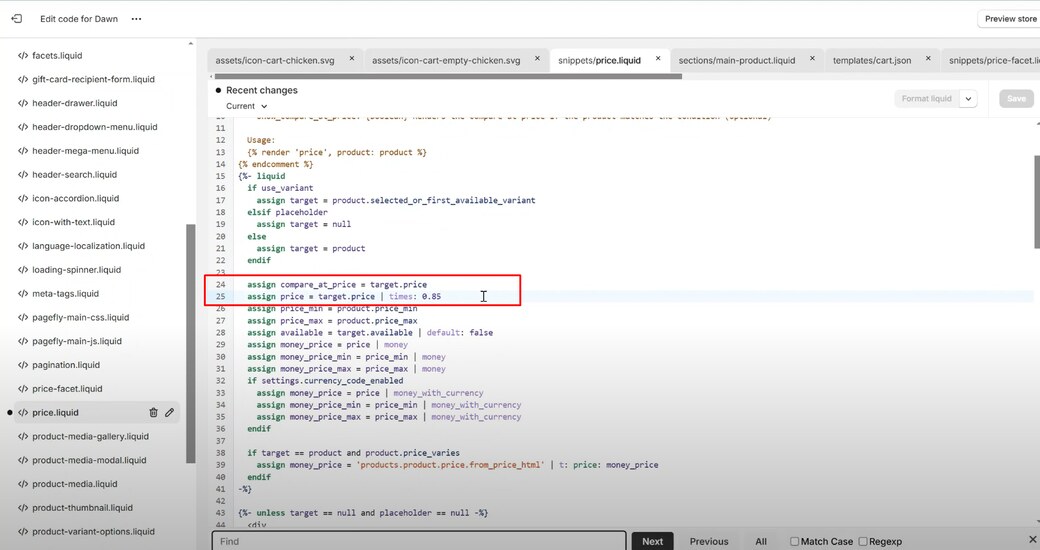
In which:
- target.price is the product’s original price.
- compare_at_price is set to the original price to act as the reference for the sale. For example, you’re simulating an automatic 15% discount. Then, you would multiply target.price by 0.85, which becomes the displayed sale price.
Step 4: Verify changes
- Save the file.
- Click Preview store to double-check. The discounted price should now appear on featured product grids, individual product pages with a sale badge, and the cart.
If adjusting theme code or figuring out how to make discounts show up properly feels like too much, that is completely normal. Many merchants run into the same issue and choose to get support from someone who knows the system inside and out. Our Shopify Store Setup Services is here to help you handle these small but important details, so your store looks polished and works the way it should from the beginning.
Shopify Show Discount on Product Pages: Best Practices
Below are some tips and tricks to help you make use of the discount display in a more effective way:
- Display discounts prominently. For the best conversion result, place your promotions above/below the price.
- Use urgency phrases to push sales. Strong callouts like “Limited Time Offer” or “Sale Ends Soon” have been proven to increase conversion rates by up to 32%.
- Optimize product pages with discount keywords for SEO. Use discount-related keywords and SEO-friendly terms like “% off,” “on sale,” “limited-time discount,” and “shop now.”
In case you’re looking to further enhance your product page, consider adding custom text fields, product variants, and personalized promotions. Such apps as OPTIS Product Options can support you with that.
Common Discount Display Issues and How To Fix
When troubleshooting how to show discounts on Shopify product pages, we’ve come across a lot of queries on why the discount isn’t visible, why it disappears on mobile, or why apps don’t apply correctly. This section explains them all and shows you how to resolve them quickly.
1. Discounts not showing
This happens when you use Shopify’s Compare at Price or Automatic Discounts. Recheck that the Compare at Price is higher than the regular price. Also, confirm you placed the discount logic inside the correct Liquid file (price.liquid).
2. App conflicts with theme code
Many Shopify apps insert their own scripts or blocks. Such snippets may not always play well with custom themes or heavily edited layouts. The optimal solution is to test the app on a duplicate theme first. This helps isolate conflicts without disrupting your live store.
For recurring issues, reach out to the app developer for further support.
Final Thoughts
That concludes our guide on how to make Shopify show discount on product pages. You may want to test out all the methods to determine which best suits your store. Find our article helpful? Feel free to check out BSS Commerce for more Shopify tutorials and eCommerce insights.

Finn Nguyen
Finn is a Shopify expert with 5+ years of experience helping new business owners launch and grow online stores. Specializing in store setup, theme selection, and optimization, he provides practical guidance to turn ideas into successful eCommerce businesses