How To Add Sub Collections In Shopify: A Step-by-step guide 2025

Shopify is well-known for being easy to use, even if you don’t know the techniques or technology. However, some features will take a while for you to know how to do and easily go wrong if you are inexperienced. Thus, this article will save you time and effort, detailing how to add sub collections in Shopify for your store.
Sometimes, you need to know how to tailor the platform to meet our specific requirements and needs. Sub-collections are things that make your shop different from the other Shopify stores. They are used to organize site structures so that those child collections are nested in parent collections. These child collections are referred to as Shopify sub collections.
How to Add Sub Collections in Shopify: Step-by-Step Guide
This article will summarize the 2 most popular and easiest ways to create Shopify subcollections for you. Each method will have its pros and cons; read and choose the one that best suits you.
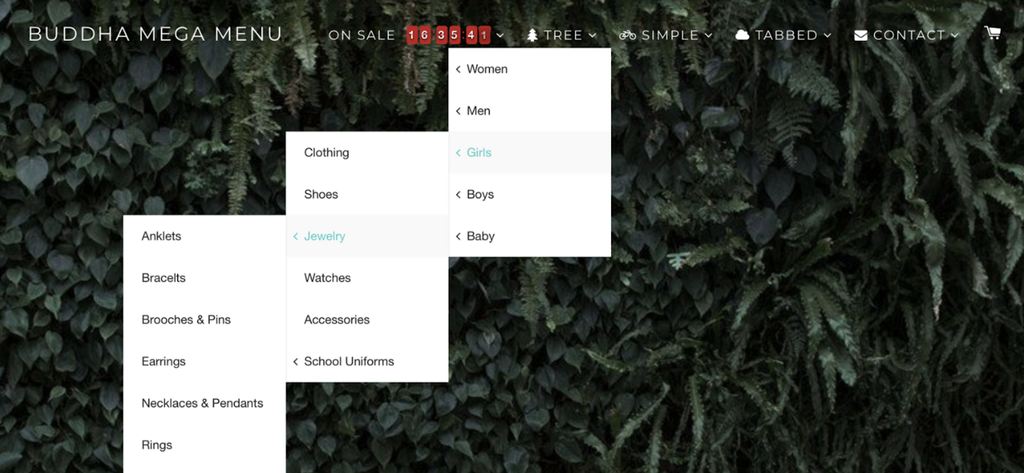
#1. Create Shopify Sub Collections with the Navigation Menu
“How to create sub collections in Shopify” or “How to add sub collections in Shopify” is the problem many people concern about when starting their Shopify online business. The first and also the simplest way doesn’t require you to know any techniques. All you have to do is just a few clicks, and you will have Shopify nested collections as you like.
With the admin panel, you can easily change the website’s structure and its visual appearance. Go to the “Navigation” section and perform these actions.
To create sub collections Shopify, you should take the following steps:
Step 1: Log into the Shopify store
First, log into the Shopify store with your credentials. If you don’t have one, create a Shopify store for free and enjoy it for $1/month in the first 3 months.
Step 2: Create collections
You need to set up collections first. Start with broad, parent collections, then create more specific subcollections.
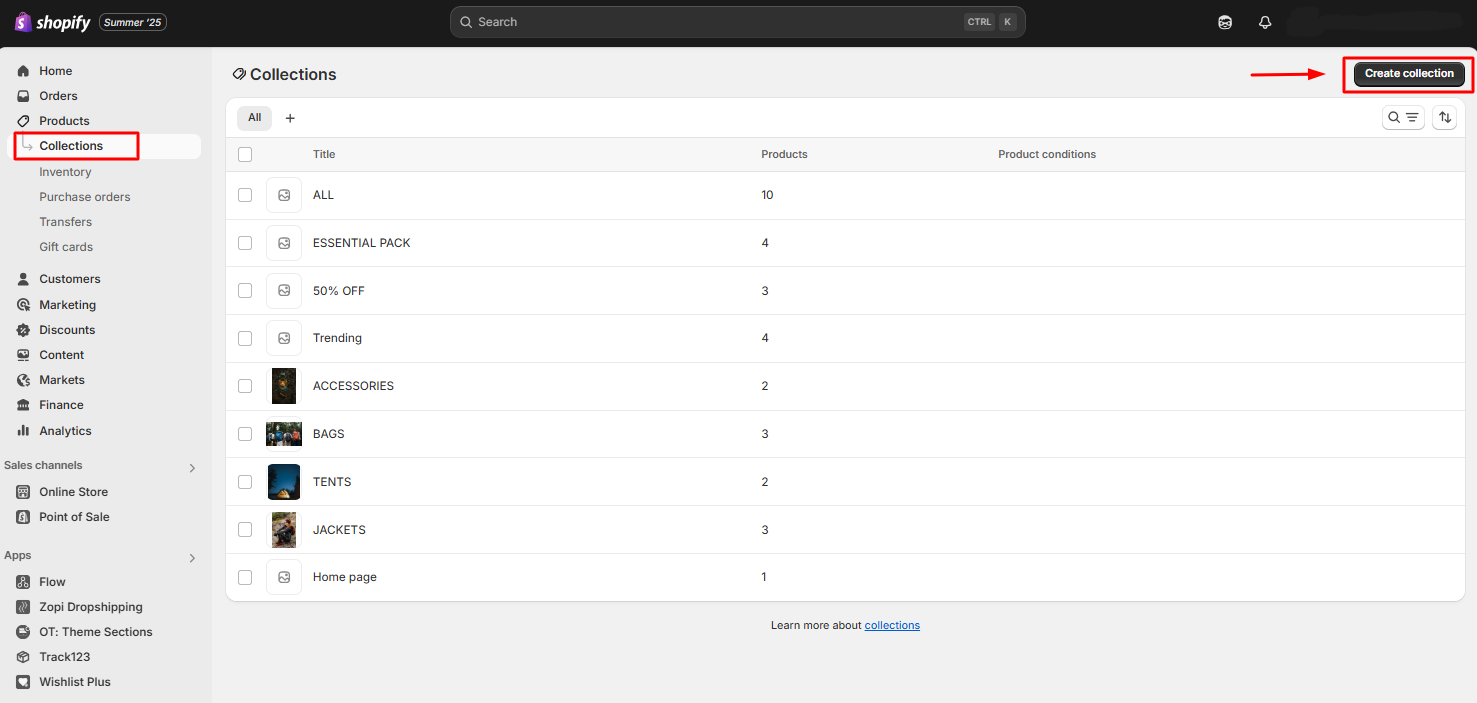
Step 3: Click on the “Navigation” (Menu)
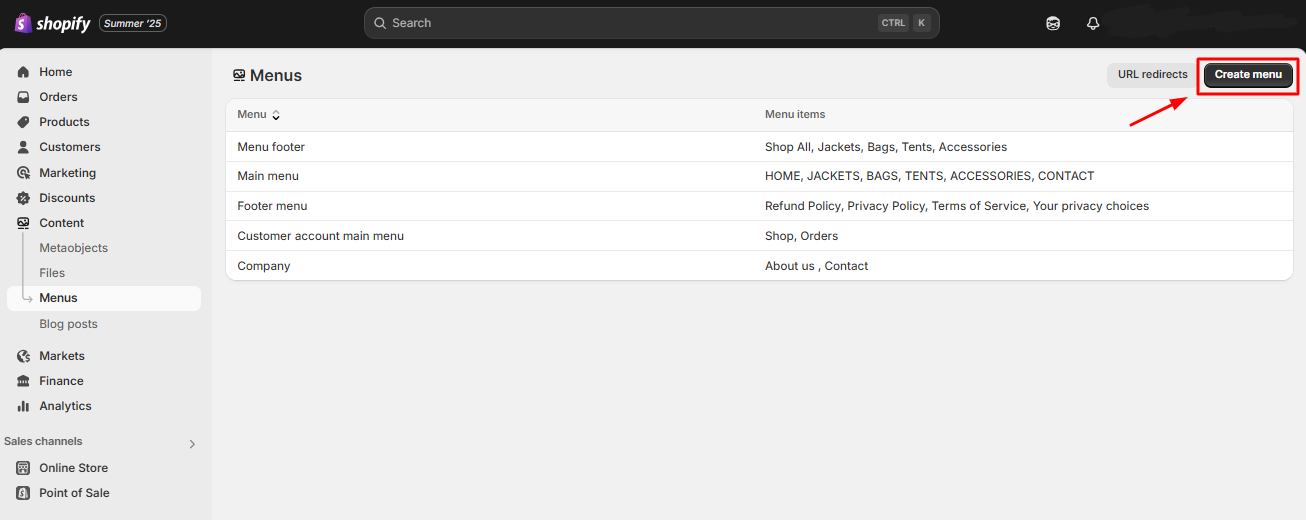
After successfully logging in, click on the “Content” > “Menus” section.
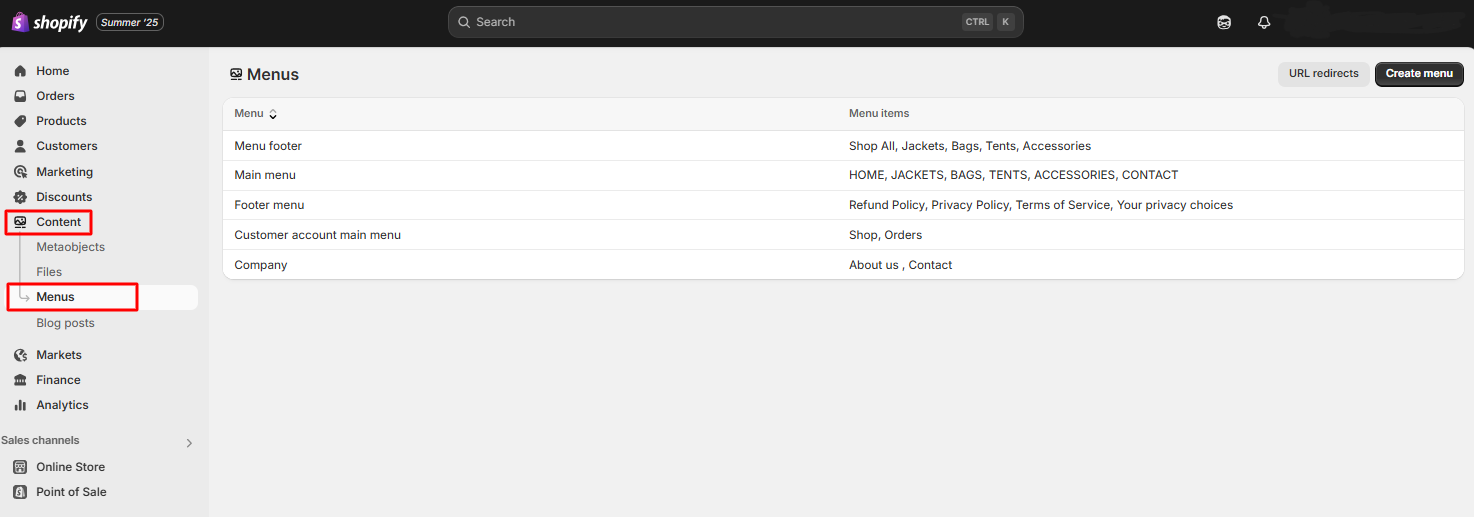
Step 4: Click on “Create”
In this step, there are two cases:
If you have already created the menu option, you can edit it and skip this step. In this case, all you need to do is click on it and go to the menu editing page.
If you don’t yet have the main menu, you need to click on the “Create menu”.
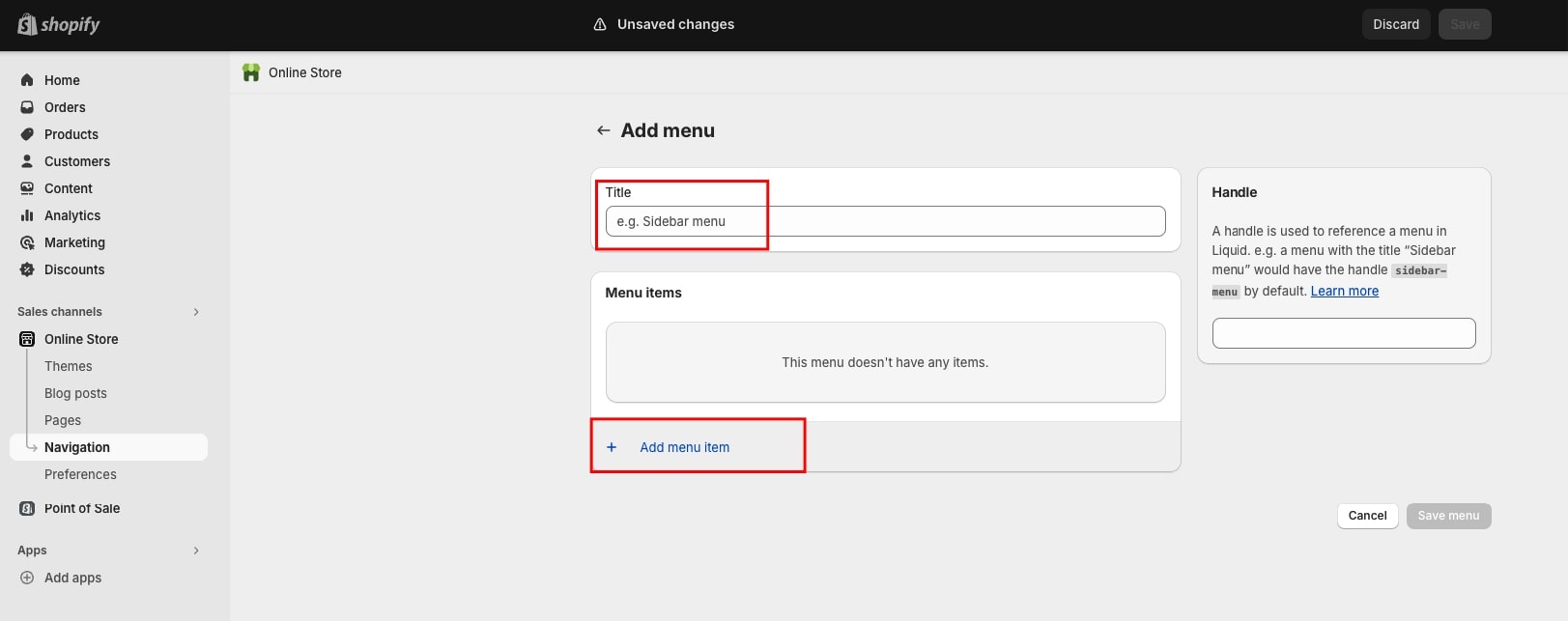
Step 5: Add Titles & menu items
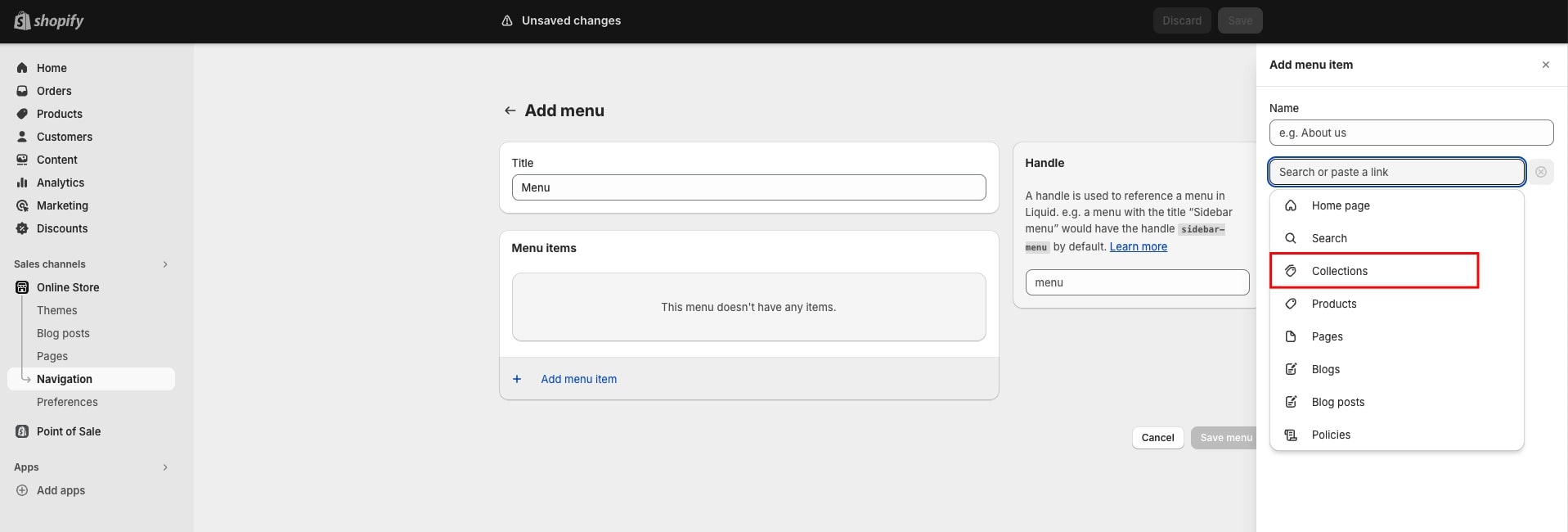
In step 4, you need to add menu collections. First, you give it a “Title” for your menu. Then click “Add menu item” and select the required collection. Here’s how you create a parent collection.
Step 6: Add more collections
After creating the parent collection, you should add the sub collections Shopify you planned to in the collection tree.
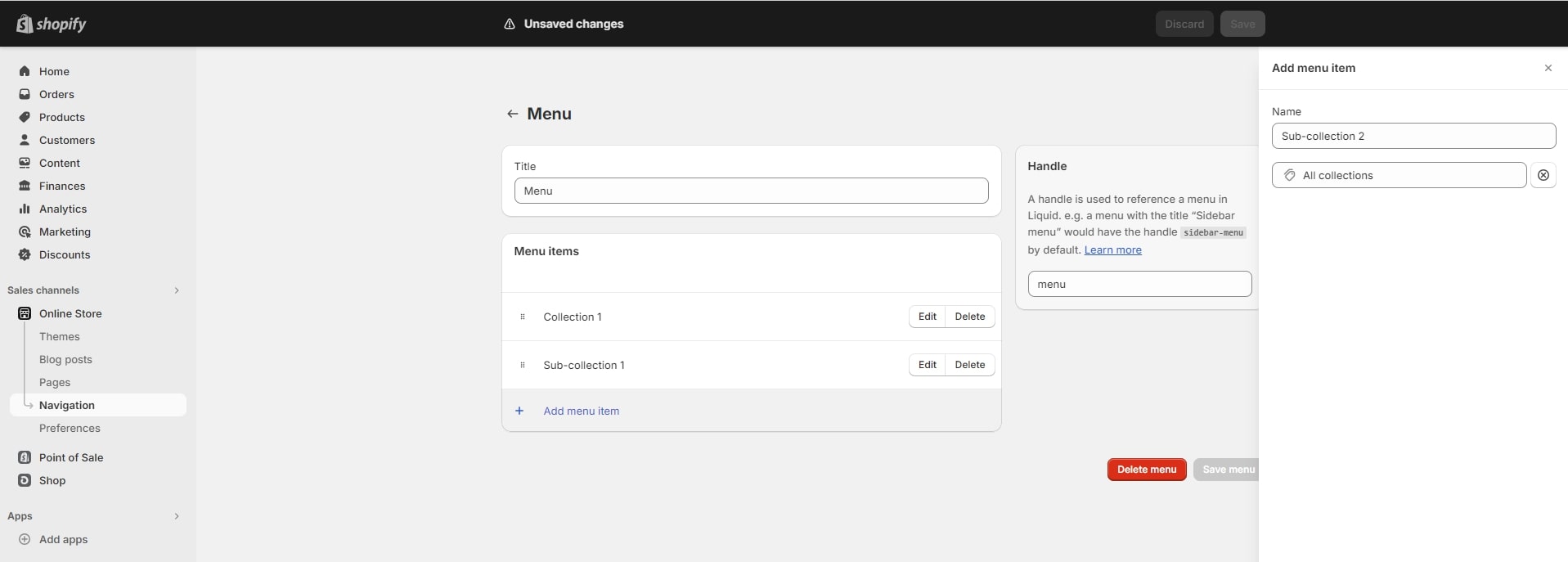
Step 7: Drag the Shopify sub collections
To turn the collections you just added into sub-collections, drag them with your mouse and nest them into the parent collections in the correct order as the collection tree.
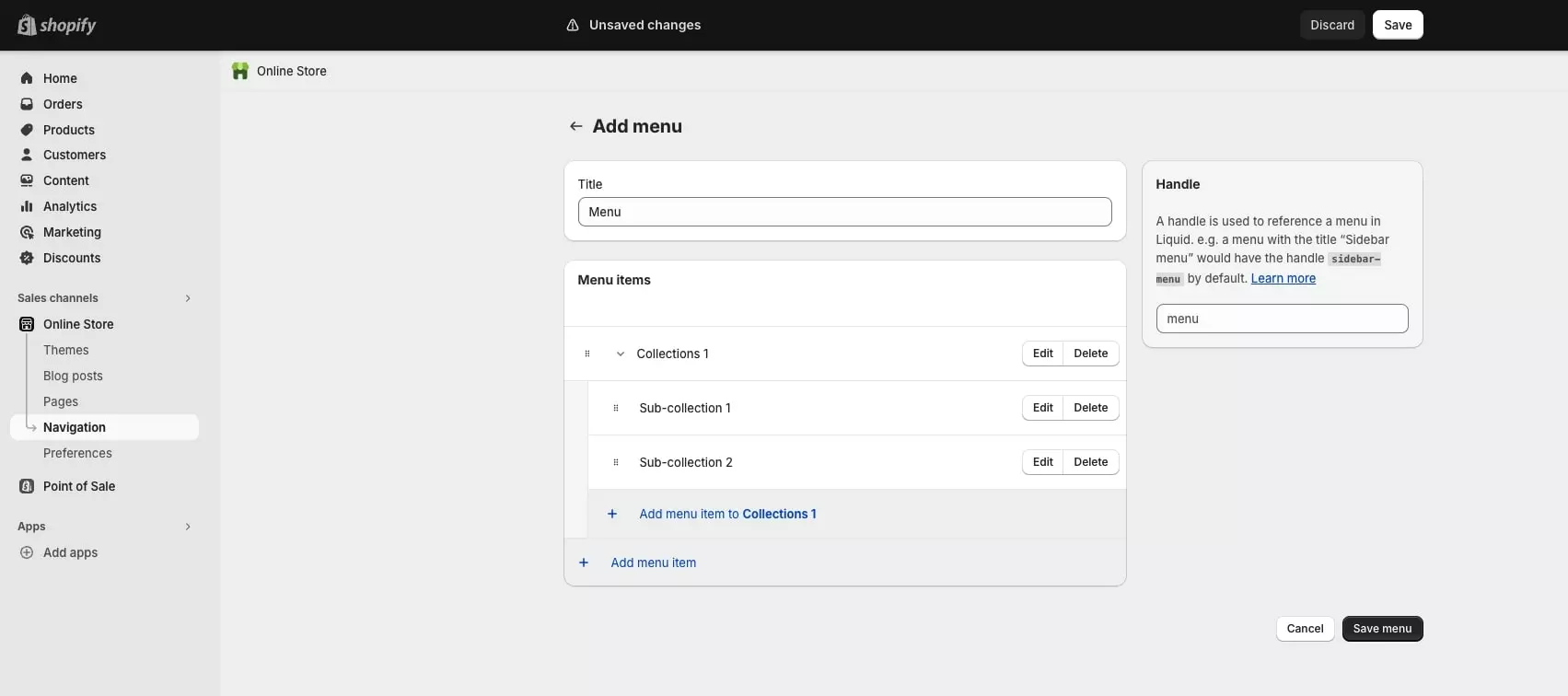
Step 8: Save the menu
And finally, you need to save all the operations performed by clicking on the “Save menu.”
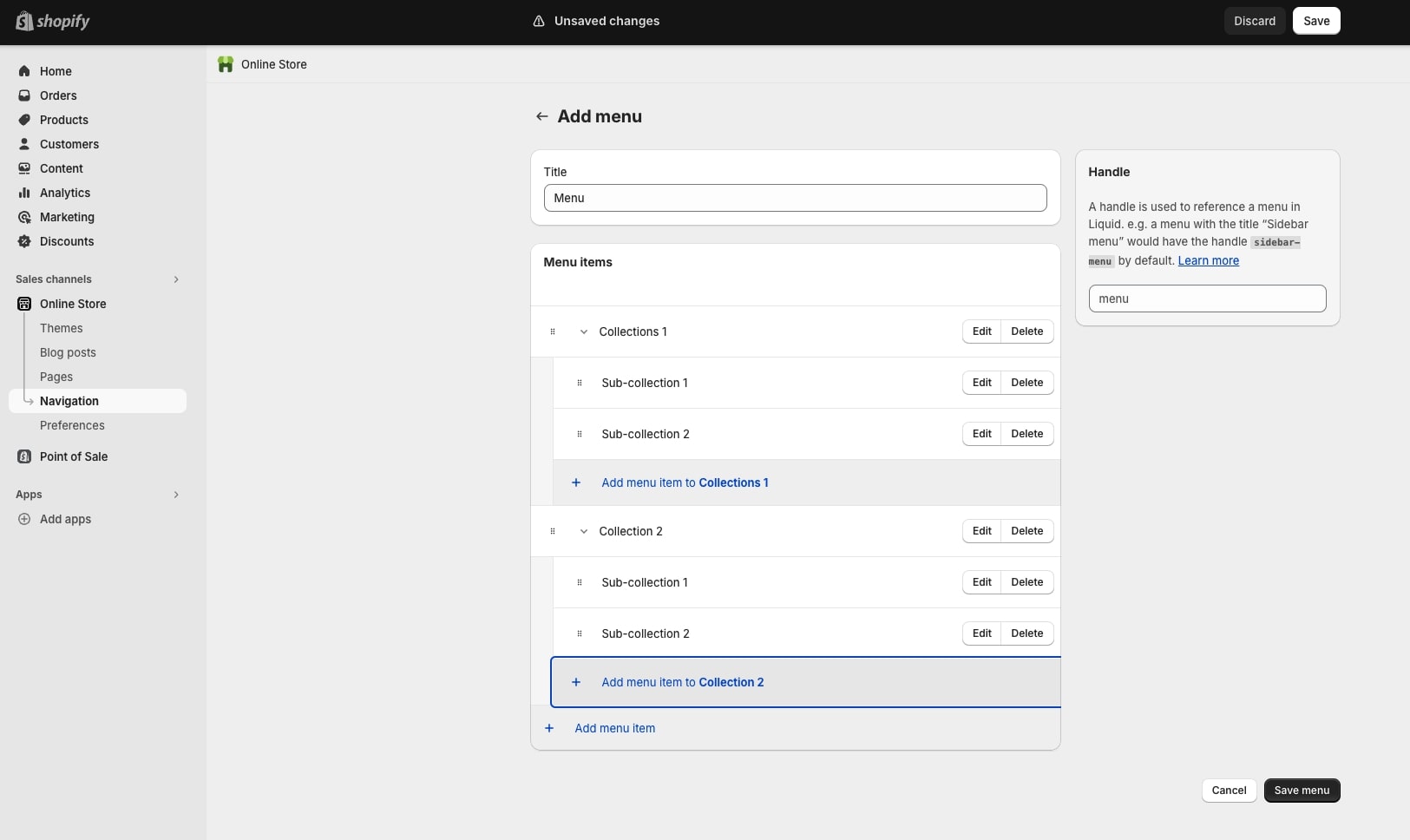
Pros: Quick and easy. You can create menu items and nest necessary collections instead of creating a parent collection.
Cons: There are certain limits; it is difficult to expand opportunities when it comes to sub-categories creation.
💡 Have a great idea for a product but nowhere to sell it? The easiest way to get started is with Shopify. For a limited time, you can launch a professional, sales-generating online store for just $1 a month for your first three months. Here’s how to claim the Shopify 3 months for $1 deal
#2. Create a Sub Collection List on Your Collection Pages with Your Theme
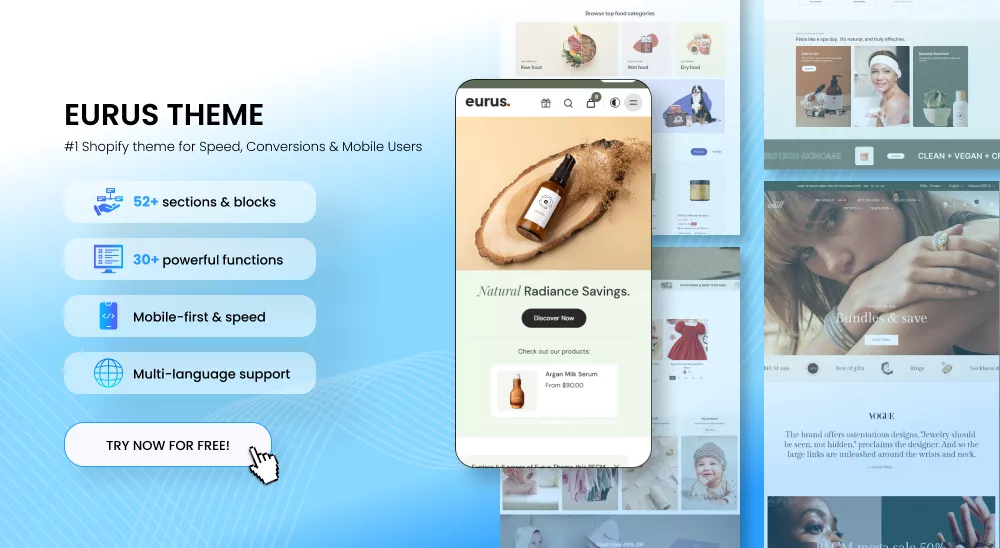
In this section, we will learn how to add sub collections in Shopify on your collection pages within a theme. In this guide, we are using the Eurus Shopify theme.
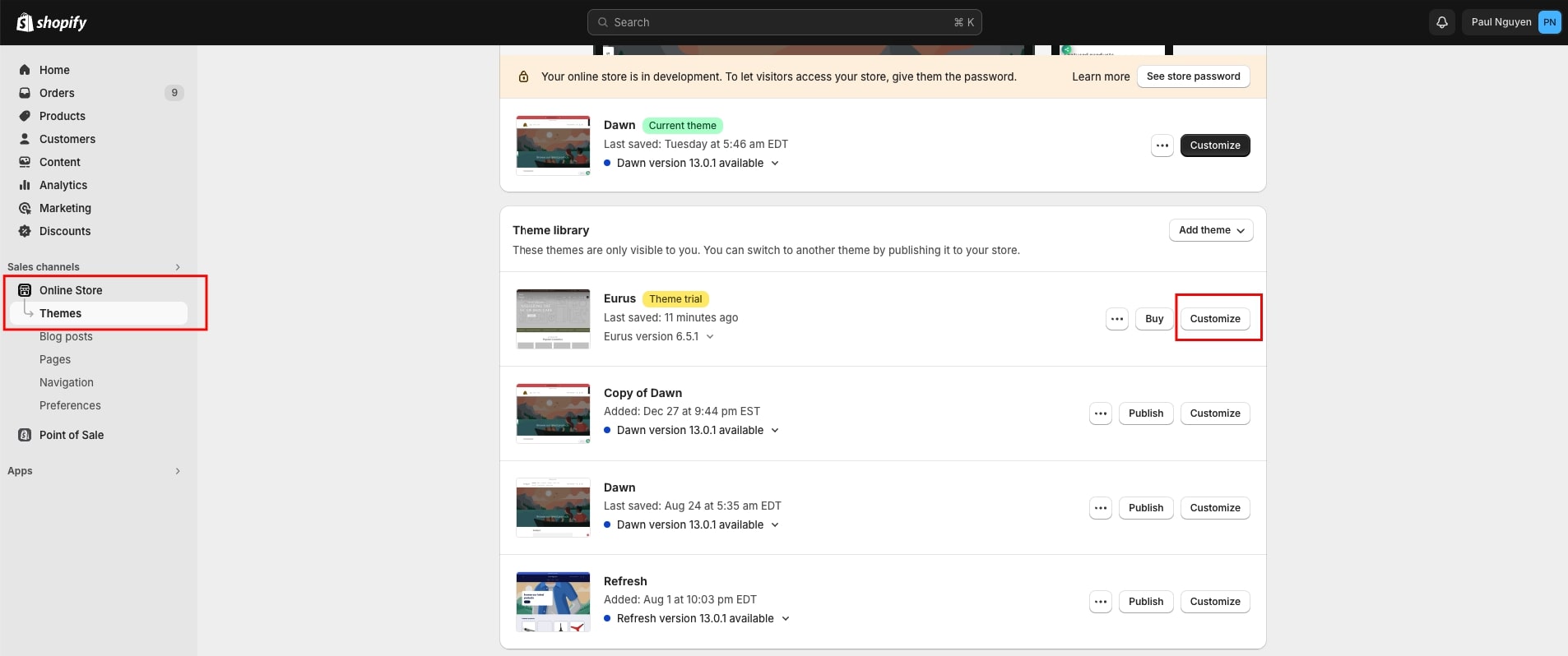
Step 1: Go to ‘Customize Theme’
First, navigate to ‘Online Store’ section, then head to ‘Themes’. Here, you move to the theme you use and click on ‘Customize’ to customize the theme.
Make your store outstanding with Shopify Plus Store Design and Top Development Services
Step 2: Choose ‘Collections’ page
In the header menu, choose ‘Collections’ in the dropdown. Then choose ‘Default collection’ template or any collection page you want.
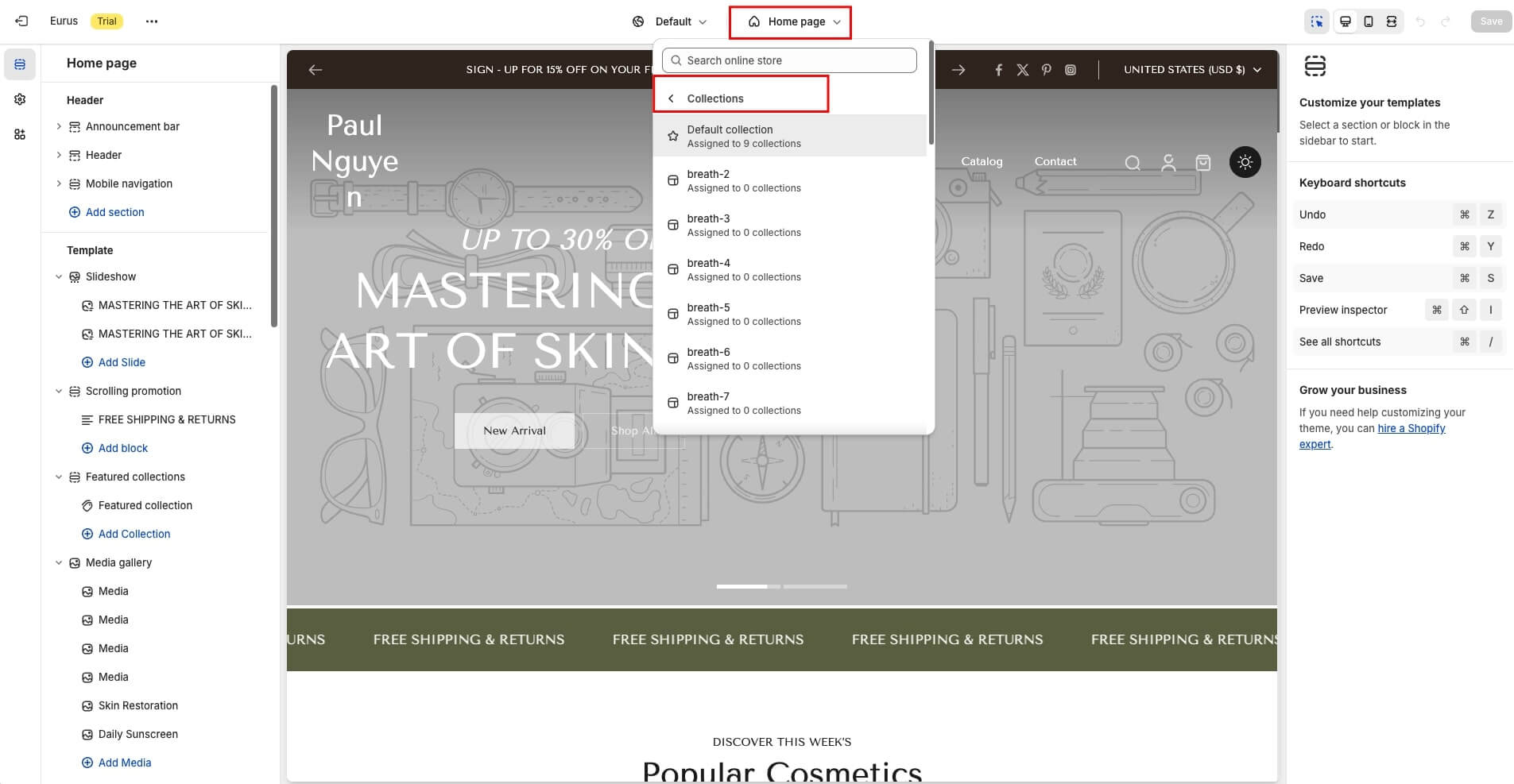
If you want to create a new collection template, click ‘Create template’. Enter the name for the new collection template and click ‘Create template’.
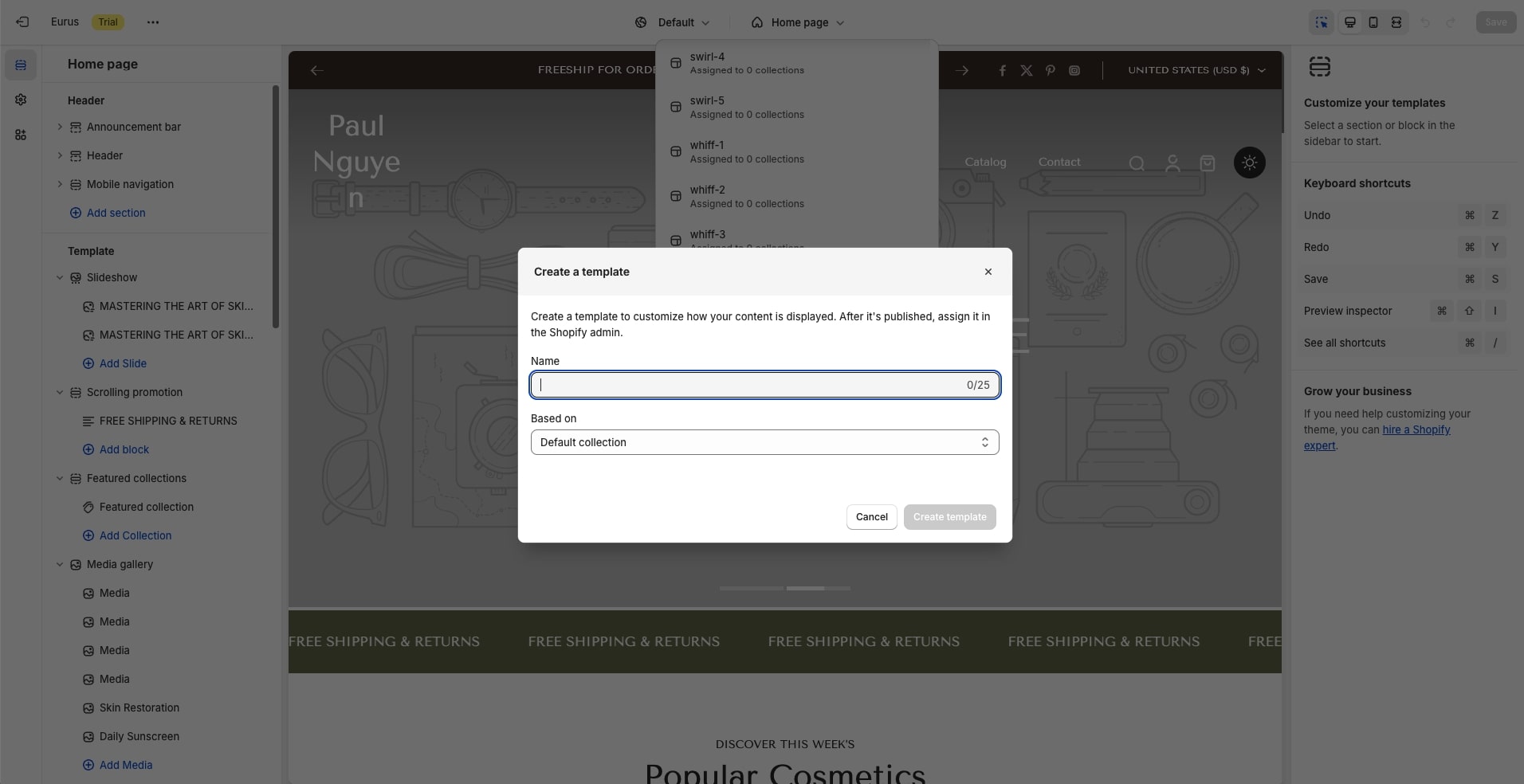
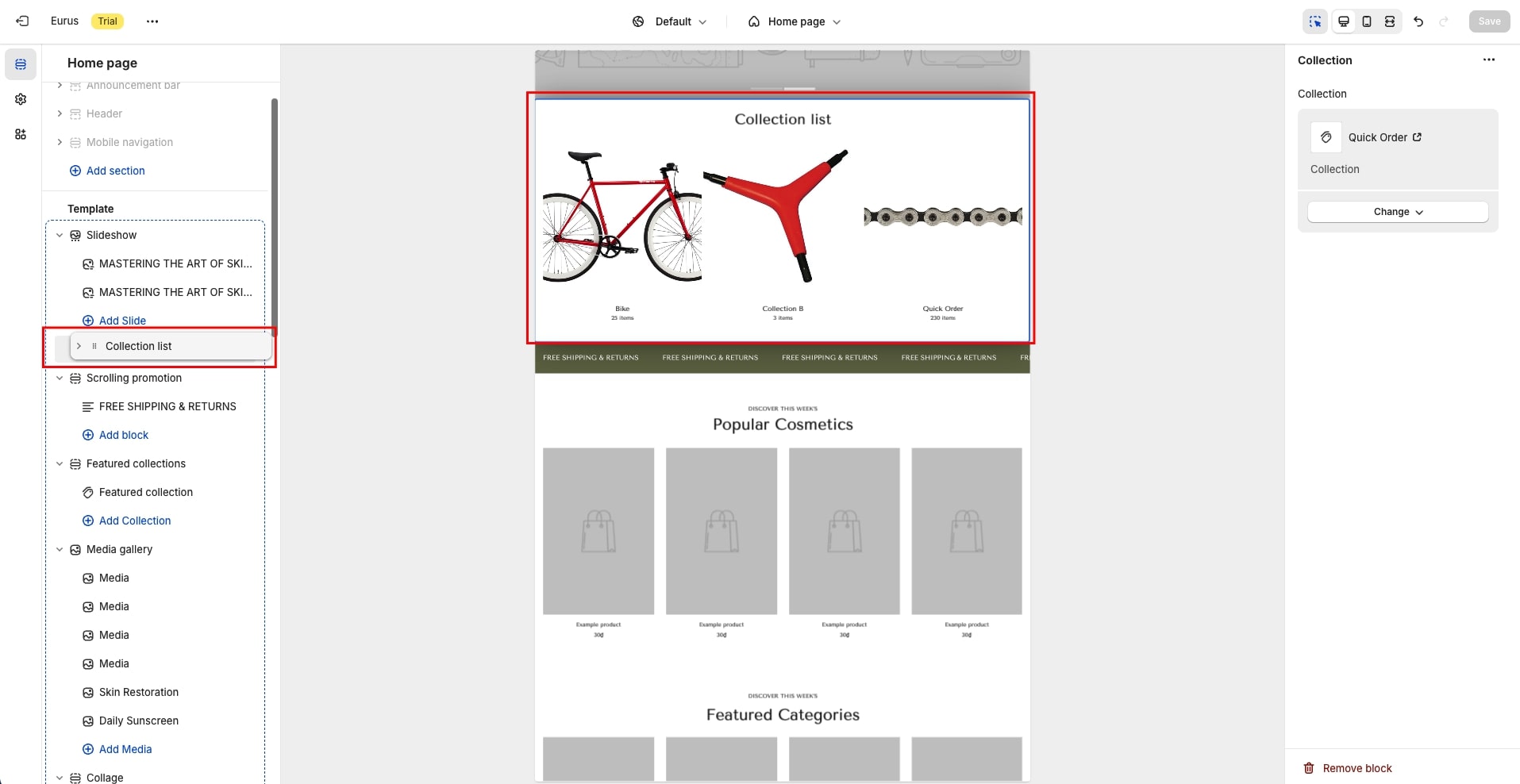
Step 3: Add ‘Collection list’ section
In the Template part, choose Add section > Collection list.
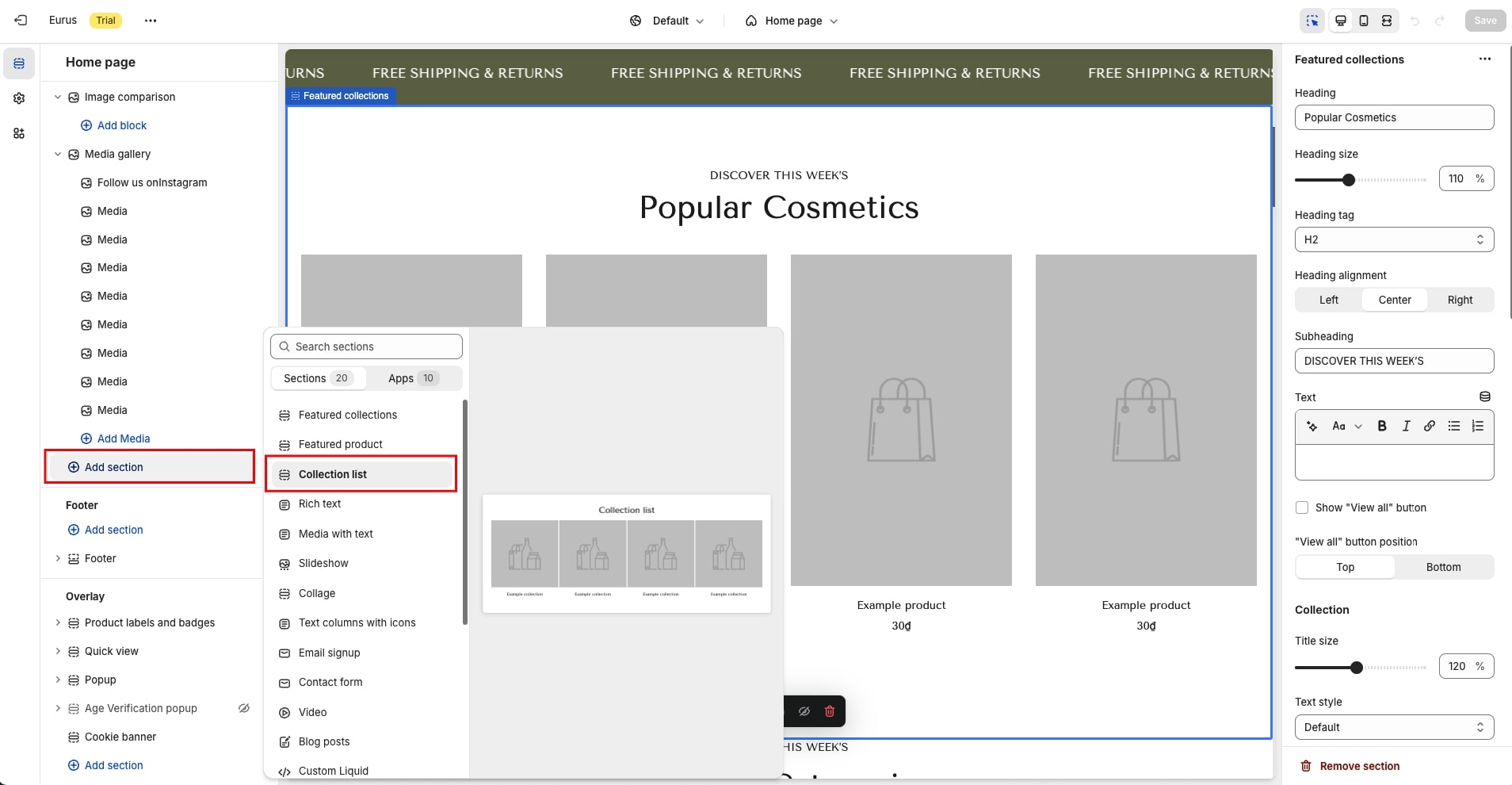
Step 4: Choose ‘Collections’ appeared in the ‘Collection list’
1. Change the ‘Collection heading’.
2. In the Collection list section, you can choose the number of columns to show collections, such as 3, 4, 5,…
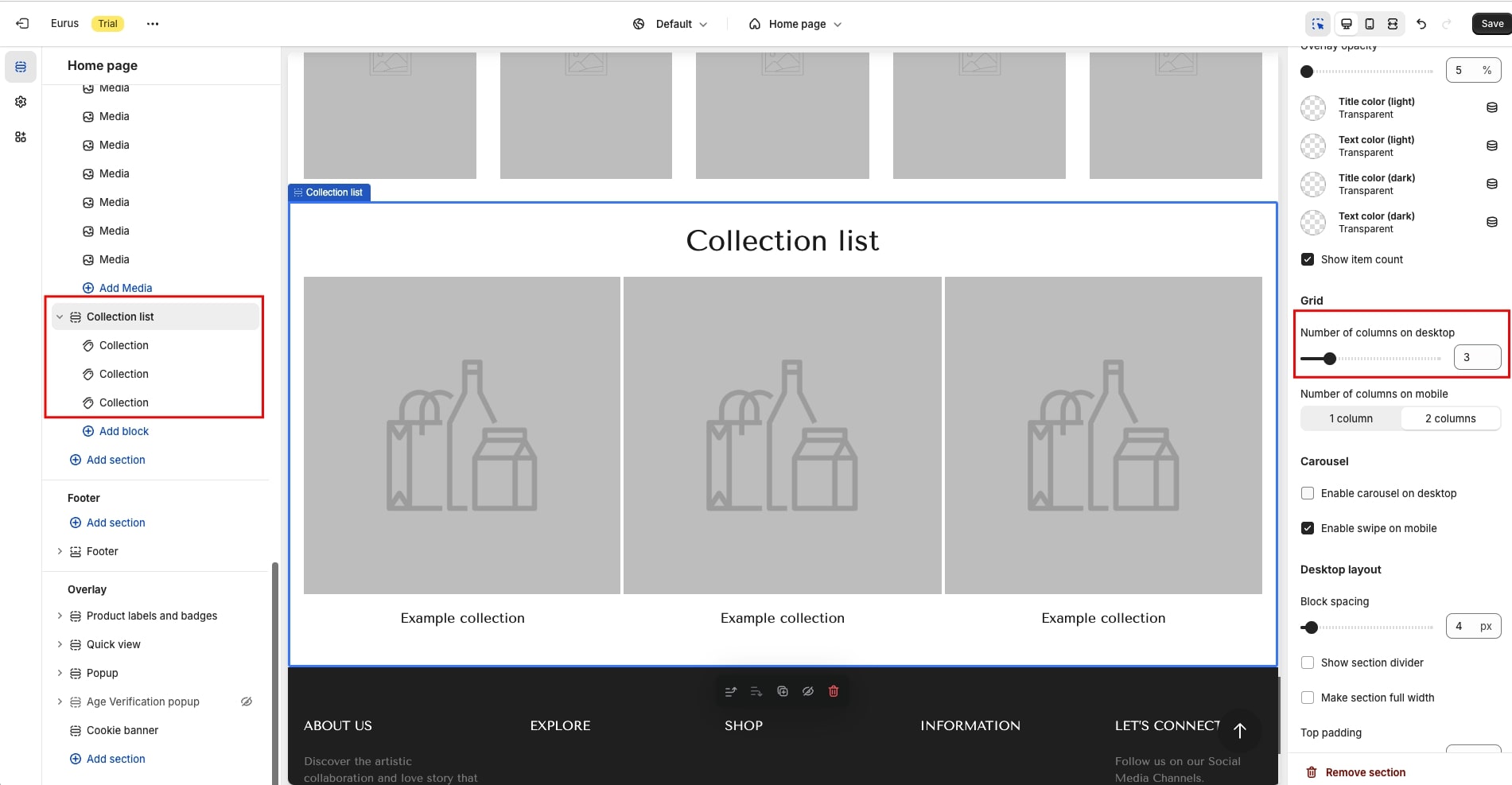
3. Click ‘Save’.
4. Then you choose which collection will be displayed in the collection list. Click Collection > Select Collection > Choose Collection you want > Select > Save.
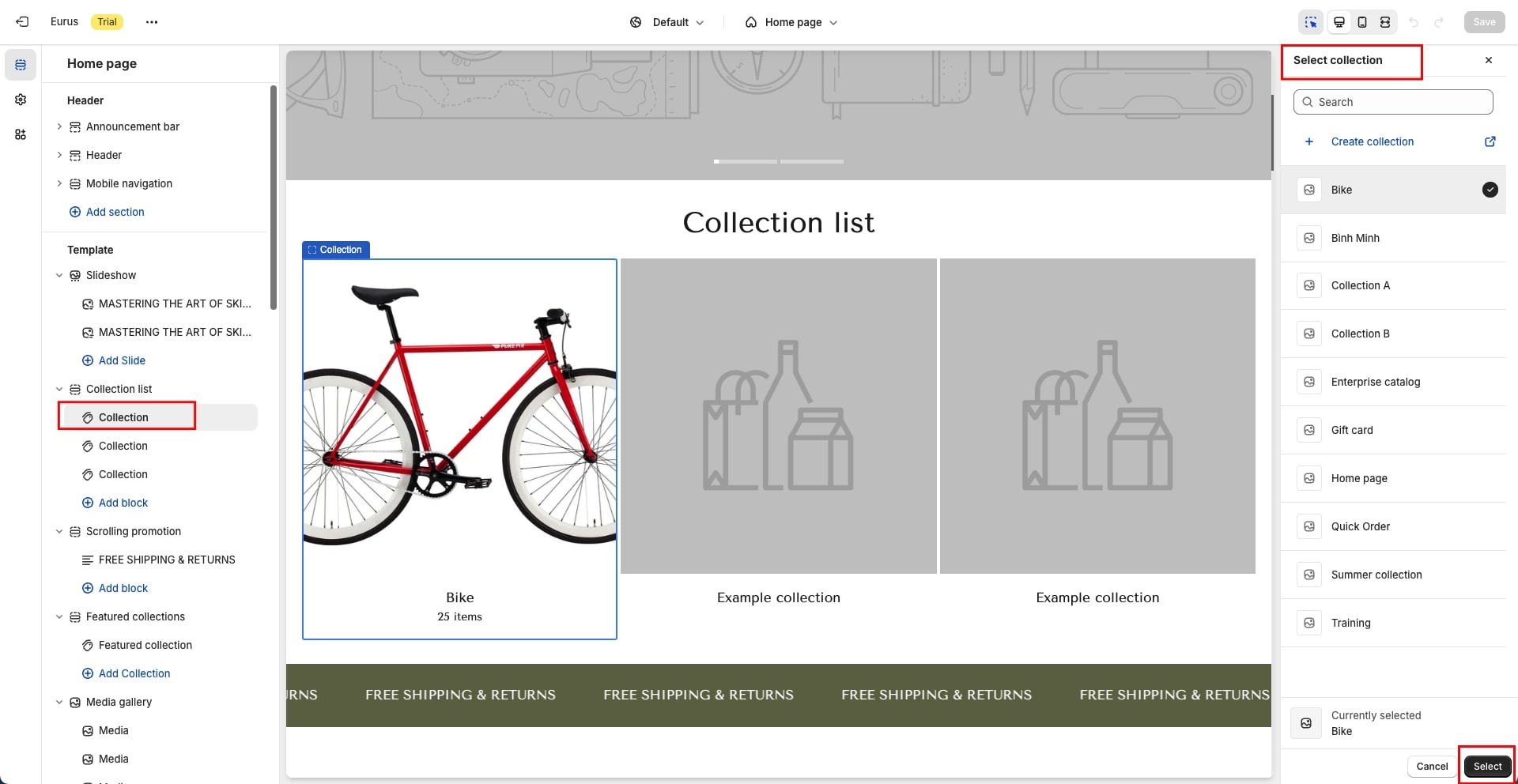
Step 5: Move the new Collection list to the section you want in the storefront. Then ‘Save’.
>> Read more: What You Need To Know About Shopify Product Badges?
Pros: Easy to create, anyone can do.
Use Link Lists to Create a Collection Tree Before Adding to Shopify
Before creating and adding sub collections in Shopify, to ensure that you understand the desired structure, let’s create a collection tree using link lists.
Here is how to add sub categories in Shopify effectively:
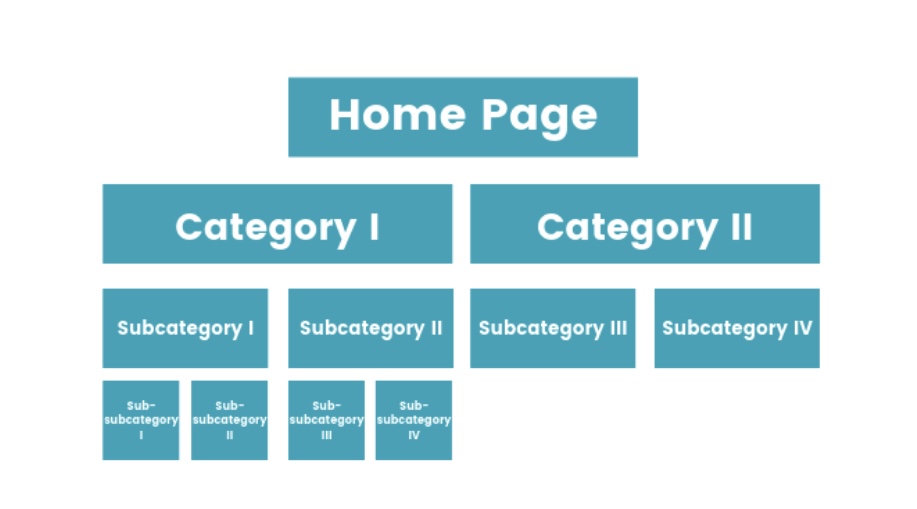
One thing that is especially important when creating a Shopify sub-collection is handling parent categories, in other words, large and major categories.
Besides knowing how to add sub collections in Shopify, the principle of creating subcategories for the collection tree is quite simple too. You only need to do these steps:
- Create all collections, including both parent categories and the subcategories
- Next, take note of the collection handle for each parent collection.
- The next step you need to do is go to the navigation page in Shopify and create a new linked list.
- Use a naming format like “collection-food” for the handle to avoid namespace issues and keep things organized.
- Finally, add all your sub-collections to the list.
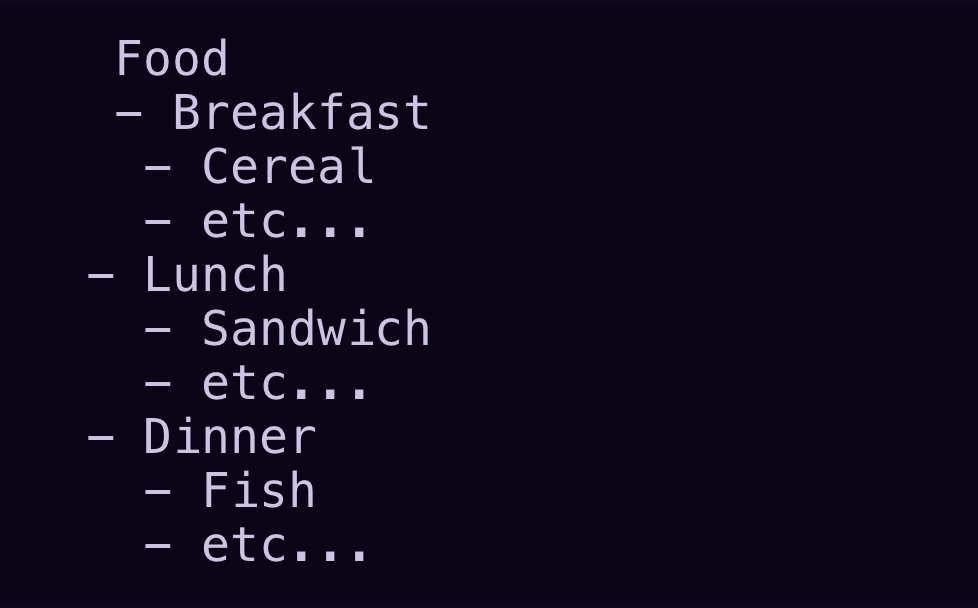
Shopify does not impose any restrictions on adding or creating sub-categories. So you can create anything in any way you want, depending on the quality of the product and how your website is designed. You can also choose to add sub-categories manually or add them according to specific criteria.
This guide is brought to you by BSS Commerce. We offers professional Shopify migration services, providing seamless transitions for businesses looking to migrate their online stores to the Shopify platform. By leveraging our comprehensive knowledge and expertise, BSS Commerce helps businesses enhance their overall performance on Shopify, empowering them to thrive in the digital marketplace.
Check out here for more details at BSS Shopify Migration Services
Common Errors When Creating or Managing Subcollections in Shopify
While creating and managing Shopify subcollections, there are some common challenges that you should consider. Here are a few errors you may get:
1. Products not appearing in subcollections: Make sure that you have accurately assigned products to the appropriate subcollections and that any rules or conditions for automatic collections are correctly configured.
2. Shopify subcollections not showing on the store: Check if you successfully published your Shopify subcollections and they are all set to display in the desired location, such as the homepage or navigation menu.
3. Problems with subcollection images: If you get issues with images not displaying correctly or appearing distorted, check the image sizes and ensure that they meet Shopify’s recommended dimensions. Check now Shopify Image Resizer: The Complete Guide to optimize your images.
>>> Relevant reading:
- Shopify Product Type vs Collection: Which Is Best for Merchandising?
- What Are The Best Shopify Inventory Management Apps To Get?
- 10 Best Shopify Theme for Large Inventory Stores
- Shopify Pricing Plans Review: How Much Does Shopify Cost?
Why Need to Add Sub Collections to Your Shopify Store?
A cluttered product catalog can overwhelm shoppers and make it difficult for them to find what they’re looking for, which can lead to frustration and missed sales opportunities. However, these challenges can be easily resolved by using sub-collections. Here, we will delve into why sub-collections are essential for your store’s success:
1. Enhanced navigation: Shopify sub collections allow you to arrange your products systematically, it simplifies the process for customers to explore and find specific items they want.
2. Improve user experience: It is easier and more convenient for customers to shop on your website. When customers can effortlessly navigate and find products of interest, they are more inclined to explore further, leading to higher conversion rates and repeat purchases.
3. SEO advantages: By categorizing your products into sub-collections, you can create distinct landing pages with different focused keywords. This facilitates the search engine to understand the organization of your store, potentially enhancing your search rankings.
>> Read more: Shopify SEO Checklist: Optimize Your Store in 2024
4. Easily create targeted marketing campaigns: It is simple to determine which products are in high demand or popular with sub-collection. This data can be used to develop specific promotions or discounts, boosting sales and customer interaction.
FAQs about Shopify Subcollections
1. How many collections can you have on Shopify?
You can practically create up to 5,000 collections on Shopify; though the exact limit isn’t listed in the public Help Center.
2. Do Shopify subcollections affect SEO?
Yes, subcollections can improve SEO when implemented properly by enhancing internal linking, keyword targeting, and user navigation. However, they must be managed carefully to avoid issues like duplicate content or crawl inefficiencies.
3. Can I use apps to manage subcollections?
Yes, apps like Power Tools Suite and Shopify’s Search & Discovery app help manage subcollections by organizing filters, navigation, and advanced collection logic without custom code.
4. Can you have collections within collections on Shopify?
Yes. As demonstrated in this article, you can simulate nested collections using navigation menus, automated collections with tags, or custom templates using metafields.
Conclusion
This article has compiled and provided tips on the three most popular ways to answer the question how to add sub collections in Shopify stores. Please read carefully the instructions and the pros and cons of each to choose the method that suits you best to create sub collection in Shopify.
However, if you are struggling with adding sub-collections in your store, BSS Shopify Development Service would be more than happy to help you out. BSS Shopify Commerce has been the top provider of Shopify website development services; our professional developers will listen, consult, and make your requirements come true.

Finn Nguyen
Finn is a Shopify expert with 5+ years of experience helping new business owners launch and grow online stores. Specializing in store setup, theme selection, and optimization, he provides practical guidance to turn ideas into successful eCommerce businesses