
How to Remove Tax Included on Shopify (2026 Guide)

Shopify shows “tax included” when your store is set to include tax in prices. To remove it, review the tax settings under Settings, then Taxes and duties, and the tax settings for each market under Markets. To change only the wording, edit the text in your theme.
Last updated October 9, 2026. Shopify steps below follow the Shopify Help Center pages read on October 9, 2026. BSS B2B Solutions makes BSS B2B Solution, which appears in the B2B section. For the full wholesale tax picture, see the tax compliance hub.
Key takeaways
- The words “tax included” come from your theme and appear when prices include tax. Shopify’s free Dawn theme, for example, uses “Taxes included.” on product pages (Dawn locale file).
- By default Shopify shows prices without sales tax and VAT, and adds tax at checkout. Shopify’s example: a $100 product at a 15% rate becomes $115 at checkout (Shopify: tax collection and displayed prices).
- Tax inclusion is set for each market you sell to, so a store can show tax-included prices in one country and tax-excluded prices in another.
- These settings change how prices are displayed. Shopify says the way tax is calculated and charged is not changed.
- For business buyers who should see prices without VAT, an app can show both prices or a switch without changing the store-wide setting.
Why does my Shopify store say “tax included”?
Two things combine. Your tax settings include tax in the displayed price, and your theme prints a note to say so. Shopify’s Dawn theme prints “Taxes included.” under the price on product pages. In the cart it prints “Taxes included. Discounts and shipping calculated at checkout.” Other themes word this differently.
If the note is in your store, tax-inclusive pricing is on for the market the visitor is in. If you see it only in some countries, that is because Shopify sets tax inclusion for each market. Shopify’s example is a UK customer who sees prices with local VAT included, while a US customer usually sees tax added at checkout (Shopify: include taxes in product prices).
Should you remove it?
Removing the note while prices still include tax would mislead shoppers. Removing tax from the displayed price changes the amount a shopper expects to pay at the product page. Check the rules for each country you sell to before you change anything.
| Setting | Price shown on the product page | Total at checkout | Tax inside the total |
|---|---|---|---|
| Prices exclude tax (Shopify default) | 20.00 | 24.00 | 4.00, added at checkout |
| Prices include tax | 20.00 | 20.00 | 3.33, already inside the price |
The figures are an illustration: with 20% tax, 20.00 including tax contains 3.33 of tax, and 20.00 excluding tax becomes 24.00.
How to stop including tax in your prices
- In your Shopify admin, go to Settings, then Taxes and duties.
- Find the option Include sales tax in product price and shipping rate. This is the option Shopify tells you to select to include tax.
- To manage tax display for a single market, open Markets, click the market, and review its Taxes and duties settings.
- Open your store in a private browser window, add a product to the cart and compare the product page, the cart and the checkout total.
Shopify’s help page for this option only describes how to turn it on and says tax inclusion is set for each market (Shopify: include taxes in product prices). If your admin shows the option under a market, change it there. Shopify notes that tax overrides for products or collections can change your margins.
How to remove only the “tax included” wording
If prices must keep including tax but the note looks wrong or repeats on the page, edit the theme text instead. The wording is a translatable string in the theme, such as products.product.taxes_included in Dawn. Open your theme’s language or default content editor, search for “tax”, change the text and save. The exact menu name depends on your admin version and theme.
Do this on a duplicate theme first. Removing the note is a design choice only: the price still includes tax.
Showing prices without tax to business buyers
A store that sells to both consumers and businesses often needs different price displays. Consumers in some countries expect tax-inclusive prices, while a VAT-registered business buyer wants the net price. Changing the store-wide setting affects everyone, so a B2B app is the usual answer.
Tax Display shows tax-inclusive prices, tax-exclusive prices, both, or an Inc. VAT and Exc. VAT switch, per customer tag or customer type. It is available on the Advanced and Platinum plans.
Install BSS B2B Solution See pricingBSS B2B Solution has two separate tax tools, and they do different jobs (Tax Display guide):
- Tax Display changes how prices are shown. Display modes are both prices, including tax only, excluding tax only, and a toggle. You choose which customers and products a rule covers, and whether it applies to product pages, collections, the cart or all pages. It does not remove tax at checkout.
- Tax Exempt handles the order. A buyer enters a tax ID on the cart page, and the app creates a tax-exempt draft order. It is available on the Advanced and Platinum plans (Tax Exempt guide).
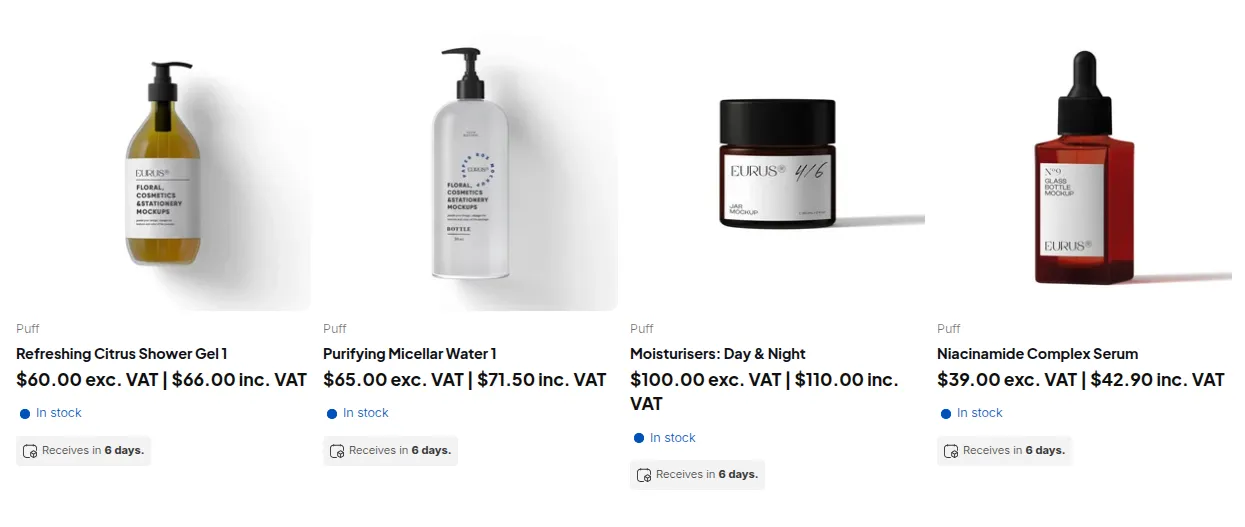
Two limits from the app’s code: Tax Display does not read Shopify’s own tax overrides, so you recreate them in the app, and there are no variant-level rate overrides. Tax Display is display only, so Shopify checkout still calculates tax from your Shopify tax settings.
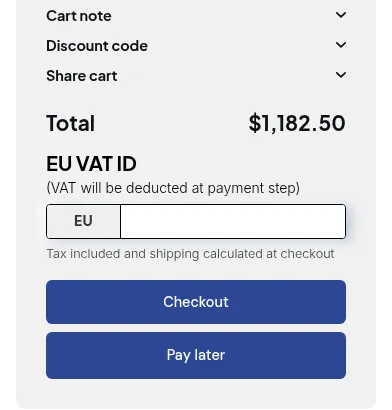
More on this topic: show prices excluding VAT for B2B customers, tax ID validation, US resale certificates and tax-exempt customers and EU tax-exempt setup.
Why does “tax included” still show after I changed the setting?
| What you see | Likely cause | What to check |
|---|---|---|
| The note still appears on product pages | The market the visitor is in still includes tax | Check the tax setting for that market, then test from that country |
| The note is gone but the checkout total is higher | Prices now exclude tax, so tax is added at checkout | Expected. Tell shoppers tax is added at checkout |
| The note appears in the cart only | The cart text comes from a separate theme string | Search the theme text for the cart wording |
| Business buyers still see tax-inclusive prices | The store-wide setting applies to everyone | Use a customer-based display rule from an app |
| A tax app changes the totals | A third-party tax app overrides the displayed result | Turn the app off on a duplicate store and compare |
Frequently asked questions
Will tax at checkout change if I remove the “tax included” text?
Removing only the wording does not change tax. Changing the tax-inclusive setting changes whether the product page price includes tax. Shopify says these settings change the display, not how tax is calculated and charged.
Can I show prices with tax in one country and without tax in another?
Yes. Shopify sets tax inclusion for each market, so you can include tax for one market and leave it out for another.
What is the default on Shopify?
Shopify displays product prices without sales tax and VAT by default and adds tax at checkout. Tax-inclusive pricing is an option you turn on.
Can I show business customers prices without VAT only?
Not with the store-wide setting alone, because it applies to every visitor in a market. BSS B2B Solution Tax Display can show excluding-tax prices to specific customers or customers with a tag, on the Advanced and Platinum plans.
Does BSS B2B Solution change the tax charged at checkout?
Tax Display does not. It only changes the price shown. Tax Exempt creates a tax-exempt draft order when a buyer enters a valid tax ID on the cart page.
Sources
- Shopify Help Center: include taxes in product prices, read October 9, 2026.
- Shopify Help Center: tax collection and displayed prices, read October 9, 2026.
- Shopify Dawn theme: default English locale strings, read October 9, 2026.
- BSS B2B Solution user guide: Tax Display and Tax Exempt.
You may also like

Shopify Quantity Breaks: How to Implement & Boost Sales
These quantity breaks are the most vibrant strategies that custom store owners around Shopify are using. It […]

How To Sell B2B Services: A Complete Guide to Closing Deals
B2B sales, especially B2B sales service have dramatically increased in recent years, and salespersons, therefore, have to […]

How To Sell B2B Products: A Definitive Guide
How to sell B2B products? B2B sales is not rocket science, but indeed a sound investment in […]