To place orders on behalf of customers on Shopify, use Manual Orders in BSS B2B Solution: open the order builder in the admin, pick the customer, add products, and the app applies that buyer’s Custom Pricing, Price List, Volume Pricing, shipping rates, tax status and payment terms to a Shopify draft order. You then send the invoice or mark the order as paid.
This page is for distributors, wholesalers and manufacturers whose sales reps take orders by phone, by email or at trade shows. It shows how the builder works step by step, which rules it applies and which it does not, and the one editing mistake that can silently overwrite a negotiated price.
Who this is for
Manual Orders suits you if:
- Your reps take orders by phone or email and enter them into Shopify afterwards.
- Your customers have negotiated prices, volume tiers or payment terms that must be applied correctly every time.
- You sell at trade shows, where a buyer places an order on the spot and you invoice later.
- Some buyers prefer not to use the storefront at all, and you still want their orders to look like any other order.
- You want to apply a one-off discount, a custom shipping charge or a PO number to a single order.
- Your finance team wants a due date on every order that is sold on terms.
Why this matters
Sales and support teams take orders by phone, by email and at trade shows. Keying them into a plain draft order means looking up each customer’s price by hand, remembering their terms and checking whether they are tax exempt. A single slip becomes a credit note and an awkward call. And because every rep remembers something different, two similar customers can end up with two different prices.
Even when buyers are comfortable ordering online, a share of orders still arrives through account managers. Patek Packaging, a Canadian supplier of take-out packaging, still receives orders through its sales and support teams. Its team uses Manual Orders so customer-specific pricing, quantity breaks, taxes and payment terms apply automatically. Read the case study.
Picture an industrial fasteners distributor whose best customers call their account manager with a list of part numbers. The manager wants to build the order in two minutes while the buyer is still on the phone, confirm the total, and send an invoice before the call ends. Prices that are different for every contract customer should not slow that down.
What Shopify covers natively, and where an app helps
Shopify lets staff create draft orders in the admin, set a custom price per line and send an invoice with a payment link; Shopify’s native B2B also supports payment terms for company buyers, as the B2B features by plan page and the Shopify B2B guide describe. What a plain draft order does not do is look up each buyer’s negotiated price from your own rules.
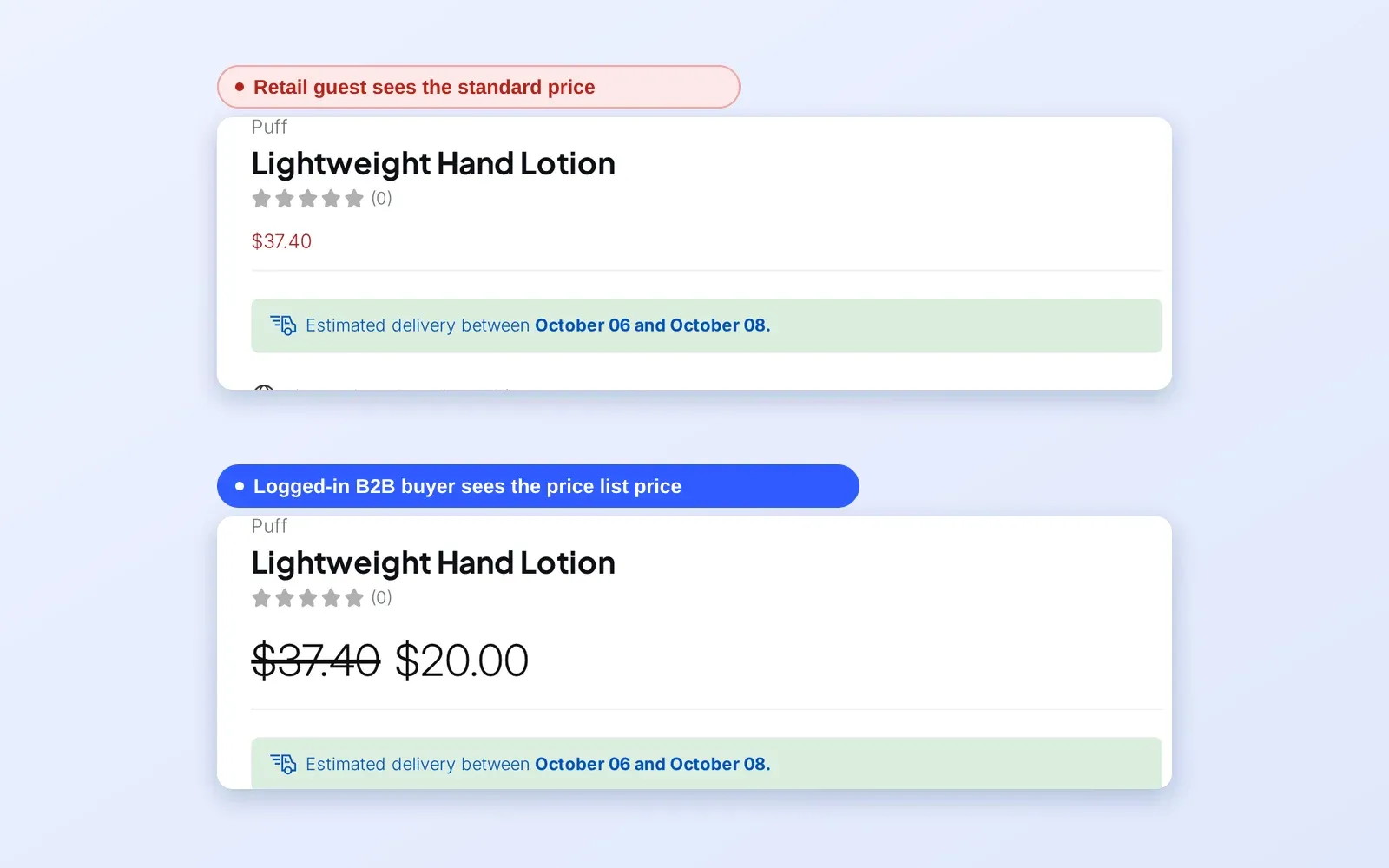
BSS B2B Solution Manual Orders adds that lookup. When you select a customer, the builder finds their matching pricing rules and applies them to every line, so the draft order shows the original price and the B2B discount. The order rules and terms hub places Manual Orders next to order limits, increments and net terms.
How to set it up with BSS B2B Solution
1. Turn on Manual Orders
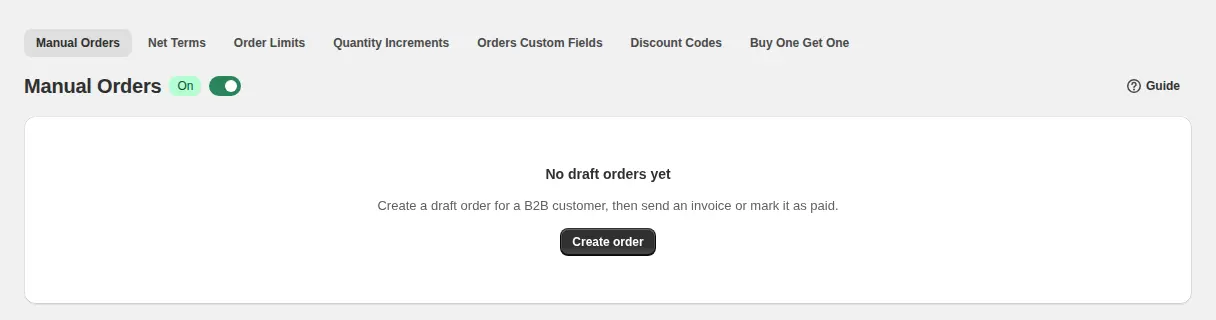
Go to B2B orders & discounts > Manual Orders and toggle Enable Manual Order. The module works in the admin only, so no app embed or theme change is needed. Check that your Shopify user role can create and edit draft orders, and that the modules you rely on (Custom Pricing, Price List, Volume Pricing, Tax Exempt, Shipping Rate) are enabled, because the builder only applies rules that already exist.
2. Start an order and choose the customer
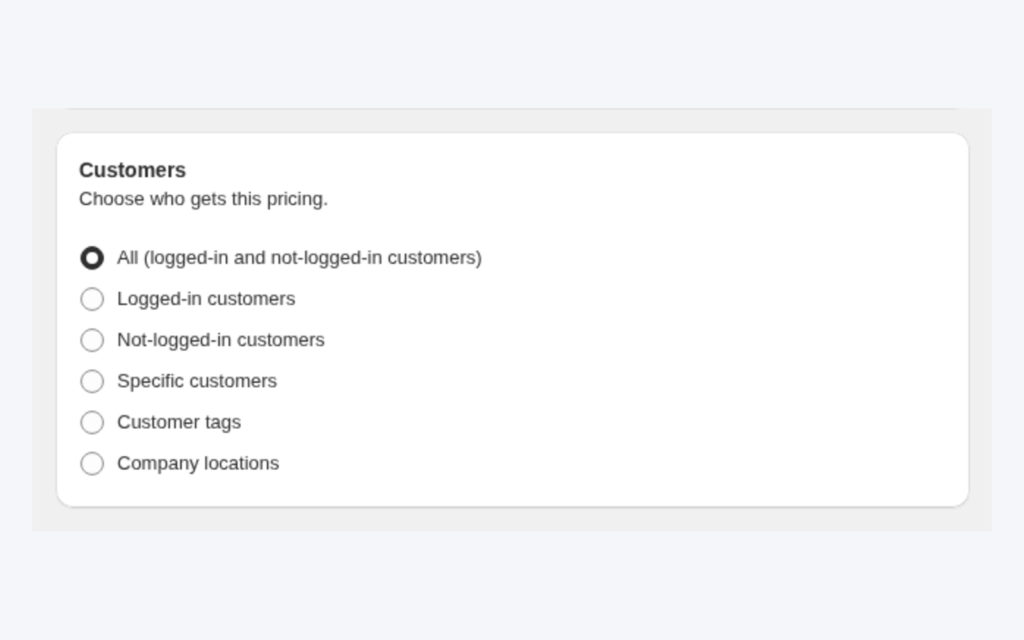
Click Create order. Choose an existing customer or create a new one. The builder detects the customer’s tags and tax status and loads the matching pricing rules. If you want a special price that applies to a group, make sure the customer carries the right tag, such as wholesale or VIP.
3. Add products and quantities
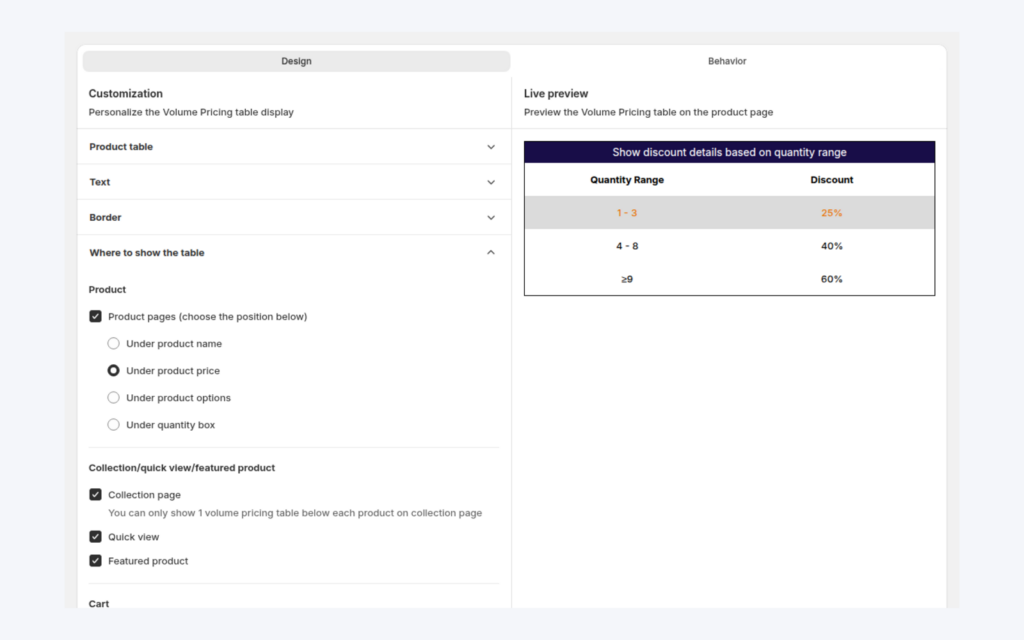
Search by title, SKU or barcode, tick the variants and set quantities. Each line shows the original price and the B2B price. If a quantity matches a Volume Pricing threshold, the discounted price recalculates straight away.
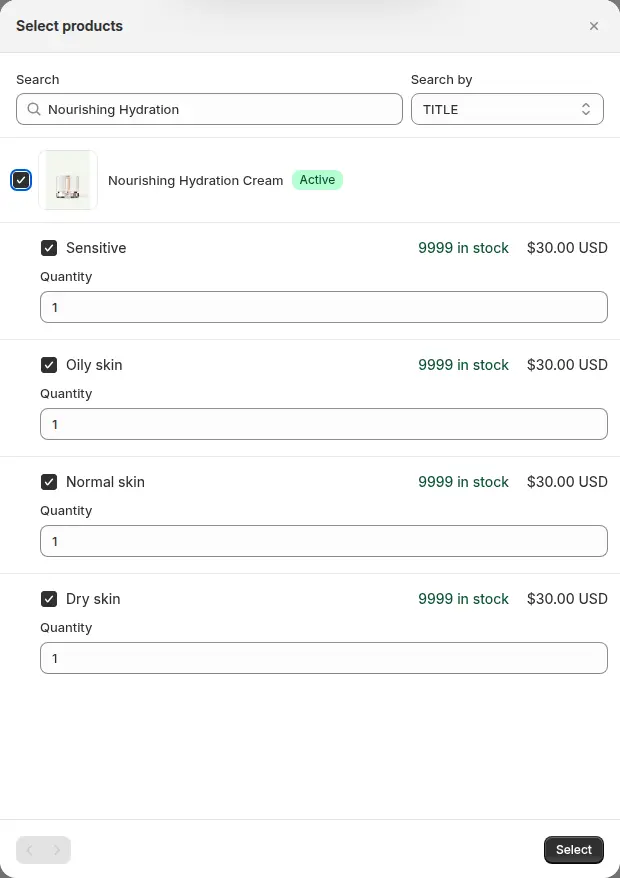
The builder evaluates prices in the same order as your storefront: a matching Price List price is used and Custom Pricing is skipped for that line, otherwise the Custom Pricing rule sets the price, and Volume Pricing tiers are applied on top of that price. The result is sent to Shopify as a discount on each line.
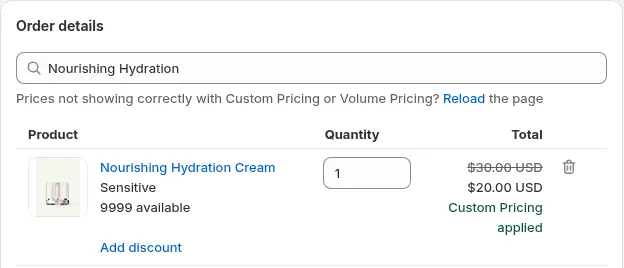
If a price does not update after you change the customer or quantity, click Reload above the product list.
4. Add shipping, discounts and tax
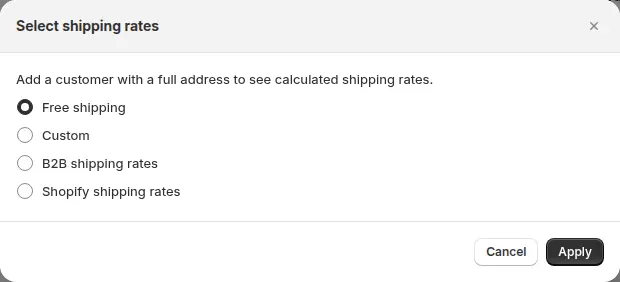
Open the shipping dialog and choose Free shipping, Custom (your own name and value), B2B shipping rates calculated from your Shipping Rate rules, or Shopify shipping rates, which need a customer with a full address.
For a one-off discount, choose a Discount Code rule or a custom amount or percentage, with a reason.
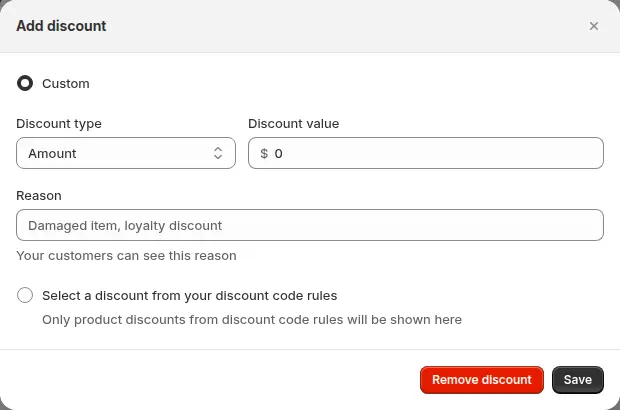
Open the tax dialog next. If the customer is marked tax exempt in Shopify, for example through Tax Exempt or approval of a registration form, the Tax Exempt toggle is already on, and you can override it.
5. Attach payment terms
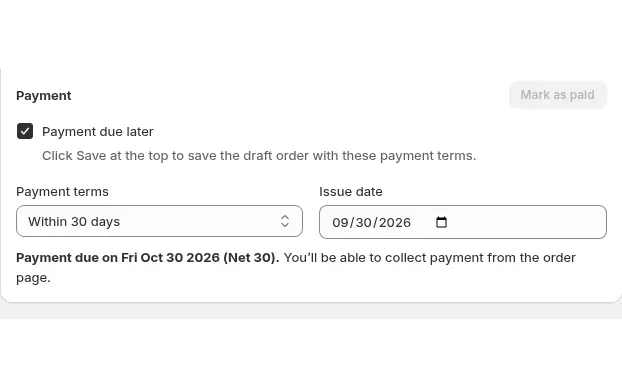
Tick Payment due later and choose the terms: due on receipt, within 7, 15, 30, 45, 60 or 90 days, a custom number of days from 1 to 366, or a fixed date. Set the issue date and the due date is calculated for you. While Payment due later is ticked, Send invoice and Mark as paid are turned off, because the customer pays later against the terms.
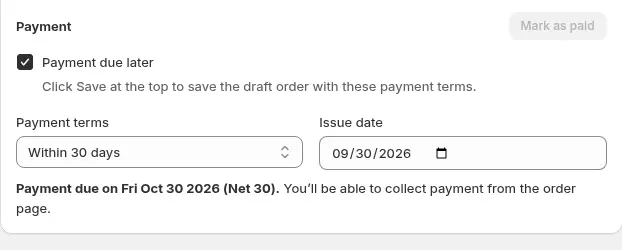
6. Add notes and tags, then save
Add a PO number or internal notes, and order tags such as net-30 so you can filter these orders in Shopify admin. Check the totals and use Preview invoice to see what the customer will receive, then click Create order to save the draft.
7. Send the invoice or mark it as paid
Send the invoice with an optional message so the customer pays online, or mark the order as paid when you collect payment yourself. The order then appears in Shopify orders like any other.
Manual order, storefront order or quote?
Manual Orders is one of three ways a trade order can reach your store, and it helps to know when each fits.
| Route | Who enters the order | Best for |
|---|---|---|
| Storefront order | The buyer | Repeat buyers who know what they want |
| Manual order | Your rep, in the admin | Phone, email and trade-show orders at agreed prices |
| Quote | The buyer asks, you respond | Custom prices that are not agreed yet, handled with BSS B2B Quote |
Many stores use all three. A rep who notices that a buyer calls every week can show them the storefront or a reorder page, which frees time for new accounts, while the manual order stays available for the calls that still come in. When a buyer asks for a price that is not in your rules, a quote is often the better first step, and the accepted quote can then become a draft order.
Who should place manual orders
Give the builder to the people who already know your terms: account managers, customer support leads and sales operations. Keep the number small, because each user needs Shopify permission to create and edit draft orders, and use order tags such as rep-north or phone-order so you can later see which orders came through the admin and why.
Example
Example for illustration only, not a customer result. The fasteners distributor gives one contract customer a Price List price of $7.00 for a box of M8 bolts, and a Volume Pricing rule of 10% off from 20 boxes. The customer phones in an order for 25 boxes. The account manager selects the customer, adds the product and sets the quantity to 25. The builder shows $7.00 struck through to $6.30 per box, a line total of $157.50. The customer is on Net 30, so the manager ticks Payment due later and chooses Within 30 days. The draft is saved with the PO number the customer dictated, and the invoice goes out before the call ends. A rep who is new to the account gets the same price without looking anything up.
Works well with
- Net 30 payment terms for wholesale buyers for the storefront version of terms.
- Handling fees and custom shipping for wholesale to apply B2B shipping rates in the builder.
- Wholesale price by customer tag so the tags the builder reads give the right prices.
- CSV bulk order upload when a buyer can enter a long order themselves.
Glossary: draft order, purchase order and net terms.
Limits and common mistakes
- Some rules are not applied. Extra Fee, Buy One Get One, Order Limits and Quantity Increments work on the storefront cart, and a manual order has no cart. Add those lines yourself if the order needs them. This also means a rep can create an order below your minimum, so note the exception in the order notes.
- Do not re-save a hand-edited price from Manual Orders. If you save the draft, then edit a line price in Shopify’s own draft order editor, do not reopen and re-save the order from the Manual Orders screen. Doing so recalculates every line from your pricing rules and overwrites the price you edited.
- Reload when prices look wrong. Click Reload above the product list after changing the customer or quantities.
- Test first. Create draft orders for an internal test customer before real clients, so you see how your rules apply.
- Line limit. A manual order holds up to 499 lines.
- A paid plan is needed. Manual Orders is part of the Advanced and Platinum plans.
Setup checklist
- Enable Manual Orders and check your staff permissions for draft orders.
- Make sure Custom Pricing, Price List, Volume Pricing, Tax Exempt and Shipping Rate rules are set up.
- Check that your key customers carry the right tags.
- Create a test order for an internal customer and compare the price to your rules.
- Decide how reps record exceptions: order tags or notes.
- Train reps on Reload, the Payment due later option and the re-save warning.
- Read the how-to guide for a worked example.
Plans and requirements
Manual Orders is available on the Advanced and Platinum plans of BSS B2B Solution ($49 and $99 per month, with yearly billing saving 10%); it is not part of Free or Essentials. See the pricing page for the comparison, then install BSS B2B Solution from the Shopify App Store.