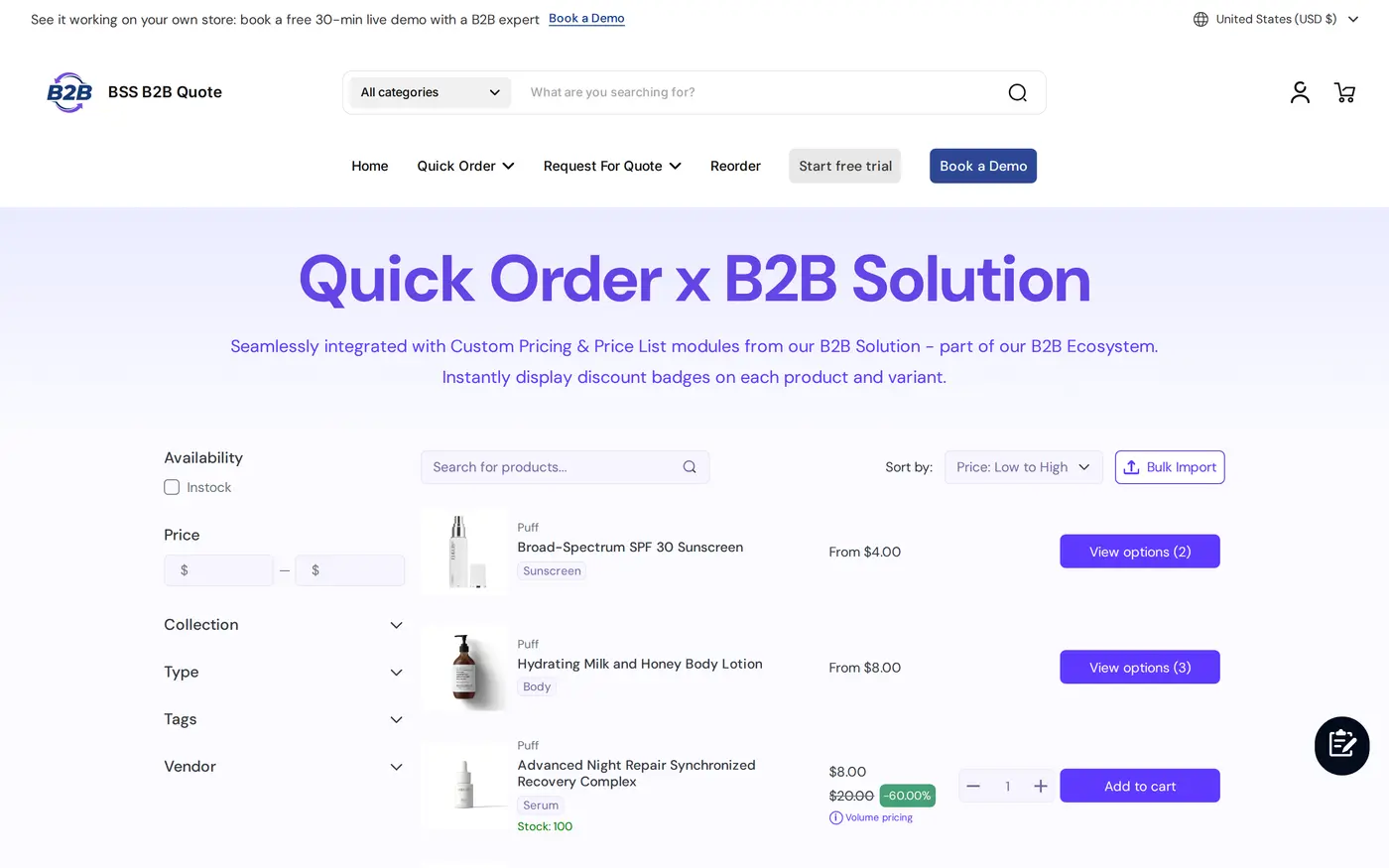
To let buyers order by CSV on Shopify, publish a Quick Order page with BSS B2B Quote and give buyers the Bulk Import button. A buyer uploads a .csv, .xls or .xlsx file with a SKU column and a quantity column, reviews the matched products and quantities, and adds the valid lines to the cart in one click, with unknown SKUs listed instead of breaking the upload.
This guide is for distributors, wholesalers and suppliers whose repeat buyers already keep their orders in a spreadsheet, a purchasing system or a point-of-sale export. It covers who benefits, the setup in five steps with screenshots, a worked example with a typo in the file, and the limits to know before you promise “upload and pay”. The most important one: the upload fills the cart, it does not skip the cart or checkout.
Who this is for
CSV bulk ordering suits you if several of these are true:
- Your buyers reorder the same products on a schedule, for example weekly restocks of staple items.
- They hold the list in a spreadsheet, or export it from their own ERP, purchasing tool or POS.
- A typical order has dozens of lines, so typing each SKU or clicking each product page is the slow part.
- Sales reps place orders for clients in the field and keep client order sheets in Excel.
- Some buyers still email or phone orders because your product pages are too slow for their volume.
If your catalog is large and your buyers browse rather than reorder, a standard Quick Order page without upload may be enough. If they reorder from history, see the reorder page for repeat buyers.
Why this matters
For a repeat buyer, the cost of ordering is mostly typing. A purchasing manager with a 40-line restock sheet will not browse 40 product pages. Retyping each line also creates mistakes: a transposed digit in a SKU, a quantity entered against the wrong variant. Buyers who find that painful send the sheet by email, and then your team retypes it instead, which is the work a self-service store is meant to remove.
The merchant side matters as much. Every emailed spreadsheet is a manual order: someone opens it, looks up each SKU, checks stock, applies the buyer’s prices and keys the order. A bulk import moves that work to the buyer, who sees the price per line and any out-of-stock items before committing, and it leaves you with a normal cart and a normal order to fulfil.
KAPR, a Dutch grooming brand that sells to barbers and salons, describes wholesale buyers who arrive with purchase lists ready, where repeat buyers can enter SKUs and quantities and submit orders in minutes. Read the KAPR case study for how it combined quick ordering with request for quote.
What Shopify covers natively, and where an app helps
Shopify’s native B2B includes a quick order list on Basic, Grow, Advanced and Plus, according to Shopify’s plan-feature page, so check what it already does for your buyers before you add an app. The Shopify B2B guide compares native B2B with BSS apps, and the quick order and RFQ hub lists the guides for this area. BSS B2B Quote adds quick order pages you can aim at specific customer groups and a Bulk Import window for spreadsheet files. See the Shopify Help Center for the current native list.
How to set it up with BSS B2B Quote
You need a published Quick Order page and a file format for your buyers. Everything else is the buyer’s side.
Step 1: Create and publish a Quick Order page
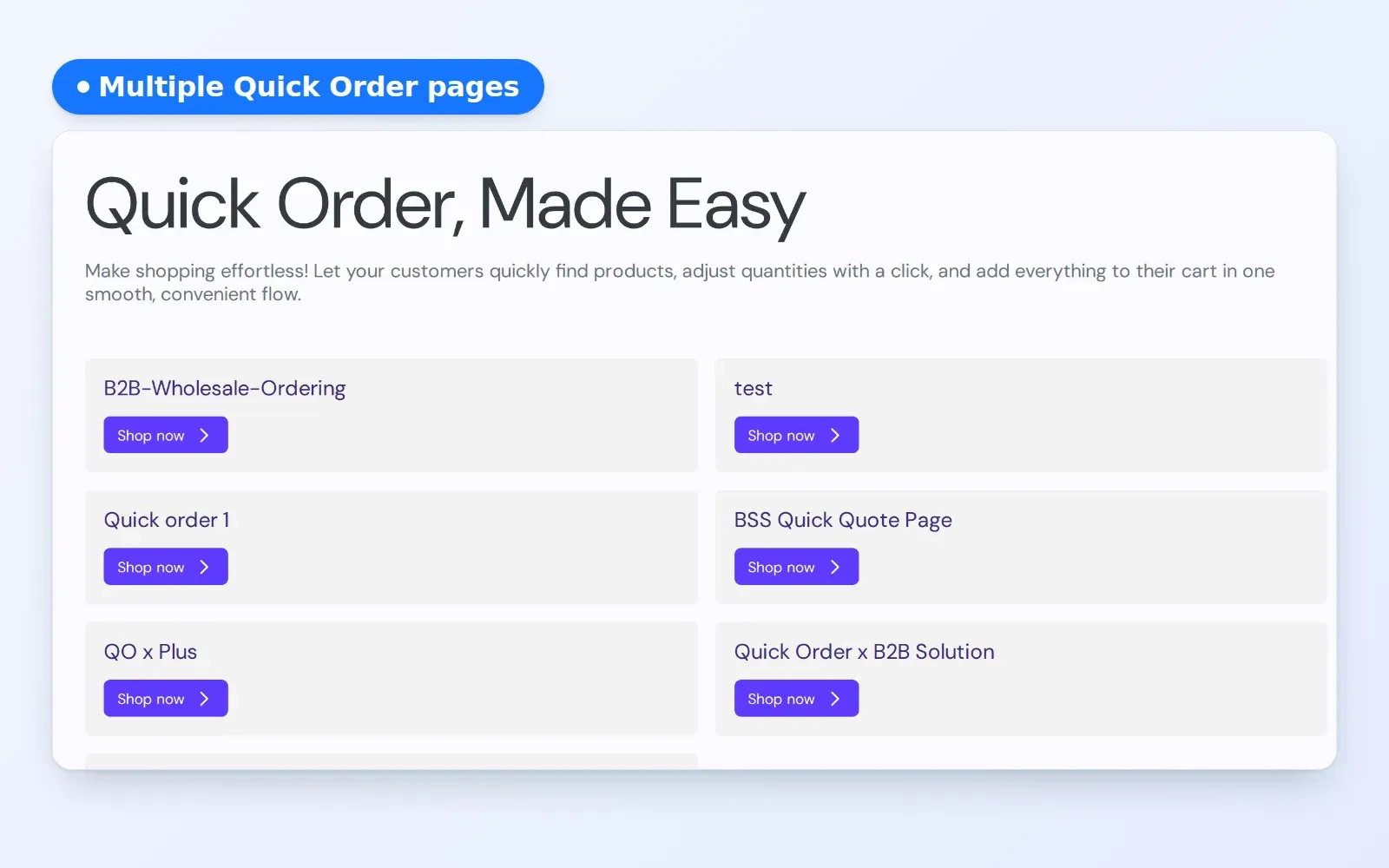
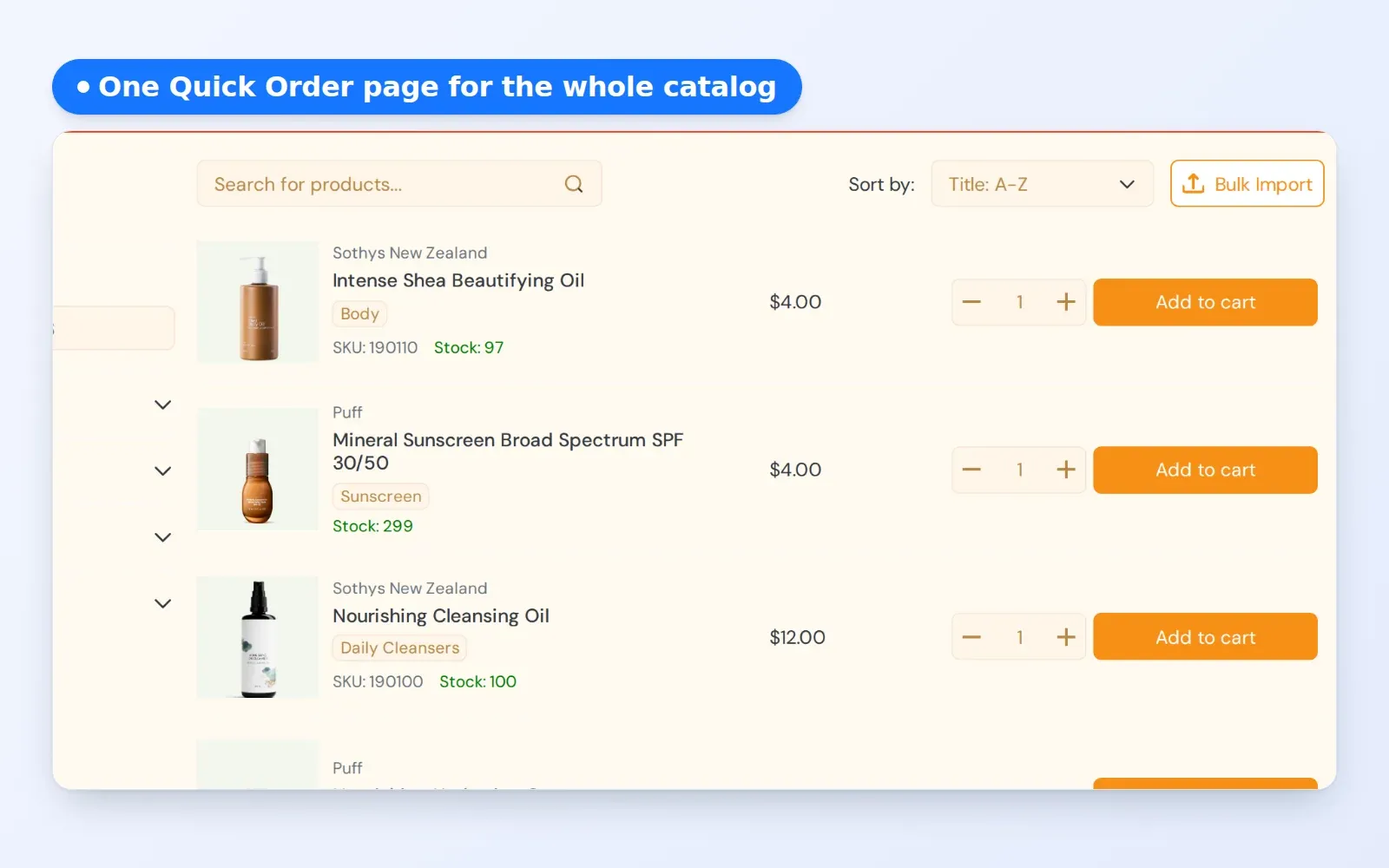
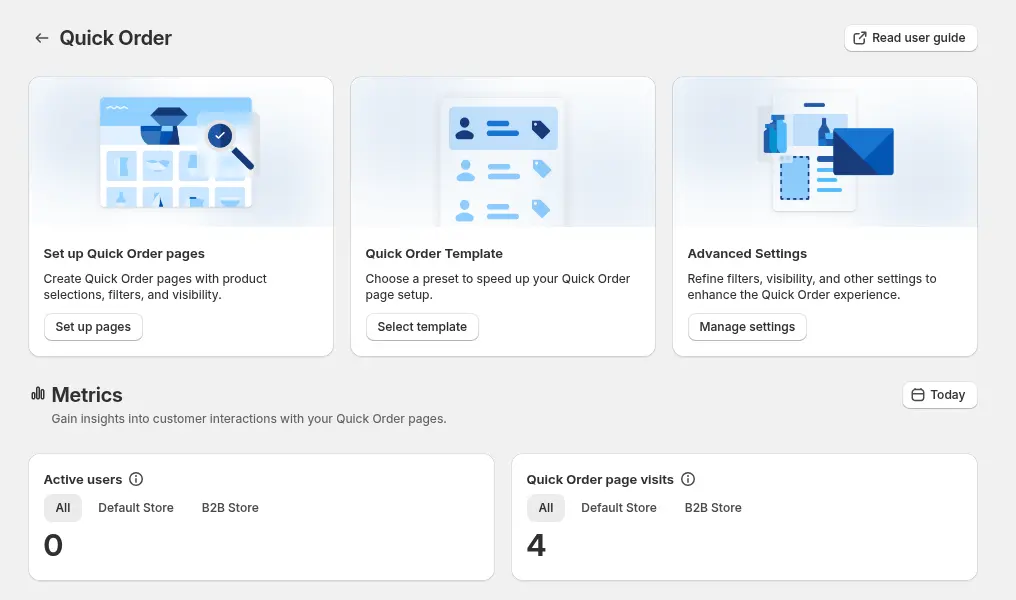
In the app, open Quick Order, choose Set up pages and Create new page, or start from a preset template. Choose the customer type (Default Customers for standard accounts), name the page, and decide who sees it: all customers, logged-in customers, specific customers or customer tags. Pick which products the page lists, such as all products, selected collections, product tags or a curated top-seller list, then publish it with a page title and URL handle.
Step 2: Show buyers where to find it
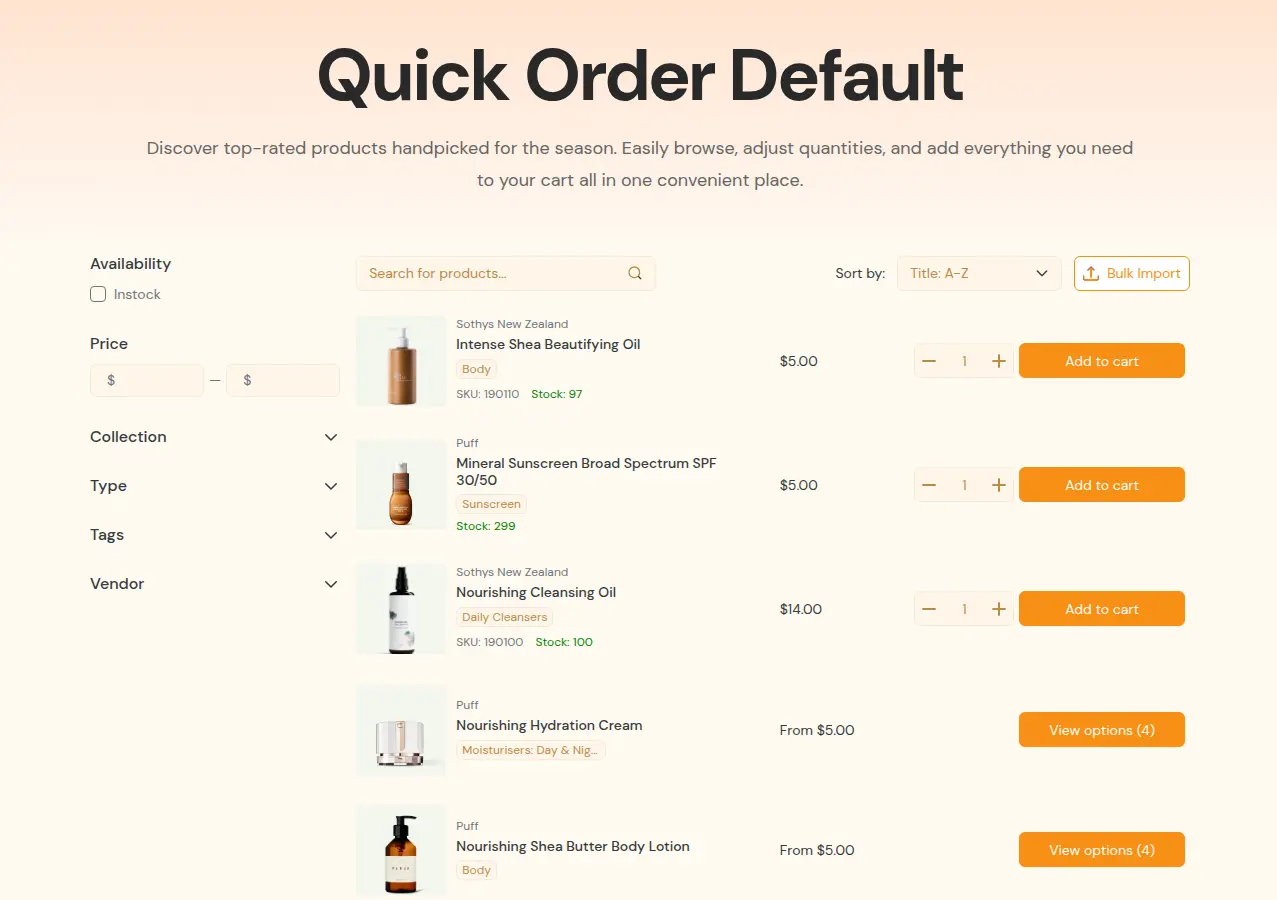
Link the page from your wholesale menu and from the account area. Restrict it by customer tag if the page should be for wholesale only. The page is built for Online Store 2.0 themes, so confirm your theme supports it.
Step 3: Give buyers a file layout
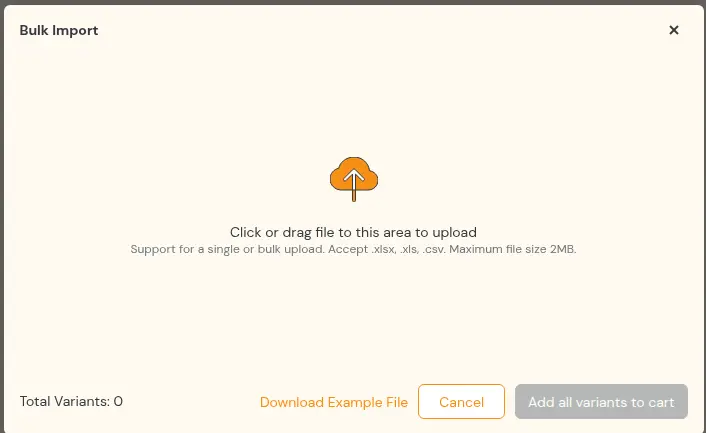
The file needs one column for the SKU and one for the quantity. Common header names are recognized and case does not matter: for the SKU `sku`, `variant sku`, `sku code`, `item code` and similar, and for the quantity `quantity`, `qty`, `amount`, `order qty` and similar. The Bulk Import window has a Download Example File link, and you can also publish your own sample with real SKUs from your store so buyers copy the layout.
| sku | quantity |
|---|---|
| TSHIRT-BLK-S | 50 |
| TSHIRT-BLK-M | 100 |
| HOODIE-GRY-XL | 20 |
Save CSV files as UTF-8, and keep the SKU column formatted as text, so a spreadsheet does not turn a code such as 00123 into 123 and break the match.
Step 4: The buyer uploads and reviews
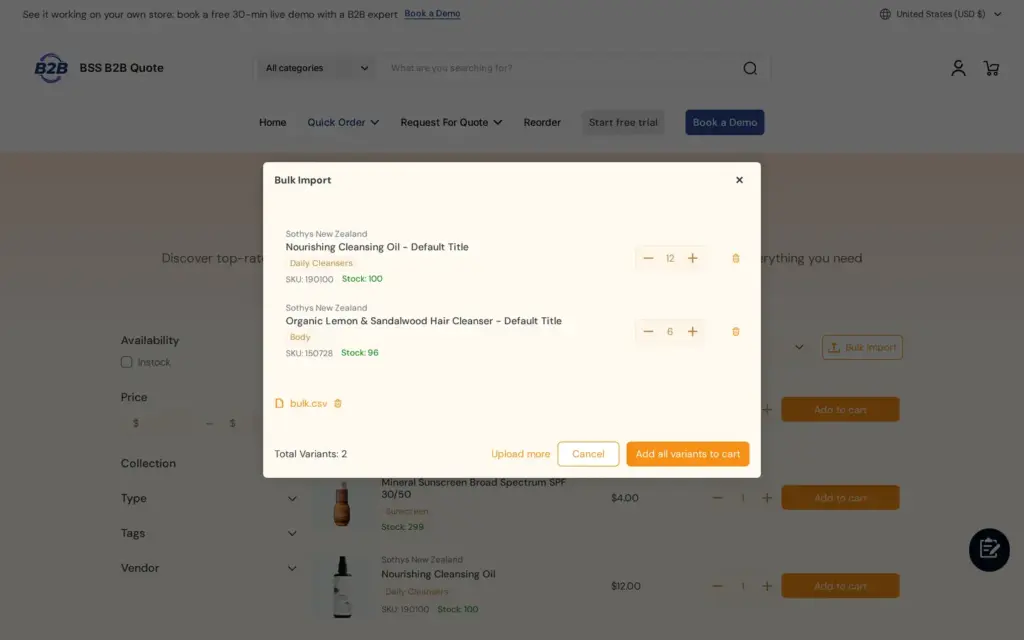
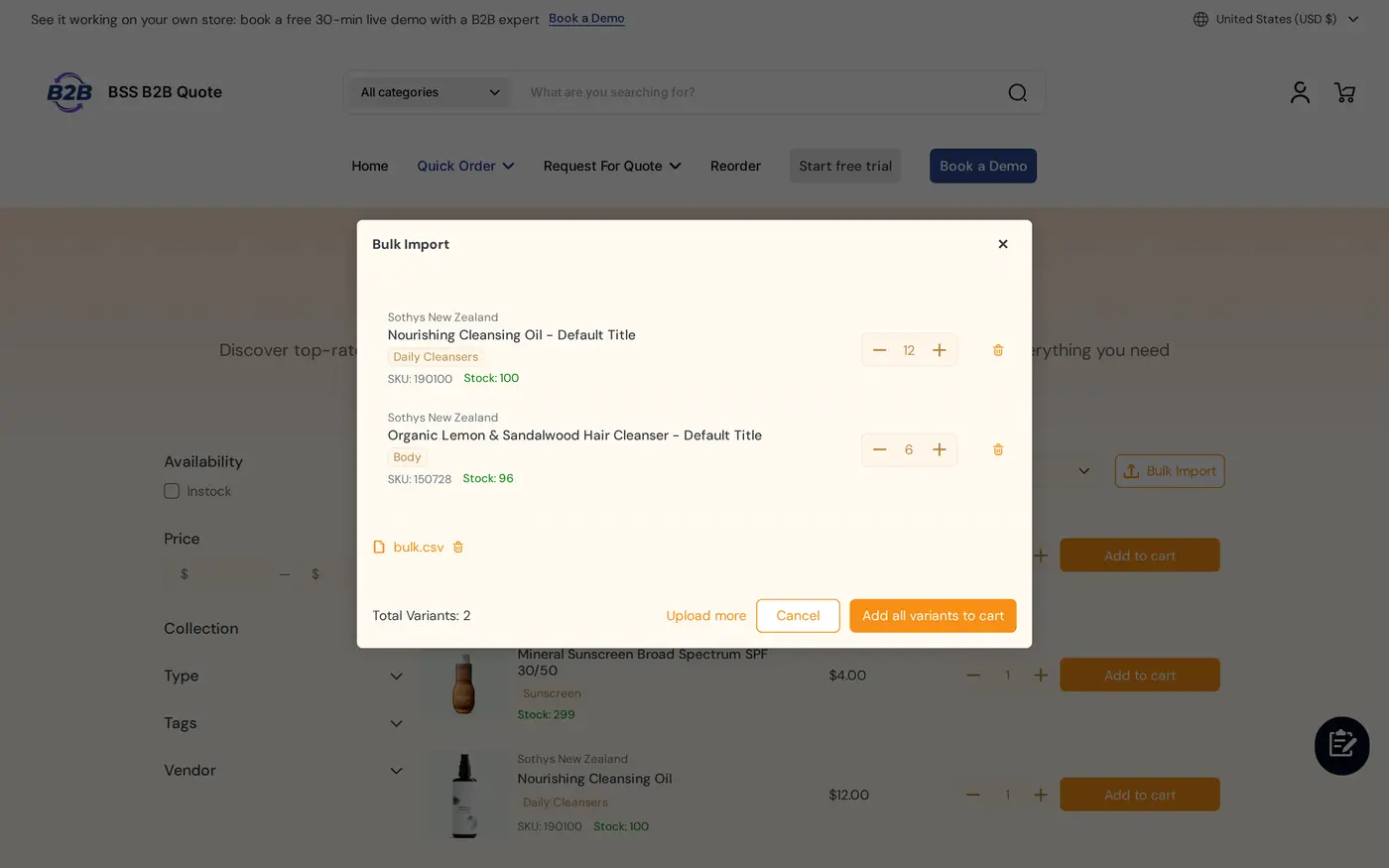
The buyer clicks Bulk Import and drops one or more files. The app reads the first sheet of each file, matches the SKUs and shows a results table with product, SKU, the current price and an editable quantity. Unrecognized SKUs are listed in a banner while the valid lines stay in the table, out-of-stock variants are removed and the buyer is told, and rows with a quantity of zero or less are skipped.
Step 5: One click to the cart
The buyer adds all valid lines to the cart with Add all variants to cart. If the same SKU appears on several rows or in several files, the quantities are added together. From the cart the buyer continues to checkout as usual.
Example: a food and beverage distributor
This example uses illustrative names and numbers, not results from a real store. A café group’s purchasing manager keeps two restock sheets, one per location, and uploads both files together. Location A lists `BEAN-ETH-1KG` x 12, `SYR-VAN-750` x 6 and `CUP-12OZ-1000` x 4. Location B lists `BEAN-ETH-1KG` x 6, `SYR-VAN-75O` x 3 (a typo, with the letter O instead of a zero) and `CUP-12OZ-1000` x 2.
The results table shows `BEAN-ETH-1KG` at 18 (12 plus 6) and `CUP-12OZ-1000` at 6 (4 plus 2), and `SYR-VAN-750` at 6. The mistyped `SYR-VAN-75O` appears in the invalid-SKU banner. The buyer corrects the quantity of one line in the table, adds all valid lines to the cart, fixes the typo in the sheet for next time, and checks out. Nobody on your team retyped anything.
Works well with
Bulk upload is one door into the same cart, and it gets stronger next to these pieces:
- Wholesale prices: BSS B2B Solution can feed Quick Order rows its quantity breaks, custom prices and quantity increments for customers who are not on Shopify native B2B, so the upload shows the buyer’s real price. See wholesale price by customer tag.
- Quick Order pages: standard quick order pages and personalized quick order pages cover who sees which page.
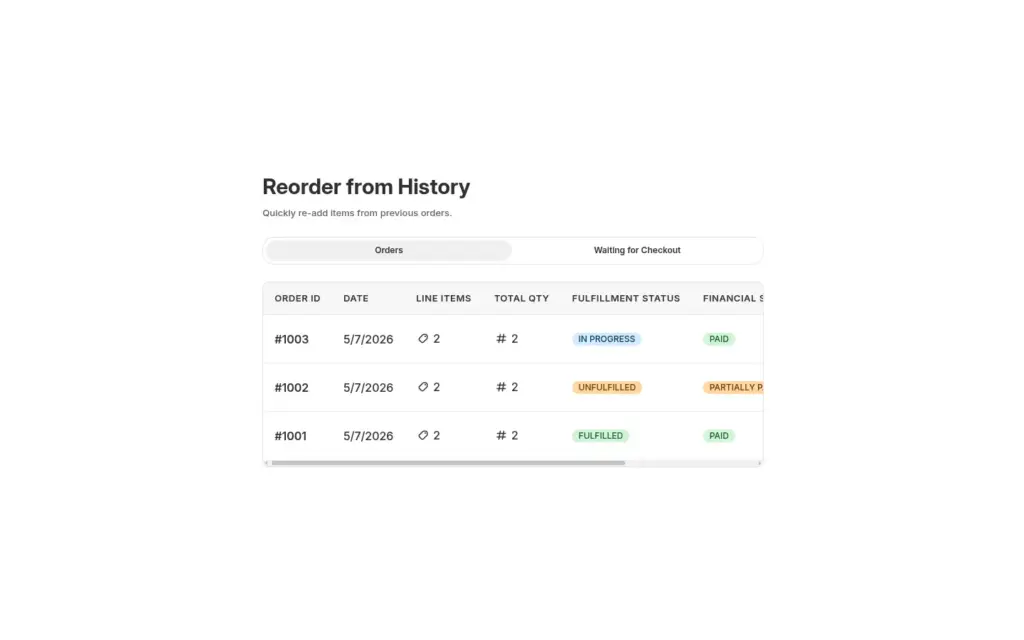
- Reorder: the reorder page for repeat buyers lets buyers repeat a past order without a file.
- Variants: product page variant table for apparel handles many sizes of one product.
- Purchase order fields: PO number and order notes collects the PO number once the cart is filled.
Glossary entries for this topic are quick order form, reorder and purchase order.
Limits and common mistakes
- The upload adds to the cart, not to checkout. Tell buyers the next step is the cart, and do not describe the upload as “straight to checkout”.
- Matching is by SKU. A product without a SKU cannot be matched, and a mistyped SKU appears in the banner. Clean the SKU column in your catalog first.
- Out-of-stock variants are removed. The buyer is told, but the line is not kept for later.
- The page needs a compatible theme. Quick Order pages are written into an Online Store 2.0 theme and rely on the app embed, so confirm both before you promise the feature to buyers.
- Prices are what the storefront shows the customer. For quantity breaks and custom prices, run the page as a logged-in wholesale buyer before you share it.
- Access follows the page rules. A page limited to a tag will not load for other customers, so test as each audience.
- Company-based targeting has plan limits. Targeting Shopify B2B companies needs the Enterprise plan of BSS B2B Quote.
Setup checklist
- Install BSS B2B Quote and switch on the app embed.
- Create a Quick Order page, choose its audience and product scope, and publish it.
- Add the page to your wholesale navigation.
- Prepare a sample file with real SKUs and the header names `sku` and `qty`.
- Run a test upload as a wholesale buyer, with one deliberately wrong SKU.
- Check prices in the results table against your price rules.
- Confirm that duplicate SKUs across two files are added together.
- Tell buyers that the upload fills the cart and that they finish in checkout.
Plans and requirements
BSS B2B Quote runs on paid plans with a 14-day free trial, and some options, such as targeting Shopify B2B companies, need the Enterprise plan. Compare plans on the BSS B2B pricing page. The full buyer flow, file rules and examples are in the CSV upload guide, and the Quick Order page guide explains access and layout. Install BSS B2B Quote from the Shopify App Store and publish your first Quick Order page.