To charge wholesale handling fees and custom shipping rates on Shopify, use the Extra Fee and Shipping Rate modules in BSS B2B Solution. Extra Fee adds a named fee line to the order when a cart reaches a quantity or amount tier, and Shipping Rate replaces your normal rate with wholesale tiers by quantity, amount or weight, for the customers and products you choose.
This guide is for distributors, manufacturers and brands that ship cartons, pallets or fragile goods to trade accounts and cannot express that cost in a retail rate table. It covers who needs these modules, the setup in six steps with screenshots, an illustrative cost example, and the limits that matter before you rely on them, such as which rule wins on free shipping and where the modules do not run.
Who this is for
Extra Fee and Shipping Rate suit you if several of these sound familiar:
- You ship heavy, bulky or fragile products and the real freight cost has little to do with the retail shipping table.
- Trade accounts expect free or reduced shipping above a set quantity, order value or weight.
- Some products need a handling, packaging or pallet charge that you currently absorb or quote by email.
- Wholesale buyers and retail shoppers share one store, and only the wholesale group should see the special rates.
- You sell to buyers in different regions and need different rates for domestic and international orders.
If your problem is the opposite, such as a minimum order before you will ship at all, see enforce minimum order quantity and value.
Why this matters
Wholesale freight does not scale like retail freight. A retail rate table has one price for one parcel, but a trade order might be a single carton, twelve cartons or a pallet, and the cost per unit falls as the order grows. When the shipping table cannot say that, merchants absorb the difference, or they turn every order into an emailed quote, which defeats the purpose of a self-service wholesale store.
Handling charges have the same problem. A fragile-goods fee, a pallet charge or a small-order surcharge is real money, and buyers accept it when it is shown clearly and applied the same way every time. Hiding it inside a product price makes your wholesale price list harder to read, and leaving it off means someone on your team adds it by hand after the order. ORQA, a Croatian FPV technology brand, used the Shipping Rate feature to set exclusive shipping rates for its B2B customers, as described in the ORQA case study.
How to set it up with BSS B2B Solution
Both modules live under B2B Pricing in the app. Each needs the BSS B2B Solution app embed switched on in your theme, and each is available on the Advanced and Platinum plans.
Step 1: Create the handling fee in Extra Fee
Open B2B Pricing > Extra Fee, switch the module on and choose Add rule. Name the rule for your buyers, for example “Fragile Item Handling Fee”, because the name becomes the title of the fee line at checkout. Set a priority if several rules could match the same product (a lower number is evaluated first).
Step 2: Choose who and what the fee applies to
Target the fee at all customers, logged-in customers, specific customers or customer tags such as `wholesale`, and at all products, specific products, collections or product tags. Extra Fee does not target single variants or markets, so use a collection or a tag for the items that carry the fee.
Step 3: Set the fee tiers
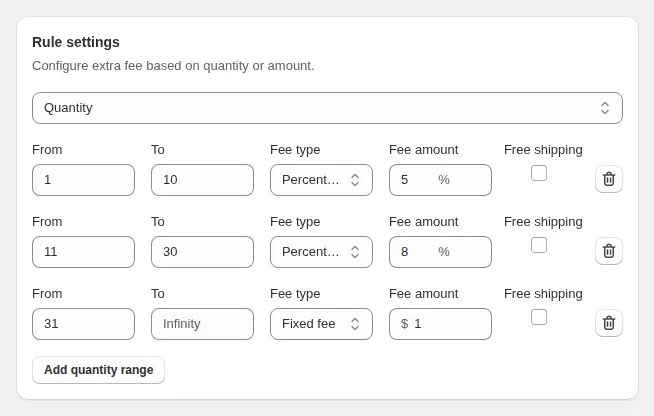
Choose whether the ranges measure Quantity or Price amount, and whether the quantity is pooled across all eligible items or measured per item. For each tier enter From and To, a fee type (fixed fee, fixed fee per item, or a percentage) and the amount, and tick Free shipping on a tier if orders in that range should ship free.
Step 4: Create the shipping tiers in Shipping Rate
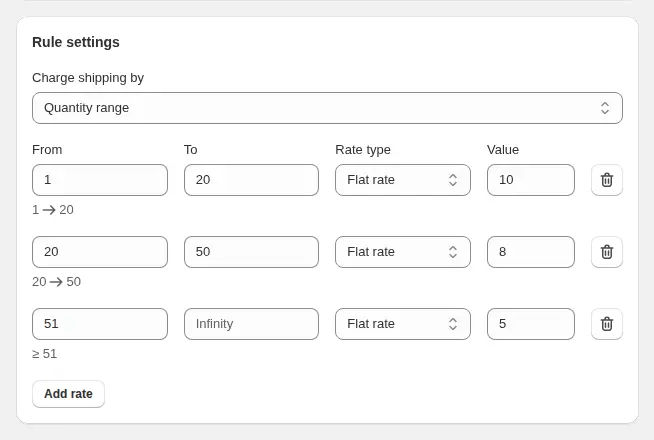
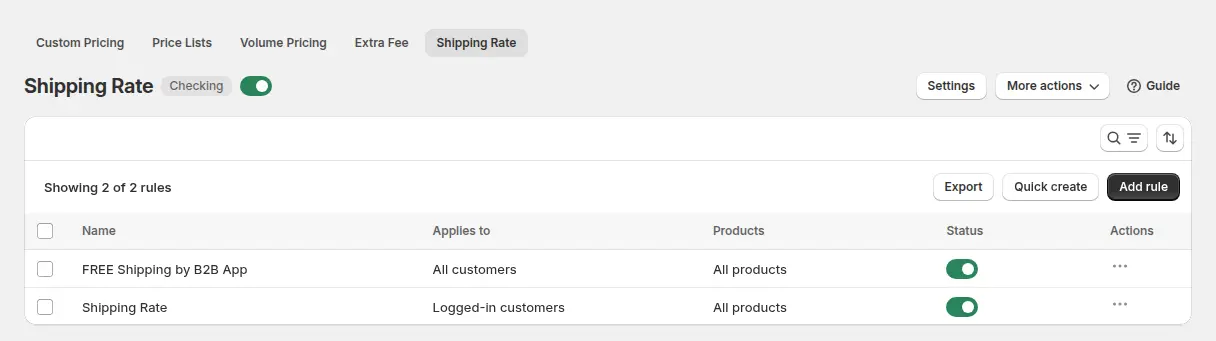
Open B2B Pricing > Shipping Rate, switch it on and add a rule for your wholesale tag. Pick what the ranges measure (quantity, amount or weight), then set a flat rate or a percentage for each range, with an empty To field meaning “and above”. Give the rule a unique name, because it becomes the shipping line title at checkout. You can also limit a rule to specific markets when domestic and international orders need different rates.
Step 5: Set the global options
In each module’s Settings, decide how the rates behave in mixed carts. For Shipping Rate, choose whether the lowest or the highest matching rate applies, and whether the range is measured on the entire order (the default) or on the applied products only. For Extra Fee, decide how the free shipping flag behaves when a cart holds several products: by default the order ships free only if all products meet the fee and free shipping conditions. Also choose where the fee table is shown, and whether tax is applied to fee lines (off by default).
Step 6: Show buyers the schedule and test
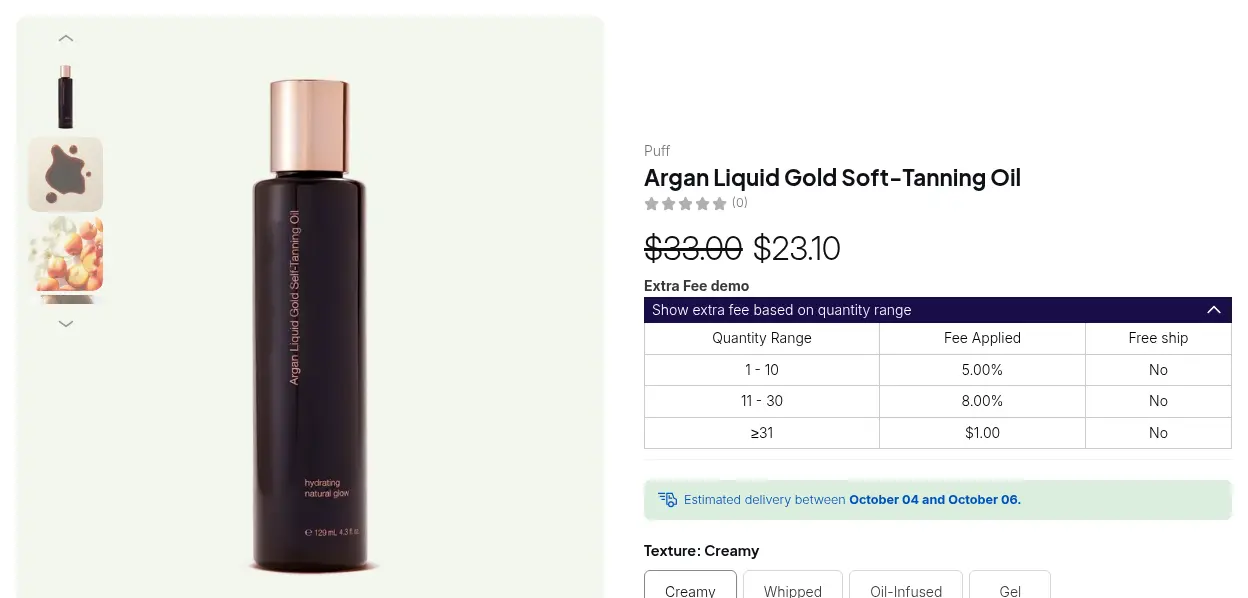
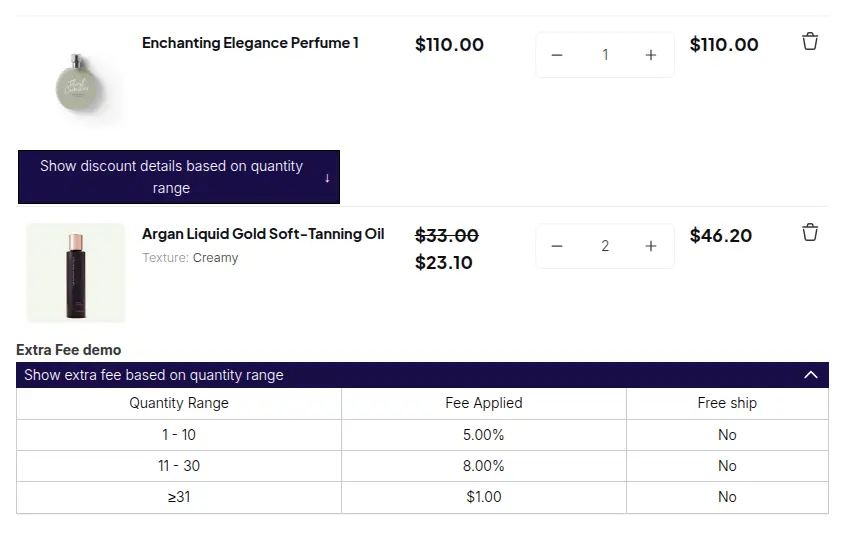
Show the Extra Fee table on the product page and in the cart, so a buyer can see the fee schedule before ordering. Then test a tagged cart, an untagged cart and a cart that reaches the free shipping tier.
Example: a fittings distributor with two tiers
This example uses illustrative numbers, not results from a real store. A distributor of industrial fittings sells to trade accounts tagged `wholesale`. A Shipping Rate rule charges a flat $15 for 1 to 9 items, $8 for 10 to 49 and $0 for 50 or more. An Extra Fee rule on the glass fittings collection charges $1.50 per item for 1 to 10 items, a $12 flat fee for 11 to 50 items and 4% of the eligible items’ subtotal from 51 items.
| Cart | Shipping Rate | Extra Fee | Buyer pays on top of products |
|---|---|---|---|
| 8 glass fittings | $15 flat (1 to 9 items) | 8 x $1.50 = $12 | $27 |
| 30 glass fittings | $8 flat (10 to 49 items) | $12 flat | $20 |
| 60 glass fittings, $1,800 subtotal | $0 (50 or more) | 4% x $1,800 = $72 | $72 |
A retail shopper with the same cart sees only the standard Shopify rate and no handling fee, because both rules target the `wholesale` tag.
Works well with
Fees and shipping tiers are one part of the order rules a wholesale store needs. These pages cover the others:
- Minimums and maximums: enforce minimum order quantity and value sets the smallest order you accept, and furniture trade pricing, quotes and order limits shows limits next to tiered prices.
- Case packs: sell in case packs with quantity increments keeps carts in whole cartons, which makes quantity-based shipping tiers predictable.
- Payment terms: Net 30 payment terms for wholesale buyers lets approved buyers pay after delivery.
- Orders on behalf of buyers: place orders on behalf of customers applies Shipping Rate to manual orders, but not Extra Fee.
The full set is in the order rules and terms hub. Useful glossary entries are MOV, case pack and trade account.
Limits and common mistakes
- One shipping effect wins. If a Discount Code, an Extra Fee tier with Free shipping and a Shipping Rate all touch shipping, a Discount Code is applied first, then the Extra Fee free shipping, then the Shipping Rate. Untick Free shipping on a fee tier if you want Shipping Rate to control the cost.
- Express checkout and direct links can skip an Extra Fee. Buyers who start from an express checkout button or a direct checkout link do not pass through the cart, so test the paths your buyers actually use.
- Not on the newest storefront bundle (v4). Shipping Rate and Extra Fee are hidden when a store runs storefront v4, so check which version your store uses before you plan around them.
- Extra Fee has no variant or market targeting. Use a collection, a product tag or a customer tag. Shipping Rate can target markets and, on the Platinum plan, specific variants.
- Unique rule names matter. The rule name is the line title at checkout, and Shipping Rate usage limits are counted by matching that title, so two rules with the same name share a count.
- Fee lines are not taxed by default. Turn on automatic tax for Extra Fee only if your tax setup requires it, and confirm the rules with your adviser.
- Mixed carts need a decision. Choose between measuring the range on the entire order or on the applied products only, then test a cart that mixes covered and uncovered products.
Setup checklist
- Install BSS B2B Solution and switch the app embed on in your theme.
- Confirm your plan is Advanced or Platinum and that your storefront bundle shows Shipping Rate and Extra Fee.
- Decide which customer tag gets the wholesale rates.
- Create the Extra Fee rule with buyer-friendly naming and tiers, and set the Free shipping flag only where you mean it.
- Create the Shipping Rate rule with quantity, amount or weight tiers and a unique name.
- Set the global options for the lowest or highest rate and for the entire order or applied products.
- Show the fee table on the product and cart pages.
- Test a tagged cart, an untagged cart, a mixed cart and a cart that reaches the free shipping tier.
Plans and requirements
Extra Fee and Shipping Rate are available on the Advanced and Platinum plans of BSS B2B Solution, and both need the app embed. See the BSS B2B pricing page for current plans and the 14-day free trial on paid plans. The Extra Fee guide and the Shipping Rate guide list every option, and the handling fees and custom shipping how-to walks through the combination. Install BSS B2B Solution from the Shopify App Store to start.