To offer Net 30 payment terms to wholesale buyers on Shopify, add a Net Terms rule in BSS B2B Solution: target your approved customers by tag, choose “Within 30 days” and add the Net terms block to your cart. Eligible buyers then see a Pay later button, confirm a short form and place the order with a due date 30 days later.
This page is for manufacturers and wholesalers whose repeat buyers expect to be invoiced rather than pay by card at checkout. It explains how Net Terms works, how to target the right customers, how orders and due dates are tracked, and what Net Terms does not do, because it has no credit limit and a few storefront requirements.
Who this is for
Net Terms suits you if:
- Your retailers, restaurants or contractors expect to order now and pay in 7, 15, 30, 60 or 90 days.
- You currently create draft orders by hand, send invoices and keep a spreadsheet of unpaid orders.
- You have a registration and approval process, so you know which accounts you trust with terms.
- You want a different term for different groups, such as Net 30 for established accounts and due on receipt for new ones.
- You want a due date on every order and a list of orders that are overdue.
- You sell retail on the same store and do not want those shoppers to see Pay later.
Why this matters
Net 30 is a common way for retailers to buy. When your store only takes card payments at checkout, buyers ask for an invoice, your team creates a draft order, and someone keeps a list of unpaid orders. It works for a few accounts and breaks as the list grows. Every manual step is a place where a due date is forgotten, an invoice goes to the wrong contact or a buyer waits for a reply.
Payment terms are also a sign of trust. Buyers read “Pay later” at the cart as a signal that you treat them as a business customer. And for your team, one rule that attaches the right term to the right account is easier to audit than a patchwork of invoices.
Merchants in our case studies already run terms this way. Patek Packaging sells packaging to restaurants with customer-specific prices and Net Terms, and Fusion Body Art offers a Pay later checkout to selected wholesale customers.
Imagine a manufacturer of paper cups and containers that sells to cafés and caterers. Established accounts have been trading with it for years and expect 30 days. New accounts pay on receipt for their first orders. The manufacturer wants both groups to order from the same store, and wants nothing hand-typed.
What Shopify covers natively, and where an app helps
Shopify’s built-in B2B includes payment terms for company buyers, and the Plus plan adds deposits and partial payments, as the Shopify B2B guide and the Help Center’s B2B features by plan page describe. That works well if your buyers are set up as companies.
BSS B2B Solution Net Terms offers terms for buyers identified by customer tag, specific customer or login, with Net 7, 15, 30, 60 and 90, end of month, a fixed day of the month or a custom period, and a Pay later button in the cart. The order rules and terms hub explains where it sits next to minimums, increments and manual orders.
Choosing the right term for each group
The list of terms is long, so it helps to match a few of them to the kinds of buyer you have.
| Term | When payment is due | A good fit for |
|---|---|---|
| Due on receipt | When the order is received | New accounts, small first orders |
| Due on fulfillment | When the order is fulfilled | Made-to-order sales |
| Within 7 or 15 days | That many days after the order date | Fast-turnaround accounts |
| Within 30, 60 or 90 days | That many days after the order date | Established retailers and contractors |
| End of month | The last day of the order month | Buyers who pay in monthly cycles |
| Specific day of month | A fixed day, such as the 15th | Buyers on a set payment run |
Start with one or two rules rather than all of them. A rule for established accounts and a rule for new accounts covers most stores, and you can add terms later as your program grows.
How to set it up with BSS B2B Solution
1. Add the Pay later button to your cart
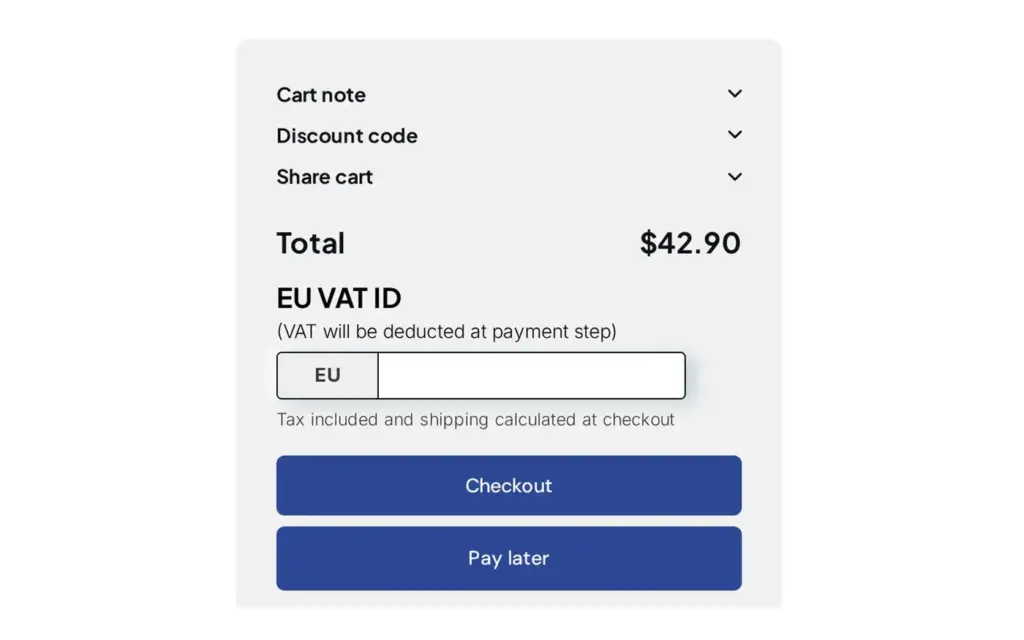
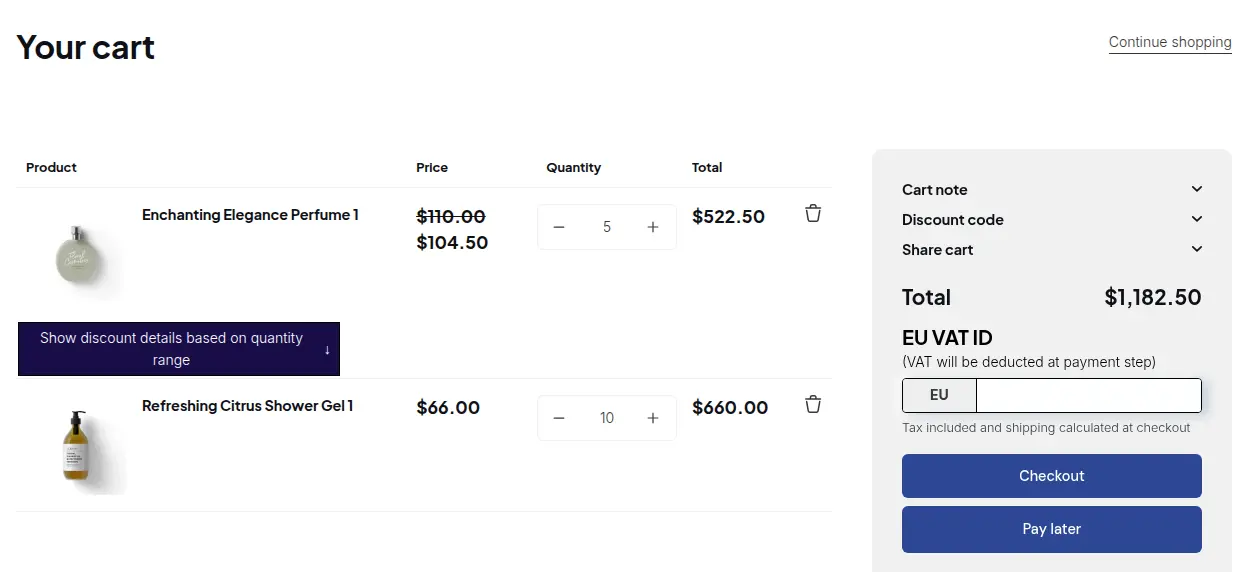
The button does not appear on its own. On B2B orders & discounts > Net Terms, click Storefront setup, then Enable button on Cart page. This opens the theme editor with the Net terms block ready to add. Add it, save, and change the display text (the default is “Pay later”), colours and alignment if you want. Without the block, the button never appears, even if your rules are active. The BSS B2B Solution app embed must be on too.
2. Create a Net Terms rule
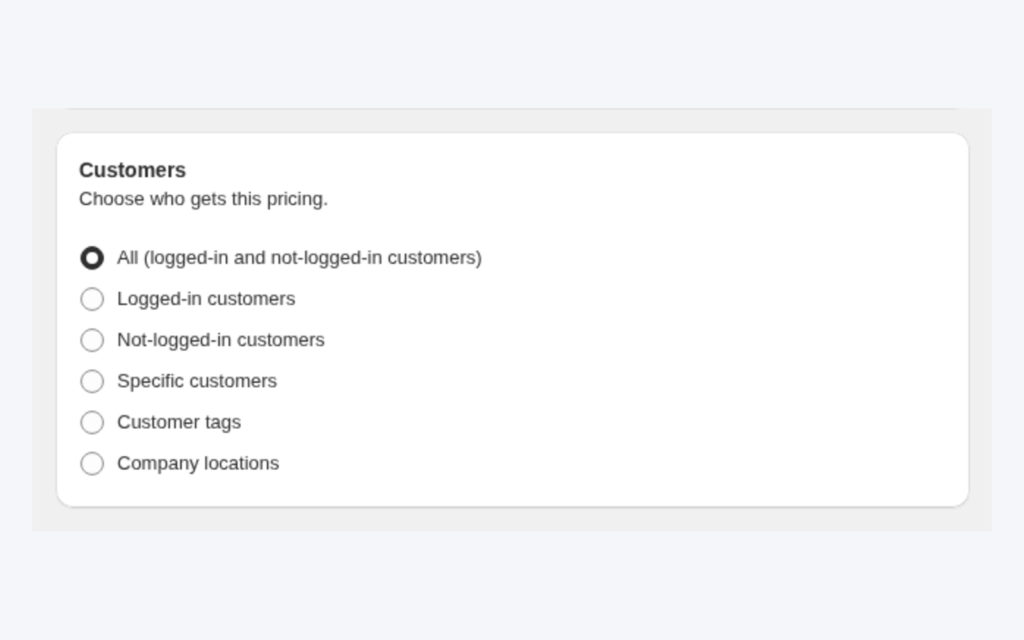
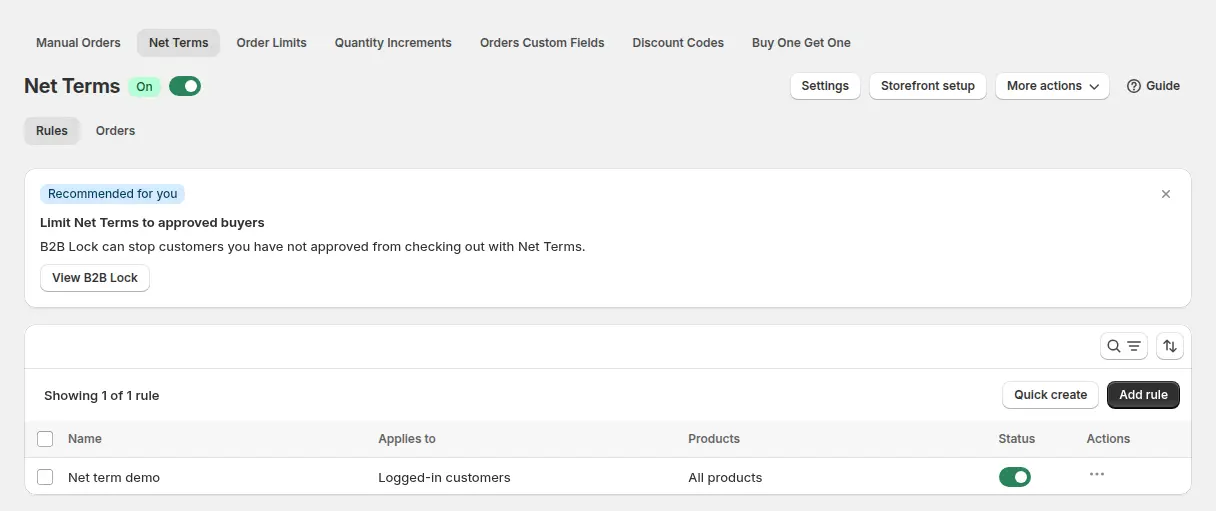
Click Add rule. Name it (for example “Net 30 for wholesale”) and choose who it applies to: all logged-in customers, specific customers or customer tags. Choose the eligible products: all products, specific products, collections or product tags. Guests cannot use Net Terms; the customer must be logged in. If a cart contains products the rule does not cover, the app lists them and blocks the Net Terms checkout until the cart is updated.
3. Choose the payment terms
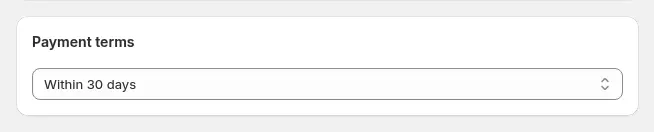
Pick when payment is due: on receipt, on fulfillment, within 7, 15, 30, 60 or 90 days, end of month, end of month plus a number of days, end of next month, a specific day of the month or a custom period in days, weeks or months. You can also set an optional minimum or maximum cart amount or quantity for the rule.
4. Design the form buyers fill in
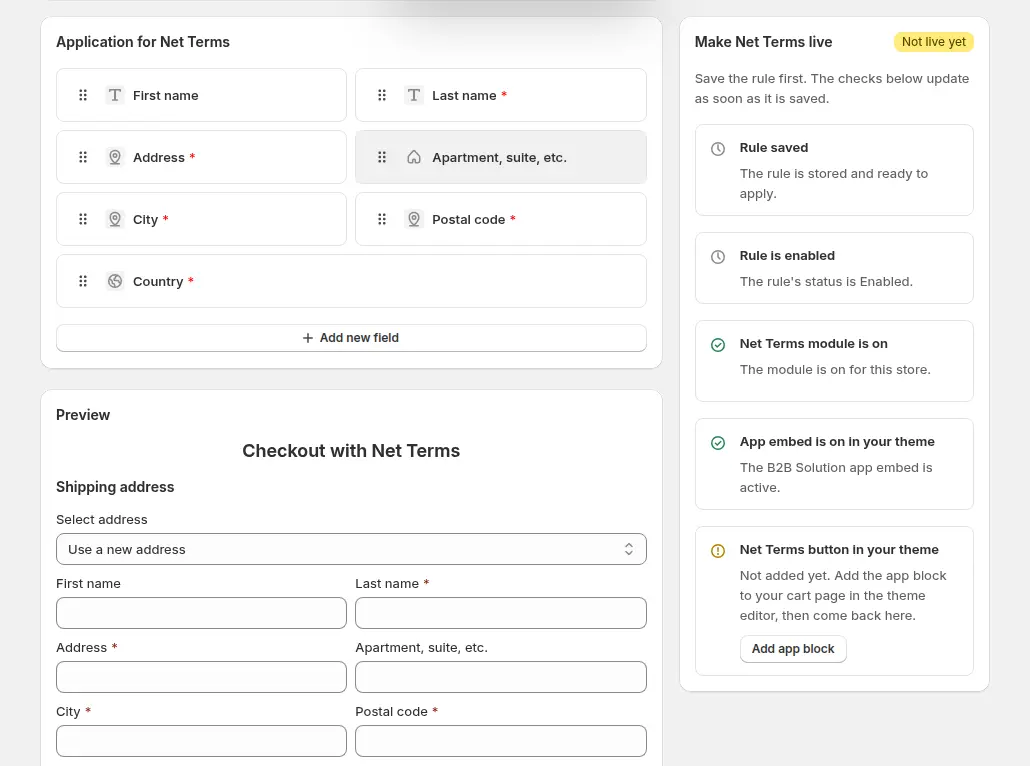
When a buyer clicks Pay later, a form opens with the due date, the address fields and an order summary. You can add a company field, a Purchase Order Number (saved to the order notes), a tax ID with live validation, dropdowns, file uploads and more.
5. Decide how orders are created
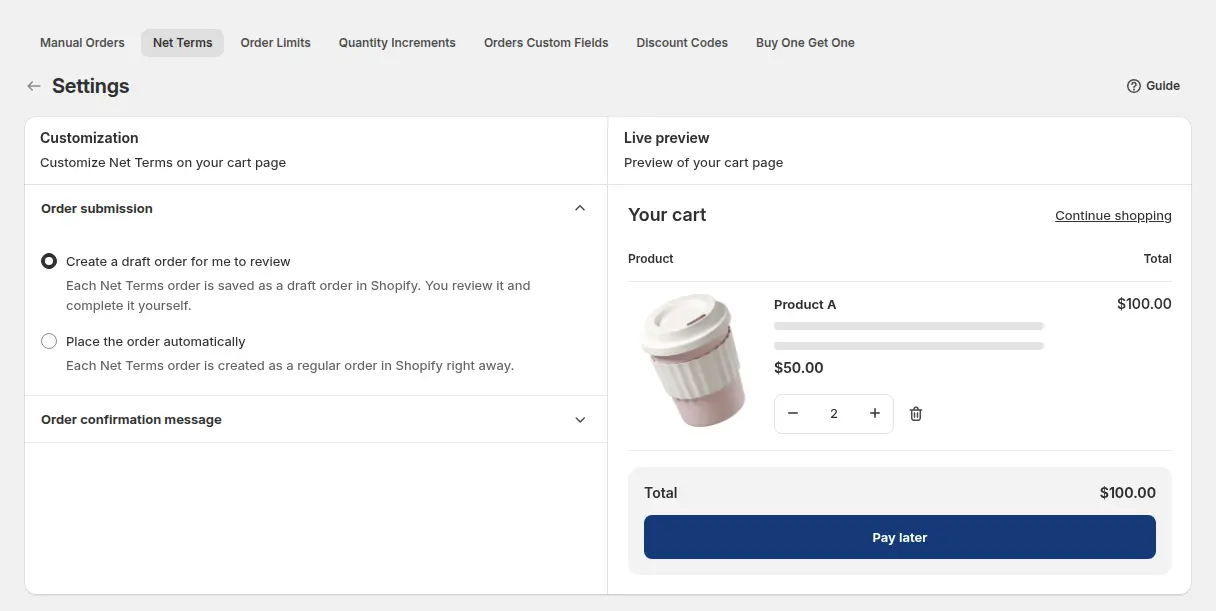
In Net Terms > Settings, choose whether each order is saved as a Shopify draft order for you to review (the default) or placed automatically with payment pending. You can also edit the confirmation message buyers see.
6. Switch on the emails
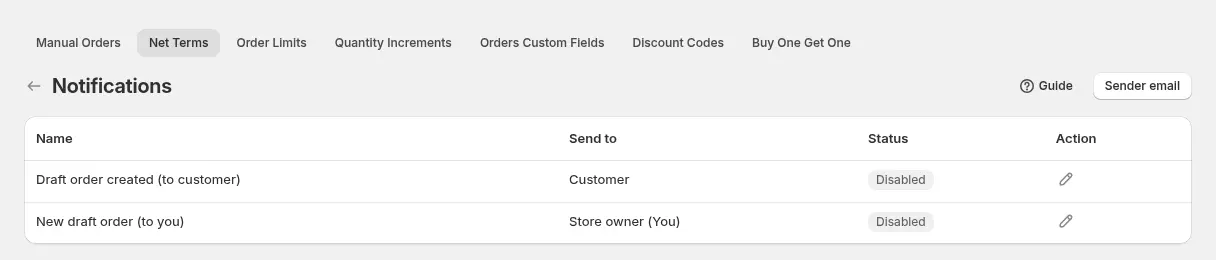
For draft orders, the app can send two emails: one to the customer when the draft is created and one to you. Open More actions > Notifications and enable the ones you want. When orders are placed automatically, Shopify’s own order emails are used instead.
7. Verify, then track due dates
Log in as a customer who matches the rule, add an eligible product, and check that Pay later appears. Then check Net Terms > Order History: each order shows its due date and status. Search by order number, email or name, filter by remaining days (Due, Undue, due on receipt, due on fulfillment) and export to CSV for your accountant. Also test as a customer who does not match the rule: the button should not appear.
Example
Example for illustration only, not a customer result. The cup manufacturer creates two Net Terms rules. Rule A, “Net 30 for trade”, targets the tag trade-30 with Within 30 days. Rule B, “Due on receipt for new accounts”, targets the tag trade-new with Due on receipt, and has a minimum order amount of $300. A café tagged trade-30 adds an order of $1,400 to the cart on October 14 and clicks Pay later. The form shows a due date of November 13, the café confirms its address and enters a PO number, and the order arrives in Shopify as a draft order marked unpaid. On Monday the manufacturer’s finance assistant filters Order History by Due and sees a single order that passed its date.
Works well with
- Onboard tax-exempt buyers with Net terms to combine terms with a verified tax ID.
- Place orders on behalf of customers when sales reps create orders with payment terms, including Net 45.
- Wholesale registration form with approval so only approved accounts get the tag that unlocks terms.
- PO number and order notes at checkout for buyers who need a purchase order reference.
Glossary: Net 30, net terms, credit limit and purchase order.
Limits and common mistakes
- There is no credit limit. Net Terms has no credit limit field. You decide who is offered Pay later through tags and eligible products, and approve each account first. The optional minimum or maximum in a rule is a cart amount or quantity, not a limit on what a buyer owes. Track exposure in Order History.
- There is no Net 45 preset. Use a custom period of 45 days in the rule, or Net 45 in Manual Orders.
- The button appears only for logged-in customers who match the rule, and only when the Net terms block is on the cart template.
- Pay later is in the cart, not in Shopify checkout. A buyer who opens the Shopify checkout URL directly does not see it.
- Newest storefront bundle. Net Terms is not available on the newest storefront bundle (v4). Ask BSS support which version your store uses before you build on it.
- Mixed carts. If the cart contains ineligible products, the Net Terms checkout is blocked until you remove them or widen the rule.
Setup checklist
- Decide which accounts get terms and which term each group gets.
- Tag approved accounts through your registration form.
- Add the Net terms block to the cart template and turn on the app embed.
- Create a rule per term, with products and optional cart limits.
- Design the application form with the fields your finance team needs.
- Choose draft orders or automatic placement, and enable the emails.
- Test as a matching customer and as a non-matching customer.
- Read the Net Terms guide for every option.
Plans and requirements
Net Terms is available on the Advanced and Platinum plans of BSS B2B Solution ($49 and $99 per month, with yearly billing saving 10%). See the pricing page for the comparison, then install BSS B2B Solution from the Shopify App Store.