To collect a purchase order number and delivery notes from business buyers on Shopify, switch on Orders Custom Fields in BSS B2B Solution, add one block per field to your cart page in the theme editor, and give each field a clear label. The buyer fills the fields in before ordering, and every answer is saved on the order as an order attribute with the name you chose, so finance and your warehouse can read it.
This guide is for wholesalers and distributors whose trade buyers quote a PO number, ask for a delivery window or send packing instructions with every order. It explains who needs this, how the setup works, a worked example of the fields and what lands on the order, and the limits to know first. One detail matters for expectations: the fields appear on the cart page, not inside Shopify checkout, even though buyers think of them as “checkout” fields.
Who this is for
Orders Custom Fields fits you if you recognize several of these:
- Your buyers are businesses whose accounts payable team matches an invoice to a purchase order.
- Orders carry delivery requirements: a dock appointment, a delivery window, a contact on site, or lift-gate access.
- Customers ask for special packing, labelling or paperwork that your warehouse needs to see before picking.
- Your team currently reads a single cart note and copies details into another system by hand.
- You export orders to an accounting tool or an order printer and want the PO number as its own field, not buried in free text.
If you only need a PO number on orders paid later, the Net Terms application form can carry one. See the Net Terms note under Works well with.
Why this matters
A business buyer does not just place an order. They place an order against a purchase order that their own finance team approved, and that PO number has to travel with the order so the invoice can be matched to it. When the number is missing or buried in a long note, someone on your team emails the buyer to ask for it, and the invoice is held up until it arrives.
Delivery details have the same cost on the warehouse side. If a buyer’s preferred delivery window sits inside a single cart note next to a gift message and a coupon question, it is easy to miss and hard to search later. Separate, labelled fields turn that information into data: a PO number goes to the accountant, a delivery preference goes to the dispatcher.
Industrial and parts distributors feel this most. Lift-Spares, a Sweden-based supplier to elevator and escalator maintenance companies, describes buyers who order under service contracts and whose orders must match agreed pricing, tax treatment and invoicing requirements, or the buyers return to email and phone. Read the Lift-Spares case study for how it structured wholesale on one store.
How to set it up with BSS B2B Solution
The module is configured in two places: the app switches it on and installs the block, and the theme editor is where each field is defined.
Step 1: Switch the module on
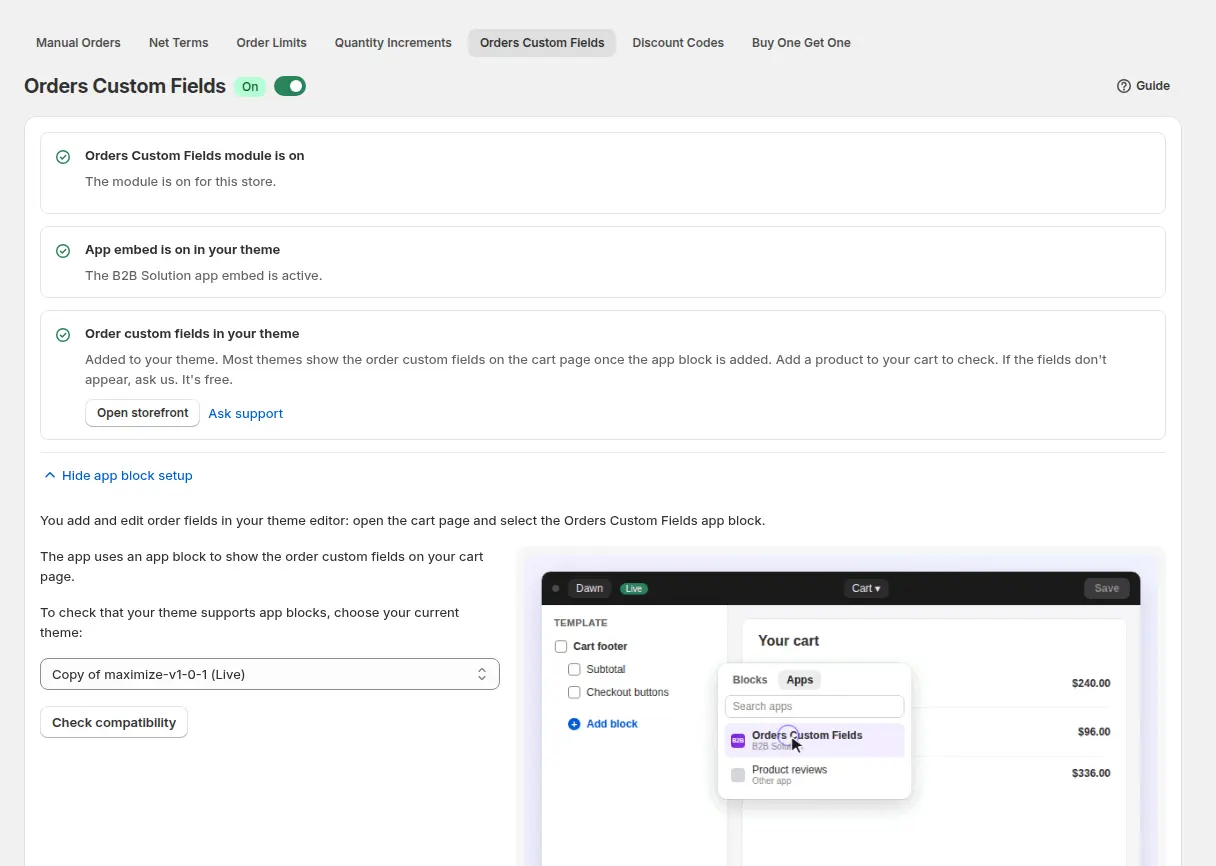
In the Shopify admin, open the app and go to B2B orders & discounts > Orders Custom Fields, then toggle the module on. This makes the app block available to your theme.
Step 2: Install the app block
On the same page, open app block setup, pick your theme and click Check compatibility. The theme editor opens on your cart section with the Orders Custom Fields block ready to add. If your theme does not support app blocks, the Manual Installation card gives you Liquid snippets, one per field type, to paste into the cart template, the cart drawer or the AJAX cart template.
Step 3: Define each field in the theme editor
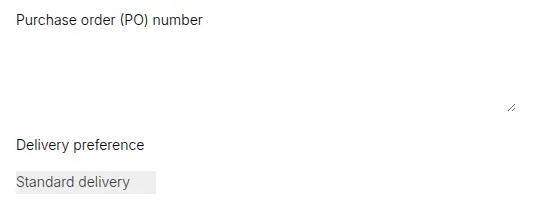
The fields themselves are set up in the Shopify theme editor, not in the app, so there is no field builder in the admin. For each block choose the field type (text field, radio buttons, checkboxes or a dropdown list), the title buyers see, and for choice fields the comma-separated options. The label matters most: it becomes the CSS class and the key stored on the order, so name it for your accountants, for example `po-number` or `delivery-preference`.
Step 4: Add one block per field
Need a PO number and a delivery preference? Add two blocks, each with its own type and label. A text field suits a PO number, a dropdown suits a short list of delivery options, and radio buttons suit a yes or no requirement such as lift-gate access.
Step 5: Place a test order and read the result
Fill in the fields on the cart page as a buyer would and place a test order. In the Shopify admin, open the order and look in Additional details: each filled field appears as an order attribute named after its label. Third-party apps and order printers can read the same attributes.
Example: a plumbing parts distributor
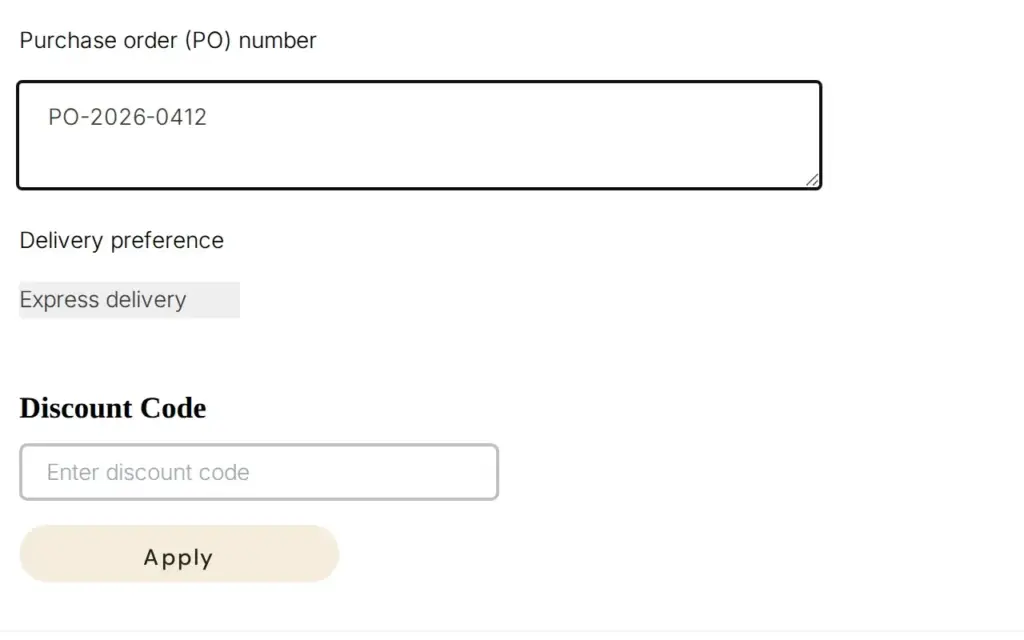
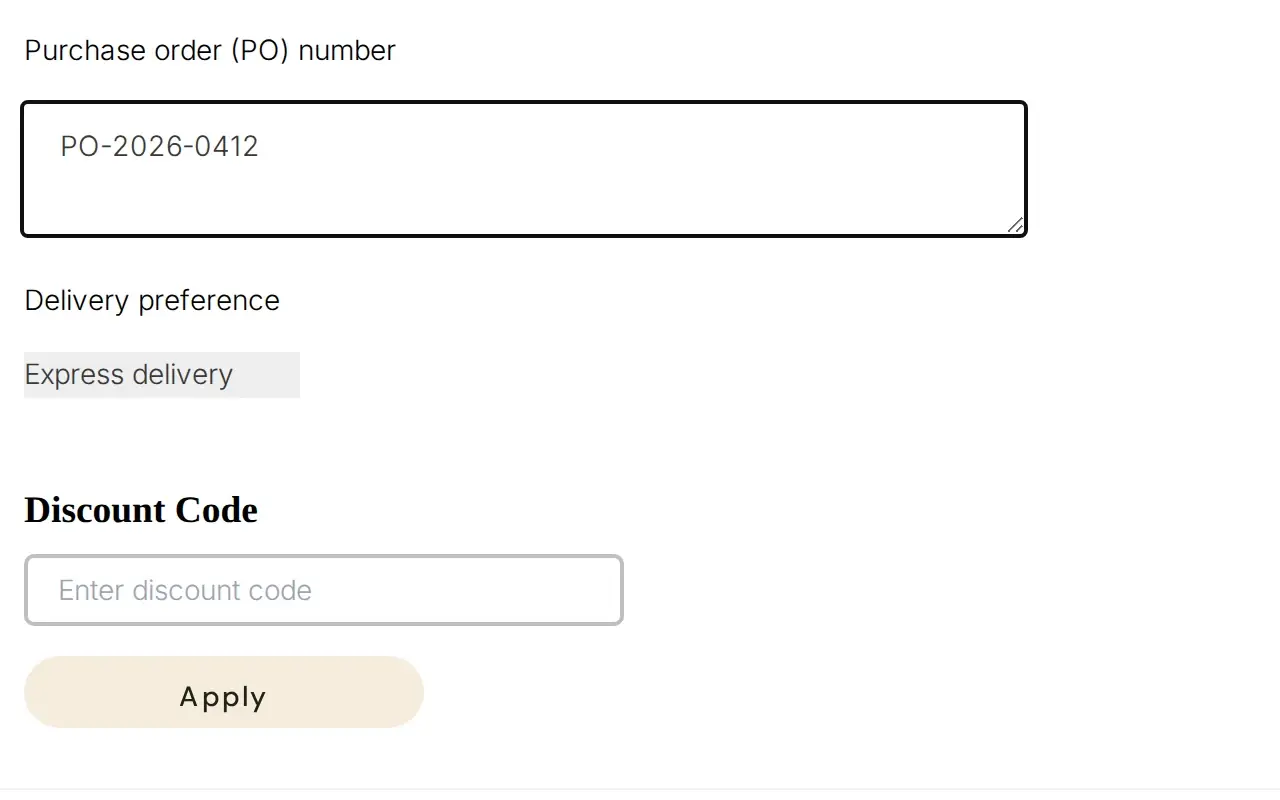
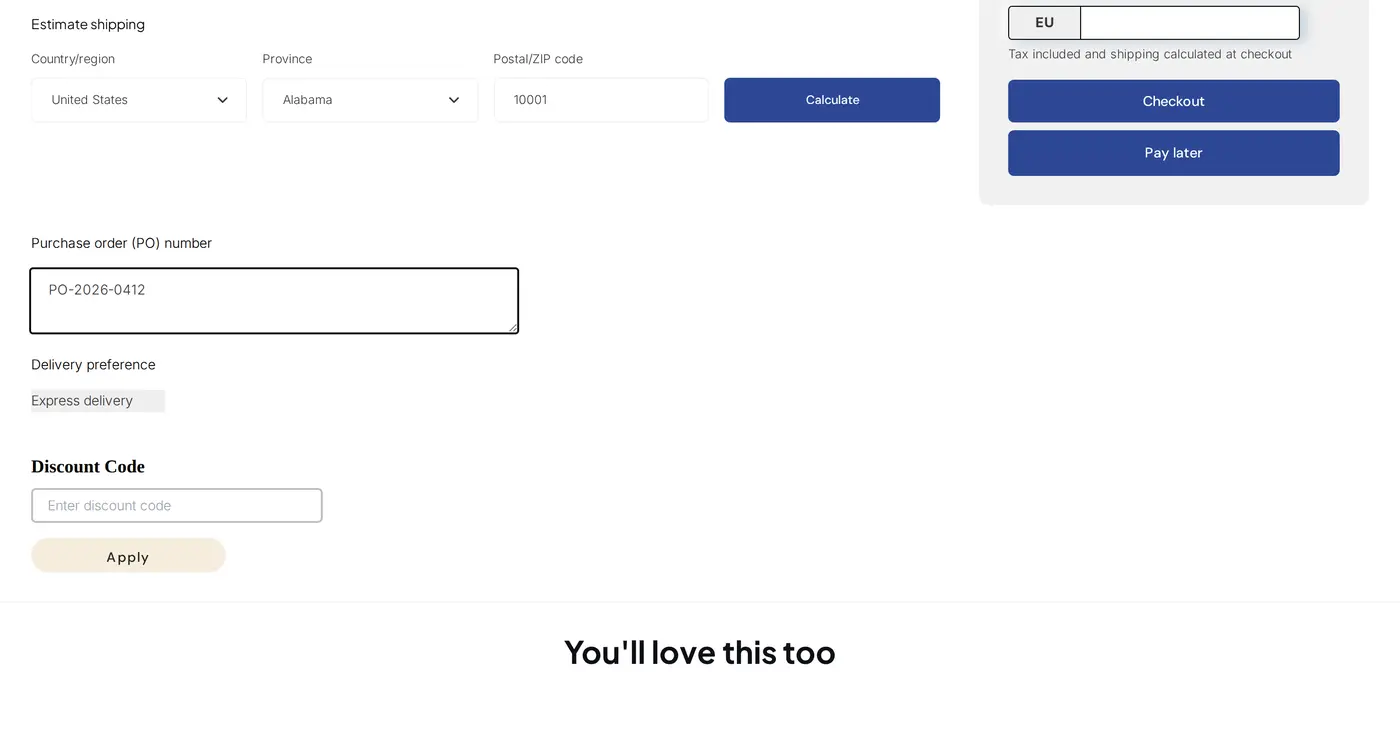
This example uses illustrative values, not results from a real store. A distributor of plumbing parts sells to installers on payment terms. It adds three blocks to the cart: a text field labelled `po-number`, a dropdown labelled `delivery-preference` with the options Standard delivery, Express delivery and Dock appointment, and radio buttons labelled `lift-gate` with the options Yes and No for buyers who need a tail-lift truck.
An installer builds a cart, types PO-2026-0412, picks Express delivery, chooses Yes for lift-gate and places the order. In the Shopify admin the order shows three attributes under Additional details.
| Attribute key | Value on the order |
|---|---|
| po-number | PO-2026-0412 |
| delivery-preference | Express delivery |
| lift-gate | Yes |
The accountant copies the PO number onto the invoice, the dispatcher books an express truck with a tail lift, and nobody emails the installer to ask. If the installer leaves a field empty, it is left off the order instead of showing a blank row.
Works well with
Order fields sit alongside the rest of the wholesale ordering flow:
- Payment terms: Net 30 payment terms for wholesale buyers lets approved buyers pay later, which is when a PO number matters most. The Net Terms application form can include a Purchase Order Number field, and its value is saved to the order notes.
- Quotes: the BSS B2B Quote form can collect a PO number, and the value is forwarded to the draft order, see request a quote button and hide price and quote approval to draft order.
- Orders on behalf of buyers: place orders on behalf of customers covers manual orders, which do not use these cart fields.
- Fast ordering: CSV bulk order upload fills the cart quickly, and the buyer can then complete the fields.
More order rules are in the order rules and terms hub. Glossary entries that help here are purchase order, net terms and trade account.
Limits and common mistakes
- The fields are on the cart page, not in Shopify checkout. A buyer who reaches checkout without passing through the cart page, for example through a direct checkout link, does not see them. Tell buyers to use the cart.
- Fields are optional. There is no required-field validation, and empty or whitespace-only entries are dropped. If a PO number is mandatory, say so in the field title and in your wholesale terms.
- Labels become keys. Keep them short, lowercase and meaningful, because they are what your accountants and apps will see. Changing a label later changes the key on new orders.
- Custom fields are not the cart note. BSS fields land in order attributes under Additional details, while Shopify’s own cart note lands in the order note.
- Manual Orders do not use these fields. When your team creates an order on behalf of a buyer, enter the PO number in the order itself.
- Not on the newest storefront version (v4). The module card is not shown in the dashboard on v4 stores, so check your storefront version before you plan around it.
- Themes without app blocks need the manual snippets. Paste the right snippet for your cart template, cart drawer or AJAX cart.
Setup checklist
- Install BSS B2B Solution and switch the app embed on in your theme.
- Switch on Orders Custom Fields under B2B orders & discounts.
- Run the app block setup for your theme and open the cart section in the theme editor.
- Add one block per field and choose the right field type.
- Give each field a short, lowercase label such as `po-number`.
- Write the title in buyer language and state whether the field is required by your terms.
- Place a test order and confirm the attributes under Additional details.
- Check that your accounting tool or order printer reads the attribute keys.
Plans and requirements
Orders Custom Fields is a paid-plan module of BSS B2B Solution, so check the current plan table on the BSS B2B pricing page before you set it up, and note that it needs the app embed and an app-block-capable theme or the manual snippets. The Orders Custom Fields guide lists every field setting, and the Net Terms setup guide covers the PO field on the Pay later form. Install BSS B2B Solution from the Shopify App Store and add your first PO field.