To show wholesale prices in the buyer’s currency on Shopify, turn on the Multi-currency module in BSS B2B Solution, complete the one-time money-format step, and pick the currencies your buyers can choose. A floating currency switcher then converts your prices, including B2B prices, tier tables and cart totals, at Shopify’s exchange rate. The conversion is for display only: checkout stays in your store currency, or in the currency Shopify sets for the buyer’s market.
International trade buyers compare your prices against local suppliers. If they have to convert in their head, some will skip the comparison and leave. A familiar currency removes that friction, and a cart notice tells them what they will actually pay in, so nothing surprises them at checkout.
Who this is for
Multi-currency display suits you when:
- You sell wholesale to buyers in several countries and your store has one main currency.
- Your cross-border buyers ask “what is that in euros?” and you answer by email.
- You already have B2B prices from Custom Pricing, Price Lists or Volume Pricing, and you want them readable in other currencies without rebuilding the rules.
- You want a switcher that remembers the choice and can pick the buyer’s currency automatically on the first visit.
- You accept that the price shown is an indication and that checkout happens in one currency.
Why this matters
For a distributor selling across borders, price comprehension drives the first order. A buyer in Germany who sees a case price in dollars has to look up an exchange rate, guess a rounding rule and then wonder whether the number will change at checkout. A buyer who sees euros, rounded neatly and with a notice about the checkout currency, can compare you with a local supplier in seconds.
The display-only design also keeps accounting simple. Your orders still arrive in the store currency, your payouts and reports stay as they are, and the module changes what the buyer reads rather than what you charge. The cost is that buyers must understand that the final amount follows the checkout currency, which is why the cart notification exists.
Keep the currency list short. A distributor that sells in North America and the EU may only need USD, CAD, EUR and GBP. A shorter list is easier for buyers to scan and easier for you to review after the exchange rates move.
How to set up multi-currency with BSS B2B Solution
Step 1: Turn the module on
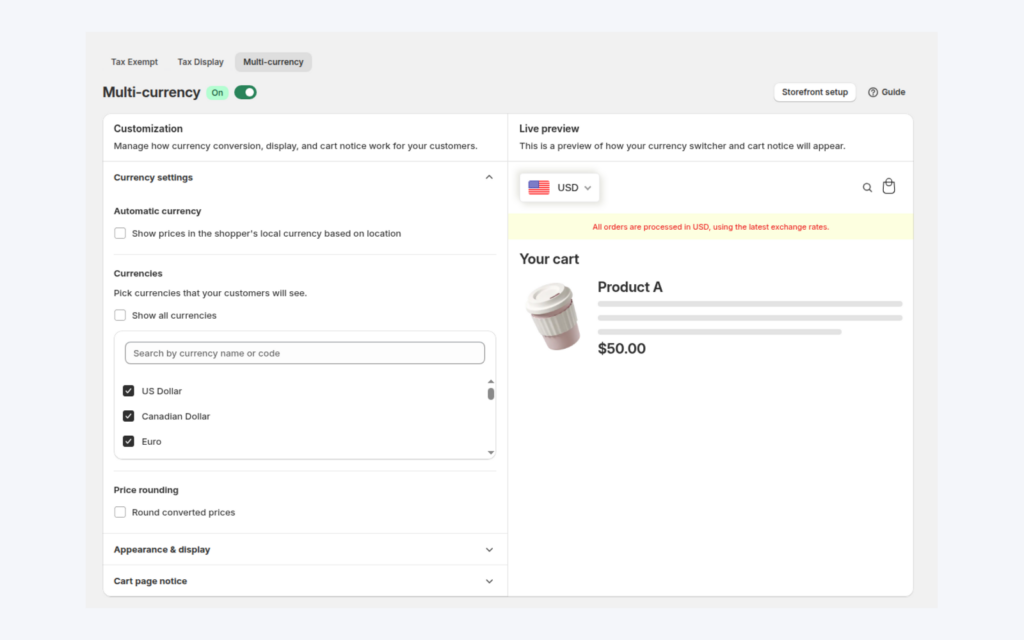
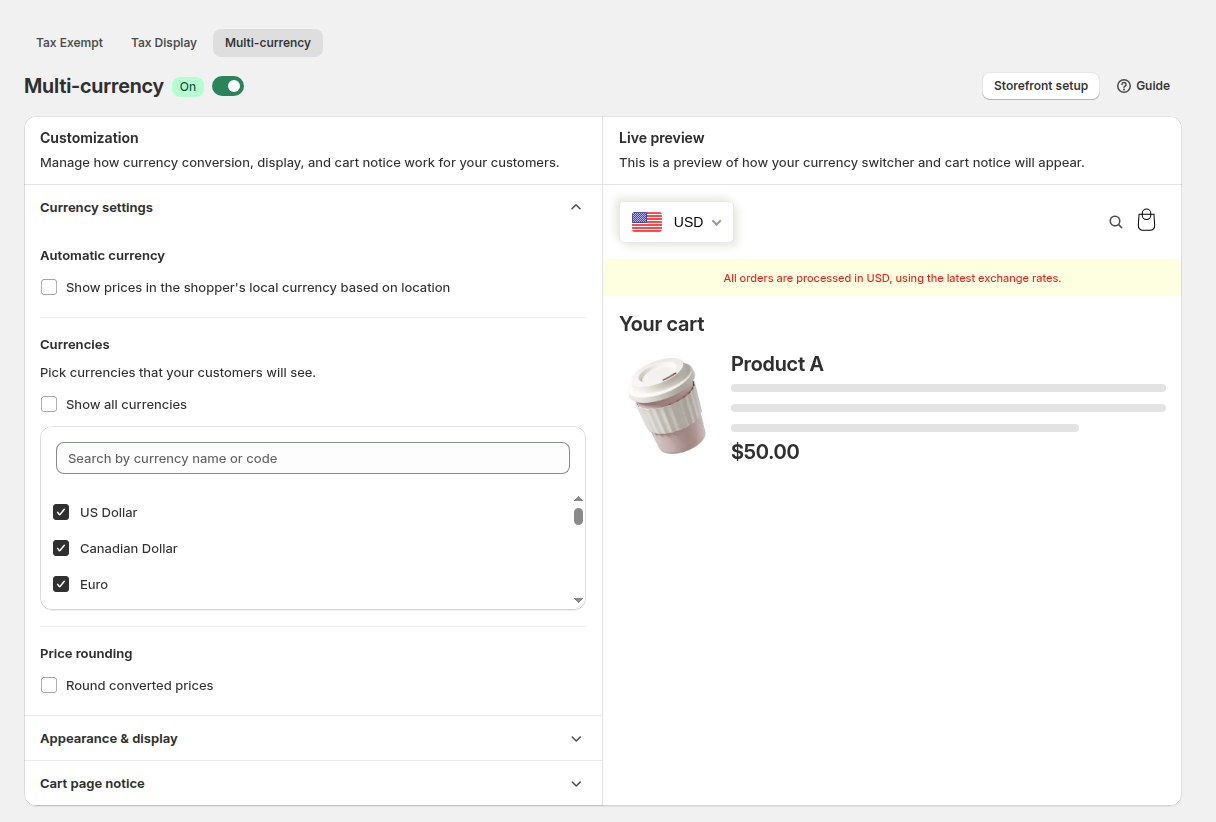
In the app go to B2B tax & currency > Multi-currency and toggle the module on. Make sure the B2B Solution app embed is on in your live theme under Online Store > Themes > Customize > App embeds; without it the switcher never appears.
Step 2: Edit the money format (required once)
The app finds prices on your pages through your store’s money format, so this step is required. In the app’s Manual Installation section click Open Edit Money Format Window, or go to Shopify Settings > General > Store currency and click Change formatting. Replace HTML with currency and HTML without currency with the values the app shows, and save in Shopify. Back in the app click Verify Currency Setting; you should see “Verification successful.”
Step 3: Choose the currencies
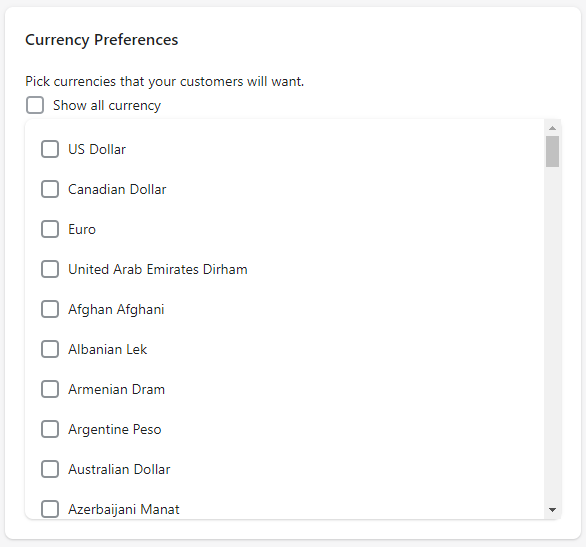
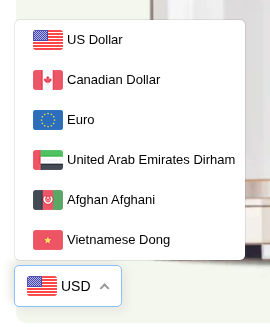
Under Currency Preferences pick Show all currency, or tick only the currencies your buyers will want. Your store currency is always included. Auto Currency Conversion Status switches a first-time visitor to the currency of their location, if that currency is in your list.
Step 4: Set rounding and appearance
Under Pricing Preferences you can round prices after conversion. Remove Decimal shows a price such as €18 without cents, while Round To Decimal keeps two decimals. Style the currency bar: show the flag and currency or the currency only, choose colors and a shadow, and decide whether it shows on mobile, desktop or both, with a display position such as bottom right.
Step 5: Add the cart notification
Tick Show Notification on Cart Page and edit the text. Use the [checkout_currency] placeholder for your store currency, for example “All orders are processed in [checkout_currency], using the latest exchange rates.” Set the colors and click Save.
Step 6: Check the storefront
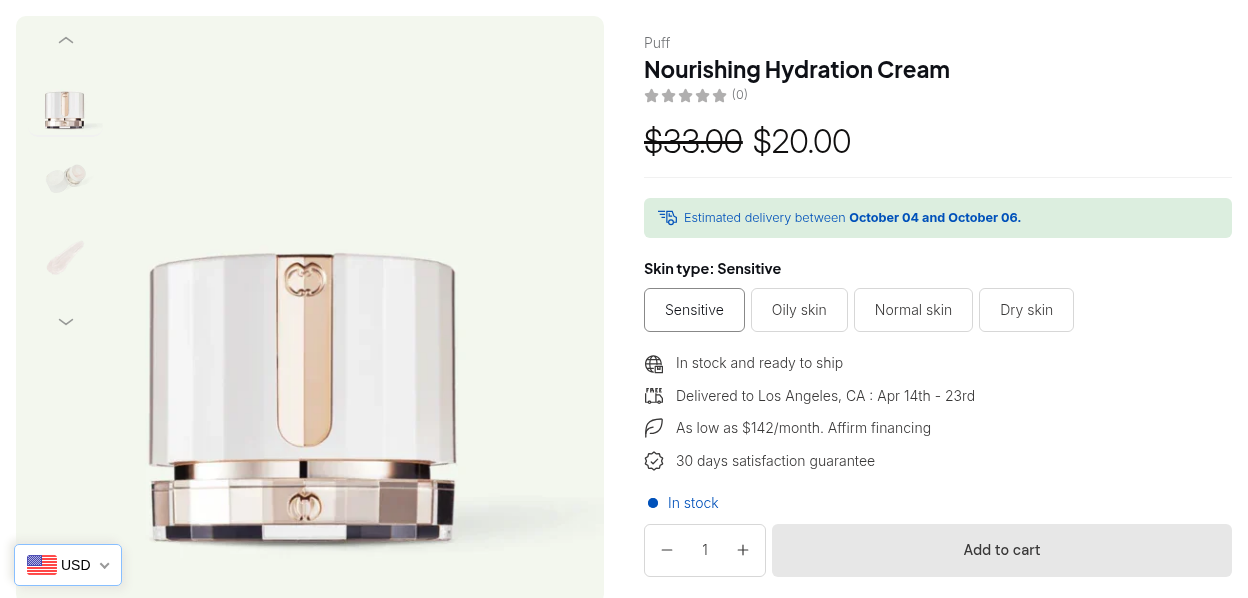
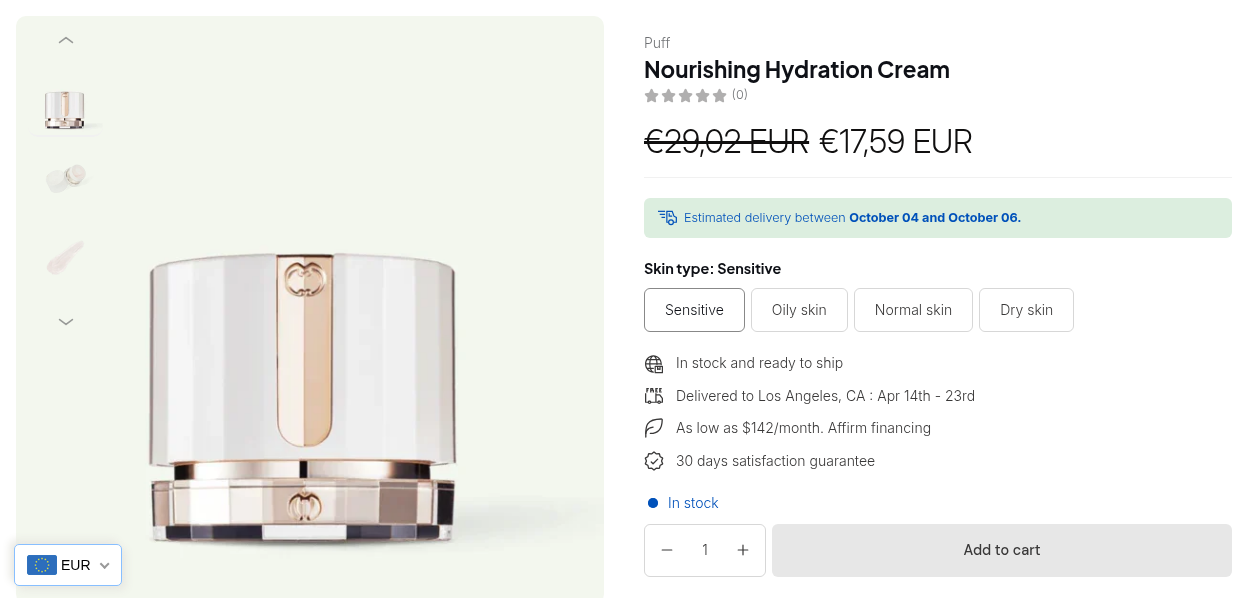
Open the storefront and switch currencies. Product pages, Custom Pricing, Volume Pricing tables and cart totals are converted, so review each in every currency.
How the conversion works
Your B2B prices are stored in your store currency, and the module multiplies them by the exchange rate Shopify provides for the currency the buyer chose. That rate applies to the original price, to a Custom Pricing or Price List price, to the tiers in a Volume Pricing table and to the cart totals, so every figure on the page moves together. Rounding, if you turn it on, happens after the conversion.
This is why there is no fixed price per currency. A $75.00 B2B price is one price that is displayed in several currencies, not a separate price entry for each one. If your business needs a distinct price list for the eurozone, treat the eurozone as an audience with its own rule, for example through Shopify Markets, and keep the currency switcher for display only.
Choosing a rounding style
Remove Decimal suits high-value items and trade catalogs where buyers think in whole numbers, such as 69 euros. Round To Decimal keeps two decimals and suits low-priced consumables where cents matter, such as 0.69 euros per unit. Convert three or four representative products with each style, compare the results with your own price book and pick the style that gives the least surprise.
Example: a US distributor selling to Germany
This is an illustration with made-up numbers and a made-up exchange rate, not a customer result. A distributor’s store currency is USD. A Custom Pricing rule gives customers tagged wholesale 25% off a $100 product, so the B2B price is $75.00. Assume Shopify’s rate is 0.92 euros per dollar.
| What the buyer sees | USD | EUR, Round To Decimal | EUR, Remove Decimal |
|---|---|---|---|
| Original price | $100.00 | €92.00 | €92 |
| B2B price | $75.00 | €69.00 | €69 |
A German buyer who chooses EUR reads €69.00 with Round To Decimal. The cart notice says orders are processed in USD, so at checkout the amount is $75.00 per unit, or the currency Shopify sets for the buyer’s market if you use Markets. The rule itself did not change, only the way the price is displayed.
Works well with
- Prices per market. If you need a different price in a country rather than a converted one, see wholesale prices per market.
- Tax display. Pair the switcher with prices excluding VAT for B2B buyers so European buyers see net prices.
- Registration. A wholesale registration form with approval tags cross-border buyers so their rules apply.
- Tiers. Tiered quantity break pricing tables convert too.
The wholesale pricing hub links the other pricing guides. The glossary explains wholesale price, price list and catalog.
What to tell buyers
The cart notification is the most important sentence in this setup. Say plainly which currency the order is charged in, and that the amount shown in another currency is an indication at the current exchange rate. A sentence such as “Prices are shown in your chosen currency for reference. All orders are processed in [checkout_currency]” works for most stores. If you also sell through Shopify Markets with local checkout currencies, test a buyer in each market, because the checkout currency may follow the market rather than your store currency.
Add the same note to your wholesale terms page, so a buyer who reads the terms before registering knows how invoicing and payment currencies work.
Limits and common mistakes
- Display only. Buyers do not pay in the currency they pick. Checkout stays in your store currency, or in the currency Shopify sets for the buyer’s market.
- No fixed price per currency. B2B prices are stored in your store currency and converted at Shopify’s rate, with optional rounding. For a fixed price in a country, create rules for that audience.
- The money format step is required. Without it, the app cannot recognise prices to convert.
- Review in every currency. Check product pages, tier tables and cart totals for each currency on your list.
- Use the cart notice. It tells buyers the checkout currency, so they are not surprised by a different total.
- The embed must be on. If the switcher does not appear, check the app embed in the live theme first.
- Rounding can differ from your price book. Convert a few products by hand and compare before you announce the feature.
Setup checklist
- Decide which currencies you really need and list them.
- Turn on the module and the app embed.
- Edit the money format and click Verify Currency Setting.
- Choose the currencies, auto-detection, rounding and bar position.
- Write the cart notification text with the checkout currency placeholder.
- Switch through every currency on a product page, a tier table and the cart.
- Test on mobile and desktop.
Plans and requirements
Multi-currency is part of the Advanced plan and higher. On Advanced and Platinum it includes location detection, the currency bar on mobile and desktop, price rounding, the cart notification and integration with the B2B modules. See the BSS B2B Solutions pricing page for current plan details. Conversion uses Shopify’s exchange rates.
You can install BSS B2B Solution from the Shopify App Store (4.9 rating from 1,185 reviews as of 2026-10-02, 14-day free trial on paid plans), read the app overview, or follow the guide to show prices in different currencies in the docs.