To turn an approved quote into a Shopify draft order, enable Auto Convert to Draft Order in BSS B2B Quote, publish the Quote History page, and send a proposal email that carries Approve and Reject buttons. When a signed-in buyer approves, the app creates the draft order from the quoted prices and shipping, sets the quote to Converted and emails the Shopify invoice, so nobody on your team re-enters the order.
This guide is for merchants who already take requests for quote and lose time or accuracy between “yes, we accept” and a real order. It explains who benefits, the setup step by step, an example of a quote that becomes an order, and the limits worth knowing before you rely on it, above all that approving needs a signed-in buyer and that approval sends an invoice rather than redirecting to checkout.
Who this is for
The approve-to-order flow suits you if several of these sound familiar:
- You send priced proposals and then wait, and the approval comes back as an email, a phone call or a message.
- Someone on your team copies every approved quote into a draft order, line by line, with prices and shipping.
- Quotes include custom unit prices and shipping that a normal cart cannot reproduce.
- Your buyers are business accounts with logins, so you can send them to their own quote history.
- You want one record: the quote, its status and the resulting order linked together.
If you have not set up quote requests yet, start with the Request a Quote button, then come back to this page for the approval step.
Why this matters
Without automation, an approved quote lands back with your team. Someone opens the quote, creates a draft order, retypes each line and price, adds the shipping line, checks the tax and sends an invoice. That is slow, and each retyped number is a chance for a mistake that the buyer notices on the invoice. The buyer, meanwhile, has already said yes and is waiting.
The second cost is the email thread. A structured quote flow replaces long chains of “can you do it for less” messages with one proposal and two buttons. KAPR, a Dutch grooming brand that sells to barbers and salons, moved new and negotiated accounts to quote requests through structured flows instead of open-ended email. Read the KAPR case study. Approval adds the last step of that idea: the decision itself becomes an action in the system, not a sentence in an inbox.
How to set it up with BSS B2B Quote
Setup takes six steps, and the first two are the ones that make the buttons work.
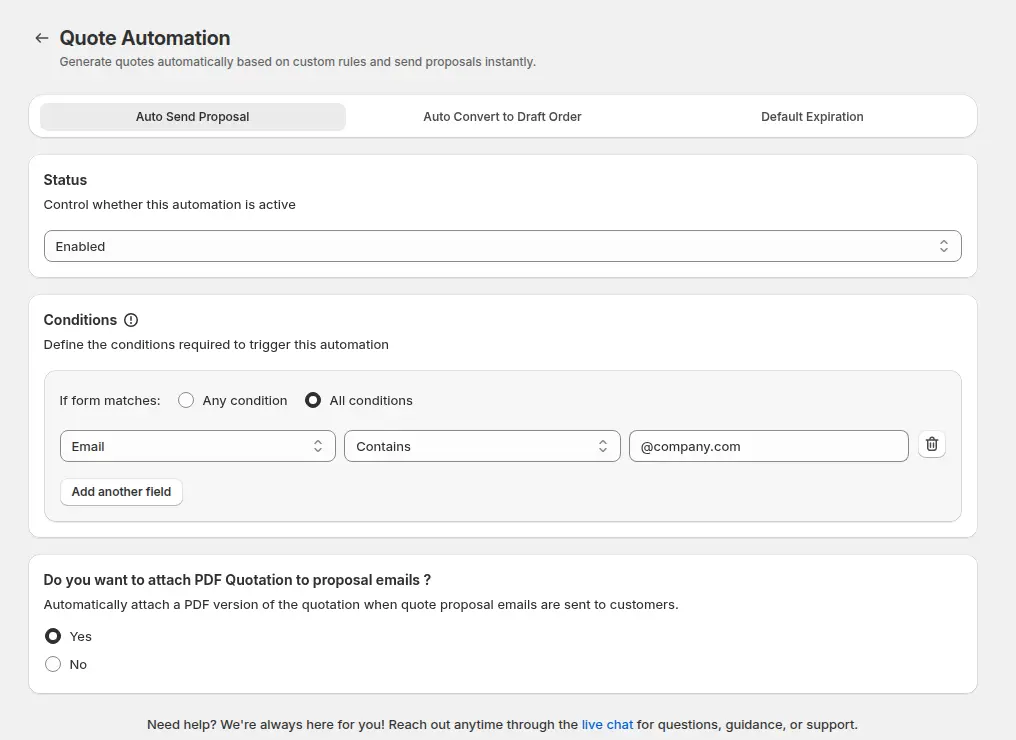
Step 1: Enable Auto Convert to Draft Order
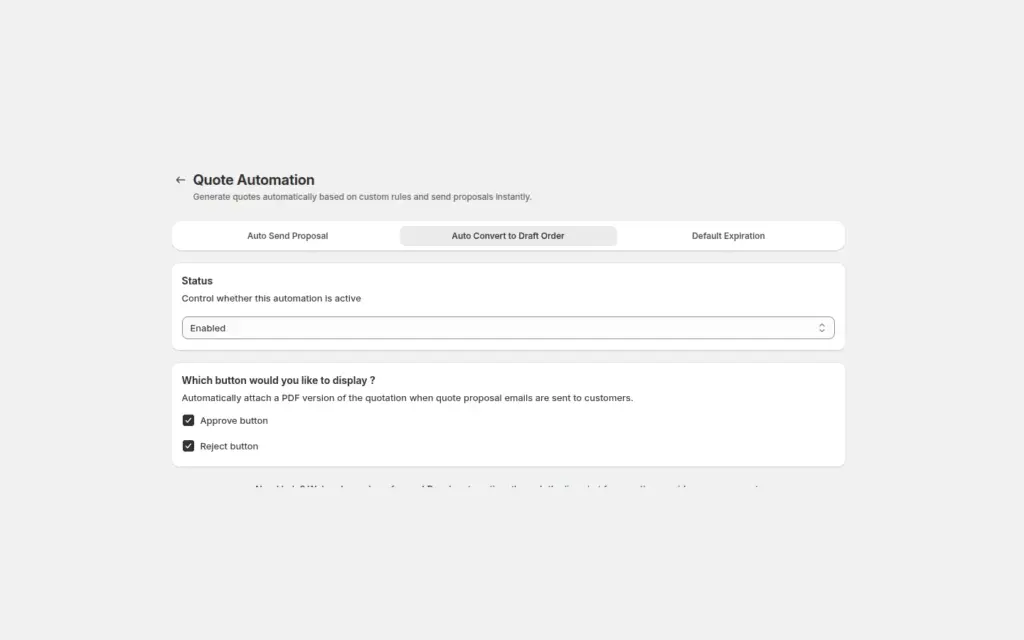
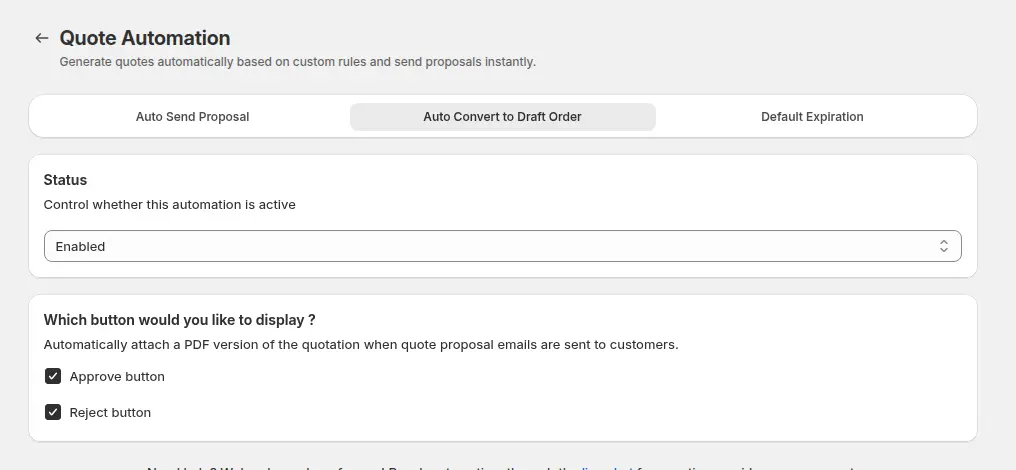
In Request for Quote > Quote Automation, open the Auto Convert to Draft Order tab, set the status to Enabled and tick the Approve button, the Reject button, or both. The buttons are then added to every proposal email, whether you send it by hand from the quote or an Auto Send rule sends it. This feature is documented as a Business plan feature, so check your plan first.
Step 2: Publish the Quote History page
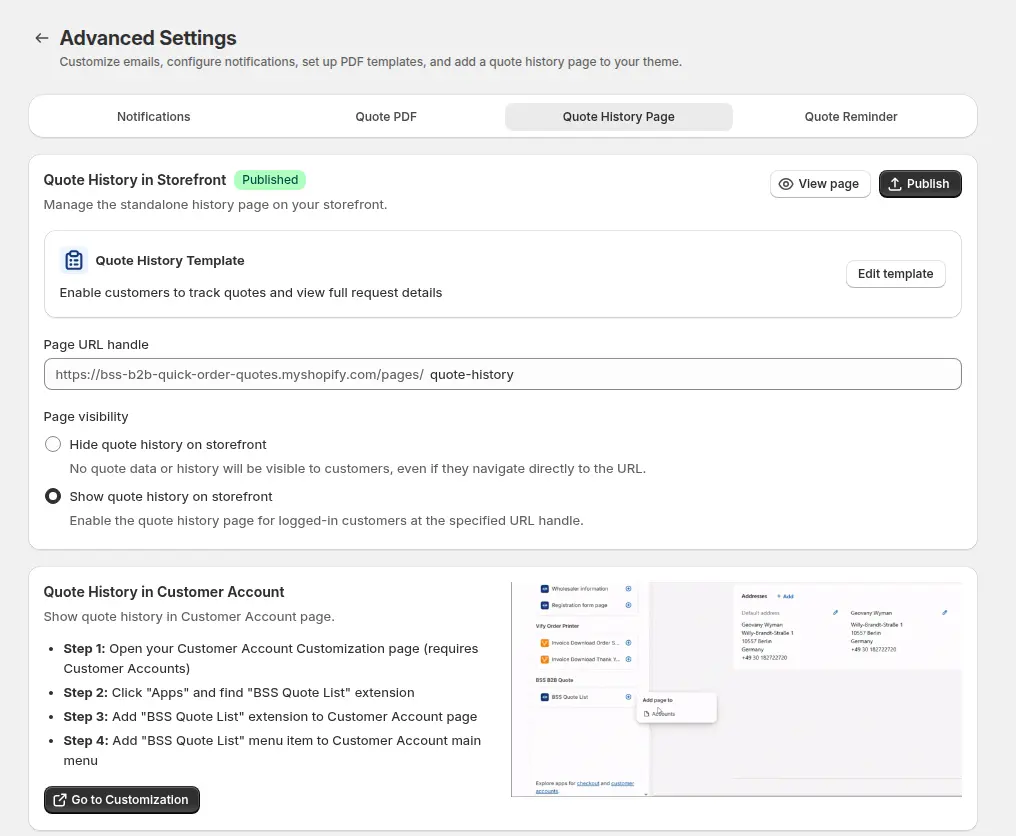
The buttons link to the Quote History page, so it has to be published and shown on the storefront. In Advanced Settings > Quote History Page, check that the page is Published. If it is not, the buttons will not work even when the feature is enabled.
Step 3: Make the buttons yours
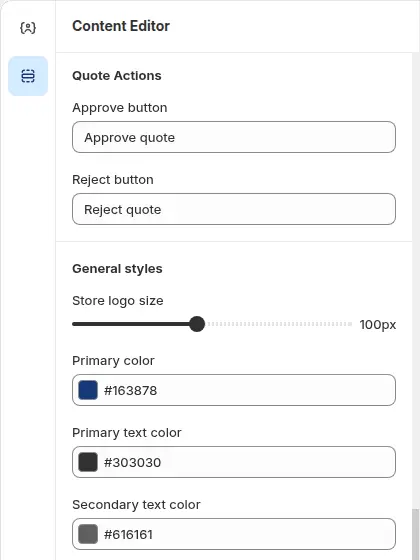
In Advanced Settings > Notifications, edit the Quote Proposal Email Template. The Quote Actions section lets you rename the buttons, for example “Accept this offer” and “Decline”, and the colors follow your brand. Use Send test email to see the result.
Step 4: Price the quote and send the proposal
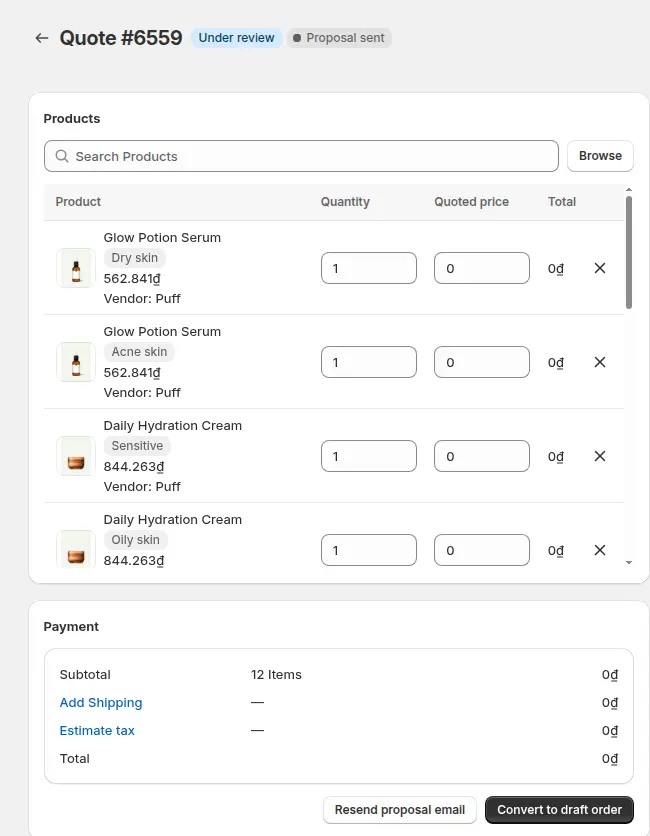
Open the quote in Quote Requests, enter the quoted unit prices, set the shipping and choose an expiry date, then send the proposal email. You can attach a PDF of the quote. Alternatively, set up an Auto Send Proposal rule that sends the proposal as soon as a matching request arrives, which works best when prices are already configured in Shopify B2B or in BSS B2B Solution.
Step 5: The buyer approves or rejects
The buyer opens the proposal email and clicks Approve or Reject. The buttons open the Quote History page, which asks the buyer to sign in. On approval, the app creates a Shopify draft order from the quote, sets the quote to Converted and emails the buyer the Shopify invoice, and the page confirms that the quote was approved. On rejection, the buyer can add a reason and the quote moves to Rejected.
Step 6: Follow the draft order
A Converted quote is locked, so the draft order in Shopify is where further edits happen. The draft order carries the quoted prices as line overrides, the shipping line from the quote, the buyer’s PO number if the form collected one, and a note with the quote’s expiry. Shopify calculates the tax, using the tax-exempt status of the customer or company location. The buyer pays through the invoice link in the email.
Example: a lighting wholesaler and an installer
This example uses illustrative numbers, not results from a real store. A lighting wholesaler lists commercial LED panels as quote-only. An installer requests a quote for 120 panels and adds a PO number. The sales team prices the panels at $38.50 each, which is $4,620, adds $210 of freight and sets the quote to expire in seven days. The proposal shows $4,830 before tax.
The installer signs in, opens the proposal email and clicks Approve on Monday morning. The app creates the draft order with the $38.50 line price and the $210 freight line, marks the quote Converted and emails the invoice. The installer pays through the invoice link, and the warehouse picks the order from the draft order. Another installer clicks Reject and writes “found a lower price on a competing quote”, which the team reads in the admin and uses in a follow-up call.
Works well with
Approval is the last step of a quote flow, so these pieces sit around it:
- Quote requests: request a quote button and hide price covers the form and the quote catalog.
- Automatic proposals: automated B2B quote pricing covers sending proposals without manual work.
- Orders from sales staff: place orders on behalf of customers covers draft orders created by your team.
- Base prices: BSS B2B Solution holds wholesale prices, price lists and payment terms for the same customers, see wholesale price by customer tag.
The quick order and RFQ hub lists every guide in this area. Useful glossary entries are RFQ, draft order and purchase order.
Limits and common mistakes
- Approving needs a signed-in buyer. The buttons open the Quote History page, which blocks guests, and the quote is matched to the customer who owns it. A quote submitted by a guest cannot be approved from the email link, so convert it yourself with the Convert to draft order button.
- Test the sign-in step. Ask your own test buyer to approve a quote from the email, signing in on the way, before you rely on the flow. Sign-in is where an approval is most likely to be interrupted.
- Approval sends an invoice, it does not go to checkout. The buyer pays through the Shopify invoice link. The Quote History page can show a Checkout button for the draft order if that option is on in your template.
- The links last 72 hours. After that, or after you send a newer proposal for the same quote, use Resend proposal email so the buyer gets fresh buttons.
- An expiry date is a reminder, not a block. The Expired badge does not stop a buyer from approving or you from converting. If an offer must not be accepted late, send a new proposal or set the status yourself.
- Payment terms are not set on the draft order. The app does not pass payment terms when it creates the draft order, so add terms in Shopify if the deal needs them.
- Converting by hand does not send the invoice. The Convert to draft order button creates the draft order, and you send the invoice as a separate step.
- Converted and Rejected are final. Edit the draft order in Shopify instead of the quote.
Setup checklist
- Publish the Quote History page and show it on the storefront.
- Enable Auto Convert to Draft Order and tick Approve and Reject.
- Rename the buttons and set the colors in the proposal email template.
- Send yourself a test email to see the buttons.
- Create a quote request with a test buyer account, price it and send the proposal.
- Approve from the email as a signed-in buyer and check the draft order, the invoice and the Converted status.
- Check that a guest quote can be converted with the Convert to draft order button.
- Decide how long your quotes are valid and tell buyers about the 72-hour links.
Plans and requirements
BSS B2B Quote runs on paid plans, and the Approve and Reject buttons are documented for the Business plan and above, so confirm the plan in the app. The manual Convert to draft order button is available from the Growth plan. Compare the plans on the BSS B2B pricing page, where the 14-day free trial on paid plans is also listed. The approve or reject quotes guide covers every setting, and quote emails and reminders lists each email and its plan. Install BSS B2B Quote from the Shopify App Store and send your first proposal with Approve and Reject buttons.