
How to Show Prices Excluding VAT to Businesses and Including VAT to Consumers on Shopify

Shopify’s tax settings work by store and by market, not by customer type. To show business buyers prices excluding VAT and consumers prices including VAT in one store, use a display rule keyed to customer tags. BSS B2B Solution Tax Display does this; it changes only what is shown, and Shopify still calculates tax at checkout.
Tax Display rules choose who sees prices with tax, without tax, both, or an Inc. VAT and Exc. VAT toggle. Advanced plan and up, free on development stores.
Install BSS B2B Solution See pricingLast updated October 4, 2026. Shopify facts come from the Help Center pages linked in the text, read on that date. BSS B2B Solutions makes BSS B2B Solution, the app in the screenshots. This is a display guide, not tax advice: price display and VAT rules differ by country, so check local rules with your adviser. It is part of our complete guide to Shopify B2B and the tax and compliance hub.
Key takeaways
- Showing a price and charging tax are separate jobs. Shopify’s store setting, Markets and company-location tax settings control what is charged. A Tax Display rule controls what is shown.
- Shopify’s dynamic tax display switches between tax-inclusive and tax-exclusive by market and country (Shopify Help Center). The pages we read do not describe a per-customer-type display.
- BSS Tax Display has four modes: both prices, including tax only, excluding tax only, or a toggle. Rules target customers by login state, specific customers or tags. Advanced plan and up.
- Tax Display does not remove tax at checkout. To sell without tax to verified businesses, use company-location tax settings or BSS Tax Exempt, and test the totals.
Why show different VAT prices to businesses and consumers?
Consumers expect one final price. Business buyers usually compare and budget net of VAT, because they can often recover it. Showing both groups the same figure makes one of them do the math. Rules differ by country. Shopify itself notes that “in some countries, such as the United Kingdom, you need to include sales tax in the displayed prices” (Shopify Help Center). So treat any B2B ex-VAT display as something to confirm for your markets, and keep consumer-facing pages compliant.
Swiss hair specialist Valera sells to consumers and professionals in one store. Its case study reports that it used Custom Pricing, Tax Display and a registration form with a valid EU VAT number, and that Tax Display shows prices excluding VAT for B2B buyers.
What Shopify does natively for tax-inclusive and tax-exclusive prices
In Settings, Taxes and duties you choose whether product prices and shipping rates include tax. For international selling, Shopify offers dynamic tax-inclusive pricing: it “allows you to automatically include or exclude taxes in your product prices based on your customer’s region”. To turn it on, open Markets, select a market, go to Taxes and duties, and choose Dynamic tax display in the Tax display menu (Shopify Help Center).
- Who it is for: shoppers by country. Most EU countries, the UK, Australia, Canada, Japan, Mexico and New Zealand are among the 100+ locations shown tax-inclusive. Other countries see tax-exclusive prices.
- Example from Shopify: a $100 product at home shows $90.91 in a tax-exclusive country such as the US, and $109.09 in the UK at 20% VAT.
- Limits: it adjusts product prices only, not shipping rates. Tax overrides are not recognized. It is incompatible with third-party post-purchase upsell apps, and accurate display needs local currency with Shopify Payments, or customer cookies.
Native B2B tax settings sit on the company location
For B2B, each company location can hold a tax ID and a tax setting: “Collect tax”, “Don’t collect tax” or “Collect tax unless exemptions apply” (Shopify Help Center). For UK and EU businesses using Shopify Tax the field becomes a VAT number and Shopify validates it. The page does not say how checkout displays prices for these locations, so test your own setup. One warning from Shopify matters here: if you use tax-inclusive pricing and mark a customer as tax-exempt, “the customer will still be charged the full listed product price” (Shopify Help Center). Exempting a buyer does not by itself lower a tax-inclusive price.
Three layers: display, calculation and exemption
| Layer | Question | Shopify native | BSS B2B Solution |
|---|---|---|---|
| Display | What price does the shopper see? | Store setting; dynamic tax display by market and country | Tax Display rules by login state, specific customers or tags, on chosen pages |
| Calculation | How much tax is charged? | Shopify calculates at checkout from your tax settings | Not changed. Checkout does not use Tax Display |
| Exemption | Who is not taxed? | Company location tax setting; customer tax exemptions | Tax Exempt: tax ID on the cart page, order created without tax. Advanced and Platinum plans |
| Validation | Is the tax ID real? | Shopify validates VAT numbers for UK and EU businesses using Shopify Tax | Live check as the buyer types: VIES, HMRC, EIN, ABN, GST |
How BSS Tax Display works
The Tax Display module controls how prices appear: including tax, excluding tax, both, or a toggle the shopper can switch (user guide). It computes both figures in the browser from the tax rate of the shopper’s country, read from your Shopify tax settings. Shopify’s tax overrides are not read, so you recreate them in the app. Variant-level overrides do not exist.
| Setting | Options | Notes |
|---|---|---|
| Display price type | Both prices (default); including tax only; excluding tax only; toggle | Toggle works for all products on all pages, and the choice is kept for the visit |
| Customers | All, logged-in, not-logged-in, specific customers, customer tags | A tag such as wholesale or VAT-registered targets business buyers |
| Products | All, specific products, collections, product tags | Non-taxable products show one price |
| Pages | Product page, cart, product lists, or all | Product lists cover collections, search, featured and related products |
| Priority | 0 to 99 | The lowest number wins when several rules match |
How to show prices excluding VAT to businesses and including VAT to consumers
This recipe assumes your store prices include VAT for consumers, as is usual in the EU, and that approved business buyers carry a tag such as wholesale. If you do not have the tag yet, follow the registration form guide first.
Step 1: Check your Shopify tax settings
In Settings, Taxes and duties confirm the countries where you collect tax and whether product prices include tax. Tax Display reads these rates, and if you change them later you must click Update Settings in the app because it cannot detect the change.
Step 2: Turn on the module and install it on your theme
Open B2B tax and currency, Tax Display and turn the module on. The app shows a banner with a link to Storefront setup, which lists where to add the price snippets for the product, featured product, collection and cart templates. Make sure the B2B Solution app embed is on (guide). Do this on a duplicate theme first.
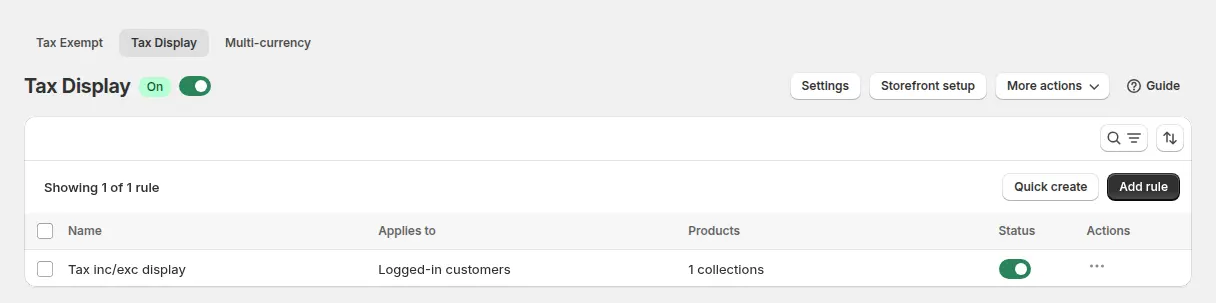
Step 3: Create a rule for business buyers
Click Add rule, name it, for example “Wholesale ex VAT”, and set a priority. Under customers choose Customer tags and enter your tag. Choose all products, or the collections you sell to businesses.
Step 4: Choose the display and the pages
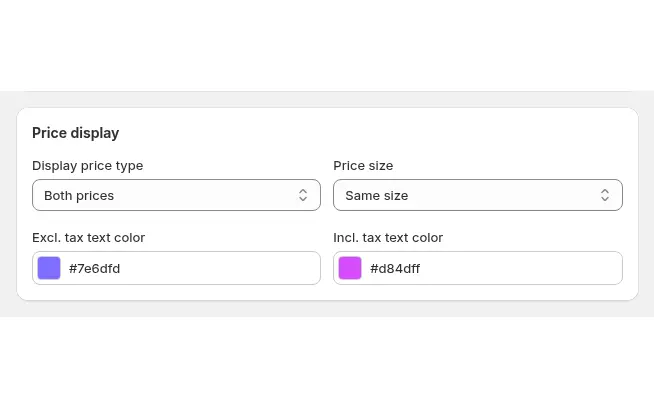
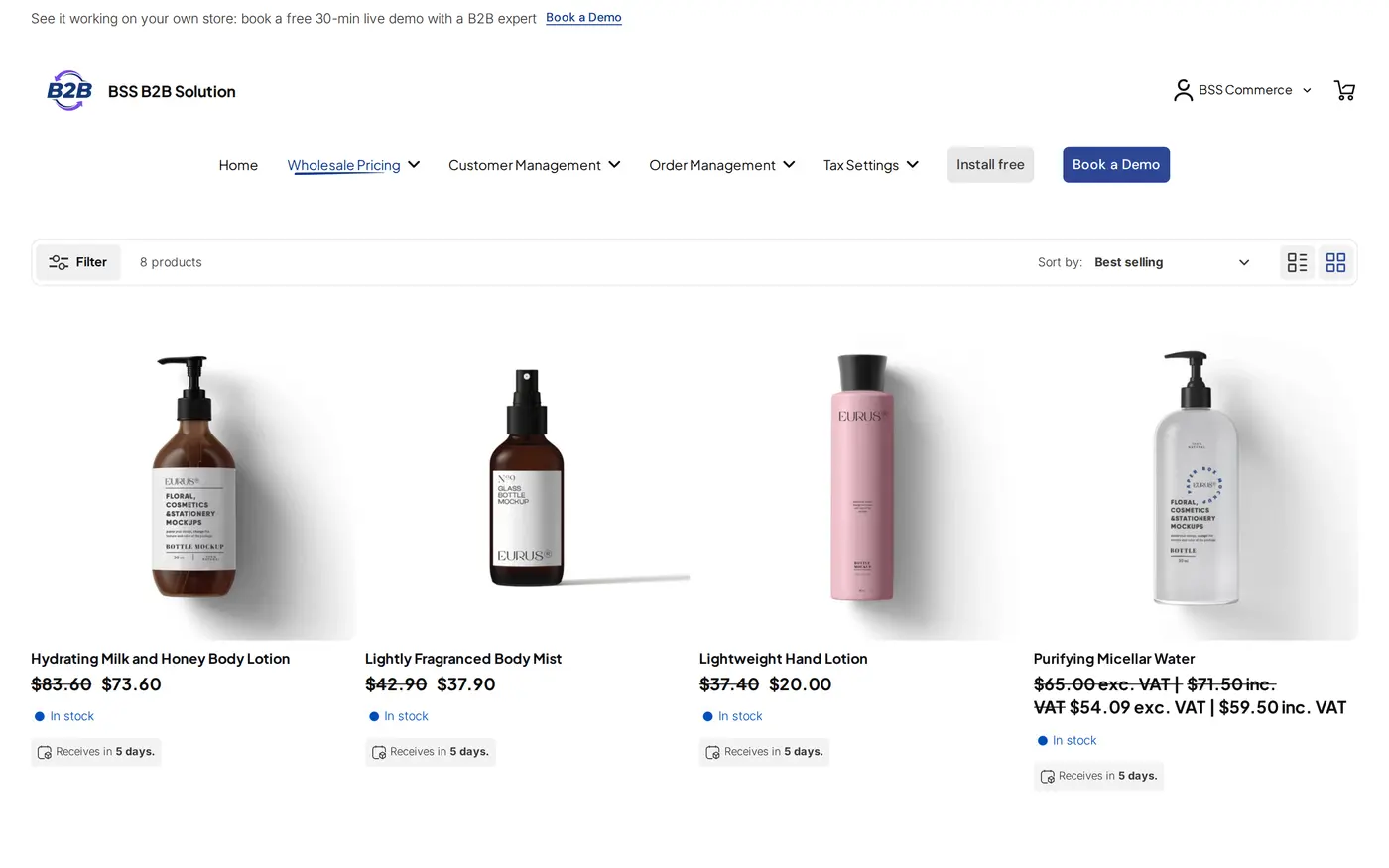
Choose Excluding tax only to show business buyers the net price. Choose Both prices if you want them to see both, with sizes and colors you control. Then choose the pages: product page, cart and product lists, or all. Save.
Step 5: Leave consumers on your normal price
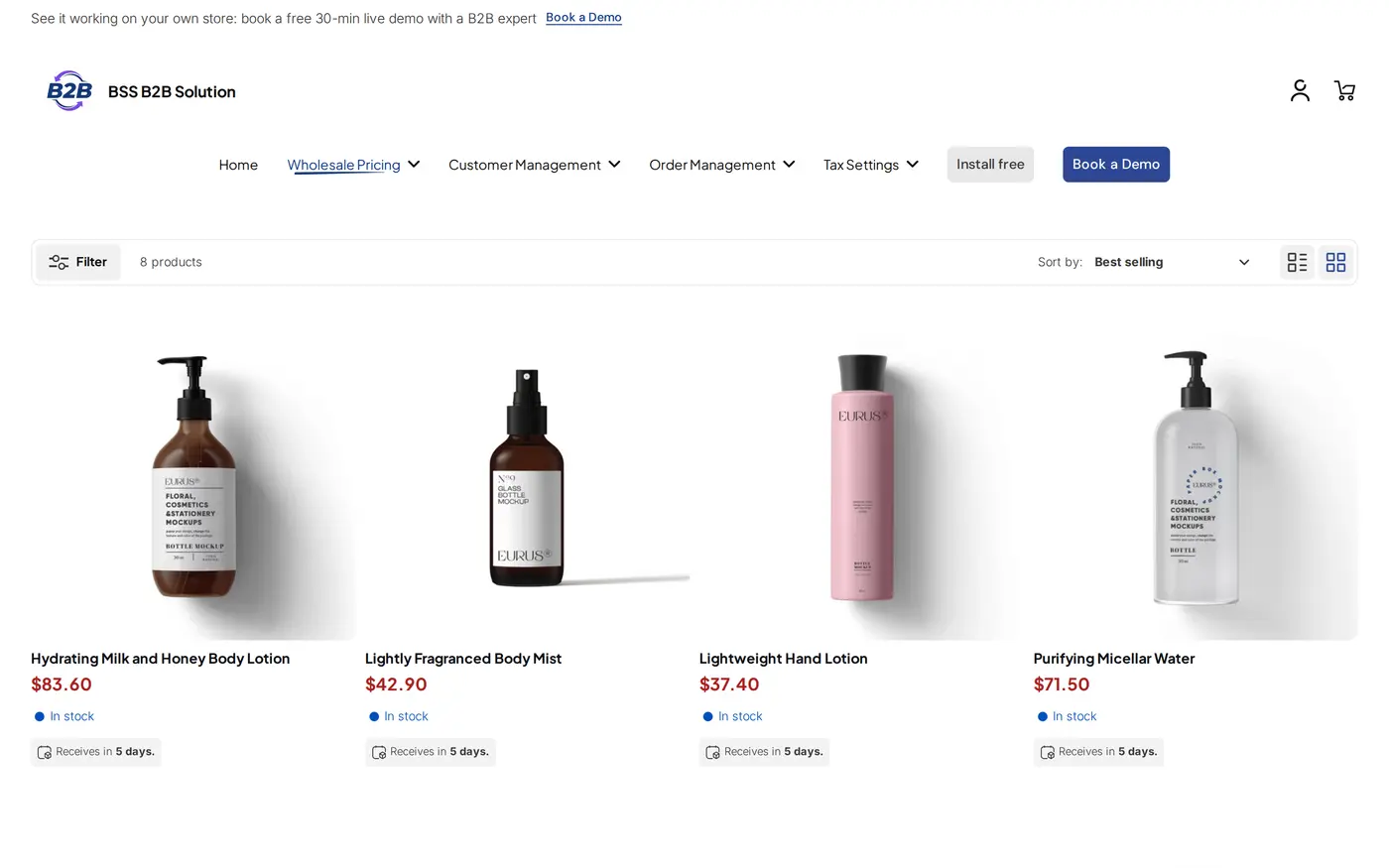
If no rule matches, or the feature is not installed, the normal theme price is shown. So consumers keep the Shopify price that includes VAT, and you do not need a second rule for them. A guest and an untagged customer both fall into this case.
Step 6: Check the storefront
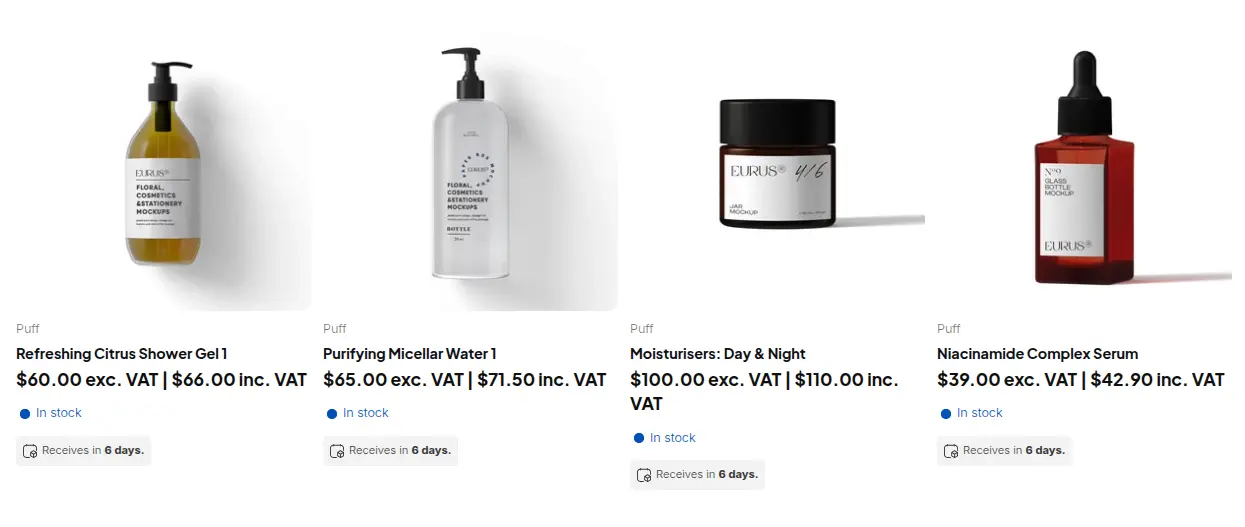
Sign in as a test customer with the tag, in a private window. Product page, collection and cart should show the price in the format you chose, and prices from Custom Pricing, Price List and Volume Pricing carry the tax label too, because tax is calculated on the B2B price. Then check a guest and an untagged customer.
- ☐ Rule enabled, audience set to your tag, pages chosen.
- ☐ Tagged test buyer sees the net price; guest and untagged customer see the normal price.
- ☐ Cart and product lists checked on mobile and with the cart drawer.
- ☐ Labels translated in Settings, Translations if you sell in several languages (defaults are “exc. VAT |” and “inc. VAT”).
What happens at checkout?
Shopify calculates tax at checkout as usual, whatever the product page showed. If a business buyer saw a net price but should not pay VAT at all, you need an exemption, not a display rule. There are two routes. Natively, set the company location to Don’t collect tax or Collect tax unless exemptions apply. With BSS Tax Exempt, the buyer enters a tax ID in a box on the cart page, the app validates it and the order is created as a draft order without tax (user guide).
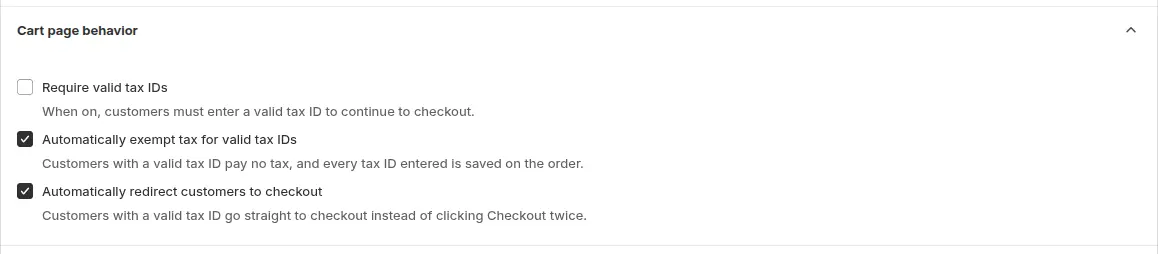
- The tax ID box lives on the cart page, not in Shopify checkout. A direct checkout URL skips it, and the buyer is taxed normally.
- If the app’s draft order call fails, the buyer goes to the plain checkout and is taxed.
- When prices include tax, the app can deduct the tax portion as a discount titled “Excluded Tax”. Check the totals on a test order, because market settings can affect the deduction.
- We have not verified that customers are automatically marked exempt for later orders, so do not rely on it. Mark returning customers yourself if you need to.
- The app writes the tax ID on the order note and attribute, and can add an order tag.
For the full exemption flow see sell VAT-exempt to verified EU businesses and show prices excluding VAT to business buyers. A related Shopify task is covered in how to remove tax included on Shopify.
Limits and caveats
- Display only, in the browser. Tax Display computes prices in the visitor’s browser. It is not a tax calculation and not a compliance guarantee.
- Rate by country. The rate comes from your Shopify tax settings and the shopper’s country. Per-collection overrides must be recreated in the app, and variant-level rates are not supported.
- Guests can be skipped. If Optimize B2B script loading is enabled, B2B scripts load only for logged-in customers, so rules set for guests do not run.
- Theme dependent. Prices change only where the snippets and app embed are installed. Cart drawers and quick views may need extra setup. See our theme compatibility checklist.
- Plan: Tax Display needs the Advanced or Platinum plan.
Showing prices excluding VAT on Shopify: frequently asked questions
Can Shopify show prices excluding VAT to businesses and including VAT to consumers?
Shopify’s tax display works by store and by market, with dynamic tax display switching by country. The pages we read do not describe a per-customer-type display. BSS B2B Solution Tax Display adds rules by login state, specific customers or customer tags.
Does Tax Display remove VAT at checkout?
No. Tax Display changes what is shown. Shopify calculates tax at checkout as usual. To sell without VAT, use a company-location tax setting or BSS Tax Exempt, and test the order totals.
Which plan includes Tax Display?
Tax Display is on the BSS B2B Solution Advanced and Platinum plans. It is free to use on development stores. See the pricing page for current prices.
What are the display modes?
Both prices, including tax only, excluding tax only, and a toggle with an Inc. VAT and Exc. VAT switch. The toggle applies to all products and all pages, and the visitor’s choice is remembered for the visit.
Do consumers need their own rule?
No. If no rule matches, the normal theme price is shown, so consumers and guests keep the Shopify price. Create a rule only for the group whose display you want to change.
Does Tax Display work with wholesale prices from Custom Pricing or Price Lists?
Yes. Custom Pricing, Price List and Volume Pricing prices are shown with the tax label, and the tax is calculated on the B2B price.
Are Shopify tax overrides respected?
No. Shopify’s own tax overrides are not read by the app, so recreate them under Tax overrides in Tax Display for the right country and collection. Variant-level overrides do not exist.
Is this tax or legal advice?
No. It describes how a display feature works. VAT display rules differ by country and customer type, so confirm yours with a tax adviser.
Next steps
Decide which buyers see net prices, tag them, and build the rule on a duplicate theme. Then read the tax and compliance hub. The glossary explains tax exemption, VAT number and VIES. The beauty brand use case pro pricing, VAT and self-service ordering puts the pieces together.
Install BSS B2B Solution to add Tax Display, Tax Exempt, tag-based pricing and registration with tax ID checks. Test it on a development store first.
Install BSS B2B Solution See the appSources
Shopify pages read on October 4, 2026. BSS facts: BSS B2B Solution user guide at docs.bss-b2b.solutions, our October 2026 review of the app’s behavior and the Shopify App Store listing (as of October 4, 2026).
- Shopify Help Center: Include or exclude taxes in product prices
- Shopify Help Center: Dynamic tax-inclusive pricing
- Shopify Help Center: Tax exemptions and overrides
- Shopify Help Center: Tax exemptions for B2B companies and locations
- Shopify Help Center: Companies, locations and contacts
- BSS B2B Solution user guide: Display prices with and without tax
- BSS B2B Solution user guide: Tax Exempt for eligible customers and orders
- BSS case study: Valera
You may also like

How to Uninstall a Shopify B2B or Lock App Safely: Remove Leftover Theme Code
Some Shopify apps leave code in your theme after you uninstall them. To remove a B2B or lock app safely, duplicate your […]

Shopify Markets and B2B Pricing: Wholesale Prices Per Country and Currency
Shopify Markets control currency, languages and taxes by audience, and B2B catalogs can be assigned per B2B market, with a cap on […]

How to Collect and Validate a Tax ID (EIN, ABN, GST, UK VAT) on Shopify
Shopify has a Tax ID field on company locations, but the pages we read describe no check against a tax register. BSS […]