
How to Hide a Product on Shopify: 4 Methods (2026)

To hide a product on Shopify, remove it from the Online Store sales channel in the product’s Publishing section. To hide it from search and collections but keep the link working, set its status to Unlisted. To hide it only from some customers, such as retail shoppers or guests, use a lock app like BSS B2B Lock.
Last updated October 9, 2026. Steps and definitions follow Shopify Help Center pages read on October 9, 2026. BSS B2B Solutions makes BSS B2B Lock, so the app section says where the free Shopify options are enough. To hide only the price, read our hide price guide.
Key takeaways
- Four built-in ways to hide a product: exclude it from the Online Store channel, set it to Unlisted, set it to Draft or Archived, or add the
seo.hiddenmetafield. - Unlisted keeps the product page open to anyone with the URL. Shopify says it is hidden from internet search, Shopify Catalog, your sitemap, collection pages, store search and recommendations (Shopify: manage searchability).
seo.hiddenset to 1 hides a product from search and your sitemap but keeps it in collections and recommendations. If a product is Unlisted and also hasseo.hidden, Unlisted wins.- None of the built-in options can show a product to wholesale buyers and hide it from retail buyers. That needs an app lock tied to a login or customer tag.
- Search changes can lag: Shopify says bulk actions take several hours to show up in search.
Which way of hiding a product fits your goal?
| Method | Hidden from | Still reachable | Use it when |
|---|---|---|---|
| Exclude from Online Store channel | The Online Store, because the product is not published there | Other channels you leave selected | You sell the product elsewhere, such as POS, but not online |
| Unlisted status | Internet search, Shopify Catalog, sitemap, collections, store search, recommendations, third-party channels | Product page, by direct URL | A private offer or a link you send by email |
| Draft or Archived status | Customers. Draft means details are incomplete; Archived means no longer for sale | Customers cannot buy it | The product is not ready, or retired |
seo.hidden metafield set to 1 | Internet search, sitemap, store search | Collections, recommendations and the product page | You want it out of Google but still browsable |
| App lock (BSS B2B Lock) | Selected visitors only, such as guests or retail customers | Visitors who pass the rule, such as a tagged wholesale buyer | The same product must be visible to some customers and hidden from others |
The first four rows follow the Shopify product details and searchability pages (product details, searchability). The last row is the BSS B2B Lock user guide.
How to hide a product from your Online Store
This removes the product from one sales channel. The product stays in your admin and can still sell on the channels you leave selected.
- In your Shopify admin, open Products and click the product.
- In the Publishing section, click the Adjust icon.
- In the dialog, clear Online Store. Clear other channels too if the product should not sell there.
- Click Done, then Save.
Shopify describes these steps on its add and update products page. Labels can differ slightly between admin versions, so check your own screen.
How to hide many products at once
Shopify says you can set product availability by sales channel with a bulk action on the Products page. Check the exact menu name in your admin. For search visibility, use the Bulk editor with the seo.hidden metafield, described below.
How to check that a product is hidden
- On the product page in your admin, open Publishing and confirm Online Store is not selected.
- Open your store in a private browser window and search for the product name. Allow some time first: Shopify says search updates after bulk actions can take several hours.
How to keep a product out of search but reachable by link
Use the Unlisted status when you want the product to exist only for people who have the link. Shopify says an unlisted product is “discoverable only by direct URL”.
- Open the product and find the Status section.
- Change the status to Unlisted.
- Click Save and test the link in a private window.
Unlisted products also leave collection pages, search results, predictive search and recommendations in your store. Shopify adds that unlisted products cannot be published to Shop (Shopify: manage searchability).
How to hide a product from Google and store search with seo.hidden
The seo.hidden metafield hides a product from search engines, your sitemap and your online store search, while the product stays in collections and recommendations. These are Shopify’s steps:
- Go to Settings, then Metafields and metaobjects, and add a definition for Products.
- Set the namespace and key to
seo.hidden, the type to Integer with one value, and the maximum value to 1. - On each product, set the SEO Hidden metafield to 1. Set it to 0 to make the product searchable again.
- For many products, use the Bulk editor and enter 1 in the SEO Hidden column.
Two limits from Shopify: seo.hidden is a system metafield that other apps may use, and search apps other than Shopify’s own may not follow it. Search & Discovery settings can also override the default behavior.
What Draft and Archived do
Shopify defines the statuses as follows (product details). Active means ready to be sold. Draft means the details need to be completed before the product can be sold. Archived means the details are complete, but the product is no longer for sale. Unlisted means the product can be sold, but customers cannot discover it. Archived products move to the Archived tab of the Products page (add and update products).
How to hide a product from some customers only
The options above hide a product from everyone. A wholesale store often needs a product that logged-in wholesale buyers see and retail guests do not. Shopify’s own blended store checklist lists “Hide products from D2C customers that are only available to B2B customers” as a step, and points to apps for extra workflows (Shopify blended store checklist).
Choose products, collections or tags, then pick who can see them: logged-in customers, a customer tag, a passcode or a secret link. Hiding products needs a paid plan or the 7-day trial.
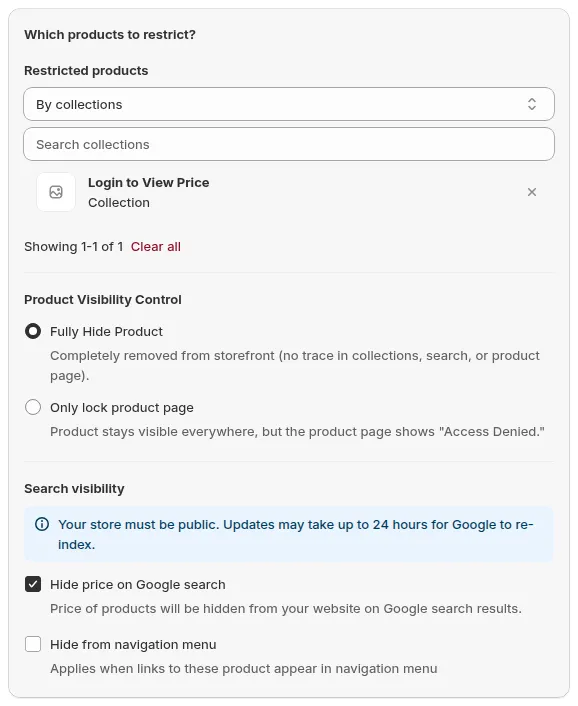
Install BSS B2B Lock See the Lock pageIn BSS B2B Lock you create a lock rule and set the lock target to Products. You pick All products, By tags, By collections or Specific products, then choose a Product Visibility Control mode (BSS B2B Lock user guide):
| Mode | What a blocked visitor sees | Best for |
|---|---|---|
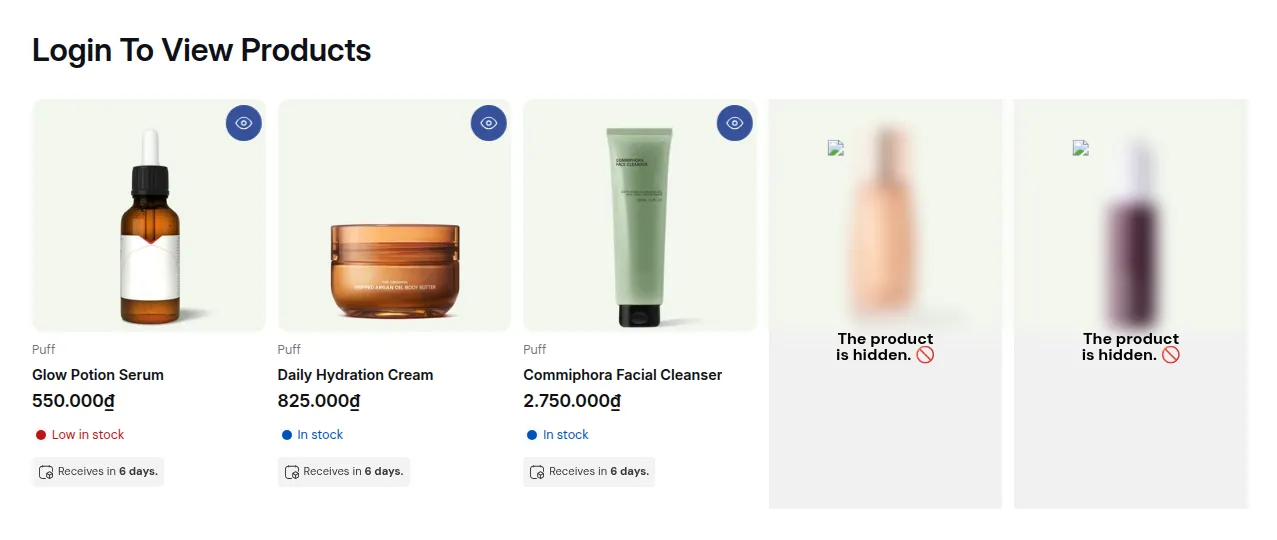
| Fully Hide Product | No product card in collections or search. Opening the product URL shows the lock message | Wholesale-only items and secret catalogs |
| Only lock product page | The product stays visible everywhere, but the product page shows Access Denied | Products buyers may see but only approved buyers may buy |
Limits to know before you rely on it:
- Lock Product is included in the paid plans, not in Free (BSS B2B Lock Pricing page, per the user guide).
- Online Store 2.0 themes are recommended. On older themes, hidden product cards can leave gaps in the grid, so test before going live.
- To keep hidden products out of Google, tick the noindex option in Step 3 of the rule. The Hide price on Google search option only covers prices.
- It restricts what the storefront shows. It is not a security control for data that must stay private, and it does not apply to headless storefronts.
For tag-based rules, read hide collections by customer tag and the access control hub. To show wholesale prices to tagged buyers and retail prices to everyone else, see show retail price, hide wholesale price.
Why hide a product at all?
- The product is not ready, so keep it as a Draft until the details are complete.
- The product is seasonal or out of stock for a while, so exclude it from the Online Store and publish it again later.
- The product is for a private offer, so use Unlisted and send the link.
- The product is wholesale only, so hide it from retail visitors with a lock.
If a product is no longer relevant, Archived is cleaner than hiding it. You can unarchive it later, and Shopify sets unarchived products to Draft.
Common mistakes
| Mistake | What happens | Fix |
|---|---|---|
| Using Unlisted for a wholesale-only product | Anyone with the link can still open it, and nothing separates wholesale from retail buyers | Use a lock rule tied to a login or customer tag |
| Expecting seo.hidden to remove a product from collections | The product still shows in collections and recommendations | Use Unlisted, or exclude it from the Online Store channel |
| Hiding by channel but forgetting other channels | The product still sells on channels that stay selected | Clear every channel that should not sell it |
| Checking too early | Search still shows the product for a few hours after a bulk change | Wait, then retest in a private window |
Frequently asked questions
How do I hide a product on Shopify without deleting it?
Remove it from the Online Store sales channel in the Publishing section, set its status to Draft, Archived or Unlisted, or lock it with an app. All of these keep the product in your admin.
What is the difference between Unlisted and Archived?
Unlisted products can be sold and opened by direct URL but cannot be discovered. Archived products are no longer for sale and move to the Archived tab of the Products page.
How do I hide a product from search on Shopify?
Set the product to Unlisted to remove it from search, sitemap, collections and recommendations. Or set the seo.hidden metafield to 1 to hide it from search engines and store search while keeping it in collections.
Can I bulk hide products on Shopify?
Yes. Shopify supports a bulk action on the Products page for sales channel availability (check the menu name in your admin), or use the Bulk editor to set the seo.hidden metafield to 1 on many products at once.
Can I hide a product from some customers only?
Not with the built-in options. An app such as BSS B2B Lock hides products from guests or retail customers and shows them to logged-in or tagged buyers. Hiding products needs a paid plan.
How do I show a hidden product again?
Select Online Store again in Publishing, change the status back to Active, or set the seo.hidden value to 0. Unarchived products return as Draft, so set them to Active.
Sources
- Shopify Help Center: product details page (status definitions), read October 9, 2026.
- Shopify Help Center: add and update products (status, Publishing steps), read October 9, 2026.
- Shopify Help Center: managing searchability (Unlisted, seo.hidden), read October 9, 2026.
- Shopify Help Center: blended store checklist, read October 9, 2026.
- BSS B2B Lock user guide: hide specific products and the BSS B2B Lock listing.
Need wholesale buyers to see products that retail visitors do not? Try BSS B2B Lock. Paid plans include a 7-day free trial.
You may also like

How to Remove Tax Included on Shopify (2026 Guide)
Shopify shows “tax included” when your store is set to include tax in prices. To remove it, […]

Shopify Quantity Breaks: How to Implement & Boost Sales
These quantity breaks are the most vibrant strategies that custom store owners around Shopify are using. It […]

How To Sell B2B Services: A Complete Guide to Closing Deals
B2B sales, especially B2B sales service have dramatically increased in recent years, and salespersons, therefore, have to […]