
Click-Fatigue
If a buyer needs 20 different items, they have to click 20 pages, wait for 20 loads, and click “Add to Cart” 20 times.
Use Case
Speed up your B2B customer buying experience. Let professional buyers search, filter, and add hundreds of items to their cart from a single page.
Reviewed by Hoa Nguyen, Senior Marketer. Last reviewed
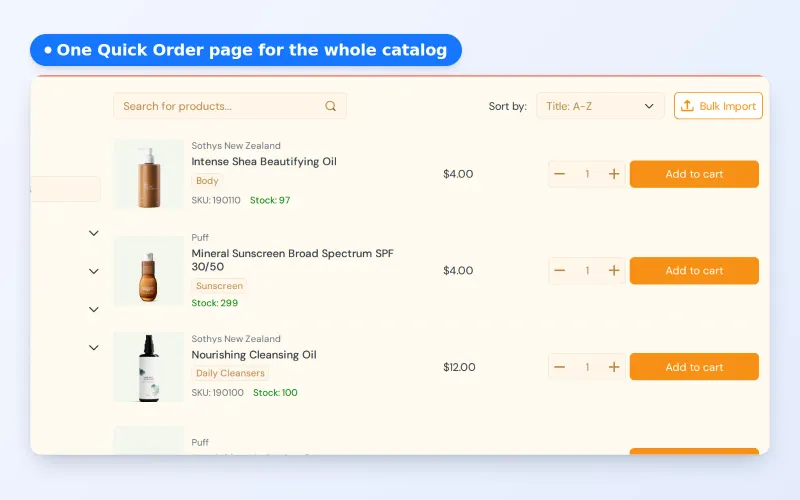












A Shopify quick order page lets a wholesale buyer search, filter and add many products to the cart from one list, instead of opening each product page. With BSS B2B Quote you publish a standard Quick Order page for your store, and buyers add quantities per row, choose variants in one dialog or upload a CSV.
This page is for wholesalers and distributors whose buyers reorder large baskets of known items. It covers who benefits, how to set the page up, an example order, the limits to know about and a checklist, so you can decide whether a standard page is enough or you need personalized ones.
the problem
Standard Shopify store interfaces are designed for discovery: high-quality images, long descriptions, and clicking into individual product pages. For a B2B buyer, this “discovery” design is a major obstacle.
If a buyer needs 20 different items, they have to click 20 pages, wait for 20 loads, and click “Add to Cart” 20 times.
Professional buyers often have a list of SKUs ready. Forcing them to navigate a visual catalog is a waste of their billable hours.
Browsing a traditional catalog makes it difficult to see stock levels or prices for multiple items at a glance.
OUR SOLUTION
Quick Order Page, a module from BSS B2B Quote transforms your storefront into a high-speed productivity tool. It provides a single interface where your entire catalog, or a specific collection is available
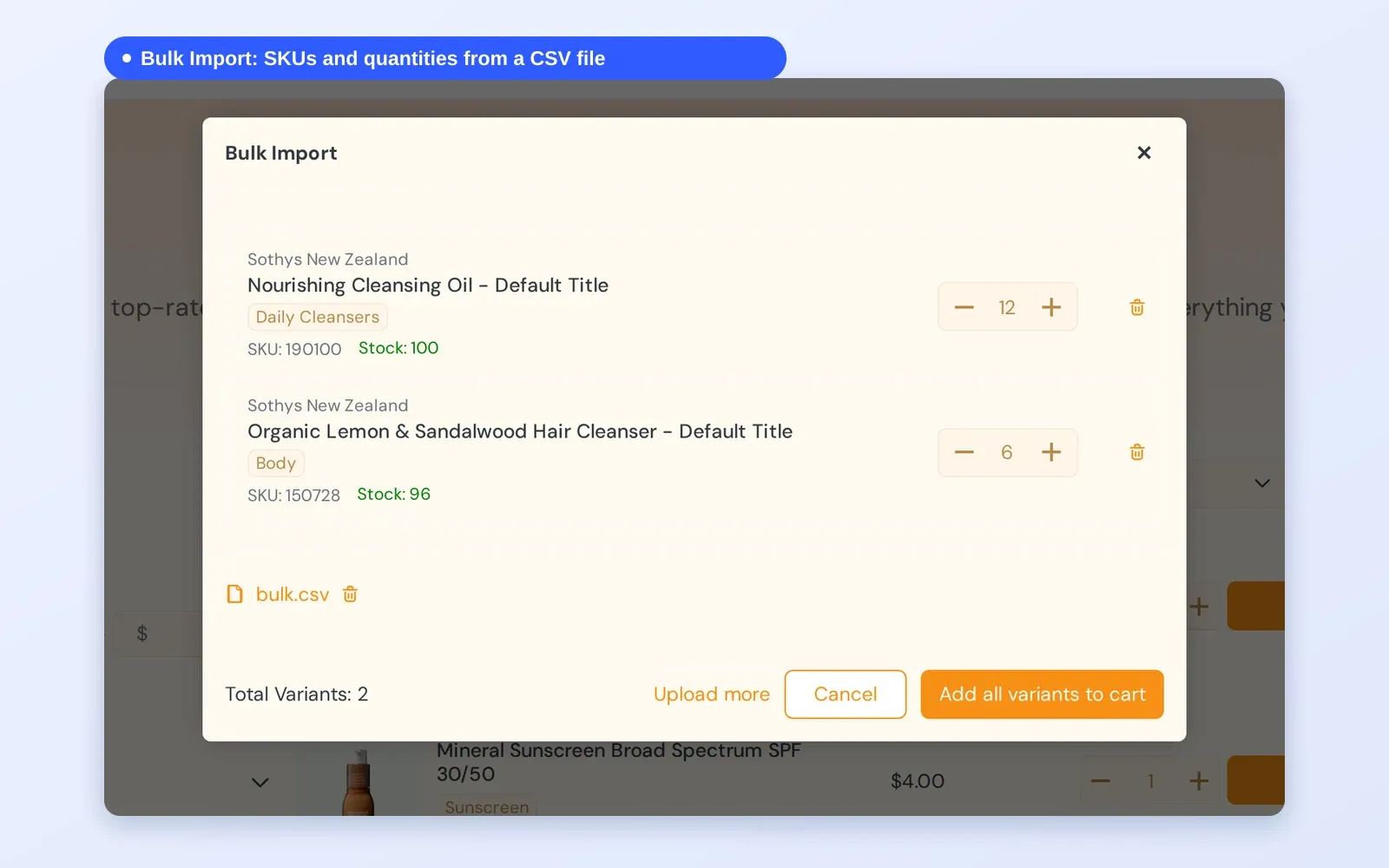
Additionally, customers can bulk import using CSV file to quickly add multiple products to the cart.
Quick Order pages need an Online Store 2.0 theme.
Target Sectors
This solution is best suited for companies with large catalogs and broad B2B customer bases who do not require highly personalized or restricted product lists.
The goal is to move mass inventory quickly by providing a universal, high-speed entry point for all wholesale buyers
benefits
How Standard Quick Order Pages Impact Your Business
Fewer clicks required to build a bulk order.
Add many items to the cart with one click.
Search and filter products on the page, by collection, type, vendor, tags or availability, without opening each product.
View product lines as a compact list
Quick order page interface allows customers to enter quantities for dozens of items as if they were using a spreadsheet
Eliminates the need to navigate too many separate product pages for large orders.
Upload a CSV or spreadsheet (.csv, .xlsx, .xls) to add many products to the cart at once. Unknown SKUs are listed, and valid SKUs are still added.
View full collections in a list to verify sizes and variants instantly.
Buyers can notice companion products they might otherwise miss in a deep catalog.
Signals to customers that you prioritize their professional utility over window shopping.
Respects the time of procurement officers managing weekly replenishment.
Easier to navigate on mobile/tablet for reps on the warehouse floor.
Workflow
See how BSS B2B Solutions handles your most complex B2B requirements
Assigns customers to specific groups or tags. Within BSS B2B Solution, you define the unique pricing rules, tiered discounts, or contract rates that apply strictly to those segments.
For example, you can set up exclusive pricing for specific products using Custom Pricing rules tailored to individual users or designated customer segments. Or set up specific quantity rules that could later on display directly on Quick Order page
The store owner creates a dedicated Quick Order page within BSS B2B Solutions. You can choose to display your entire catalog or curate a specific list of SKUs
Publish the page to your storefront. You can add it to your main navigation, footer, or even send a direct link to your client
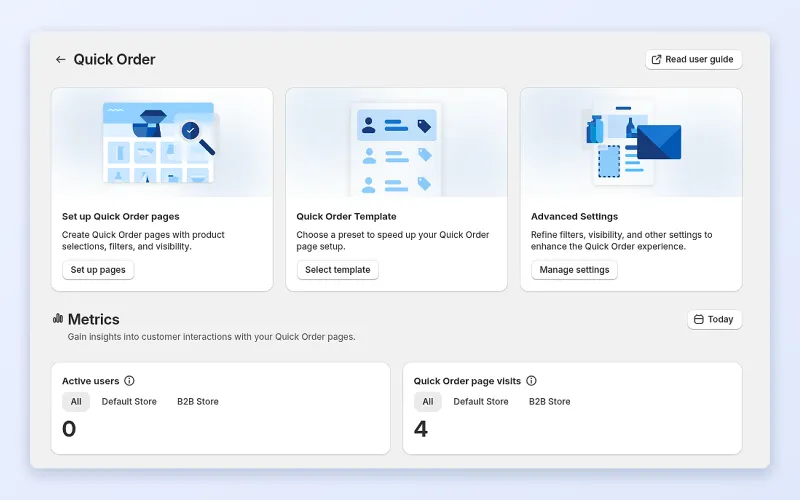
Buyers add items to the cart (or to a quote) and check out as usual. In BSS B2B Quote, the Metrics section shows Active users and Quick Order page visits.
see it in action
Create and publish the page, then use it the way a buyer does on the demo store.
A standard quick order page suits stores where buyers know what they want and order in volume:
Standard product pages are built for browsing. A buyer who needs 40 items must open 40 pages, pick variants, set quantities and wait for the cart to update. That adds minutes to each order and gives the buyer many chances to give up or email a purchase order instead.
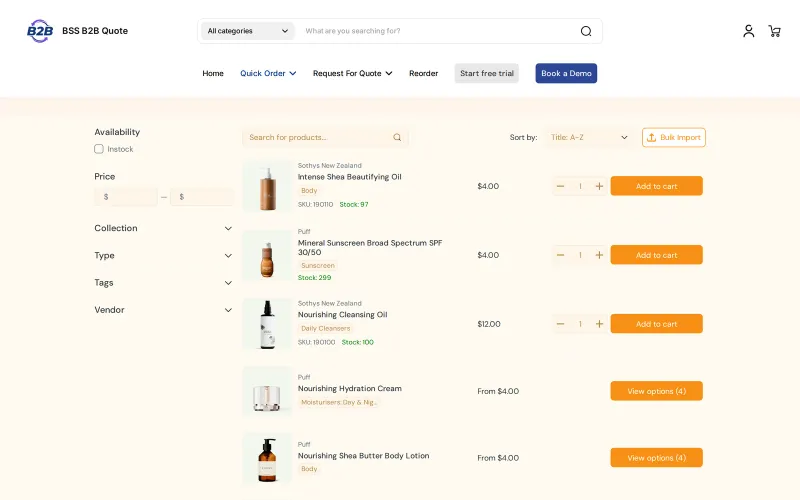
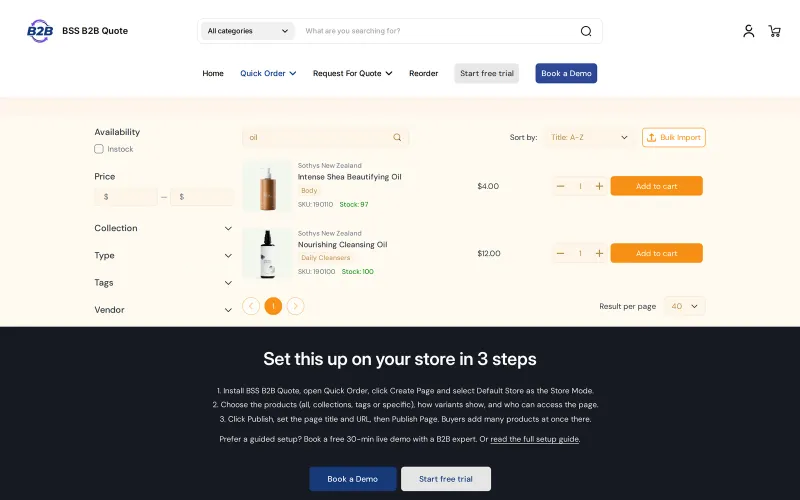
A quick order page shows products as rows with price, quantity and an Add to cart button, with search and filters beside the list. For repeat buyers it becomes the fastest way to order, and for your team it means fewer phone and email orders to key in by hand.
The page also helps you as the seller. A buyer who builds the order themselves has already checked sizes, pack options and quantities, so there is less back and forth after the order arrives. Your team spends its time on exceptions and relationships instead of keying lines into draft orders.
Shopify's B2B plans include a quick order list for B2B buyers, as the table in the Shopify B2B guide shows. An app helps when you want a public or customer-based order page you design yourself, CSV upload with a review step, a variant dialog, usage metrics and an Add to quote button beside Add to cart for the same rows. BSS B2B Quote provides these. The quick order and RFQ hub compares them.
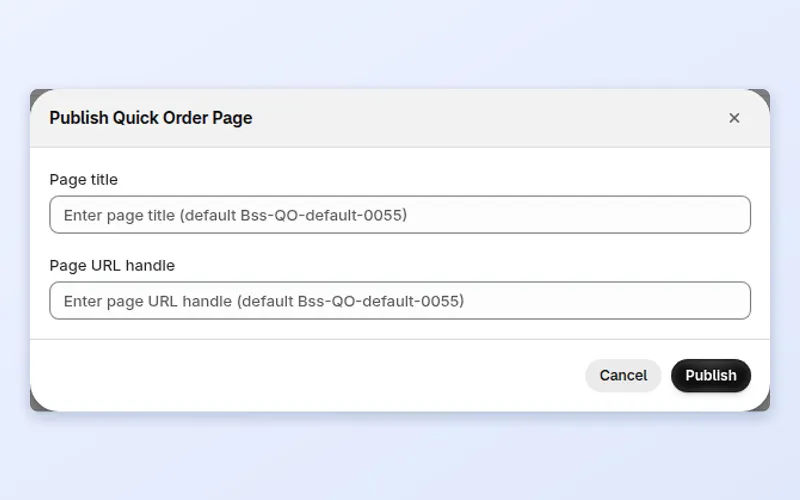
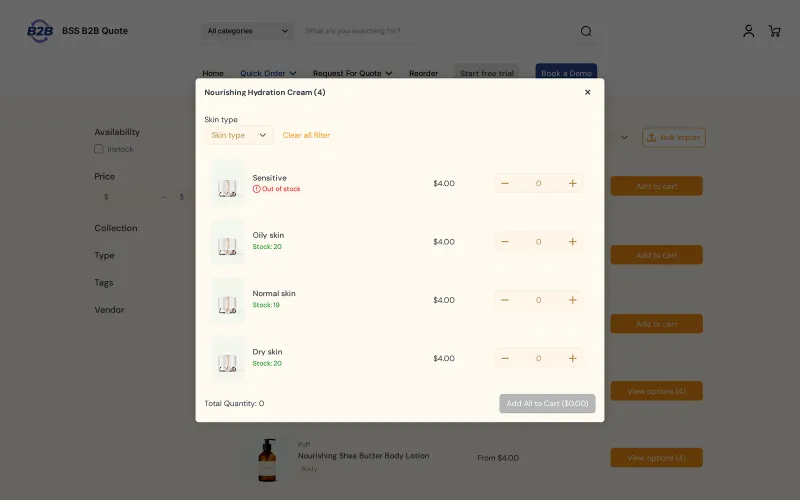
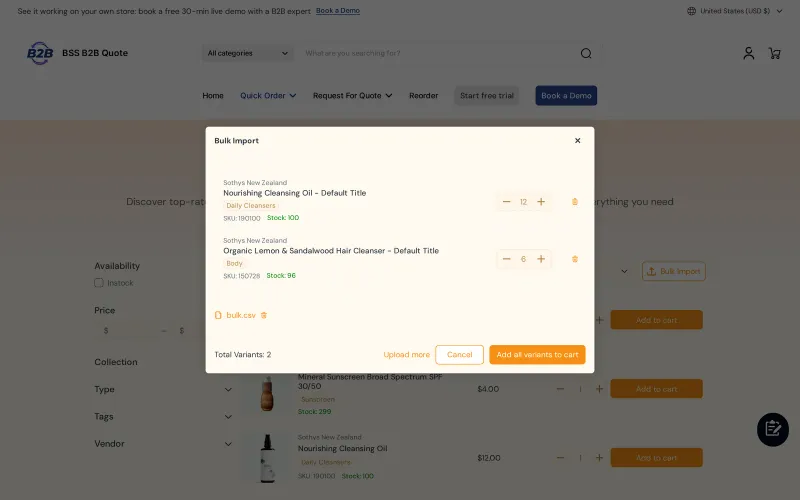
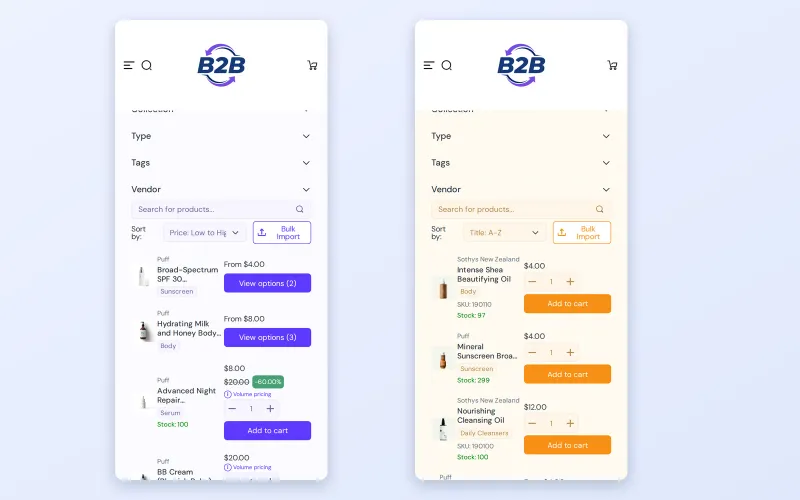
The gallery above shows these steps on a demo store. The reference guide is Create a Quick Order page.
Quick Order pages are built into your theme as a page template, so use an Online Store 2.0 theme and make sure the app embed is on. The quick start covers the first run.
Create a page in the Quick Order section. For a standard page, choose all customers or limit it to logged-in customers, and set which products or collections appear in the list.
Give the page a title and a URL handle, then publish. Add the link to your navigation menu or send it to your buyers directly.
Search and filters help buyers narrow long lists. The View options dialog shows every variant with its own quantity box and a running total. Bulk Import accepts CSV or Excel files, lists the SKUs it read for review, and adds them to the cart; duplicate SKUs are added together, and invalid SKUs are listed while the valid ones still go through.
If you also run BSS B2B Solution, the Quick Order rows can show its custom prices, quantity breaks and quantity increments to customers who are not using Shopify's native B2B. Details are in the integration guide.
Add products, upload a small CSV and check out on a phone. After launch the Metrics section shows Active users and Quick Order page visits for a date range.
A quick order page is only as fast as its list. A few choices make the difference between a page buyers bookmark and one they abandon.
A sales rep who takes phone orders can use the same page. That gives your team and your buyers one consistent ordering screen.
This is a made-up illustration, not a customer result. A salon owner needs 18 products in several sizes.
The same order might take many separate page visits without the list.
Terms: quick order form, reorder and catalog. Browse the quick order and RFQ hub for more.
BSS B2B Quote is free on development stores; on a live store, Growth is $19 a month (100 quotes), Business at $39 (unlimited quotes) and Enterprise at $79, with a 14-day trial. Since 2026-06-14, a store on a plan below Growth can view but not edit its data. Using BSS B2B Solution prices on Quick Order rows is listed under Growth and above, the Reorder page is on Growth and above, and the product page variant table is on Business and above. Targeting Shopify companies on a page needs Enterprise. See the BSS B2B Quote page for current details.
Get started with BSS B2B Quote on the Shopify App Store.
faq
A quick order page is a single page where a buyer sees products as a list with price, quantity and Add to cart, plus search and filters. Instead of opening each product page, the buyer adds many items in one visit. BSS B2B Quote lets you publish this page on your store.
Yes. Bulk Import accepts CSV and Excel files with SKU and quantity columns. The dialog lists the SKUs it read so buyers can review them, duplicate SKUs are added together, and invalid SKUs are listed while valid rows are added to the cart. The buyer then checks out normally.
Yes. View options opens a dialog with every variant of the product, each with its own quantity field and a running total. This suits products with many sizes or colors, because the buyer fills in one dialog instead of reloading the product page.
Yes. The same page lists, filters and adds products on a phone, which helps reps in a warehouse or on the road and buyers who order from a shop floor. Test your own theme on mobile after you publish, because layouts can vary between themes.
If you also use BSS B2B Solution, Quick Order rows can show its custom prices, quantity breaks and quantity increments for customers who are not using Shopify's native B2B. Without it, the page shows the prices your store already shows to that buyer.
The Metrics section in the Quick Order area shows Active users and Quick Order page visits for a date range. Use it after launch to see whether buyers find and use the page, then adjust your menu links and emails.
Yes. Quick Order pages are added to your theme as a page template, so you need an Online Store 2.0 theme with the app embed switched on. Headless storefronts are not supported because the features depend on your Shopify theme.
benefits
Quotes and results below are taken from our published case studies.

“We use the BSS B2B Quote app to streamline our wholesale process. It’s ideal for business clients to either place larger orders quickly via a simple form or request a quote, saving us significant manual work.”
90% of repeat wholesale orders moved to a self-service Quick Order and structured RFQ system (KAPR case study).
Read case study
“Amazing app that helped us a lot with inquiries of our B2B customers. Speeds up the ordering process as it offers a simple product catalog (wholesaler does not have to click through the whole e-shop). The customer service is super fast and helpful (especially Jonas and Duong) – they implemented an extra button we needed within 10 minutes.”
16% of total annual turnover came from B2B channels in the first year.
Read case study
“without using your application we would not have been able to solve the global problem of using one website for retail and wholesale clients.”
~35% turnover growth over six months of use, as reported by the merchant (seasonality not excluded).
Read case studybenefits
Explore our comprehensive ecosystem of learning materials and live support designed to help you master our suite at your own pace.

Unlock the full potential of BSS B2B Solutions
Learn more - Browse other use cases
See how our features function in a live storefront.
Learn more - View Demo store
Walk through the suite with our team in a live demo.
Learn more - Book a Demo Session
Have a specific question? We’re here 24/7 to help.
Learn more - Contact UsVisit our app listing to begin your setup, then let our team walk you through a personalized demo to ensure your success at scale.