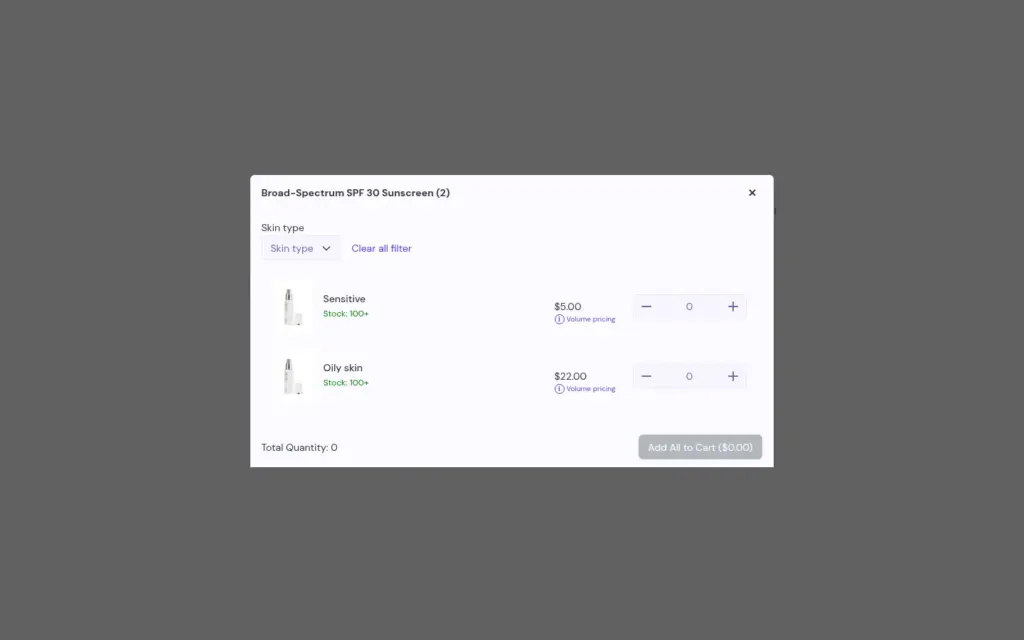
To let wholesale buyers order a full size run from one product page on Shopify, add the Variant Table block of BSS B2B Quote to your product template. The block lists every variant in one table with its own quantity field, so a buyer fills in the sizes and colors they need and adds them all to the cart, or to a quote, with one click instead of selecting each variant one at a time.
This guide is for apparel, footwear, sportswear and accessories brands whose retail buyers order a style across many sizes and colors. It explains who benefits, the setup in five steps, a worked example with a size run, the limits that matter, including the plan and the pricing behavior, and what to use when buyers order across many styles instead of within one.
Who this is for
The product page variant table fits you if several of these are true:
- Your products have two option axes, such as size and color, and a buyer usually orders several combinations of one style.
- Retail buyers order in size runs, where the mix of sizes matters more than the total.
- A standard Shopify product page makes them pick one variant at a time, so ordering one style takes dozens of clicks.
- You want buyers to see price, SKU and stock for every variant at once, before they commit.
- Some products need a quote instead of a cart, and you want one table to feed both paths.
If buyers order across many styles from a list, use a Quick Order page with Bulk Import instead. See CSV bulk order upload.
Why this matters
The default Shopify product page limits a shopper to one variant at a time through selectors. For a consumer buying a single pair of shoes that is fine. For a retailer ordering a style in six sizes and three colors, it means repeated selecting, quantity changes and Add to cart clicks, and a mistake is easy to make when the page changes after every selection. Many buyers give up and email a list, and then your team retypes it.
A table changes the shape of the task. The buyer sees every variant as a row with a quantity box, scans for what they need and enters the numbers in one pass. Wholesale apparel and sportswear stores such as MVT Fashion and Dragonfly Sportswear sell to business buyers on Shopify, and Dragonfly set up a dedicated page for swift B2B purchases. See the MVT Fashion and Dragonfly Sportswear case studies.
What Shopify covers natively, and where an app helps
Shopify’s native B2B includes a quick order list on Basic, Grow, Advanced and Plus, according to Shopify’s plan-feature page, and it lists quantity rules and volume pricing through catalogs. The Variant Table does not replace those. It adds a matrix on the product page itself, and it respects Shopify quantity rules and shows native volume pricing tiers. See the Shopify Help Center for the current native list and the Shopify B2B guide for the comparison with apps. The quick order and RFQ hub collects related guides.
How to set it up with BSS B2B Quote
The table is a theme app block, so the setup happens in the theme editor, with a shortcut from the app.
Step 1: Check the plan and turn on the app embed
The Variant Table is part of the Business plan and above of BSS B2B Quote. The block always renders inside the theme editor so you can design it, but on the live storefront it appears only on plans that include it, so confirm the plan before you publish. Also confirm that the BSS B2B Quote app embed is on in your theme.
Step 2: Add the block to the product template
In the app, the Variant Table card has an Add to theme button that opens the theme editor. In the product template, open the Product information section, choose Add block and select Variant Table under Apps. Drag it to where you want it, for example below the price.
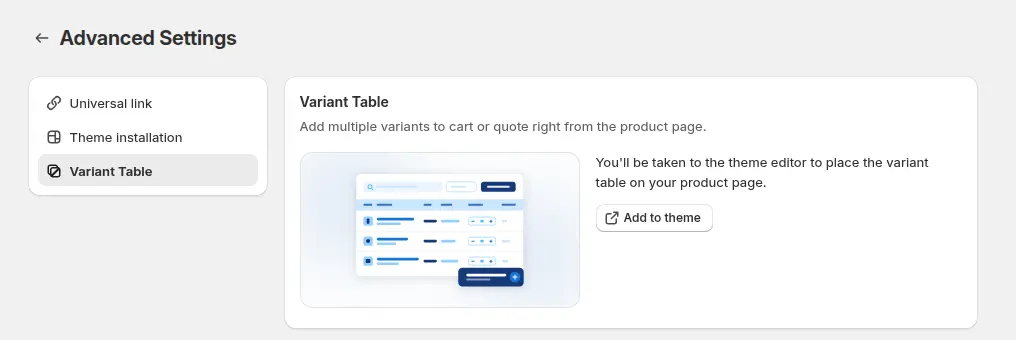
Step 3: Choose the columns and colors
In the block settings, show or hide the variant image, SKU, stock and line total columns, and set the primary and text colors of the action buttons. Show SKU and stock for buyers who work from purchase lists. Show the line total so a buyer can see the cost of a size run as they type.
Step 4: Add quote compatibility and the bulk quantity field
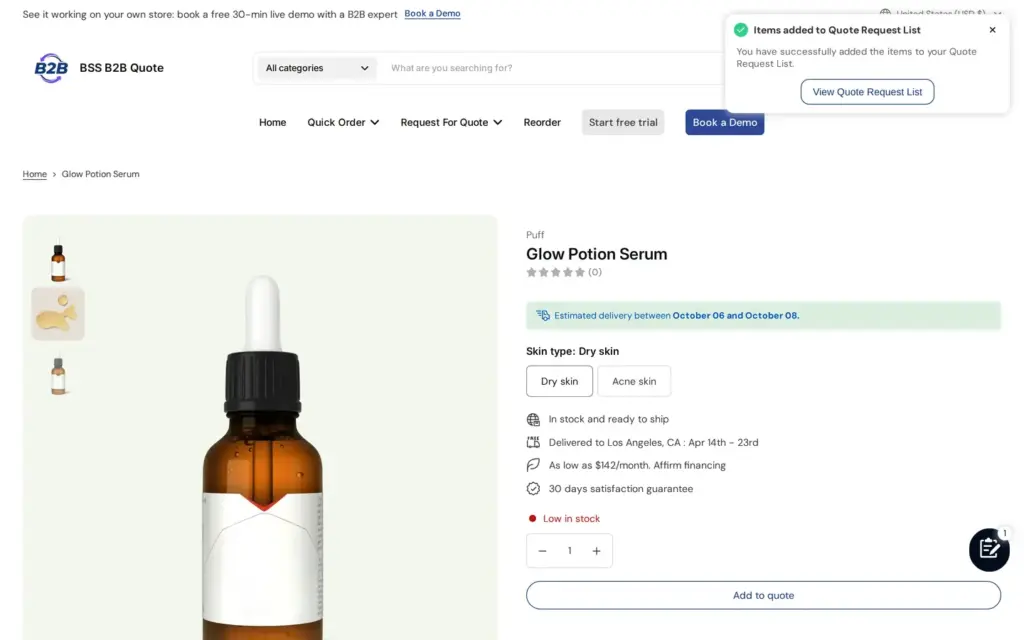
Turn on Enable Quote Compatibility to show an Add to quote button next to Add to cart when the product matches an active quote logic. Turn on the bulk quantity input to add a master field in the table header that fills every row with the same number, which is useful for an even size run that you then adjust.
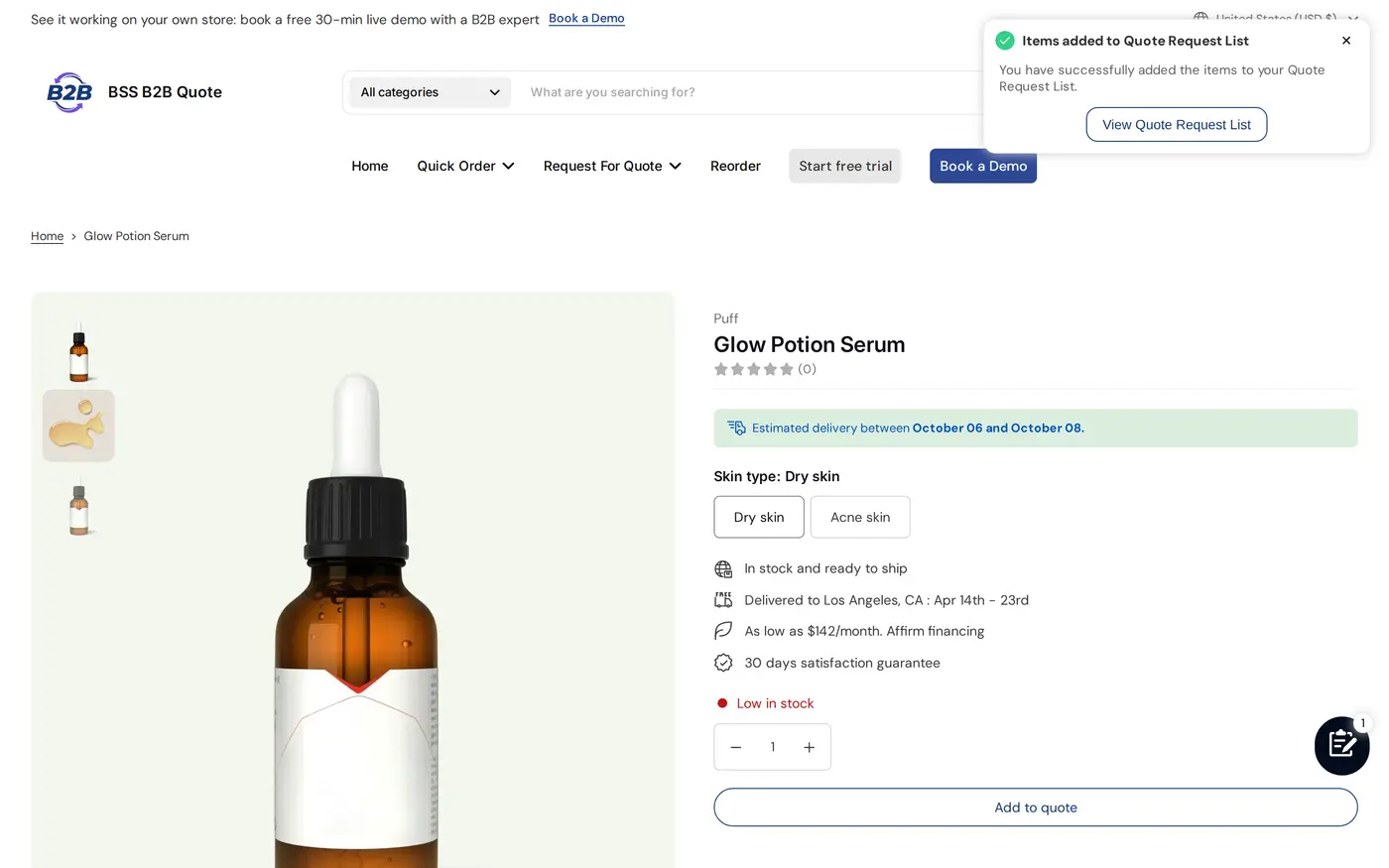
Step 5: Test with a real product
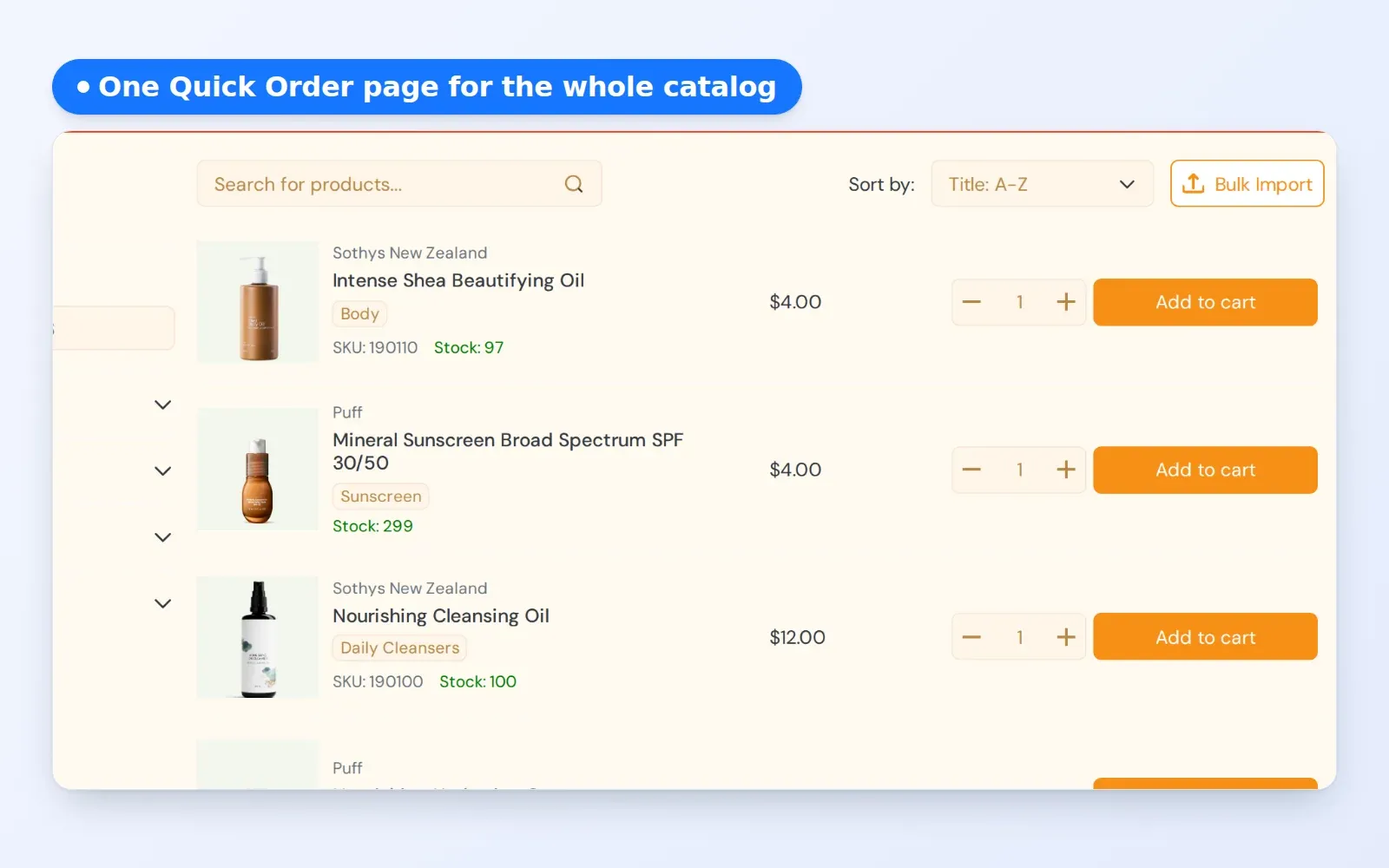
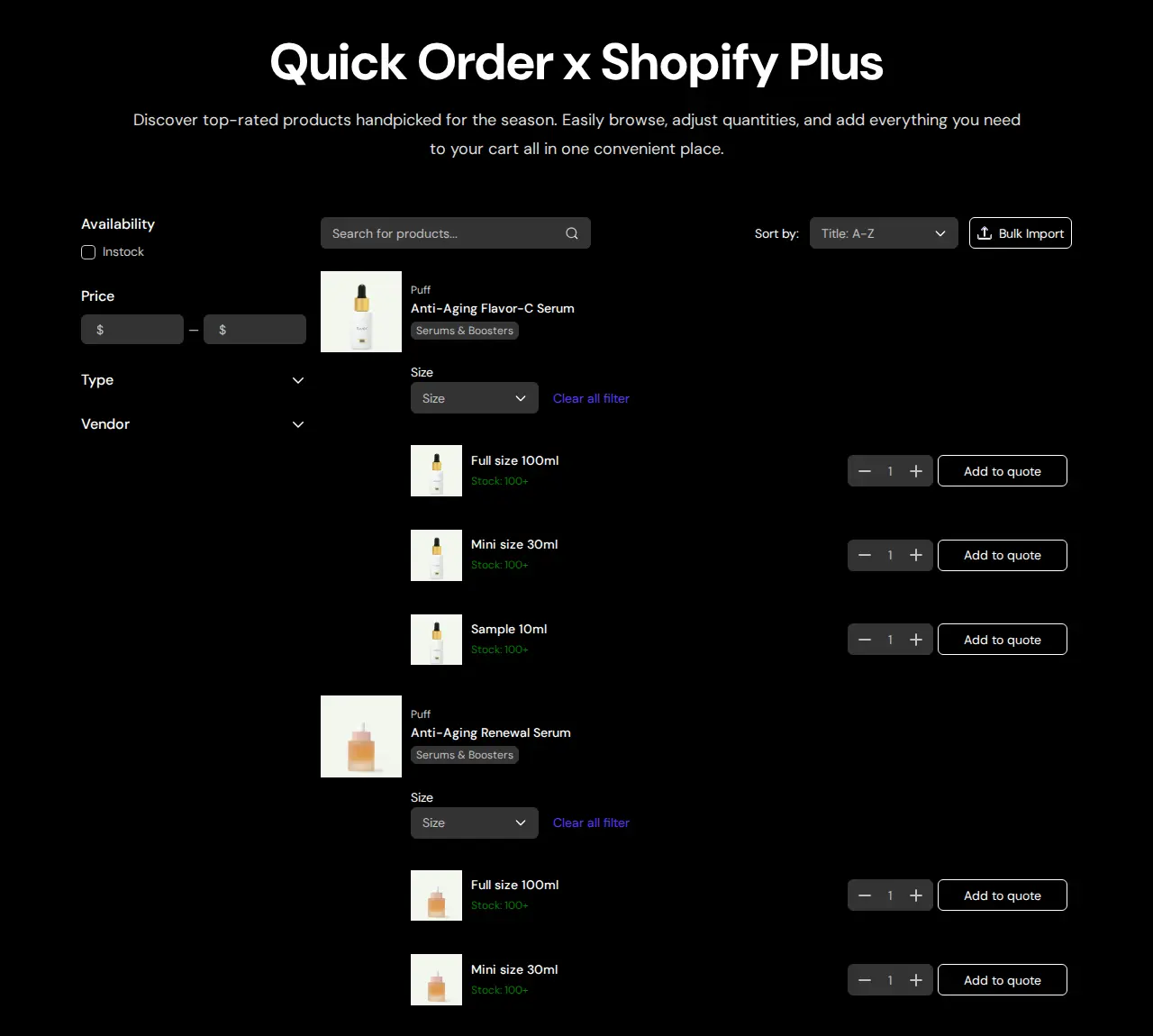
Open a product with many variants, enter quantities across several rows and add them in one action. Check that out-of-stock variants are unavailable and that Shopify quantity rules are respected. Then add a second test with a quote so you see both buttons working from the same entered quantities. The same one-row-per-variant idea works on a Quick Order page, which is useful when buyers order across many styles.
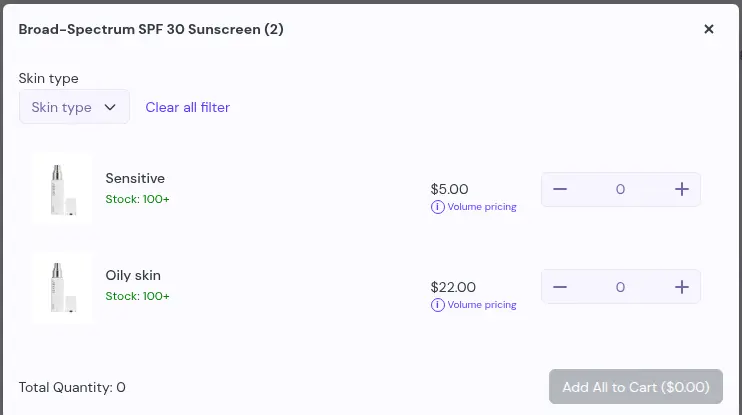
Example: a sportswear brand and a size run
This example uses illustrative numbers, not results from a real store. A sportswear brand sells studio leggings in five sizes (XS to XL) and two colors, so the style has ten variants. A Shopify quantity rule sets multiples of two. The wholesale price in the catalog is $18 per unit.
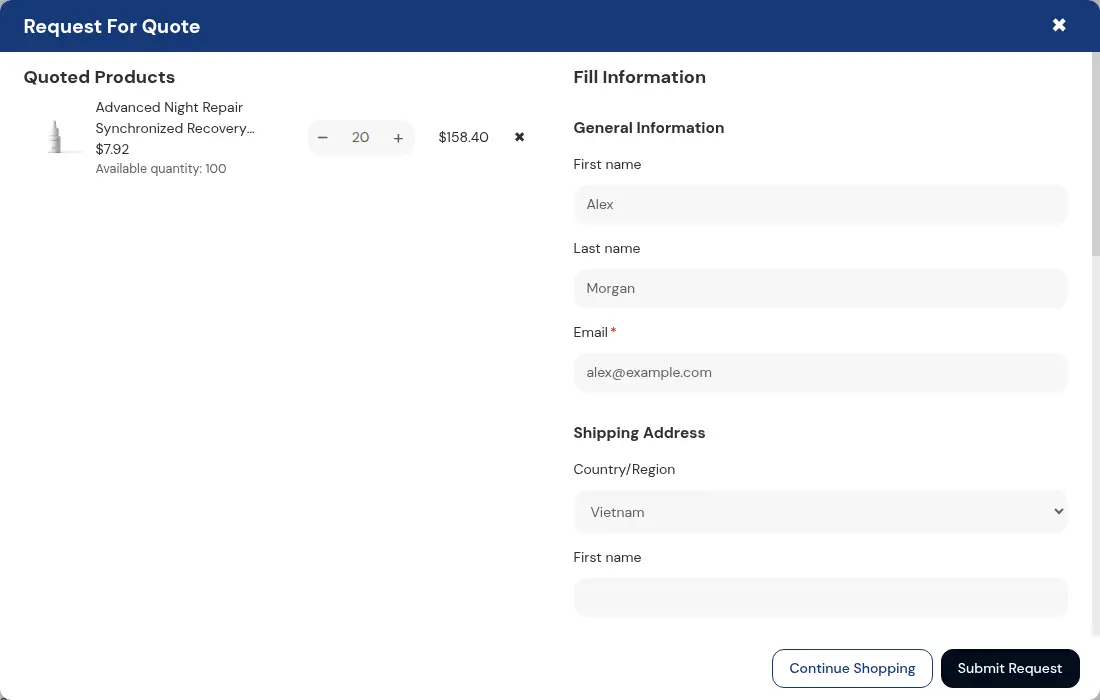
A boutique buyer opens the product page and sees ten rows. They type 2 in the bulk quantity field, which fills every row with two units, then raise medium and large in both colors to six. That is six rows at 2 units plus four rows at 6, so 12 + 24 = 36 units, and the line totals add to $648 at $18 each. One click on Add to cart puts all ten variants in the cart. The buyer who needs a custom embroidery price instead clicks Add to quote, and the same ten lines go to the quote form.
Works well with
The variant table is one part of fast ordering. These pieces complete it:
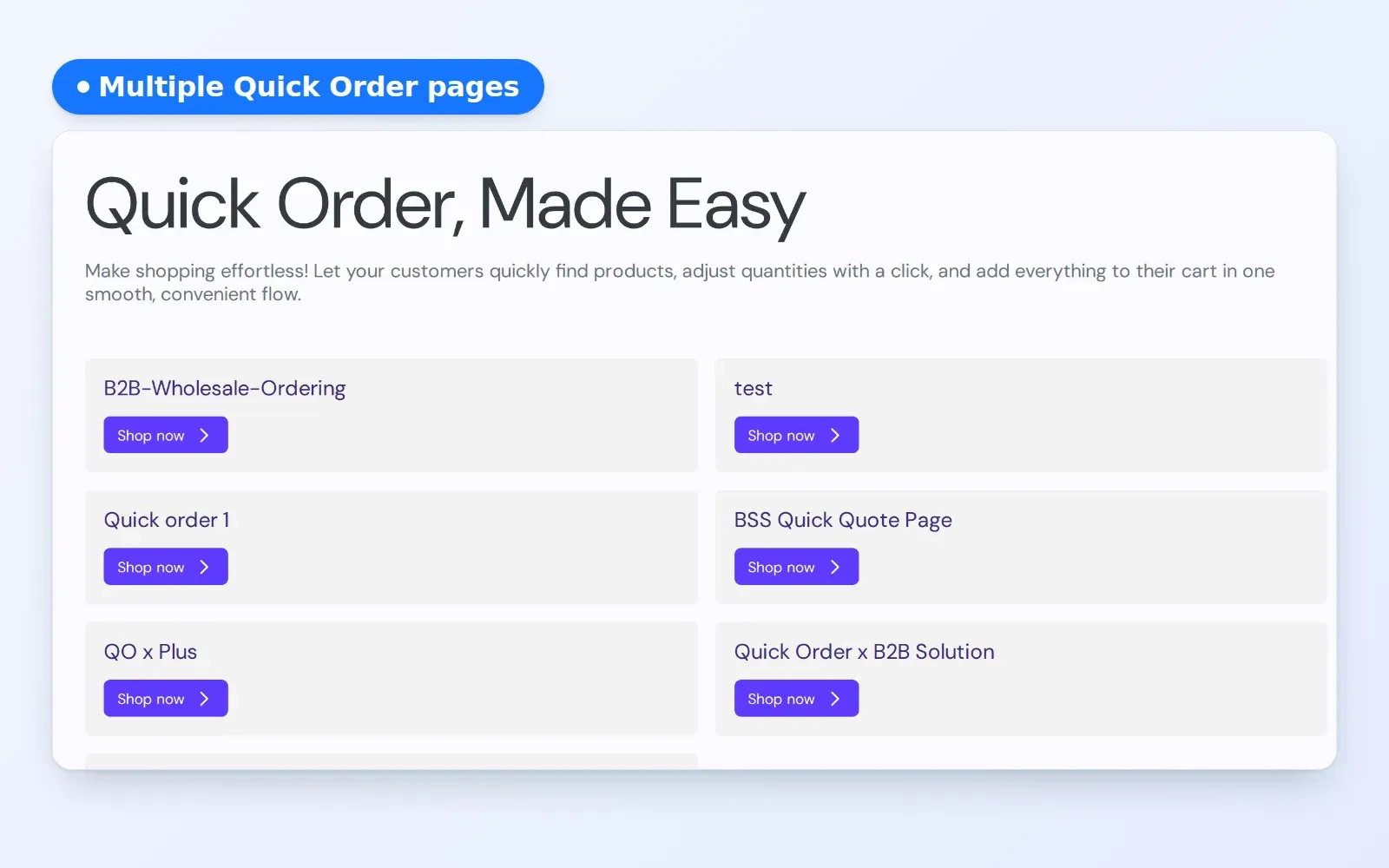
- Quick Order pages: standard quick order pages list products across a collection with a quantity box per row.
- Bulk upload: CSV bulk order upload is faster for buyers who keep their order in a spreadsheet.
- Reorder: the reorder page for repeat buyers repeats a past order without a table.
- Quotes: request a quote button and hide price covers the quote form that the table can send lines to.
- Wholesale prices: BSS B2B Solution holds prices by customer group, see wholesale price by customer tag.
Glossary entries for this topic are quick order form, case pack and RFQ.
Limits and common mistakes
- It uses Shopify native pricing. The table does not render BSS B2B Solution quantity breaks or custom prices. If you rely on Solution prices, buyers see them in the cart and on Quick Order rows, so test the full flow with a wholesale account.
- It needs an Online Store 2.0 product template. A theme app block can only be added where the theme supports blocks.
- It is a Business plan feature. On lower plans the block shows in the editor but not on the live storefront.
- Large products load in batches. The table loads variants as the buyer scrolls, so test the product with your largest variant count.
- Quantity rules are respected. Shopify minimums, maximums and pack sizes apply, so test a rule such as multiples of two on a real product before launch.
- Out-of-stock variants are unavailable. They are grayed out and cannot be added.
- A table is not an access lock. If the product should only be visible to wholesale buyers, add BSS B2B Lock.
Setup checklist
- Confirm the shop is on the Business plan of BSS B2B Quote or higher.
- Turn on the app embed and make sure the theme has an Online Store 2.0 product template.
- Add the Variant Table block under Product information.
- Choose the columns: image, SKU, stock and line total.
- Set the button colors to match your theme.
- Enable quote compatibility if you also take quotes, and the bulk quantity field if size runs are common.
- Test a product with many variants, including an out-of-stock one.
- Test as a wholesale buyer and compare prices in the table, the cart and the quote.
Plans and requirements
The Variant Table needs the Business plan or higher of BSS B2B Quote, the app embed and an Online Store 2.0 product template. Compare plans, including the 14-day free trial on paid plans, on the BSS B2B pricing page. Full settings are in the Variant Table guide, and the quick order overview shows the related pages. Install BSS B2B Quote from the Shopify App Store and add the block to your best-selling style first.