To let wholesale buyers reorder on Shopify, publish the Reorder page in BSS B2B Quote and share it with logged-in customers. The buyer opens `/pages/reorder`, picks a past order from their history, edits quantities in a review window, and places it as a Shopify draft order, which the app turns into a checkout link, an emailed invoice, or both.
This guide is for suppliers whose customers buy the same products on a schedule: restaurants and hotels restocking packaging, salons reordering consumables, retailers refilling staple lines. It explains who benefits, the setup in five steps, a worked example, and the limits to know first, including that Reorder needs a login and uses current prices rather than the old order’s prices.
Who this is for
A reorder page suits you if several of these describe your buyers:
- They order the same core products every week or month, with small changes in quantity.
- They are logged-in accounts that you approved, not anonymous shoppers.
- Today they repeat an order by emailing, phoning or retyping the cart, and your team keys it in again.
- You sell to restaurants, hotels, salons, shops or maintenance teams, where the next order looks like the last one.
- Prices or terms are agreed per account, so the repeat order should still follow your current rules.
If your buyers upload spreadsheets instead, see CSV bulk order upload. If their lists are long and change every time, a quick order page may fit better than reorder.
Why this matters
For a repeat buyer, the second order should be easier than the first. When it is not, they drift to the phone, and a sales or support person types the same order into Shopify again. That is a cost you pay for every repeat order, on every account, and it is the cost a self-service store is supposed to remove.
On the merchant side, a reorder arrives as a normal Shopify draft order that carries a BSS_REORDER tag, so your team can filter the orders that came from the page and does not retype anything. With the invoice option, the buyer gets the Shopify invoice by email and pays through it, which fits accounts that need a document to approve.
Reorder also removes a quiet source of mistakes. A buyer who rebuilds a cart from memory forgets a line, picks the wrong size, or orders a discontinued item. A reorder starts from the real previous order, flags items that are no longer available, and checks stock before the order is placed. Patek Packaging, a Canadian food service supplier to restaurants and hotels, introduced personalized quick order and reorder experiences so buyers see what applies to their account, and GreenTeaEveryday lets wholesale clients view previous orders, change them and reorder. Read the Patek Packaging and GreenTeaEveryday case studies.
How to set it up with BSS B2B Quote
Reorder is configured in one settings page, then published as a theme page on your store. The setup takes six steps.
Step 1: Turn on the app embed and open Reorder settings
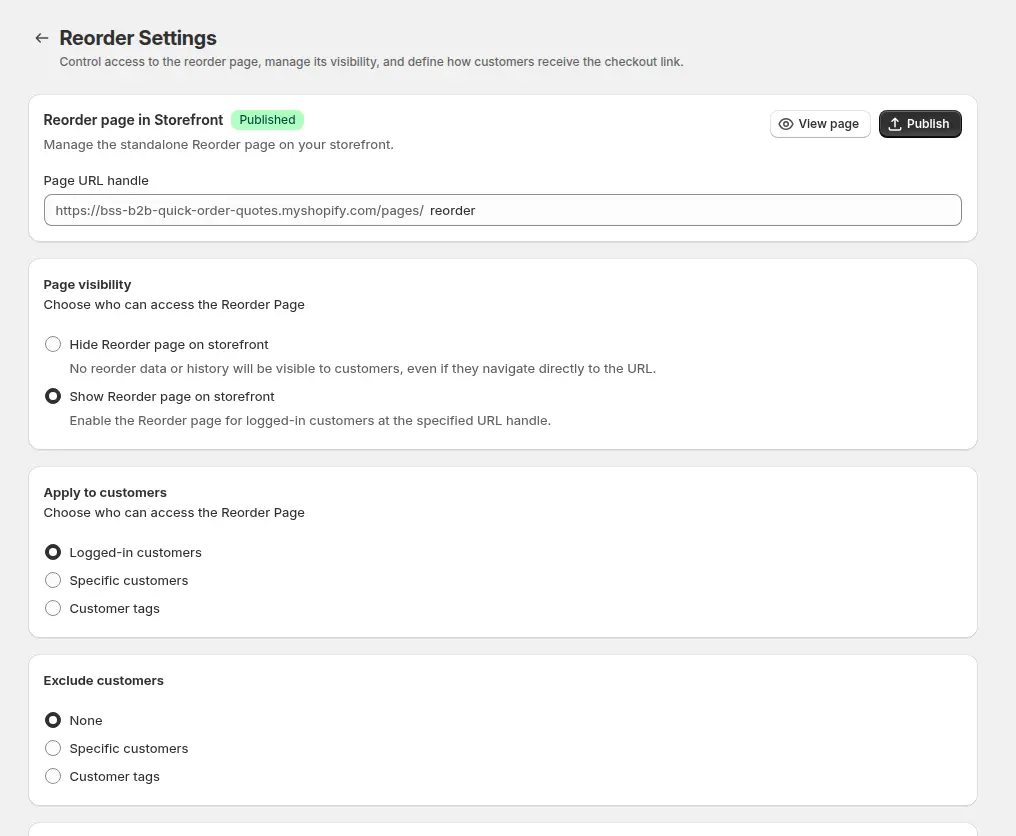
The app embed must be enabled in your active theme, or the page cannot run even when it is marked as published. Then open Reorder > Reorder Settings in the app. The page handle defaults to `reorder`, which creates `/pages/reorder`. The page is hidden by default, so switch the page visibility to show it on the storefront.
Step 2: Choose who can use it
Under Apply to customers, choose logged-in customers, specific customers or customer tags, such as `wholesale`. An exclusion rule always wins over the eligibility rule, so a customer who matches an exclusion sees the restricted access screen even when they are logged in.
Step 3: Choose the checkout link option
Checkout Link Visibility decides what happens after the buyer clicks Place Order. You can display the Shopify checkout link on screen, email the invoice from the draft order, or do both, which is the default. Email the invoice for buyers who pay on terms or need an approval step, and display the link for buyers who pay by card straight away.
Step 4: Match the page to your brand and language
Use Edit Template to change the styles and which elements show on the four storefront screens (the order list, the review window, the draft order detail and the restricted access screen), with a live preview. The storefront text can be translated per language, so buyers in other markets see their own wording.
Step 5: The buyer picks a past order
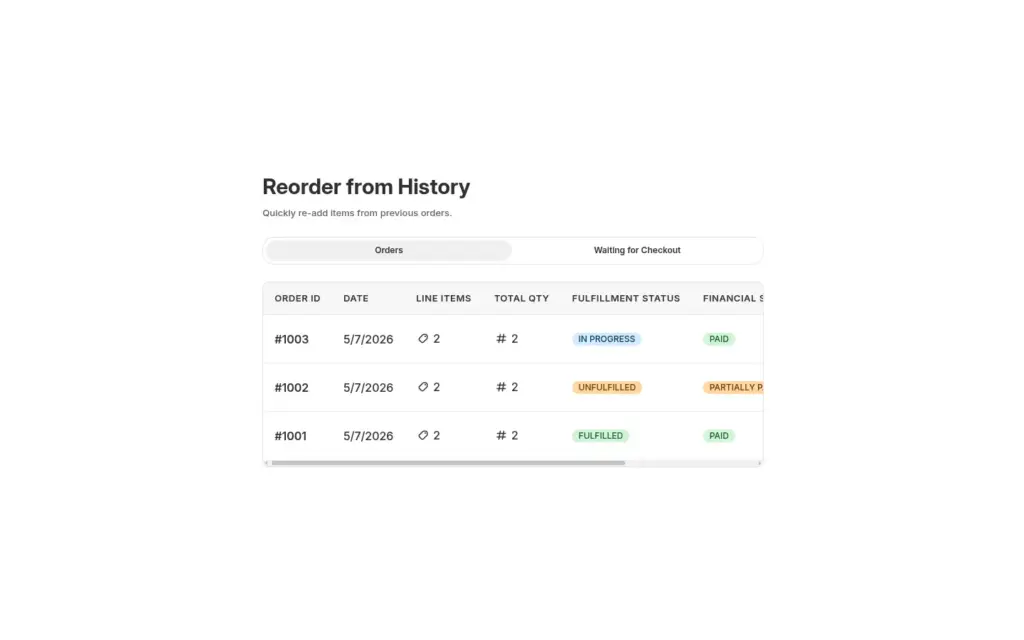
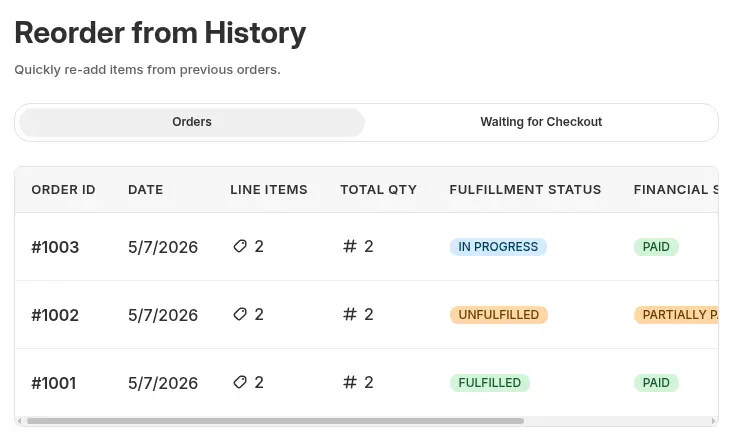
A logged-in buyer opens the Reorder page and sees two tabs. Orders lists past orders with the order number, date, number of line items, total quantity, fulfillment and payment status, and a Reorder button. Waiting for Checkout lists draft orders that are still open, including reorders that have not been paid yet.
Step 6: Review, edit and place the order
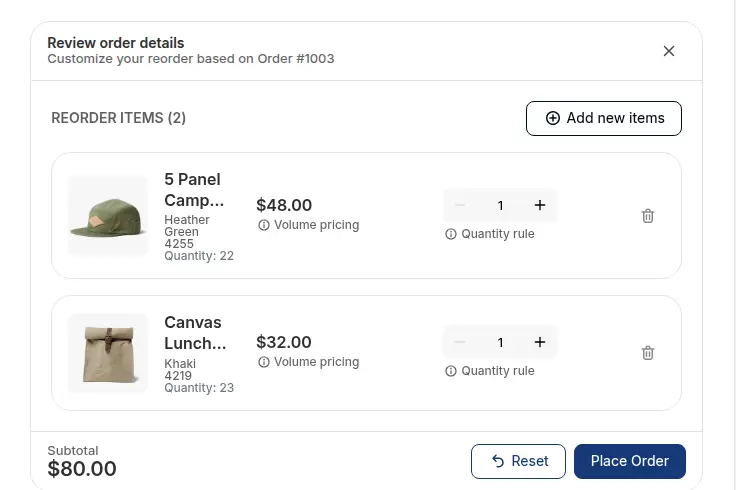
Reorder opens a review window pre-filled with the old order. The buyer changes quantities, sees quantity rules and stock, can search and add other products, and removes lines. If some items have been archived or discontinued since the old order, a warning lists them and the buyer continues with the rest. Place Order then creates the draft order.
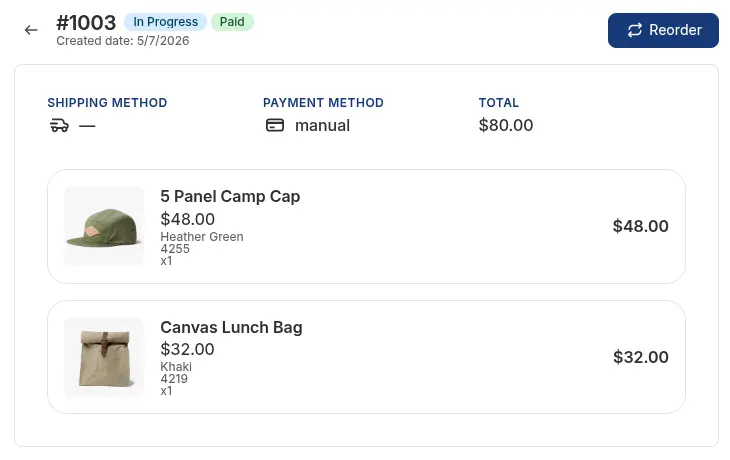
The draft order detail page shows the itemized order, and a checkout button when the link is shown.
Example: a restaurant packaging supplier
This example uses illustrative numbers, not results from a real store. A supplier sells take-out packaging to restaurants. A restaurant’s last order contained 14 product lines, among them 6 cases of 500 napkins at $38 per case and 4 cases of 12 oz cups. The supplier raised the napkin price to $40 per case last month and discontinued one lid size.
The buyer logs in on Tuesday, opens the Reorder page and clicks Reorder on last month’s order. The review window warns that one lid size is no longer available. The buyer continues, raises the napkins from 6 to 8 cases, and clicks Place Order. The draft order shows the current price: 8 cases at $40 is $320, while the old order paid 6 cases at $38, which is $228. The supplier chose Both, so the buyer sees the checkout link and also receives the invoice by email, and the reorder waits in the Waiting for Checkout tab until it is paid. Nobody phoned the sales desk.
Works well with
Reorder is strongest when the rest of the buying path is easy too:
- Spreadsheet orders: CSV bulk order upload is the better tool for buyers who keep an order sheet.
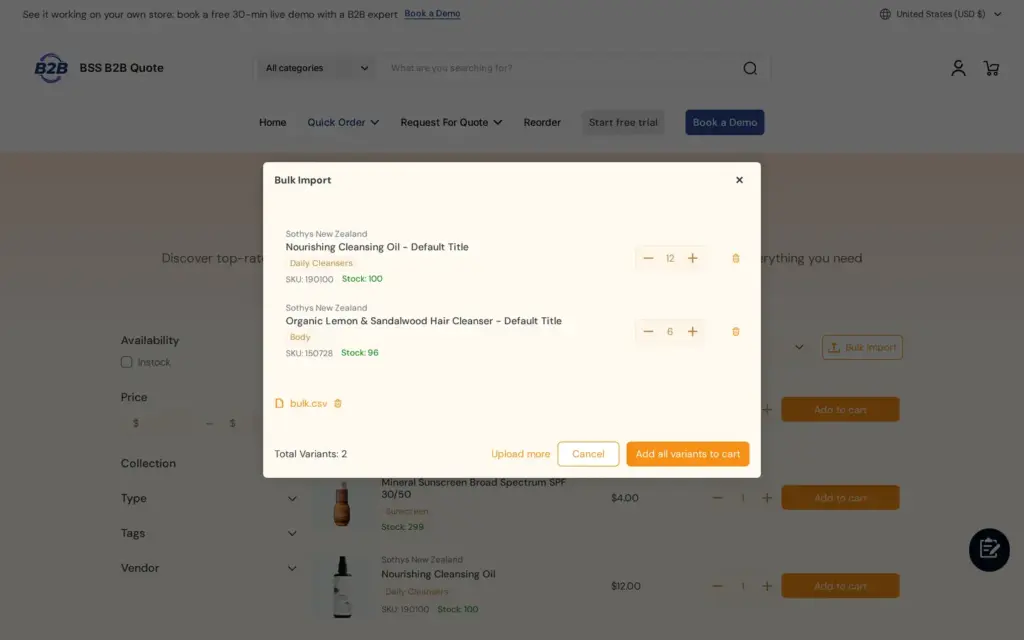
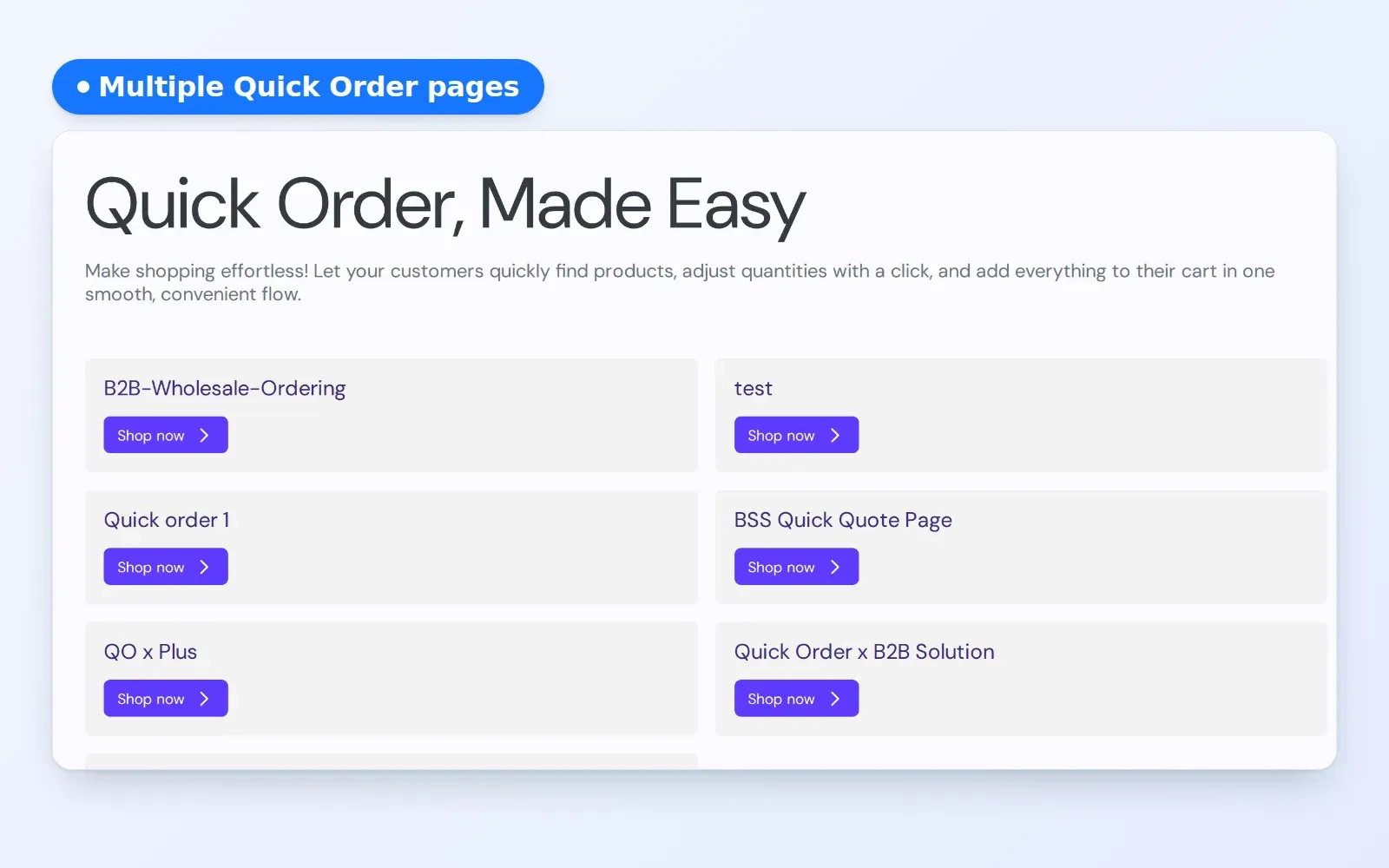
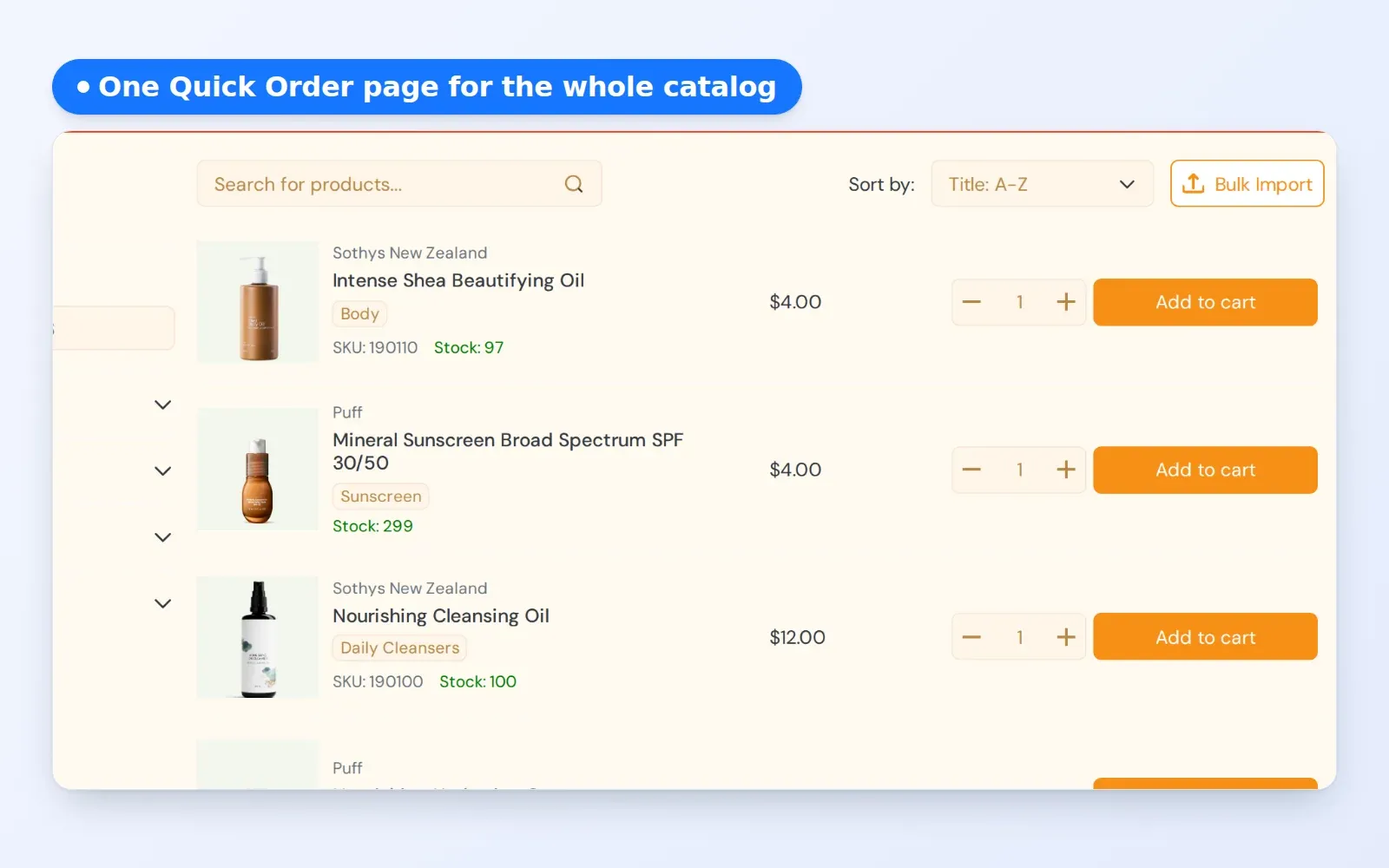
- Quick order pages: standard quick order pages and personalized quick order pages cover first orders and one-off lists.
- Payment terms: Net 30 payment terms for wholesale buyers gives approved buyers the option to pay later, which pairs with the emailed invoice.
- Variants: product page variant table for apparel helps when a buyer adds new sizes to a reorder.
- Wholesale prices: BSS B2B Solution holds the prices, registration and terms your repeat buyers rely on.
The quick order and RFQ hub lists the whole group of guides. Useful glossary entries are reorder, quick order form and draft order.
Limits and common mistakes
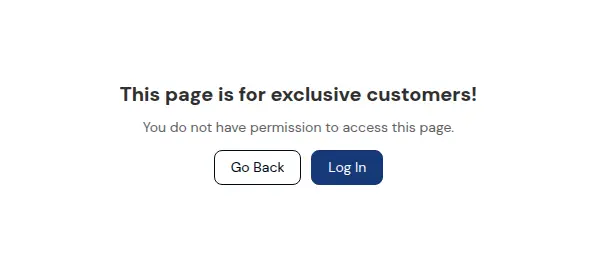
- Reorder needs a login. The page reads the order history of the logged-in customer, so a visitor who is not signed in sees a restricted access screen. Make sure approved buyers have accounts, and link to the page from the account area and your wholesale menu.
- A reorder uses current prices. The draft order is built from variants and quantities, not from the old order’s prices. Tell buyers, and test a reorder as a tagged buyer to confirm the draft order total matches what the product page shows.
- The page is hidden by default. Publish it and switch the page visibility to show it, or buyers will not find it.
- It does not touch the normal cart. A reorder works through a draft order and a checkout link, so the buyer’s active cart is not overwritten or cleared.
- How far back the history reaches depends on what Shopify returns. Test with an order that is several months old before you promise buyers their whole history.
- It is not on the Starter plan. Reorder is available from the Growth plan of BSS B2B Quote.
- The page is a theme page. It needs the app embed on and relies on the buyer being logged in to the store.
Setup checklist
- Install BSS B2B Quote and switch the app embed on in your theme.
- Open Reorder Settings, set the page handle and show the page on the storefront.
- Choose who can use it, and add exclusions if some accounts should not.
- Pick the Checkout Link Visibility option that matches how your buyers pay.
- Add the Reorder page to your account menu and wholesale navigation.
- Test as a tagged wholesale buyer with an old order, including an item that is out of stock.
- Compare the draft order total with the prices on the product page.
- Tell buyers that reorders use today’s prices.
Plans and requirements
Reorder is part of BSS B2B Quote and is available from the Growth plan, not on Starter. Plans and the 14-day free trial on paid plans are on the BSS B2B pricing page. The Reorder overview explains the workflow and edge cases, and the full Reorder setup guide walks through every setting. Install BSS B2B Quote from the Shopify App Store and publish your first Reorder page.