
Shopify Password Protected Page: Store, Page and Collection (2026)

A Shopify password protected page is the landing page visitors see while your store is in Private mode. Turn it on under Online Store, Preferences, Store access. It locks the whole store, not one page. To protect one page or collection, use a passcode, login or secret link in an app such as BSS B2B Lock.
Use a passcode, login, customer tag, secret link or request access. The Free plan locks the whole website by condition; page locks need a paid plan or the 7-day trial.
Install BSS B2B Lock See the Lock pageLast updated October 9, 2026. We rewrote this guide to follow the current Shopify admin and to separate three jobs that people mix up: the store password, a password on one page, and access for wholesale buyers. BSS B2B Solutions makes BSS B2B Lock, so we say plainly where the free Shopify feature is enough. To hide prices only, read our hide price guide. For the full access picture, see the access control hub and the complete Shopify B2B guide.
Key takeaways
- Shopify’s store password (Private mode) is one switch for the whole store. Shopify says that all of your store’s pages are hidden from visitors and search engines while it is on (Shopify password page).
- The password page itself is the landing page visitors see. You edit it in the theme editor and can add a message and an email signup banner.
- For one page, one collection or a private offer, use a passcode, a login, a customer tag, a secret link or a request access flow from an app.
- A shared passcode is not an account. Anyone you tell can pass it on, and a secret link works for anyone who holds it. Use logins or tags for buyers you must be able to revoke one by one.
- For a wholesale-only store, Shopify has an option to restrict access to B2B customers, but only for a dedicated B2B store. A blended store cannot be gated to B2B customers only (Shopify store types).
What is the Shopify password protect page?
Shopify calls it the password page: the landing page a customer sees when they visit your website while private mode is on. It has a password header, a footer and an optional email signup banner (Shopify password page). Visitors who know the password enter the store. Everyone else sees the page, and nothing else.
The password page includes an email signup banner, so visitors can subscribe while the store is private. Private mode is not built to give some pages to some people. That is why the options below differ so much.
Which password option fits your store?
| Need | Shopify store password (Private mode) | Restrict access to B2B customers only | App lock (for example BSS B2B Lock) |
|---|---|---|---|
| What it protects | The whole online store | The whole store, for B2B customers only | The whole store, a page, a blog, a URL, a product, a collection, prices or Add to cart |
| Who gets in | Anyone with the one shared password | Logged-in B2B customers | Passcode holders, logged-in customers, customer tags, specific customers, secret link holders or approved requests |
| Different access per group | No | No, one group | Yes: separate rules for separate groups |
| Revoke one person | Change the password for everyone | Not described on Shopify’s page | Remove a tag, an approval or a passcode; the passcode list can have many |
| Where you set it | Online Store, Preferences, Store access | Same place, an optional setting | The app’s Locks page |
| Best for | Pre-launch, closed periods | A dedicated B2B-only store | Private pages, wholesale areas, invite-only offers |
How to password protect your Shopify store
Follow Shopify’s current steps (Shopify password page). Labels can differ slightly by admin version, so check your own screen.
- In your Shopify admin, go to Online Store, then Preferences.
- In the Store access section, switch Private mode on. You can also click the Private or Public label on the Online Store page to change the mode.
- Enter a Password. Shopify says not to reuse the password you use to log in to your Shopify admin.
- Optional: write a Message to your visitors. This text appears on the password page.
- Click Save, then open your store in a private browser window to see the password page as a visitor does.
Tell the people who need access. Send the password by email, not on a public page, and give the date you plan to open the store. If you want only your wholesale buyers to enter, read the B2B section below first.
How to customize or edit the password page
Open Online Store, choose your theme, click Edit theme, then open the page dropdown at the top (it starts on Home page) and select Password. You can edit the sections on the page, add blocks and change theme settings (Shopify password page).
| Part | What to change | Tip |
|---|---|---|
| Password header | Header content and design | Use the same logo as your header so visitors trust the page |
| Email signup banner | Banner content and design | Ask for the email only; the page’s job is to collect interest while you are closed |
| Password footer | Footer content and design | Keep contact details visible for buyers who lost the password |
| Message to your visitors | Custom text from Preferences | Say when the store opens or whom to contact |
| Theme code | The password-header and password-footer sections in the code editor | Edit code only if you are comfortable with Liquid; keep a theme copy |
If you search for a password page template, start with your own theme. The password page is part of the theme, so the best template is the one that ships with it. A page builder app can restyle it, but test the page on a phone.
How to remove or change the Shopify store password
- Remove it. Go to Online Store, click Private, select Public, then click Update.
- Change it. In the same section, type a new password and save. Everyone who knew the old password has to enter the new one.
- Trial stores. Shopify says that in the Shopify mobile app, a trial store or a store without a business address is asked to complete that step before the password can be removed (Shopify password page).
Do this early. A store left in private mode is hidden from search engines, so launch day starts with a visibility gap. Shopify’s help page says all of your pages are hidden from visitors and search engines while private mode is on.
How do you password protect a wholesale store?
Shopify’s private mode has an optional setting, Restrict access to B2B customers only, in the same Preferences section (Shopify password page). It only fits a dedicated B2B store. Shopify says you can gate a dedicated store so the URL and login page are accessible only to B2B customers, and that a blended store cannot be gated to B2B customers only, because your D2C customers could not place orders (Shopify store types). The setup checklist for dedicated stores lists the restriction as an optional step after you activate customer accounts (Shopify dedicated store checklist).
If you sell retail and wholesale from one store, you need a different tool. Shopify’s checklist for blended stores points to third-party apps that lock parts or all of the store from visitors who are not logged in (Shopify blended store checklist). Read our guide to Shopify B2B login for login-based access and the blended store use case.
How to password protect a single page or collection
This is the case Shopify’s store password does not cover. The steps below use a passcode in BSS B2B Lock. The full guide with every screen is in the BSS passcode guide. The Free plan locks only the entire website. Page, collection and product locks need a paid plan or the 7-day trial.
Step 1: Start a lock and pick the target
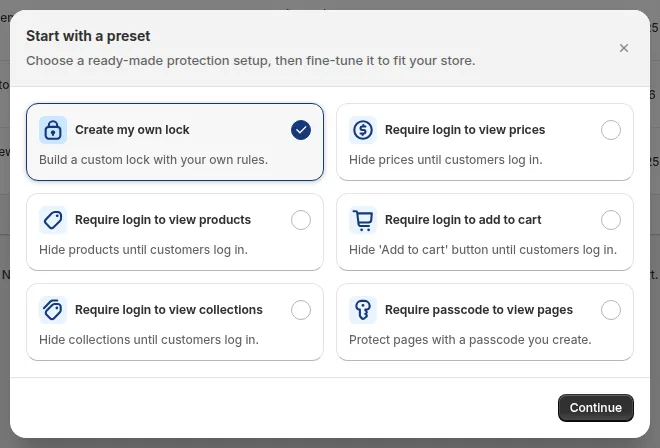
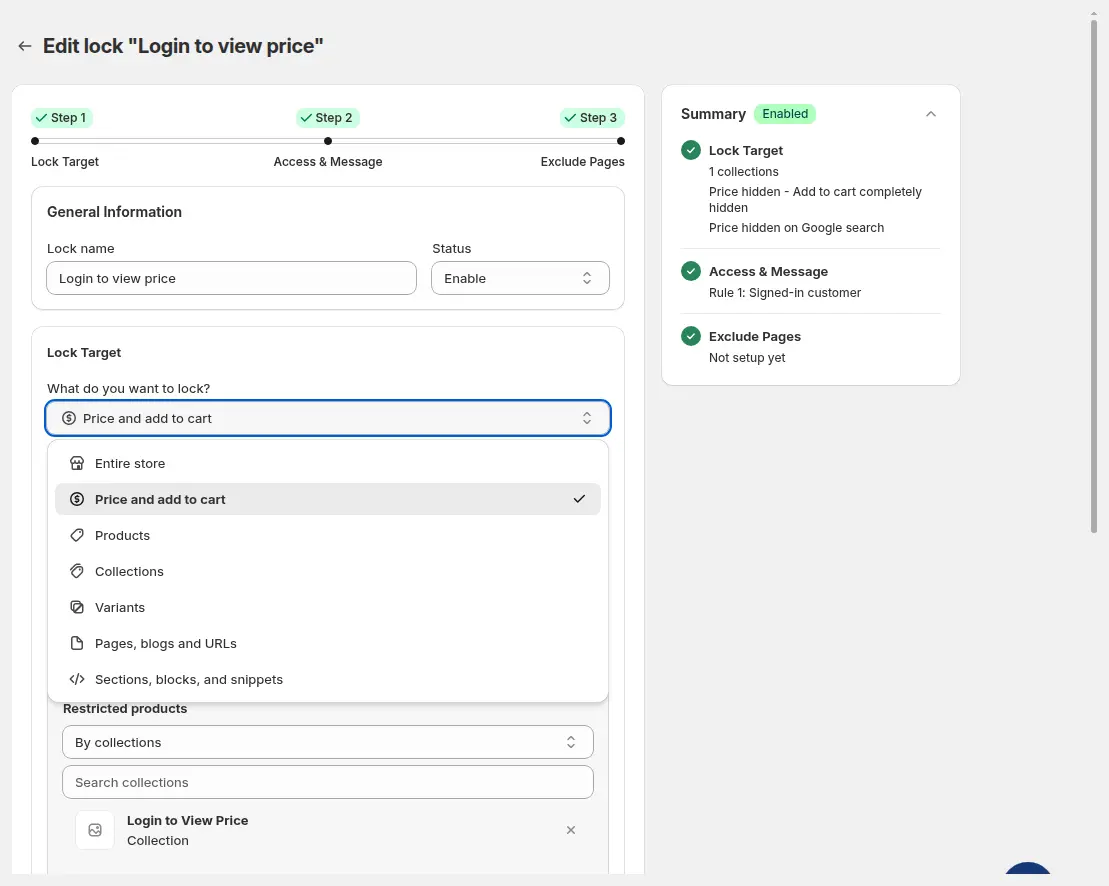
Go to Locks, then Add lock rule. In the preset window choose Require passcode to view pages, or Create my own lock. In Step 1, name the lock and open What do you want to lock?. Pick Pages, blogs and URLs for a page, or Collections for a collection, then choose the page or enter its URL, such as /partner-offer.
Step 2: Add the passcode
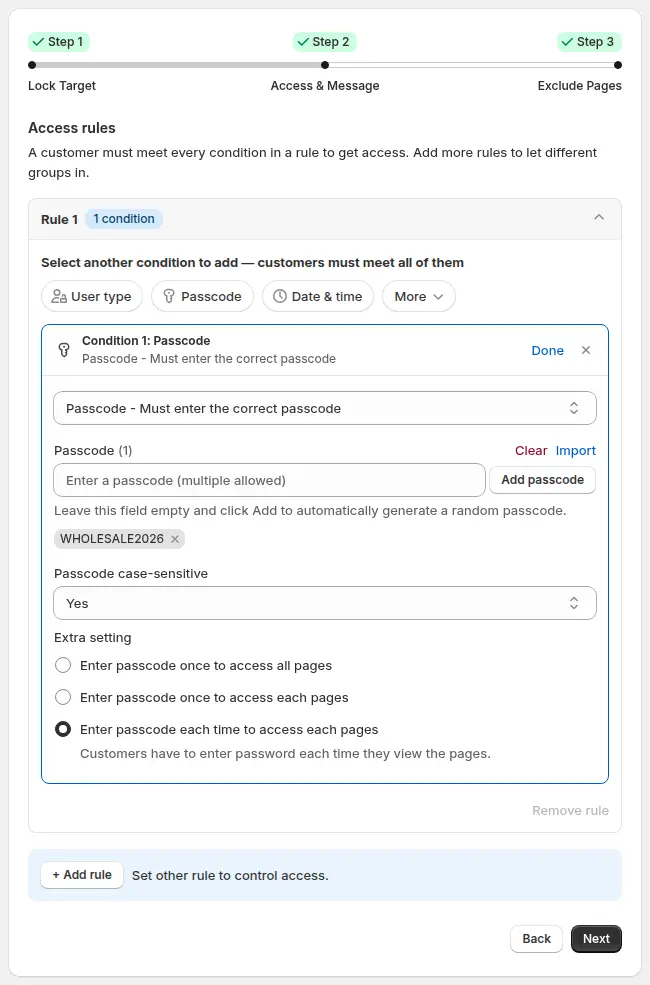
In Rule 1 click the Passcode condition. Type a passcode and click Add passcode, or leave the field empty to generate a random one. You can add several, or import a CSV with one passcode per line (up to 2 MB, each up to 255 characters). Set Passcode case-sensitive and choose how often visitors enter it: once for all pages, once for each page or each time. See how passcodes work for the term.
Step 3: Exclude pages, save and test
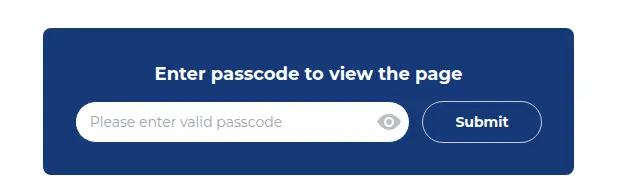
In Step 3 you can exclude pages that must stay open. Save, then open the page in a private window. A correct passcode unlocks the content and a wrong one shows an error. Edit the title, description and error text with Customize message.
For a worked example, see our passcode access use case.
Give each buyer group its own rule: passcode for partners, login or tag for wholesale accounts, secret link for a private drop.
See BSS B2B LockPasscode, login, secret link or request access: which one?
| Method | How a visitor gets in | Best for | Watch out for |
|---|---|---|---|
| Passcode | Types a shared code | Invite-only campaign or partner pages | No expiry or usage limit per passcode; remove the code to stop it |
| Login or customer tag | Logs in; a tag decides who sees what | Wholesale areas with many buyers | Needs customer accounts and a tagging process |
| Secret link | Opens a link that carries a token | A private collection shared by email | Anyone with the link gets in, so it is not a security control |
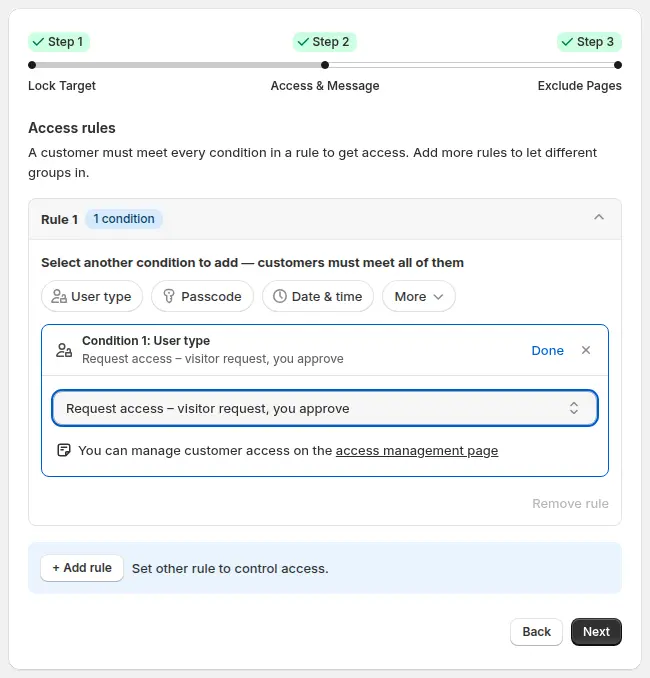
| Request access | Asks, then you approve | Buyers you want to vet | Approval syncs through a queue and is not instant; it does not add a tag |
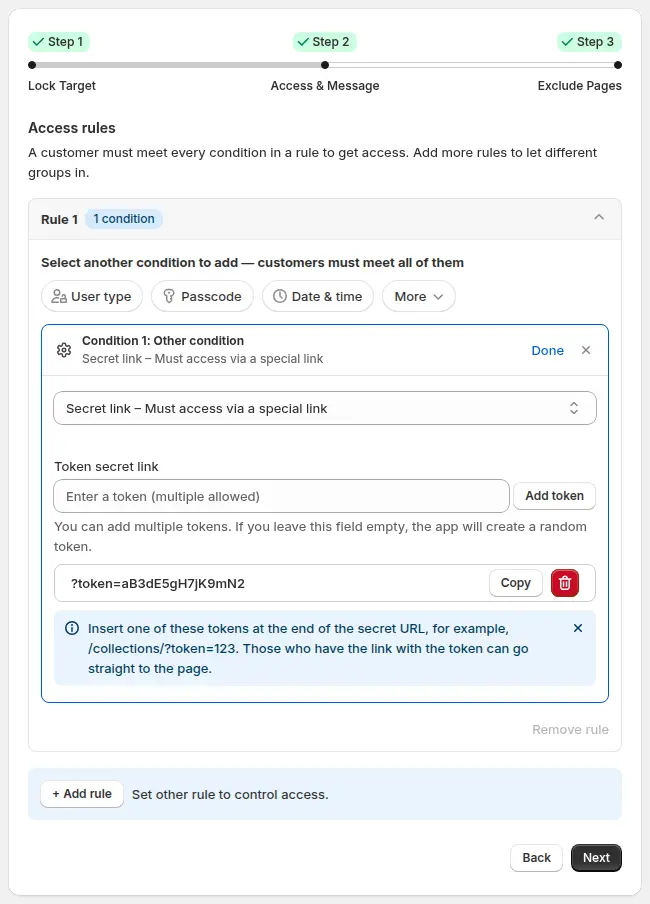
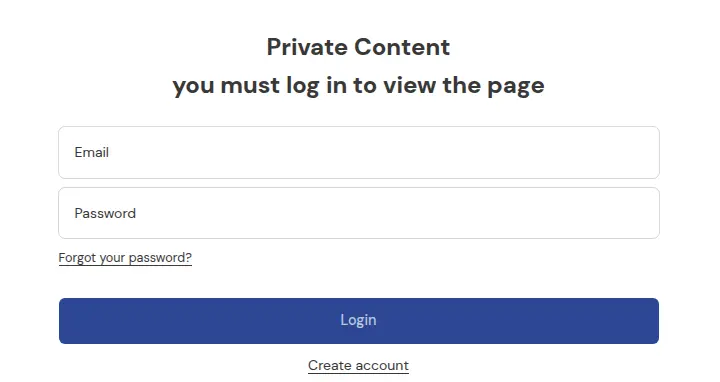
More recipes: share a private collection with a secret link, add a request access button and lock the entire store for approved buyers. Terms: secret link and gated catalog.
Does a password protected page hide content from Google?
With Shopify’s store password, yes: Shopify says all of your online store’s pages are hidden from visitors and search engines while private mode is on, so a store left in private mode will not rank. With an app lock on a page, product or collection, the locked content is replaced by the lock message in our code review, but we do not promise removal from search results. A noindex setting is a separate option, and a secret link does not hide a page from search on its own. If your goal is to keep prices out of Google, that is a different job: see the hide price guide, which also explains why prices can stay reachable through public endpoints.
Best practices and limits
- Use a unique password. Never reuse your admin password, as Shopify warns. Use a long phrase from a password manager and rotate it when staff leave.
- Share on a private channel. Email it to the person. Do not post it on social media or a public page.
- Do not call it security. A shared password or passcode controls who sees storefront content. It does not protect customer data and does not replace accounts. BSS B2B Lock restricts storefront access through theme code; headless storefronts are not supported.
- Know the app limits. Free covers the whole website only. IP, region and country conditions can be spoofed from the browser, so do not treat them as secure geo-blocking.
- Test on a phone and logged out. Check the locked page, the wrong-passcode message and the unlock path before you send the link or code.
- Plan the end date. Remove the passcode or switch the lock off when the campaign ends, and write down who had access.
Why does my password page not work?
| Problem | Likely cause | Fix |
|---|---|---|
| Visitors still see the password page after launch | Private mode is still on | Go to Online Store, click Private, select Public, then click Update |
| The wrong password is rejected | Case or space typed differently | Resend the password; for app passcodes check the Passcode case-sensitive setting |
| A page lock does not show | The theme code was not installed or a theme was changed | Reopen the app’s setup, and check the app’s troubleshooting checklist |
| Buyers are asked for the password again and again | The unlock setting is Each time | Use Enter passcode once to access all pages |
| Your launched store is missing from Google | Private mode is still on | Remove the password at launch |
Frequently asked questions
How do I password protect my Shopify store?
Go to Online Store, then Preferences. In Store access, switch Private mode on, enter a password, optionally add a message for visitors and save. Check the result in a private browser window.
Can I password protect just one page on Shopify?
Not with the built-in store password, which covers the whole online store. Use an app that locks a page, a collection or a URL, for example with a passcode, a login or a secret link.
How do I remove the password from my Shopify store?
Go to Online Store, click Private, select Public, then click Update. In the Shopify mobile app, a trial store or a store without a business address is asked to finish that step before the password can be removed.
How do I edit or customize the password page?
Open Online Store, choose the theme, click Edit theme, open the page dropdown and select Password. You can edit the sections, add blocks and change theme settings. The message text is set in Preferences.
Does the Shopify password page hide my store from Google?
Yes. Shopify says all of your online store’s pages are hidden from visitors and search engines while private mode is on. Turn it off at launch so your store can be found.
Can I let only wholesale buyers into my store?
On a dedicated B2B store, Shopify offers an option to restrict access to B2B customers only. A blended store, which also sells to D2C customers, cannot be gated that way. In a blended store, lock the wholesale pages or collections with an app and a login, tag or passcode.
What is the difference between a passcode and a login?
A passcode is one shared code that anyone can pass on. A login ties access to an account, so you can add or remove one buyer with a customer tag or an approval.
Is a secret link secure?
No. Anyone who has the link can open the page, and the link can be forwarded. Use it for convenience on low-risk pages, and use logins or tags where you must control who sees what.
Is BSS B2B Lock free?
The Free plan locks the entire website by condition. Page, collection and product locks need a paid plan, from $9.99 per month on Basic Shopify, or the 7-day free trial (App Store listing, October 4, 2026).
Sources
- Shopify Help Center: Password page and private mode, read October 9, 2026.
- Shopify Help Center: Blended and dedicated B2B stores, read October 9, 2026.
- Shopify Help Center: Setup checklist for dedicated B2B stores, read October 9, 2026.
- Shopify Help Center: Setup checklist for blended B2B stores, read October 9, 2026.
- BSS B2B Lock docs: Protect pages with a passcode and the BSS B2B Lock App Store listing (4.9, 651 reviews, October 4, 2026).
Create a passcode, login, tag or secret link lock in minutes. Start free, or try a paid plan for 7 days.
Install BSS B2B Lock Talk to usYou may also like

How to Remove Tax Included on Shopify (2026 Guide)
Shopify shows “tax included” when your store is set to include tax in prices. To remove it, […]

Shopify Quantity Breaks: How to Implement & Boost Sales
These quantity breaks are the most vibrant strategies that custom store owners around Shopify are using. It […]

How To Sell B2B Services: A Complete Guide to Closing Deals
B2B sales, especially B2B sales service have dramatically increased in recent years, and salespersons, therefore, have to […]