To make repeat wholesale orders fast, turn on Favourites and the Reorder page in BSS B2B Quote. Signed-in buyers save products with a heart on Quick Order rows and Re-Order line items, find them on a My Favourites page, and reorder past orders from their customer account in a few clicks. On new customer accounts they can also start a new quote from an old one with Create similar quote.
This page is for wholesalers whose buyers order the same products again and again. It shows how the three features fit together, how to set them up, an example of a buyer’s routine, and the limits. For the Reorder page alone, see Reorder Page for Repeat Wholesale Buyers.
Who this is for
- Most of your wholesale revenue comes from buyers who order the same products on a rhythm.
- Buyers use your search or a catalog PDF to find what they bought last month.
- Your team keys in repeat orders by email or phone.
- Your buyers use new customer accounts.
- Some of your repeat items are bought by quote, because prices or quantities are negotiated.
Why this matters
A repeat buyer already knows what they want. Every step between them and the checkout, such as searching, choosing variants and adding quantities, is friction that you pay for in slower orders, mistakes and support time. For a buyer who orders the same twenty products every month, a short list and a one-click path back to a past order are worth more than another discount.
Favourites cover the products a buyer likes to keep close. Reorder covers whole past orders. Create similar quote covers the items that are bought through a quote. Each solves a different repeat pattern.
How to set it up with BSS B2B Quote
Step 1: Turn on Favourites
Go to Quick Order, More, Quick Order settings, Favorites and turn on Enable My Favourites. It is off by default. Each customer sees only their own list. If you turn the setting off later, the hearts disappear but the saved items are kept.
Step 2: Publish the Favourites page
In the same screen, check the Favourites page URL handle, for example /pages/favourites, and click Publish. If a page with that handle already exists, the app asks you to confirm before it overwrites the content. Click View page to open it. Until the page is published, Quick Order and Re-Order show no Favourites link. If the page is later hidden or deleted in Shopify, a Favorites page is not live warning offers Publish again.
Step 3: Turn on the Reorder page
Reorder lets customers repeat past orders from their account. Turn on the Reorder page in the Reorder settings; it is off by default. The B2B Portal app embed must be enabled in your active theme. Customers open the Reorder page, which has an Orders tab for completed purchases and a Waiting for Checkout tab for pending draft orders, and they must be logged in.
Step 4: Turn on Create similar quote
For products bought by quote, go to Settings, Buyer account, and in the What buyers can do card turn on Show “Create similar quote” in customer accounts (Beta). The button shows on the quote page in new customer accounts and needs the quote history page shown. Add the BSS Quote List extension to the customer account page first, as the Buyer account settings explain.
Step 5: Test as a buyer
Log in with a test customer. Tap the heart on two Quick Order rows, open My Favourites and add one to the cart. Open the Reorder page, reopen a past order and check the lines. Open a past quote and use Create similar quote.
What buyers see
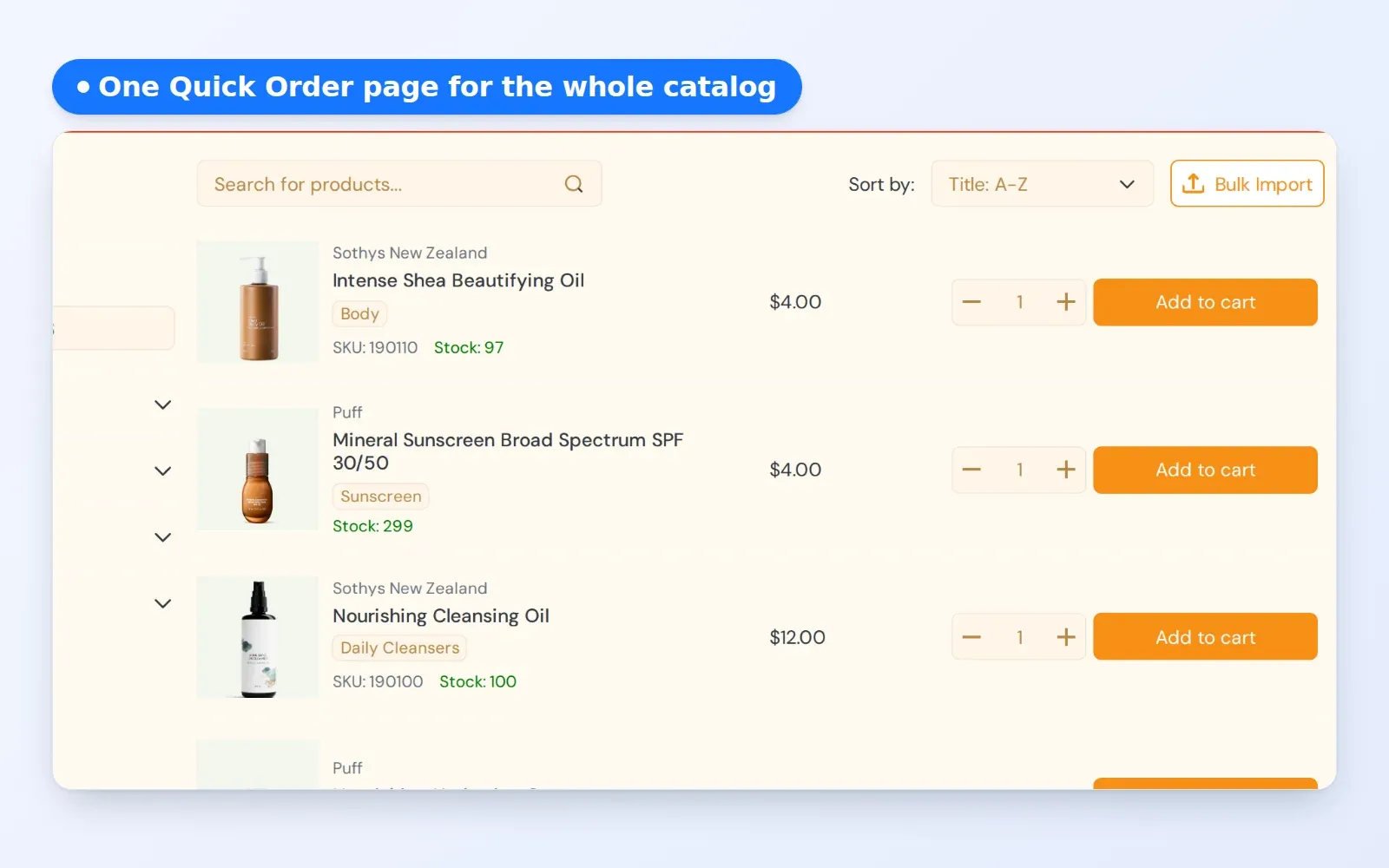
- A heart button on each Quick Order row and on Re-Order line items saves or removes the product.
- The My Favourites page lists saved products, with a quantity field that follows the quantity rules and an Add to cart button.
- Add to quote appears when a quote logic covers the product. Where a quote logic hides the price or the cart button, only Add to quote shows.
- Add to cart is switched off for products that are out of stock or unavailable.
- An empty list links to a Quick Order page. If the customer has no such page, it shows the tip “Tap the heart icon on a product to save it here.”
- In the Reorder review window, buyers can select several items and remove them in one step.
Example
Example, with made-up values. A cafe buyer orders the same coffee, filters and cups every month. In January she hearts those products. From February on she logs in, opens My Favourites, sets the quantities and adds everything to the cart. Twice a year she needs a custom-priced bulk order, so she opens last time’s quote and clicks Create similar quote. When her supplier changes a delivery date, she opens the Reorder page and repeats the order from March. Your team does not touch any of these orders.
Tips for a good rollout
Start with the pages your repeat buyers already use. If they order from a Quick Order page, add the heart there first, because it costs them nothing to learn. Then tell them once, in an email or a banner, that My Favourites exists and where to find it. A feature that nobody knows about saves no time.
- Link the Favourites page in your store menu or in the customer account area, not only in the footer.
- Keep product titles and variants clean, because buyers see them in their lists for months.
- Check quantity rules on your products, since the Favourites rows follow them and buyers see the rule when they type a quantity.
- Review the Reorder metrics section on the admin Reorder page to see how much the page is used.
- If some products are only sold by quote, set the quote logic first so that Add to quote shows on the right rows.
Why not just bookmark the product page?
A browser bookmark lives on one device, shows no stock status, ignores your quantity rules and cannot add to a cart or a quote. A My Favourites list lives in the customer account, so it follows the buyer to a phone, a laptop or a colleague’s login only if they share the account. It also checks availability for every row and respects the quote logic that applies to the product. For a buyer who manages many suppliers, that difference decides which store gets the repeat order.
Which feature for which buyer
Favourites suit a buyer who orders a changing mix from a stable set of products. Reorder suits a buyer who repeats the same basket. Create similar quote suits a buyer whose prices were negotiated and who wants the same structure again. Many stores turn on all three, because the same buyer can need each one in a different month.
Works well with
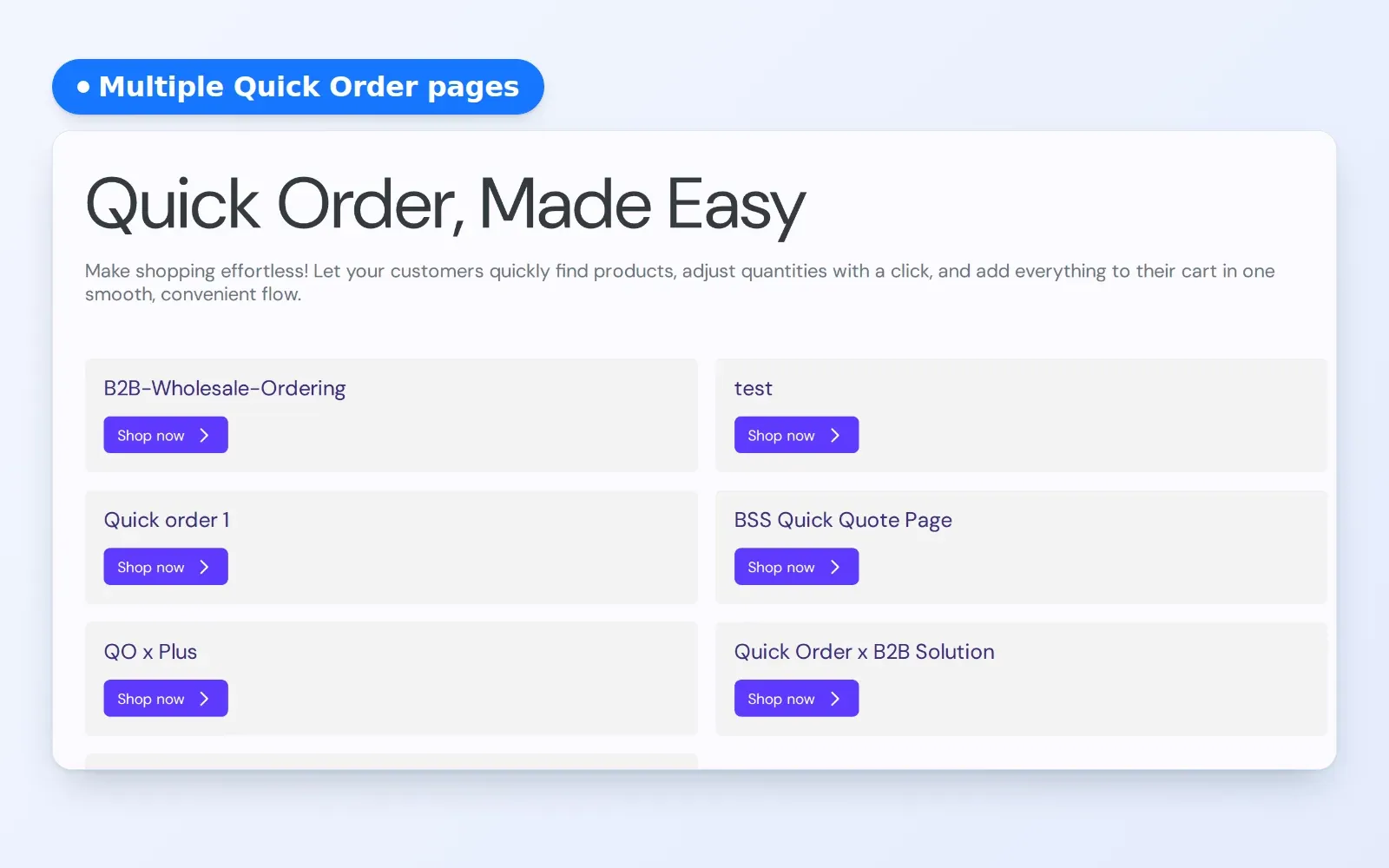
Favourites and Reorder rely on a good ordering page. See standard Quick Order pages, personalized Quick Order pages and CSV bulk order upload. For the Reorder module itself, see the Reorder page feature. More ideas live in the Quick Order and RFQ hub. Useful terms: reorder, quick order and bulk order.
Limits and common mistakes
- Favourites, the Reorder page and Create similar quote are all off by default.
- Buyers must be logged in. Guests see a restricted access screen.
- The Favourites link does not show until the Favourites page is published.
- Create similar quote is in Beta, needs new customer accounts and the quote history page, and needs the Business plan or higher.
- The Reorder module works on top of Shopify draft orders, so check the checkout path your store uses.
- Add to cart is off for out-of-stock products.
Setup checklist
- Enable My Favourites and publish the Favourites page.
- Turn on the Reorder page and enable the B2B Portal app embed.
- Turn on Create similar quote and add the BSS Quote List extension.
- Log in as a test buyer and try the heart, the Reorder page and Create similar quote.
- Tell your repeat buyers where to find My Favourites in your next email.
Plans and requirements
Reorder needs the Growth plan or higher, Favourites is available on paid plans from Starter, and Create similar quote needs the Business plan or higher. BSS B2B Quote includes unlimited quotes on every plan. See the pricing page, the Favourites documentation and the Reorder overview.