To let buyers fix a quote request before you send the proposal, turn on the Buyer edit window in BSS B2B Quote under Settings, Buyer account. A logged-in buyer can then change quantities, remove lines and edit notes and form fields for the number of hours you choose. Your team sees every change on the quote, and the request locks the moment you send a proposal.
This page is for wholesalers whose buyers often send a quote request and then realize that a quantity is wrong. It explains what buyers can and cannot change, what you see when they edit, how the lock works, and the limits worth knowing, especially that the feature needs the Business plan and is off by default.
Who this is for
- Your buyers type quantities by hand and sometimes get them wrong.
- Buyers ask you by email or chat to cancel a request and start again.
- Your quotes take hours or days to answer, so buyers think of changes in the meantime.
- Buyers check numbers with a colleague after they submit.
- Your buyers have customer accounts and log in to request quotes.
Why this matters
A quote request is a promise to answer, and it starts a clock on your side. When the quantity on it is wrong, you have three bad choices: quote the wrong thing, write to the buyer and wait for an answer, or ask them to submit a new request. The first creates an error that surfaces on the invoice. The second and third add days to a deal that was ready to move.
Letting the buyer fix their own request moves that work to the person who knows the correct answer. It also keeps the history on one quote, instead of two requests that someone has to merge by hand.
How it works with BSS B2B Quote
Step 1: Turn it on and choose the window
In the app, go to Settings, then Buyer account and find the Buyer edit window card. In Edit window, enter the number of hours the buyer can edit a request, a whole number from 1 to 720. Enter 0 to turn the feature off, then click Save. Hours are counted from the moment the buyer submits the quote. A new number applies to quotes submitted after you save.
Step 2: Know what the buyer sees
While the window is open, the quote detail page on your storefront shows the line “You can edit this request until” followed by the deadline in the buyer’s own time zone, and an Edit request button. In new customer accounts, the quote also has an Edit request link, as long as the quote page or the quote history page is published. After the buyer clicks Save changes, the quote is updated and the buyer sees “Your changes were saved.”
Step 3: Know what the buyer can change
- The quantity of each product.
- Removing a product line. At least one line must stay.
- The note under each product and the note for the whole request.
- The values of the custom fields of your quote form.
Buyers cannot change the default fields email, name and address, prices, shipping and taxes, and they cannot add products or upload new files. If an email or address is wrong, they can send you a message in the quote conversation.
Step 4: See the changes in your admin
When a buyer saves changes, the quote shows it in three places: the Activity timeline has a “Buyer edited the quote” entry that lists what changed, such as old and new quantities; an Edited by buyer badge appears next to the quote; and a banner on the quote detail page tells you the buyer changed the quote after submitting it. The timeline entries are visible to your team only, never to the buyer.
Step 5: Get one email, not many
You also get an email, Your customer edited quote, with the quote number. It goes to the assigned team member, or to the store owner if the quote has no assignee. To avoid a flood, the first edit starts a 10-minute window, and all edits in that window are sent as one email.
Step 6: Reload if the buyer edits while you work
If a buyer edits the quote while you have it open, saving or sending is stopped and a banner says the quote was just changed by the buyer. Nothing is saved or sent. Click Reload quote to see the new version, then continue. Reloading discards your unsaved changes, so save often on busy quotes.
When the request locks
A request locks as soon as any of these happens: you send a proposal (immediately, even if hours are left), the window ends, the quote is accepted, converted or rejected, or a draft order exists for it. Only quotes that are Unread or Under review can be edited. If you turn the setting off, editing closes for the quotes that were still open. After the lock, buyers are pointed to the next step: use a counter-offer or send a message to the merchant.
Example
Example, with made-up values. You set the window to 48 hours. On Monday morning a buyer requests 20 cartons of a product and 5 of another. At noon she realizes she needs 24 and 3. She opens the quote, clicks Edit request, changes both quantities and saves. Your account manager sees the Edited by buyer badge, opens the timeline to confirm the new numbers, and sends one proposal for the correct quantities on Tuesday. If your account manager had been editing the quote at the moment she saved, the reload banner would have appeared, and the proposal would have been sent only after reloading.
Tips for choosing the window and rolling it out
Pick a window that fits how fast you answer. A short window, for example 24 hours, covers typos and quick second thoughts. A long window suits buyers who check quantities with colleagues or with their own customers before they confirm. If your team usually replies within an hour, a long window can work against you, because the buyer may still change the request while you are about to price it.
- Tell buyers in your quote confirmation message that they can edit the request, and until when.
- Show the deadline in your own words in the confirmation email or on your quote page, so buyers know the clock exists.
- Decide who gets the edit email: it goes to the assigned team member, so set default assignees if you want the right person to see changes first.
- Train your team to open the Activity timeline before they price a quote that carries the Edited by buyer badge.
- Keep the window shorter for high-value quotes you want to price quickly, and review the setting after a few weeks of real use.
What happens after the proposal
Once you send a proposal, the request is locked and the buyer cannot change the quantities any more. That is on purpose: the proposal carries prices, shipping and taxes that you calculated for a specific set of lines, and a change would make it wrong. From that point buyers use a counter-offer or a message on the quote to ask for a change, and you decide whether to accept it. The edit window therefore covers the time before you commit, and negotiation covers the time after.
Works well with
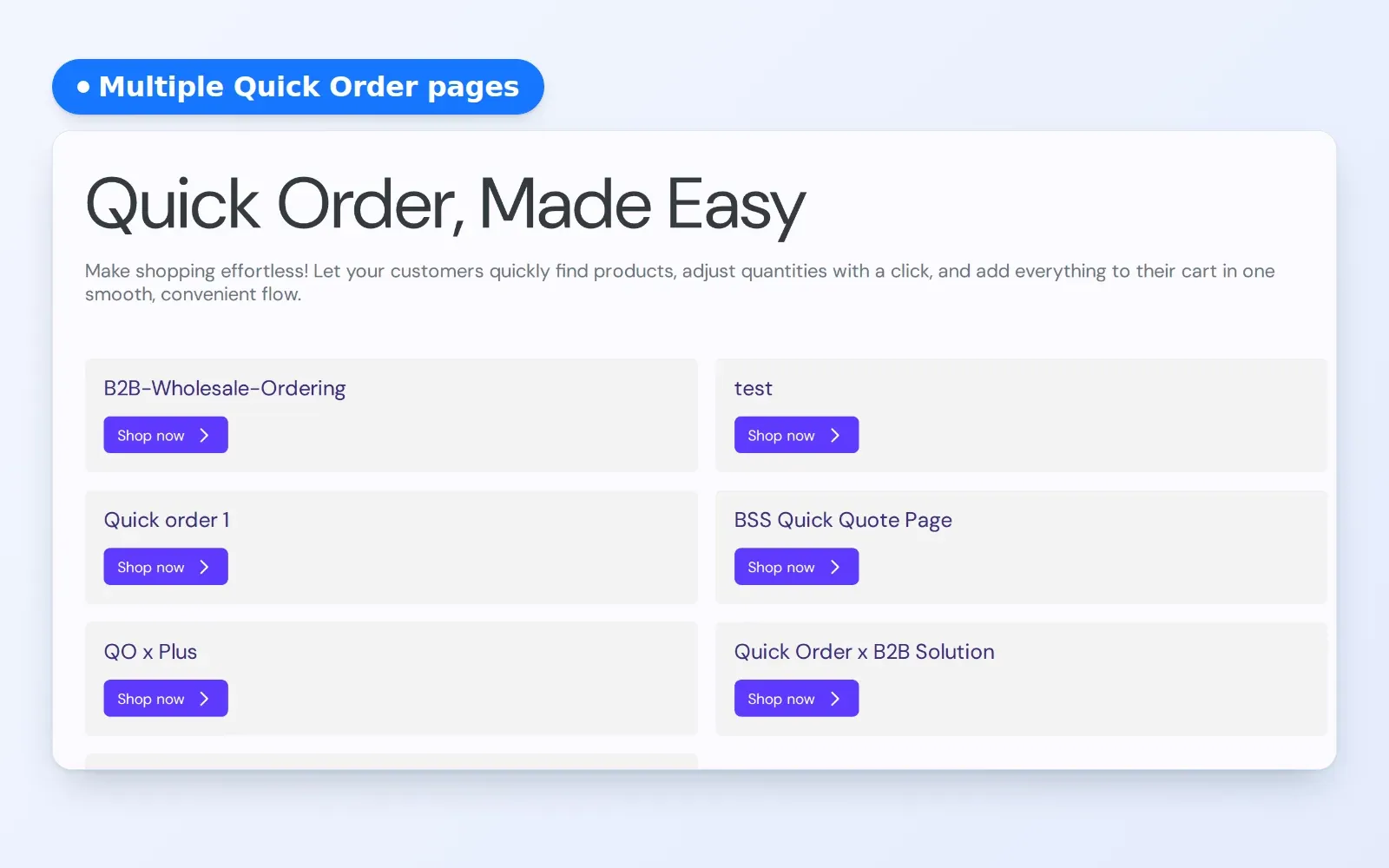
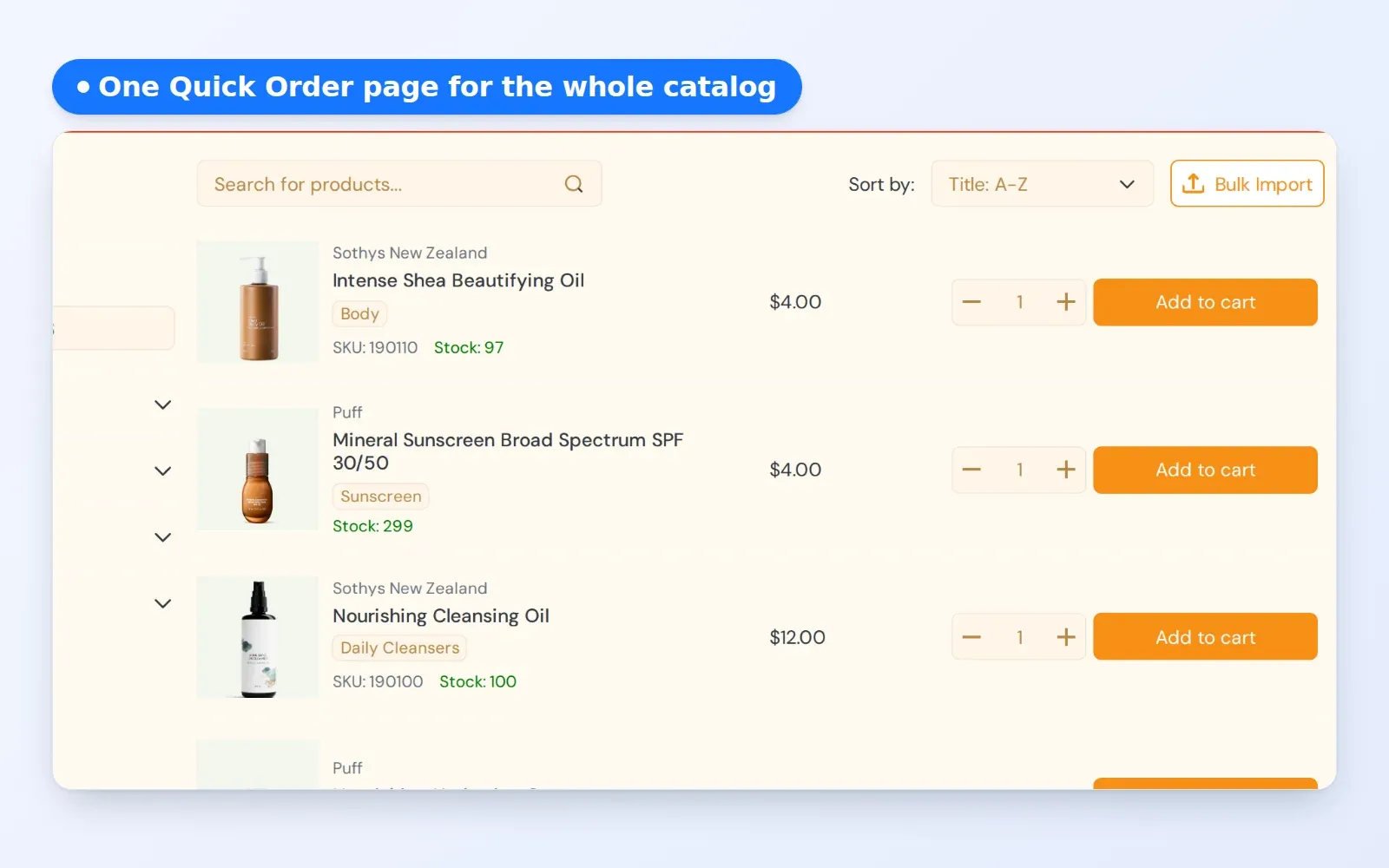
The edit window handles changes before a proposal. After you send one, buyers change the deal through messages and counter-offers. Pair it with approving a quote and creating a draft order to complete the path, and with the Request a Quote button to collect requests in the first place. See also the Quick Order and RFQ hub and the RFQ glossary entry.
Limits and common mistakes
- It needs the Business plan or higher and is off by default.
- Buyers must be logged in. Guests cannot edit.
- A new number applies only to quotes submitted after you save. Quotes already submitted keep their own deadline.
- Entering 0 turns editing off at once, also for quotes that are still open.
- If the quote page or the quote history page is not published, new customer accounts do not show the Edit request link.
- If a buyer edits while you work, you must reload before you save or send, and unsaved changes are lost.
Setup checklist
- Confirm your plan includes the Buyer edit window.
- Publish the quote history page (and the quote page, if you use new customer accounts).
- Set the Edit window hours in Settings, Buyer account.
- Mention the edit window in your quote confirmation message.
- Submit a test quote, edit it as the buyer and check the badge, timeline and email.
- Tell your team about the reload banner.
Plans and requirements
The Buyer edit window needs the Business plan or higher. BSS B2B Quote includes unlimited quotes on every plan. See the pricing page and the Buyer edit window documentation.