
Business plan and up
On a live store the table is hidden below the Business plan. It renders in the theme editor on any plan, which lets you design the layout before you upgrade.
BSS B2B Quote: product page variant table
The variant table in BSS B2B Quote is an app block for the product page. It lists every variant with its price, stock and a quantity field, so a buyer can enter quantities for many sizes or colors and add them all to the cart or a quote in one click. On a live store it needs the Business plan.
A standard Shopify product page shows one variant at a time through dropdowns. A buyer who needs many sizes or colors repeats the same clicks for every variant.
The variant table replaces that with one list. Each row is a variant with a quantity field. You can show the variant image, the SKU, the stock and a line total as columns. The buyer fills in the quantities they need and clicks one button.
Add all to cart sends every row with a quantity to the cart. Add all to quote sends them to the quote form, and shows next to Add all to cart when the product matches an active quote rule and you turned on the compatibility toggle.
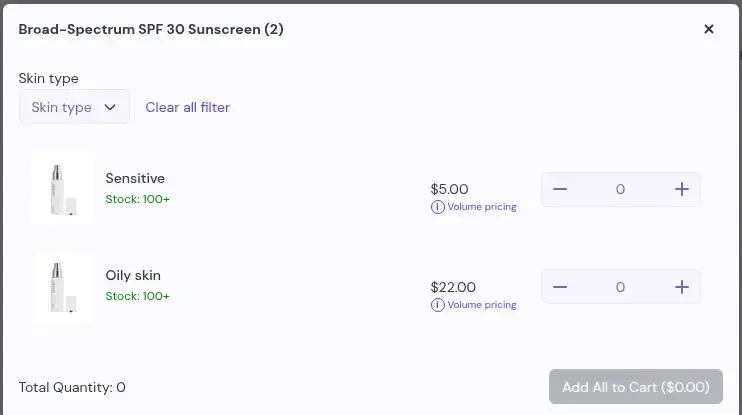
All settings sit in the theme editor sidebar, on the app block itself.
| Setting | What it does |
|---|---|
| Compatible with BSS Request for Quote | Shows an Add to Quote button next to Add to Cart when the product matches an active quote rule |
| Columns: Image, SKU, Stock, Line total | Four toggles that show or hide each column |
| Enable bulk quantity input | Adds one master quantity field in the table header that fills every variant row |
| Primary color and Text color | The background and label color of the main buttons |
The table needs an Online Store 2.0 product template, because it is a theme app block.
In the Shopify theme editor open App embeds and turn on B2B Portal. The variant table needs this embed.
In the app go to Quick Order, then Advanced Settings, then the Variant Table card, and click Add to theme. The theme editor opens.
Choose Products and your product template, for example Default product. Under Product Information click Add block and pick BSS Product Page Variant Table under Apps. Drag it where you want it, such as below the price.
Use the sidebar to toggle Image, SKU, Stock and Line total, turn on bulk quantity input, and set the two button colors. If you sell by quote, turn on the compatibility toggle for BSS Request for Quote.
Save the theme and open a product with several variants on the live store. On a live store the table shows only on the Business plan or higher. In the theme editor it always renders, so a table that shows in the editor and not on the store points to the plan.
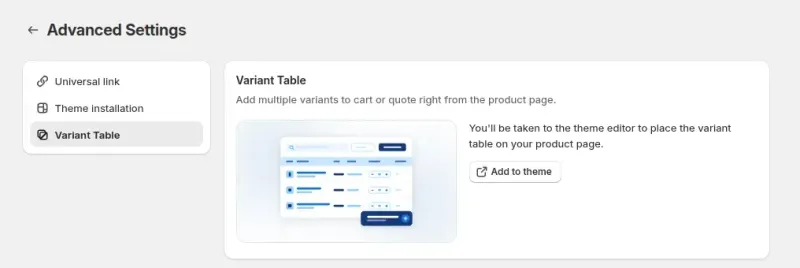
Add the variant table on a Business plan or above, or build it first on a development store.
Each variant row has a quantity field with minus and plus buttons. With bulk quantity input on, one number in the header fills every row. A variant with no stock, and backorder off, is grayed out with an Out of stock label.
Add to cart checks Shopify quantity rules (minimums, maximums and increments) against the quantity you enter plus what is already in the cart. Add to quote does not check them. For a product with many variants the table loads 100 rows at a time as the buyer scrolls.
One click on Add all to cart or Add all to quote processes every row that has a quantity.
Quote form. Add to quote uses the same quote list and form as the quote button. Quote form fields and emails explains the fields and the emails that follow.
Quick Order pages. A Quick Order page lets a buyer upload a CSV or search across many products. The variant table suits a buyer who starts on one product and needs many of its variants.
Pricing. The block shows Shopify-native pricing, including volume pricing tiers from Shopify B2B. It does not read BSS B2B Solution price rules. A Quick Order row can use Solution prices, so check a sample product as a buyer before launch.
On a live store the table is hidden below the Business plan. It renders in the theme editor on any plan, which lets you design the layout before you upgrade.
It is a product-template app block, so the theme needs product sections. It also needs the B2B Portal app embed to be on.
The block does not read BSS B2B Solution price rules. A buyer can see a different price here than on a page that applies Solution rules, so test your setup as a buyer.
Variants are read through Shopify Liquid, which returns up to 250 variants per product, so the table shows the first 250 of a larger product. Test your largest product before launch.
If the matching quote rule hides prices or Add to cart, the table hides the price, line total and Add to cart button too.
The block goes on the product template. For many products at once use a Quick Order page instead.
Variants with zero inventory and backorder off cannot be ordered from the table. They stay visible but grayed out.
The variant table is part of BSS B2B Quote on the Business plan and above. Business is $39 per month on the App Store listing as of October 10, 2026, with a 14-day free trial on paid plans. Every app feature is free on development stores, so you can build the page first.
The apparel use case shows the table on a real product page. Browse all use cases.
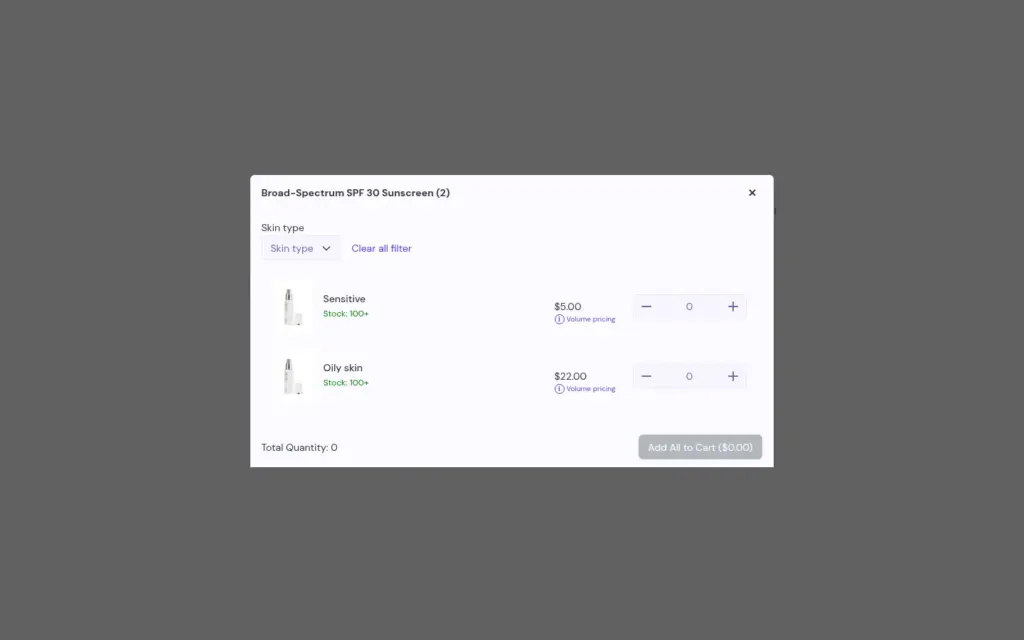
Let fashion buyers enter quantities for every size and color in one table on the product page and add or quote them all in one action, using the Variant Table block in BSS B2B Quote.
Explore use case: Variant Matrix Order Form on the Product PageEach topic has one page that owns it. Start from these.
Fields, emails and reminders for quote requests.
Bulk ordering and quotes for wholesale buyers.
Give buyers quick order pages, CSV upload, reorder and request for quote.
Quick order formQuantity incrementMOQVolume pricingCase packRequest for quote (RFQ)
Each feature has its own page. See also all BSS B2B Quote features.
Choose what buyers fill in on a quote, who gets which email and when your team is reminded of quotes that wait.
A page where logged-in buyers repeat a past order from their history, edit it and get a checkout link.
BSS B2B Quote adds the variant table to your product pages, next to quotes, Quick Order pages and reorder.
Also: BSS B2B Lock for hidden prices until a quote and BSS B2B Quote for quick order and quotes.
Business or higher. On a live store the table is hidden on lower plans. In the theme editor it always renders, so you can design the layout before you upgrade. Development stores can use every app feature for free.
Both. Add all to cart adds every variant that has a quantity in one click. Add all to quote sends them to the quote form, and shows next to Add all to cart when the product matches an active quote rule and the compatibility toggle is on.
Up to 250 variants per product. Shopify Liquid returns at most 250 variants unpaginated, so a larger product shows its first 250. Test your largest product. The table loads rows in batches of 100 as the buyer scrolls.
Add to cart checks Shopify quantity rules (minimums, maximums and increments) against the quantity you enter plus what is already in the cart. Add to quote does not check them. Variants with zero inventory and backorder off are grayed out with an Out of stock label and cannot be added.
The block shows Shopify-native pricing, including volume pricing tiers from Shopify B2B. It does not read BSS B2B Solution price rules, so test a sample product as a buyer. A Quick Order page can use Solution prices.
Feature behavior follows our review of the BSS B2B Quote code on October 3, 2026 and the BSS user guides, and the code decides when they disagree. For example, the 250 variant limit comes from Shopify Liquid, which returns at most 250 variants per product unpaginated. Prices come from the App Store listings on the date shown. We make BSS B2B Solution, BSS B2B Lock and BSS B2B Quote.