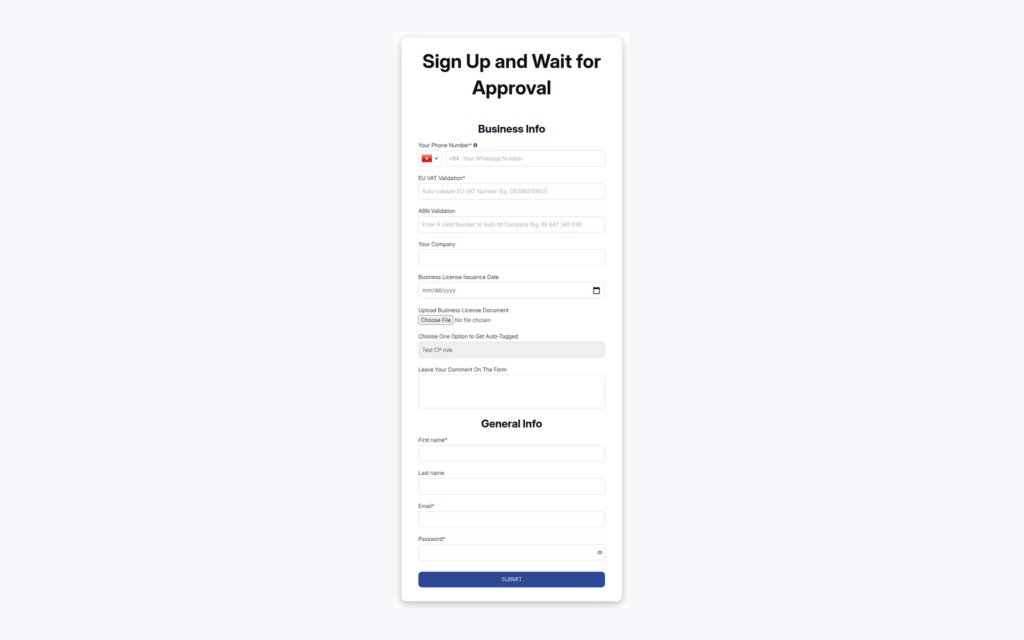
To add conditional logic and document upload to a Shopify wholesale registration form, build the form in BSS B2B Solution with a Customer type dropdown and a File upload field, then create a conditional logic that shows or hides fields based on the answer. A dental practice sees a licence upload, a retailer sees a resale certificate field, and each applicant answers only what applies to them.
One form can serve several kinds of applicants. Without logic, you either ask everyone for everything, which makes applicants abandon the form, or you build one form per type, which multiplies maintenance. Conditional logic keeps a single form short for each person, and a file upload field means the documents arrive with the application so approval does not need a second email thread.
Who this is for
This setup fits you when:
- You sell to more than one type of trade buyer, for example licensed professionals, retailers and distributors, and each type needs different paperwork.
- You must see a document before approving, such as a business licence, a resale certificate or a tax exemption letter.
- A long form with every possible question makes serious applicants give up.
- Your team reviews applications by hand and wants the documents attached to the record.
- You are on, or ready to move to, the plan that runs conditional logic.
Why this matters
Relevance lifts completion. An applicant who sees only the questions that concern them finishes faster, and your review queue fills with complete applications instead of half-answered ones. It also keeps your form honest: a field that is hidden is not asked.
Documents change the economics of approval. DermaplanePro, a US professional skincare brand that sells to licensed professionals, describes in its case study how every new wholesale account needed credentials such as resale certificates and a tax ID before approval, and how teams spent days checking them through email threads. Its registration form with file upload lets staff review the documents in one place, and its built-in tax ID checker flags invalid entries before they join the review queue. Read the DermaplanePro story.
Write down the applicant types you serve before you build any logic. A simple table of type, visible fields and required documents becomes your test plan for each path.
What Shopify covers natively, and where an app helps
Registration and approval of business buyers are not listed in Shopify’s B2B plan features, according to the Shopify Help Center (read on 2026-10-02). Native B2B starts once you have set up a company for a buyer. BSS B2B Solution covers the step before that: the application form, with fields that react to answers, file upload, tax ID checks, approval and tags. The customer onboarding hub links the related guides.
How to set up conditional logic and uploads with BSS B2B Solution
Step 1: Build the form with every field you may show or hide
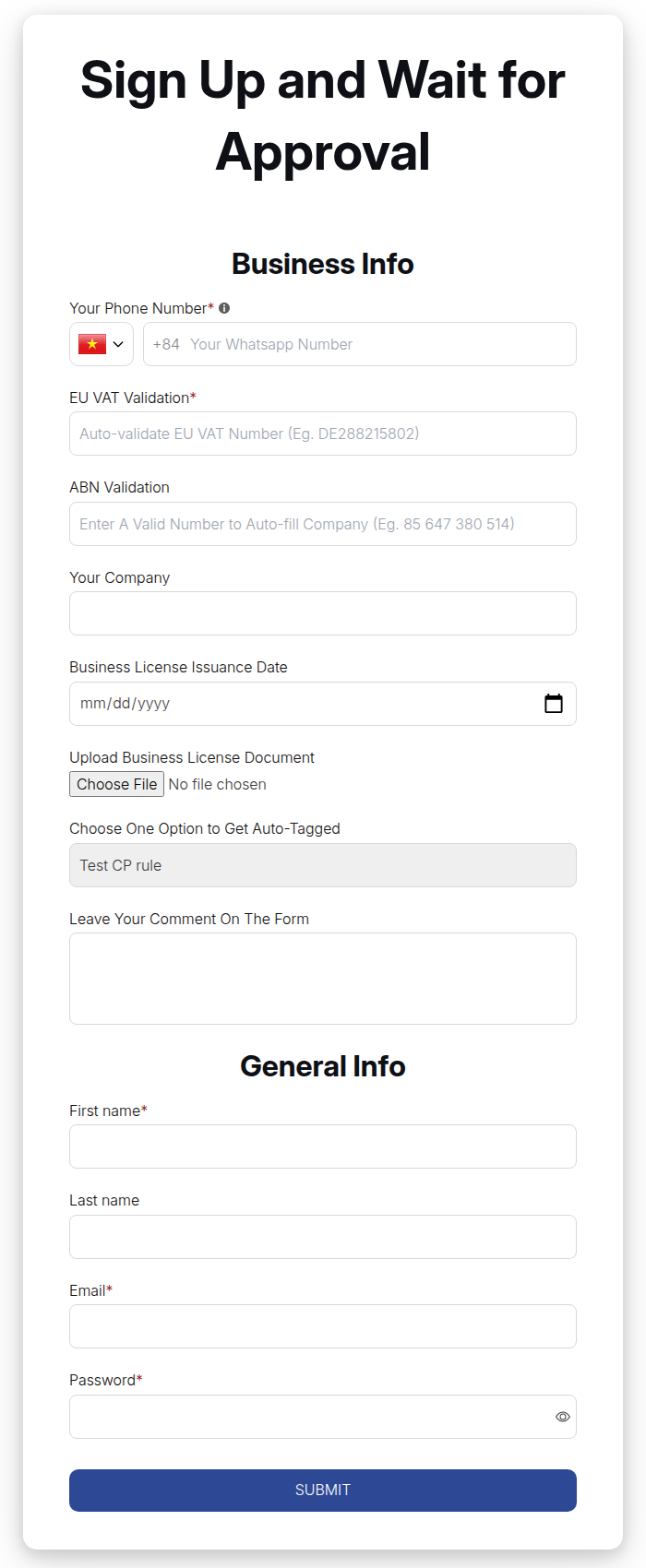
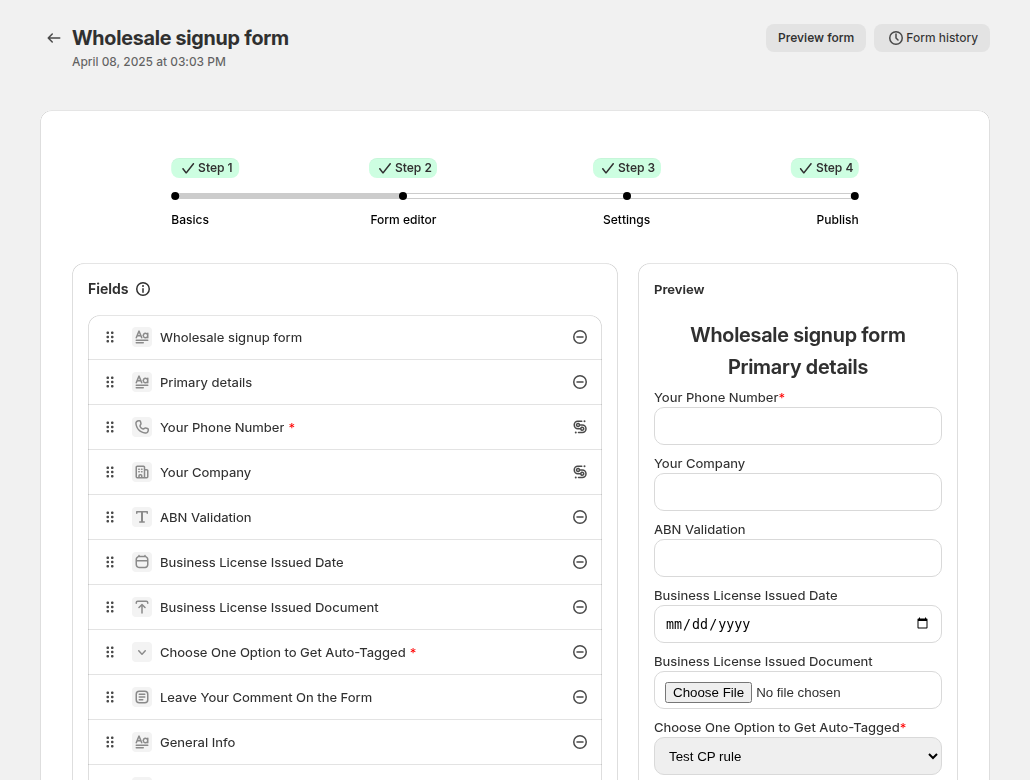
Create the form first, because logic works on fields that already exist. Add a Dropdown such as Customer type with your applicant types, a File upload field for each document, and any other custom fields. Custom fields, including file upload, are available on paid plans.
Step 2: Configure the file upload field
A file upload field accepts one file per field, up to 10 MB per file. Documents such as PDF, Word, Excel, CSV, TXT and ZIP are accepted, and so are GIF, JPEG and PNG images. WebP and HEIC images are rejected, and images are capped at 25 megapixels. If an upload fails, the form cannot be submitted until it succeeds, so tell applicants which formats to use in the help text.
Step 3: Create the conditional logic
Go to Registration Forms > Conditional logic and click Create new logic, then select the form. Under General Information check Conditional form and set Status to Enable. Under Add conditions, choose Show or Hide, pick the field it affects, then choose Any condition or All conditions. In the condition row pick the field to check, the condition and the value. For example: Show Dental licence upload if Customer type is Dental practice.
Step 4: Add the other branches
Click Add another conditional to control another field. A text, dropdown, radio or checkbox field can be tested with conditions such as is, is not, contains and starts with; a number field also supports greater than and smaller than. For a checkbox group use Contains to test whether an option is ticked.
Step 5: Test each path
Open the published form and fill in the trigger field. Check that the target field appears, then try the opposite value to confirm it disappears. Submit a test application for each applicant type, then open the record and review the uploaded file.
Designing the logic well
Choose the trigger field with care. A dropdown or radio group is the safest trigger, because applicants pick from a fixed list and you know every possible value. A free-text trigger invites typos, and a condition such as “is Dental practice” will not match “dental practise”. Keep the number of branches small, three or four types at most, and avoid chains that go deeper than two levels: if field B depends on field A and A is hidden, B’s condition is not met either.
Use help text on every upload field to say which document you want, in which formats, and why. Applicants who understand the purpose are more likely to attach the right file. Finally, test the required switch on both paths. For every field that is required and sometimes hidden, submit the form once on the path where it is hidden and once where it is shown, and confirm that both submissions behave as you expect.
After submission: reviewing the documents
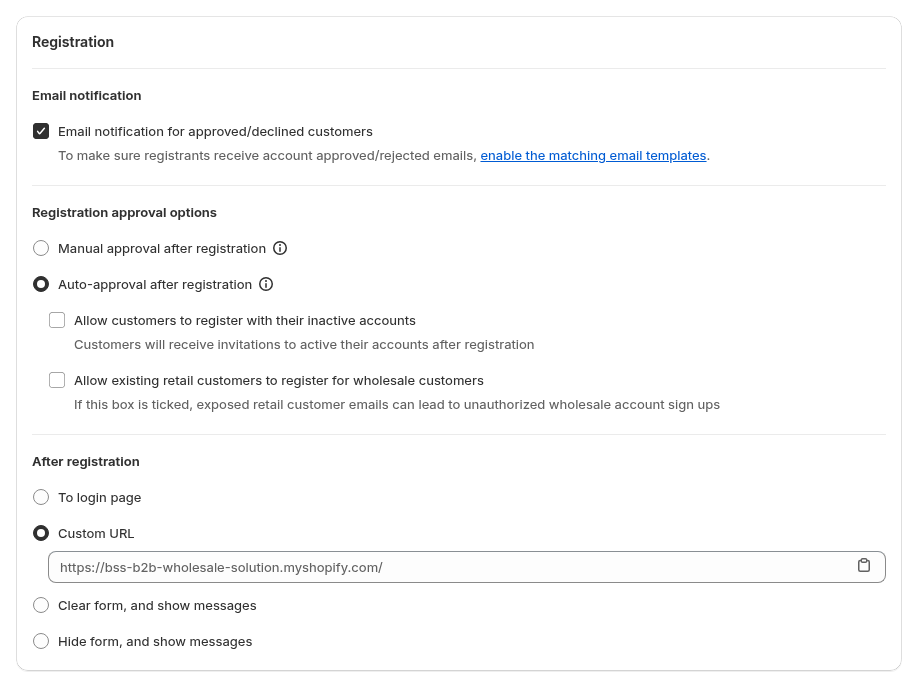
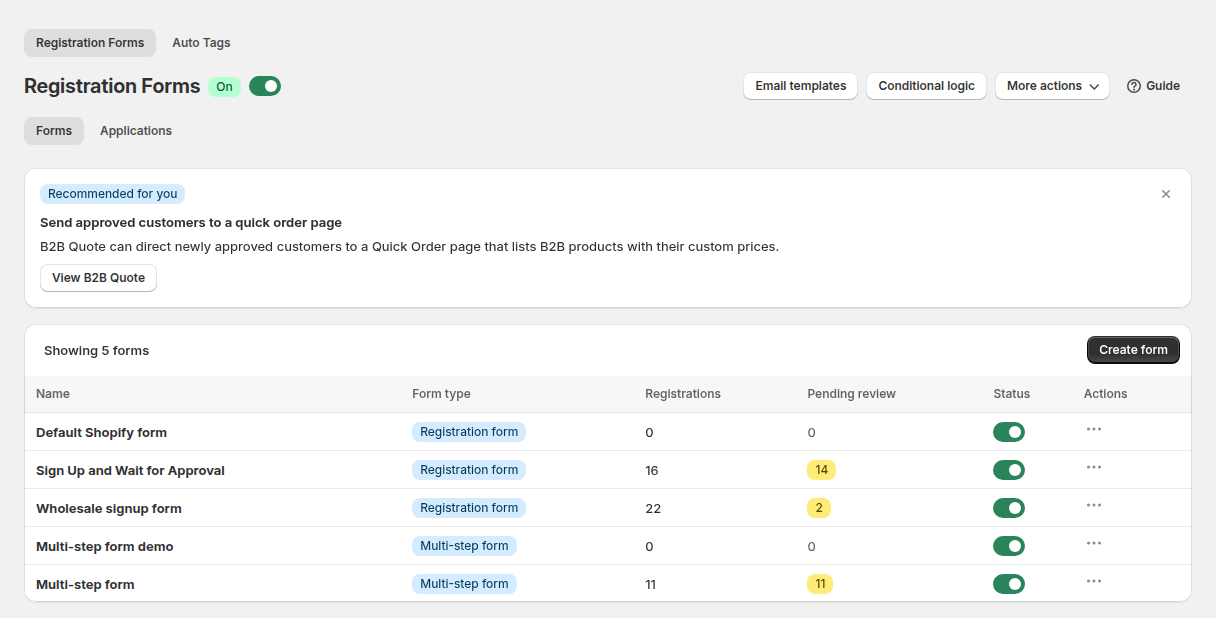
Applications appear in Registration Forms > Registration management with every answer. Click an uploaded tax exemption or business licence file to preview it in a popup viewer without downloading it. Custom field answers are saved as customer metafields once the applicant is approved, so you can see them later in Shopify admin. If a field has a typo you can edit it before approving, and the approval adds the tag that starts pricing and access rules. The approve and notify use case covers statuses, bulk actions and emails.
Example: a dental-supply distributor
This is an illustration with made-up details, not a customer result. A distributor sells consumables to dental practices and to retailers, and applicants must prove who they are.
| Customer type | Fields shown | Document |
|---|---|---|
| Dental practice | Practice name, licence number | Upload: dental licence |
| Retailer | Shop name, tax ID | Upload: resale certificate |
| Distributor | Company name, regions served | Upload: trade registration |
The form always shows first name, last name, email and password, because those fields cannot be shown or hidden. The Customer type dropdown controls the three blocks. A practice never sees the resale certificate field, a retailer never sees the licence field, and the reviewer opens each record knowing which document to expect.
Works well with
- Approval and tags. A registration form with approval adds the tag that unlocks prices.
- Tax IDs. Verify a business tax ID at registration validates the number as the applicant types.
- Long forms. A multi-step form splits the application into short steps.
- Notifications. Approve and notify wholesale applicants covers the emails around the decision.
The glossary explains resale certificate, tax ID and customer tag.
Limits and common mistakes
- Conditional logic runs on Platinum. You can open the page and save logic on lower plans, but it is not applied to your storefront form until you upgrade, and the list page shows a message that it is disabled for your plan.
- One logic per form. One logic can contain several rules, but each field can be controlled by only one rule.
- Date and file fields cannot be conditions. Use a dropdown, radio, checkbox, text or number field as the trigger.
- Core fields stay visible. First name, last name, email and password cannot be shown or hidden on wholesale forms.
- Hidden means false. A condition on a hidden field counts as not met, so plan chains from the top of the form down.
- Duplicating a form does not copy its logic. Create a new logic for the copy.
- Circular rules are rejected. Two rules that depend on each other trigger a “circular reference” message.
- A failed upload blocks submission. Keep help text clear about size and format.
Setup checklist
- List applicant types, the fields each needs and the document each must supply.
- Build the form with the type dropdown and the upload fields.
- Set help text for each upload with accepted formats and the 10 MB limit.
- Create the logic and enable it.
- Test each applicant type, including a failed upload.
- Open the records and confirm the files are readable.
- Confirm your plan runs conditional logic before you announce the form.
Plans and requirements
Conditional logic runs on the Platinum plan. Custom form fields and file upload need a paid plan, and the US EIN tax ID field is on Platinum; EU VAT, UK VAT and ABN fields are on paid plans. The Free plan has one form without these options. See the BSS B2B Solutions pricing page for current plan details.
You can install BSS B2B Solution from the Shopify App Store (4.9 rating from 1,185 reviews as of 2026-10-02, 14-day free trial on paid plans), read the app overview, or follow the guide to show or hide form fields with conditional logic in the docs.