To sell in case packs on Shopify, create a Quantity Increments rule in BSS B2B Solution: choose your wholesale customers and the products, and enter the pack size as the increment. With a step of 6, the plus and minus buttons move by 6, a typed 7 is corrected to a valid multiple, and the cart flags quantities that do not fit the pack.
This page is for manufacturers, distributors and food and beverage sellers who ship in cases of 6, 12 or 24 and are tired of splitting cases by hand. It explains the three calculation levels, how typed quantities are corrected, how to combine the step with a minimum and a maximum, and the checkout bypass to plan for.
Who this is for
Quantity increments fit you if:
- Your products are packed in cases, trays or bundles, and you do not want to break them.
- Buyers type quantities like 7 or 15 and your team then writes back to ask what they meant.
- You sell the same product to retail shoppers in single units and to trade buyers in packs, on one store.
- You want a minimum and a maximum quantity on top of the pack step.
- Your variants are packed separately, or buyers may mix several products to fill a case.
- You run a wholesale catalog of apparel, accessories, beverages, cosmetics or hardware, where pack sizes are the norm.
Why this matters
Odd quantities create work. Someone has to split a case, email the buyer to ask what they meant, or cancel part of an order. In food and beverage, where products are packed in 6, 12 or 24, the cost is obvious, but any wholesale catalog with packs or bundles has the same problem. A warehouse team that picks full cases is faster and makes fewer mistakes than one that breaks cartons to fill a one-off order.
The buyer pays a price too. A retailer who orders 7 bottles and receives 6, or who is asked to confirm 12, has lost a day. A step that is visible on the product page lets the buyer choose the right quantity in the first place.
Australia Pisen, a phone accessories distributor, uses Order Limit and Quantity Increment to set minimum quantities and sell in packs, as described in its case study.
Imagine a hot-sauce maker that packs bottles in cartons of 6. Retail shoppers can buy one bottle. Trade buyers must order whole cartons, and at least two. The maker does not want a separate wholesale store, and does not want to read emails about half cartons.
What Shopify covers natively, and where an app helps
Shopify’s built-in B2B includes quantity rules, minimums and increments, for business customers who belong to companies, according to the B2B features by plan page of the Help Center and the pillar guide Shopify B2B. That fits stores where every wholesale buyer is a company.
BSS B2B Solution Quantity Increments adds rules by customer tag, specific customer, collection, product tag and variant, with three calculation levels and a hint on the product page. It suits stores that identify wholesale buyers by tag, or that serve retail and wholesale to logged-in customers on the same catalog. The order rules and terms hub places it next to order limits and net terms.
Pack rules by industry
Pack sizes look different from one catalog to the next, and the calculation level follows from that.
| Catalog | Typical step | Suggested level | Why |
|---|---|---|---|
| Beverages and sauces | 6, 12 or 24 per carton | Order quantity | Any mix of flavours fills the carton |
| Apparel and accessories | A size run, such as 6 | Product quantity | Sizes of one style add up to a run |
| Hardware and fasteners | Boxes of 50 or 100 | Variant quantity | Each variant is boxed separately |
| Cosmetics | Trays of 12 or 24 | Variant quantity | Each shade ships in its own tray |
Where the same product has more than one pack size, create one rule per size and give each its own priority, so that the rule you want wins when two rules match.
How it differs from an order minimum
A quantity increment decides which quantities are allowed; an order minimum decides how much is enough. They answer different questions and are often used together. The step makes sure the order matches your cartons, and a minimum makes sure it is worth shipping. If you only need a floor, use Order Limits. If you need the step, set the minimum inside the same Quantity rule so that it is a multiple of the step.
How to set it up with BSS B2B Solution
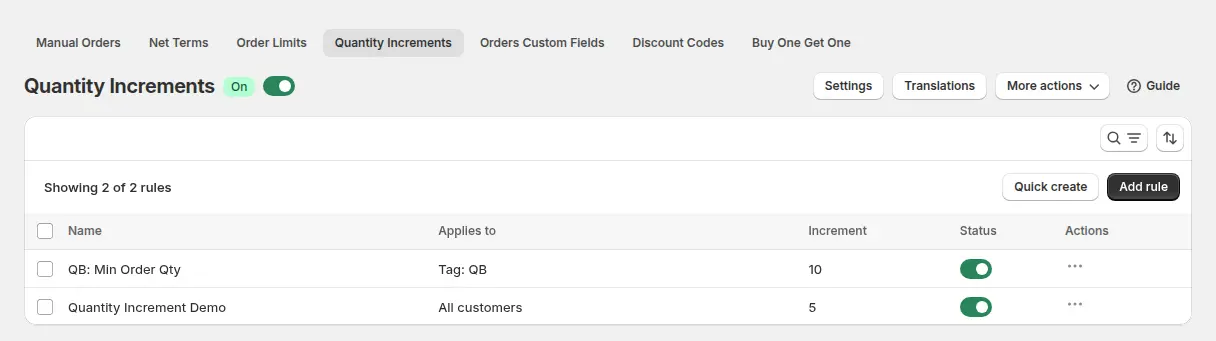
1. Turn on the module and the app embed
Go to B2B orders & discounts > Quantity Increments, switch the module on and click Add rule. Turn on the BSS B2B Solution app embed in your theme first. With the embed off, the quantity selector behaves normally and nothing is enforced, because the rule runs in the app’s storefront script.
2. Choose customers and products
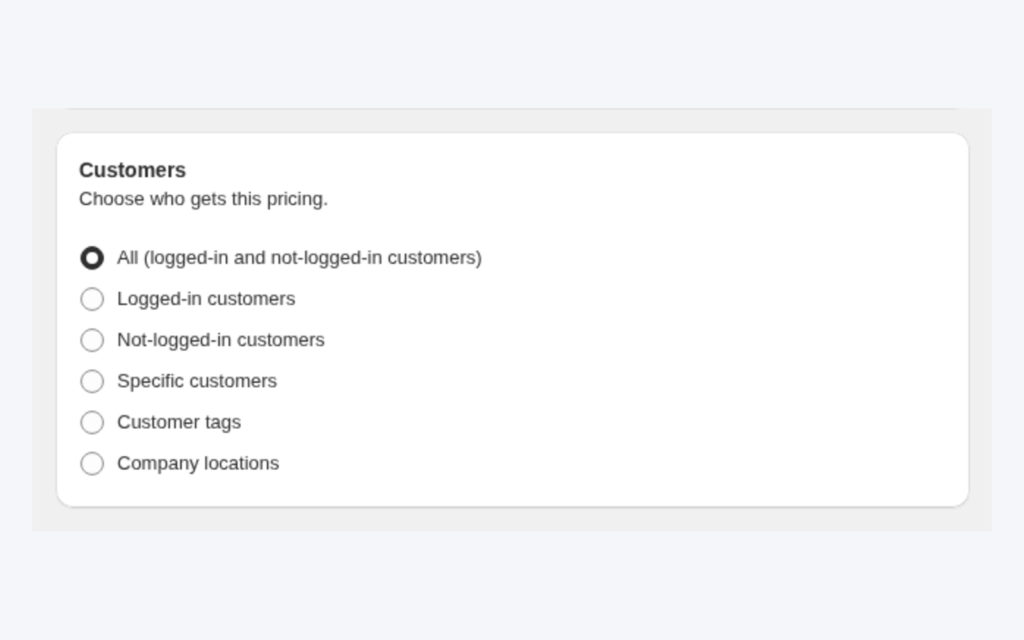
Each rule needs two conditions. Under Customers pick all customers, logged-in or not-logged-in customers, specific customers or customer tags such as wholesale, and exclude customers or tags if needed. Under Products pick all products, specific products, collections, product tags or specific variants. Scope the rule to wholesale buyers so retail shoppers can still buy single items.
3. Enter the increment, minimum and maximum
Enter the Quantity increments value, a whole number from 1 to 30,000. A value of 6 allows 6, 12, 18 and so on. In the Quantity rule card you can add a minimum and a maximum. The minimum must be at least the increment and a multiple of it, for example 12 with a step of 6; if you leave it empty, the increment itself is the floor.
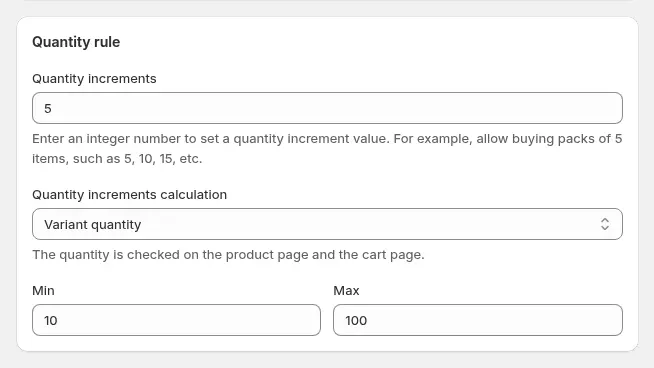
4. Choose what the step is counted on
Three calculation levels answer “a multiple of what?”:
- Variant quantity. Each variant is bought in its own multiples. With a step of 5, 5 black plus 5 white is valid; 3 black plus 2 white is not.
- Product quantity. The combined quantity across a product’s variants must be a multiple, so 3 black plus 2 white is valid.
- Order quantity. The total of all qualifying products in the cart must be a multiple, so any mix can fill a case.
Pick the variant level when each size or flavour is packed on its own, and the order level when any mix of products can fill a case. If the cart contains other products, the rule applies only to the products it targets.
5. Show the step on the product page
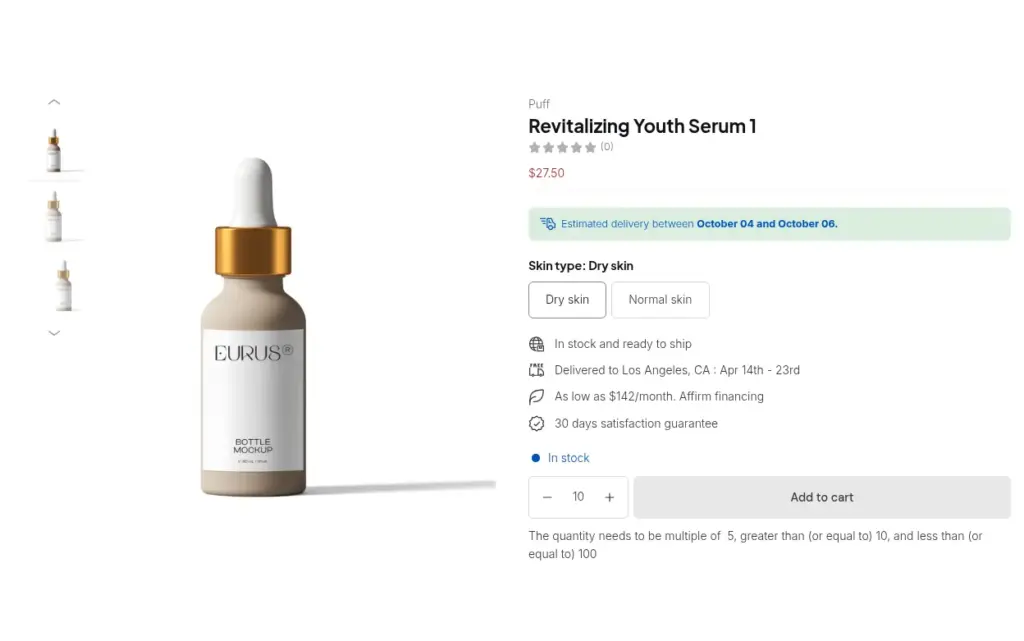
Under Quantity Increments > Settings switch on the message on product pages. It shows the step, the minimum and the maximum next to the quantity selector, and turns red when the quantity is not valid. You can also design the pop-up buyers see in the cart and translate every text.
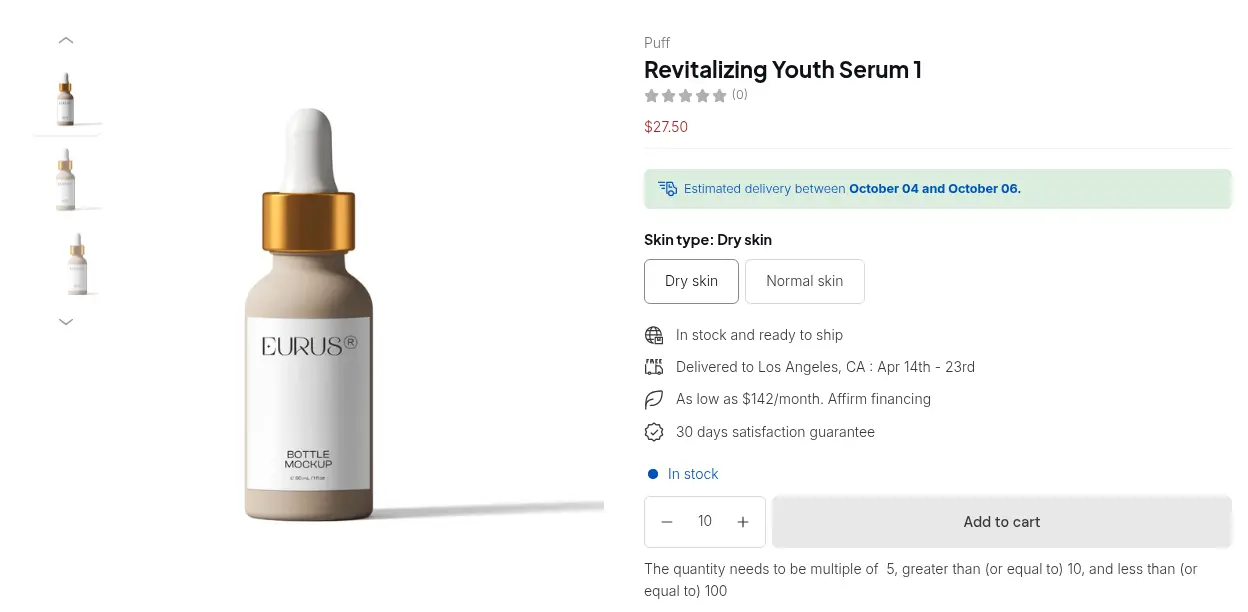
6. See how typed quantities are corrected
When a buyer types a quantity, the app corrects it to the nearest valid multiple: it rounds up when the number is at or past the halfway point between two steps and down when it is below it. With a step of 10, 16 becomes 20 and 12 becomes 10. A quantity below the minimum or above the maximum snaps to the minimum or maximum.
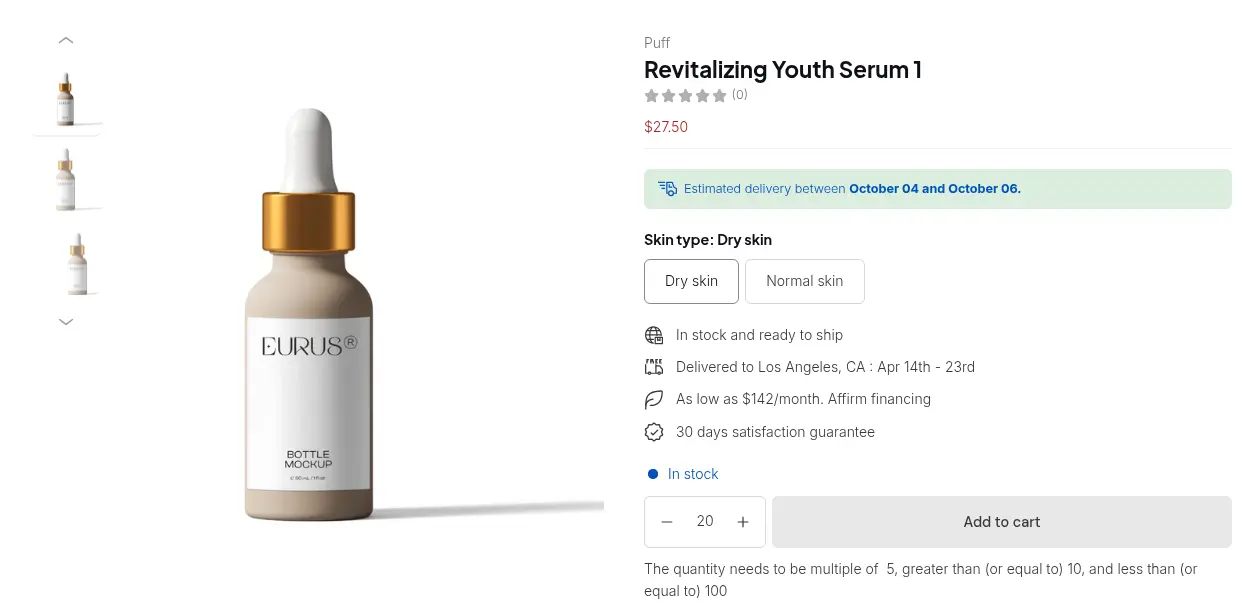
7. Check the cart
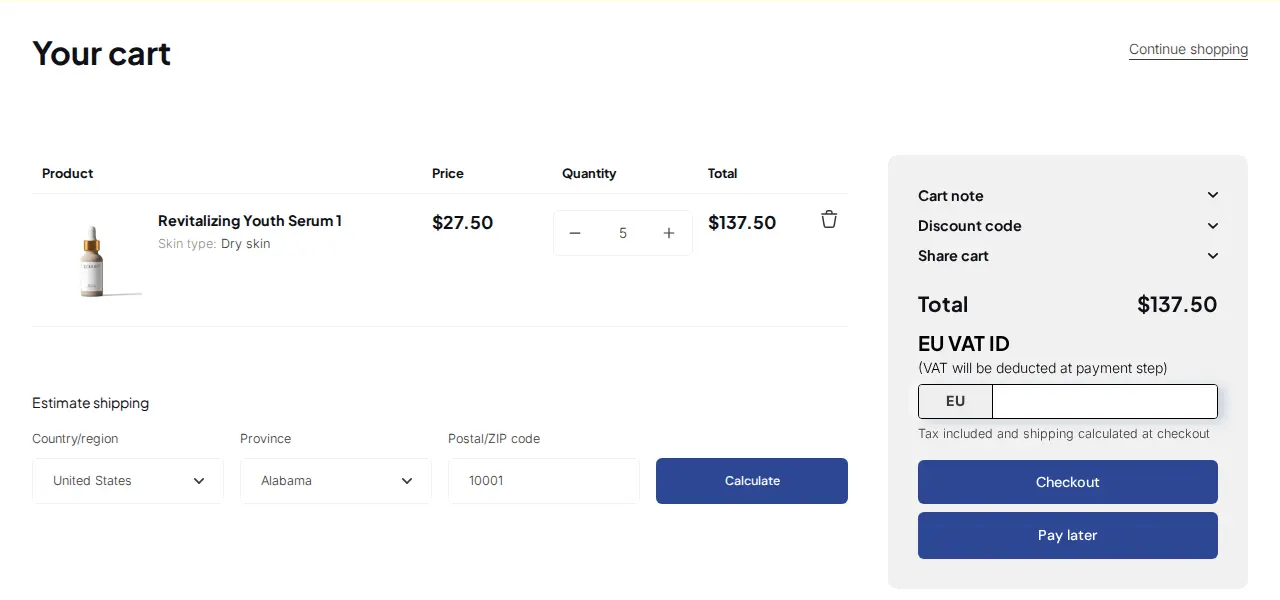
In the cart, buyers cannot move line-item quantities onto invalid steps; the auto-correction of a typed quantity there applies when the rule counts per variant.
Example
Example for illustration only, not a customer result. The hot-sauce maker creates a rule for the tag wholesale on its sauces collection: increment 6, minimum 12, maximum 120, counted per order so that any mix of flavours can fill a carton. A buyer opens the Smoky Chipotle page, sees “The quantity needs to be a multiple of 6, at least 12 and at most 120” and the selector starting at 12. They click plus once and get 18. A retail shopper, who is not tagged, buys a single bottle with no step at all. If the buyer had typed 14 in the box, the app would have corrected it to 12.
Works well with
- Enforce minimum order quantity and value to add a basket minimum on top of the step.
- Tiered quantity break pricing so the cases a buyer chooses unlock better prices.
- Foodservice packaging distributor pricing for pack-based pricing in practice.
- Wholesale price by customer tag to price the packs.
Glossary: quantity increment, case pack and MOQ.
Limits and common mistakes
- The check is made in the storefront. It runs on the product page and in the cart. A buyer who opens the Shopify checkout URL directly, or reaches checkout by another route, can skip it. Review wholesale orders before you ship.
- Listings may not enforce it. On collection pages, quick-order lists and similar listings only variant-level rules are applied, and some themes show product cards without a quantity selector. The rule is then applied once the buyer reaches the product page or the cart.
- Manual Orders are not covered. Quantity Increments and Order Limits are not applied to orders created in the admin.
- The app embed must be on. With it off, rules are saved and nothing is enforced.
- The minimum must fit the step. It must be at least the increment and should be a multiple of it.
- A paid plan is needed. Quantity Increments is available on the Advanced and Platinum plans.
Setup checklist
- Turn on the app embed and the Quantity Increments module.
- Write down each product’s case size and whether variants pack separately.
- Create a rule per case size and target the wholesale tag.
- Set a minimum and maximum that are multiples of the step.
- Choose variant, product or order calculation.
- Turn on the product page message and edit the cart pop-up wording.
- Test as a wholesale buyer and as a retail shopper, on product page, collection page and cart.
- Read the Quantity Increments guide for every setting.
Plans and requirements
Quantity Increments is available on the Advanced and Platinum plans of BSS B2B Solution ($49 and $99 per month, with yearly billing saving 10%). See the pricing page to compare plans, then get BSS B2B Solution from the Shopify App Store.