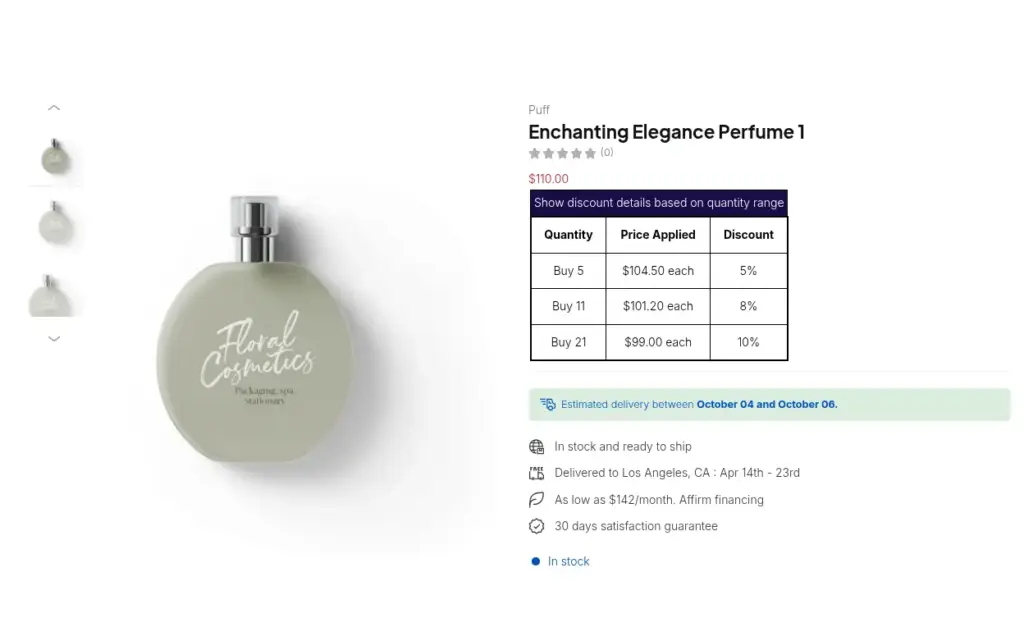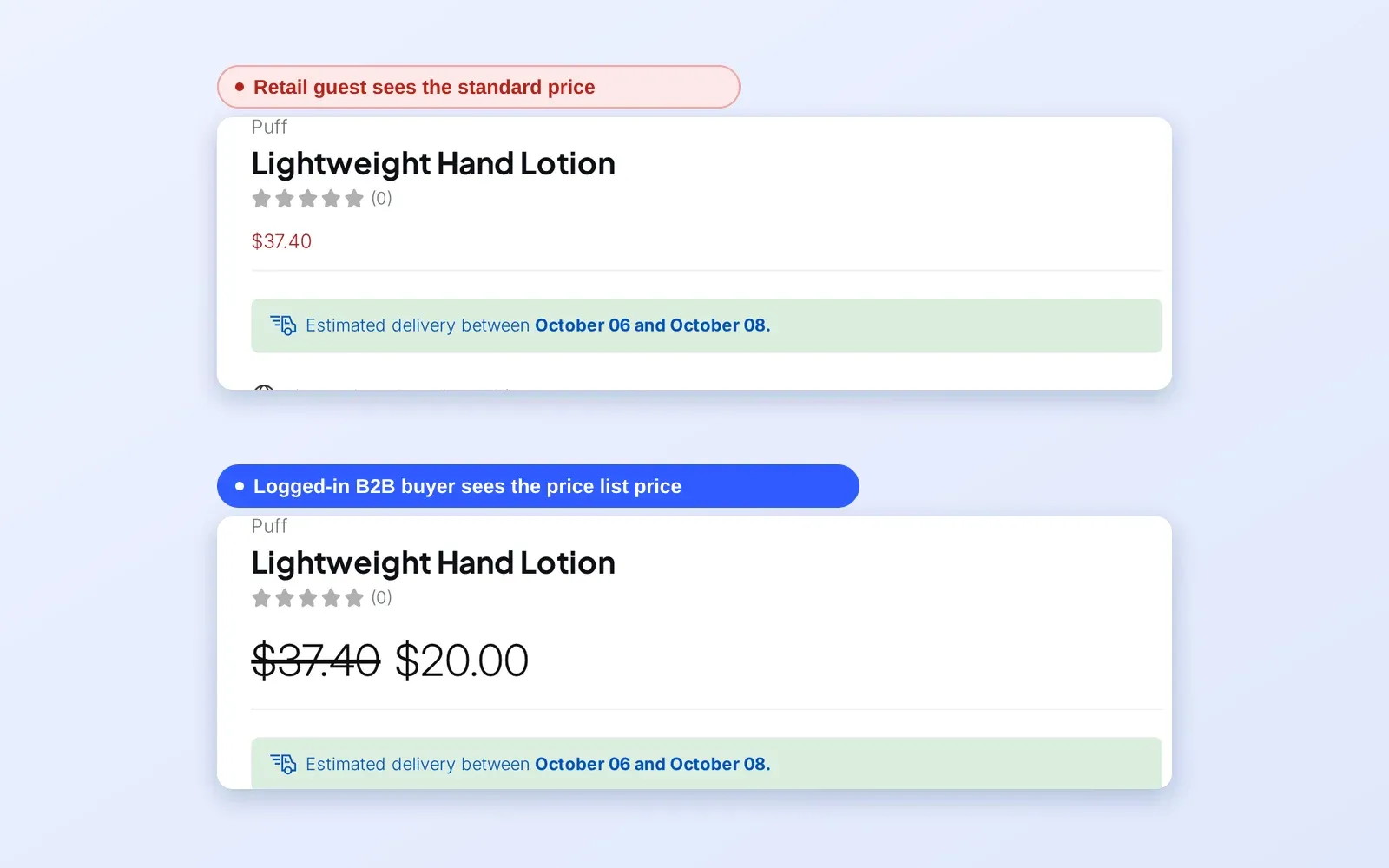
Tiered pricing on Shopify means the price per unit drops as the quantity rises, for example $10.00 for 1 to 5 units, $9.00 for 6 to 23 and $8.50 for 24 and above. In BSS B2B Solution you build those quantity breaks once with the Volume Pricing module, choose who sees them, and the app shows the tier table on product pages so buyers see why ordering more pays off.
Quantity breaks are the oldest wholesale incentive, and they work best when they are visible. A buyer who sees “buy 24, pay 15% less” next to the quantity box can decide on the spot, while a discount buried in an email never changes an order.
Who this is for
Tiered pricing suits you when:
- You sell products that buyers purchase in volume, such as food, supplies, parts, packaging or consumables, and you want larger average orders.
- Your trade price list already has break points, for example per case, per carton or per pallet.
- You want one rule to cover many products, a collection or a whole order, rather than a manual discount code for each deal.
- You serve retail and wholesale buyers and want tiers to show only for the right group, for example logged-in customers with a
wholesaletag. - You want a tier table on the page so buyers understand the price before they reach the cart.
Why this matters
A flat price gives a buyer no reason to order more than they need today. A tier table gives them one. When the next break is a few units away, buyers who would have ordered the minimum can be nudged to go a little higher, and you ship fewer, bigger orders.
Tiers also lower the work behind each sale. Without them, quantity deals live in email threads, discount codes or a sales rep’s memory. With them, the price follows the rule automatically on every order, and the same table is visible to every eligible buyer.
Plan the breaks around how your buyers really order. If your product ships in cases of 12, a break at 12, 48 and 144 is a natural step; a break at 17 is a number buyers never reach. Imagine a hot-sauce producer with cases of 6 bottles: tiers at 6, 24 and 72 bottles follow the way retailers order.
What Shopify covers natively, and where an app helps
Shopify’s native B2B includes quantity rules for B2B customers in companies, such as minimums and increments, according to the Shopify Help Center (read on 2026-10-02). What BSS B2B Solution adds is a tier table on the product page, collection and cart for any customer group you choose, including shoppers who are not set up as companies, with tiers counted by product, variant or whole order. See the wholesale pricing hub for how the pricing models compare.
How to set up tiered pricing with BSS B2B Solution
Step 1: Turn on Volume Pricing and add a rule
Open B2B Pricing, turn Volume Pricing on and click Add rule. Name the rule so your team recognises it, for example Wholesale case breaks.
Step 2: Choose who gets the tiers and which products
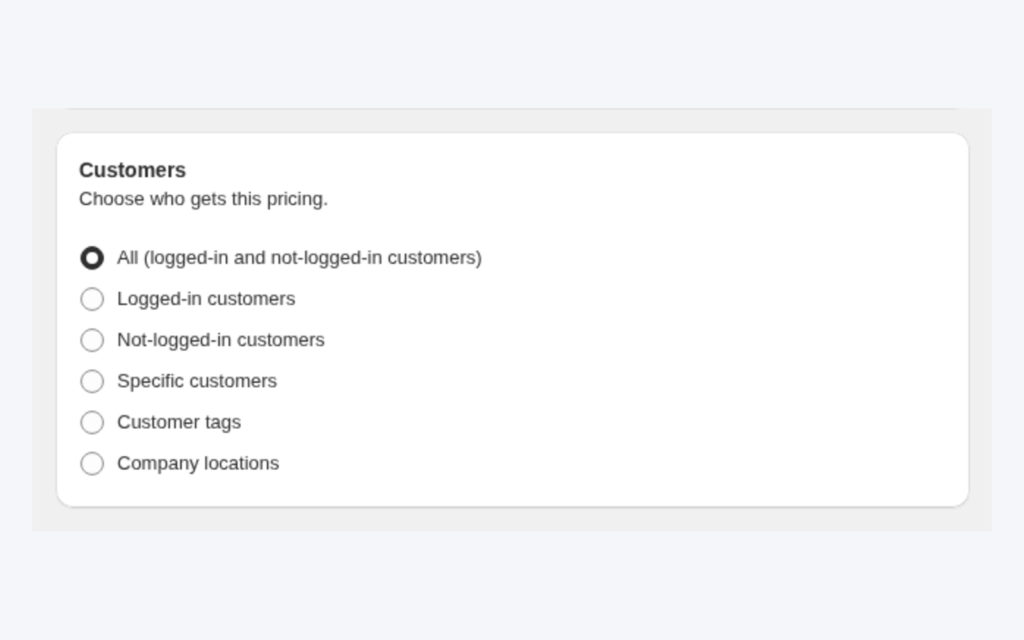
In the Customers card pick everyone, logged-in customers, specific customers, customer tags or company locations. In Products choose all products, specific products, collections, tags or variants. Exclusions and a schedule are optional.
Step 3: Choose the type and what is counted
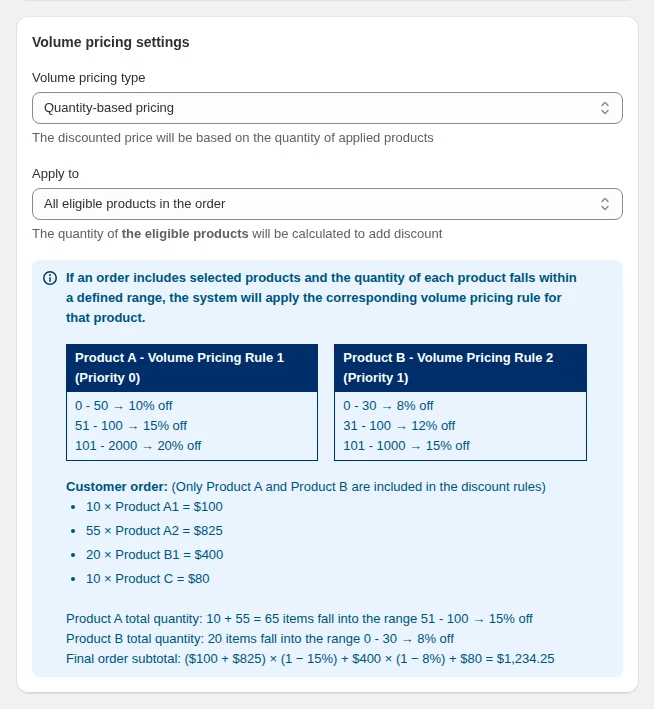
Volume pricing type decides what the tiers count: Quantity-based pricing counts units and Value-based pricing counts the amount spent. Apply to decides which items are counted together: each eligible product on its own, the entire order, or each variant on its own. This choice changes who reaches which tier, so read the example below.
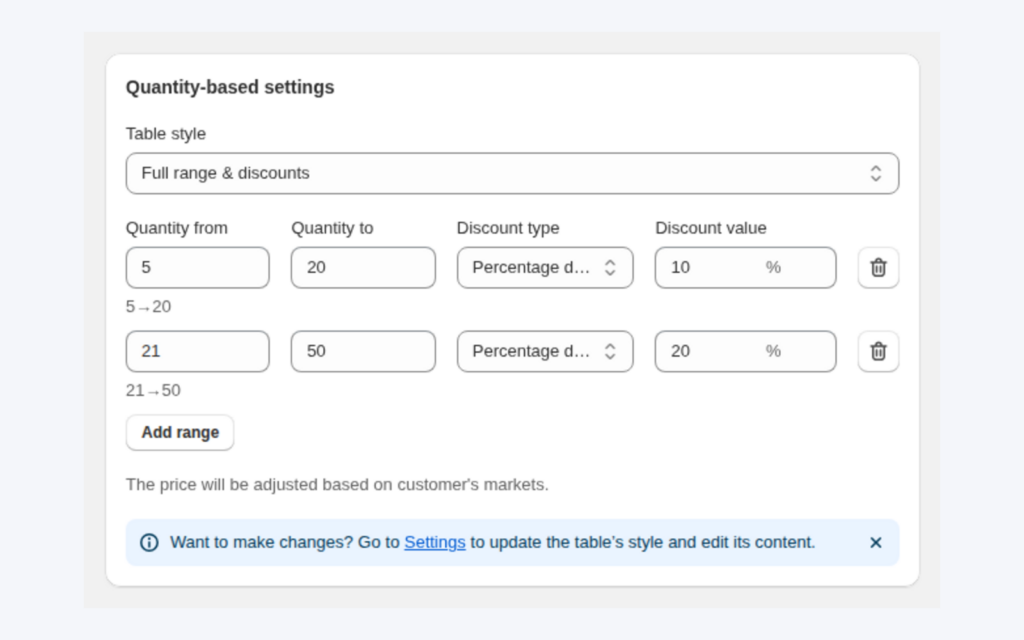
Step 4: Define the tiers
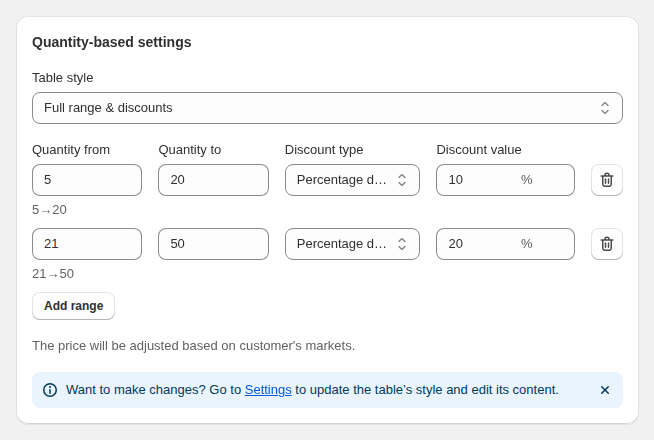
Each row is one range. Fill in Quantity from and Quantity to (or the amount range for value-based pricing), then the discount type and value. Leave the last “to” field blank for “and above”. The discount type can be a fixed price per item, a fixed amount off, or a percentage off. Keep the ranges continuous and not overlapping; if a quantity fits two rows, the lower row in the table wins.
Step 5: Save, then check the table on your theme
Save and enable the rule, then open a covered product page as an eligible buyer. If the table does not show, click Storefront setup on the Volume Pricing page. It checks that the module and the app embed are on and links to your storefront for testing.
Step 6: Choose where the table appears
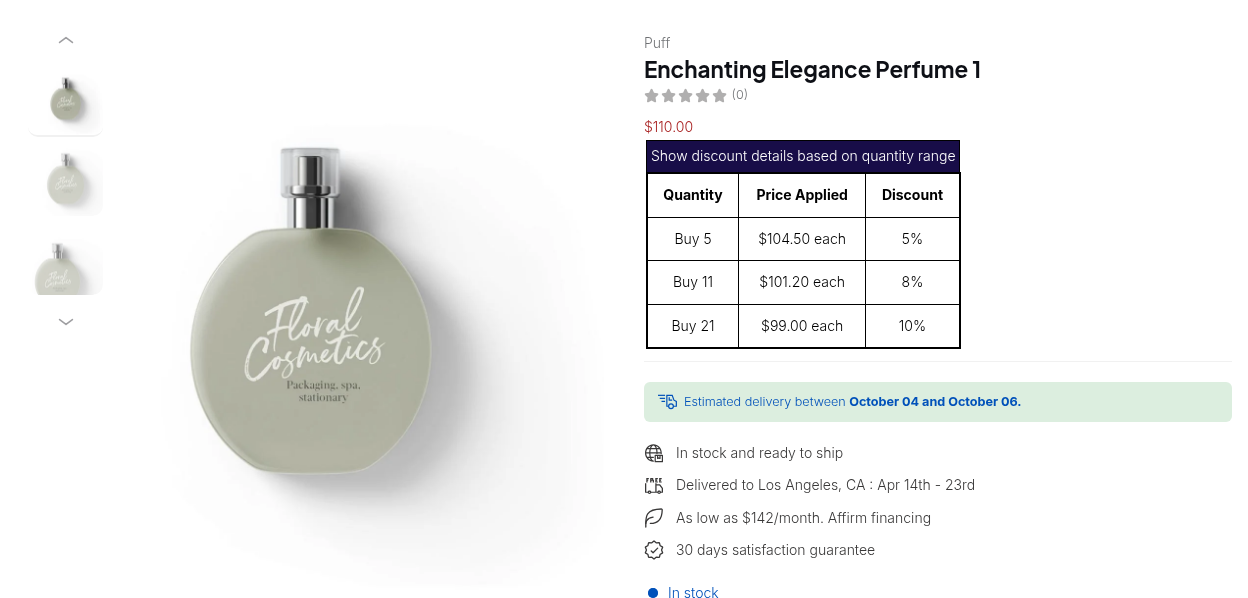
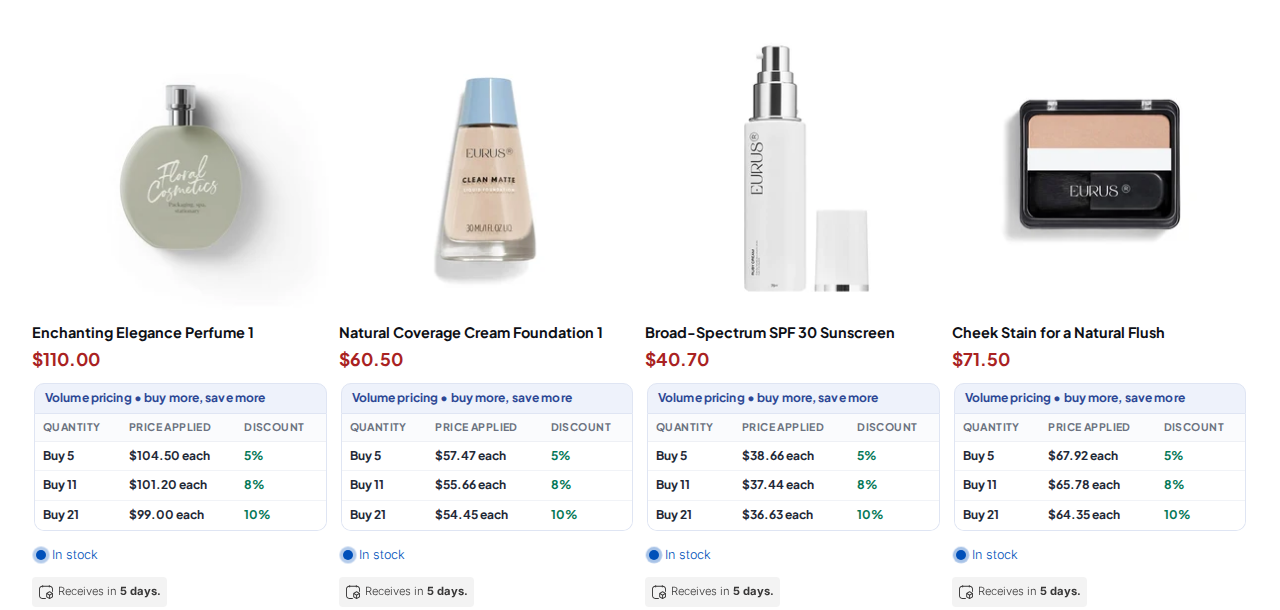
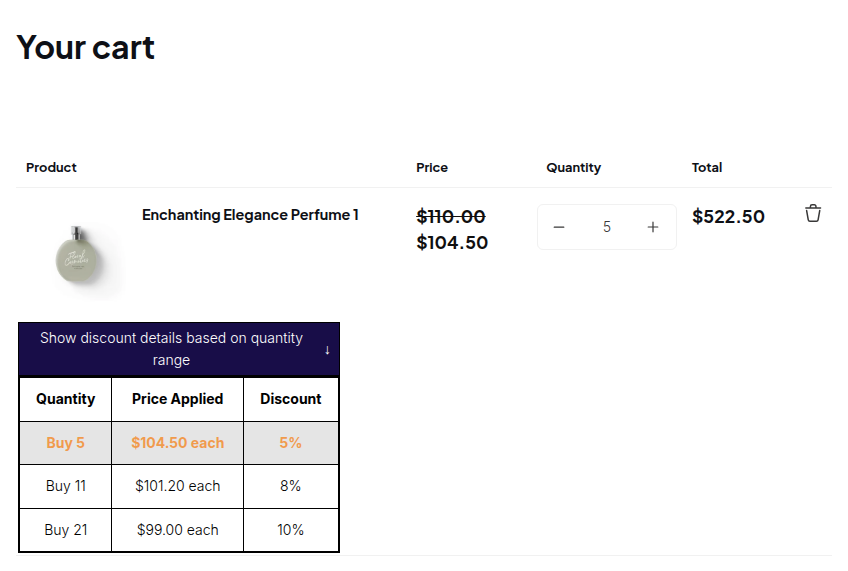
In Volume Pricing > Settings you choose the table style and where it shows: product pages, the cart page and the mini cart are on by default, and collection pages, quick view and featured product sections can be switched on. You can also decide what a click on a row does: jump to the minimum quantity of the range or to the maximum.
Choosing break points that buyers reach
Start from your order data rather than from round numbers. Look at the quantities your trade buyers order today, find the common order sizes, and place the first break just above the smallest typical order, so that most buyers are one step away from a better price. Place the second break at a case or carton size, and the third at a pallet or a level only large accounts reach. Keep the gap between prices meaningful: a break that saves a buyer a few cents on a $10 item will not change an order, while one that saves 10% might. Review the tiers after a few months and move a break if buyers cluster just below it.
Example: a hot-sauce producer
This is an illustration with made-up numbers, not a customer result. A producer sells a sauce at $10 a bottle and a pickle jar at $8. It creates one quantity-based rule for the wholesale tag with three ranges.
| Range (bottles) | Discount | Sauce price |
|---|---|---|
| 1 to 5 | none | $10.00 |
| 6 to 23 | 10% off | $9.00 |
| 24 and above | 15% off | $8.50 |
A café orders 30 bottles of sauce and 10 jars of pickles, 40 items in total. The result depends on the Apply to setting.
- All eligible products in the order: each product is counted on its own. Sauce (30) reaches 15% and costs $8.50 a bottle. Pickles (10) reach 10% and cost $7.20 a jar.
- Entire order: the quantities are added up, so 40 items reach the 15% tier for both products.
- All eligible product’s variants: each variant is counted separately, which suits products with sizes or flavours.
If the café has a Price List or Custom Pricing price, the tier is calculated on top of that price rather than on the $10 retail price.
Works well with
- A visible table. Volume pricing tables on product and collection pages covers the placement and design settings.
- A negotiated base price. Combine custom and volume pricing to build tiers on top of a tag price.
- Case packs. Pair tiers with quantity increments so buyers order in whole cases.
- Trade tiers by industry. See how an electronics trade store uses tiers.
Raven, a UK retailer of Japanese tiles, used wholesale registration and quantity breaks so business buyers could see discount terms product by product; its case study notes the display had to cover main products and samples, including the cart drawer. Read the Raven story. The glossary explains tiered pricing, quantity break and volume pricing.
Limits and common mistakes
- Tiers build on the B2B price. They are calculated on the price from a Price List or Custom Pricing rule, not on the original price.
- Automatic Shopify discounts do not work together with Volume Pricing.
- Overlapping ranges. If a quantity falls into two rows, the lower row wins, so keep ranges continuous.
- Collection and quick view tables. If a table does not show on a collection page, quick view or a featured product section even though it is ticked, the theme may need the table added manually.
- Which rule shows. When several rules cover a product, a customer sees the table of the rule with the lowest priority number, unless you set Apply multiple rules to Yes.
- Packaging and increments. Tiers do not force case-pack quantities. Use Quantity Increments for that.
- App embed. The table renders through the BSS B2B Solution app embed, so it must be on in the live theme.
Setup checklist
- Write down your break points in units or order value.
- Decide who sees the tiers: everyone, logged-in customers or a tag.
- Choose what to count: each product, the whole order or each variant.
- Create the rule, add continuous ranges and leave the last “to” blank.
- Choose where the table appears and what a row click does.
- Test as an eligible buyer on a product page, a collection and the cart.
- Check the cart total with a Price List or Custom Pricing rule if you use one.
Plans and requirements
Volume Pricing is available on every plan, in a limited form on Free. On the Free plan the storefront uses only your newest rule, which must be a quantity-based rule on products without market, variant, collection or tag conditions or exclusions; the guide also limits it to 2 ranges. Paid plans remove that restriction and add value-based pricing and customer-group exclusions. Excluding variants, discounts for multiple variations and CSV import and export need Platinum. See the BSS B2B Solutions pricing page for current plan details.
You can install BSS B2B Solution from the Shopify App Store (4.9 rating from 1,185 reviews as of 2026-10-02, 14-day free trial on paid plans), read the app overview, or follow the step-by-step tiered pricing guide in the docs.