
Advanced or Platinum plan
Discount Code is part of the Advanced and Platinum plans. The Free and Essential plans do not include it.
BSS B2B Solution: Discount Code
Discount Code is a module in BSS B2B Solution. You create codes inside the app, choose which customers and products each code covers, and buyers type the code into a box on the cart page. The new price shows in the cart before checkout. The module needs the Advanced or Platinum plan.
Wholesale deals often come with a private code: 10% off for approved resellers, free shipping for a trade show list, a spring promotion for buyers with a minimum order. Discount Code lets you run these inside your store without exposing them to retail shoppers.
You create each code in the app and decide who can use it. A buyer enters it in a Discount Code box on the cart page and presses Apply. The app checks the code against the buyer and the cart, then shows the discounted total on the spot. The discount carries through to checkout and shows on the order in Shopify admin.
Discount Code is the last price step in the app's order of rules. A Price List or Custom Pricing rule sets the base price, Volume Pricing applies on top of it, and the code applies on top of that price. The full order is on the product page.

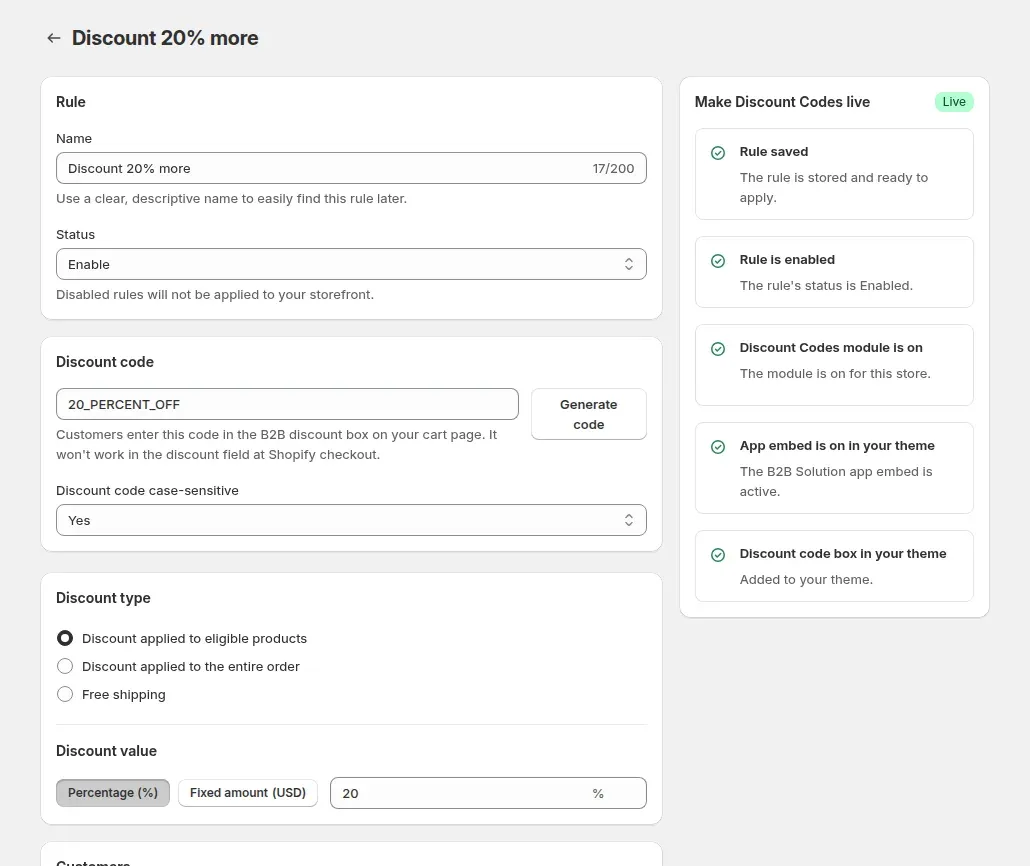
A rule page groups its settings into cards. Order discounts and free shipping count the whole cart, so they ignore the product selection.
| Setting | What it does |
|---|---|
| Name and status | The name is internal, so buyers never see it. A disabled rule is not applied on the storefront. |
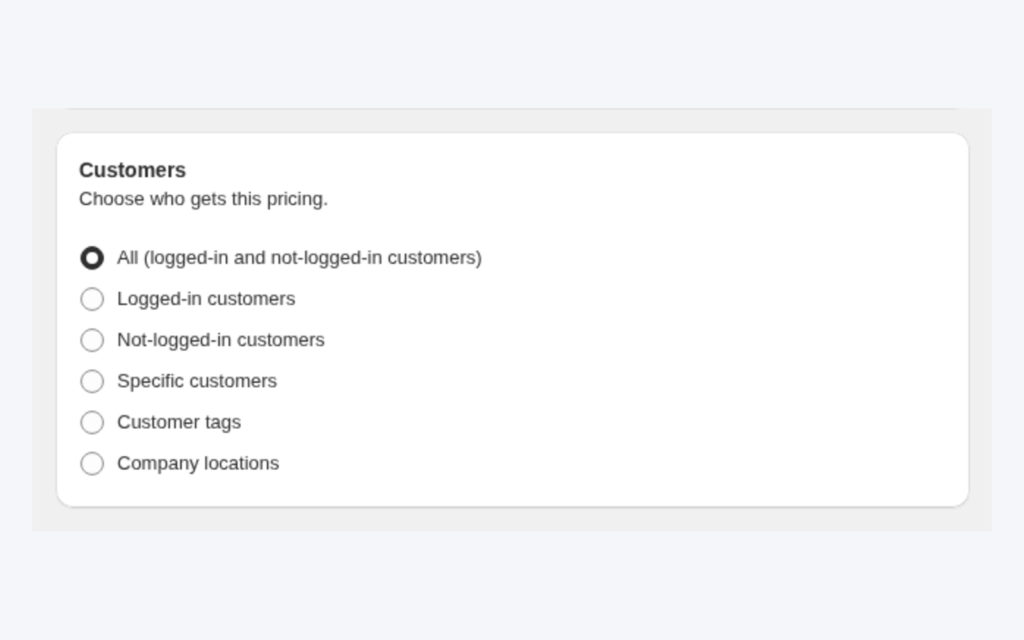
| Customers | All customers, logged-in customers, not-logged-in customers, specific customers or customer tags. Any one matching tag is enough. |
| Products | All products, specific products, product collections or product tags. |
| Code | Type your own or click Generate code. Matching is not case-sensitive by default, so SAVE20 also works as save20. Switch case-sensitive on to require an exact match. |
| Discount type | Discount applied to eligible products (each matching line), discount applied to the entire order, or free shipping. |
| Discount value | A percentage from 0 to 100, or a fixed amount. |
| Minimum purchase | No minimum, a minimum purchase amount or a minimum quantity of items. The amount is checked against the B2B prices, after Custom Pricing and Volume Pricing. |
| Usage limits | A total number of uses across all buyers, and a number of uses per customer. An option shows the remaining uses on the cart page, for example 5 discount codes remaining. |
| Exclusions | Exclude specific customers or customer tags, for example buyers who already have negotiated prices. An exclusion wins over the targeting. |
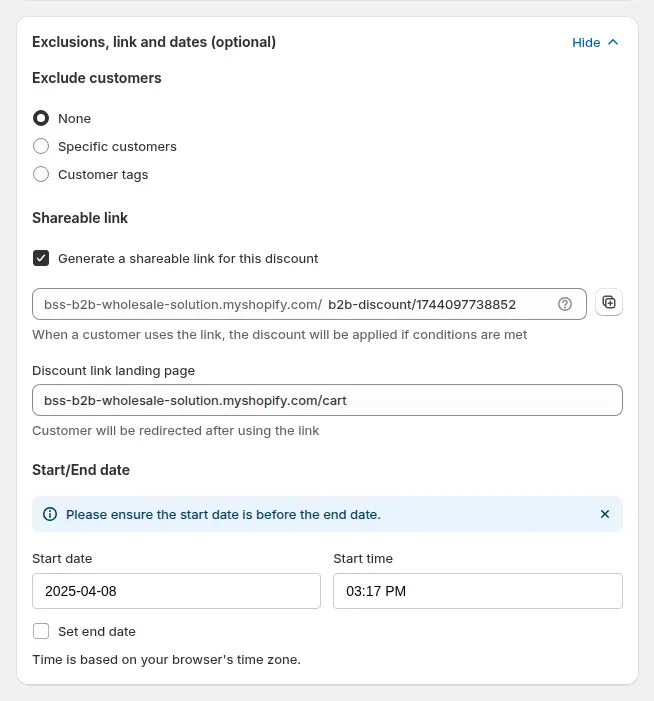
| Active dates | A start date and time, and an optional end date and time. The fields use your browser's time zone. |
| Shareable link | A link that applies the code for a buyer who meets the conditions, then sends them to a page you pick. The cart is the default. |
| Box design and translations | Style the code box (colors, sizes, borders, layout) and translate its header, button and messages for each language. |
The setup has two parts: put the code box on your cart, then create the rule.
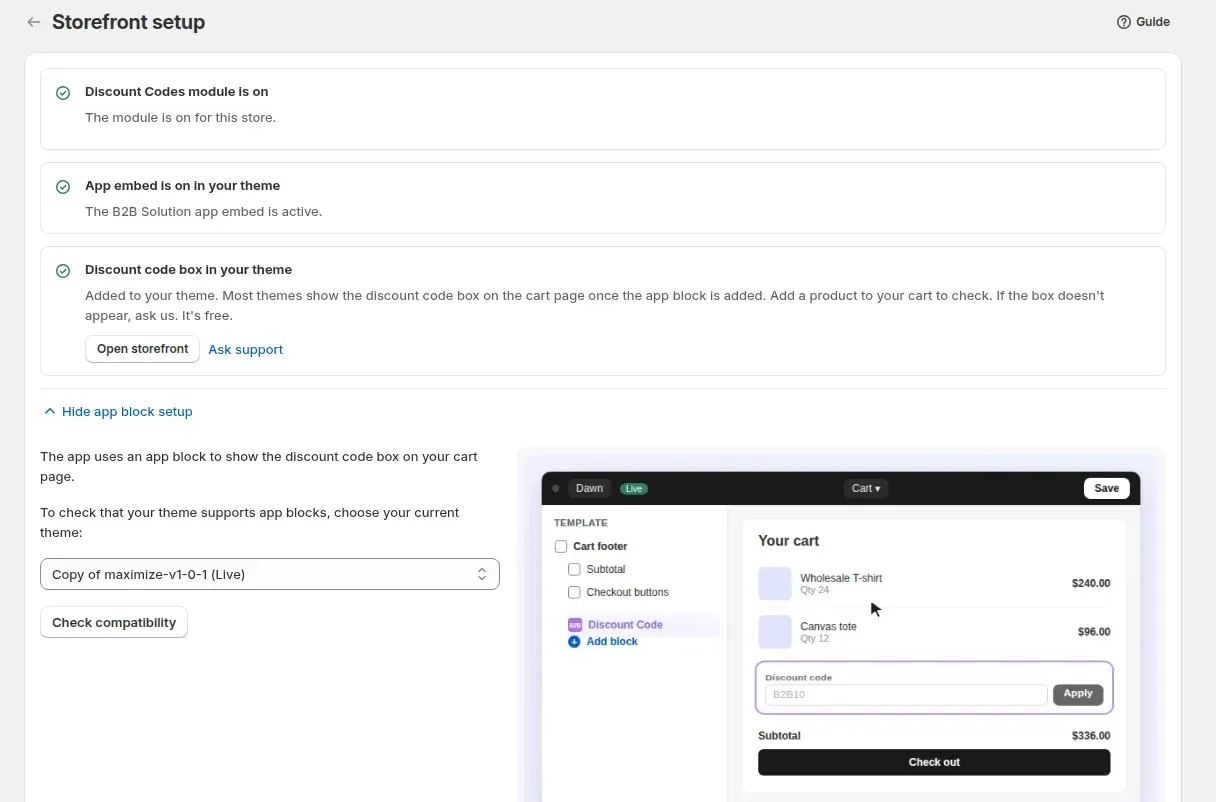
In the app go to B2B orders & discounts > Discount Codes and toggle the module on. Also check that the B2B Solution app embed is on in the theme editor under App embeds. The code box needs it.
Click Storefront setup and add the Discount Code app block to your cart page. If your theme needs it, the page also shows how to add the Discount Code file to the theme by hand. Add a product to the cart and open the storefront to confirm the box appears.
On the Discount Codes page click Add rule. Give it an internal name, type a code or click Generate code, then pick the discount type and value. The right-hand panel on the rule page checks that the rule is saved and enabled, the module is on, the app embed is on and the box is in your theme.
In Customers pick customer tags to limit the code to wholesale buyers. In Products pick all products, specific products, collections or product tags. Add a minimum purchase amount or quantity if you want one.
Cap total uses and uses per customer. The per-customer cap is not available when the rule applies to all customers or to not-logged-in customers, because the app cannot count guests. Pick logged-in customers, specific customers or customer tags to use it. Exclude customers by tag or by name, set the start and end dates, and tick Generate a shareable link for this discount if you want one. Open the link in a private window as a matching customer to check it applies the code and lands on the page you picked.
Log in as a test customer who matches the rule. Enter the code with a cart under the minimum, then over it. Then try a customer who does not match, and confirm the message each time. When the rule is live, open More actions > Usage history to see which customer used which code and when.
Set up your first wholesale discount code on an Advanced or Platinum plan. The listing shows a 14-day free trial on paid plans.
Example rule: code VIP20, discount applied to eligible products, 20%, for customers tagged vip, all products, 500 total uses, 3 uses per customer, 30 days. The figures are made up to show the logic.
| Buyer | What happens |
|---|---|
| Logged-in customer with the vip tag, cart of $300, enters VIP20 | Each eligible line drops 20%, so the cart shows $240, and a green message says the code was applied. |
| Logged-in customer without the vip tag, enters VIP20 | The box shows Failed to apply this discount code, please try another. No discount applies. |
| Any vip customer after the 500th use | The box shows Discount code applied failed. Code limit reached. |
| A free-shipping code (type: free shipping) for the same tag | Line prices stay the same. The box shows the code with Freeshipping beside it, and shipping is removed at checkout. |
The messages above are the defaults. You can change and translate most of them in the Discount Code settings. The limit-reached message is fixed. If a rule shows remaining uses, any refusal reads Discount code is no longer available.
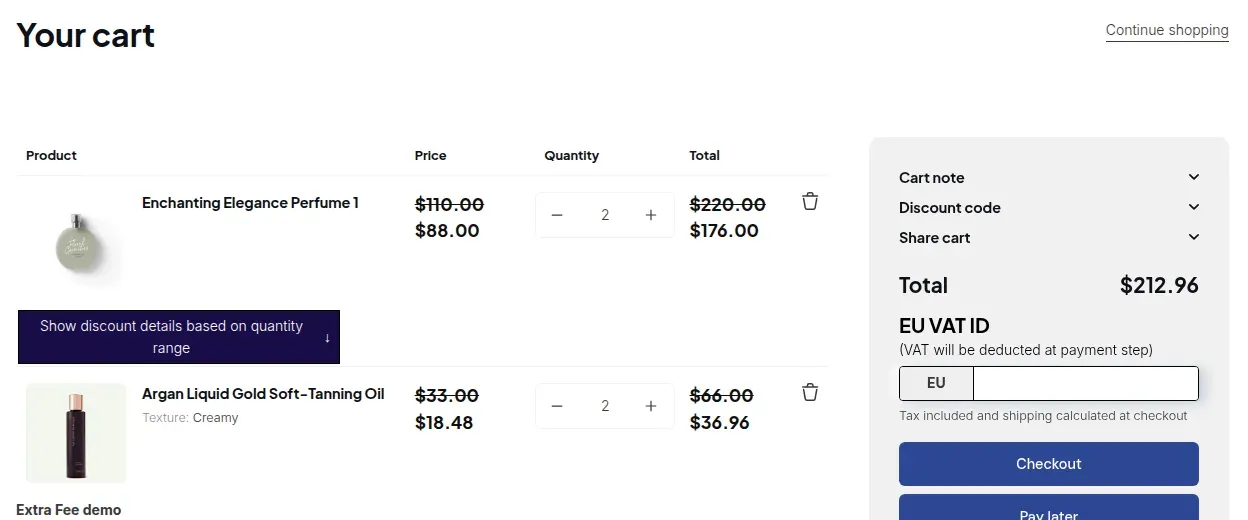
The buyer types the code and clicks Apply. A valid code appears as a badge under the box, for example 20_PERCENT_OFF (-20%), with a button to remove it. The cart shows the discounted line prices next to the struck-through ones.
A free-shipping code changes no line price. Only the badge shows, and the shipping charge is removed at checkout.
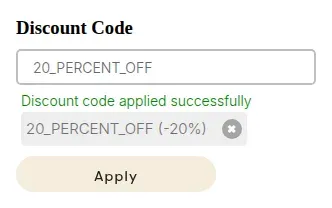
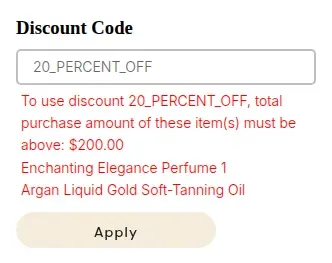
When a code fails, the box says why. A minimum that is not reached shows the required minimum and lists the items counted, so the buyer knows what to add. Codes that are expired, outside the buyer's group or past their limit show a short refusal message.
Test these states before a campaign. Check one buyer under the minimum, one outside the target group and one after the usage cap, so you know what your customers will read.
Pricing rules. The code applies to the price after Custom Pricing or a Price List, and after Volume Pricing. Example: a line that costs $76 after Volume Pricing costs $60.80 with a 20% code.
Shipping. When a free-shipping code, Extra Fee and Shipping Rate all match, only one shipping result applies: the code wins, then an Extra Fee free-shipping tick, then the Shipping Rate.
Customer tags. Customer tags drive the targeting, so a tag added by a registration form or by auto-tagging can switch a code on for that buyer.
Manual Orders. When you build a draft order in the app, you can pick a Discount Code rule. It is checked against the products in the order.
Discount Code is part of the Advanced and Platinum plans. The Free and Essential plans do not include it.
Codes you create here do not appear in Shopify Admin, and Shopify codes do not appear here. The app tells you a code made here will not work in the discount field at Shopify checkout. Shopify codes typed at checkout work only when Shopify discount is on under Settings > Shopify checkout settings. It is off by default.
The code is applied when the buyer clicks Checkout on the cart page. Buy it now, express checkout buttons and direct checkout links can skip it. The app hides Buy it now while price rules are active, but only when the app embed is loaded. Test the full path on your theme.
Discount Codes are not applied at Shopify POS. BSS B2B Solution covers Custom Pricing, Price Lists and quantity breaks there.
The per-customer limit is not available when a rule applies to all customers or to not-logged-in customers, because the app cannot count a guest's uses. Target logged-in customers, specific customers or customer tags instead.
Buyers see the box only when the app embed is on and the Discount Code block is in the cart. Most themes show it once the block is added. If yours does not, the Storefront setup page offers help from support at no charge.
Each rule holds one code. For a second code, such as a free-shipping code beside a percentage code, add a second rule.
Discount Code is on the Advanced and Platinum plans of BSS B2B Solution. On the Shopify App Store listing, as of October 10, 2026, Advanced is $49 per month and Platinum is $99 per month, with 10% off on yearly billing. The listing shows a 14-day free trial on paid plans. Every app feature is free on development stores, so you can build and test the rules first.
Customer tags decide who gets a code, and the minimum purchase decides when it applies. Browse all use cases.
Tag your wholesale customers and create a Custom Pricing rule that targets the tag. Logged-in tagged buyers see fixed, amount-off or percent-off prices automatically, while retail visitors keep seeing your normal prices.
Explore use case: Give Tagged Wholesale Customers Special PricesEach topic has one page that owns it. Start from these.
Charge a wholesale fee or set a shipping rate, which a free-shipping code can override.
Draft orders with wholesale prices and a Discount Code rule applied.
Wholesale prices at the counter, where Discount Codes do not apply.
Show business buyers their own prices with price lists, custom pricing and quantity breaks.
Customer tagMOVVolume pricingWholesale discount
Each feature has its own page. See also all BSS B2B Solution features.
Add or remove customer and order tags when a Shopify event matches your rules, so tag-based prices and access follow the buyer.
Read and write B2B pricing rules, registrations and customer lookups from your ERP or PIM with one API key.
Add a handling fee by quantity or amount, and set wholesale shipping rates by customer, product, market and weight.
Build a Shopify draft order for a customer in the admin, with their wholesale prices already applied.
Show wholesale prices in the buyer's currency with a switcher. Checkout stays in your store or Markets currency.
The B2B Price tile in Shopify POS shows the wholesale discount for the cart. Staff apply or remove it from the tile.
Install BSS B2B Solution from the Shopify App Store, with a 14-day free trial on paid plans.
Also: BSS B2B Lock for hidden prices for guests and BSS B2B Quote for quotes and quick order.
Advanced or Platinum. Discount Code is included in those two plans, and the Free and Essential plans do not include it. Development stores can use every app feature for free, so you can build and test your rules before you pick a plan.
No. They are a separate system inside BSS B2B Solution. A code you create in Shopify Admin does not appear in the module, and a code created in the module does not exist in Shopify Admin or work in the Shopify checkout discount field. Buyers enter these codes in the box on the cart page.
Yes. In the rule, set Customers to customer tags and pick your wholesale tag. Buyers without the tag see a refusal message when they enter the code. You can also limit a code to logged-in customers or to named customers, and exclude customers by tag.
Yes, it is possible. The code applies when the buyer clicks Checkout on the cart page. Buy it now, express checkout buttons and direct checkout links can skip it. The app hides Buy it now while price rules are active, but express checkout buttons your theme adds can still skip the code, so test your own checkout paths.
In Manual Orders you can pick a Discount Code rule on the draft order, and the app checks it against the products in the order. At Shopify POS they are not applied. There, BSS B2B Solution covers Custom Pricing, Price Lists and quantity breaks.
The box explains the reason. If the cart is under the minimum, it shows the required minimum and the items counted. An expired or non-matching code gets a short refusal message, and a code past its usage cap gets a limit-reached message. You can edit and translate most of these messages.
Feature behavior follows our review of the BSS B2B Solution code on October 3, 2026 and the BSS user guides. Prices come from the App Store listings on the date shown. We make BSS B2B Solution, BSS B2B Lock and BSS B2B Quote.