
Advanced or Platinum plan
Both modules are included in the Advanced and Platinum plans. The Essential plan does not include them. Targeting specific variants in Shipping Rate needs the Platinum plan.
BSS B2B Solution: Extra Fee and Shipping Rate
Extra Fee and Shipping Rate are two modules in BSS B2B Solution. Extra Fee adds a separate fee line to an order, based on a quantity or amount range. Shipping Rate replaces the default shipping price for the customers and products you target. Both need the Advanced or Platinum plan.
A wholesale order can cost you more than its product lines show: packing, handling, a rush slot, a freight surcharge. Two modules in BSS B2B Solution let you charge for that cost with rules, instead of editing each order by hand.
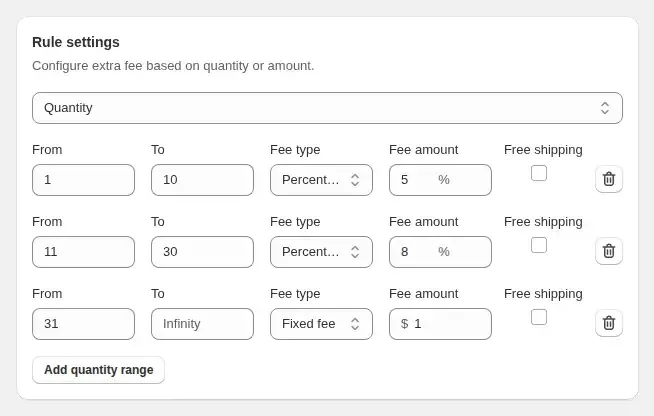
Extra Fee adds a fee as its own line item. You pick the customers and products it applies to, then set ranges by quantity or by order amount, each with a fee type and an amount. A range can also carry a free shipping tick.
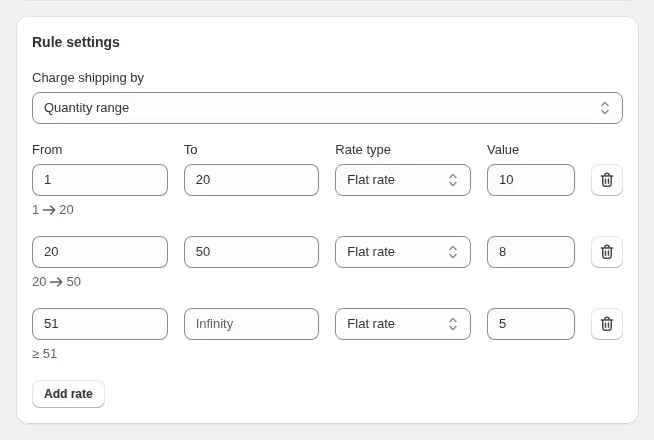
Shipping Rate replaces the default shipping price when the buyer and the cart match a rule. You set ranges by quantity, amount or weight, and charge a flat rate or a percentage of the cart.
Use Extra Fee to recover a cost. Use Shipping Rate to decide what a wholesale buyer pays to ship. You can use both, with rules that do not overlap.
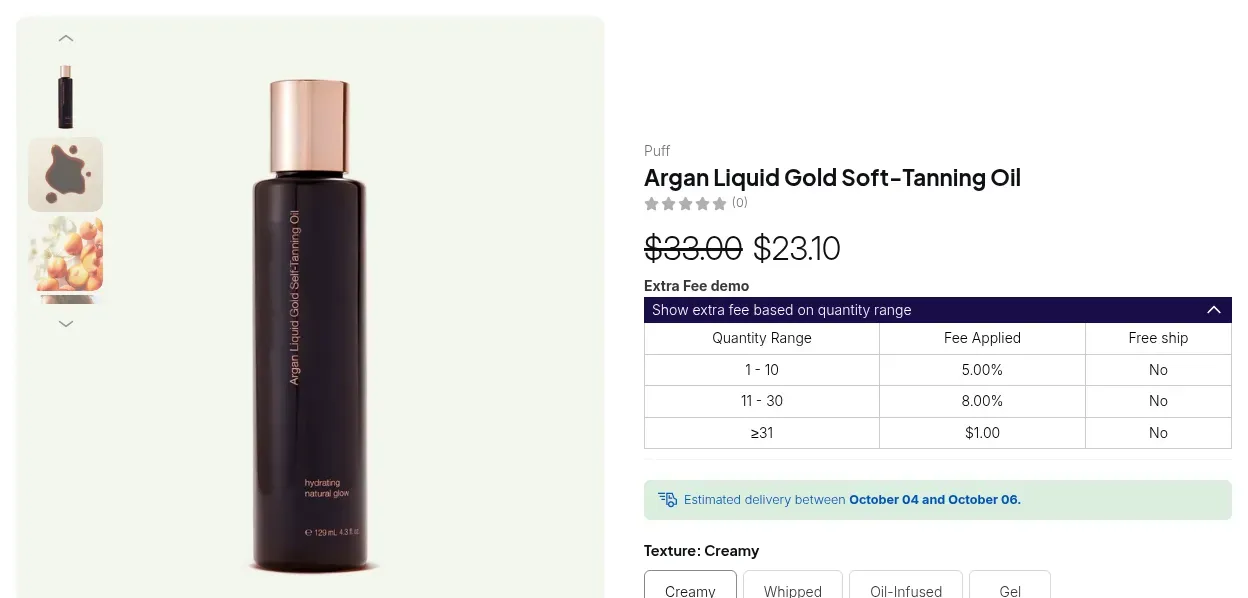
An Extra Fee rule page has seven cards: Rule, Customers, Products, Extra Fee calculation, Rule settings, Exclusions and schedule, and Advanced.
| Setting | What it does |
|---|---|
| Name | The title of the fee line at checkout, so write it for your buyers, for example Handling Fee |
| Customers | All, logged-in, not-logged-in, specific customers or customer tags |
| Products | All products, specific products, product collections or product tags. Not individual variants, not markets |
| Extra Fee calculation | All applied items: eligible quantity or amount is added up, then matched to a range. Per item: each eligible item is measured alone and gets its own fee |
| Ranges | Quantity or price amount, with From and To per row. Leave To empty for no upper limit |
| Fee type | Fixed fee, fixed fee per item, percentage of applied items' subtotal, or percentage of the original price. The percentage types depend on the calculation option |
| Free shipping tick | Marks a range whose orders ship free |
| Exclusions and schedule | Exclude customers or products, and set a start and optional end date for seasonal fees |
| Priority | A lower number is evaluated first when several rules could apply to the same product. Default 0 |
Both modules live under B2B pricing in the app. They share the same pattern: switch the module on, add a rule, set who and what it covers, then add ranges.
In the Shopify theme editor open App embeds and make sure the B2B Solution embed is on, then save. The fee table and the shipping calculation both run from it.
In the app go to B2B pricing, then Extra Fee or Shipping Rate. Toggle the module on and click Add rule. Only enabled rules take effect. The rule list shows a status badge: Active, Scheduled or Expired.
The name is the title buyers see at checkout. For Shipping Rate, use a unique name, because the app counts usage limits by matching that title after each order. Then choose customers (all, logged-in, specific, or by tag) and products. Shipping Rate also has a Markets card.
For Extra Fee, pick quantity or price amount, then enter From, To, a fee type and an amount per row. For Shipping Rate, pick quantity, amount or weight (grams, kilograms, pounds or ounces, one unit for the whole table), then a rate calculation of Flat Rate or Percentage and its value. A flat rate of 0 means free shipping. Click Add rate for more tiers.
Shipping Rate can cap use in total and per customer. The per-customer cap is not available for rules that apply to all customers or to not-logged-in customers, because guests cannot be counted. Both modules let you exclude customers or products and set start and end dates.
Log in as a test customer who matches the rule, add products that fall inside a range, and go through the BSS checkout. Check the fee line or the shipping line and its title. Then try a customer who is excluded, to confirm nothing is charged.
Set up your first fee and shipping rate on an Advanced or Platinum plan. The listing shows a 14-day free trial on paid plans.
A Shipping Rate rule page has the cards Rule, Customers, Products, Markets, Rule settings, Usage limits, and Exclusions and schedule.
| Setting | What it does |
|---|---|
| Products | All products, specific products, product collections or product tags. Specific variants are also offered and need the Platinum plan |
| Markets | All markets or specific markets from Shopify Settings, so domestic and international orders get different rates |
| Range basis | Quantity, amount in your store currency, or weight |
| Rate calculation | Percentage of the cart price, or a flat rate. With multi-currency, flat rates are converted to the buyer's currency |
| Usage limits | Total uses across all customers, and uses per customer |
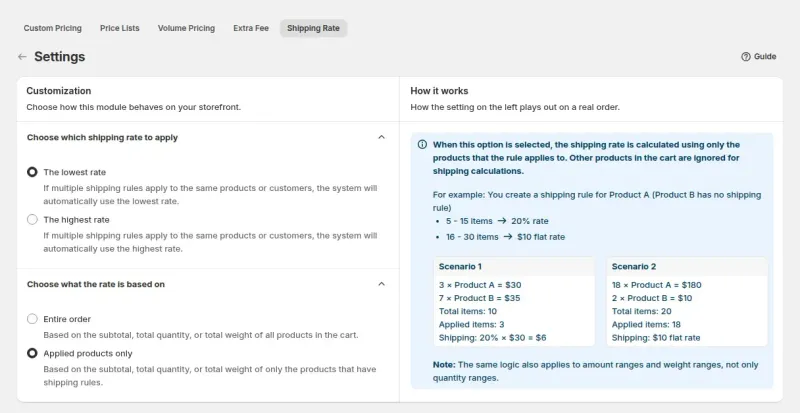
| Which rate wins | In Settings, choose the lowest or the highest rate when several rules match. The default is the lowest |
| What the rate is based on | Entire order (the default) counts every product in the cart. Applied products only counts just the products the rule covers |
Pricing rules. Extra Fee does not change the product price. It is a separate fee line. Percentage fees are calculated on the price after Custom Pricing, Price List and Volume Pricing, and Shipping Rate percentages use the same discounted cart price.
Order of modules. Extra Fee runs after the product price rules, then Discount Codes, then Shipping Rate. Only one shipping result survives when they overlap: a Discount Code with free shipping beats an Extra Fee free shipping tick, which beats the Shipping Rate.
Customer tags. Both modules target by customer tag, so the tag a wholesale registration form applies on approval can switch a rule on for that buyer.
Tax. Extra Fee lines are not taxed unless you turn on Automatically apply tax to Extra Fee in the module settings.
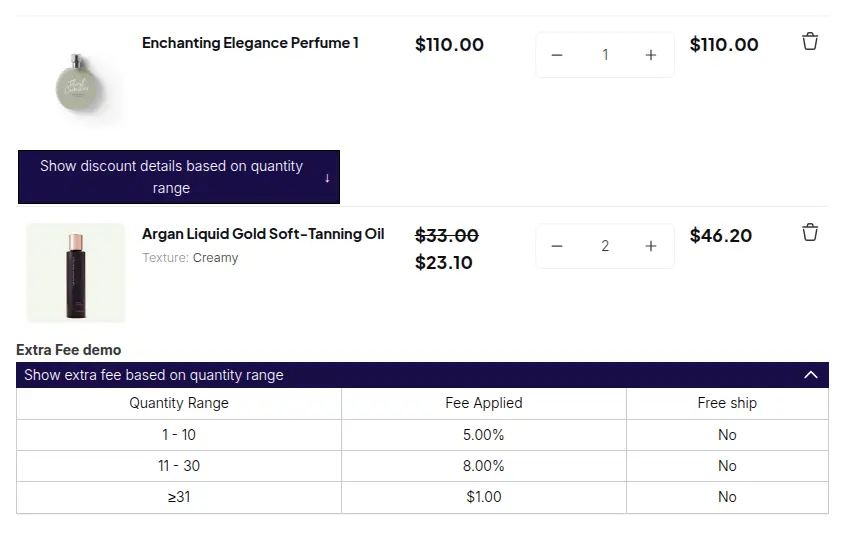
With Extra Fee on, a table of ranges and fees can show on the product page, the cart and the mini cart. You choose which of the three in the module settings, and you can set the table colors and translate its text for each language.
At checkout the fee is its own line, titled with the rule name. If the order does not reach a range, or the buyer or product is excluded, no fee is charged.
With Shipping Rate on, the rate replaces the default shipping price for a matching buyer and cart, and the shipping line carries the rule name. A visitor who matches no rule sees your normal Shopify rates. While the module is on, the Buy it now button stays hidden until the app has calculated the rate.
Both modules are included in the Advanced and Platinum plans. The Essential plan does not include them. Targeting specific variants in Shipping Rate needs the Platinum plan.
The fee is added through the BSS checkout flow. A buyer who opens /checkout directly or uses an express checkout button can see Shopify prices without the fee. The app hides the native buttons with theme code, and that can be bypassed.
A draft order built in Manual Orders applies Shipping Rate, but not Extra Fee. Add that fee by hand if the order needs it.
Wholesale pricing at Shopify POS covers Custom Pricing, Price Lists and quantity breaks. Extra Fee and Shipping Rate are not applied there.
In the app admin, the newer storefront v4 bundle hides Shipping Rate and Extra Fee. New installs get version 3. If you do not see the modules in your app admin, contact support.
Extra Fee does not target individual variants or markets. Use product, collection or tag instead. If you move to a plan without variant targeting, Shipping Rate rules that use variants stay visible but stop applying.
You can export rules from both modules, and the file is kept for one day. There is no import.
Both modules are on the Advanced and Platinum plans of BSS B2B Solution. On the Shopify App Store listing, as of October 10, 2026, Advanced is $49 per month and Platinum is $99 per month, with 10% off on yearly billing. The listing shows a 14-day free trial on paid plans. Every app feature is free on development stores, so you can build and test the rules first.
The main use case walks through one wholesale setup with screenshots. Browse all use cases.
Replace retail shipping with wholesale tiers and add fixed or percentage handling fees by quantity, amount or customer, using Shipping Rate and Extra Fee in BSS B2B Solution.
Explore use case: Charge Handling Fees and Custom Shipping RatesEach topic has one page that owns it. Start from these.
Draft orders with wholesale prices already applied.
Wholesale prices at the counter.
Set minimum orders, case packs and net payment terms for wholesale buyers.
Customer tagMOVMOQVolume pricingDraft orderWholesale price
Each feature has its own page. See also all BSS B2B Solution features.
Add or remove customer and order tags when a Shopify event matches your rules, so tag-based prices and access follow the buyer.
Give wholesale buyers a private code they enter in the cart, with rules for who can use it, what it covers and how often.
Read and write B2B pricing rules, registrations and customer lookups from your ERP or PIM with one API key.
Build a Shopify draft order for a customer in the admin, with their wholesale prices already applied.
Show wholesale prices in the buyer's currency with a switcher. Checkout stays in your store or Markets currency.
The B2B Price tile in Shopify POS shows the wholesale discount for the cart. Staff apply or remove it from the tile.
Install BSS B2B Solution from the Shopify App Store, with a 14-day free trial on paid plans.
Also: BSS B2B Lock for hidden prices for guests and BSS B2B Quote for quotes and quick order.
Advanced or Platinum. Both modules are included in those two plans, and the Essential plan does not include them. Targeting specific variants in Shipping Rate needs Platinum. Development stores can use every feature for free.
No. Extra Fee is a separate fee line at checkout, titled with the rule name. Percentage fees are calculated on the price after your pricing rules. The fee is not taxed unless you turn on the tax setting in the Extra Fee module settings.
Yes, it is possible. The fee is added through the BSS checkout flow, so a direct /checkout link or an express checkout button can show Shopify prices without it. The app hides the native buttons with theme code, which can be bypassed.
Only one shipping result applies. A Discount Code with free shipping wins, then an Extra Fee free shipping tick, then the Shipping Rate. The fee line from Extra Fee is separate from that shipping decision.
Shipping Rate applies in Manual Orders, but Extra Fee does not. Neither is applied at Shopify POS, where BSS B2B Solution covers Custom Pricing, Price Lists and quantity breaks. Check the order total before you send an invoice.
Feature behavior follows our review of the BSS B2B Solution code on October 3, 2026 and the BSS user guides. Prices come from the App Store listings on the date shown. We make BSS B2B Solution, BSS B2B Lock and BSS B2B Quote.