
New events only
Rules run when a customer is created or an order is created, paid, fulfilled or canceled. Customers and orders that already exist stay untagged until you run Apply to existing customers.
BSS B2B Solution: Auto Tag
Auto Tag in BSS B2B Solution adds or removes tags on customers and orders when a Shopify event matches your rule. The events are Customer Created, Order Created, Order Paid, Order Fulfilled and Order Canceled. It needs Essential or higher on a live store. Existing customers are not tagged until you run a backfill.
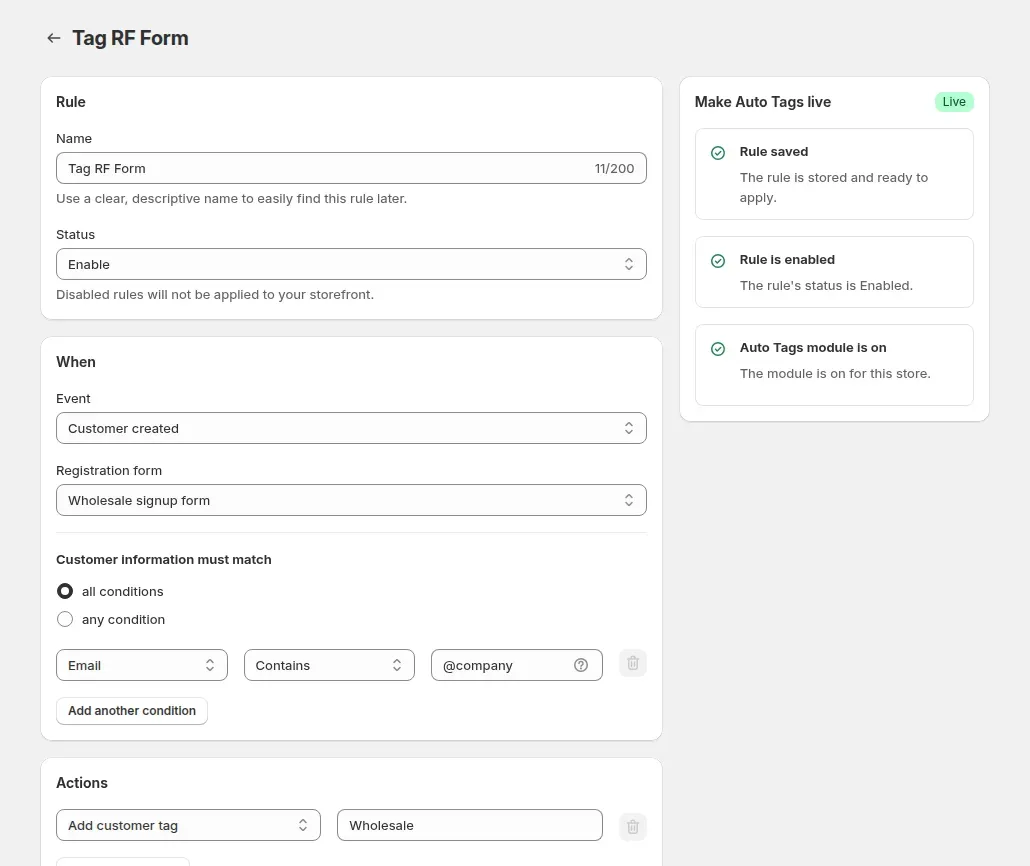
Go to B2B customers > Auto Tags, switch the module on and click Add rule. The rule page has three cards: Rule, When and Actions.
Give the rule a clear name, for example "Tag RF Form". Set the status to Enable or Disable. A disabled rule is saved but does not run, so you can build it now and turn it on later.
Pick Customer Created, Order Created, Order Paid, Order Fulfilled or Order Canceled. For Customer Created, also choose the registration form, so the fields of that form become available as conditions.
Choose whether the record must match all conditions or any condition, then add rows of field, operator and value. Click Add another condition for more.
Add one or more actions, such as Add customer's tag. For tags, enter one or more values separated by commas, for example `wholesale,vip`.
Click Save. The side panel confirms that the rule is saved, that it is enabled and that the module is on. The rule runs the next time its event happens.
Run Apply to existing customers once for records that existed before the rule. Use History to see which rule tagged which customer or order.
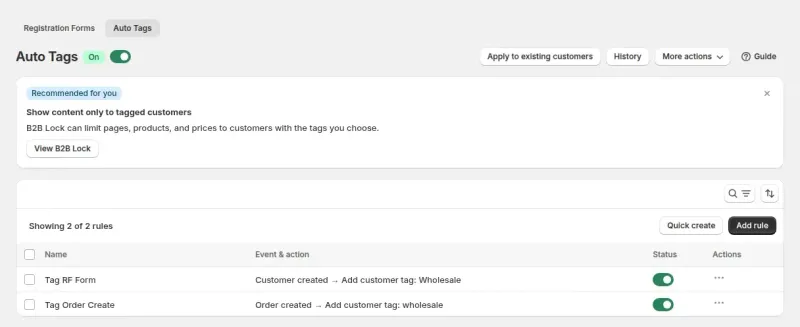
Build your first Auto Tag rule on an Essential, Advanced or Platinum plan. The listing shows a 14-day free trial on paid plans.
The event decides which actions are offered. Registration rules cannot use the order actions.
| Event | Fires when | Actions available |
|---|---|---|
| Customer Created | A new customer account is created, including through a registration form. | Add customer's tag, add customer's note, mark customer as tax exempt. |
| Order Created | An order is placed. | Add or remove a customer tag, add a customer note, add an order note, add or remove an order tag. |
| Order Paid | An order is paid. | The same order actions. |
| Order Fulfilled | An order is fulfilled. | The same order actions. |
| Order Canceled | An order is canceled. | The same order actions. The rule looks at the order as it was when it was created. |
Source: the BSS B2B Solution app code and the BSS user guide for Auto Tags, checked October 9, 2026.
On a Customer Created rule you can check Display Name, Email, First Name and Last Name, plus any field of the registration form you selected, such as Company or Country. The operators are Contains, Does not contain, Is equal to and Is not equal to. For Country you can type the name or, with Is equal to, the 2-letter code.
On an order event rule the field groups are Customer Account (name, email, the customer's tags, order count and Total spent), Customer Shipping Address, Customer Billing Address, Product Info (product name and SKU) and Order Info (Number of Products, Order Qty, Order Amount, Order Weight and the paid-order totals). Text fields use Contains, Does not contain, Is equal to and Is not equal to, and SKU also offers Start with. Number fields use Is equal to, Greater than and Less than.
Total Amount of Paid Orders and Total Number of Paid Orders look back over 1, 7, 15, 30, 45 or 60 days and offer `>`, `<`, `>=` and `<=`. They work on Order Created and Order Paid rules only. Order Weight accepts g, kg, lb or oz and converts both sides before comparing.
Rules run when a customer is created or an order is created, paid, fulfilled or canceled. Customers and orders that already exist stay untagged until you run Apply to existing customers.
Editing a customer does not trigger a rule. Only the five events in the table do.
Apply and remove runs share one slot. Starting another shows that a bulk update is already running.
Order rules that use the paid-order totals are not listed for bulk runs.
Mark customer as tax exempt exists on Customer Created rules only, once per rule. A backfill does not exempt existing customers.
With the value left empty, Contains matches every record, so the rule could tag your whole store. Always fill in the value.
A buyer who stops matching a rule keeps the tag unless another rule has a remove action, or you remove it in a bulk run.
Order Canceled rules work for orders that were created and canceled after you installed the app.
Essential, Advanced or Platinum on a live store. Free covers development stores only, and if a plan drops the module, saved rules stop running.
On the Auto Tags page, Apply to existing customers has two tabs. Apply to previous customers & orders takes an active rule and applies it to previous customers or previous orders. Remove customer/order tags removes the tags you select and leaves your rules unchanged. The job runs in the background with a progress banner and reports how many records were updated and why any failed.
History records every tagging action. Switch between customers and orders. Each row shows the rule, the added tags, the removed tags, the time and who made the change. Use it to confirm a rule fired and to spot a rule that matches more records than you expected. More actions > Export downloads the rules as a CSV, with one row per condition and action pair.
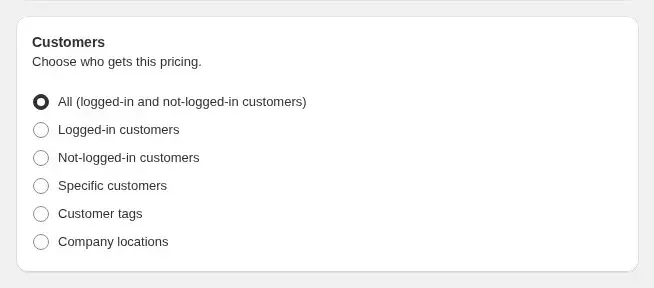
The tag is the link. Custom Pricing, Volume Pricing and Net Terms rules can target customers by tag, and BSS B2B Lock can limit pages, products and prices to customers with the tags you choose. When Auto Tag adds the tag, the matching rules start to apply to that buyer without anyone editing the customer.
For sign-ups, the registration form can also apply its own customer tags, and an Auto Tag rule on Customer Created can add more based on the answers, such as country or email domain. Mark customer as tax exempt sets the Collect tax setting in Shopify to exempt. It is not a tax ID check.
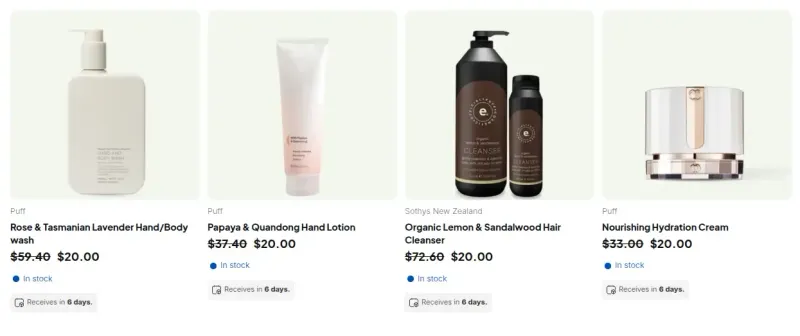
Example from a demo store: before the tag, a buyer sees the regular prices. After a rule adds the customer tag and a Custom Pricing rule targets that tag, the same products show the regular price struck through and the new price beside it.
Stores that drive wholesale prices, access or payment terms from customer tags and do not want to edit tags by hand. It suits tier programs based on spend or order count, sign-up classification by country or email domain, and order labels for the warehouse. If you only have a handful of buyers, tagging by hand is simpler.
Auto Tag is on the Essential, Advanced and Platinum plans of BSS B2B Solution. On the Shopify App Store listing, as of October 9, 2026, Essential is $29 per month, Advanced $49 and Platinum $99, with 10% off on yearly billing. The listing shows a 14-day free trial on paid plans. The Free plan lists all app features on development stores only.
Each use case shows one setup with screenshots. Browse all use cases.
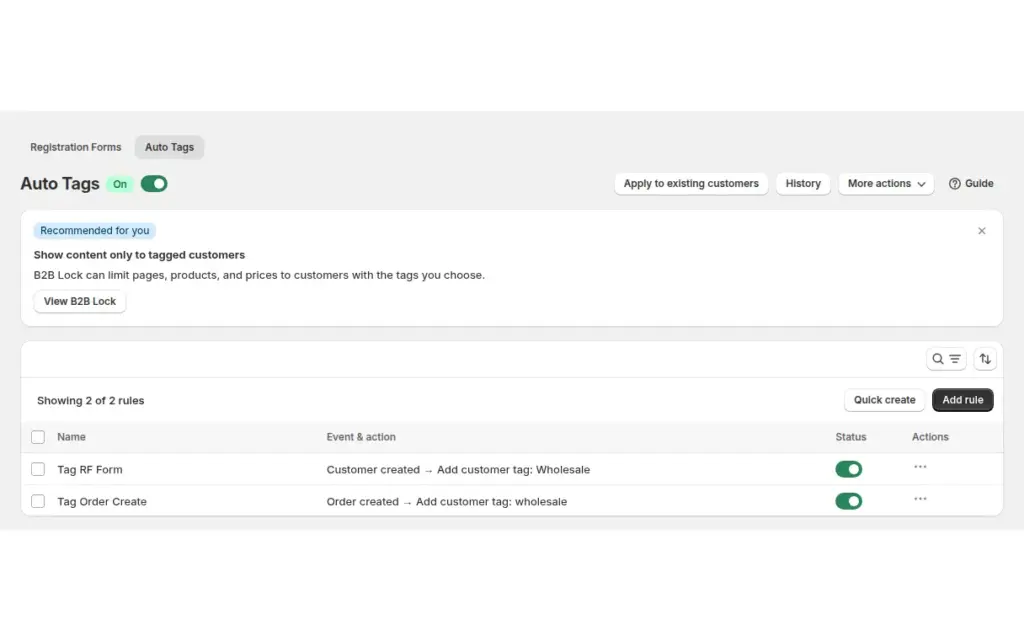
Add and remove customer and order tags automatically when Shopify events match your conditions, so spend-based wholesale tiers and tag-driven prices stay current in BSS B2B Solution without manual edits.
Explore use case: Auto-Tag Customers by Spend or Order Count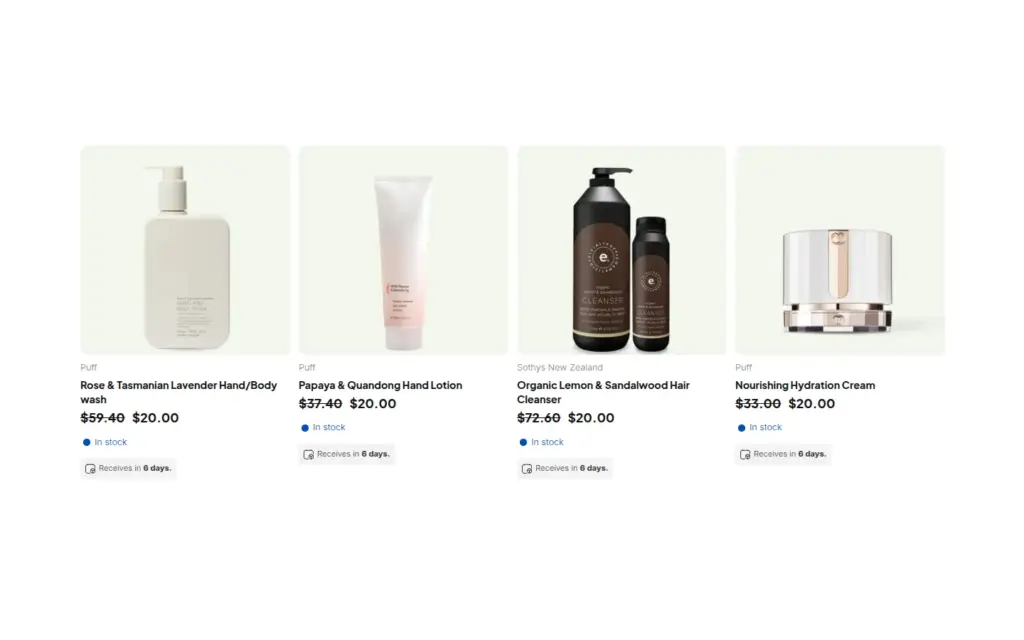
Create Silver, Gold and Platinum retailer tiers with customer tags, then give each tier its own prices in BSS B2B Solution and its own visible catalog in BSS B2B Lock, using the same tags.
Explore use case: Silver, Gold and Platinum Wholesale Tiers With Tags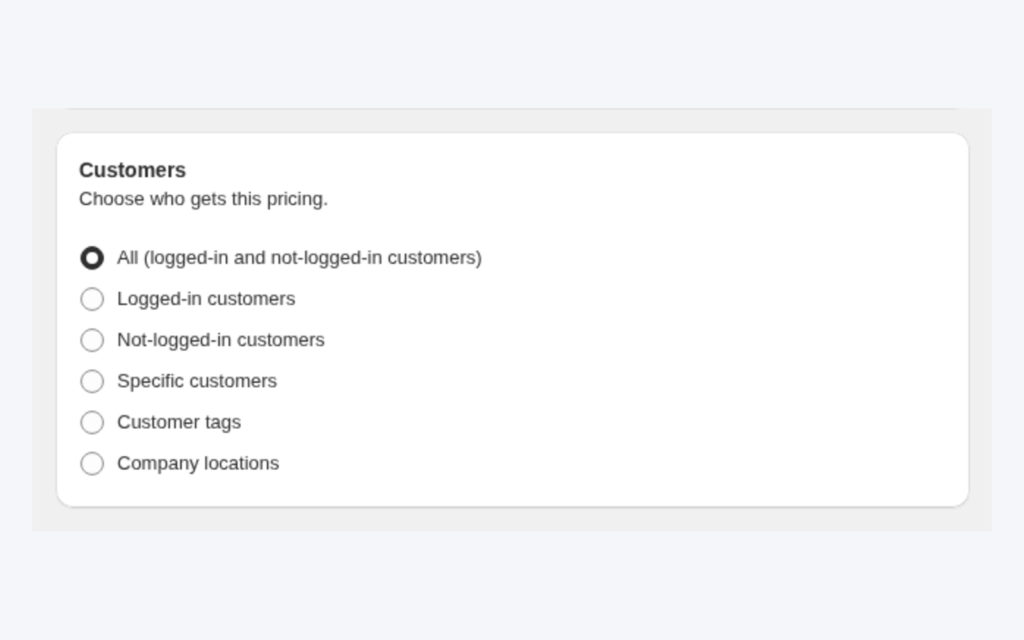
Tag your wholesale customers and create a Custom Pricing rule that targets the tag. Logged-in tagged buyers see fixed, amount-off or percent-off prices automatically, while retail visitors keep seeing your normal prices.
Explore use case: Give Tagged Wholesale Customers Special PricesEach topic has one page that owns it. Start from these.
Manage pricing rules from your own systems.
Build draft orders with the customer's prices.
Turn applicants into approved wholesale buyers with registration forms, approval and customer tags.
Show business buyers their own prices with price lists, custom pricing and quantity breaks.
Customer tagWholesale applicationWholesale price
Each feature has its own page. See also all BSS B2B Solution features.
Give wholesale buyers a private code they enter in the cart, with rules for who can use it, what it covers and how often.
Read and write B2B pricing rules, registrations and customer lookups from your ERP or PIM with one API key.
Add a handling fee by quantity or amount, and set wholesale shipping rates by customer, product, market and weight.
Build a Shopify draft order for a customer in the admin, with their wholesale prices already applied.
Show wholesale prices in the buyer's currency with a switcher. Checkout stays in your store or Markets currency.
The B2B Price tile in Shopify POS shows the wholesale discount for the cart. Staff apply or remove it from the tile.
Install BSS B2B Solution from the Shopify App Store, with a 14-day free trial on paid plans.
Also: BSS B2B Lock for pages and prices by tag and BSS B2B Quote for quotes and quick order.
Customer Created, Order Created, Order Paid, Order Fulfilled and Order Canceled. Customer Updated is not an event, so editing a customer in Shopify does not run a rule. Each rule uses exactly one event.
Not on its own. Rules run on new events. Use Apply to existing customers to apply an active rule to previous customers or orders. One bulk run can go at a time for each store.
Essential, Advanced and Platinum on live stores; Free covers development stores only. As of October 9, 2026 the App Store listing shows Essential at $29 per month. If a plan no longer includes it, saved rules stop running.
Yes, on order event rules. Total spent and order count use the customer's values when the event fires. Paid-order totals can look back 1, 7, 15, 30, 45 or 60 days.
Not by itself. Order rules can include Remove customer's tag actions, and a bulk Remove run clears the tags you select. Without one of those, a tag a buyer earned stays on the customer after they stop matching.
Yes, on Customer Created rules only, once per rule. It sets Collect tax to exempt in Shopify for new customers. A backfill does not exempt existing customers, and no tax ID is checked.
Feature behavior follows our review of the BSS B2B Solution app code on October 3, 2026 and the BSS user guides. Prices and ratings come from the App Store listing on the date shown. We make BSS B2B Solution, BSS B2B Lock and BSS B2B Quote.