Multilingual Quotes: Translate the Quote Form and Emails per Language
Updated: November 3, 2026
To make quotes multilingual on Shopify, publish your languages in Shopify, then use Settings, Languages, Request for Quote in BSS B2B Quote to translate the quote button, the quote form and the messages buyers see, and translate the Quote Proposal and Quote Confirmation email templates in the email editor. Each quote remembers the buyer’s storefront language, so the buyer gets the form and the emails in the language they were browsing.
This guide is for wholesalers who sell across borders. It explains what you can translate, what falls back when you skip a field, how the email language is chosen, and where a few limits are.
Who this is for
- You sell to buyers in more than one language, for example German, French and English.
- Your storefront is translated, but the quote form still shows in English.
- Buyers answer a proposal email in a language you did not write it in.
- You want one quote setup for all markets, not one store per language.
- You use Shopify Markets or Translate & Adapt and want quoting to follow the same languages.
Why the quote step is where language matters
A buyer who browses your catalog in German and then meets an English quote form faces a break in trust, and a request for quote is often the first time a new buyer shares details. The same is true after submission: a confirmation or a proposal in the wrong language is easy to ignore or to misread, and the proposal carries prices, payment terms and shipping that the buyer must understand to say yes.
Translation at a glance
| Text | Where you translate it | If you skip it |
|---|---|---|
| Button, notices, form text, history page | Settings, Languages, Request for Quote | Built-in text, then English |
| Form field labels and options | Quote Form tab, each field | Original text |
| Proposal and Confirmation emails | Email editor, language picker | Default email |
| New quote request email (to you) | Cannot be translated | Stays in your default language |
What you can translate
Storefront texts (Request for Quote)
In Settings, Languages, Request for Quote, texts are grouped in five tabs: Quote Button, Toast Notification, Eligibility Notification, Quote Form and Quote History. Pick a language at the top, edit the texts and check the Live Preview on the right. Only languages that are published in your store (Shopify Settings, Languages) appear in the list.
Quote form fields
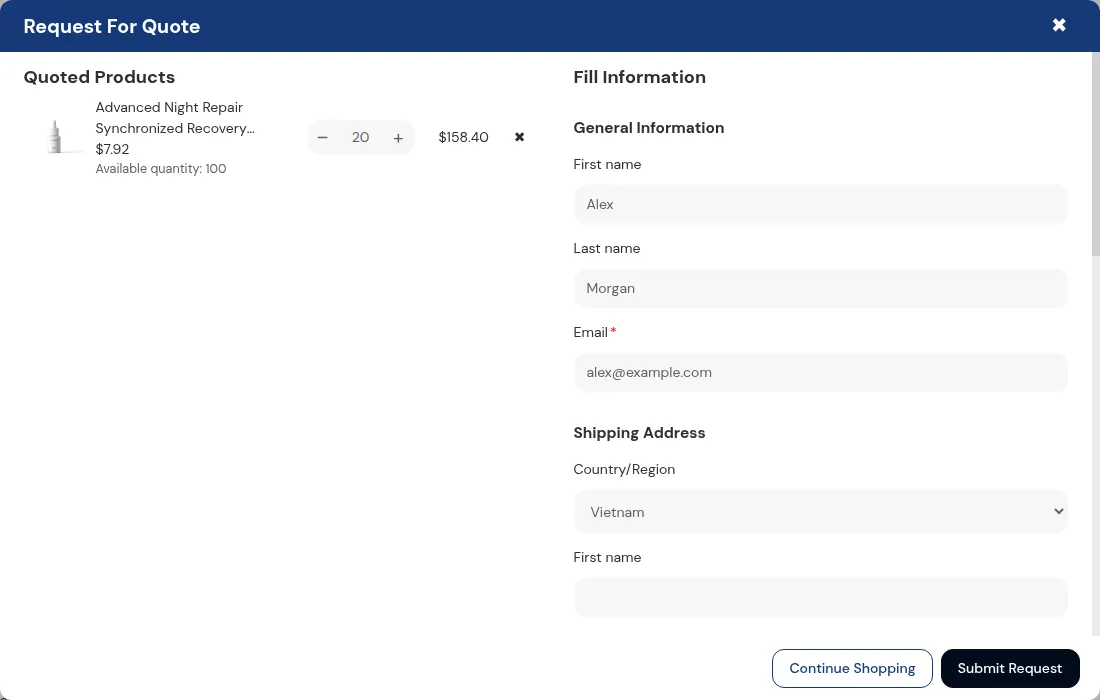
Since version 4.21 you can translate the quote form itself. For each form field, translate the label, the placeholder and the options for each language. The storefront shows the translation when the buyer picks that language and the original text when a language has no translation. The quote and the email keep the original label, so your team always reads the same field names.
Buyer emails
Each quote saves the buyer’s storefront language at the moment they submit. The Quote Proposal and Quote Confirmation emails go to the buyer in that language when you have translated the template for it. In the email editor, pick a language in the language picker at the top. It appears only when your store has two or more languages, and a badge shows Translated or Not translated. Write the subject and text, use Live Preview and Send test email, then save.
Payment terms and shipping method
Since version 4.24, payment terms and shipping method show in the language of the quote on the storefront, in the customer account and in the PDF, so the commercial part of the proposal reads in the buyer’s language too.
How to translate quotes, step by step
Step 1: Publish the languages in Shopify
Go to Shopify Settings, then Languages, and add and publish each language you sell in. The app lists only these languages.
Step 2: Translate the storefront texts
Open Settings, Languages, Request for Quote, choose a language and go through the five tabs. You do not need to fill every field at once: empty fields fall back, as described below. Translate the Quote Button and Quote Form tabs first, because buyers see them before anything else.
Step 3: Translate the field labels of your form
In the Quote Form tab, translate each field’s label, placeholder and options. Keep placeholders such as {{label}} or {{maxSize}} unchanged: the app replaces them with the real values.
Step 4: Translate the proposal and confirmation emails
Open the Quote Proposal template, choose a language and write the subject and text. Layout, colors, blocks and sender are shared with the default language and cannot change per language. Repeat for the Quote Confirmation template. To go back to the default email for a language, choose it and click Delete translation.
Step 5: Test as a buyer
Switch your storefront to the target language, submit a test quote and check the form, the confirmation and the proposal email. Use Send test email in the editor for a quick check of the email alone.
What happens when a translation is missing
The app falls back in this order: the app’s built-in text for that language, then your English translation, then the app’s default English text. A language without built-in texts falls back to English. For emails, a buyer in a language you have not translated receives the default email.
Example: a distributor selling in German and French
Example, with made-up values. A distributor in the Netherlands sells in English, German and French. In Request for Quote they select German and translate the button to “Angebot anfordern”, then French and “Demander un devis”. They translate the Quote Proposal template for German and French, and leave Italian alone. A buyer browsing in German submits a quote and receives the German confirmation. A buyer in Italy sees the app’s built-in Italian text and receives the default email, because no Italian template exists.
Limits and common mistakes
- The Growth plan saves texts for your store's primary language only. Translating into every language needs the Business plan or higher.
- Only the Quote Proposal and Quote Confirmation emails can be translated. The New quote request email you receive stays in your default language.
- Email layout, colors, blocks and sender are shared across languages.
- Emails already sent do not change when you edit a translation.
- A language that is not published in Shopify cannot be selected.
- Translate placeholders carefully. Changing or deleting
{{label}}breaks the message it belongs to. - Text typed by the buyer, such as notes, is not translated.
Setup checklist
- Publish every selling language in Shopify.
- Translate the Quote Button and Quote Form tabs for each language.
- Translate the labels, placeholders and options of your form fields.
- Translate the Quote Proposal and Quote Confirmation templates.
- Send a test email in each language.
- Submit a test quote in each language on the live storefront.
- Check payment terms and shipping method on a test proposal.
Works well with
Multilingual quoting fits best with a clear request for quote setup and an approval flow that creates draft orders. If your buyers send messages, see messages and counter-offers. Browse the Quick Order and RFQ hub for more, and the RFQ glossary entry for the basics.
Plans and requirements
BSS B2B Quote includes unlimited quotes on every plan. See the pricing page for what each plan includes, and the storefront translation guide and quote emails guide for every setting.
Frequently asked questions
Can I translate the Shopify quote form into other languages?
Yes. In BSS B2B Quote, open Settings, then Languages, then Request for Quote, and pick a language. You can translate the quote button, notifications, the quote form and the quote history page. Since version 4.21 you can also translate each form field's label, placeholder and options per language.
Which language does the buyer get in the email?
Each quote saves the buyer's storefront language when it is submitted. The Quote Proposal and Quote Confirmation emails go out in that language if you translated the template for it. If there is no translation for that language, the buyer gets the default email.
What if I only translate part of the text?
Missing texts fall back in order: the app's built-in text for that language, then your English text, then the app's default English text. A language without built-in texts falls back to English, so no label is ever empty.
Do payment terms and shipping method show in the quote language?
Yes. Since version 4.24, payment terms and shipping method show in the language of the quote on the storefront, in the customer account and in the PDF.
Do I get the New quote request email in the buyer's language?
No. The New quote request email that you receive stays in your default language. Only the Quote Proposal and Quote Confirmation emails that go to the buyer can be translated.
Which languages can I translate into?
Only languages published in your store, under Shopify Settings, Languages, appear in the language list. The Growth plan saves texts for your store's primary language only. Translating into every language needs the Business plan or higher.