
How to Set Margin Floors and Approval Rules for B2B Quotes in Shopify
Updated: November 3, 2026
To set a margin floor for B2B quotes in Shopify, enter the cost of each product in Shopify, open Settings, then Price approval in BSS B2B Quote, and fill in Minimum margin. A proposal below that margin is held under Waiting for approval until one of your named approvers says yes, and nothing is sent to the buyer while it waits. The feature is off by default.
This guide is for wholesalers and manufacturers whose quotes are priced by hand. It covers what the quote editor shows you, how to switch on the approval rule, who should be an approver, an example of a held proposal, and the limits you should know before you rely on it.
Who this is for
- Several people on your team can send proposals, and not all of them see your costs every day.
- Your quotes mix many lines, so a discount that looks small on one line can drag the whole quote under your target margin.
- Sales reps give a better price to a returning buyer without checking what you charged last time.
- You want a second pair of eyes on big or deeply discounted deals, but not on every small request.
- You already track product costs in Shopify, or you are ready to start.
Why margins slip when quotes are priced by hand
A quote is a negotiation, and negotiations push prices down one line at a time. A rep agrees to a lower price on the first product, rounds the second in the buyer’s favor and adds free shipping to close the deal. Each step is reasonable. Together they can leave you with a quote that wins the order and loses the profit.
The problem is not that your team gives discounts. It is that nobody sees the margin of the whole quote at the moment of sending. A margin floor turns that moment into a checkpoint: you decide the number in advance, and the app enforces it for every proposal.
What the quote editor shows before approval is needed
Two tools help your team price well before any approval rule applies. Both were added in BSS B2B Quote 4.16 and are shown while you edit a quote.
Cost and margin on every line
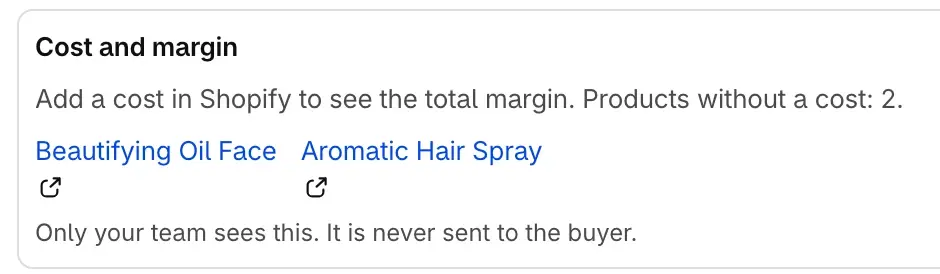
While you edit, each line shows Cost and Margin, and a Cost and margin card shows Total cost and Total margin. The cost comes from the product cost you entered in Shopify. A line without a cost shows no cost value, and the total margin appears only once every line has a cost and a price. Only your team sees this. It is never sent to the buyer.
Last quoted price
Under a line, the editor shows the last price you quoted this buyer for the same product, with the date and status of that quote. Click it to use that price as the quoted price. This keeps repeat buyers consistent and stops a rep from accidentally quoting lower than last time. For details, see the View & Edit Quote guide.
How to set margin floors and approval rules
Step 1: Enter product costs in Shopify
Margin is calculated from the cost you store in Shopify, so start there. In your Shopify admin, open each product variant and fill in Cost per item. You can update many products at once with a Shopify product CSV import. Products without a cost are not blocked, but they cannot be checked, so decide in step 3 how you want them handled.
Step 2: Check the margin on a real quote
Open an existing quote, or create one in the admin, and look at the Cost and margin card. Compare the total margin with what you expect. If the numbers look wrong, fix the cost in Shopify before you turn on any rule, because the rule trusts the same data.
Step 3: Turn on Price approval
In the app, open Settings, then Price approval. The feature is off by default, so proposals are sent as before until you turn it on. The page has four settings:
- Minimum margin: a proposal with a lower margin than this is held. Leave it empty for no margin floor.
- Maximum discount: a proposal that discounts the quote total by more than this is held. Leave it empty for no discount cap.
- Hold proposals with products that have no cost: when this is off, a product without a cost is left out of the margin check.
- Approvers: only these team members can approve or reject, and change these settings while price approval is on.
Step 4: Add your approvers
Add team members first in Settings, then Team members. An approver must choose This is me there, so the app knows which login belongs to which person. Then pick them in the Approvers field of Price approval. Keep the list short: the owner, a sales manager, or whoever owns pricing.
Step 5: Test with a quote that breaks the rule
Create a test quote with a price just below your floor and send the proposal. It should appear under Waiting for approval instead of going to the buyer. Approve it from the approver login to confirm the full path works. If you use the preview on your store, test quotes are marked as Test and left out of your stats.
Example: a proposal held for low margin
Example, with made-up numbers. Your Minimum margin is 30%. A rep builds a quote with four lines and adds a 12% discount on the total to win the deal.
| Moment | What happens |
|---|---|
| Cost and margin card | Total margin shows 24% |
| Rep sends the proposal | The app holds it, 24% is under 30% |
| Buyer | Receives nothing |
| Approver | Opens Waiting for approval, sees quote and margin |
| Approver decides | Approves, or rejects and asks the rep to reprice |
Whichever way the approver decides, a named person records the decision instead of it happening by accident.
Limits and common mistakes
- Price approval needs the Business plan or higher.
- Price approval is off by default. Until you turn it on, every proposal is sent as before.
- The margin check is only as good as your Shopify costs. A wrong or missing cost gives a wrong or skipped check.
- A product with no cost is skipped unless you turn on Hold proposals with products that have no cost.
- Nothing is sent to the buyer while a proposal waits, so tell your team how fast approvers answer, or buyers will wait.
- Only listed approvers can approve. If the only approver is on holiday, add a second person.
- The rule applies to proposals you send. It does not change prices the buyer sees in the storefront quote form.
Setup checklist
- Check that your plan is Business or higher, because Price approval needs it.
- Enter Cost per item for your top-selling products in Shopify.
- Open a quote and confirm the Cost and margin card looks right.
- Decide the lowest margin you accept, and optionally the biggest discount.
- Add approvers under Team members and have each choose This is me.
- Fill in Minimum margin (and Maximum discount) under Price approval.
- Choose how products without a cost are handled.
- Send a test proposal below the floor and approve it from the approver login.
- Tell your team what happens to a held proposal and who to ask.
Works well with
A margin floor is one part of a controlled quoting process. Pair it with approving a quote and turning it into a draft order so that approved prices flow straight into the order, and with messages and counter-offers so that price discussions stay on the quote. After a few weeks, Quote Insights shows how many quotes you win and lose. If you are new to quoting on Shopify, start with the request for quote guide and the Quick Order and RFQ hub. Useful terms: RFQ, markup and approval workflow.
Plans and requirements
BSS B2B Quote includes unlimited quotes on every plan. Price approval needs the Business plan or higher. See the pricing page for what each plan includes. Full settings are described in the Price approval documentation.
Frequently asked questions
What is a margin floor on a B2B quote?
A margin floor is the lowest margin you accept on a quote. In BSS B2B Quote you enter it as Minimum margin in Settings, Price approval. A proposal whose margin falls below that number is held until an approver says yes, and nothing reaches the buyer while it waits.
Where does the margin come from?
Margin uses the product costs you entered in Shopify, in the Cost per item field of each product variant. The quote editor shows Cost and Margin for each line and for the whole quote. A line without a cost shows no cost value, and the total margin appears once every line has a cost and a price.
Does the buyer see my cost and margin?
No. Cost and margin are shown to your team while you edit the quote. They are never sent to the buyer, and they do not appear in the proposal email or the PDF.
Can I cap discounts as well as margin?
Yes. Price approval also has a Maximum discount setting. A proposal that discounts the quote total by more than that number is held, in the same way as a low-margin proposal. Leave the field empty if you do not want a discount cap.
Who can approve a held proposal?
Only the team members you list as Approvers. Add the person under Settings, Team members first, and they must choose This is me there. While price approval is on, only approvers can approve or reject held proposals and change these settings.
What happens to products that have no cost in Shopify?
You choose. The setting Hold proposals with products that have no cost decides it. When it is off, a product without a cost is left out of the margin check. When it is on, a proposal that contains such a product is held so that someone looks at it.