Counter-offers need the New look
The buyer-facing counter-offer and the conversation on the quote page show when the New look is on. It is on by default for newly installed shops; existing shops keep their current setting.
BSS B2B Quote: negotiation and messages
Quote negotiation in BSS B2B Quote happens on the quote itself. You and the buyer exchange messages, the buyer can counter a proposal with a target price or changed quantities, you accept or counter each change, and every proposal you send is saved as a version. With the New look on, guests can answer from the email link without an account.
A first quote price is rarely the last one. A wholesale buyer asks for a better price, a smaller quantity or a different mix, and the back-and-forth usually lives in email threads that nobody can find later.
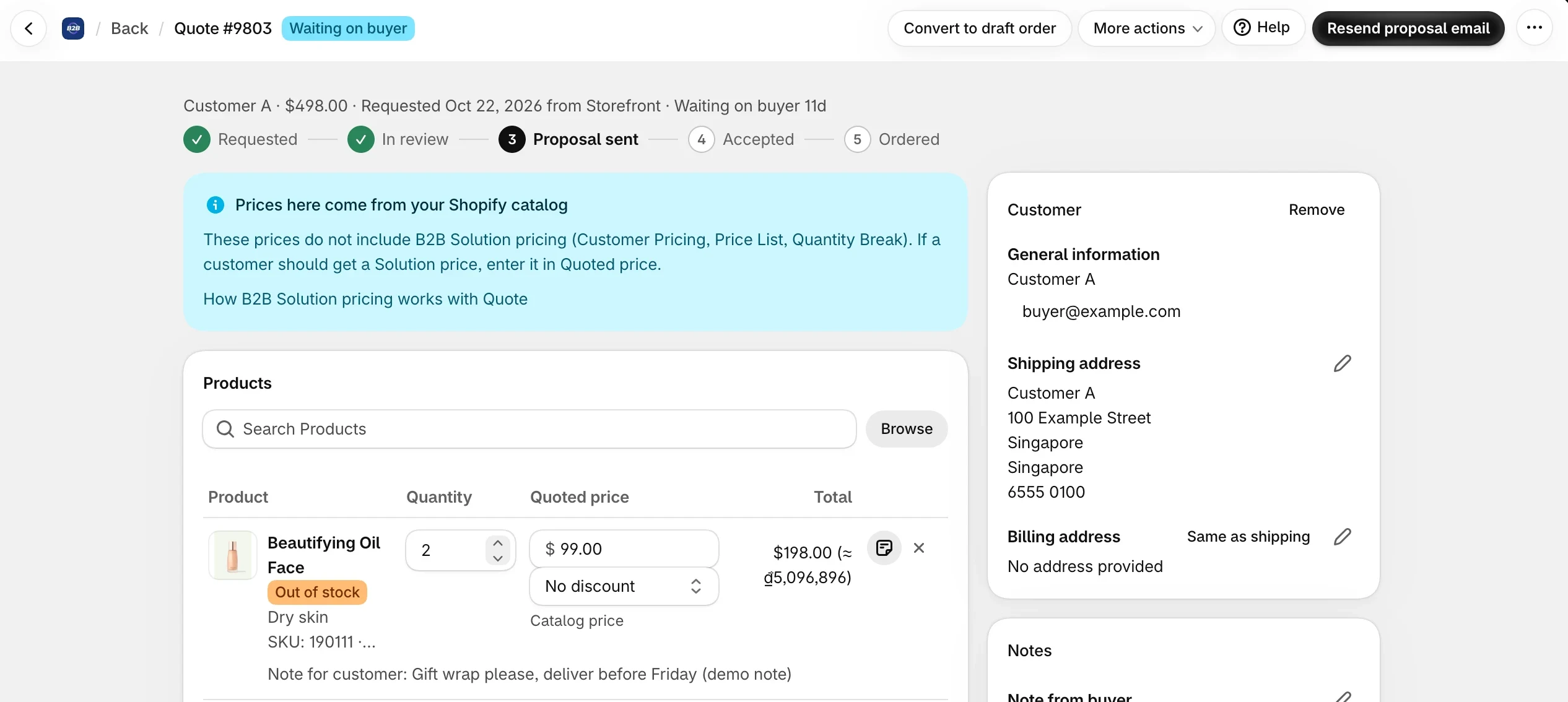
BSS B2B Quote keeps that conversation on the quote. A Conversation card on the quote detail page in the admin holds the message thread. The buyer sees the same conversation on the quote page. When the buyer counters, you see the target price and the difference on the quote, and you decide line by line.
The approved quote still ends the usual way, as a draft order. See Shopify request for quote: the complete guide for the whole flow from request to order.
The steps below follow one quote. Counter-offers need the New look for buyers to be on in Settings > Buyer account.
Edit the quoted prices, shipping and expiry, then send the proposal. The proposal is saved as a version.
The buyer opens the proposal and can approve, decline, message you, or counter. A counter can carry a target price, a changed quantity or a removed line.
On the quote you see the buyer's target price and the difference. For each changed line you accept or reject. You can also reply with your own price.
Use the Conversation card to ask a question or explain the price. Unread badges show new messages to both sides.
After you accept a counter-offer, the proposal email includes a link to the updated PDF. The earlier proposal stays in the version history.
When the buyer approves, the quote converts the way you set it up, normally to a draft order.
Try the full negotiation flow on a development store before you turn it on for buyers.
What each side can do during a negotiation, by release.
| Capability | What it does |
|---|---|
| Quote messages | Merchant and buyer exchange messages on the quote. Unread badges on both sides. Buyers can attach files |
| Price counter-offer | The buyer proposes a target price on a proposal. Needs the New look on |
| Quantity counter-offer | The buyer changes quantities or removes lines. You accept or reject each changed line |
| Proposal versions | Every proposal you send is saved, so you can look back at what the buyer received |
| Guest approve or decline | New look only. From the email link, without logging in. The link works once and asks for a confirmation |
| Guest messages and counters | New look only. Guests who open the proposal from the email link can read the quote messages and counter without an account |
| Buyer reminders | Email the buyer before the proposal expires, or when they have not opened it. Business plan or higher; both are off by default |
| Hot badge | Staff assigned to the quote are notified when a buyer opens a proposal, and the quote gets a Hot badge |
Guests. With the New look on, a buyer who is not logged in can approve or decline a proposal straight from the email link, and can counter without an account. The link works once and then closes. Approving from the link asks for a confirmation first. On the Classic look the email has no Approve or Reject link for a guest, only a Review quote link that needs a login.
Reminders. On the Business plan or higher, two optional buyer reminders: one before the proposal expires, and one when the buyer has not opened it yet. Both are off by default, so turn them on only if you want the extra emails.
Buyer edit window. Separate from counter-offers, the buyer edit window lets a signed-in buyer change a quote request before you send the proposal. It needs the Business plan or higher and is off by default.
The buyer-facing counter-offer and the conversation on the quote page show when the New look is on. It is on by default for newly installed shops; existing shops keep their current setting.
A counter-offer does not change the quote by itself. You accept or reject each changed line, or send your own price.
Buyer reminders need the Business plan or higher and are off by default. Nothing is emailed to buyers until you turn them on.
The email link a guest uses to approve or decline works once, then it is closed. It is available on the New look only; on the Classic look the guest email has no Approve or Reject button, only a Review quote link that needs a login.
Approval ends in a draft order or an order with payment pending, as you configured. The buyer pays through the Shopify invoice link.
BSS B2B Quote runs on a paid plan on a live store. On the Shopify App Store listing, as of November 5, 2026, paid plans start at $19 per month and the listing shows a 14-day free trial on paid plans. Every app feature is free on development stores, so you can build and test first. A live store below Growth can view the app but not change it.
Buyer reminders and the buyer edit window need the Business plan or higher. Messages, counter-offers and guest approval have no separate plan gate in the app, so check the plan table in the user guide before you rely on them for a specific plan.
The main use case follows a quote to a draft order. Browse all use cases.
Send a proposal email with Approve and Reject buttons, and when the buyer approves, BSS B2B Quote converts the quote into a Shopify draft order and emails the invoice, with no manual order entry.
Explore use case: Approve a Quote and Turn It Into a Draft OrderRead these next for the full detail.
Win rate, pipeline value and lost reasons.
How to choose a quote app.
Give buyers quick order pages, CSV upload, reorder and request for quote.
Request for quote (RFQ)Draft orderApproval workflowCustomer-specific pricing
Each feature has its own page. See also all BSS B2B Quote features.
Choose what buyers fill in on a quote, who gets which email and when your team is reminded of quotes that wait.
See your quote funnel, win rate, pipeline value by currency, lost reasons and response time.
A page where logged-in buyers repeat a past order from their history, edit it and get a checkout link.
A table on the product page where buyers enter a quantity for each variant and add all of them in one click.
Messages, counter-offers and proposal versions live on the quote in BSS B2B Quote.
Also: BSS B2B Lock for hidden prices until a quote and BSS B2B Quote for quotes and negotiation.
Yes, when the New look for buyers is on. The buyer proposes a target price on a proposal and, since version 4.16, can also change quantities or remove lines. You see the target price and the difference, and you accept or reject each changed line, or counter.
Yes. The Conversation card on the quote detail page holds the thread, and unread badges show new messages on both sides. Buyers see the conversation on the quote page when the New look is on, and can attach files.
Yes, when the New look is on. A guest can approve or decline a proposal from the email link, and counter without an account. The link works once and then closes, and approving asks for a confirmation. On the Classic look a guest gets only a Review quote link that needs a login.
Yes. Every proposal you send is saved as a version, so you can look back at exactly what the buyer received before a counter-offer.
It can. You can email buyers a reminder before their proposal expires, or when they have not opened it yet. Reminders need the Business plan or higher, and both are off by default.
Feature behavior follows the BSS B2B Quote release notes (versions 4.12 to 4.25, October 20 to November 1, 2026) and the BSS user guides. Prices come from the App Store listing on the date shown. We make BSS B2B Solution, BSS B2B Lock and BSS B2B Quote.