To run Silver, Gold and Platinum wholesale tiers on one Shopify store, give each retailer one tier tag, then make the same tag drive both prices and access: pricing rules in BSS B2B Solution give each tag its own prices, and BSS B2B Lock rules show each tier its own collections. Tags can be added when you approve a registration or by an Auto Tags rule, so a retailer moves up a tier without you editing prices customer by customer.
This guide is for manufacturers, brands and distributors with a retailer program that rewards bigger or more loyal accounts with better prices and wider ranges. It explains who needs tiers, the setup in six steps, an example with three tiers, and the limits to plan for, notably that Auto Tags does not remove an old tier tag on its own, and that “Platinum” here is only a tag name, not a BSS plan.
Who this is for
A tier program fits you if several of these are true:
- You sell to retailers or resellers at different levels, for example a small shop, a regional chain and a key account.
- Higher tiers should get better prices, and sometimes a wider range that lower tiers do not see.
- Running one store per tier would cost too much, and editing prices customer by customer does not scale.
- You want a customer to move up a tier by rule, for example after spending a set amount.
- Your team needs one list of who is in which tier that every rule reads.
If you only need one wholesale price for all approved buyers, start with wholesale price by customer tag.
Why this matters
A small retailer and a key account should not see the same prices or the same range, and the cost of getting it wrong runs in both directions. If a key account sees the small-retailer price, you lose margin or the relationship. If a small retailer sees the key-account price, every price on your price list is a negotiation. Per-customer price edits fix this for ten accounts and break at a hundred. Tiers also make your own pricing easier to explain to a retailer and to your sales team, because the rule for each tag is written down in one place and applies to everyone in the tier.
Tags scale because they separate the label from the rules. You tag a customer once, and any number of pricing and lock rules can read the label. Alpha Coffee, a coffee roaster, tags each customer group and assigns prices, order limits and shipping rates to the right segments, and uses access rules based on customer tags so wholesale buyers only see what applies to them. Dragonfly Sportswear builds price lists for wholesale customers on what its reviewer describes as the simple principle of tagging customers. See the Alpha Coffee and Dragonfly Sportswear case studies.
How to set it up with BSS B2B Solution and BSS B2B Lock
The setup has three parts: the tags, the prices and the visible range. Do them in that order.
Step 1: Design the tags
Choose clear tier tags such as `silver`, `gold` and `platinum`, and give each customer one main tier tag. Tags are matched as text, so keep the spelling identical in every rule and every app. Platinum in the tag name is only a label for your top tier and has nothing to do with the plans of the BSS apps.
Step 2: Tag customers automatically
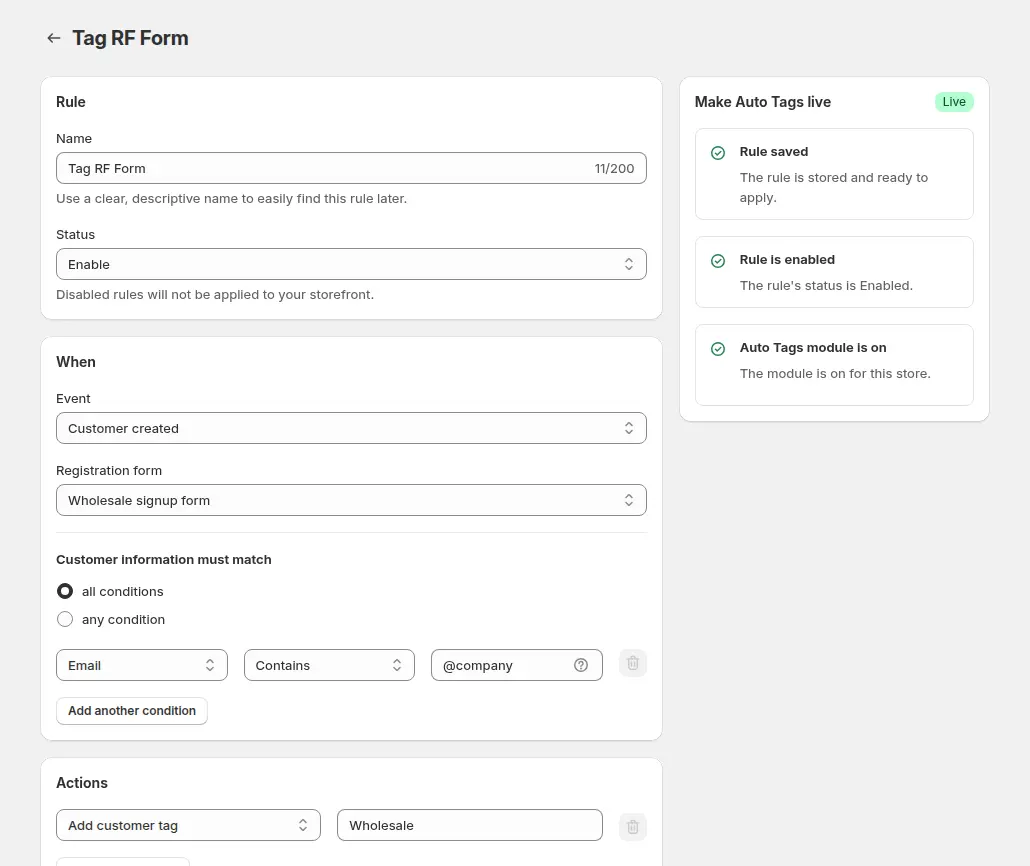
Add the tier tag when you approve a registration form, or with an Auto Tags rule that adds a tag when conditions match, for example on a paid order when the total of paid orders in the last 60 days reaches a threshold. Auto Tags runs on events, so it does not tag customers who already exist unless you use the bulk apply option, and some rules based on paid-order totals cannot be applied in bulk.
Step 3: Give each tier its prices
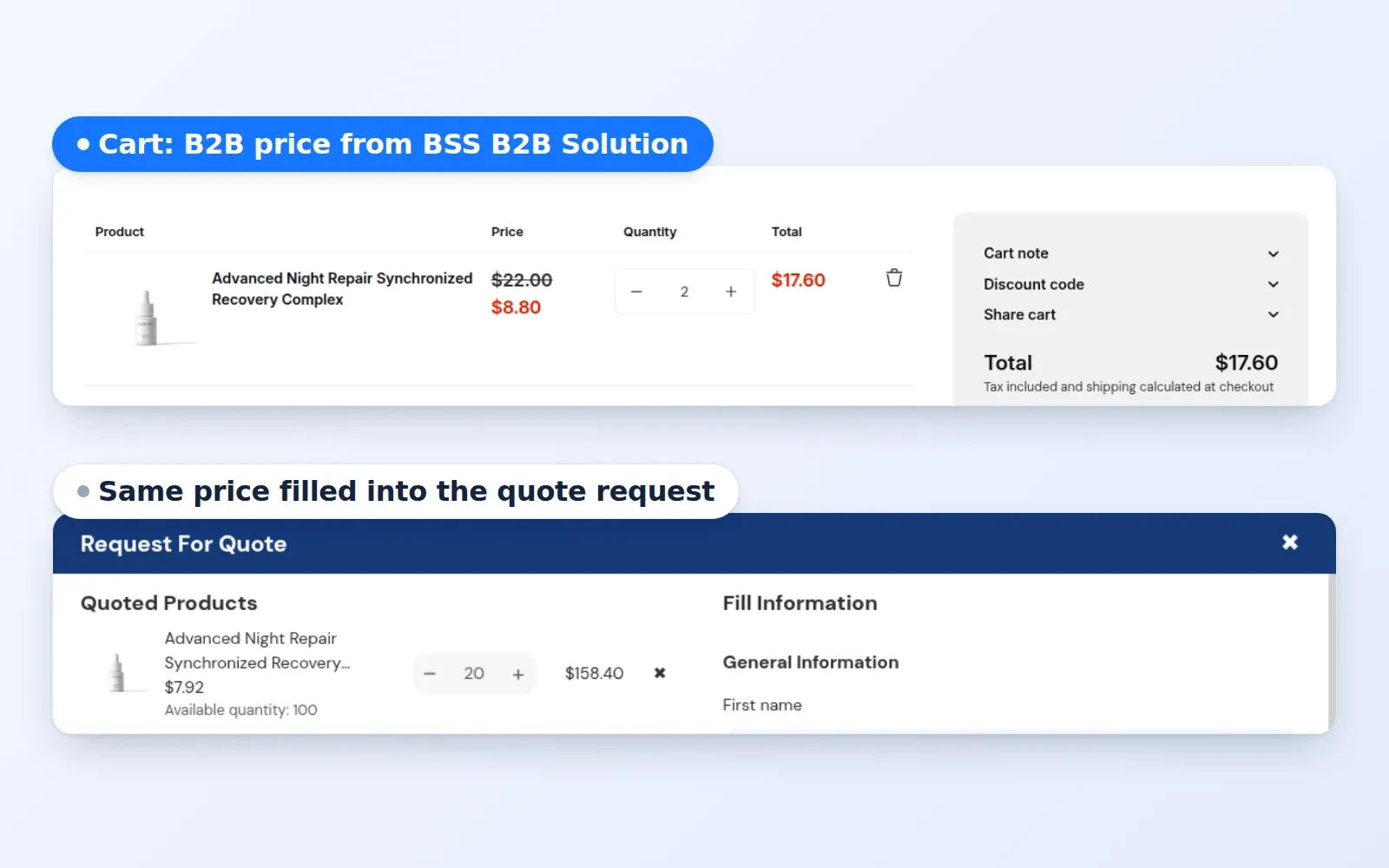
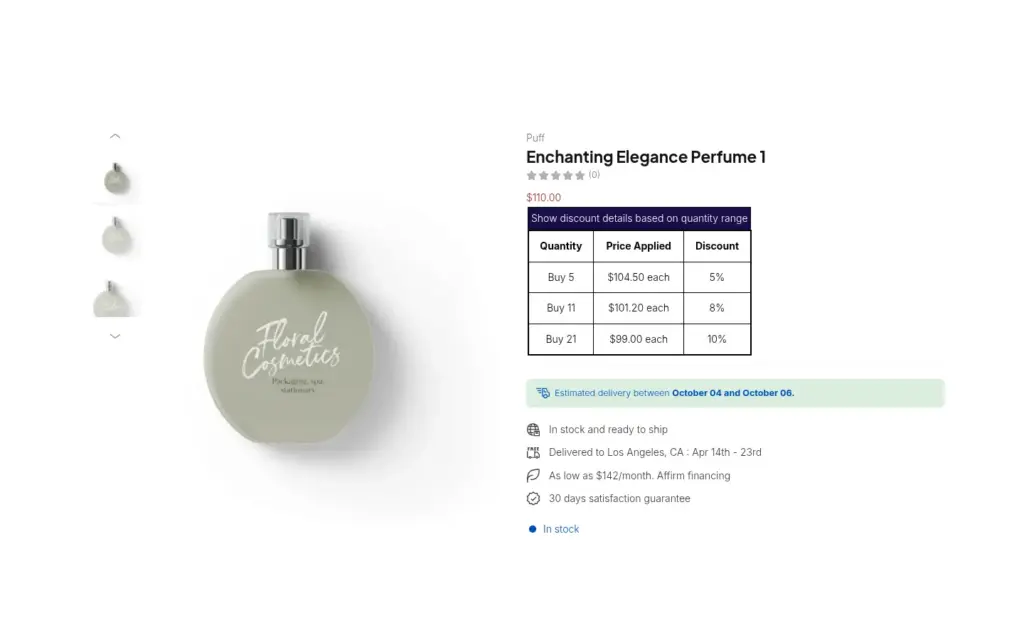
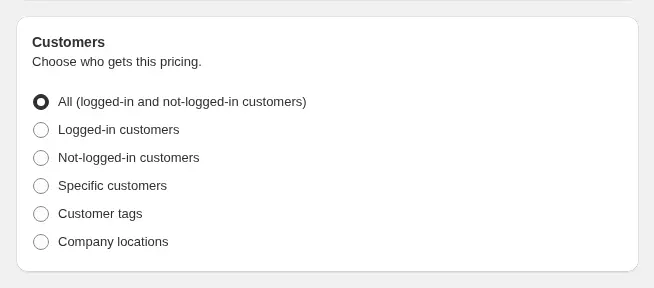
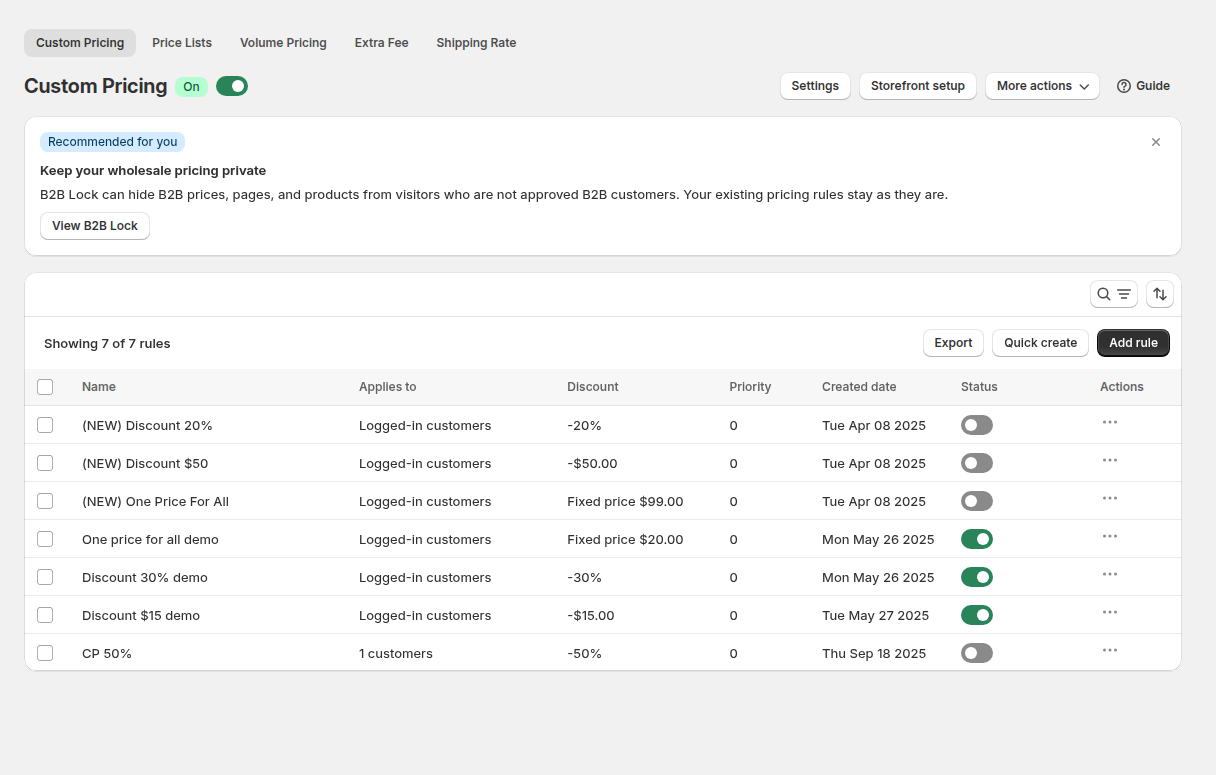
Create pricing rules in BSS B2B Solution that target each tag. The Customers card lets you choose all, logged-in, specific customers, customer tags or company locations. Use a Custom Pricing percentage for each tier, or a Price List when a tier needs exact prices per product. Use the priority, from 0 to 99 where the lowest number wins, to settle overlaps between a general rule and a tier rule.
Step 4: Give each tier its range
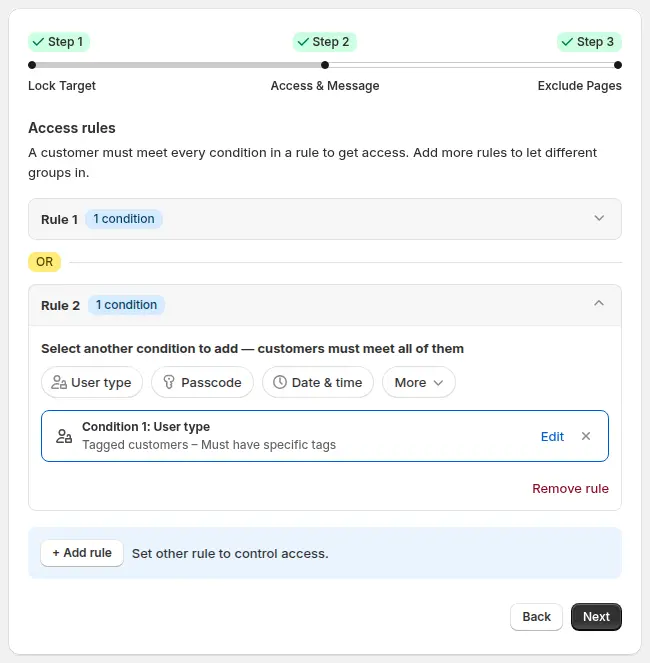
In BSS B2B Lock, create a lock on each tier’s collection with the access condition Tagged customers and the tier tag. Use separate collections per tier, because they are easier to lock and keep tidy. To let Gold see Silver products as well, add a second rule to the Silver lock that allows the gold tag. Separate rules work as OR, so a customer who matches either rule gets in.
Step 5: Test every tier
Log in as a Silver, a Gold and a Platinum customer, and as a guest. Check the prices on the product page, the collection page and the cart, and check which collections each tier can open.
Step 6: Plan the upgrades
Decide how a customer moves up. A customer who moves from Silver to Gold needs the Silver tag removed, because tags are not removed on their own when a customer stops matching a rule. Auto Tags can remove a tag through an explicit remove action on order events, and the bulk tool can remove tags in one run.
Example: a skincare brand with three retailer tiers
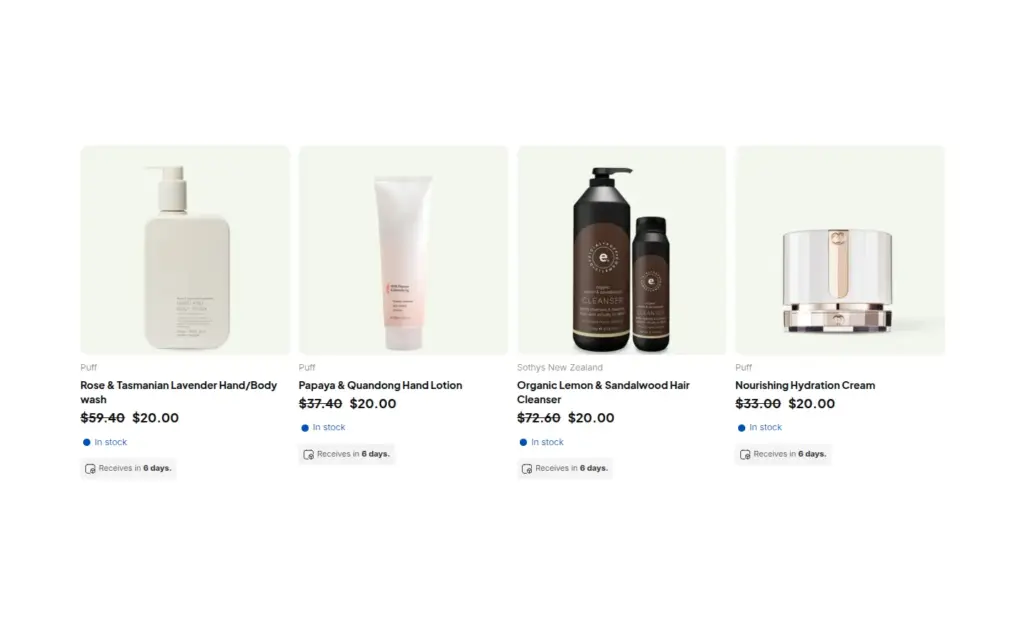
This example uses illustrative numbers, not results from a real store. A skincare brand runs three tiers. The Silver tier gets 10% off retail on the core range, Gold gets 20% off and Platinum gets 30% off. A cleanser retails at $50, so Silver pays $45, Gold $40 and Platinum $35. Silver sees the Core collection, Gold sees Core and Gold Edit, and Platinum sees everything including a Salon Exclusives collection.
A new retailer registers and is approved with the `silver` tag. When the retailer’s paid orders reach the Gold threshold in the Auto Tags rule, the rule adds `gold` and the brand removes `silver`, so the retailer now pays $40 for the cleanser and sees the Gold Edit collection. A guest sees $50 and none of the trade collections.
Works well with
Tiers reuse several other building blocks:
- Automatic tiers: auto-tag customers by spend and orders covers rules that move customers between tiers.
- Rule order: which B2B rule wins explains priority when several rules match.
- Tag-based catalogs: show products only to tagged customers and hide wholesale collections from guests cover the Lock side.
- Price lists: B2B price list per buyer group covers exact prices per product for a tier.
The wholesale pricing hub and the access control hub list the guides. Useful glossary entries are customer tag, buyer group and gated catalog. The apps are described on the BSS B2B Solution and BSS B2B Lock pages.
Limits and common mistakes
- Give each customer one main tier tag. Pricing rules treat any one matching tag as enough, so a customer with both silver and gold can match both tiers, and the priority then decides.
- Auto Tags does not untag. A customer is not untagged automatically when they stop matching, so plan demotions on purpose.
- Tags are text. `silver` and `silver-tier` are different tags. Pricing rules compare customer tags in lowercase after trimming spaces, but keep every name identical in the lock rules too.
- Existing customers need a bulk run. Auto Tags acts on events, so tag current accounts once with the bulk apply option.
- A tier setup needs several rules. It takes a pricing rule and a lock rule per tier, and the free plans limit both. Check the plan for each module on the pricing page.
- Locks are theme rules. They depend on the app embed, so confirm it is on and test every tier after a theme change.
- Platinum is a tag name. It is unrelated to the Platinum plan of BSS B2B Solution.
Setup checklist
- Write down the tier tags and who qualifies for each.
- Tag existing accounts with the right tier, using the bulk option if needed.
- Add the tier tag on approval in the registration form.
- Create a pricing rule per tier, and set priorities.
- Create a collection per tier and a lock rule for each.
- Add the second rule so higher tiers can see lower-tier collections.
- Add an Auto Tags rule for upgrades, and decide how old tags are removed.
- Test as a guest and as one customer of each tier.
Plans and requirements
Tier programs use two apps, and each has its own plans. BSS B2B Solution has a free plan with limits and paid plans for more rules and for Auto Tags, and BSS B2B Lock allows the Entire store target on its free plan while collection locks need a paid plan. See the BSS B2B pricing page for the tables and trials. The Silver and Gold segmentation guide shows the lock pattern, and the Auto Tags guide covers the rules. Install BSS B2B Solution from the Shopify App Store and start with the tier tags.