
How to Uninstall a Shopify B2B or Lock App Safely: Remove Leftover Theme Code

Some Shopify apps leave code in your theme after you uninstall them. To remove a B2B or lock app safely, duplicate your theme, disable the app’s rules, turn off its app embed, search the theme for leftover code, then uninstall and test as a guest and a buyer.
BSS B2B Lock has a Clean up B2B Lock code button and a Theme Cleanup page that disable rules before you remove the app. Free plan locks the entire store; paid plans add pages, prices and more.
See BSS B2B Lock Lock app pageLast updated October 4, 2026. Shopify facts come from the Help Center pages linked in the text, read on that date. BSS B2B Solutions makes BSS B2B Lock and BSS B2B Solution, the apps in the screenshots. The steps work for any app that adds code to a theme; we name BSS buttons only where we have seen them. This guide is part of our complete guide to Shopify B2B and the access control hub.
Key takeaways
- Shopify says: “Some apps add code to your online store theme that isn’t automatically removed when you uninstall the app.” Check the app’s listing or contact the developer (Shopify Help Center).
- BSS B2B Lock writes Liquid snippets into your theme and edits
layout/theme.liquidand some product, price and form theme files, so its rules live in your theme code. - Disable the rules first, then turn off the app embed, then uninstall. Uninstalling with rules still on can leave pages or prices locked for shoppers.
- Test as a guest and as a buyer after uninstall. Checkout, payment and shipping rules are not theme code, so test checkout too.
Why can an uninstalled app leave code in your theme?
Apps reach a theme in two ways. Theme app extensions give you app blocks and app embeds that you add or switch off in the theme editor (Shopify: apps in the theme editor). Other apps “inject code directly into your theme’s code,” and Shopify says some of that code is not removed when the app is uninstalled (Shopify: uninstalling apps). Shopify’s pages we read do not say what happens to blocks and embeds after an uninstall, so check them in the theme editor.
BSS B2B Lock does both. In our October 2026 code review, the app writes Liquid snippets into the merchant theme and edits layout/theme.liquid and some product, price and form theme files. Rules are compiled into that Liquid, and the B2B Login By BSS app embed is a second layer (the install guide confirms the code lives in the theme). If that code stays and its rules stay on, a hide price or page lock can stay active without the app.
| Item | What to expect | How to check |
|---|---|---|
| Theme snippets and includes | Shopify says some app code is not removed automatically | Search the theme code (steps below) |
| App embeds and app blocks | Shopify’s pages we read are silent on this | Open the theme editor and look at App embeds and at your templates |
| Lock rules in the app | Rules that stay enabled can keep running through leftover code | Disable all rules before you uninstall |
| Checkout, payment and shipping rules | These are Shopify Functions, not theme code. The Lock user guide says Shopify deletes them when the app is uninstalled | Test checkout as a guest after the uninstall |
| Your saved rule settings | Shopify warns that some apps store data you cannot recover after uninstalling | Export or screenshot the rules first |
| Customer tags, order tags, notes and draft orders | These are ordinary Shopify records the app wrote. We have not verified that an uninstall removes them | Review them in your admin and clean up by hand if you want |
How to uninstall a B2B or lock app safely, step by step
Step 1: Duplicate your theme and save your settings
Shopify recommends duplicating a theme before you edit its code, so you can discard your changes and start again (Shopify: duplicate a theme). In Online Store > Themes, open the menu next to the live theme and choose Duplicate. Export the app’s data or screenshot its rule list, because you may not be able to recover it later, and read the app’s own uninstall notes (Shopify advises checking the listing or contacting the developer). For BSS B2B Lock that is the Theme Cleanup guide.
Step 2: Disable the rules and run the clean-up in the app
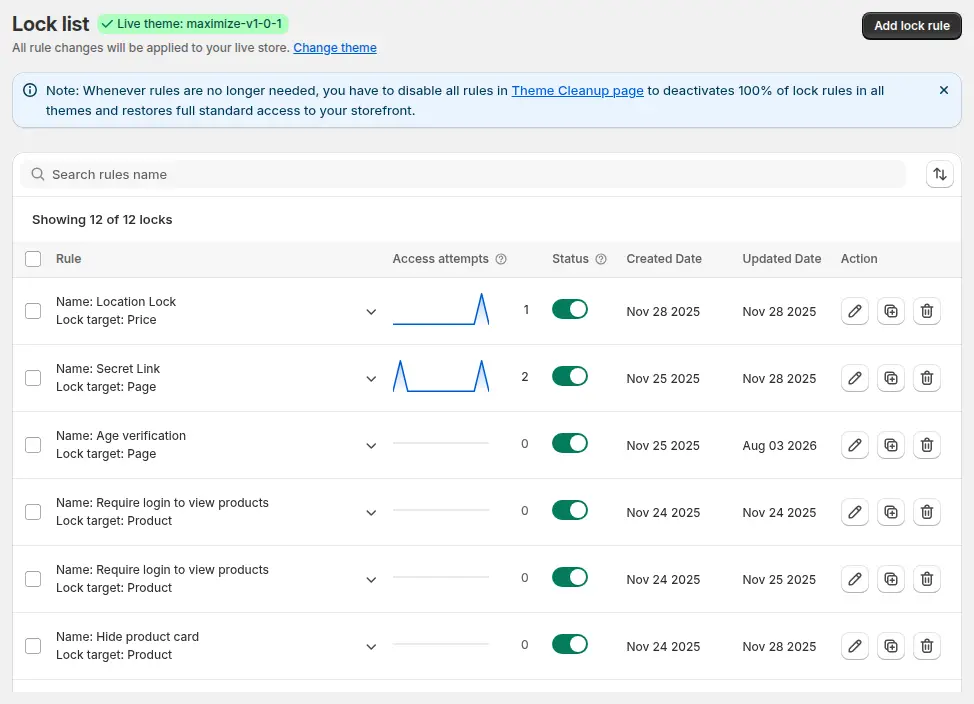
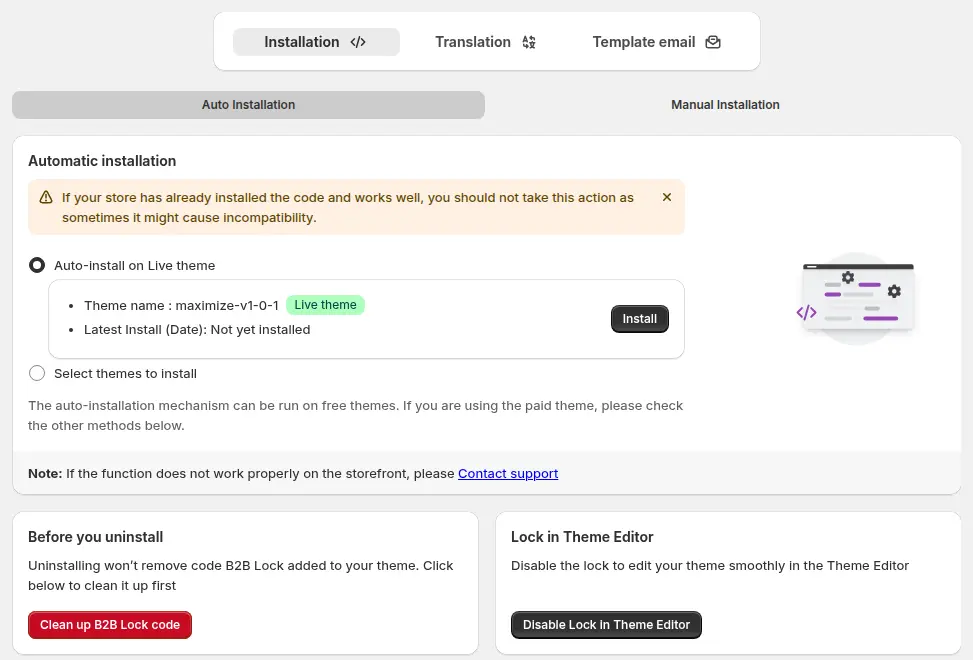
In BSS B2B Lock, the Lock list shows a note telling you that, whenever rules are no longer needed, you have to disable all rules on the Theme Cleanup page. The Settings page, under Installation, has a Before you uninstall card: “Uninstalling won’t remove code B2B Lock added to your theme. Click below to clean it up first”, with a Clean up B2B Lock code button. Run it. The user guide describes what the Theme Cleanup page does: it switches every rule to Disabled, rewrites the app’s snippet on the target theme so that no locks trigger, and removes the app’s include lines from other themes. It keeps your saved rule definitions in the app, and it does not uninstall the app or switch off the app embed.
Step 3: Turn off the app embed
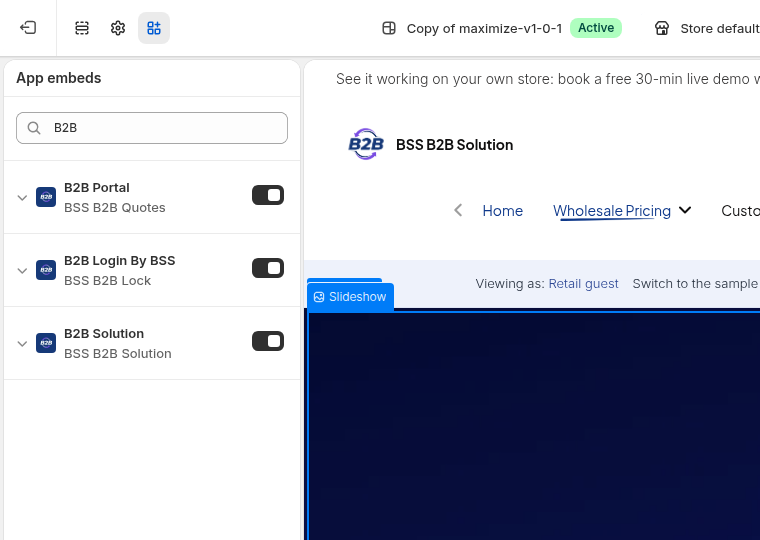
Open Online Store > Themes > Customize > App embeds and switch off the embeds of the app you are removing. Shopify says app embeds can be activated, deactivated and customized in the theme editor (Shopify: apps in the theme editor). BSS apps show their embeds here by name, for example B2B Login By BSS for Lock and B2B Solution. Also check the cart and product templates for blocks you added by hand, such as a Tax Exempt or Pay later block from BSS B2B Solution.
Step 4: Search the theme code for leftovers
Open Online Store > Themes, choose Edit code on the duplicate, and click the search icon in the sidebar to search all files (Shopify: edit theme code). Then follow the next section. Shopify warns that “deleting a theme file might break your theme,” so remove only what you recognize.
Step 5: Uninstall the app
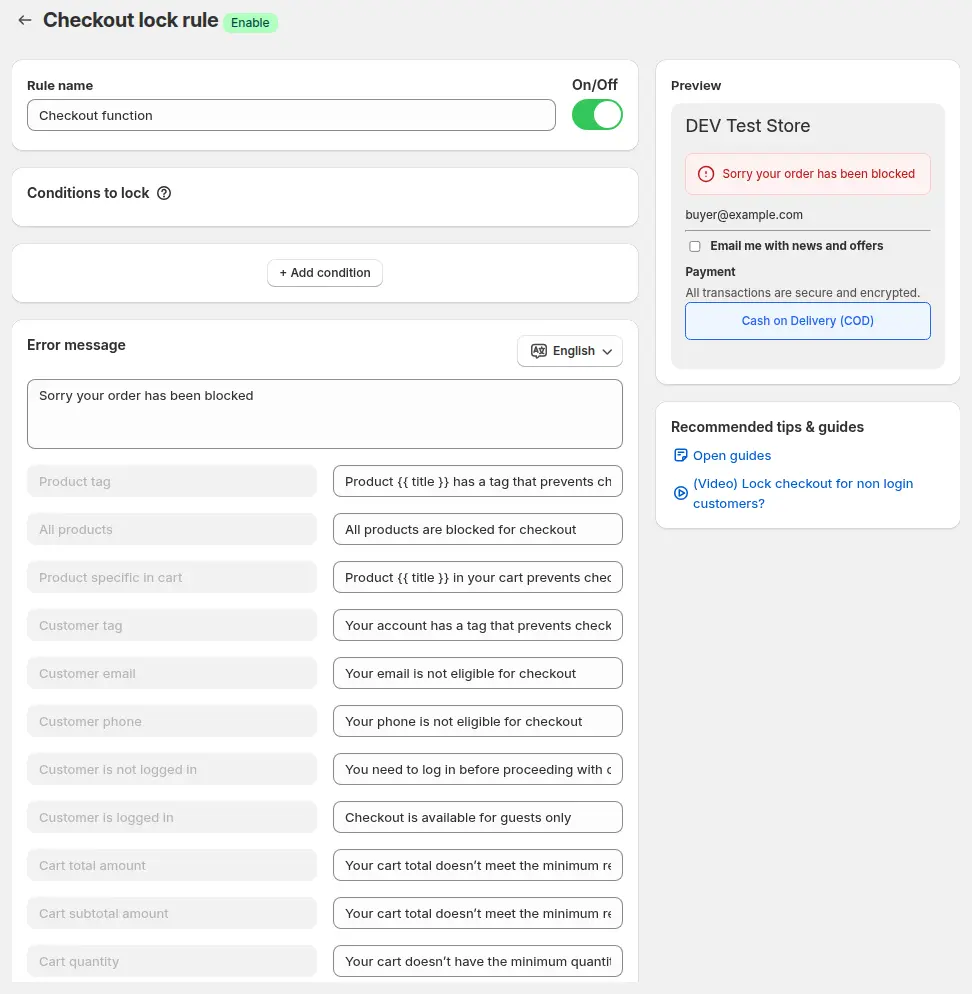
Open your installed apps in the Shopify admin and uninstall the app after you check billing. For Lock’s checkout, payment and shipping rules, the user guide says Shopify deletes the Functions when the app is removed.
Step 6: Test as a guest and as a buyer
In a private window, open the store as a guest and as a signed-in buyer, and check that pages, products and prices behave as you want with no placeholder message. On a product page, view the page source: per our code review, a hidden price in structured data is replaced by the text Hide Price By BSS, so if you still see it after uninstalling, some hide-price code is probably still in the theme; contact BSS support to confirm before you edit theme files. Then place a test order to confirm checkout, payment and shipping options. If everything is right, repeat the same edits on the live theme. Publishing the duplicate instead replaces the live theme, so do that only if nothing changed on the live theme after you copied it.
How do you find leftover app code in a Shopify theme?
We do not list file names, because they depend on the app, its version and your theme. Use searches that work for any app:
| Where | What to search or compare | What to do with a hit |
|---|---|---|
| All files | The app’s name or its brand text, for example “BSS” for BSS apps, with Match case off | Open each hit. Remove it only if it clearly belongs to the app, and note the file first |
| layout/theme.liquid | Render or include lines near the top and bottom that are not part of your theme | Compare with a theme copy from before you installed the app |
| Snippets folder | Files you do not recognize | Open them to see which app they belong to. Leave them if unsure |
| Product, price and form files | Wrapper code around price output and form fields | Compare with the original theme version before you remove anything |
The BSS B2B Lock user guide says a small snippet shell may remain after Theme Cleanup so rules can be re-enabled later, and that BSS support can remove every remaining file reference. Contact support through the in-app chat or the address in the Theme Cleanup guide.
Safe uninstall checklist
- You duplicated the live theme.
- All rules are disabled and the app’s clean-up step has run.
- App embeds are off, and app blocks you added are removed from templates.
- You searched the duplicate for leftover code and compared it with a copy from before the install.
- You tested as a guest, as a buyer and at checkout.
Uninstalling a Shopify B2B or lock app: frequently asked questions
Does uninstalling a Shopify app remove its code from my theme?
Not always. Shopify says some apps add code to your theme that is not removed automatically when you uninstall. Check the app’s listing or contact its developer, and search your theme for leftovers.
What should I do before I uninstall BSS B2B Lock?
Disable all rules with the Theme Cleanup page or the Clean up B2B Lock code button in Settings, Installation, turn off the app embed, then uninstall. Duplicate your theme first.
Will my storefront stay locked if I uninstall with rules still on?
It can. The Lock user guide says injected theme code may keep running without the app to manage it, so pages or prices can stay locked. Disable the rules first and test as a guest afterwards.
Does Lock’s checkout lock stay after uninstall?
The Lock user guide says Shopify deletes the Functions when the app is uninstalled. Checkout, payment and shipping rules are not theme code. Test checkout as a guest after you uninstall.
How do I remove leftover code from my theme?
Duplicate the theme, open Edit code, search all files for the app’s name or brand text, compare layout/theme.liquid with a copy from before the install, and remove only code you recognize. Ask the app’s support if you are unsure.
Do customer tags and orders disappear when I uninstall BSS B2B Solution?
We have not verified that an uninstall removes them. Tags, notes and draft orders the app wrote are ordinary Shopify records, so review them in your admin.
Next steps
If you are replacing a lock with another approach, read hide wholesale prices from guest visitors, lock the entire store for approved buyers and hide prices from Google search results, or the full guide to hiding prices on Shopify. Terms: passcode and secret link.
BSS B2B Solution adds custom pricing, registration forms with approval, Net Terms and Tax Exempt. Try it free on a development store.
Install BSS B2B Solution See the appSources
Shopify pages read on October 4, 2026. BSS facts come from the BSS B2B Lock user guide at docs.bss-b2b.solutions, screenshots of the app, and our October 2026 review of the app’s behavior.
- Shopify Help Center: Uninstalling apps
- Shopify Help Center: Apps in the theme editor
- Shopify Help Center: Edit theme code
- Shopify Help Center: Duplicate a theme
- BSS B2B Lock user guide: Theme Cleanup
- BSS B2B Lock user guide: Install and open BSS B2B Lock
You may also like

Shopify Markets and B2B Pricing: Wholesale Prices Per Country and Currency
Shopify Markets control currency, languages and taxes by audience, and B2B catalogs can be assigned per B2B market, with a cap on […]

How to Collect and Validate a Tax ID (EIN, ABN, GST, UK VAT) on Shopify
Shopify has a Tax ID field on company locations, but the pages we read describe no check against a tax register. BSS […]

How to Show Retail Price but Hide Wholesale Price From Guests on Shopify
To show retail prices but hide wholesale prices from guests, keep the retail price as the store price and attach wholesale prices […]