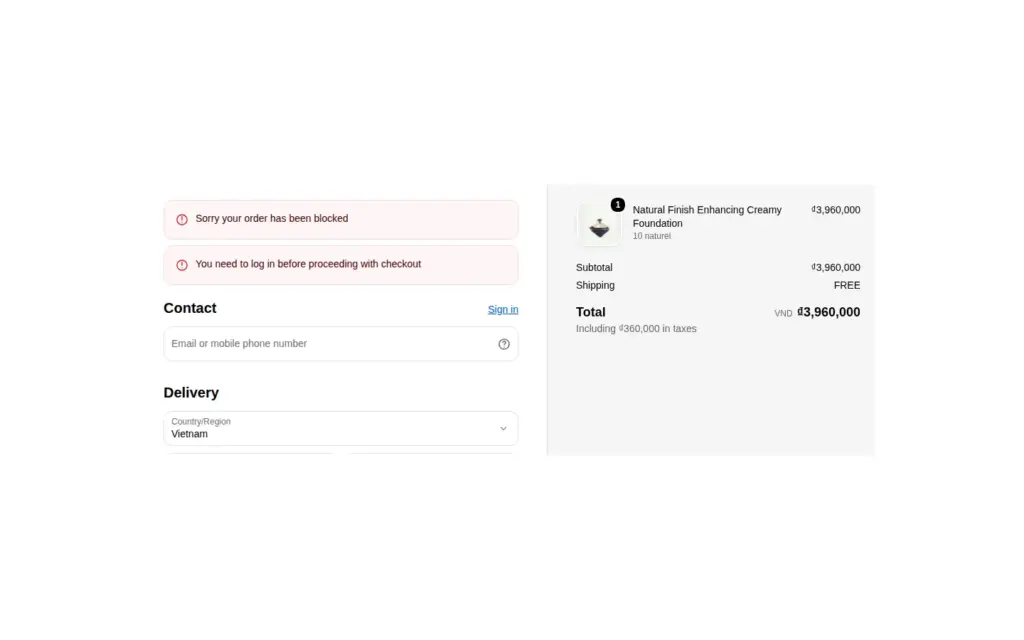
To block checkout for unapproved buyers on Shopify Plus, add a checkout lock in BSS B2B Lock: choose a condition such as “Customer logged in” with the operator “Not Equal” to catch guests, or “Customer tag” for untagged accounts, and write the message they see. When a buyer who matches the condition reaches the checkout step, the order is held back and your message explains what to do.
This page is for wholesalers on Shopify Plus who already hide prices and Add to cart from guests and want one more layer at the point of purchase. It explains the conditions that are live, how to build a “logged-in only” or “approved only” rule, and why the checkout lock should sit on top of your storefront locks and not replace them.
Who this is for
A checkout lock suits you if:
- Your store is on Shopify Plus, uses the standard Shopify checkout and has a paid BSS B2B Lock plan.
- You sell to approved trade buyers only, and you want to catch anyone who reaches checkout without being one.
- You already lock prices, Add to cart and pages, and you want protection against unusual routes, such as an old cart link.
- You want to pause orders from accounts with a tag such as suspended or pending-approval.
- You want a clear message at checkout that tells the buyer what to do next.
- Your team has been cancelling orders from buyers who should never have been able to place one.
Why this matters
Hiding prices and Add to cart keeps most unapproved visitors out, but buyers can arrive at checkout by other routes: a saved link, an older cart or a product you meant only for approved accounts. Each of those paths bypasses the storefront rules, because the rules change what the theme shows, not what the checkout accepts. A checkout lock adds a check at the last step, where the order is about to be placed.
The cost of a mistaken order is higher than it looks. Someone has to cancel the order, refund the payment, explain why to a buyer who did nothing wrong and sometimes re-ship stock. A restricted product sold at the wrong price, or to someone who is not licensed to buy it, can also cause trouble for your own business. A clear message at checkout is faster and kinder than a cancellation email.
DermaplanePro, a professional skincare brand selling to certified partners, locked checkout by customer tag so that only approved buyers could reach it, and Beeswax Works Wholesale limited prices, add-to-cart actions and checkout to approved accounts. Read the DermaplanePro and Beeswax Works Wholesale case studies.
Imagine a wholesaler of professional cleaning chemicals on Shopify Plus. Prices and buy buttons are hidden from guests, and approved businesses carry the tag approved-trade. The wholesaler also sells a handful of regulated products to licensed customers only. If a visitor with a saved link gets to checkout with one of those products, the rule stops the order and tells them to log in or contact the sales team.
What Shopify covers natively, and where an app helps
Shopify’s built-in B2B features, listed on the Help Center’s B2B features by plan page, cover companies, catalogs, payment terms and quantity rules. Stopping a checkout for visitors who are not approved is not on that list, and the pillar guide Shopify B2B makes the same point about guest access.
BSS B2B Lock adds a checkout lock built on a Shopify Function that validates the cart at the checkout step. It is available for Shopify Plus stores on a paid BSS B2B Lock plan. The access control hub explains how it sits on top of price, page and collection locks.
Which lock covers which route?
Locks work at different points of the buyer’s journey, so it helps to see what each one covers.
| Lock | Where it acts | What it covers |
|---|---|---|
| Price and add to cart | Product, collection and search pages | What guests see and can click |
| Page, product and collection locks | The storefront pages themselves | Whether guests can view the content |
| Checkout lock | The checkout step | Whether a buyer who reached checkout can complete the order |
| Hide payment and shipping methods | The checkout step | Which methods a buyer is offered |
The checkout lock is the only one in the list that acts when the buyer is about to place the order, which is why it suits saved links and carts that were built before a rule existed.
Rule patterns that work
Start with one rule and add others only when you need them. Four patterns cover most wholesale stores:
- Logged-in only. Customer logged in, Not Equal. Catches guests.
- Approved tag only. A rule on the tag your approval flow applies, so that only tagged accounts get through. Check the editor for the operators available on the Customer tag condition before you build it.
- Hold an account. Customer tag with a tag such as suspended, for accounts you need to pause.
- Minimum cart. Cart subtotal or cart total below a value, with a message that says what is missing. Use Order Limits in BSS B2B Solution when you want the check at the cart instead.
How to set it up with BSS B2B Lock
1. Confirm the requirements
Check that your store is on Shopify Plus, uses the standard Shopify checkout (headless or custom checkouts are not supported) and has a paid BSS B2B Lock plan or an active trial. The Free plan covers only the Entire store lock.
2. Add a checkout lock rule
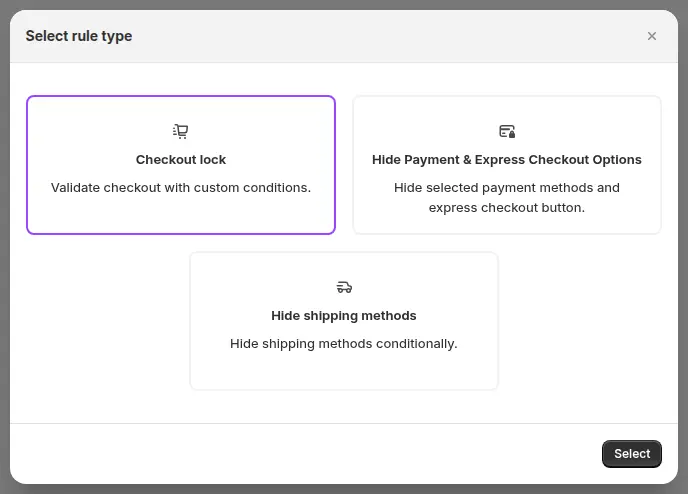
In the BSS B2B Lock app, open Checkout locks in the left navigation and click Add rule. In the Select rule type window choose Checkout lock, then click Select. The other two rule types in this window, Hide Payment and Express Checkout Options and Hide shipping methods, do different jobs.
3. Choose the condition
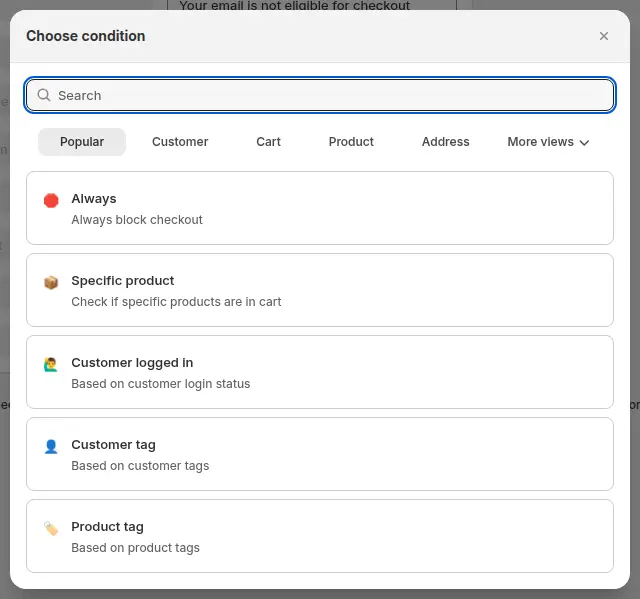
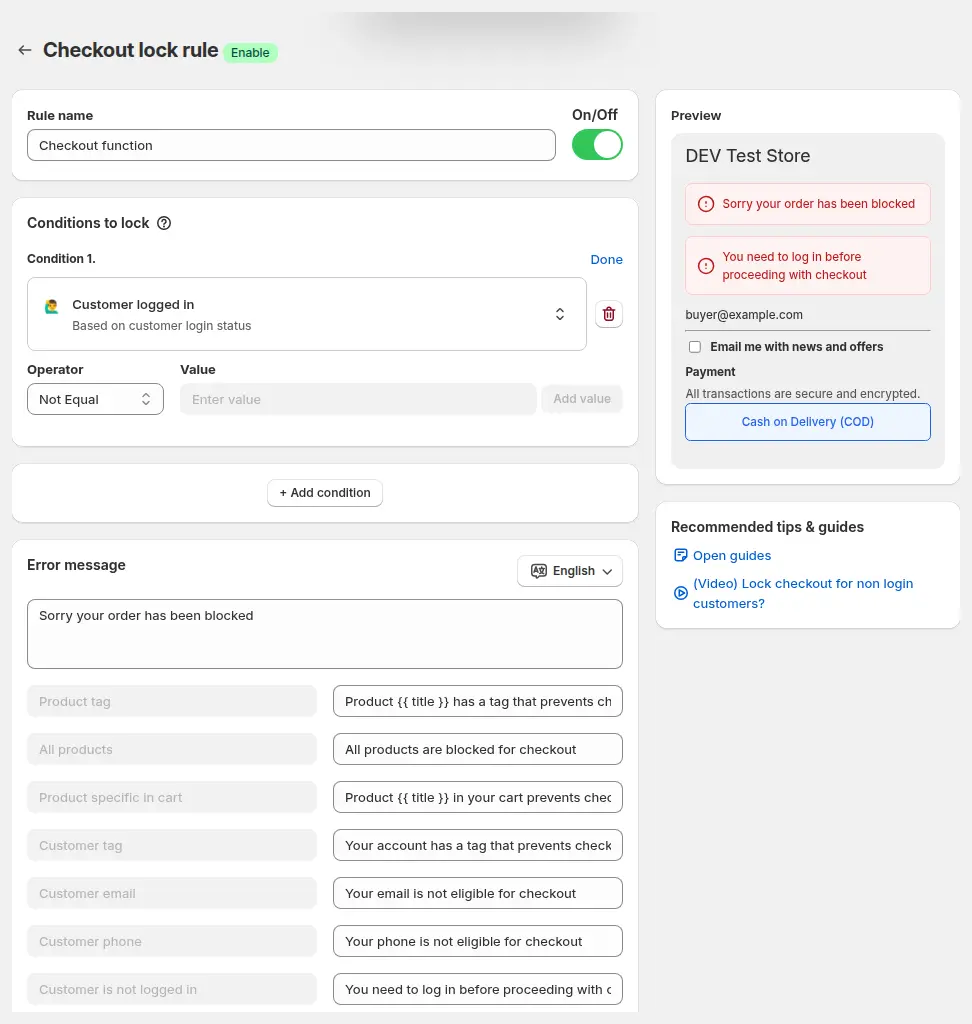
Click Add condition. The popular conditions are Always, Specific product, Customer logged in, Customer tag and Product tag; the full list includes customer email, customer phone, product quantity, cart subtotal, cart total and the number of cart lines. To block guests, choose Customer logged in and set the operator to Not Equal. To block a segment, choose Customer tag and enter the tag.
4. Combine conditions and write the message
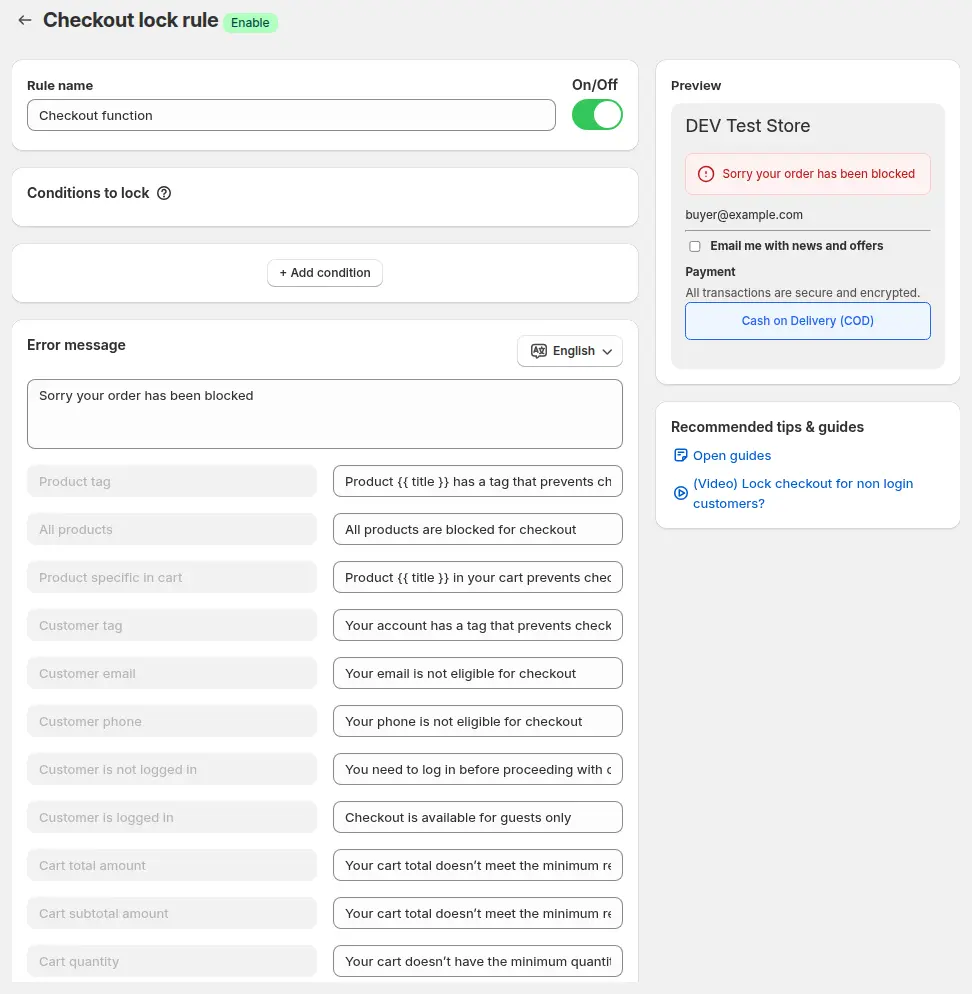
You can combine conditions with All or Any. Each condition has a default message, and you write a main error message that explains what to do, for example “Please log in with your trade account to complete your purchase.” Write it as an action, not as a notice. Use Translation to add the message in other languages.
5. Check the live preview and save
The preview on the right of the editor updates as you type. When it looks right, save the rule and make sure the On/Off switch is on.
6. Test as a guest and as an approved buyer
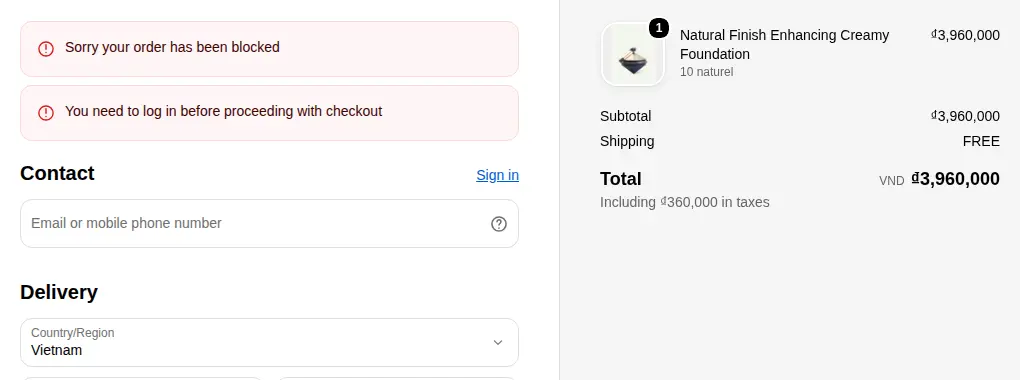
Open your store in a private window, add a product and go to checkout as a guest. The message should appear. Then sign in as an approved customer and confirm that checkout works normally. Test every kind of buyer who should and should not be blocked.
Example
Example for illustration only, not a customer result. The cleaning-chemicals wholesaler creates two checkout rules. Rule 1 uses Customer logged in, Not Equal, with the message “Please log in with your trade account to place an order.” Rule 2 uses Customer tag with the tag suspended and the message “Your account is on hold. Please contact your sales rep to resume ordering.” A visitor with an old cart link reaches checkout as a guest and sees the Rule 1 message. A buyer whose account was suspended after overdue invoices sees the Rule 2 message. An approved buyer without that tag checks out as usual. Both rules sit on top of the price and Add to cart lock that the wholesaler already runs, so most unapproved visitors never get that far.
Works well with
- Hide add to cart and cart for guests for the storefront layer that sits in front of this rule.
- Lock entire store for approved B2B buyers when you want everything private, not only checkout.
- Request access button for locked pages so unapproved buyers can ask to be approved.
- Wholesale registration form with approval in BSS B2B Solution, which adds the tag that the checkout rule reads.
Glossary: customer tag, hide price and gated catalog.
Limits and common mistakes
- The checkout lock is not a guarantee. It runs as a Shopify Function, and the rule is set up so that if the Function fails or times out, checkout is not blocked. Keep your storefront locks in place and review unexpected orders.
- It acts at the checkout step. Buyers can still browse and fill a cart. If you do not want prices or buy buttons visible, combine it with a Price and add to cart lock.
- Use only the live conditions. Customer order count, product vendor, shipping country and province, market, date range, time range and discount code are listed as coming soon. Do not rely on a condition that the editor marks as not yet available.
- Cart quantity counts lines. The cart quantity condition counts cart lines, not units. Test it with a real cart.
- Shopify limits active validations. A store can have up to 25 active checkout validation customizations, which includes other apps.
- Plus only, standard checkout only. Headless or custom checkouts are not supported.
Setup checklist
- Confirm Shopify Plus, the standard checkout and a paid BSS B2B Lock plan.
- Decide who should be blocked: guests, untagged customers, tagged customers or a product combination.
- Add a checkout lock rule with one simple condition first.
- Write an action-oriented message and add translations.
- Check the preview, save and switch the rule on.
- Test as a guest, as a blocked segment and as an approved buyer.
- Keep price, Add to cart and page locks in place on the storefront.
- Read the checkout lock guide for every setting.
Plans and requirements
The checkout lock is for Shopify Plus stores and needs a paid BSS B2B Lock plan or an active trial; the Free plan does not include it. BSS B2B Lock paid plans start at $9.99 per month, with the price stepping up with your store’s Shopify plan, and include a 7-day trial. See the pricing page. To tag approved buyers and manage their prices, add BSS B2B Solution.