To hide the Add to cart button from guests on Shopify, create a lock with the Price and add to cart target in BSS B2B Lock, choose whether to disable or fully hide the button, and allow signed-in customers or a customer tag. Guests keep browsing the catalog but see a “Login to View Price” message instead of a price and a working buy button.
This page is for suppliers with B2B-only products, negotiated prices or mixed retail and wholesale audiences. It explains the three button options, how to choose who sees prices, how to keep prices out of Google snippets, and what these rules do not cover: they change what your theme shows, not what Shopify checkout accepts.
Who this is for
Hiding Add to cart and prices suits you if:
- Your products are B2B-only and the public should not be able to buy them.
- Your prices are negotiated or tiered, and publishing them would undercut your channel partners.
- You want guests to browse and discover the range, so you cannot lock the entire store.
- You sell to retail and wholesale on one storefront and need different views for each.
- You want to tell guests exactly how to get access, by logging in or applying.
- You are concerned about prices appearing in Google search snippets.
Why this matters
Public prices leak negotiated rates, but a hidden catalog hides you from new buyers. Hiding the whole store protects your pricing, yet it also means a new retailer who finds you in search sees nothing and leaves. A rule that hides only the price and the buy button keeps the products, descriptions and images open for discovery while the commercial terms wait behind a login.
The cost of leaving the button live is practical as well as commercial. If a guest can add a B2B-only product to the cart, someone on your team has to cancel the order, explain why and refund. And a price that is visible to everyone becomes the number retailers quote back to you in negotiations.
Lift-Spares, a Swedish supplier of elevator and escalator parts, serves maintenance companies that order under negotiated terms. It disabled Add to cart and hid prices for B2B-only products so that trade pricing stayed private while the catalog remained open for discovery. Read the Lift-Spares case study.
Picture an industrial lubricants supplier with a public catalog of oils and greases. Contract customers have negotiated prices, and some products are sold only to approved distributors. The supplier wants a maintenance manager who finds a data sheet through search to see the product, understand what it does and be told clearly to log in for pricing and ordering.
What Shopify covers natively, and where an app helps
Shopify’s built-in B2B features, listed on the Help Center’s B2B features by plan page, cover companies, catalogs, payment terms and quantity rules. Hiding prices and the buy button from guests is not on that list, and the pillar guide Shopify B2B says the same.
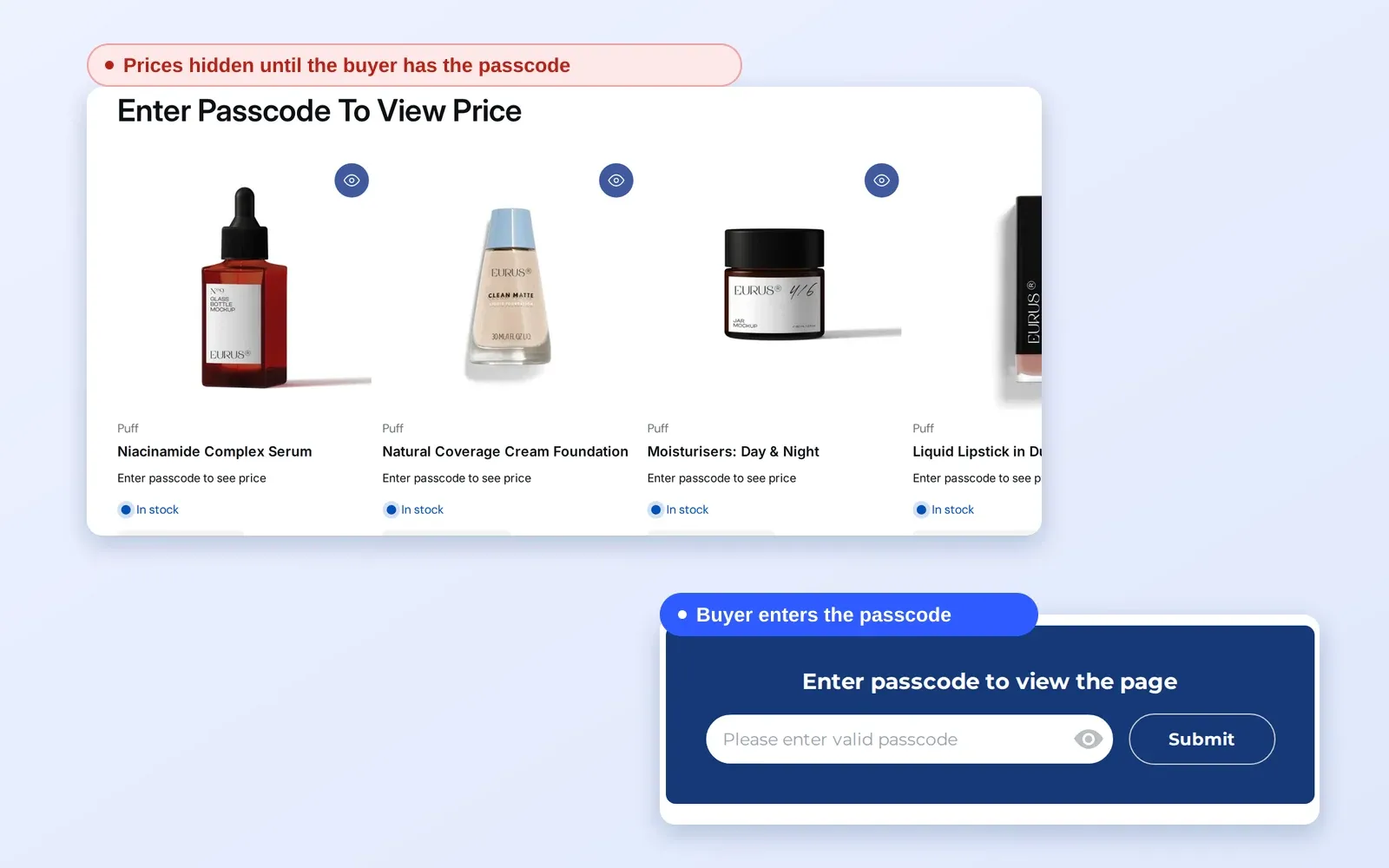
BSS B2B Lock fills the gap with the Price and add to cart lock target. It decides who sees prices by login state or customer tag, and replaces the price with a message you write. The access control hub shows how this fits with collection locks, passcodes and request access.
Which button option should I choose?
| Option | Guest sees | Best when |
|---|---|---|
| Hide price, Disable Add to cart | Message instead of a price, greyed-out button | You want guests to see that the product can be bought after login |
| Hide price, Hide Add to cart | Message only, no button | You want a clean page with a single call to action |
| Keep price visible, hide Add to cart | List price, no button | You publish list prices but take orders through accounts |
A disabled button leaves the buying area looking like the normal page, while a hidden button gives a cleaner look. Try both on a test product in your theme before you decide.
Writing placeholder copy
The placeholder is the only sales message a guest sees where the price used to be, so it is worth a few minutes. Keep it short and give one action. “Log in to see wholesale pricing” works for stores with accounts. “Prices are available to approved trade customers, apply for an account” works when you want applications. “Contact us for a quote” works when prices are negotiated and you take requests by email; for a built-in quote flow, pair the lock with BSS B2B Quote. Avoid vague wording such as “Access denied”, which tells a guest nothing about what to do next.
How to set it up with BSS B2B Lock
1. Create the lock and choose the target
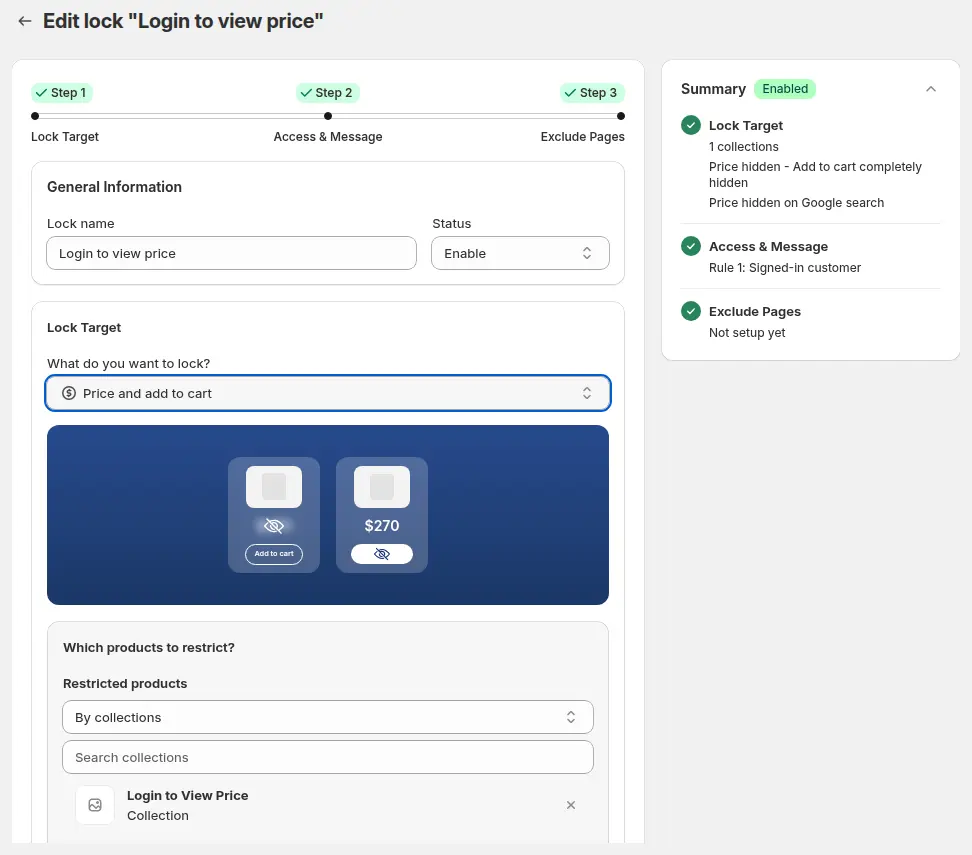
Open Locks > Add lock rule, choose Create my own lock (or the preset that requires login to view prices), give it a name such as “Login to view price” and select Price and add to cart under What do you want to lock?
2. Select the products
Under Which products to restrict? choose all products, or restrict by product tags, by collections, specific products or specific variants. A store with both retail and wholesale ranges usually restricts a wholesale collection or tag. Note that each rule has one lock target, so an Entire store lock and a Price and add to cart lock need separate rules.
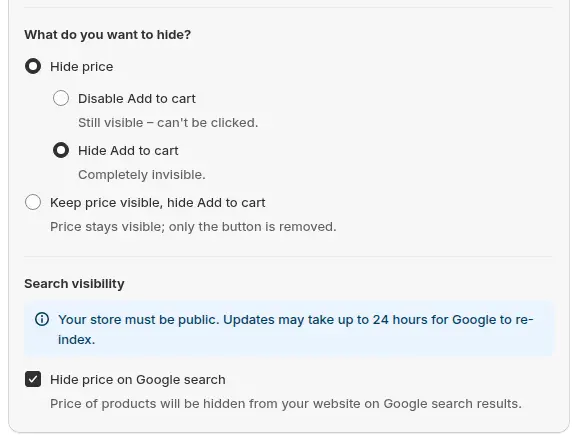
3. Decide what to hide
There are three choices:
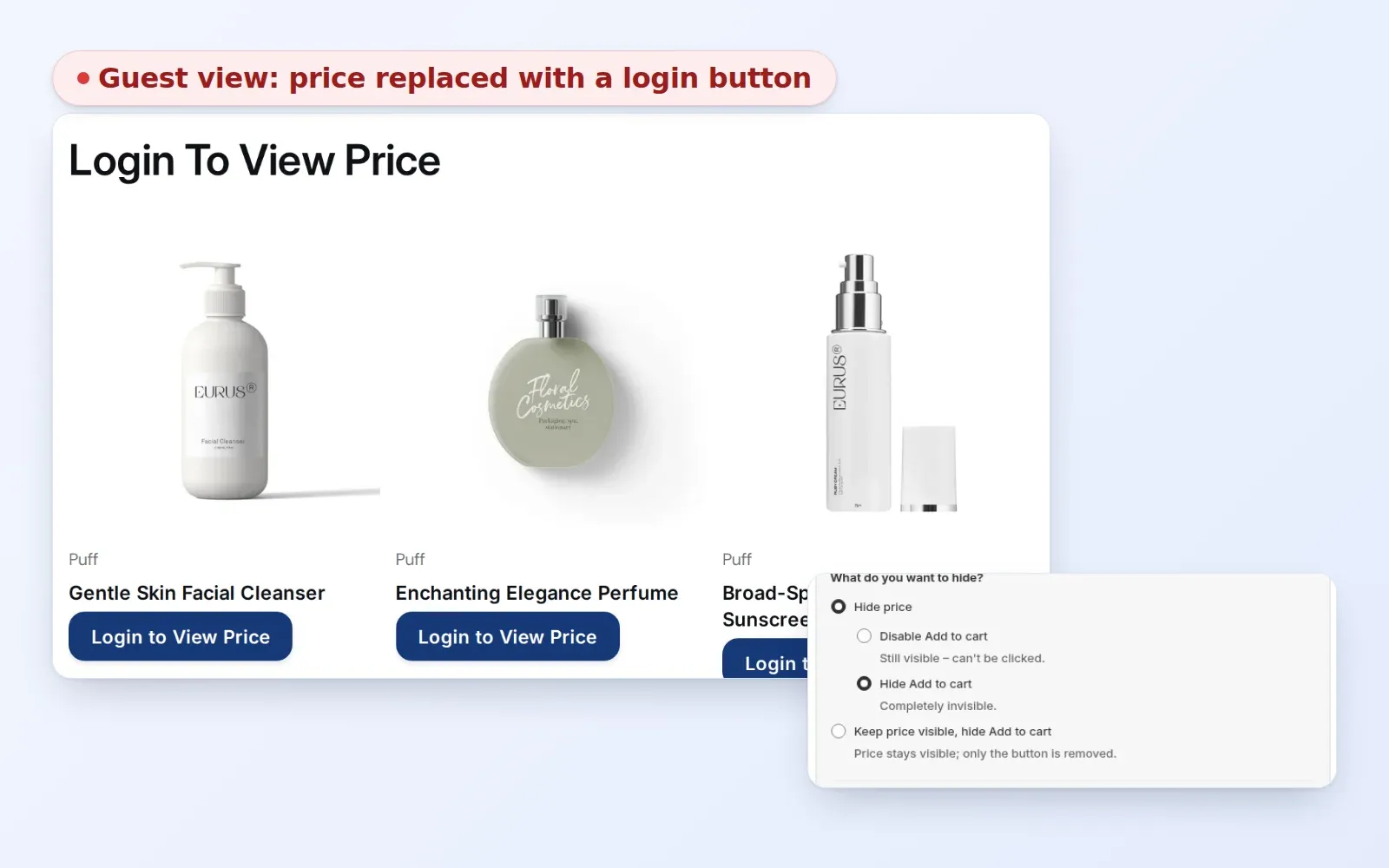
- Hide price, Disable Add to cart. The price is replaced and the button stays visible but cannot be clicked.
- Hide price, Hide Add to cart. The price and the button are completely invisible.
- Keep price visible, hide Add to cart. The price stays and only the button is removed. This suits stores that publish list prices but want orders to go through an account.
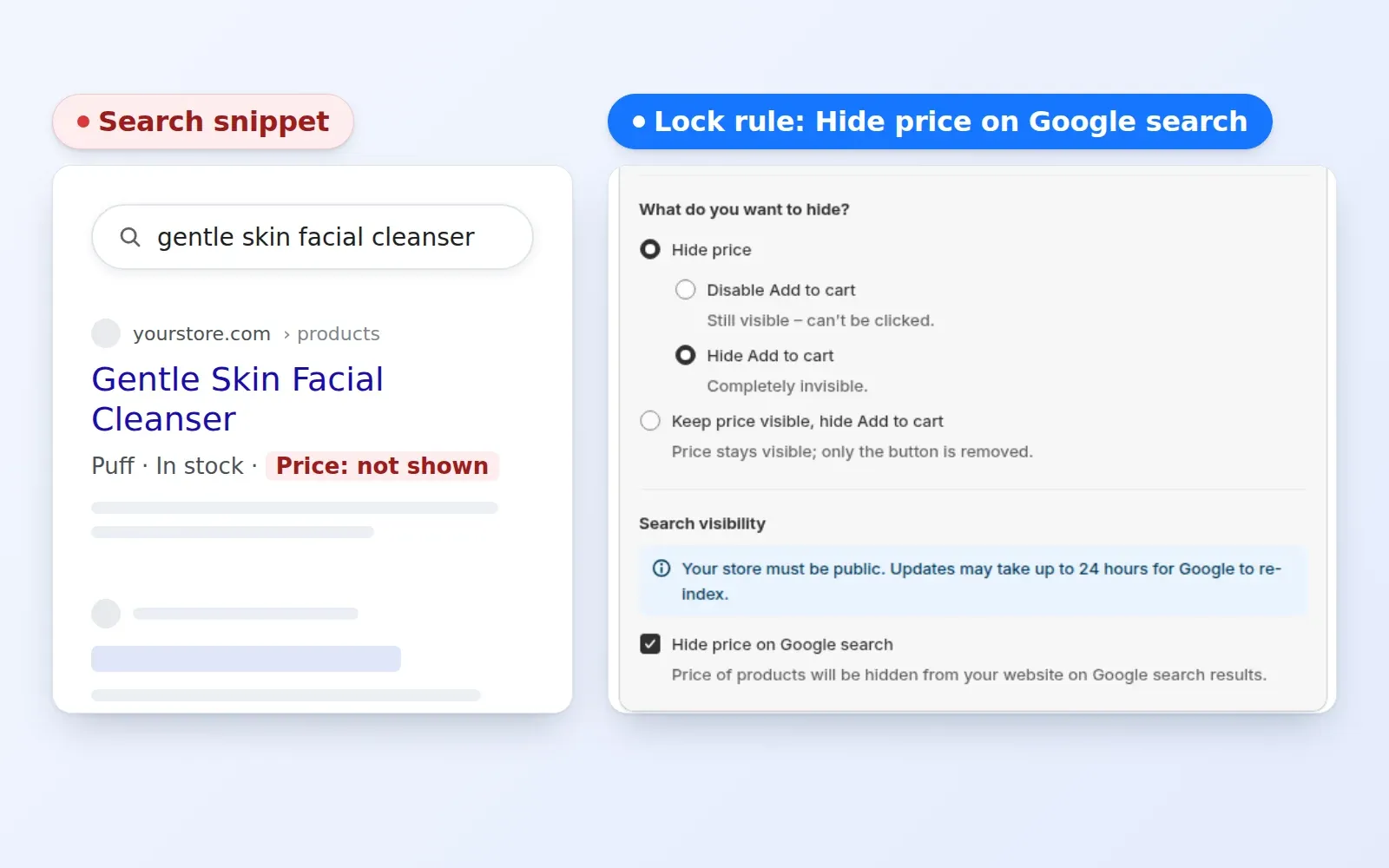
You can also tick Hide price on Google search under search visibility.
4. Choose who sees prices
In Access & Message, click the User type chip and choose Signed-in customers to show prices to anyone with an account, or Tagged customers to show them only to customers with a tag such as wholesale. Use the tag option if you also sell retail and only approved accounts should see trade prices.
5. Write the placeholder message
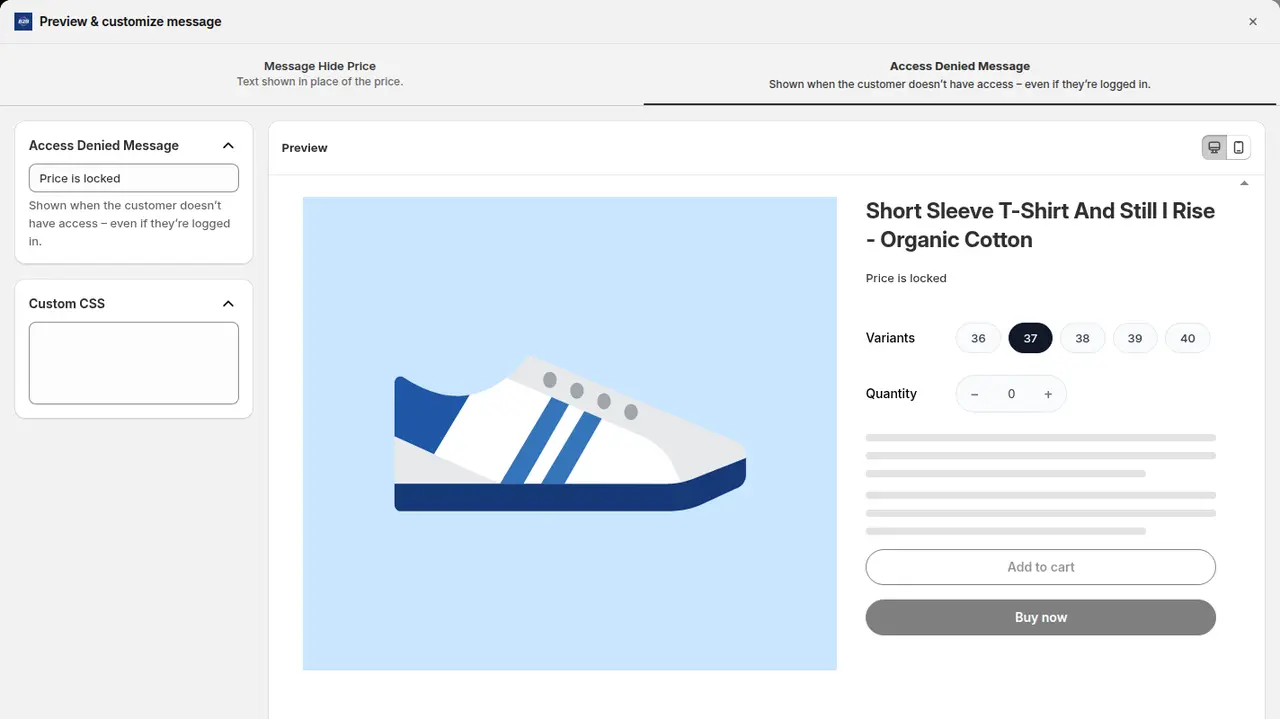
Click Customize message to edit what appears in place of the price. A clear line such as “Log in to your wholesale account to see pricing” tells guests the next step. The preview shows how a product page looks to a guest, with the buttons greyed out.
6. Test the whole storefront as a guest
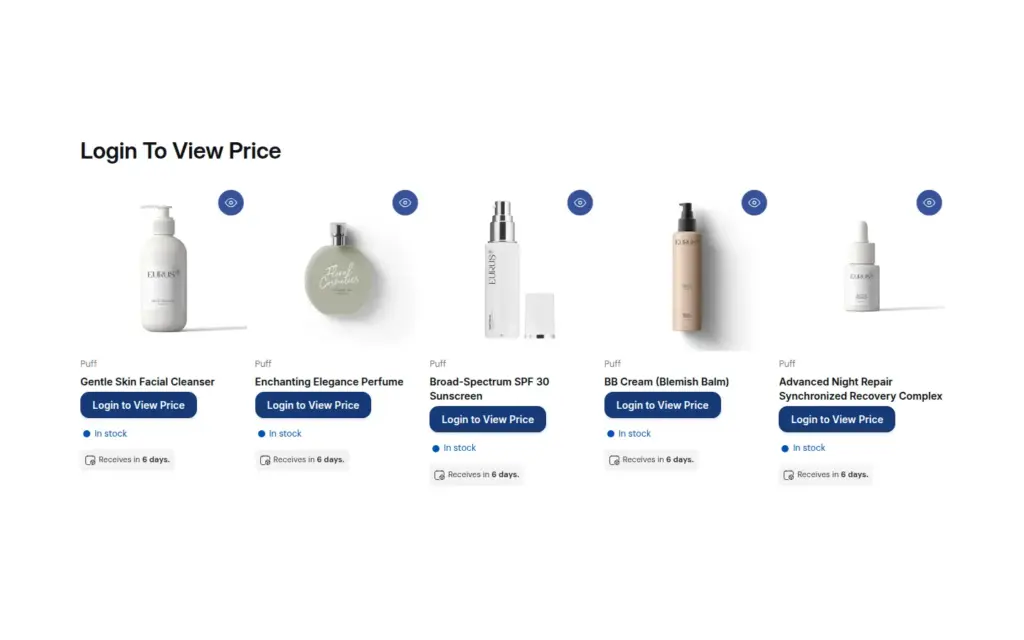
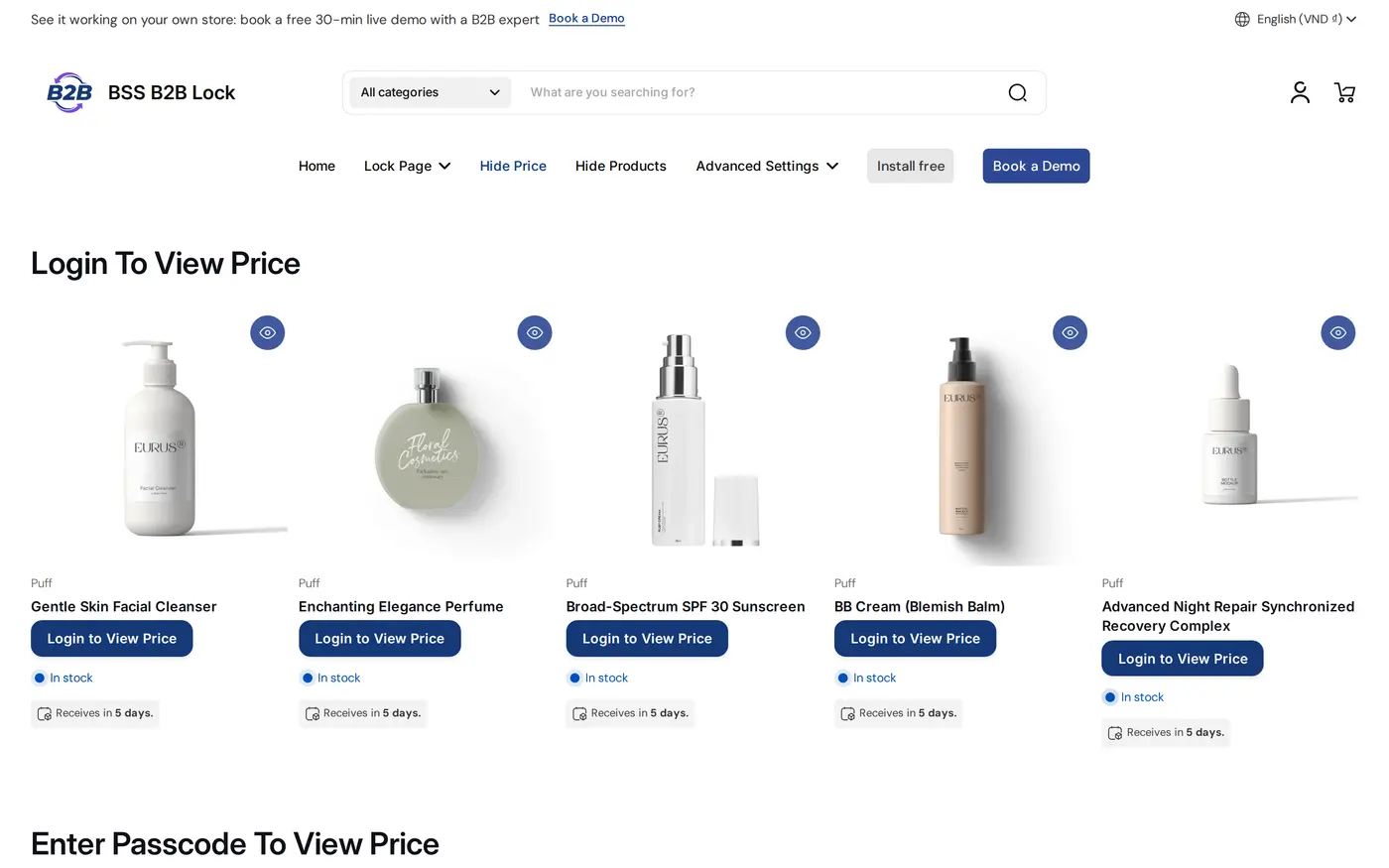
Check the product page, collection pages, search results and any featured product sections on your home page. On the demo store, a guest sees a Login to View Price button where each price was.
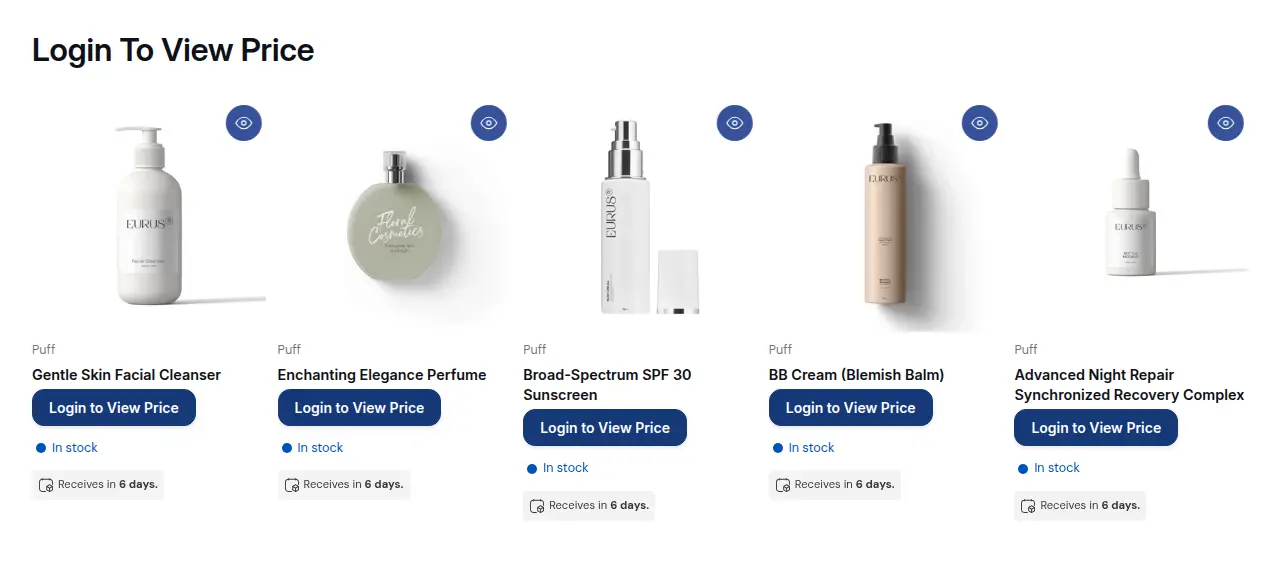
The same rule on the demo storefront keeps the products visible for discovery.
Example
Example for illustration only, not a customer result. The lubricants supplier creates one rule with the Price and add to cart target on its “Contract grades” collection. It chooses Hide price, Hide Add to cart, ticks Hide price on Google search and allows the tag contract. A new buyer finds a grease data sheet through search, sees the product and a Login to View Price message, and applies for an account through the registration form in BSS B2B Solution. After approval the tag contract is added, and the buyer sees the negotiated price and the buy button. A competitor browsing as a guest sees the catalog with no prices. Google can take up to 24 hours to re-index changes to structured data.
Works well with
- Hide wholesale prices from guest visitors for the same idea with a focus on price messaging.
- Hide prices from Google search results for the search side in detail.
- Block checkout for unapproved buyers as an extra layer on Shopify Plus.
- Request access button for locked pages so guests can ask for access.
Glossary: hide price, gated catalog and customer tag.
Limits and common mistakes
- These rules change what your theme shows. They do not stop a checkout that starts elsewhere, for example from a saved cart link. On Shopify Plus, add a checkout lock for that; it is an extra layer, not a complete block.
- Check every place a price appears. Product pages, collection pages, search results, featured sections, quick views and cart drawers differ by theme. Test them all as a guest, on desktop and mobile.
- Hide price on Google needs a public store. The store must be public, not password-protected, and Google can take up to 24 hours to re-index. Merchant Center feeds are not changed, so check them separately.
- It depends on theme patterns. Unusual themes may not be fully covered; test on your own theme before you rely on the rule.
- Tags are matched as text. Use identical spelling in every app.
- A paid plan is needed. Hiding prices and Add to cart needs a paid BSS B2B Lock plan; the Free plan covers the Entire store target only.
Setup checklist
- Decide which products to restrict: all, a collection, a tag or specific items.
- Choose one of the three button options.
- Choose who sees prices: signed-in customers or a tag.
- Write a placeholder message that says how to get access.
- Tick Hide price on Google search if search snippets should not show prices.
- Test product, collection, search and home page sections as a guest and as a buyer.
- Check Merchant Center feeds separately.
- Keep the hide prices guide at hand.
Plans and requirements
BSS B2B Lock has a Free plan (Entire store lock) and paid plans from $9.99 per month that include hiding products, pages and prices, with a 7-day trial on paid plans; the price steps up with your store’s Shopify plan. See the pricing page. The checkout lock is for Shopify Plus stores and needs a paid plan. Add BSS B2B Solution for registration, tags and each buyer’s prices.