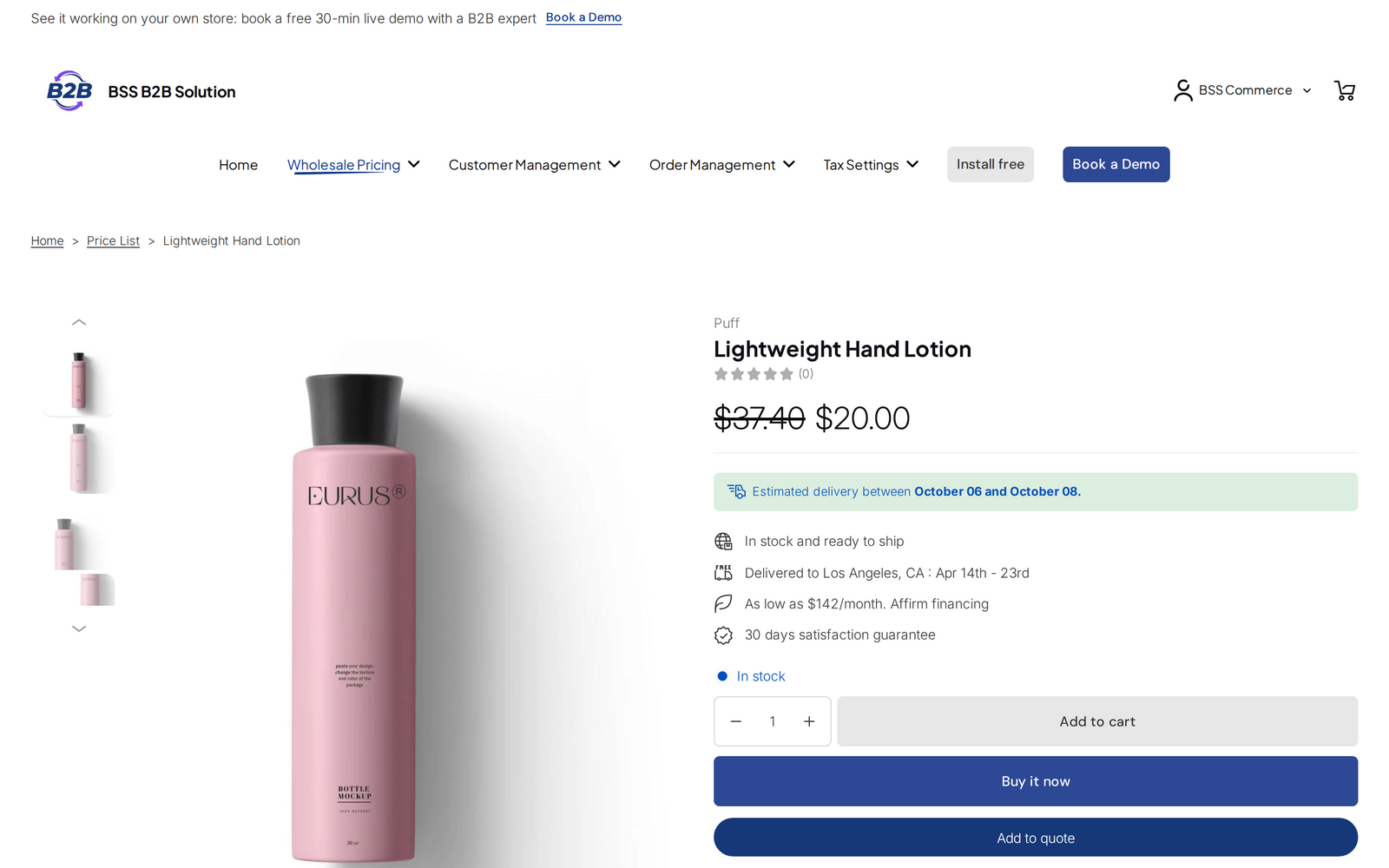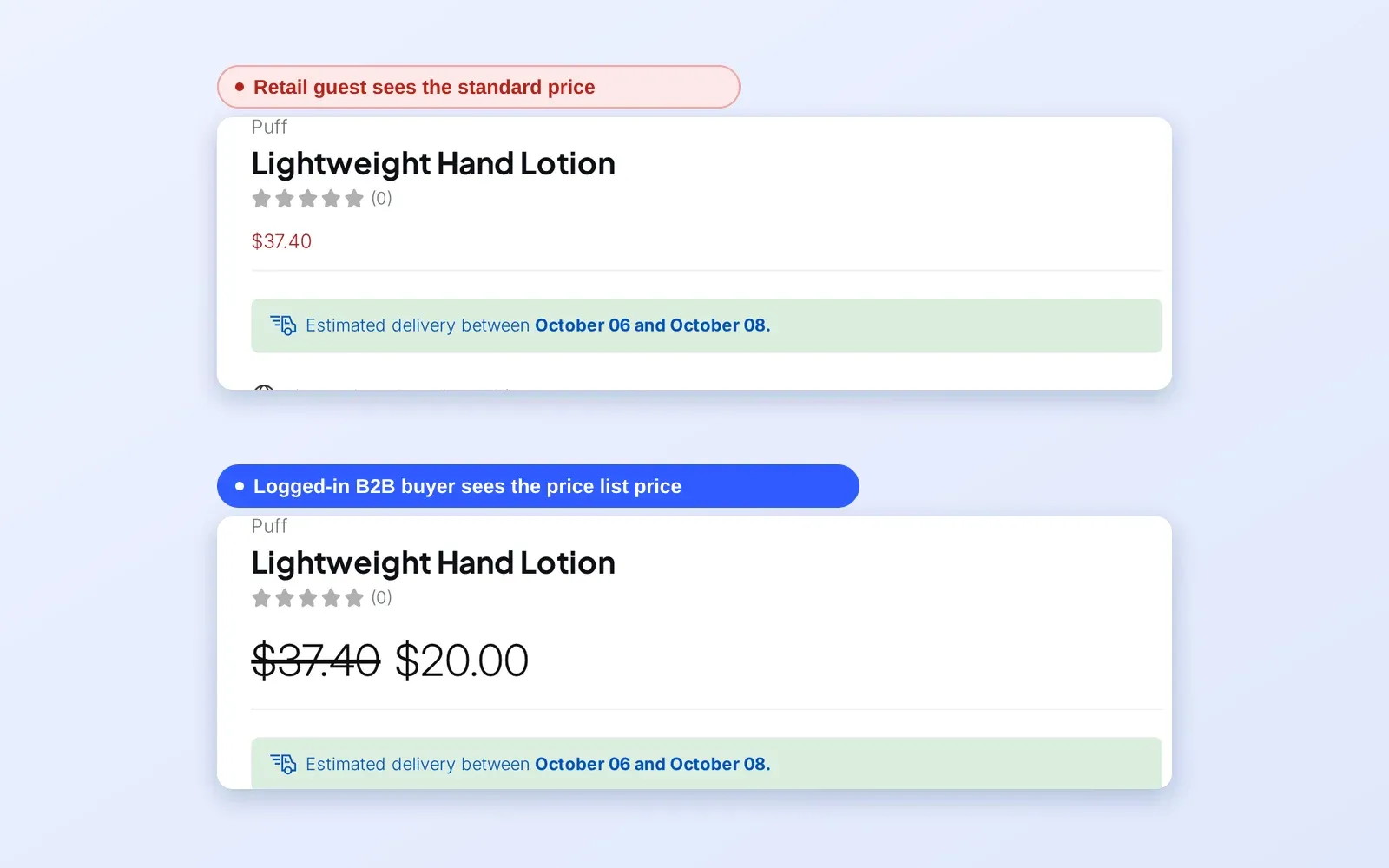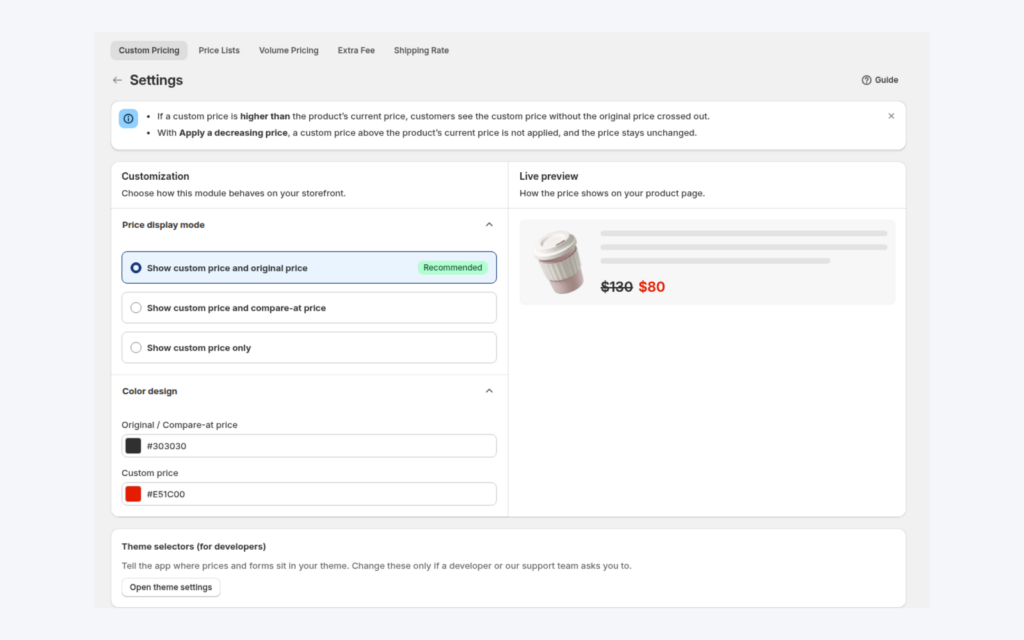
To show MSRP, compare-at and wholesale price together on Shopify, open Custom Pricing > Settings in BSS B2B Solution and choose the price display mode: custom price with the original price (recommended), custom price with the compare-at price, or custom price alone. A second setting, Price override under Shopify checkout settings, decides how the discount is shown on the checkout page.
For a brand that sells through retailers, the price is only half of the message. The buyer also wants to see the suggested retail price, because the gap between the two numbers is the retailer’s margin. Showing both prices next to each other shortens the decision.
Who this is for
This setup suits you when:
- You are a brand, manufacturer or distributor that sells to retailers, and your retailers care about margin per unit.
- Your product pages already carry a compare-at price that works as your suggested retail price, or you want to use the original price as the reference.
- You sell to both retail shoppers and trade buyers and want the trade view to look different from the retail view.
- You want control over what a trade buyer sees in the checkout summary, including the label of the discount line.
- Your buyers compare your price with a competitor’s list, and you want the reference price on screen.
Why this matters
A wholesale price on its own is a number without context. A retailer who sees $12.00 does not know whether that is a good price. A retailer who sees $12.00 next to a struck-through $24.00 sees a 50% margin at the suggested retail price, and does not need to do any arithmetic or look up the retail page.
Showing the reference also reduces questions. Sales teams spend time answering “what is the retail price for this?” and “do I get the discount on top of the sale price?” When the product page answers both, the sales team can focus on larger deals.
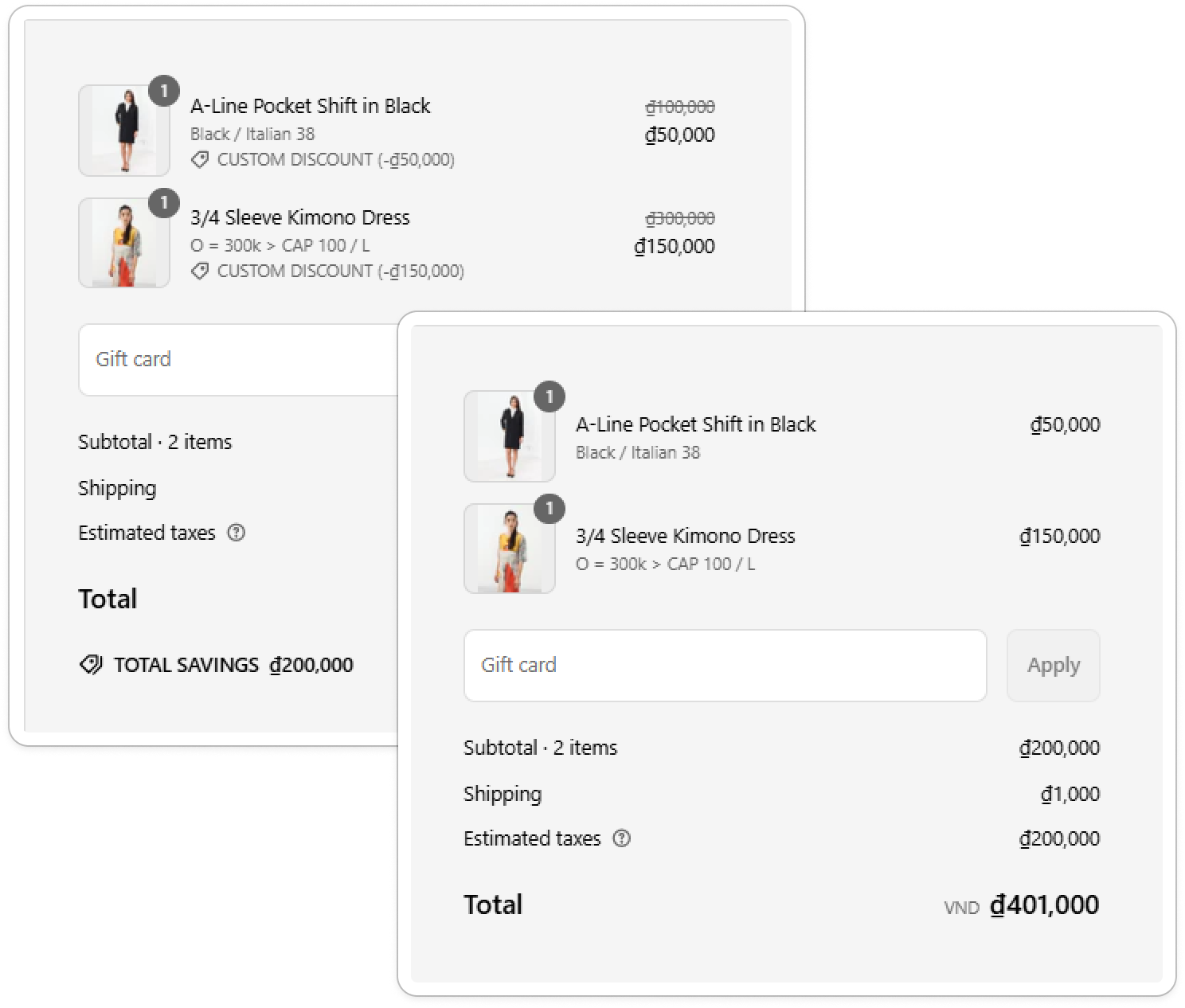
The checkout view matters as much as the product page. Some merchants prefer the discount as a separate line, so the buyer can see the saving. Others want the item to show the final price and the original recorded as the MSRP, so the order summary reads like a standard price list. The app lets you decide.
What Shopify covers natively, and where an app helps
Every Shopify product has a price and an optional compare-at price, and your theme shows them to all shoppers in the same way. Shopify’s native B2B can give business buyers catalogs with their own prices, as the Shopify Help Center describes (read on 2026-10-02), and our Shopify B2B guide compares native B2B with apps. BSS B2B Solution reads the original and the compare-at price, and decides which one to show next to the wholesale price for each matching buyer, then controls how the checkout summary presents the discount. The retail view for guests stays exactly as your theme draws it.
How to set up the price display with BSS B2B Solution
Step 1: Choose the display mode
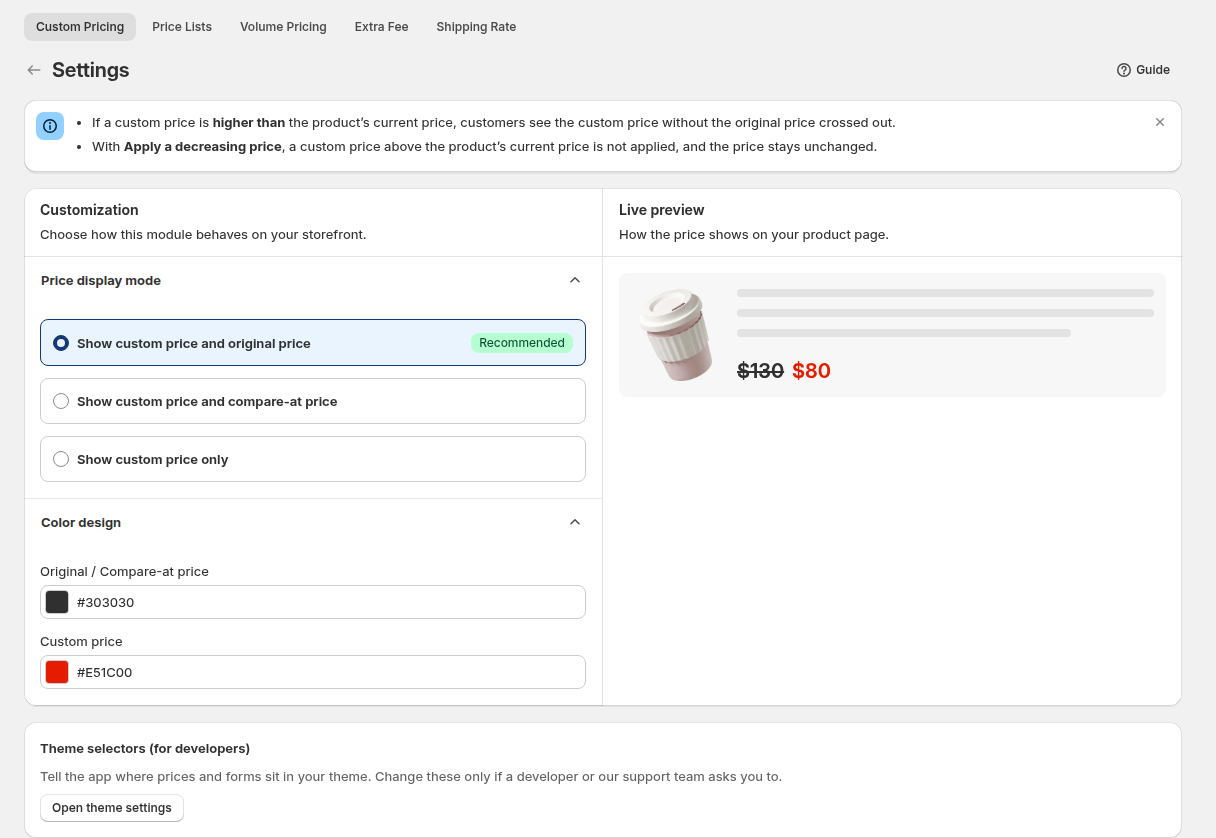
Open Custom Pricing > Settings and find the price display modes:
| Mode | What the buyer sees |
|---|---|
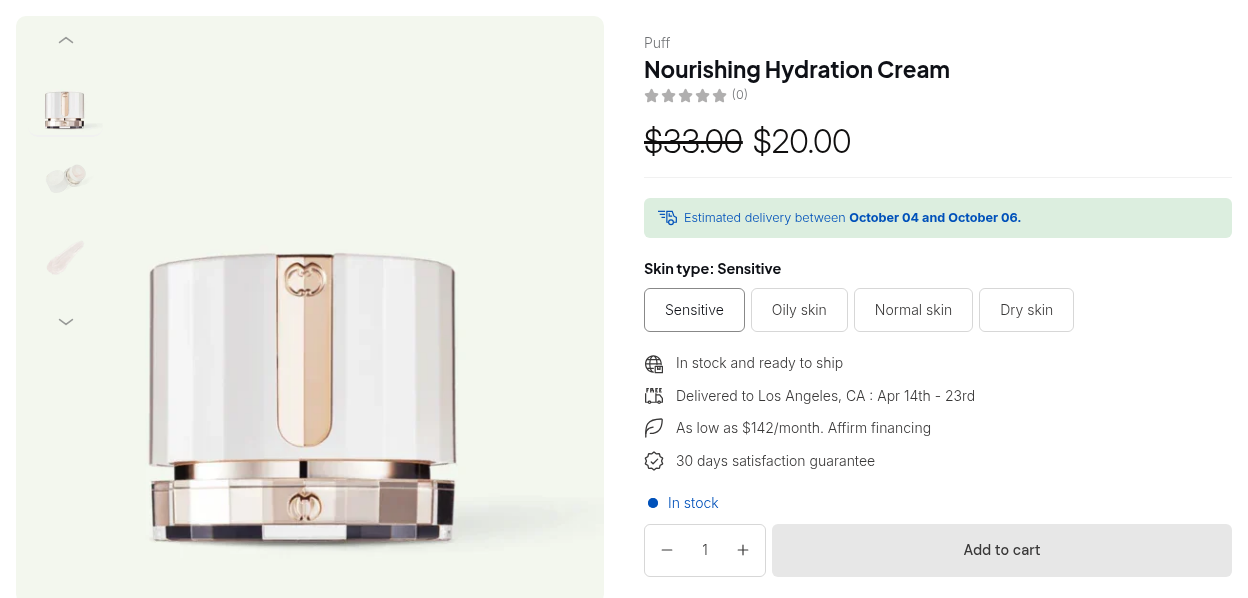
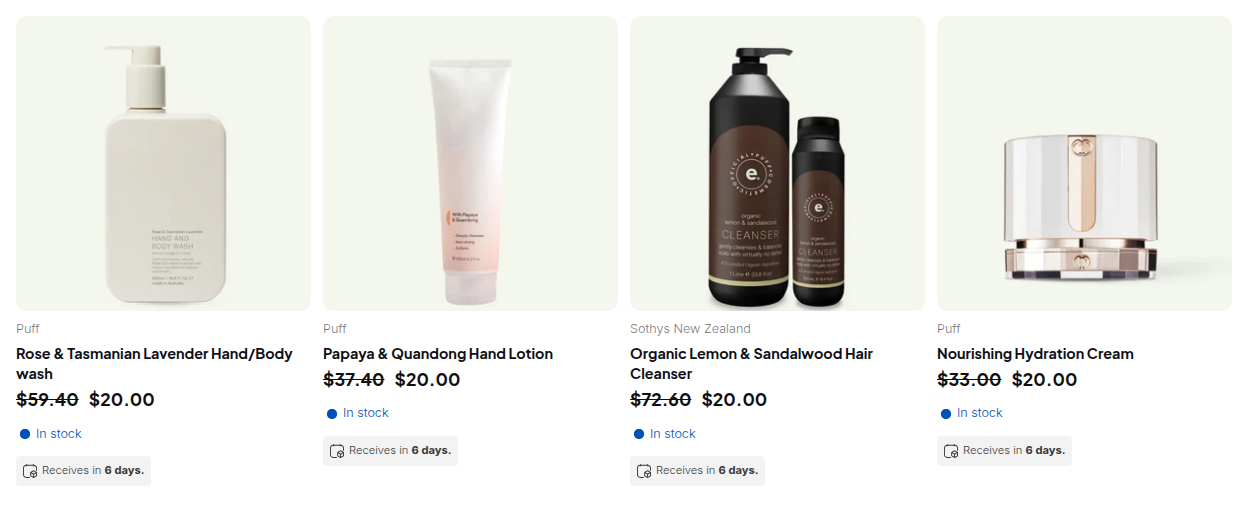
| Show custom price and original price (recommended) | The wholesale price with the original price struck through |
| Show custom price and compare-at price | The wholesale price with the compare-at price struck through |
| Show custom price only | Only the wholesale price; original and compare-at prices are hidden |
If a product has no compare-at price, the compare-at mode falls back to showing the original price. If you want your suggested retail price to appear, set a compare-at price on the product in Shopify admin and choose the compare-at mode.
Step 2: Match the colors to your theme
The same page lets you set the colors of the original price and the custom price, with a live preview on the right. Match them to your theme so the wholesale price reads as the main figure and the reference reads as secondary.
Step 3: Decide how the checkout shows the discount
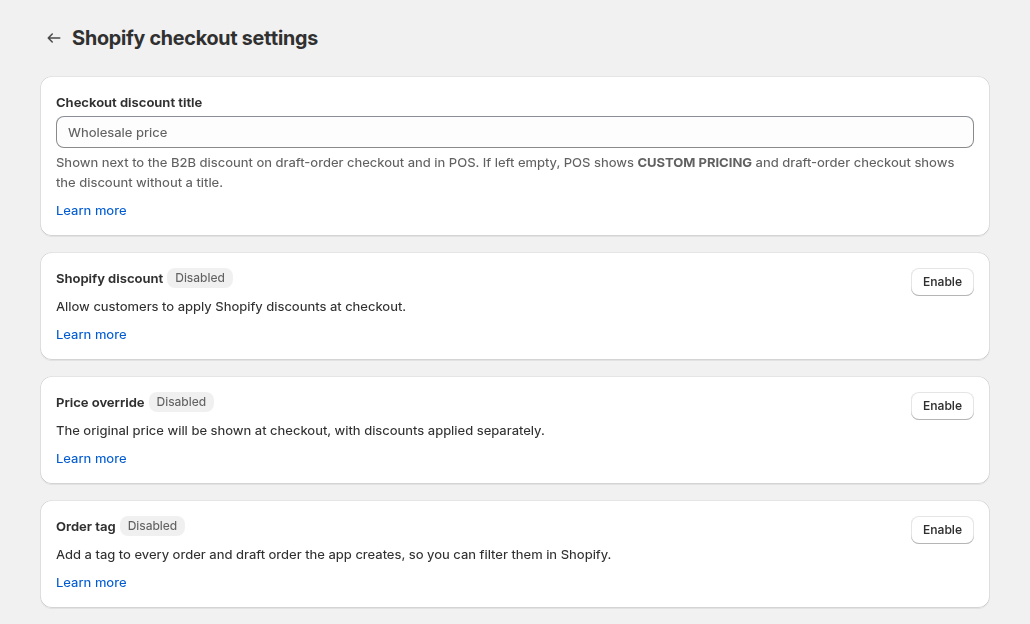
Open Settings > Shopify checkout settings. This page has three cards, and your changes apply when you click Save on the settings bar. They apply store-wide to the checkouts and draft orders that BSS B2B Solution builds.
- Price override. When enabled, the discounted price is shown as the original price on the item at checkout, and the order records the MSRP as the original price. When disabled, the original price is shown with the discount applied separately.
- Checkout discount title. The label put on the B2B price adjustment line at checkout. It defaults to CUSTOM PRICING when left empty, and you can replace it with text such as WHOLESALE PRICE or CONTRACT PRICING.
- Shopify discount. Allows buyers to enter standard Shopify discount codes at the B2B checkout on top of B2B pricing. It is disabled by default, and enabling it can stack two discounts on one order.
Each card shows a status badge and an Enable or Disable button. Click the button, then Save.
Step 4: Test the cart and checkout
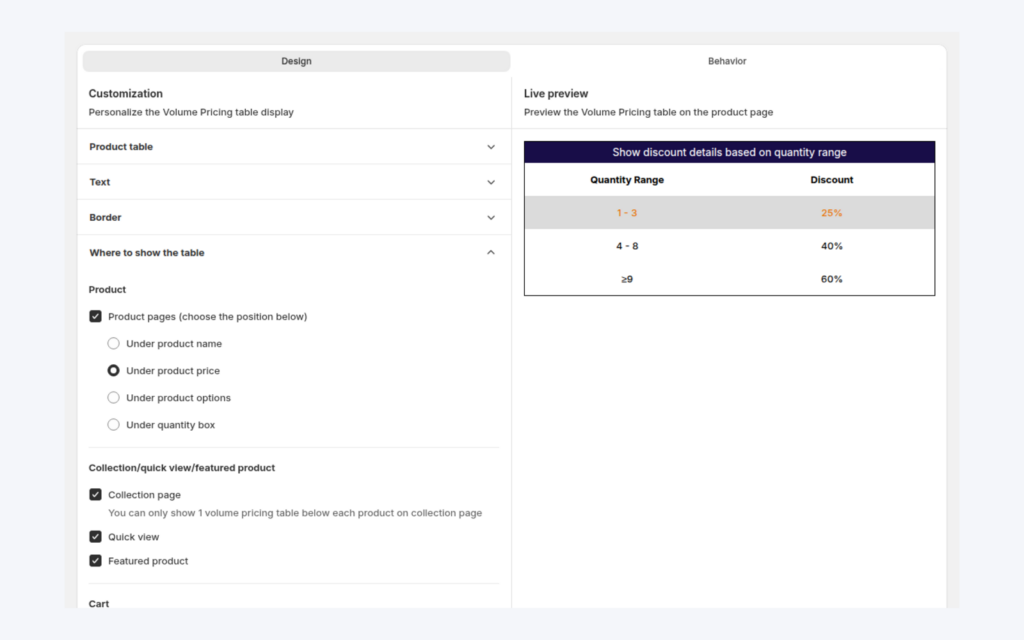
Log in as a matching buyer and check the product page, the cart and the checkout summary. Place a test order before you announce the change. If your rules also include Volume Pricing, check a quantity that reaches a tier.
Example: a sock brand selling to boutiques
This is an illustration with made-up numbers, not a customer result. A sock brand’s retail price is $24.00 and it has set $30.00 as the compare-at price, the list price in its printed catalog. A Custom Pricing rule gives customers tagged boutique a wholesale price of $12.00, and a Volume Pricing rule adds a 10% tier from 24 pairs.
| Display mode | Boutique buying 12 pairs sees | Boutique buying 24 pairs sees |
|---|---|---|
| Custom price and original price | ~~$24.00~~ $12.00 | ~~$24.00~~ $10.80 |
| Custom price and compare-at price | ~~$30.00~~ $12.00 | ~~$30.00~~ $10.80 |
| Custom price only | $12.00 | ~~$12.00~~ $10.80 |
The boutique can see that $12.00 against a $24.00 retail price is a 50% margin before the tier, and 55% at 24 pairs. In the guide’s own scenario, once Volume Pricing applies, the custom-price-only mode strikes the custom price and shows the tier price, while the other two modes keep striking the reference price. The brand chooses the reference by choosing the mode, so decide whether the number buyers should compare with is your retail price or your list price.
Works well with
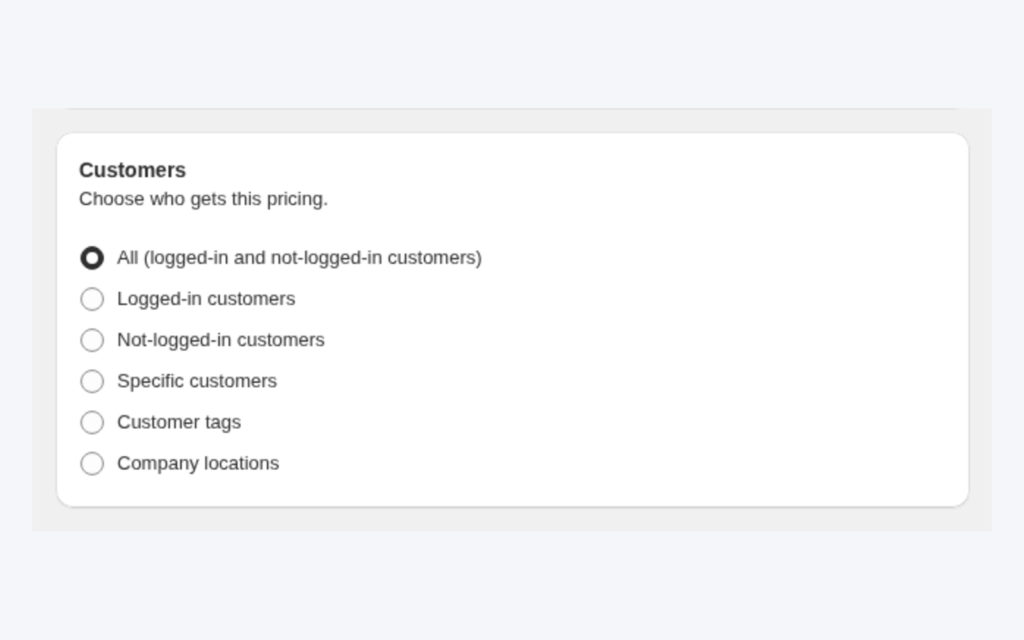
- Tag-based wholesale prices. Wholesale price by customer tag creates the price that this setup displays.
- Stacked tiers. Combine custom and volume pricing explains the chain that the display follows.
- Retail and trade on one store. B2B and B2C on one Shopify store covers the view for each audience.
- Tax display. Show prices excluding VAT to B2B buyers pairs well when retailers expect ex-VAT prices.
The wholesale pricing hub lists the other pricing guides. The glossary explains MSRP, wholesale price and price list.
Limits and common mistakes
- A higher price is not shown. The custom price displays only when it is lower than the original price and the compare-at price. If the configured price is higher, the app does not display it.
- Compare-at is not suggested retail by default. If you use compare-at for sale prices, buyers may read it as a discount, not as MSRP, so state what it means in your wholesale terms.
- Price override changes records. With it on, the order treats the MSRP as the original price. Check that your accounting and invoicing apps handle that.
- Shopify discount stacks. Enabling it lets buyers use Shopify codes on top of B2B pricing, unless you restrict codes by customer segment in Shopify admin.
- Express checkout and direct links. The app hides the Buy it now button while rules are active, and express checkout and direct links can skip some modules such as discount codes, so test every button you offer with a real test order.
- Embed and schedule. The display only appears when the app embed is on, the customer matches, the product is not excluded and the schedule is running.
Setup checklist
- Decide what your reference price is: the original price or the compare-at price.
- Set compare-at prices on products if you want to use them as MSRP.
- Choose the display mode and colors in Custom Pricing settings.
- Choose Price override on or off and set a checkout discount title.
- Leave Shopify discount disabled unless you want code stacking.
- Check the product page, the collection page, the cart and checkout as a tagged buyer.
- Place a test order and review the order record.
Plans and requirements
The display mode is part of the Custom Pricing module. The three Shopify checkout settings are available on every plan, according to the user guide. Custom Pricing runs on all plans, with one rule on Free. See the BSS B2B Solutions pricing page for current plan details.
You can install BSS B2B Solution from the Shopify App Store (4.9 rating from 1,185 reviews as of 2026-10-02, 14-day free trial on paid plans), read the app overview, or follow the guide to display custom pricing. The checkout display guide explains the Price override setting.