To show prices excluding VAT to B2B buyers on Shopify, create a Tax Display rule in BSS B2B Solution that targets your wholesale customer tag and set the display type to Excluding tax only. Wholesale buyers see net prices, retail shoppers keep prices including VAT, and both groups buy from the same store.
This page is for stores that sell to businesses and consumers at once, especially in markets where consumers expect prices with VAT and business buyers think in net prices. It explains how Tax Display works, how to target the right visitors and where it stops: it changes what is shown, not what is charged.
Who this is for
Tax Display is a good fit if:
- You sell to both consumers and businesses on one Shopify storefront.
- Your wholesale buyers keep asking for the net price, or compare it to supplier quotes that exclude VAT.
- Your consumer prices must show tax, but wholesale buyers should see something different.
- You want some visitors to see both prices side by side, or to switch between them.
- You use Custom Pricing, Price List or Volume Pricing and want the net B2B price to show the right label.
- You sell in several languages and want the price labels translated.
Why this matters
Business buyers think in net prices; consumers think in prices with VAT. If you show tax-inclusive prices to everyone, wholesale buyers have to work out the net price themselves, often on a calculator, and they compare you with suppliers that quote net. If you show net prices to everyone, consumers see a price that is lower than what they will pay at checkout. Either way trust suffers at the cart, and either way someone on your team answers the question “is this price with or without tax?”
The effect is larger when your pricing is already complicated. A wholesale buyer looking at quantity breaks and a tag-based discount does not also want to subtract a tax rate in their head. Showing the net price removes one source of doubt and makes the table of tiers comparable with other suppliers.
Several beauty brands in our case studies run B2B and consumer sales on one store. Valera, a Swiss hair care brand, used Tax Display so that B2B transactions show prices excluding VAT, and MonkeyHands in Italy uses Tax Display to show the price including tax for consumers and the price excluding tax for businesses. See the Valera and MonkeyHands case studies.
Imagine a nail-care brand that sells polishes to consumers at retail prices with tax and to salons through a trade program. A salon owner who logs in should see each polish at a net price, while a visitor who has not logged in sees the usual consumer price. The brand does not want a second store for that.
What Shopify covers natively, and where an app helps
Shopify decides how tax is calculated and, through your tax settings and markets, whether prices are shown including or excluding tax for a region. That setting applies to everyone in the region. The B2B features by plan page in the Help Center lists companies, catalogs, payment terms and quantity rules; showing a different tax format to different customers on one store is not part of that list. The tax and compliance hub sets out the neighbouring options.
BSS B2B Solution’s Tax Display module adds rules: you choose which customers and which products a display format applies to, and the app computes the price with and without tax in the browser. At checkout, Shopify still calculates tax as it always does.
Designing rules for a mixed audience
Think in audiences first, then in rules. A typical mixed store has three: guests, logged-in retail customers and approved wholesale buyers. The table shows one way to cover them.
| Audience | Rule target | Display type | Priority |
|---|---|---|---|
| Approved wholesale buyers | Customer tag wholesale | Excluding tax only | 1 |
| Guests and retail customers | Not-logged-in and logged-in customers | Including tax only | 2 |
| Mixed-view visitors (optional) | Specific customers or another tag | Both prices | 3 |
Because the lower number wins, an approved buyer who also matches the broader retail rule still gets the net price. If you have products that should always show a single format, for example a consumer-only line, a rule that targets a product collection or product tag can override the general pattern with its own priority.
How to set it up with BSS B2B Solution
1. Turn the module on and complete the storefront setup
Go to B2B tax & currency > Tax Display and switch the module on. The app shows a banner asking you to install it on your theme: follow the Storefront setup steps to add the price snippets to your product, featured product, collection and cart templates, or contact support if you want BSS to do it. Make sure the BSS B2B Solution app embed is on under Online Store > Themes > Customize > App embeds.
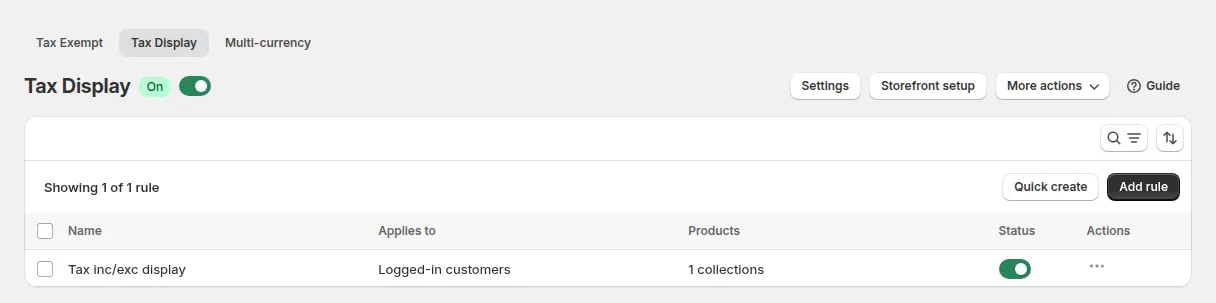
2. Create a rule and set its priority
Click Add rule, name it (for example “Net prices for wholesale”) and set a priority. When several rules match the same customer and product, the lower number wins. Enable it when you are ready.
3. Choose who sees it and which products it covers
For Customers, choose all customers, logged-in customers, not-logged-in customers, specific customers or customer tags such as wholesale. For Products, choose all products, specific products, collections or product tags. A common pair of rules is one for the wholesale tag (excluding tax only) and one for everyone else (including tax only).
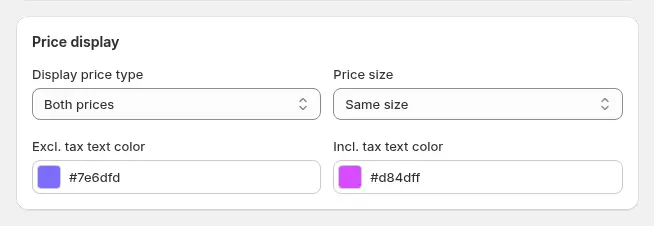
4. Pick the display type, size and colours
There are four display types: Both prices (the default, side by side), Including tax only, Excluding tax only and Toggle Price, a single price with an Inc. VAT / Exc. VAT switch that applies to all products and all pages. With Both prices you can set the ratio between the two font sizes and the colour of each label.
5. Choose where the tax prices appear
Pick the product page, cart items, product lists (collection, search, featured and related products) or all of them.

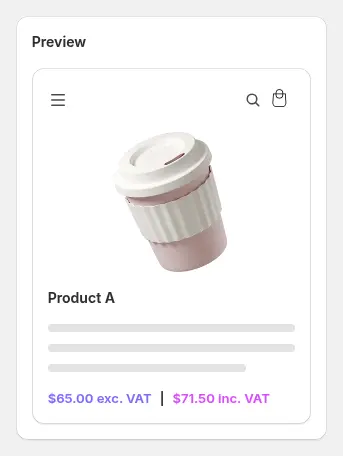
6. Check the preview and the storefront
The Preview card shows a sample product in the format you chose.
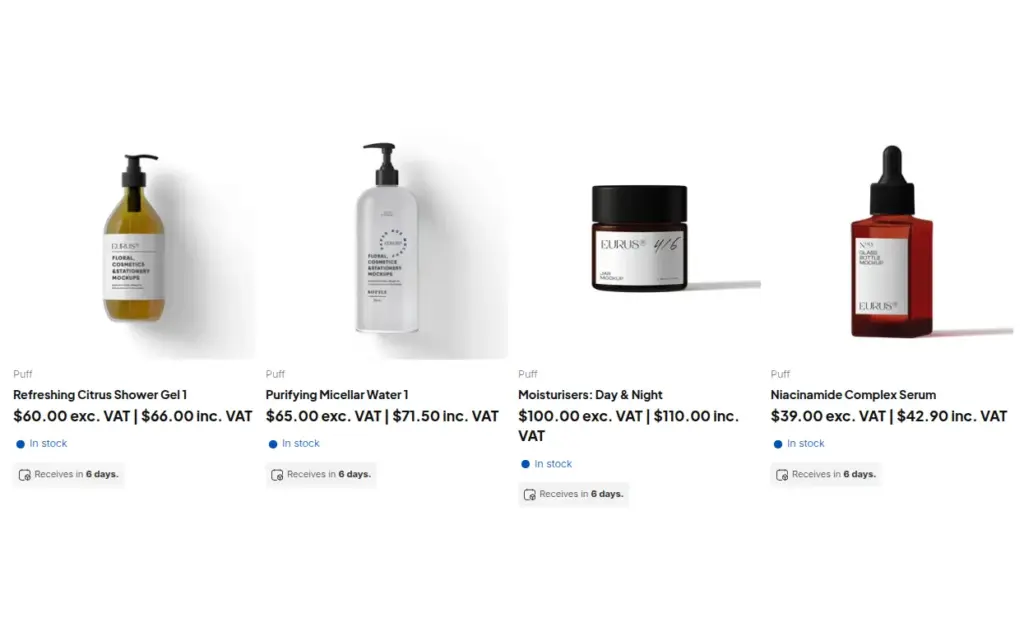
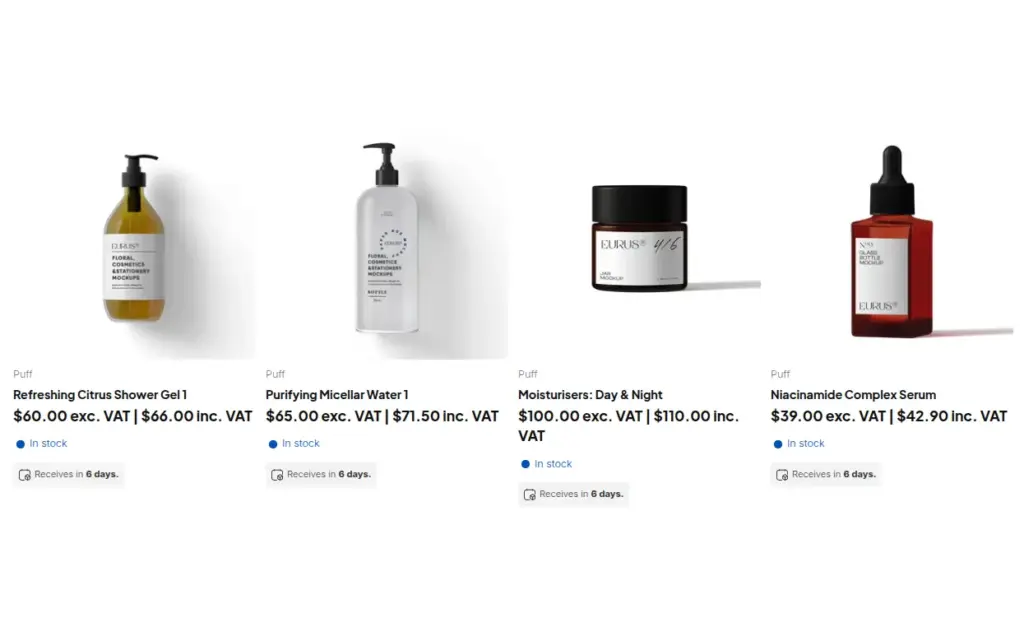
On the storefront, a collection with the Both prices type shows each price excluding and including VAT.
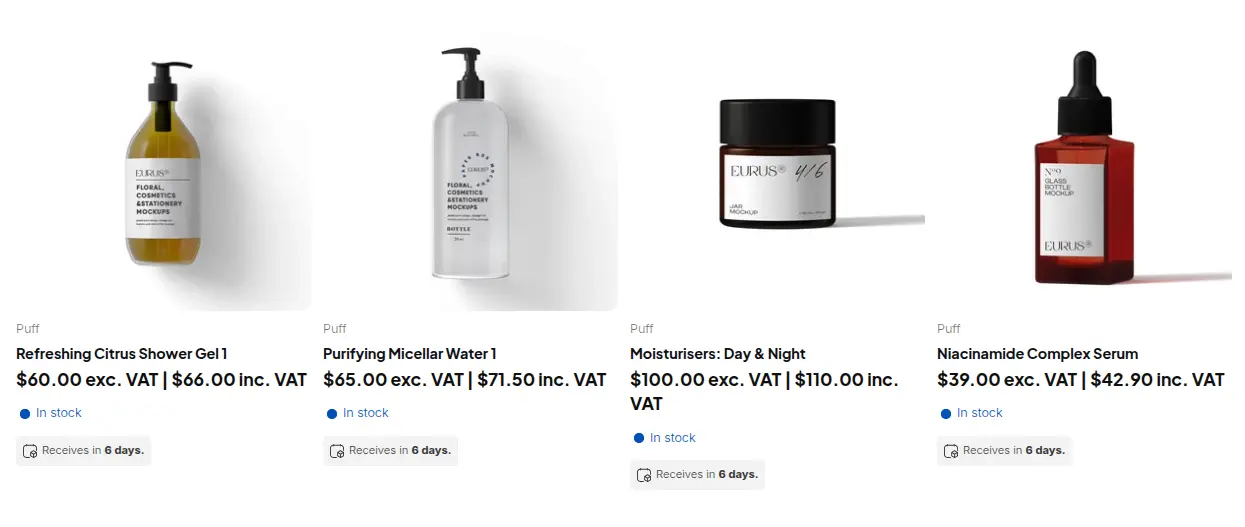
7. Keep rates and labels up to date
The app reads your country tax rates from Shopify’s Taxes and Duties settings. If you change them, click Update Settings in the app, because it cannot detect the change. Shopify’s own tax overrides cannot be read, so recreate them under Tax overrides by choosing the country, the collection and the rate. Under Settings > Translations, edit the default labels (exc. VAT and inc. VAT) for each language.
Example
Example for illustration only, not a customer result. A nail-care brand sells a gel polish at €50 excluding VAT. At an illustrative 20% rate, the price including tax is €60. The brand creates two Tax Display rules. Rule A, priority 1, targets the customer tag salon and shows Excluding tax only. Rule B, priority 2, targets not-logged-in customers and shows Including tax only. A salon owner logs in and sees €50 on the product page, the collection and the cart. A consumer who has not logged in sees €60. Both buy the same polish from the same store, and Shopify calculates tax at checkout for each as usual. For the salon owner who has a valid tax number, the brand also uses Tax Exempt so the tax is removed at the cart.
Works well with
- EU VAT exemption with VAT ID validation to remove tax at the cart for buyers with a valid number.
- Beauty brand price lists and VAT for salons for the pricing side of a salon program.
- Wholesale price by customer tag to give the tagged group its own prices.
- Tiered quantity break pricing so volume tiers show net prices as well.
Read the glossary entries for wholesale price, tax exemption and customer tag.
Limits and common mistakes
- Tax Display changes what is shown, not what is charged. Tax is not removed at checkout. Use Tax Exempt to remove tax for eligible buyers, or mark the customer as exempt in Shopify.
- Products that are not taxable show a single price. If no rule matches, or the feature is not installed, the normal theme price is shown.
- The theme must carry the snippets. If the price does not change, check Storefront setup and the app embed first.
- Variant-level rate overrides do not exist. The tax rate comes from the country, and from the overrides you recreate per collection and country.
- Shopify’s own overrides are not read. Recreate them in the app or the displayed price will use the country rate.
- The toggle sits in one place. The Toggle Price switch appears at the bottom left of every storefront page and applies to all products and pages; contact support if you need it elsewhere.
Setup checklist
- Turn Tax Display on and complete Storefront setup on your live theme.
- Switch on the app embed.
- Create one rule for your wholesale tag and one for everyone else, with different priorities.
- Pick display type, size and colours, and choose the pages.
- Click Update Settings whenever tax rates change in Shopify, and recreate overrides.
- Translate the labels for each language.
- Test as a guest, as a retail customer and as a wholesale buyer on desktop and mobile.
- Read the Tax Display guide for every setting.
Plans and requirements
Tax Display is available on the Advanced and Platinum plans of BSS B2B Solution ($49 and $99 per month, with yearly billing saving 10%), not on Free or Essentials. See the pricing page to compare plans, then get BSS B2B Solution from the Shopify App Store.