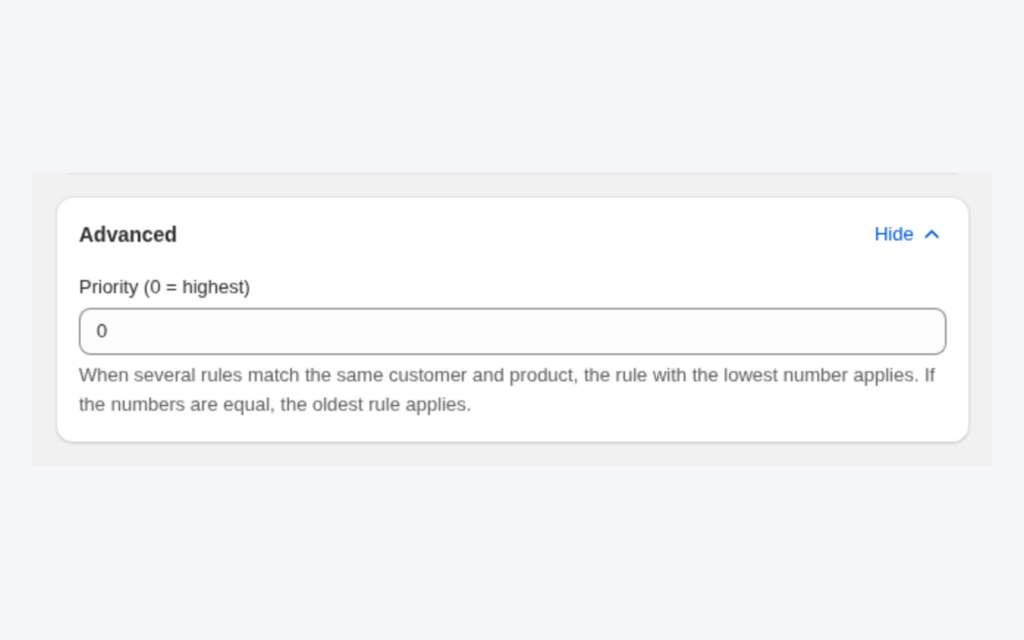
When several B2B pricing rules match one customer, BSS B2B Solution shows a single price by running modules in a fixed order and picking one winner inside each module. Price List or Custom Pricing sets the base price, Volume Pricing applies on top of it, and the Priority field (0 to 99, lowest number wins) decides between rules of the same module.
This page also doubles as a troubleshooting path for the question behind many support requests: “my Shopify wholesale price is not showing”. Most cases are one of three things, an embed that is off, a customer who does not match the rule, or another rule that wins. The sections below help you tell which.
Who this is for
Read this if:
- A wholesale customer matches more than one rule, for example a tag rule, a company rule and a quantity rule, and you are not sure which price they will see.
- The storefront shows a price that you did not expect and every fix seems to add another overlapping rule.
- Several people on your team create rules, and you need a shared model so that rules do not collide.
- You are moving from a few rules to dozens, and you want a convention for numbering them.
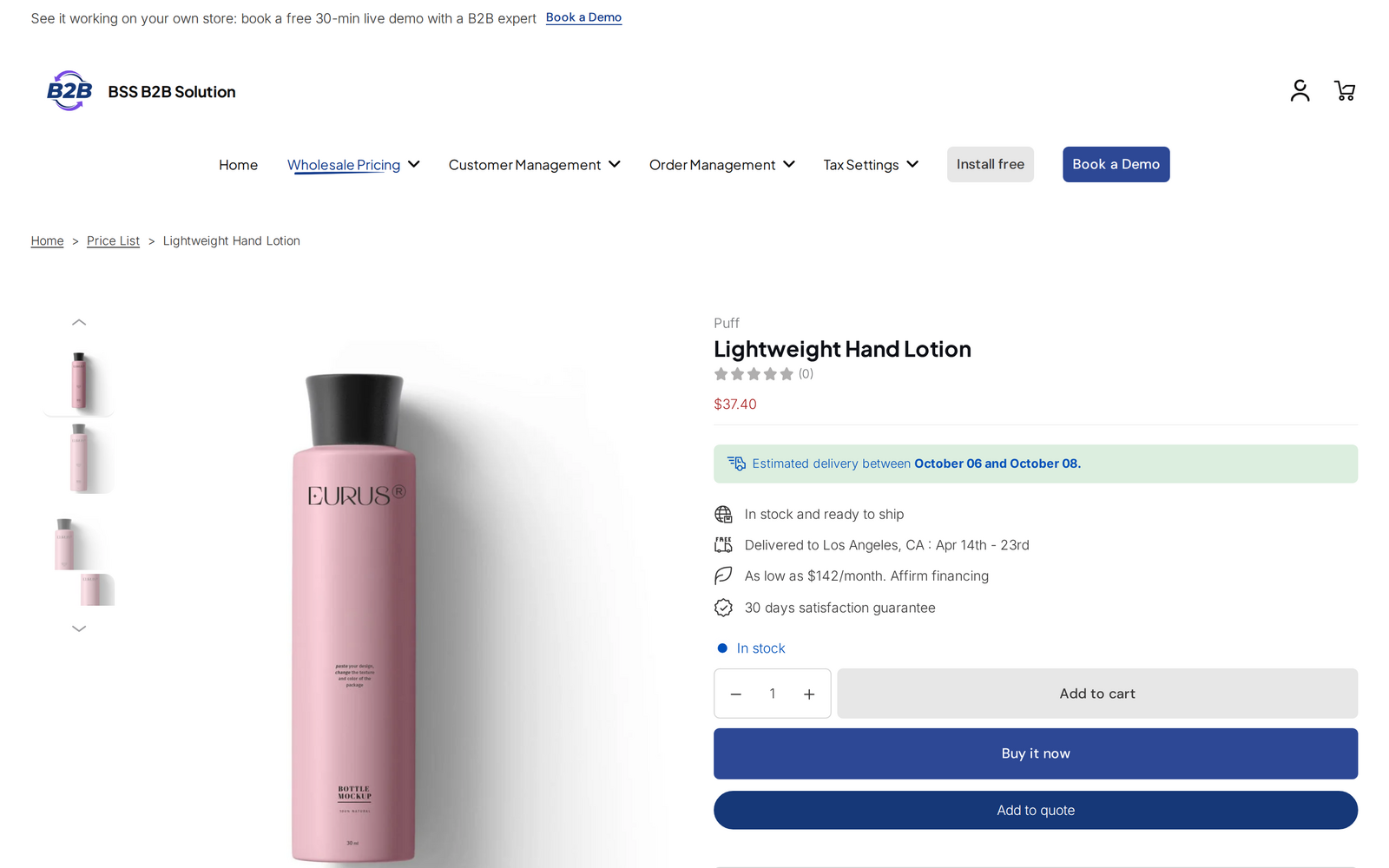
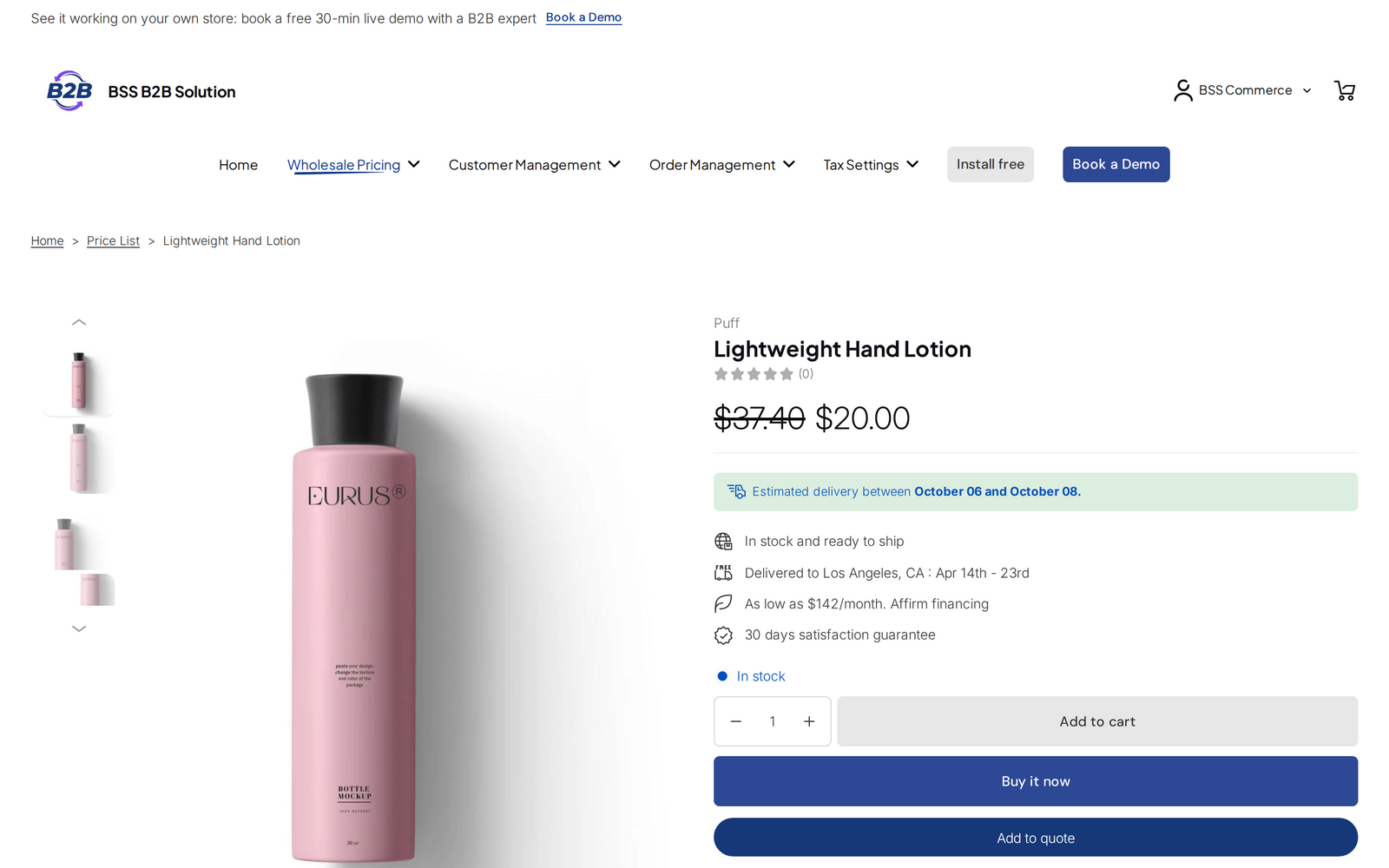
- A buyer says “I still see the retail price”, and you want a short checklist instead of trial and error.
Why this matters
Overlap is normal. A distributor tagged gold and wholesale can match a Price List, a Custom Pricing rule and a Volume Pricing rule at once, and every one of them is correct on its own. What you need is a predictable result. If the answer lives only in the head of the person who built the rules, the next price change is risky.
A wrong price is expensive in both directions. A price that is too high loses an order from a buyer who compares with a competitor. A price that is too low sells at a loss, and you may only notice when the order arrives. A model you can say out loud, “list first, then tiers, lowest priority number wins inside a module”, makes reviews quick.
A practical habit is to keep a short list of active rules per module with their priority numbers. When a price looks wrong, you walk through the list in the same order as the app.
How the app decides: two steps
Step 1: inside a module, one rule wins
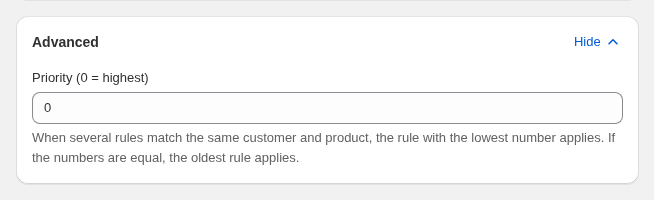
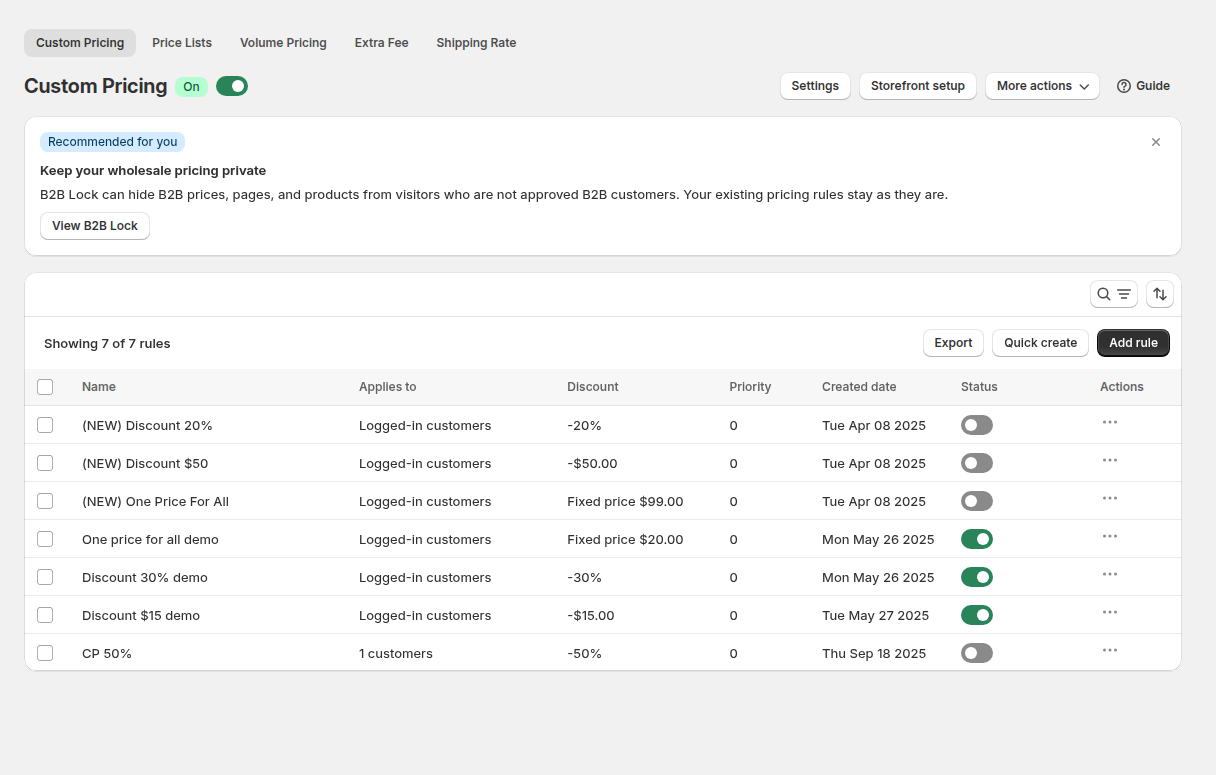
Most rule editors have a Priority (0-99) field in the Advanced card. The lower number wins, so a rule with priority 0 beats a rule with priority 5. If two rules have the same priority, the rule created first wins. New rules start at 0, and only enabled rules take part. Leave gaps between numbers, such as 10, 20 and 30, so you can slot in a new rule later.
Priority is compared only between rules of the same module. The user guide describes how each module behaves when several rules match:
| Module | What happens when several rules match |
|---|---|
| Custom Pricing | The matching rule with the lowest priority number sets the price; the others are ignored. |
| Price List | Same as Custom Pricing: one rule per product or variant. |
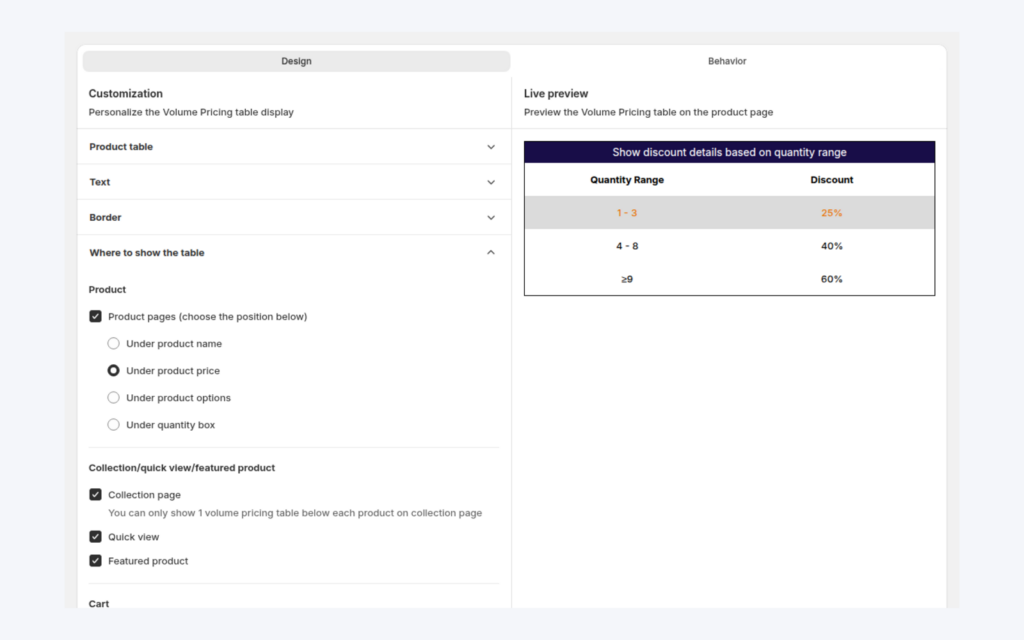
| Volume Pricing | The rule with the lowest priority number applies; a setting can show every matching table on the product page. |
| Order Limits | Rules with the lowest priority number are kept; if several set the same limit type, the strictest counts. |
| Quantity Increments | The matching rule with the lowest priority number applies. |
| Net Terms | The first rule by priority whose products cover every item in the cart is used. |
| Shipping Rate | No priority field; the lowest or highest matching rate is chosen in Settings. |
| Auto Tags | No priority between rules; every rule whose conditions are met runs. |
Step 2: across modules, prices chain
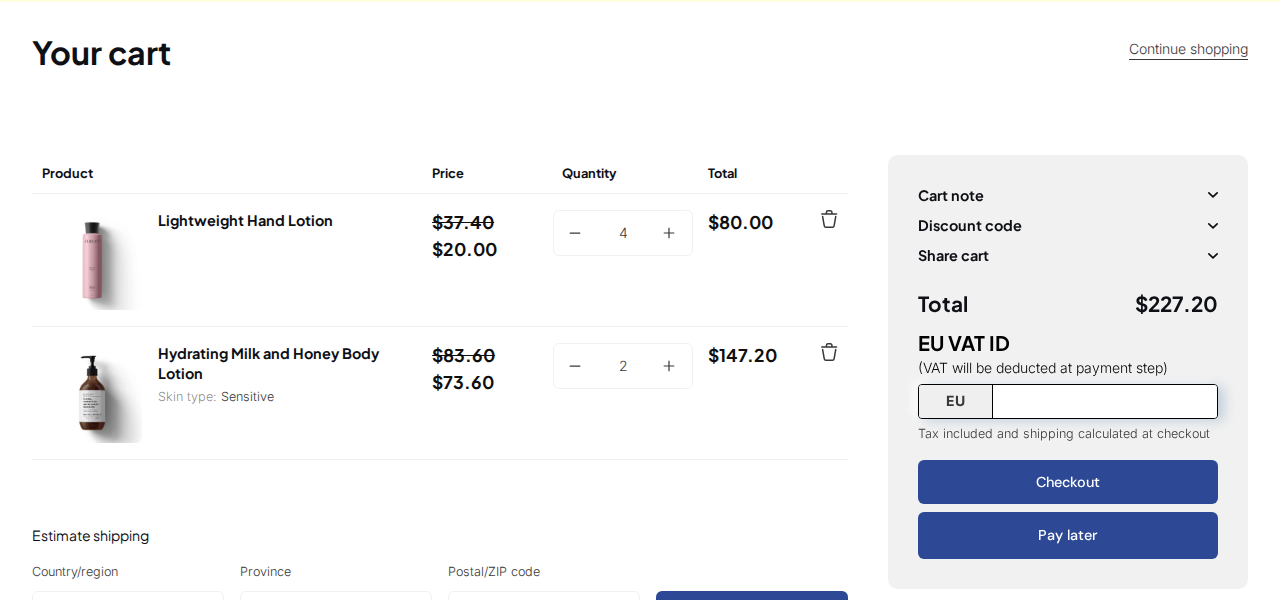
Different pricing modules stack in a fixed order, and each step starts from the price the previous one produced. A Price List or Custom Pricing sets the base price. If a Price List rule applies to a product or variant, Custom Pricing is skipped for it. Volume Pricing then applies its tier to that base price, not to the original price. After that, a Discount Code starts from the result. An Extra Fee is added as a separate fee and does not change the product price.
Example: why the deeper discount did not win
This is an illustration with made-up numbers, not a customer result. A store has these rules for customers tagged gold and wholesale.
| Rule | Module | Effect | Priority |
|---|---|---|---|
| Gold list | Price List | Product A fixed at $48 (retail $60) | 0 |
| Wholesale | Custom Pricing | 20% off all products | 10 |
| Clearance | Custom Pricing | 30% off all products | 20 |
| Case breaks | Volume Pricing | 5% off from 10 units | 5 |
A customer with both tags buys 12 units of Product A and 12 units of Product B (retail $40).
- Product A. A Price List rule covers it, so the price is $48 and Custom Pricing is skipped for this item. The tier takes 5% off $48, so $45.60 a unit.
- Product B. No list covers it, so the Custom Pricing rules compete. Wholesale (priority 10) and Clearance (priority 20) both match, and the lowest number wins: Wholesale, 20% off, $32.00. Clearance’s deeper $28.00 never applies, because priority decides, not the size of the discount. The tier then takes 5% off $32.00, so $30.40 a unit.
If you wanted Clearance to win on Product B, the fix is to give it a lower number than Wholesale, not to delete the Wholesale rule.
How to debug a wrong or missing price
Work through these checks in order. Most cases are solved by one of the first four.
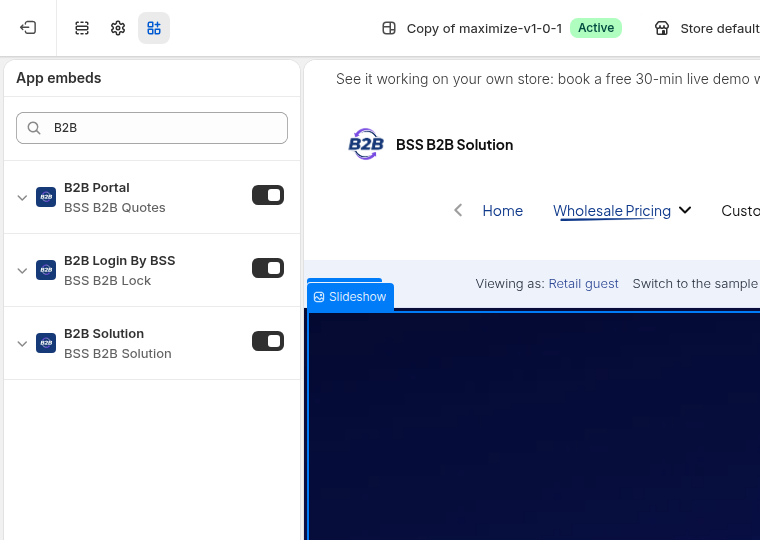
- Is the app embed on? Every B2B feature on the storefront loads from the embed. Open the app’s Home page and check the app embed status, then open the theme editor, go to App embeds, turn on BSS B2B Solution and save. Embeds are set per theme, so repeat this after you publish a new or duplicated theme.
- Is the module on? Each module has its own switch, and it applies only after you click Save in the save bar.
- Is the rule active? The status must be Enable, and the current time must be inside the schedule. Times use the time zone of the browser where you set them. If the editor shows a banner that the rule is inactive because an option needs a higher plan, change that option or upgrade.
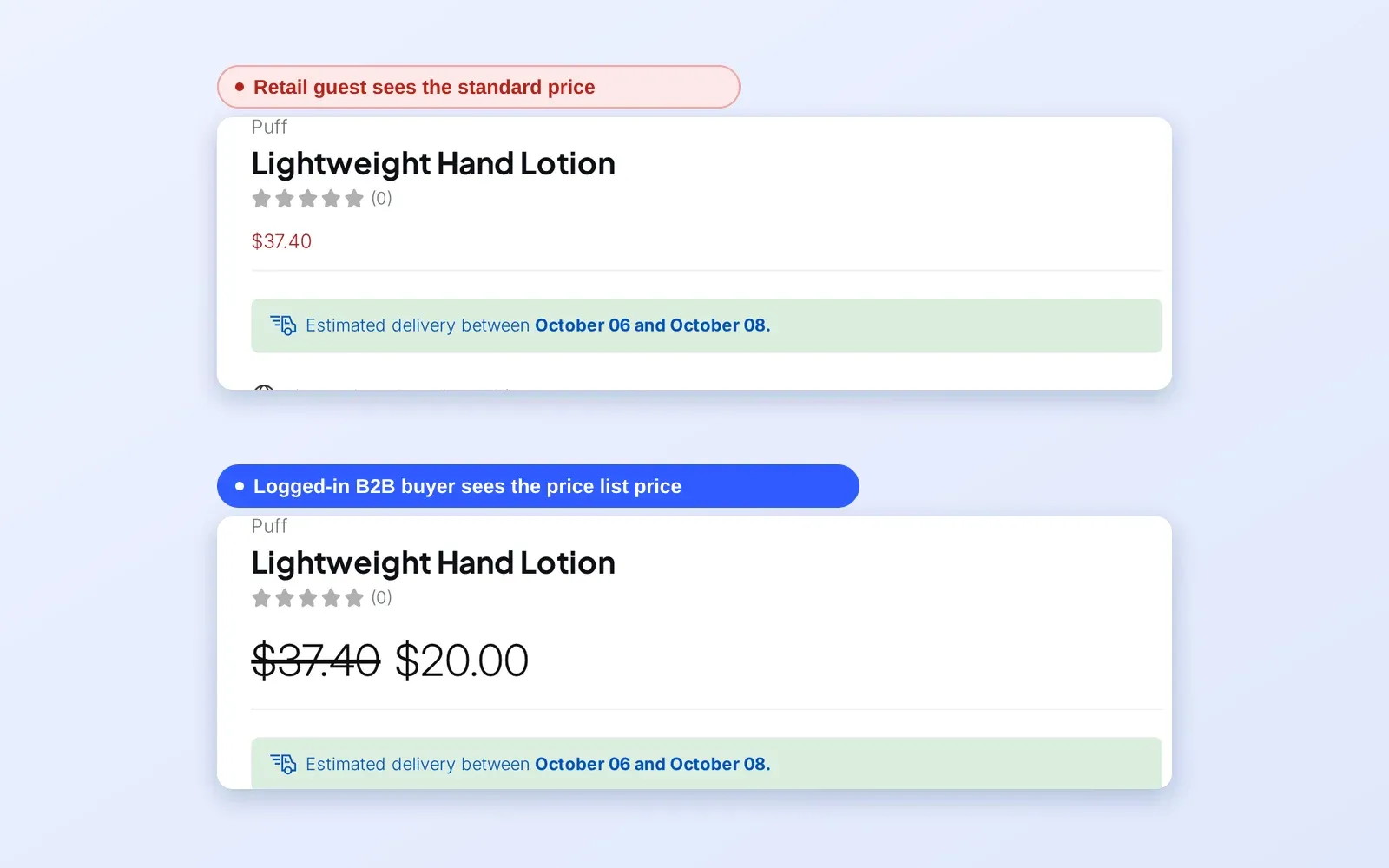
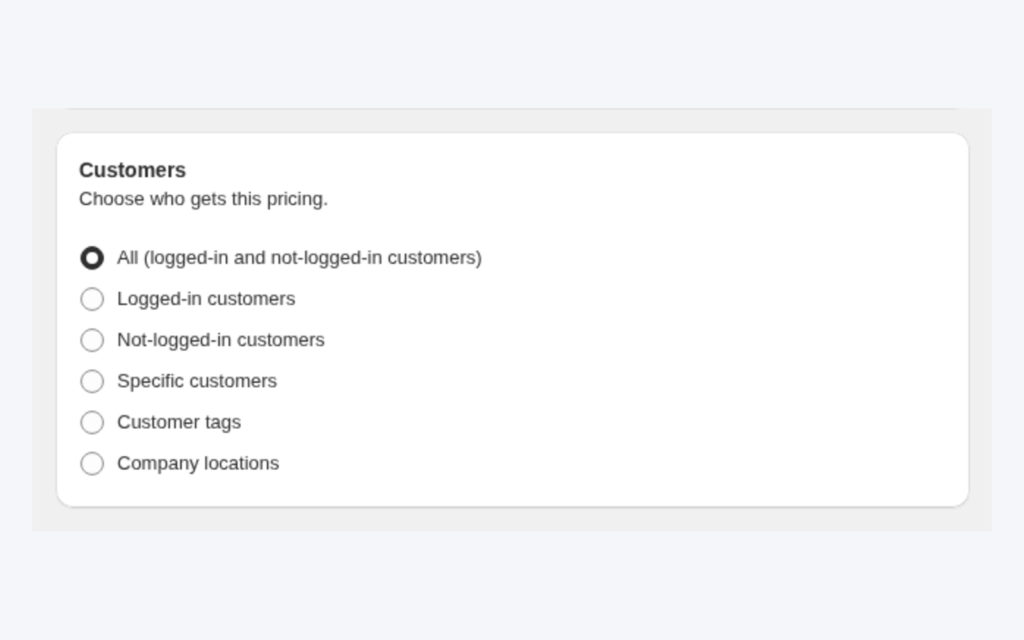
- Does the customer match? Log in as a test customer with the same tags in a private window. Rules for logged-in customers, specific customers, tags or company locations do not apply to visitors who are not logged in. A tag added a moment ago takes effect after a page reload.
- Is another rule winning? Compare priority numbers inside the module, and check whether a Price List covers the variant.
Works well with
- Stacking rules on purpose. Combine custom and volume pricing shows the chain with a worked example.
- Tag-based groups. Wholesale pricing by customer tag is the simplest base-rule layer.
- Exact prices. Price lists per buyer group are the first step in the chain.
- Retail and wholesale together. B2B and B2C on one Shopify store needs clear rules for who sees what.
The wholesale pricing hub links the other pricing guides. Related glossary terms are price list, customer tag and volume pricing.
Limits and common mistakes
- Priority does not compare modules. Custom Pricing priority 0 does not beat Volume Pricing priority 5; they combine.
- Priority decides, not the best price. A rule with a lower number wins even if another rule would give the buyer a cheaper price.
- A Price List always wins over Custom Pricing on the same variant, even when its price is higher, so keep one module responsible for each group and product.
- A custom price above the original price is not shown. The editor warns that prices higher than the original or compare-at price will not display.
- Tags are case-insensitive, but product tags in exclusions are exact. Type an excluded product tag with the capitalization it has on the product.
- Optimize B2B script loading. If it is enabled, B2B scripts load only for logged-in customers, so rules set to All or Not-logged-in customers do not run for guests.
Setup checklist
- List your active rules per module with their priority numbers.
- Number rules in steps of 10 so you can insert one later.
- Name each rule with its group and discount.
- Keep Price List and Custom Pricing from covering the same group and product.
- Check the embed and module switches after publishing a theme.
- Test with a tagged customer, a guest and a customer with two tags.
Plans and requirements
The priority rules apply to every module, but the modules differ by plan: Custom Pricing and Volume Pricing run on all plans (in limited form on Free), Price List needs Platinum, and Net Terms, Order Limits and Quantity Increments need Advanced or higher. See the BSS B2B Solutions pricing page for current plan details.
You can install BSS B2B Solution from the Shopify App Store (4.9 rating from 1,185 reviews as of 2026-10-02, 14-day free trial on paid plans), read the app overview, or follow the guide on how rule priority works. The troubleshooting checklist goes further.