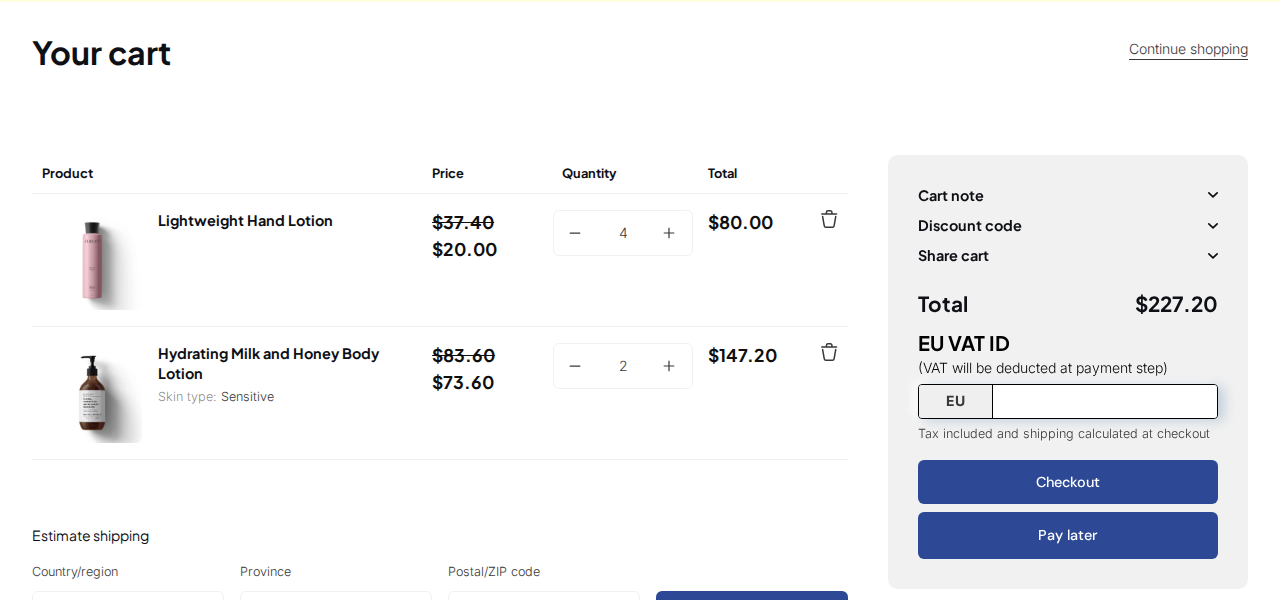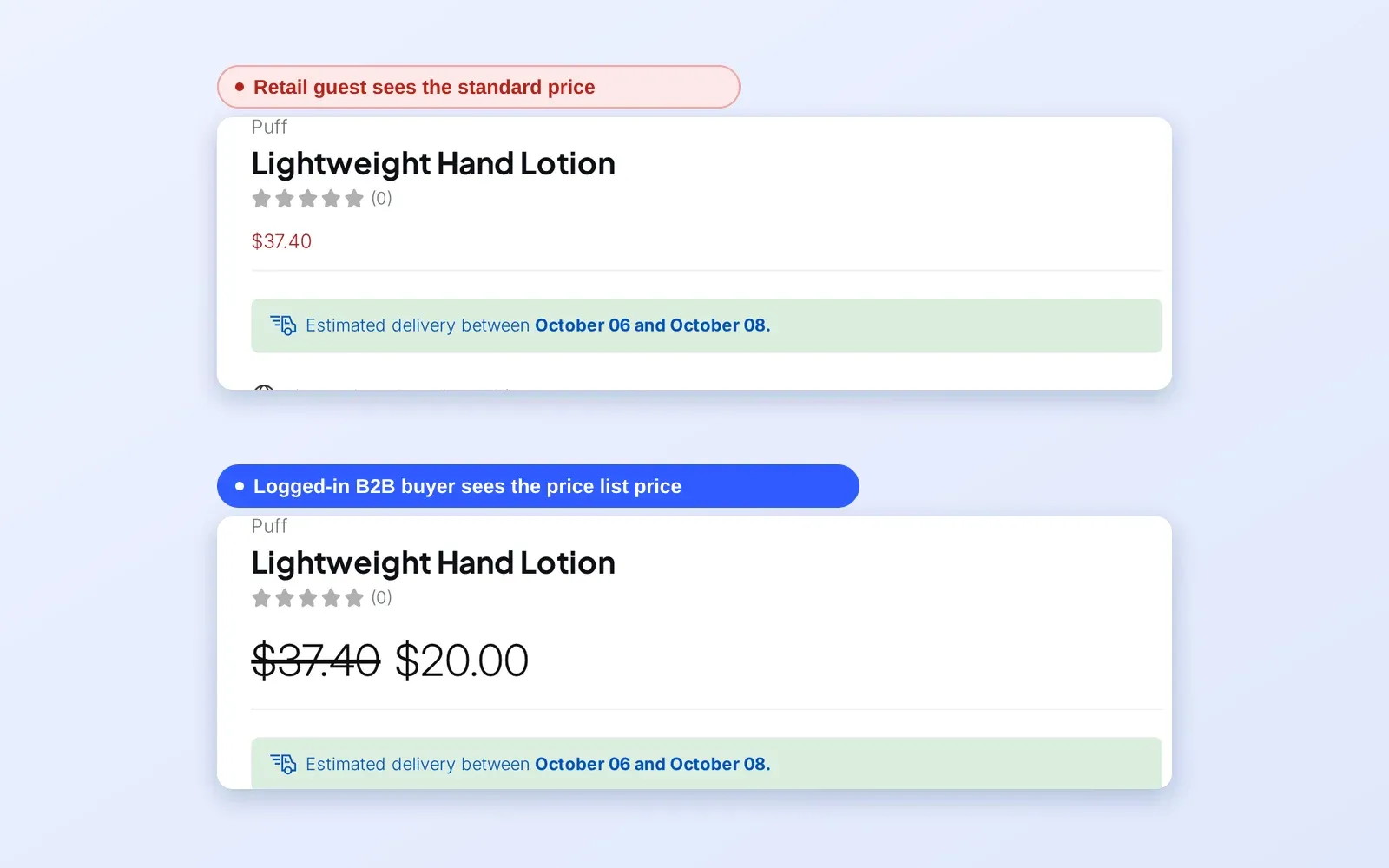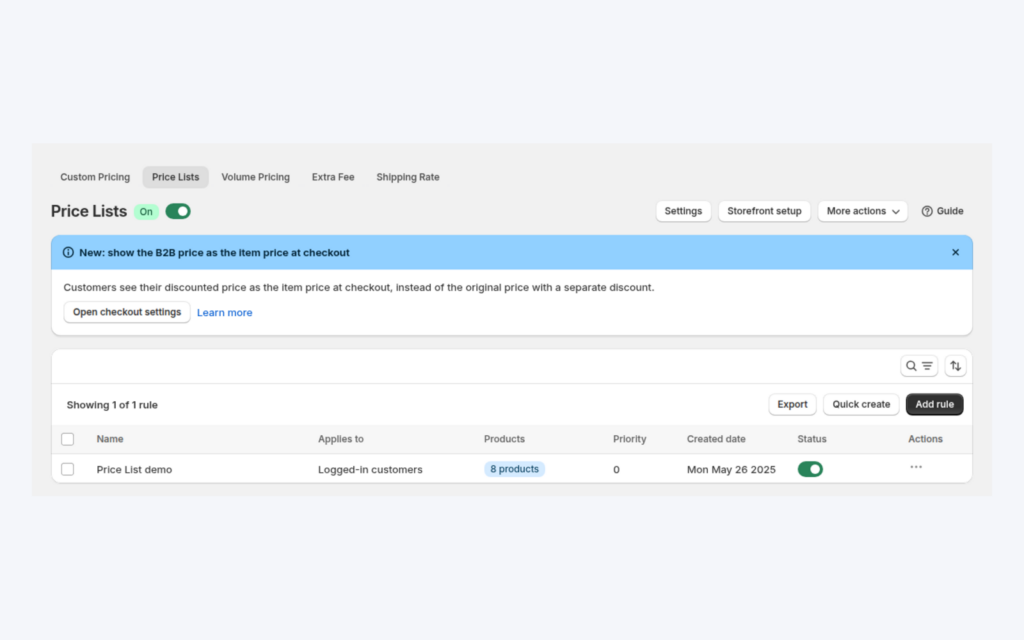
A B2B price list on Shopify is a set of exact prices for one buyer group, and in BSS B2B Solution you build it per product or per variant, then target it at customers or customer tags. Distributors, retailers and key accounts each get their own list, and the right prices appear on product pages, collections and the cart as soon as a matching buyer logs in.
Use a price list when a percentage discount cannot express what you agreed. Negotiated trade prices rarely follow a single formula: one SKU carries a 30% margin, another 15%, and a third is sold at a fixed price. A list lets you set each of those prices on purpose and keep them in one table instead of in a spreadsheet that goes out by email.
Who this is for
A per-buyer-group price list is the right tool when:
- You are a distributor, wholesaler or brand-to-retailer business with a different price per SKU for each customer segment.
- Your contracts name exact prices, such as “$22.00 for the 12-pack”, rather than “30% off list”.
- Your sales team maintains price sheets and you want one place that holds the current version.
- You have a handful of segments, for example retailers, distributors and key accounts, and the segments change slowly.
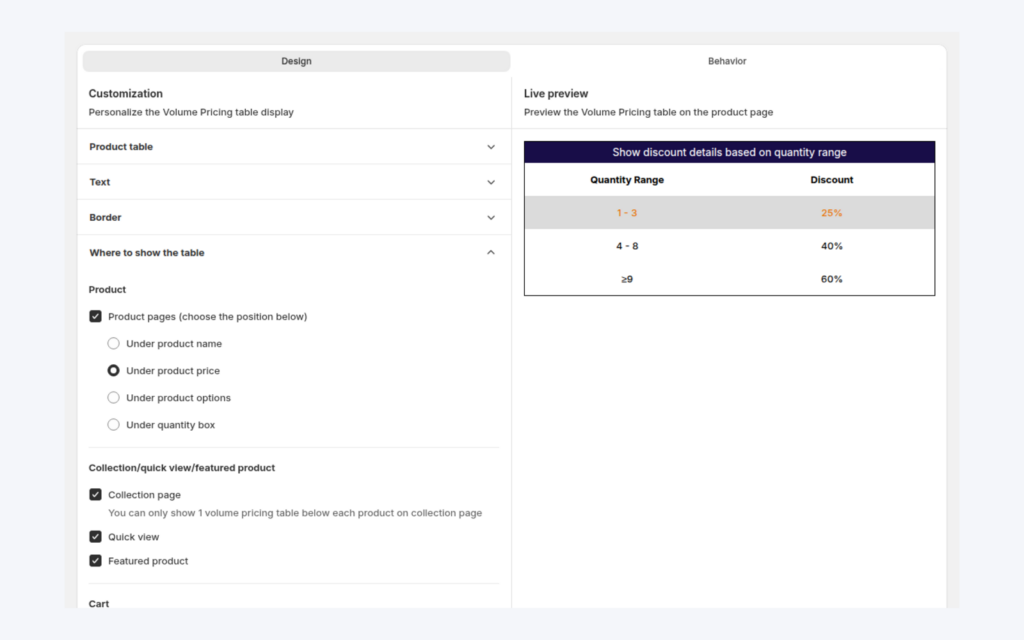
- You want volume tiers or other rules to build on top of a negotiated price rather than on the retail price.
If one discount fits every product, a Custom Pricing rule by customer tag is simpler and available on every plan.
Why this matters
A single percentage hides the real shape of a trade price book. Take a bicycle-parts distributor: brake pads, tyre levers and inner tubes all have different supplier costs, so the same 30% off would starve the margin on one product and leave money on the table on another. Exact prices let the distributor protect margin item by item.
Lists also change who can do the work. A rule per segment, with the prices visible in a table, is easier to hand over to a sales or operations colleague than a pile of overlapping percentage rules. Naming each list after its segment makes the intent obvious months later.
For the buyer, an exact price is a promise. When the product page shows the price written into the contract, there is no need to email for confirmation, and the price sheet in the inbox is never the stale one.
What Shopify covers natively, and where an app helps
Shopify’s native B2B uses catalogs to give business buyers their own prices. The Shopify Help Center (read on 2026-10-02) lists up to 3 catalogs on Basic, Grow and Advanced, and unlimited catalogs on Plus. See the wholesale pricing hub for how the pricing models compare.
BSS B2B Solution’s Price List is a different thing. It is a rule stored and managed by the app and read on the storefront, so it does not create or edit Shopify catalogs and will not appear in Shopify’s catalog settings. Choose it when you need exact prices for more buyer groups than the native catalog limit allows, or when your groups are defined by customer tags on a store that also serves retail shoppers.
How to set up a price list with BSS B2B Solution
Step 1: Turn on Price List and add a rule
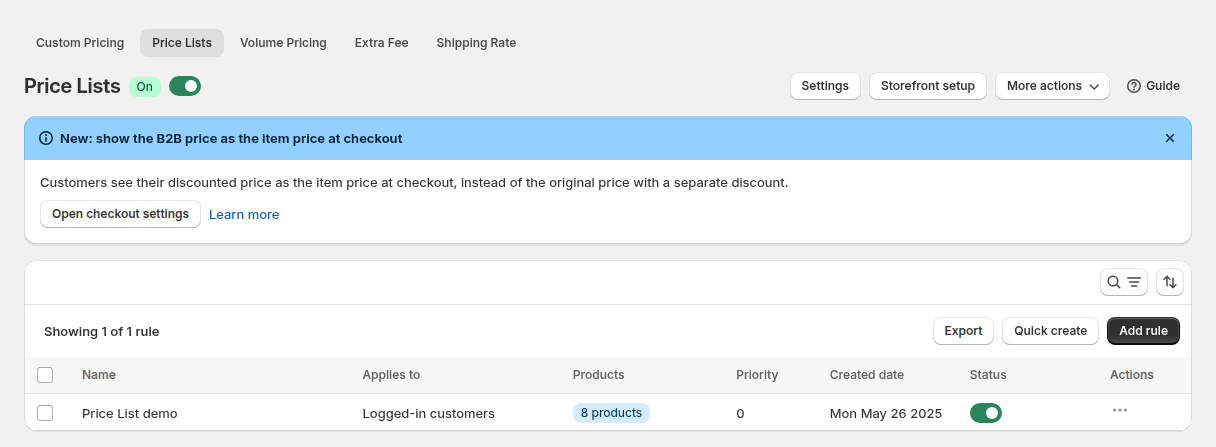
In the app, open B2B Pricing, turn Price List on and click Add rule. The new price list page has the cards Rule, Customers, Markets and Edit price list, plus Exclusions and schedule and Advanced, which you open with Show. Name the list after the segment, for example Distributors, EU.
Step 2: Choose who gets the list
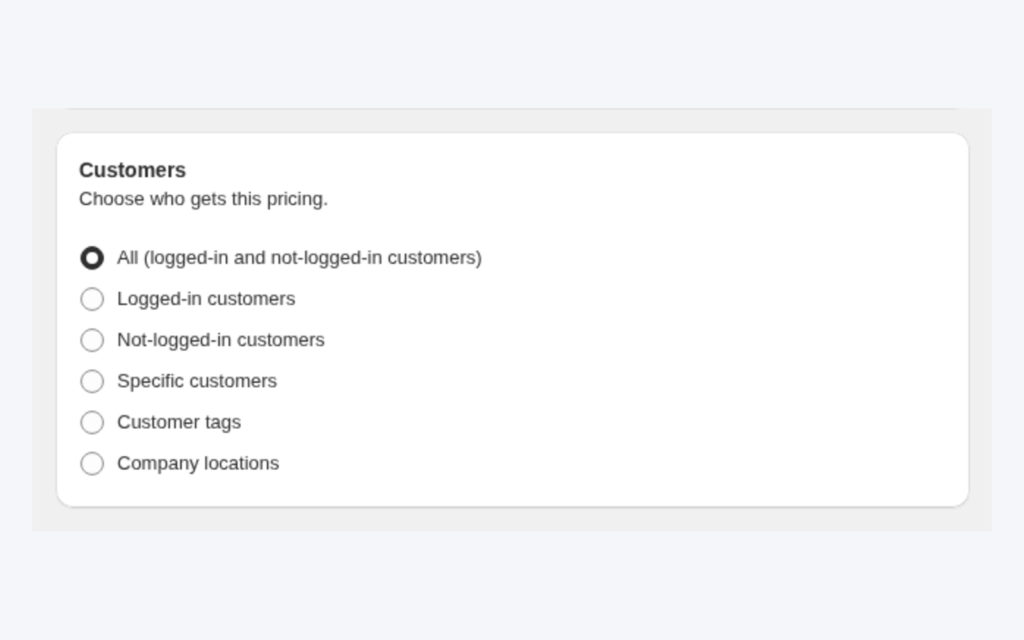
In the Customers card choose all customers, logged-in customers, specific customers, customer tags or company locations. For most distributor setups, a customer tag such as distributor is the easiest to maintain because a registration form or Auto Tags can add it. Company locations appear only when your store has Shopify B2B companies and apply on the online store only. You can narrow the list to specific Shopify markets in the Markets card.
Step 3: Pick products and set prices
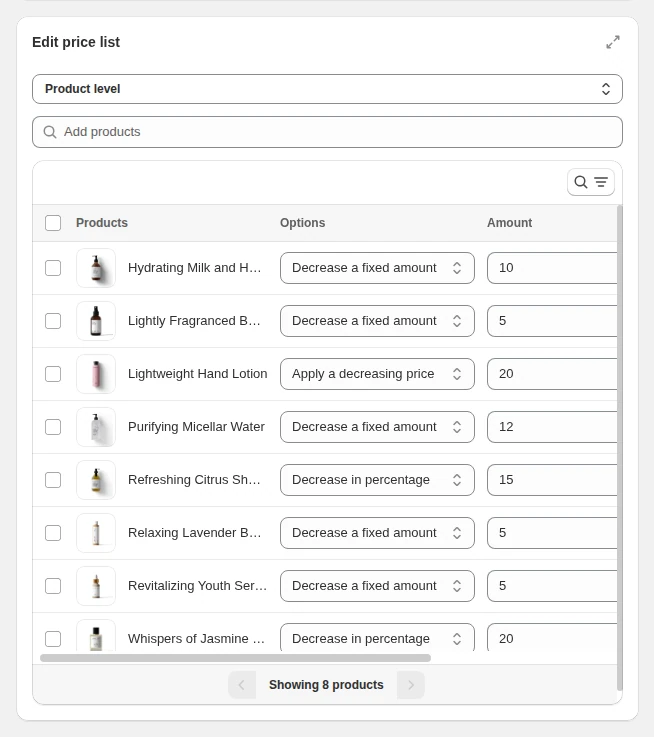
In Edit price list choose Product level to apply one price option to a product and all its variants, or Variant level to price each variant separately, which suits products where sizes carry different negotiated prices. Use Add products to search by title, SKU or barcode. For each row choose a price option: apply a decreasing price (an exact price), decrease by a fixed amount, or decrease by a percentage.
Step 4: Bulk edit
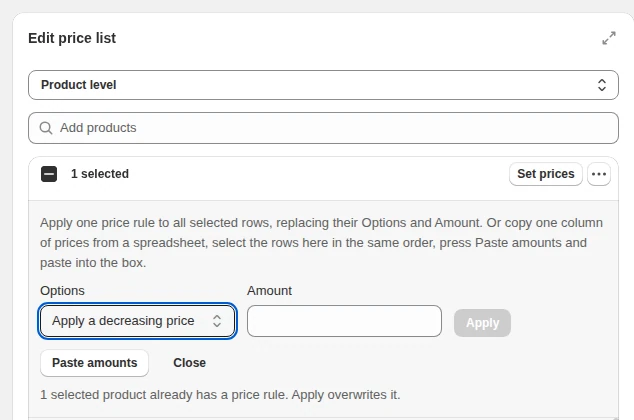
Tick rows, click Set prices, choose an option and an amount, then click Apply to set the same rule across all selected rows. You can also copy one column of prices from a spreadsheet and use Paste amounts. The expand icon gives a full-width view of the table. Switching between product level and variant level may discard prices you have entered, so the app asks you to confirm before it does.
Step 5: Priority, exclusions and schedule
Set Priority (0 to 99) in the Advanced card when one customer can match several lists. The lowest number wins, and a tie goes to the older rule. Under Exclusions and schedule you can keep customers or products on normal prices and add a start and end date. An exclusion always wins. Time is based on your browser’s time zone.
Step 6: Save, check and test
Click Save. The Make Price Lists live card turns green when the rule is saved and enabled, the module is on and the app embed is on in your theme. Then log in as a test buyer in a private window.
Example: a bicycle-parts distributor with two lists
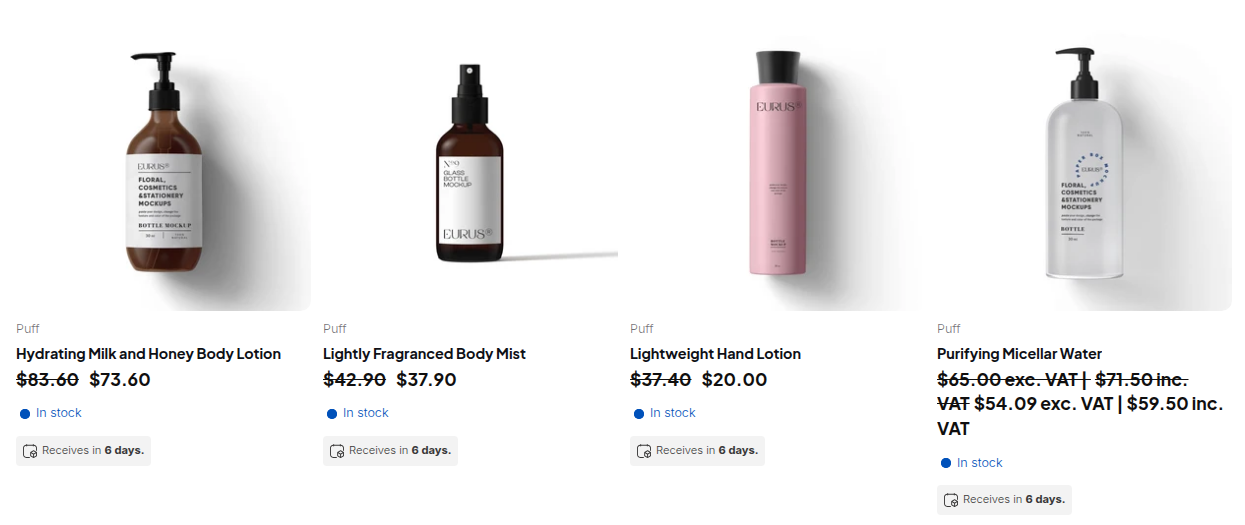
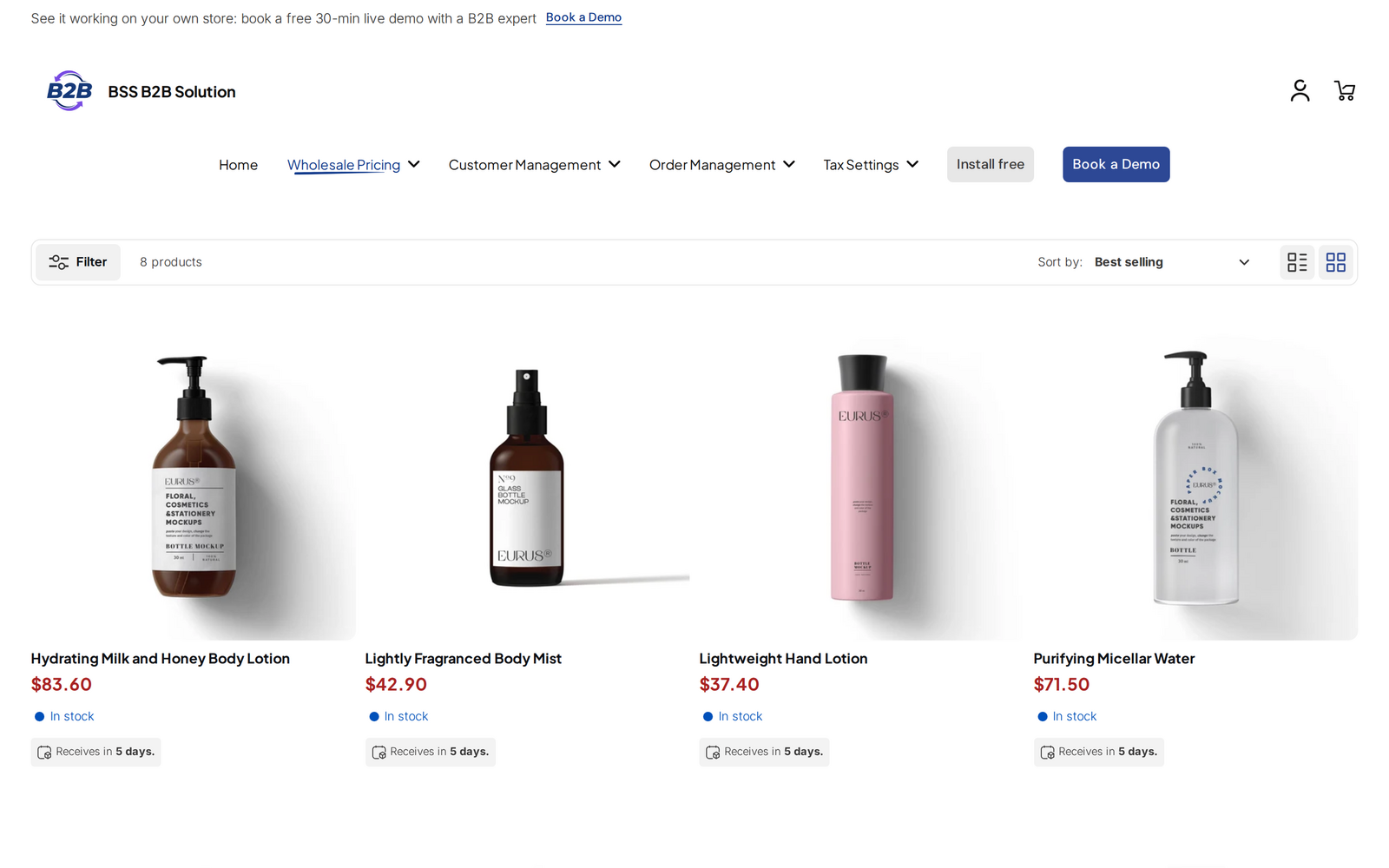
This is an illustration with made-up numbers, not a customer result. A distributor sells three products and keeps two lists.
| Product | Retail price | Retailers list | Distributors list |
|---|---|---|---|
| Brake pad set | $40.00 | $28.00 (exact price) | $24.00 (exact price) |
| Tyre lever pair | $9.00 | 25% off, so $6.75 | 35% off, so $5.85 |
| Inner tube, 10-pack | $50.00 | $38.00 (exact price) | $32.00 (exact price) |
A shop tagged retailer sees the Retailers column and a wholesaler tagged distributor sees the Distributors column. If the distributor also has a Volume Pricing rule with 5% off from 10 units, a buyer who orders 12 brake pad sets pays 5% off $24.00, which is $22.80 a set. The tier is calculated from the list price, not from the $40.00 retail price.
Works well with
- CSV maintenance. Import wholesale prices from CSV lets you keep lists in the spreadsheet your team already uses.
- Quantity breaks. Combine custom and volume pricing to add tiers on top of list prices.
- Predictable winners. Which B2B rule wins explains priority when several rules match.
- Real-world setups. See how a foodservice packaging distributor and a beauty brand selling to salons use price lists.
- Systems integration. Platinum includes the Public API, so an ERP can sync B2B data.
PAN World Brands, a distributor of sportswear, workwear and safety footwear, describes in its case study how pricing rules attach directly to approved wholesale accounts and how pricing and discount logic sits in one wholesale system. Read the PAN World Brands story. For background terms, see the glossary entries for price list, buyer group and customer tag.
Limits and common mistakes
- A price list and Custom Pricing never stack on one variant. If a Price List rule applies to a product or variant, Custom Pricing is skipped for it. A list with a higher price can therefore hide a better percentage discount, so give one module responsibility for each group and product.
- Volume Pricing still applies on top. Tiers are calculated from the list price.
- Higher prices are not shown. A custom price higher than the original price does not display to eligible customers.
- Products must be published to the Online Store for the rule to apply to them.
- Company-location lists do not apply at POS or through the Public API, because they depend on which location the buyer is ordering for.
- Check the level before you save. Moving from product level to variant level can discard prices.
- Changes take a short time to reach the storefront. After a CSV import, the guide says updates typically take one to three minutes.
Setup checklist
- List your buyer segments and decide the tag for each.
- Build one price list per segment and name it clearly.
- Choose product level or variant level before you enter prices.
- Set a priority if one customer can match several lists.
- Add a schedule if the prices are for a season or a contract period.
- Turn on the app embed and test as a tagged buyer and as a guest.
- Export the list once it is correct, so you have a backup.
Plans and requirements
Price List needs the Platinum plan. On other plans the app shows an upgrade message when you open the module. Platinum also includes CSV import and export for price lists and the Public API. Custom Pricing and Volume Pricing are available on lower plans. See the BSS B2B Solutions pricing page for current plan details.
You can install BSS B2B Solution from the Shopify App Store (4.9 rating from 1,185 reviews as of 2026-10-02, with a 14-day free trial on paid plans), read the app overview, or follow the price list guide in the docs. The price list overview explains how the module fits the pricing order.