To sell beauty and hair products to salons and consumers from one Shopify store, use BSS B2B Solution to give approved professionals a pro price and a price shown excluding VAT, while consumers keep seeing normal retail prices including tax. The pieces are a registration form with a tax ID field, a Custom Pricing rule or Price List for the pro tag, a Tax Display rule for the same tag, and Tax Exempt where a buyer qualifies.
This guide is for beauty, hair and skincare brands that sell to consumers and to professionals such as salons, barbers, spas and retailers. It explains who benefits, the setup in six steps with screenshots, a worked example with VAT-inclusive and VAT-exclusive prices, and the limits to settle with your accountant, above all that Tax Display only changes what is shown, not what Shopify charges.
Who this is for
This setup fits you if several of these are true:
- You sell a professional range to salons, barbers or retailers next to a consumer range, from one store.
- Business buyers compare net prices, excluding VAT, while consumers expect a price with tax.
- You need to qualify professionals, for example with a VAT number or a licence document, before they see pro prices.
- Pro buyers reorder the same products often and want a fast way to do it.
- You sell into several European markets, where VAT treatment differs by buyer.
If you only need a registration form and approval, see wholesale registration form with approval.
Why this matters
Salons compare net prices and expect to reorder the same products often. Consumers expect a price with tax. If the store shows only one version, one of the two groups does the maths, or gets confused at the cart, and the business buyer who sees a tax-inclusive price may assume your wholesale price is higher than it is. A second store would fix the display but double the catalog and the support work. A professional buyer is also someone who orders the same products every few weeks, so the experience after approval matters as much as the first price they see.
Several beauty brands in our case studies run this setup on one store. Valera, a Swiss hair-appliance specialist, uses Custom Pricing, Tax Display and a registration form with a valid EU VAT number to show business buyers prices excluding VAT. MonkeyHands, an Italian cosmetics seller, shows tax-inclusive prices to consumers and tax-exclusive prices to businesses, with country tags from its registration form. KAPR, a Dutch grooming brand whose KAPR PRO range serves barbers and salons, uses a registration form, pricing rules and BSS B2B Quote for quick ordering. DermaplanePro collects tax IDs and business documents in its form. Read the Valera, MonkeyHands, KAPR and DermaplanePro case studies.
How to set it up with BSS B2B Solution
The steps follow the professional’s path from application to a net price.
Step 1: Create the pro registration form
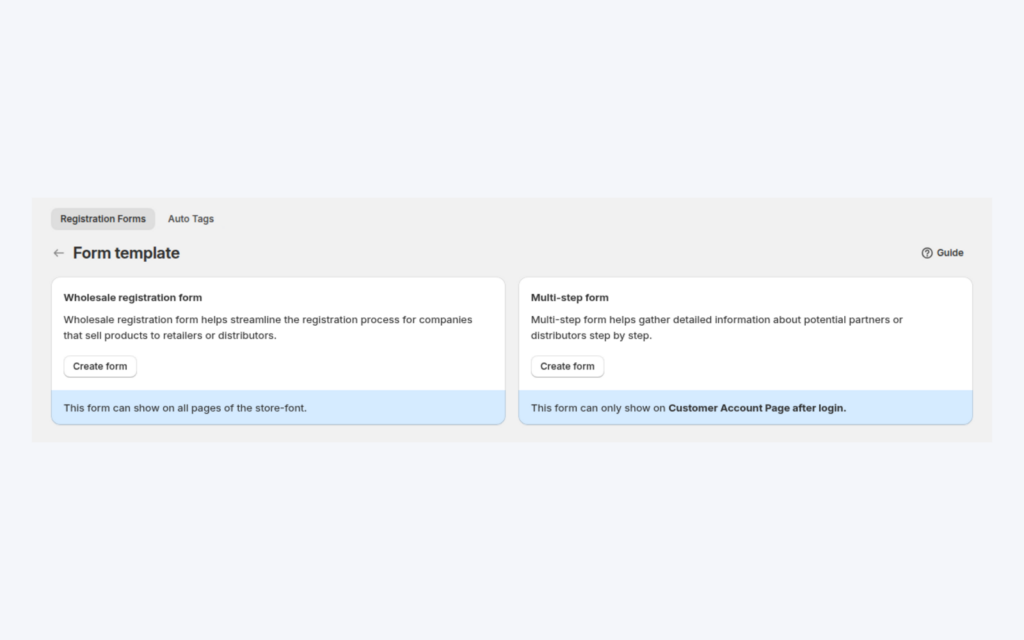
Build a form that collects business details, a tax ID field such as EU VAT, UK VAT, US EIN, Australian ABN or India GST, and a file upload if you need a licence or certificate. A tax ID is checked live as the buyer types and blocks submit only when the field is required. Uploaded files can be up to 10 MB each. Choose manual approval so you review each business, and assign a tag such as `pro` on approval.
Step 2: Set pro prices by tag
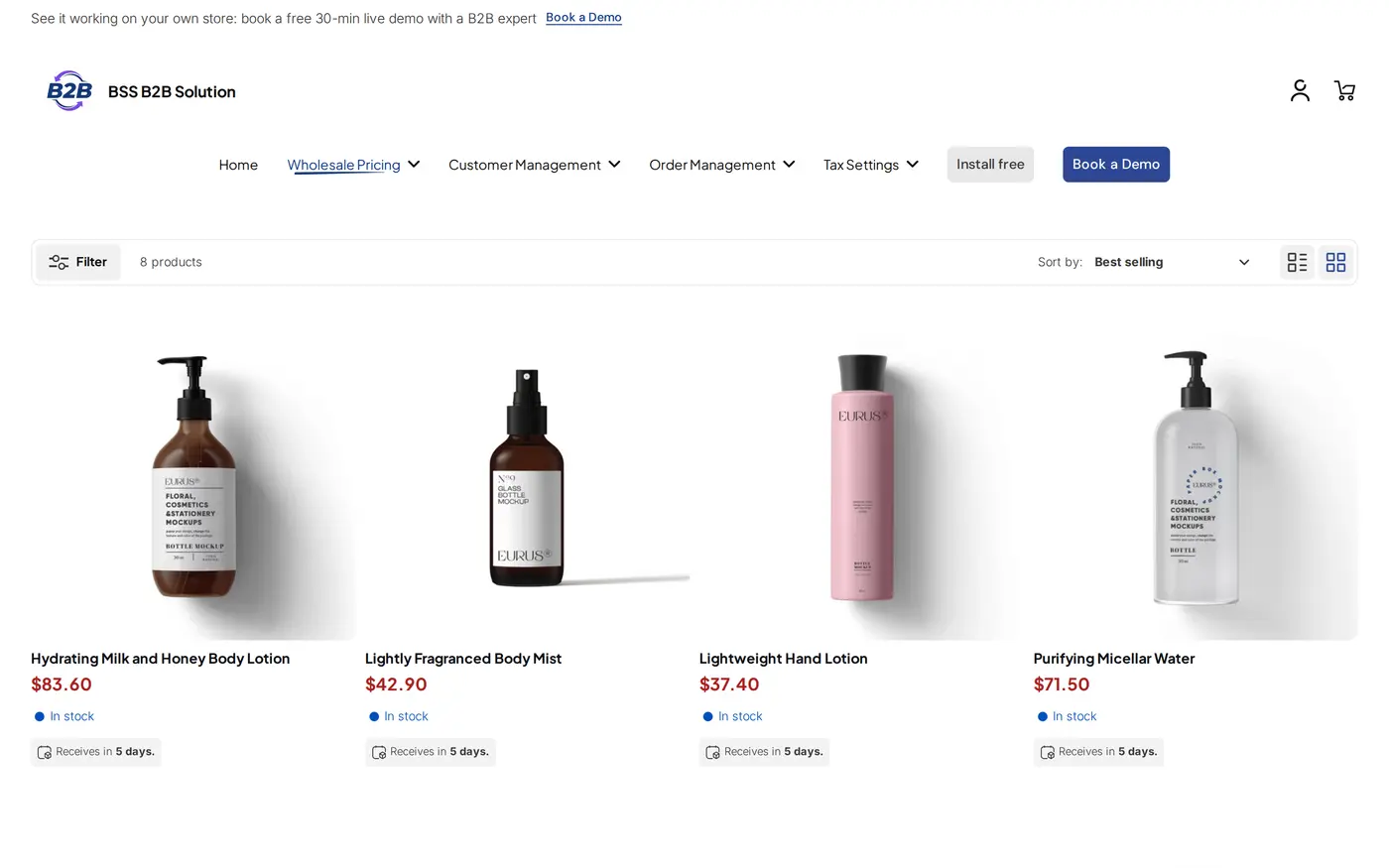
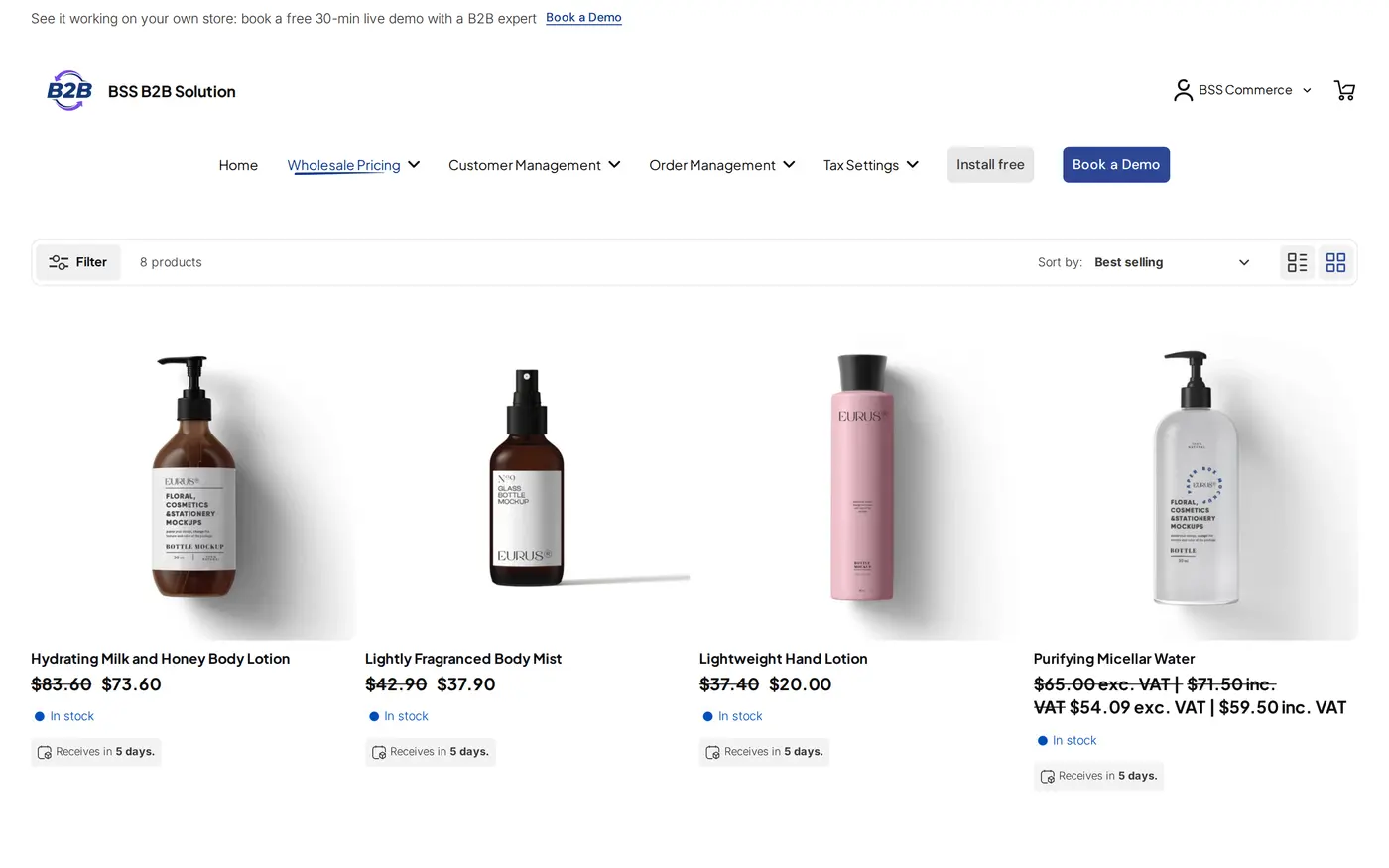
Create a Custom Pricing rule for the `pro` tag, or a Price List on the Platinum plan for exact prices per product. Consumers and guests keep the retail price.
Step 3: Show prices excluding VAT
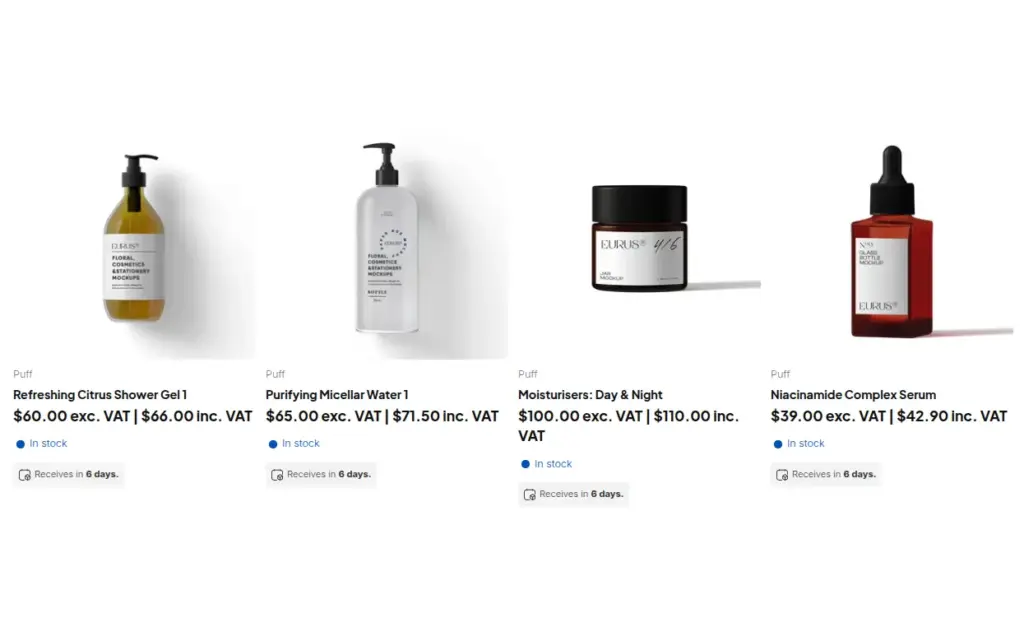
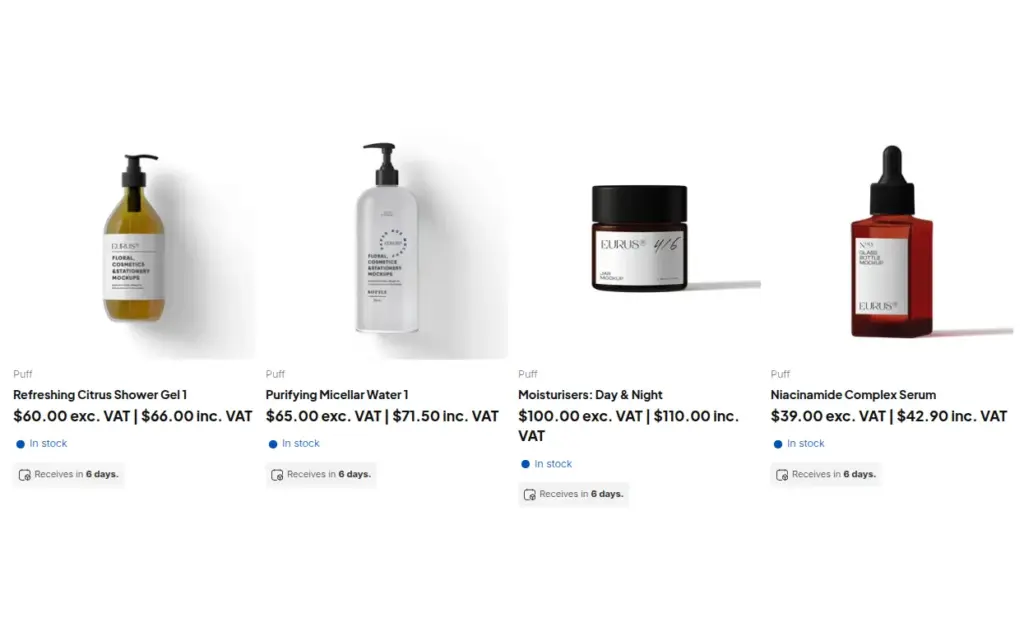
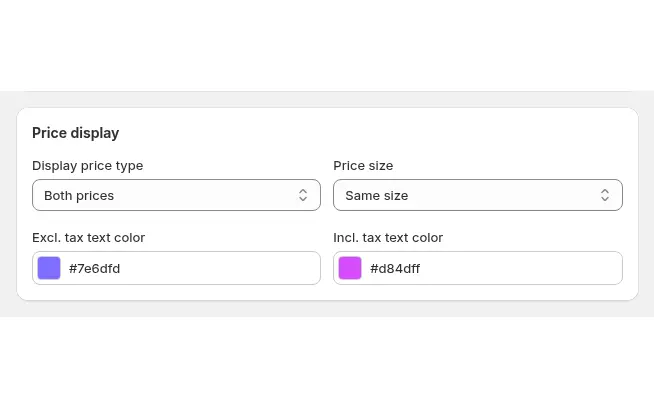
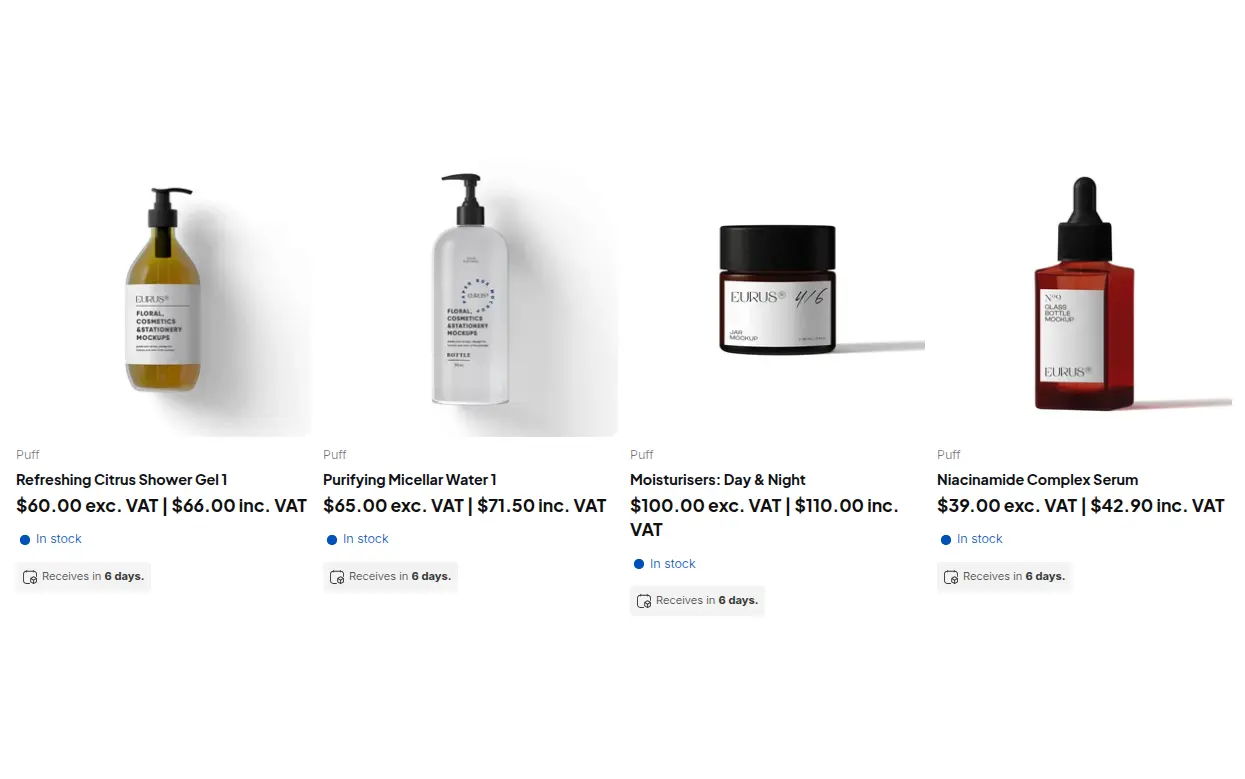
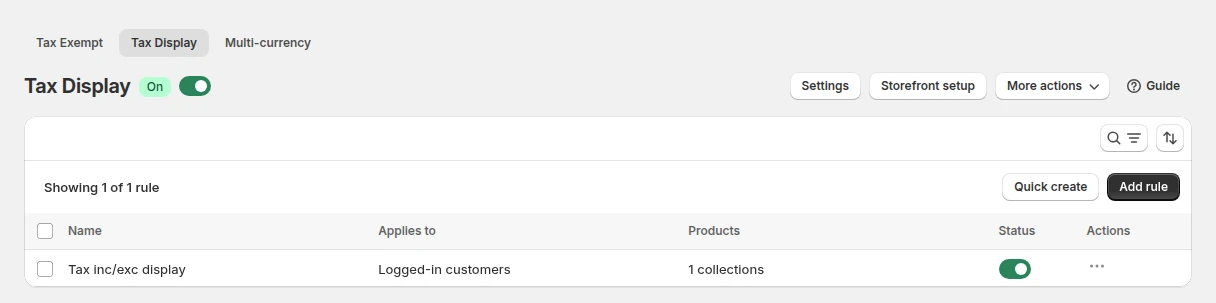
Create a Tax Display rule for the same tag. Choose the display type: both prices side by side, including tax only, excluding tax only, or a toggle with an Inc. VAT and Exc. VAT switch. Choose the pages where it shows, such as the product page, the collection pages and the cart, and install the price snippets from the Storefront setup page if your theme needs them.
Step 4: Remove tax where it applies
Tax Display does not change what Shopify charges. For buyers who qualify, use Tax Exempt, where the buyer enters a tax ID on the cart page and the app creates a tax-exempt draft order. It needs the Advanced or Platinum plan and runs from the cart, so a buyer who goes straight to a Shopify checkout link is taxed normally. You decide who qualifies, so keep your own records and confirm the rules with your accountant.
Step 5: Keep tax settings in sync
The app reads your country tax rates from Shopify. If you change them in Shopify, click Update Settings in Tax Display, because the app cannot detect the change. Shopify’s own tax overrides cannot be read either, so recreate them in the app if you use them.
Step 6: Add quick ordering for repeat buyers
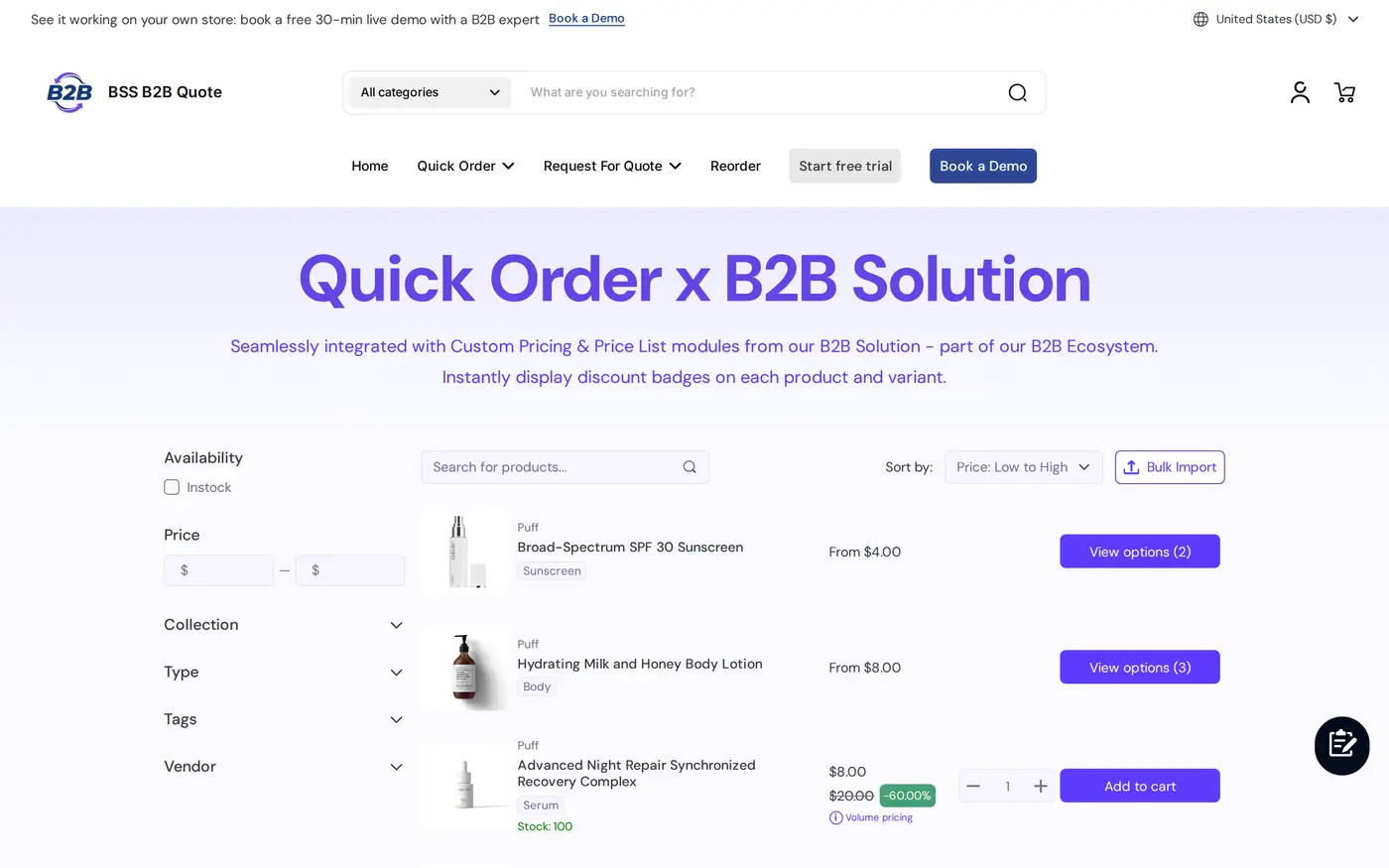
Add BSS B2B Quote so approved buyers can use a Quick Order page, a spreadsheet upload and Reorder. Quick Order rows and the quote cart can use BSS B2B Solution prices for customers who are not on Shopify native B2B.
Example: a hair care brand with pro prices
This example uses illustrative numbers, not results from a real store. A hair care brand sells a 1 litre professional shampoo at a retail price of €30.00 including 20% VAT. A Custom Pricing rule gives customers tagged `pro` 25% off, so the pro price is €22.50 including VAT. A Tax Display rule for the `pro` tag shows both prices, so a salon sees “€18.75 exc. VAT | €22.50 inc. VAT” (€22.50 divided by 1.2).
A consumer sees €30.00 and the normal checkout. A salon applies through the form with a VAT number, which is checked as it is typed, and is approved and tagged. After login, the salon sees the net price of €18.75 beside the price with VAT. A salon in another EU country that qualifies for tax exemption enters its VAT ID in the cart, and the app creates a tax-exempt draft order. A week later the salon reorders from its history.
Works well with
Pro pricing and VAT display connect to a few other pages:
- Tax display: show prices excluding VAT to B2B buyers covers every display option.
- Tax IDs: verify business tax ID at registration covers live tax ID checks.
- Exemption: EU VAT exemption with VAT ID validation covers Tax Exempt in detail.
- Prices: B2B price list per buyer group covers Price Lists.
- Ordering: reorder page for repeat buyers covers Reorder.
The tax and compliance hub and the wholesale pricing hub list the guides. Glossary entries that help: tax ID, tax exemption and VAT reverse charge.
Limits and common mistakes
- Tax Display is display only. It changes how prices are shown, and Shopify still calculates tax at checkout. This is not tax advice, so confirm your rules with your accountant.
- Tax Exempt works from the cart page. A buyer who goes straight to a checkout link skips it and is taxed as usual, and it needs the Advanced or Platinum plan.
- A tax ID check is not a legal check. The number is validated against public services as it is typed and blocks submit only when the field is required, and the server does not re-check it on submit. Review each application before approval.
- Tax rates are copied, not live. Click Update Settings after changing rates in Shopify, and recreate tax overrides in the app.
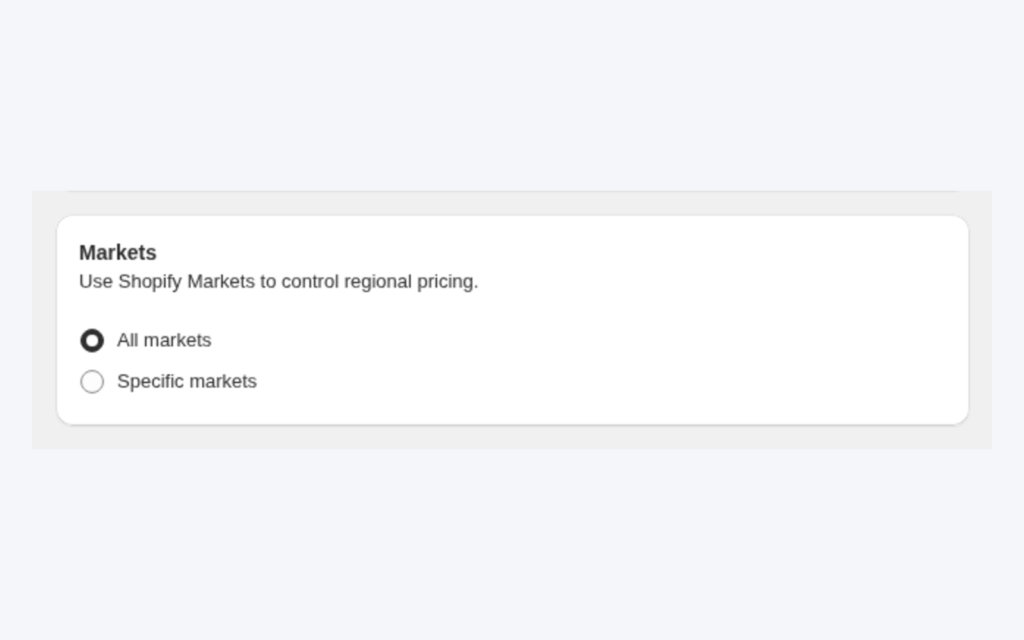
- Fixed prices per currency are not supported. Custom Pricing values are stored in your store currency and converted by the market rate, and Multi-Currency only converts the display, so checkout stays in your store or Markets currency.
- Reorder shows current prices. It needs a logged-in buyer, and it is not part of the Starter plan of BSS B2B Quote.
- Test as three buyers. Check a consumer, a pro and a pro with a tax ID, on the product page, the collection page and the cart.
Setup checklist
- Decide the pro tag and the approval rule.
- Build the registration form with a tax ID field and, if needed, a document upload.
- Create the pro Custom Pricing rule, or a Price List if you are on Platinum.
- Create the Tax Display rule and choose the display type and pages.
- Add Tax Exempt if some buyers qualify, and test from the cart page.
- Click Update Settings in Tax Display after any tax change.
- Add BSS B2B Quote for quick order and reorder if buyers order often.
- Test as a consumer, a pro and a pro with a tax ID.
Plans and requirements
Tax Display and Tax Exempt need the Advanced or Platinum plan of BSS B2B Solution, Price List needs Platinum, and the registration form and Custom Pricing are available with limits on the free plan. BSS B2B Quote runs on paid plans. See the BSS B2B pricing page for the tables and the 14-day free trial on paid plans. The Tax Display guide lists every option. Install BSS B2B Solution from the Shopify App Store and start with the pro registration form.