To set wholesale prices per market on Shopify, create a Custom Pricing or Price List rule in BSS B2B Solution, open the Markets card and choose Specific markets, then pick the Shopify Markets where the rule should be active. Combine it with a customer tag and a buyer sees the wholesale price meant for their market, while the same buyer group in another country sees the price of that country’s rule.
The same buyer group often needs different prices in different countries. Freight, duties, local competition and positioning all vary, and one global discount either leaves margin on the table in one region or prices you out of another. A market condition lets one rule set follow your regional strategy.
Who this is for
Per-market wholesale pricing fits you when:
- You sell wholesale in more than one country and use Shopify Markets to organise your store by region.
- Your trade discount should differ by region, for example 30% in North America and 25% in the EU, because costs differ.
- You already run B2C prices per market, and your B2B discount tool must follow them.
- You have approved buyers in several countries and want each group to see the price meant for its market.
- You want to test a new region with its own pricing before you open it up fully.
Why this matters
International wholesale is unforgiving about price consistency. If a distributor in France and a distributor in Germany see different discounts on the same product, they will notice, and a mismatch you did not intend becomes a support problem. If both see the same discount while your freight cost differs by region, the margin is accidental.
A market condition keeps each region’s rule visible and separate. When the EU discount changes, you edit the EU rules and the others do not move. It also keeps your catalog single: one product, one set of variants, many regional rules.
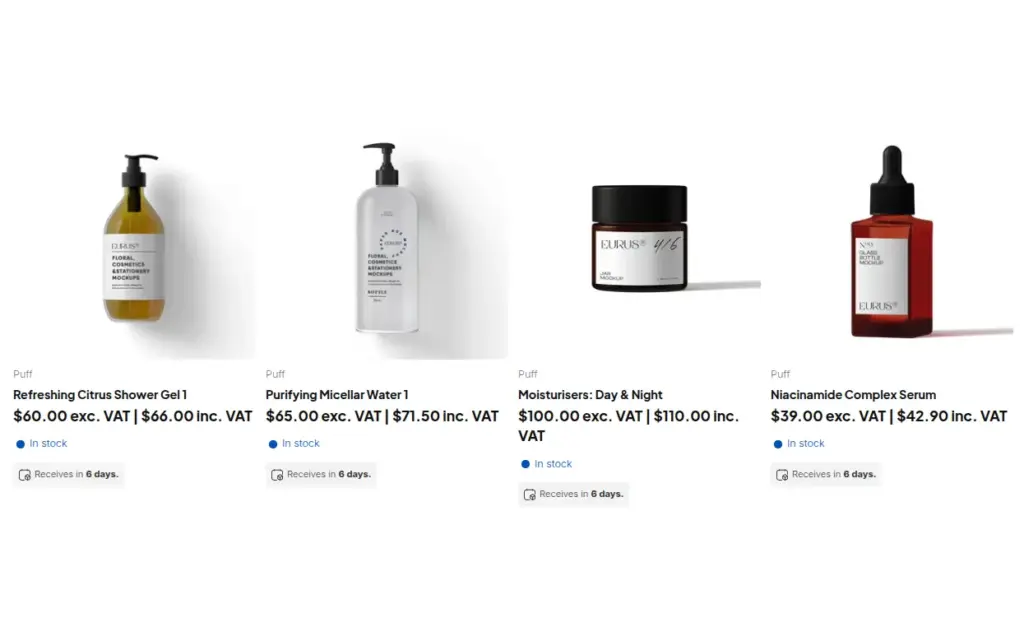
The MonkeyHands case study shows what happens without it. The merchant, a cosmetics seller in Italy, managed B2C prices per market with Shopify Markets but found that the discount app he used only worked on the original prices of his main market. A B2B client from Germany or France saw no discount. He needed B2B pricing that followed the market, and he asked whether the app handled it before he installed it.
Regional pricing also lowers the cost of testing a new region. You can open a market with its own wholesale rule, watch how buyers in that market behave, and adjust the discount for that market alone. If the experiment does not work, you remove one rule; the rest of your pricing is untouched. A single global discount cannot be tuned this way without affecting every other region.
What Shopify covers natively, and where an app helps
Native Shopify B2B assigns catalogs, which carry their own prices, to B2B markets: up to 3 catalogs on Basic, Grow and Advanced and unlimited on Plus, according to the Shopify Help Center (read on 2026-10-02). Our Shopify B2B guide compares native B2B with apps. In BSS B2B Solution the market is one condition on a rule, next to the customer and product conditions, so you can give the same customer tag a different price in each market, or add a market-specific rule for one region, without a catalog for each combination.
How to set up market-specific prices with BSS B2B Solution
Step 1: Decide the audiences and the markets
List each buyer group and each market where it needs a different price. Decide whether you want one rule per market for the same tag, or a general rule plus one exception for a special market. Name each rule with its market and audience, for example Wholesale, EU, 25% off, because market rules multiply quickly.
Step 2: Create the rule and choose the customers
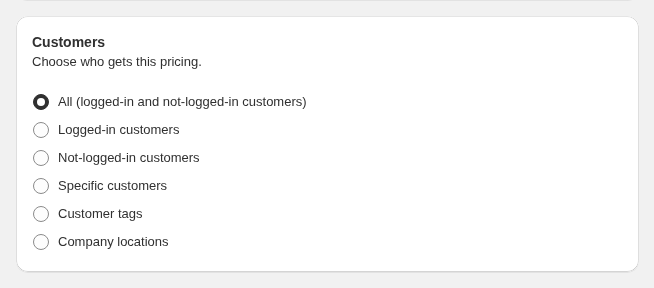
Open B2B Pricing > Custom Pricing or Price Lists, click Add rule, and under Customers choose who gets it, usually a customer tag such as wholesale.
Step 3: Choose the markets
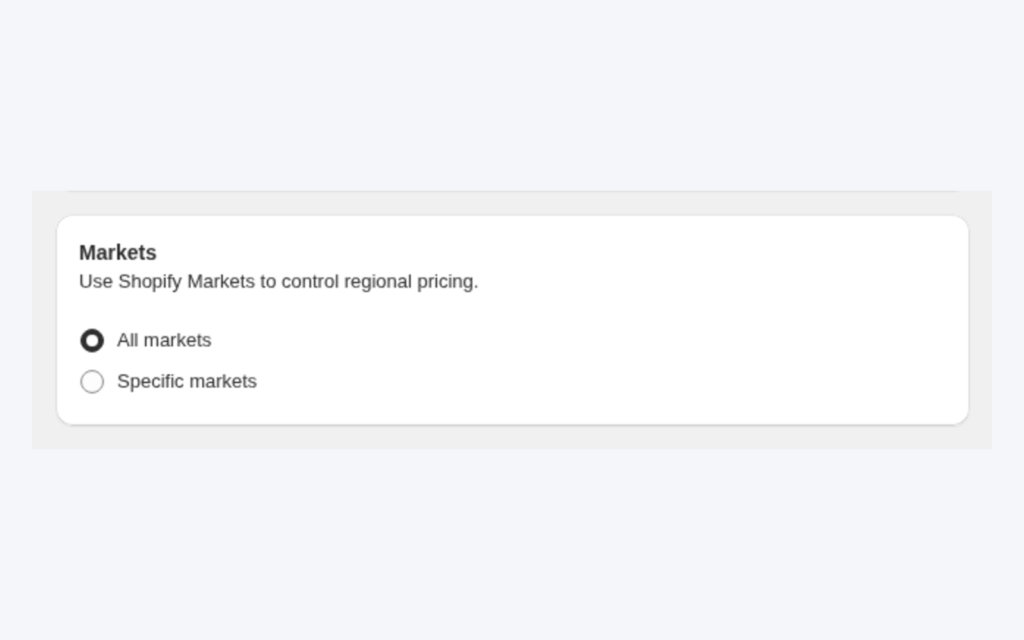
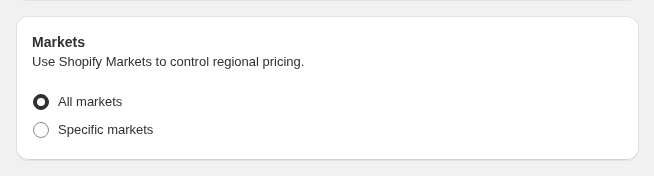
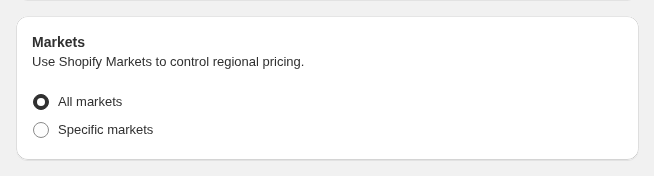
In the Markets card keep All markets, which ignores the market, or choose Specific markets and pick the Shopify Markets where the rule is active. The rule applies only while the shopper is browsing one of those markets. Specific markets targeting needs the Advanced plan or higher.
Step 4: Set the price and priority
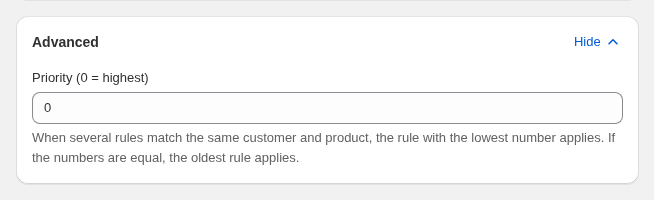
Choose the price type and amount, then open Advanced and set Priority (0 to 99). When a buyer can match a market rule and a general rule, the lowest number wins, and a tie goes to the older rule. Give the market-specific rule a lower number than the general rule if the market rule should take precedence.
Step 5: Test each market
Log in as a test buyer with the tag, switch to each market on the storefront, and confirm which price shows. Test on your current storefront version before you rely on the rules.
An alternative: country tags from the registration form
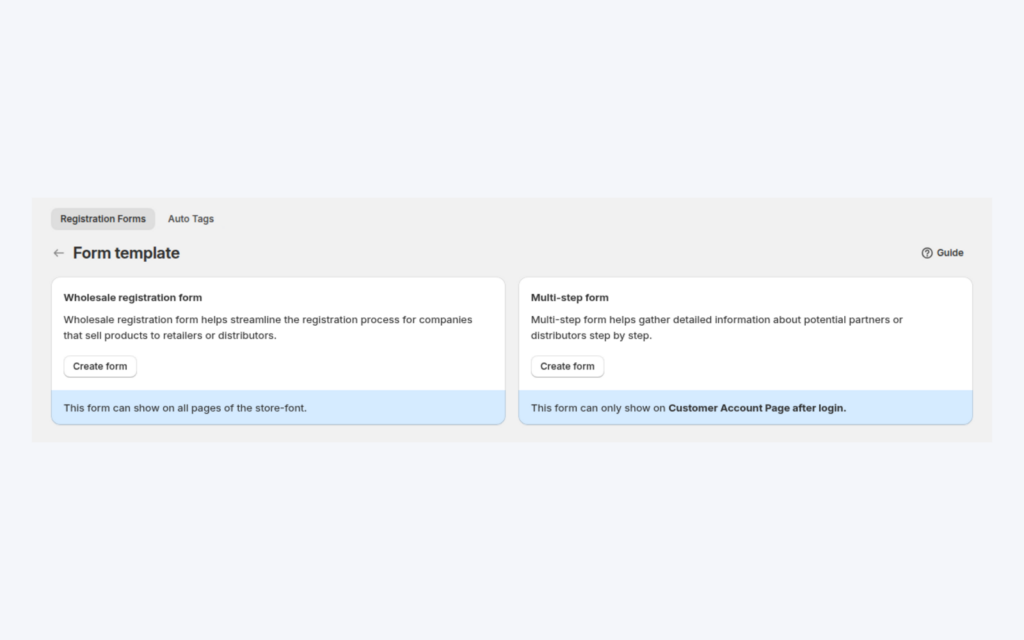
The MonkeyHands merchant chose a second route, which is useful when you want fixed prices. He built a wholesale registration form with custom fields, including a required Country field. From the registration data he assigned a country tag to each B2B customer account. He then created Custom Pricing rules for the same products with a different price for each country tag, so buyers in each country saw their own B2B price. The case study notes that he also used the Tax Display module to show prices including tax for B2C shoppers and excluding tax for B2B shoppers. Read the full MonkeyHands story.
The two routes suit different needs. A market condition follows where the shopper is browsing, and a country tag follows who the buyer is. Use markets when the price should follow the storefront region, and tags when a buyer should get the same price wherever they log in from.
Example: a skincare brand selling in two regions
This is an illustration with made-up numbers, not a customer result. A brand sells a serum in two Shopify Markets. Its retail price is $40.00 in the United States market and €38.00 in the Germany market. It creates two market rules and one general rule for customers tagged wholesale, and assumes a percentage discount applies to the market’s own price, as the MonkeyHands case study describes.
| Rule | Markets | Discount | Priority | Wholesale price |
|---|---|---|---|---|
| Wholesale, US | United States | 30% off | 10 | $28.00 |
| Wholesale, EU | Germany | 25% off | 10 | €28.50 |
| Wholesale, general | All markets | 20% off | 50 | 20% off the market price |
A tagged buyer browsing the US market sees $28.00. A tagged buyer browsing the Germany market sees €28.50. A tagged buyer in a market without its own rule falls back to the general 20% rule. Because the market rules have priority 10 and the general rule 50, the market rule wins wherever it applies.
Works well with
- Display currency. Multi-currency wholesale prices shows converted prices with a switcher while checkout stays in one currency.
- Tax display. Show prices excluding VAT to B2B buyers pairs well with market rules in Europe.
- Customer tags. Wholesale price by customer tag is the customer side of the rule.
- Registration. A wholesale registration form with approval can collect the country and add the tag.
See the wholesale pricing hub for the other pricing guides. The glossary explains price list, customer tag and catalog.
Limits and common mistakes
- No fixed price per currency. Prices are stored in your store currency and converted with Shopify’s rate. To give a market a different price, create a rule limited to that market with its own discount or fixed price.
- Markets are available in three modules. Custom Pricing, Price List and Volume Pricing have a Markets card. Other modules, such as Extra Fee, Quantity Increments and Discount Codes, do not offer market targeting; check the targeting table in the docs before you plan the rule set.
- Shopify POS does not use market rules. Rules with a specific-markets condition do not apply at POS, and POS discounts are applied by staff through the B2B Price tile on the Platinum plan.
- Priority matters. Without it, the older rule wins a tie, which may not be the one you meant.
- Rule counts grow. Every market adds a rule per buyer group, so keep names consistent.
- Test each market. Switch markets on your current storefront version and confirm the price before you announce it.
Setup checklist
- List buyer groups and the markets where each needs its own price.
- Create one rule per market and audience, named with both.
- Create a general rule as a fallback and give it a higher priority number.
- Confirm the plan includes specific markets targeting.
- Test as a tagged buyer in every market.
- Check POS separately if you sell in person.
Plans and requirements
Specific markets targeting needs the Advanced plan or higher, and the rule editor shows an upgrade message next to options your plan does not include. Price List needs Platinum. Custom Pricing and Volume Pricing run on lower plans for the rest of their options. See the BSS B2B Solutions pricing page for current plan details.
You can install BSS B2B Solution from the Shopify App Store (4.9 rating from 1,185 reviews as of 2026-10-02, 14-day free trial on paid plans), read the app overview, or follow the customer targeting guide in the docs, which explains the Apply to markets option for every module.