
No payment collection
The app does not charge the buyer when the term ends. It shows due dates and overdue orders. You collect the payment.
BSS B2B Solution: Net Terms
Net Terms is the BSS B2B Solution feature that lets approved buyers order now and pay later. Buyers click Pay later in the cart, and the app creates a Shopify draft order with your payment terms attached, from Net 7 to Net 90 or a custom period. It needs Advanced or Platinum. It does not collect the payment.
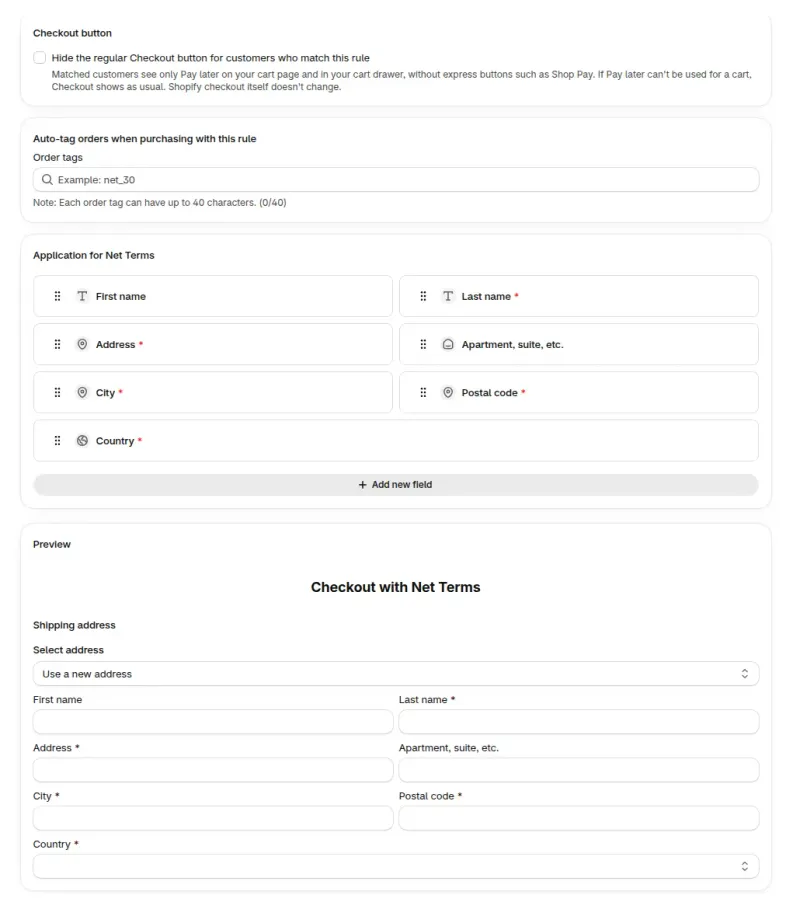
Net Terms adds a Pay later button next to Checkout (below it by default with Button placement) for logged-in buyers who match a rule. The buyer clicks it and the Checkout with Net Terms form opens with the due date, the address fields from your rule and an order summary. After Confirm, the buyer sees your confirmation message and the cart is emptied.
The app then creates the order in Shopify with the payment terms and the due date attached. Create a draft order for me to review is the default: you check the draft and turn it into an order yourself. Place the order automatically completes the draft right away into an order with payment pending.
Checkout stays available, so a buyer who wants to pay now still can. To show matched buyers only Pay later, tick Hide the regular Checkout button for customers who match this rule in the rule. Express buttons such as Shop Pay are hidden with it.
The app does not collect the payment. It sets the due date, shows payment status and lists overdue orders. You collect the money the way you do for any invoice.
Open the app and go to B2B orders & discounts > Net Terms.
Click Storefront setup, then Enable button on Cart page, and add the BSS Net Terms block in the Theme Editor. If your theme cannot take the block, or you use a cart drawer, turn on Button placement in Settings. With neither, the button does not show.
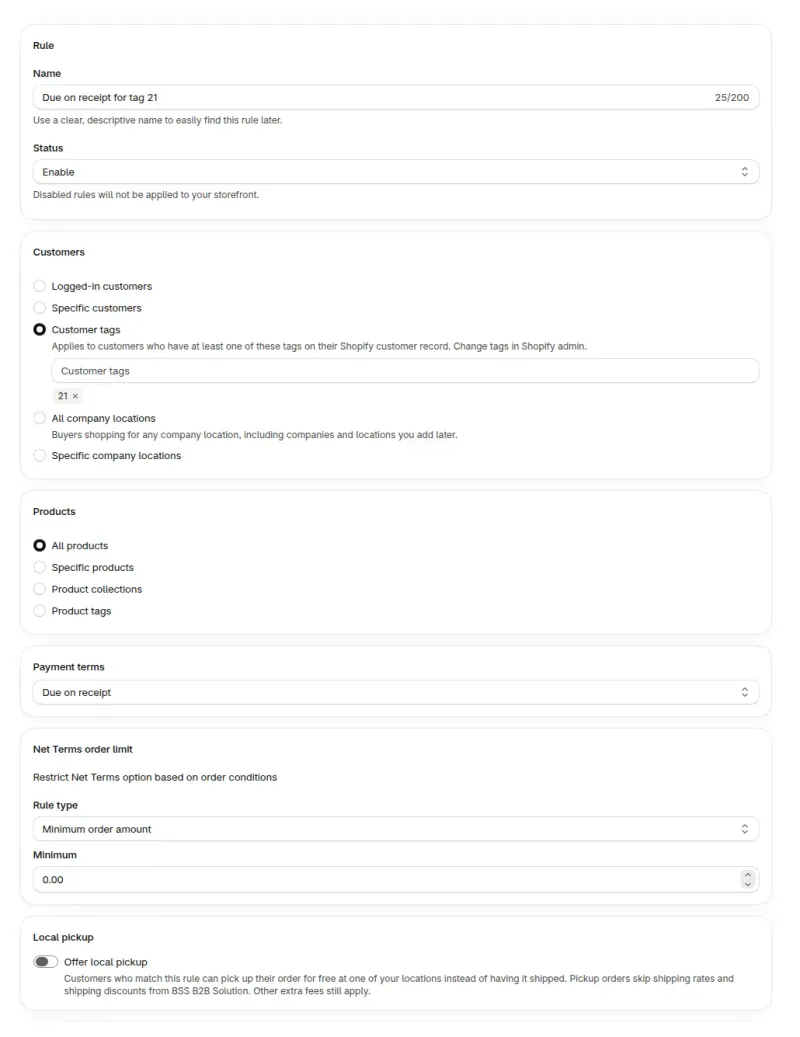
Click Add rule. With no rules yet, the Net 30 for wholesale customers template fills one in for customers tagged wholesale. In the Customers card, pick the buyers the rule applies to.
In Payment terms, pick when payment is due. Optionally set a cart minimum or maximum in Net Terms order limit, and add Auto-tag orders to filter them in Shopify admin.
In Application for Net Terms, choose the fields buyers fill in, such as the shipping address and a PO number. Click Save. The rule is now active.
In Settings > Order submission, keep Create a draft order for me to review or choose Place the order automatically.
Log in as a customer who matches the rule, add a product, click Pay later and Confirm. The order appears on the Orders tab with its due date.
New to the app? Install it, then add a Net Terms rule. Already on Advanced or Platinum? Open Net Terms and click Add rule.
Pick Within 30 days for Net 30, Custom for a term not in the list such as Net 45, and a Company Location option to follow Shopify's payment terms. Each option counts from a different starting point. The last column shows the due date for an order placed on October 14.
| Option | When payment is due | Example |
|---|---|---|
| Due on receipt | On receipt of the order. | Due when the order is placed. |
| Due on fulfillment | When the order is fulfilled. | Due when the order is fulfilled. |
| Within 7, 15, 30, 60 or 90 days | That many days after the order date. This is Net 7 to Net 90. | Within 30 days: November 13. |
| Within 7, 15, 30, 60 or 90 days after fulfillment | That many days after the order is fulfilled (counted from the first fulfillment). | Fulfilled October 20, within 30 days after fulfillment: November 19. |
| End of Month | The last day of the month the order was placed. | October 31. |
| End of Month + X Days | The last day of the order month, plus the days you enter. | With 10 days: November 10. |
| End of Next Month | The last day of the following month. | November 30. |
| Due on specific day of month | Every N months on a day you choose, 1 to 31. If a month has no such day, the due date moves to that day of the next month. | Set by the day and months you enter. |
| Custom | A number of days, weeks or months after the order date. Days go up to 366. | Net 45 is 45 days: November 28. |
| Use Shopify Company Location payment terms | The due date follows the payment terms of the company location the buyer orders for. | Set for each location in Shopify. |
There is no Net 45 preset, so use Custom with 45 days. If you review drafts, you choose the payment terms when you complete the draft in Shopify, and the app does not recalculate the due date from the fulfillment date.
Any logged-in buyer can get Net Terms when a rule matches them. In the Customers card you choose how a rule finds its buyers, from all logged-in customers to named company locations.
| Customer condition | Who qualifies | Good for |
|---|---|---|
| All logged-in customers | Every signed-in buyer. | A store where every account is approved before it can log in. |
| Specific customer tags | Buyers with a matching Shopify customer tag. | Stores that approve a buyer and add a tag such as wholesale. |
| Specific customers | Buyers matched by email address. | One or two accounts with special terms. |
| All company locations | Buyers who order for any company location, including ones you add later. | Stores that keep buyers in Shopify companies. |
| Specific company locations | Buyers who order for the company locations you pick. | Different terms for different branches. |
When several rules match a buyer, the rule with the lowest number in Advanced > Priority whose products cover the whole cart is used. If the cart holds products a rule does not cover, the app lists them and blocks the Net Terms checkout until the cart changes.
A rule that targets company locations can use Use Shopify Company Location payment terms. Net 15 for one branch and Net 60 for another then come from Shopify, and the rule follows them.
At checkout the buyer picks a location in the Net Terms popup. Its address is filled in and locked, and the order is created for that location. The location must be in the rule and the buyer's contact needs a role at it, or the order is refused. A location with no payment terms gives an order with No payment terms.
The company location options reach buyers who shop in a B2B session, so they need new customer accounts. They also need Shopify B2B, which is on the Basic, Grow, Advanced and Plus plans. With classic customer accounts, these rules do not apply.
To give location terms to orders that do not use a Net Terms rule, turn on Use Shopify Company Location payment terms in Settings > Shopify checkout settings. A matching Net Terms rule still wins over the location's terms.
Yes, with local pickup. Switch on Offer local pickup in the Local pickup card of a rule and choose All pickup locations or Selected locations. The buyer then picks Ship or Pick up in the form. Pick up skips the shipping address, and the app adds no shipping charge.
The list follows what Shopify offers for the buyer's cart and country. A location appears only when local pickup is on for it in Shopify and it has a full address. The app adds no stock check of its own.
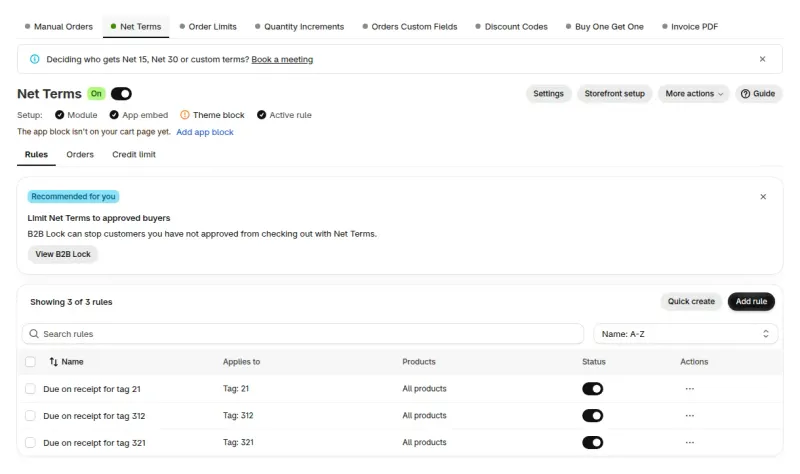
The Orders tab of the Net Terms page lists every Net Terms order with its due date and payment status. Search by order name or customer email, filter by Due, Not due yet, Due on receipt or Due on fulfillment, and export the list to CSV for your accountant.
A new Net Terms order starts as Unpaid. An order cancelled in Shopify shows as Cancelled and owes nothing. When an order goes to draft, the buyer and your team get a draft order email. With automatic orders, Shopify's own order emails apply.
Yes, with the paid Credit limit add-on for Net Terms. It sets a limit per customer, tag, company or location. The rules, modes and balances have their own page: Credit limit for Net Terms. It does not check a buyer's creditworthiness.
The app does not charge the buyer when the term ends. It shows due dates and overdue orders. You collect the payment.
It does not look at a buyer's creditworthiness. You decide who gets terms.
Without the BSS Net Terms block or Button placement, buyers see no Pay later, even when a rule is active. It also hides while the cart is empty.
Guests cannot use Net Terms, and a buyer who does not match a rule sees no button.
The app sends its draft order emails only when an order is submitted as a draft.
Net Terms works with order rules, Manual Orders and the optional Invoice PDF add-on. Net Terms rules sit alongside the other order rules and payment terms in BSS B2B Solution. For the Shopify side of the question, including native payment terms and how they differ, read how to offer Net 30 payment terms on Shopify.
Sales reps can set terms on an order they create themselves with Manual Orders. The optional Invoice PDF add-on gives each Net Terms order a PDF order summary. It is not a tax invoice.
Wholesale brands that invoice repeat buyers and want those buyers to order in the store, with the due date on the order. If every buyer pays at checkout, Net Terms is not needed.
Net Terms is on the Advanced and Platinum plans. The Free and Essential plans do not include it. A store on an older plan has Net Terms when that plan's subscription includes the module. The Pricing plans screen in the app shows what your plan covers.
Credit limit and Invoice PDF are optional add-ons. Credit limit needs a plan with Net Terms.
Each use case shows one setup with screenshots. Browse all use cases.
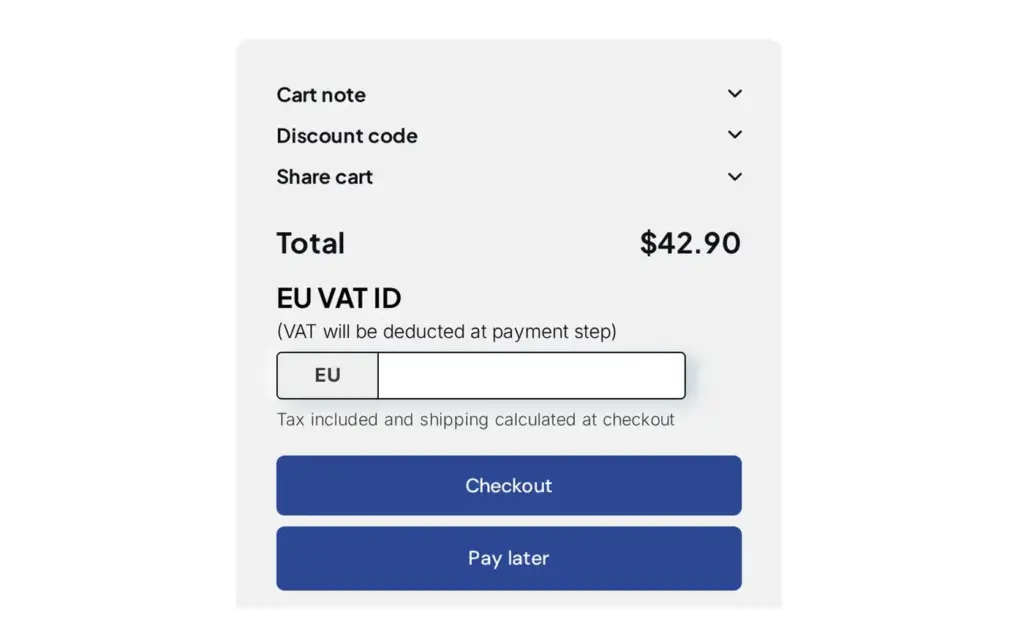
Offer Net 7, 15, 30, 60 or 90 payment terms with a Pay later button in the cart and track due dates with Net Terms in BSS B2B Solution for Shopify.
Explore use case: Offer Net 30 and Other Payment Terms to Wholesale Buyers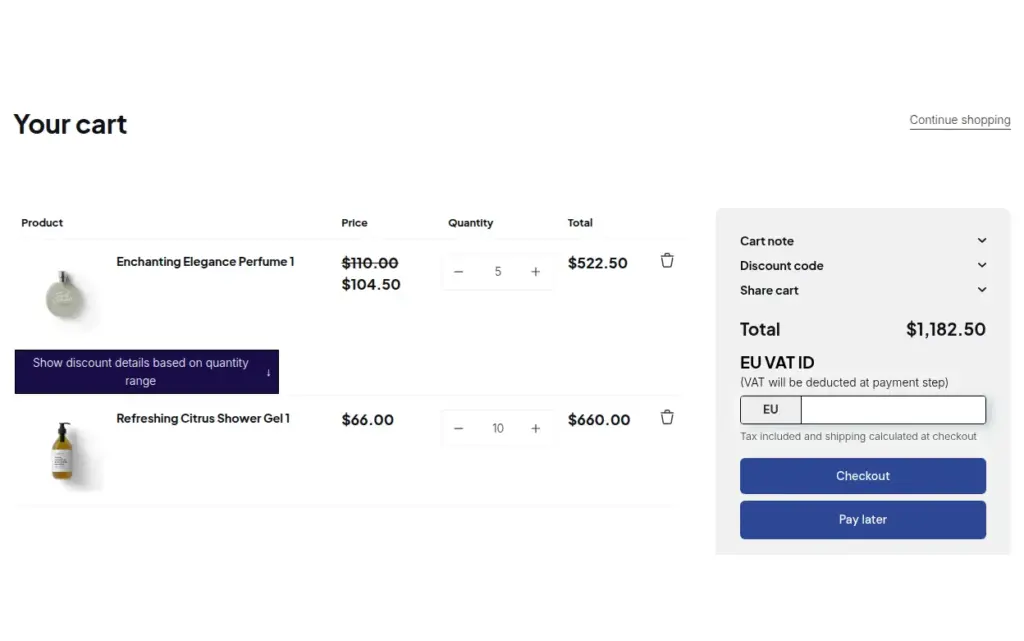
Verify a tax ID once at registration, then give approved buyers tax exemption and Net Terms with a Pay later button using BSS B2B Solution for Shopify.
Explore use case: Onboard Tax-Exempt Buyers With Net Terms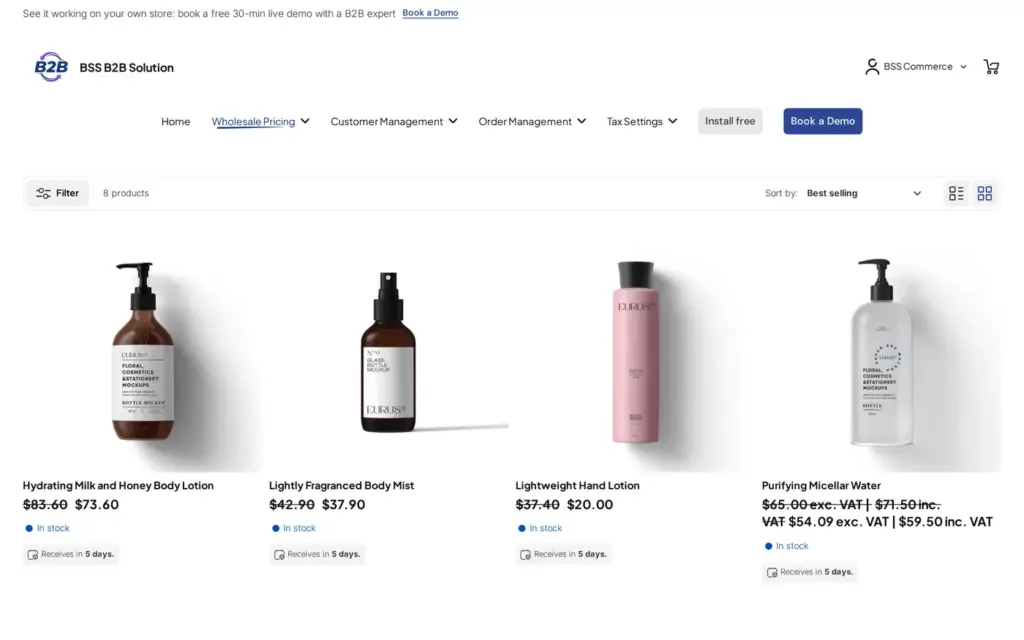
Give restaurant and hotel accounts their negotiated prices and payment terms, let your sales team enter phone orders with the same rules, and offer reorder lists, using BSS B2B Solution and BSS B2B Quote.
Explore use case: Foodservice Distributors: Customer Prices and Net TermsRead these next for the full detail.
Cap what each Net Terms buyer can owe.
Draft orders with B2B prices and payment terms.
Net terms, tax IDs, invoices and order limits.
Repeat orders on a schedule, with payment terms.
Set minimum orders, case packs and net payment terms for wholesale buyers.
Net termsNet 30Net 60Company locationDraft orderCredit limit
Each feature has its own page. See also all BSS B2B Solution features.
Add or remove customer and order tags when a Shopify event matches your rules, so tag-based prices and access follow the buyer.
Cap what each Net Terms buyer can owe, then warn, ask for approval or block Pay later when an order goes over.
Give wholesale buyers a private code they enter in the cart, with rules for who can use it, what it covers and how often.
Read and write B2B pricing rules, registrations and customer lookups from your ERP or PIM with API keys you scope by module.
Add a handling fee by quantity or amount, and set wholesale shipping rates by customer, product, market and weight.
Build a Shopify draft order for a customer in the admin, with their wholesale prices already applied.
Show wholesale prices in the buyer's currency with a switcher. Checkout stays in your store or Markets currency.
The BSS B2B Price tile in Shopify POS applies the wholesale discount to the cart and updates it when the cart changes.
Schedule repeat B2B orders for a buyer. Each cycle creates a draft order, an order or an invoice at the buyer's current B2B prices.
Install BSS B2B Solution from the Shopify App Store, with a 14-day free trial on paid plans. Then add a Net Terms rule.
Also: BSS B2B Lock for hidden prices for guests and BSS B2B Quote for quotes and quick order.
Shopify's payment terms set how long a buyer has to pay an order, and can be set for each company location. Net Terms is the buying flow on top of them. You write rules for who can pay later and on which products, buyers click Pay later and fill in a form, and the app creates the order in Shopify with the due date attached.
Yes. The Pay later button sits next to Checkout (below it by default with Button placement), so a buyer who wants to pay now uses Checkout as usual. If you want matched buyers to see only Pay later, tick the option to hide the regular Checkout button in the rule.
Choose Custom in Payment terms and enter a number of days, weeks or months. Days go up to 366, so 45 days gives Net 45. The Within 7, 15, 30, 60 and 90 day options are presets.
Check four things. The BSS Net Terms block or Button placement must be on, the buyer must be logged in, the buyer must match an active rule, and the cart must hold at least one product. If the cart holds products the rule does not cover, the app lists them and blocks the Net Terms checkout.
No. The app sets the due date, shows each order as paid or unpaid and flags overdue orders on the Orders tab. You collect the payment yourself, for example with an invoice.
When an order is submitted as a draft, the buyer gets a Draft order created email and your team gets a New draft order email. With automatic orders, Shopify's order emails apply. The optional Invoice PDF add-on adds a PDF order summary, which is not a tax invoice.
Feature behavior follows the BSS user guides for Net Terms, read on November 8, 2026. The after-fulfillment terms and the Custom range come from the app's rule screen. Due dates in the payment terms table are worked from the option definitions, for an order placed on October 14. We make BSS B2B Solution, BSS B2B Lock and BSS B2B Quote.