To show products only to tagged customers on Shopify, create a Products lock in BSS B2B Lock, select the restricted products, and allow only customers who carry a tag such as silver, gold or wholesale. Everyone else, including guests, either does not see those products at all or sees them with a locked product page, depending on the visibility setting you choose.
This page is for brands and wholesalers that keep professional-only items or tier-only ranges in the same catalog as public products. It explains the two visibility modes, how to build tiers such as Silver and Gold with OR rules, and what to test before you announce the ranges.
Who this is for
Tag-based product visibility fits you if:
- Some products are meant for licensed professionals, certified partners or a higher customer tier.
- You run tiered customer groups, such as silver, gold or VIP, and each tier should see a different range.
- You want an early-access or exclusive line that only chosen customers can see.
- You prefer to restrict specific products instead of whole collections, or you want to restrict by product tag.
- Your customers already carry tags, from a registration form, an Auto Tags rule or manual tagging.
- You want one catalog and one store, not a second hidden shop.
Why this matters
A single catalog shows everything to everyone. For a brand that sells treatment tools or equipment meant for qualified practitioners, that is a liability as well as a marketing problem: consumers browse products they should not buy, and your professional channel loses its exclusivity. For a wholesaler with tiered ranges, showing every retailer every product creates questions about why one tier has access to items another does not.
There is also a pricing side. If gold customers pay less for the same items, silver customers who see those items will notice. Hiding products from tiers that cannot buy them avoids that conversation and keeps each group focused on what they can order.
DermaplanePro, a professional skincare brand, restricted private trade content to approved partners with customer-tag rules; see the DermaplanePro case study. The same pattern supports Silver and Gold tiers in one catalog.
Think of a professional hair-tools brand with three product lines: a consumer range, a “Pro” line for licensed stylists and an “Elite” line for its top salon partners. Consumers see the consumer range. Stylists tagged pro see consumer and Pro products. Partners tagged elite see all three lines. Each audience has a catalog that fits it, with no duplicate store.
What Shopify covers natively, and where an app helps
Shopify’s built-in B2B can assign catalogs to companies and markets, as described on the B2B features by plan page of the Help Center, and the pillar guide Shopify B2B compares native B2B with apps. Showing individual products only to customers who carry a specific tag, on a store that is otherwise public, is not part of that list.
BSS B2B Lock handles it with a Products target and tag conditions. The access control hub covers the other targets and conditions you can combine with it. For pricing by the same tags, BSS B2B Solution reads the same customer tags.
Product, tag or collection: which target should I use?
You can reach the same result in several ways, so choose the one you can maintain.
| Approach | Use it when | Watch out for |
|---|---|---|
| Specific products | A small, stable list of restricted items | New items must be added by hand |
| By product tags | Restricted items already share a product tag | Product tags must stay consistent |
| By collections | A range already lives in its own collection | The collection should hold only restricted items |
| Collections target | The whole collection should be locked, with its menu link and cards | See hide wholesale collections |
If you are starting from scratch, a product tag such as pro-only is a simple convention: your team tags a product once and the lock covers it, as long as you test after adding items.
Naming customer tags
Tier tags are easier to manage when the names follow a pattern. Keep them short, lower case and descriptive: silver, gold, pro, elite. Avoid spaces and avoid names that differ only by case or a hyphen, because the app matches text. Write the tag list down in one place and give it to everyone who adds tags, including the registration form and any Auto Tags rules.
How to set it up with BSS B2B Lock
1. Plan your tags and your ranges
Decide on tags such as silver and gold, make sure the relevant customers carry them, and list which products belong to which tier. Tags can come from Shopify, from a registration form that assigns a tag on approval, or from Auto Tags rules in BSS B2B Solution. Use exactly the same spelling everywhere, because tags are matched as text.
2. Create a Products lock and select the restricted items
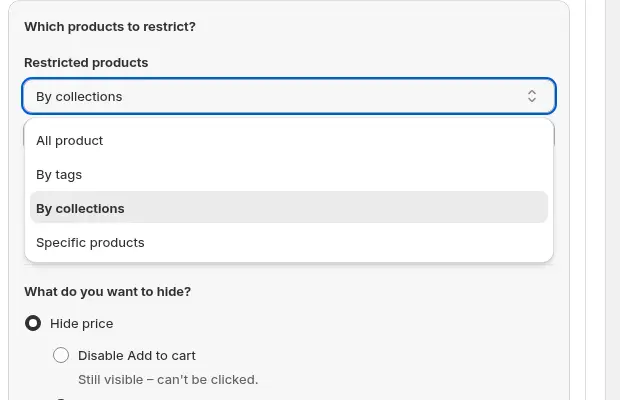
Open Locks > Add lock rule, choose Create my own lock and name it, for example “Show Silver products only to Silver customers”. Under What do you want to lock? choose Products. Then choose how to select the restricted products: all products, by tags, by collections or specific products.
3. Choose how restricted products appear
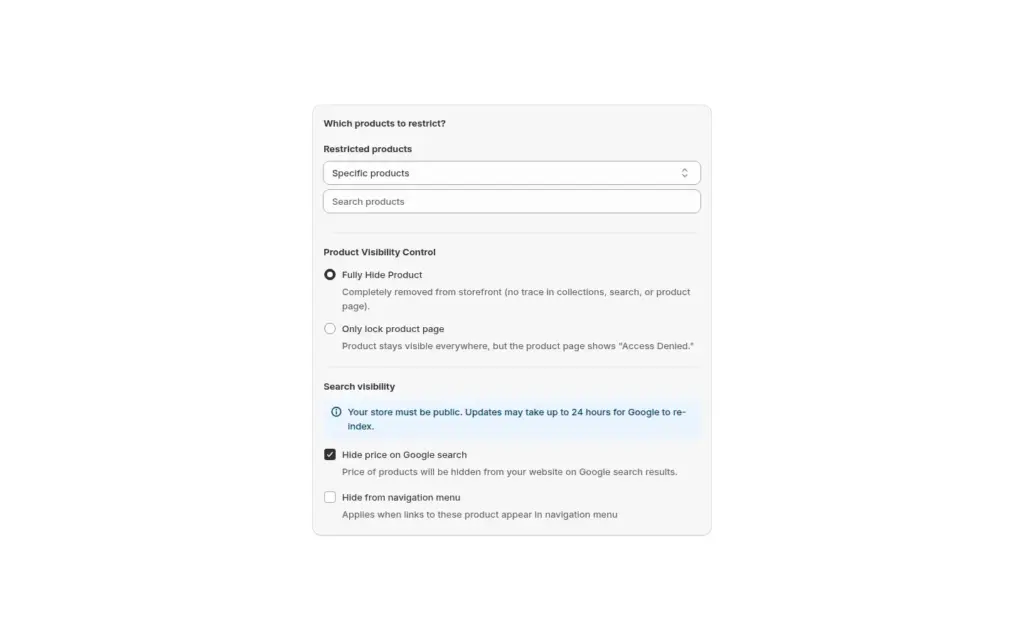
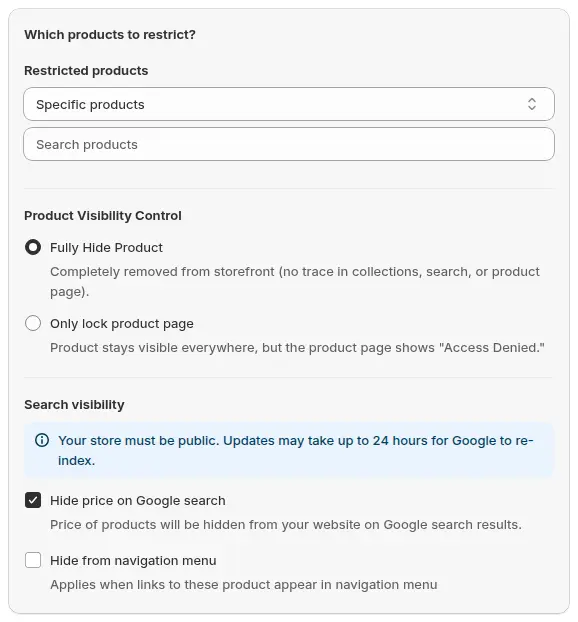
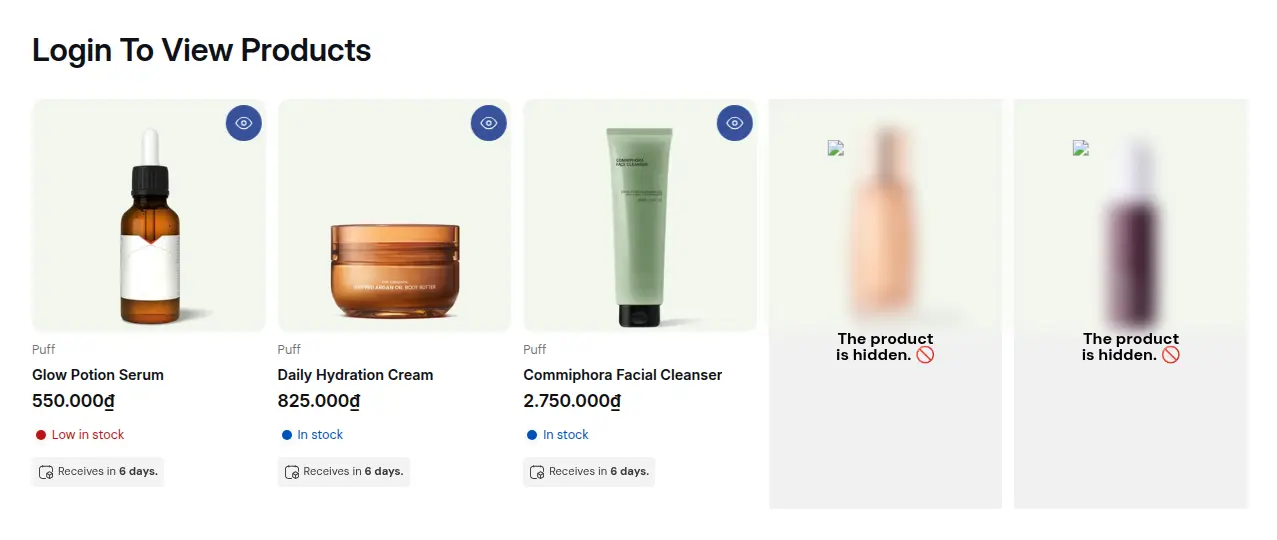
In Product Visibility Control pick one of two modes. Fully Hide Product removes the item from the storefront for visitors who are not allowed in, so it is not visible in collections, search or direct product links. It is the recommended choice for exclusive ranges. Only lock product page keeps the product visible across the store, but its page shows an access denied message. Choose this when you want the range to be discoverable.
4. Allow customers who carry the tag
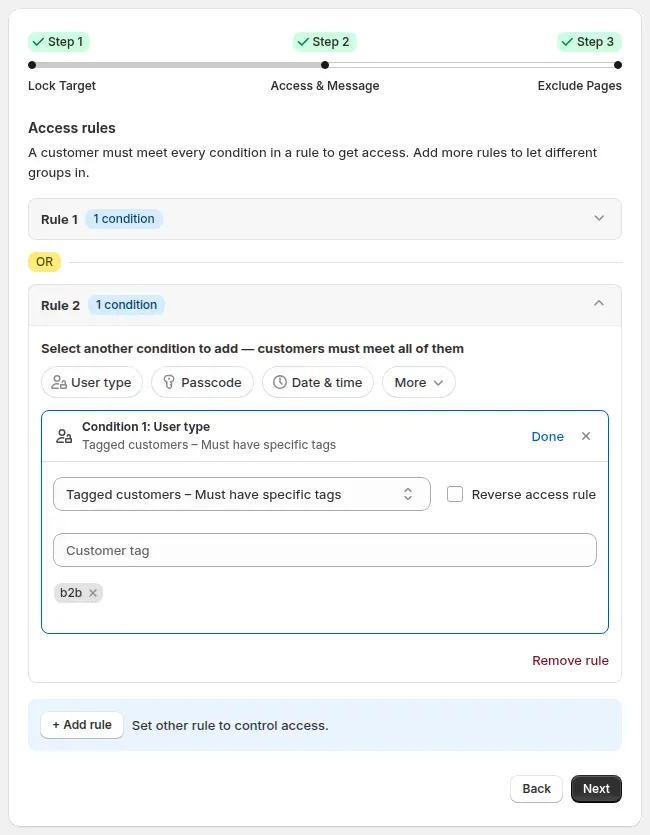
In Access & Message, click the User type chip in Rule 1 and choose Tagged customers: Must have specific tags, then enter the tag.
5. Add a second rule for higher tiers
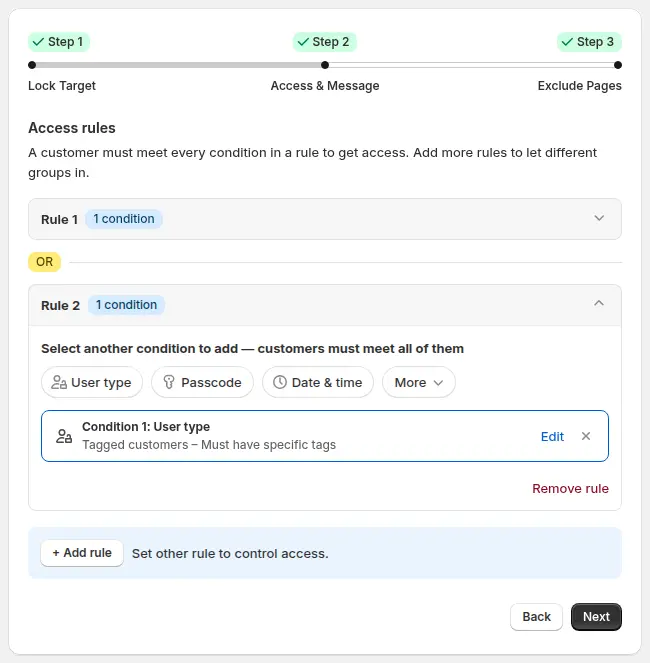
To let gold customers see silver products too, reopen the silver lock, click + Add rule and add a Tagged customers condition with the gold tag. Separate rules are alternatives (OR), so a customer who matches either one is let in. Conditions inside one rule must all match (AND).
6. Write the message and test the tiers
Customize the message shown to untagged visitors, for example “This range is reserved for Silver tier members. Please sign in or contact us to upgrade.” Save, then test as a guest, a silver customer and a gold customer.
What each visitor sees
| Visitor | Fully Hide Product | Only lock product page |
|---|---|---|
| Guest | Restricted items are not shown | Items are visible, product page shows your lock message |
| Customer without the tag | Restricted items are not shown | Items are visible, product page shows your lock message |
| Customer with the tag | Items appear normally | Items appear normally |
Use this table as your test plan: one column per mode, one row per visitor, and a check for each cell on a collection page, the search page and a direct product URL.
Example
Example for illustration only, not a customer result. The hair-tools brand creates three Products locks. Lock 1 hides the 12 Pro items with Fully Hide Product and allows the tag pro. A second rule in the same lock allows elite, so elite partners see Pro items too. Lock 2 hides the 6 Elite items and allows only elite. A consumer sees 40 consumer products and nothing else. A stylist tagged pro sees 52 products. An elite partner sees 58. In BSS B2B Solution the brand gives each tag its own price list, so the same tag that unlocks a range also sets what the buyer pays.
Works well with
- Silver and gold wholesale tiers for the pricing side of tiered programs.
- Auto-tag customers by spend and orders so buyers move to a higher tier by themselves.
- Hide wholesale collections from guests when you want to lock whole collections instead of products.
- Wholesale price by customer tag to price each tier.
Terms: customer tag, gated catalog and catalog.
Limits and common mistakes
- Hidden cards can leave tiles. If most of a collection is public and only a few items are restricted, the grid may show a “The product is hidden” tile. Test the collection pages, search and any featured sections on your theme.
- Tags are matched as text. “Gold” and “gold-tier” are different tags, so keep the spelling identical in every app.
- Choose the visibility mode on purpose. Fully Hide Product is for exclusive catalogs, while Only lock product page leaves the product visible and discoverable.
- Tiers need an OR rule. A gold customer does not see silver items unless you add the gold tag to the silver lock.
- A paid plan is needed. Locking products and collections needs a paid BSS B2B Lock plan; the Free plan covers the Entire store target only.
- It is a storefront rule. BSS B2B Lock works through your theme code, so headless storefronts are not supported. Retest after a theme update.
Setup checklist
- List your tags and the products that belong to each tier.
- Check that customers carry the right tags in Shopify.
- Create one Products lock per restricted range.
- Choose Fully Hide Product or Only lock product page for each.
- Add Tagged customers conditions, plus extra rules for higher tiers.
- Customize the message for untagged visitors.
- Test as a guest, a silver customer and a gold customer on desktop and mobile.
- Keep the tagged products guide open while you build.
Plans and requirements
BSS B2B Lock has a Free plan that covers the Entire store lock and paid plans from $9.99 per month for product, collection, page and price locks, with a 7-day trial on paid plans. The price steps up with your store’s Shopify plan; see the pricing page. To assign tags at approval and set a price for each tag, add BSS B2B Solution.