To give wholesale customers a different discount per collection on Shopify, create one Custom Pricing rule per collection in BSS B2B Solution, choose Product collections in the Products card, and set the percentage, amount or fixed price for that collection. You can also target product tags, and for a vendor or brand discount you point the rule at a collection that holds that vendor’s products.
Margins are rarely uniform across a catalog. A new range may only support 10% off while an established line can go to 30%. One flat wholesale discount forces a compromise: too deep on the thin lines, or too shallow to interest buyers on the strong ones. Collection-based rules let each line carry the discount its margin allows.
Who this is for
Collection-based wholesale discounts fit you when:
- Your catalog has product lines with different margins, such as new arrivals, core range and clearance.
- You sell several brands or vendors in one store and want a separate trade discount for each brand.
- You manage hundreds of products and do not want a rule for every product.
- Your merchandising team already maintains collections in Shopify, and you want discounts to follow them.
- You run seasonal trade offers that should start and end on dates without anyone remembering to switch them off.
Why this matters
A single wholesale percentage hides a pricing decision. If the average discount is 20%, some products are given away at 20% when 10% would have been accepted, and others are priced out of the trade market because 20% is not enough. A discount per line is a simple way to protect margin where it is thin and compete where it is not.
Collections also keep the rule set small. When you target a collection, you add a new product to that collection in Shopify and the discount follows, with no edit to the rule. A home-goods wholesaler with 600 products and four margin bands needs about four rules, not 600, and a new teammate can read them in a minute.
For buyers, consistency matters too. A trade customer who sees a clear discount on the whole “core range” collection understands the offer. A scattering of random per-product prices looks arbitrary and invites negotiation.
Collection, tag or product list: which target to choose
The Products card offers several ways to reach the same goal, and the right one depends on how your catalog is organised.
| Target | Best for | Plan | Watch out for |
|---|---|---|---|
| Product collections | Margin bands, product lines and vendor or brand groups | Paid plans | The product must be in the collection in Shopify, and published to the Online Store. |
| Product tags | Attributes that cut across collections, such as a seasonal or gift tag | Advanced or higher | Tags in exclusions are case-sensitive. |
| Specific products | A handful of items with a special deal | All plans | New products are not picked up automatically. |
| Specific variants | One size or pack with its own negotiated price | Platinum | Needs more rows to maintain. |
If you can, choose collections first. They already exist for navigation, your team keeps them up to date, and a rule that points at a collection is easy to read in the rule list.
How to set up collection-based discounts with BSS B2B Solution
Step 1: Prepare your collections in Shopify
Create or tidy the collections that mirror your margin bands, for example New arrivals, Core range and Clearance. For a brand or vendor discount, create a collection that holds that vendor’s products. A smart collection with the vendor condition keeps itself up to date. BSS B2B Solution’s product conditions are all products, specific products, variants, collections and product tags, so a vendor is reached through a collection. Collections and products must be published to the Online Store for the rule to apply.
Step 2: Add a rule per line
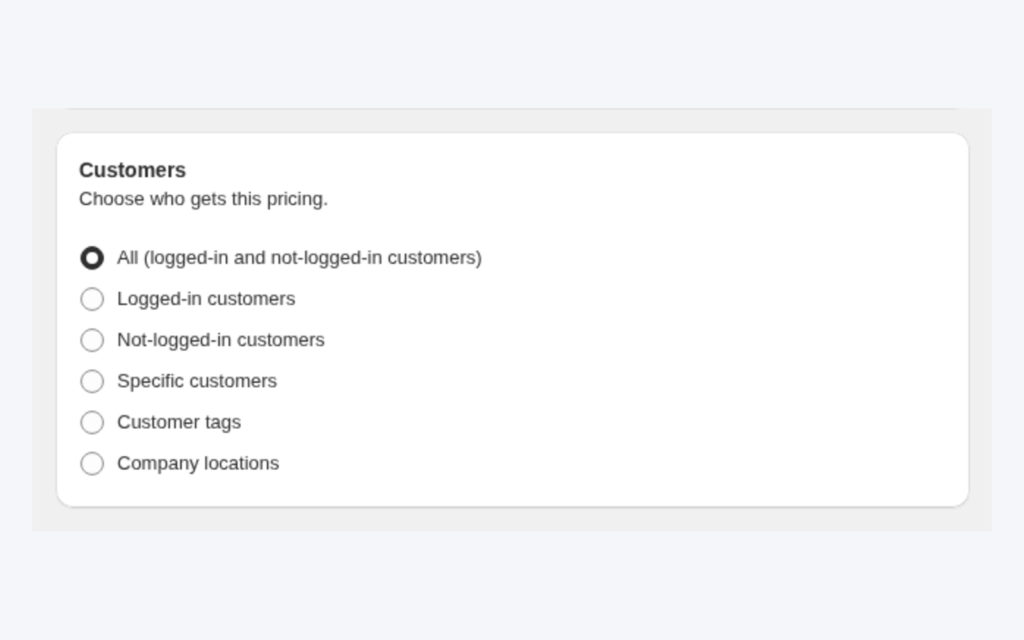
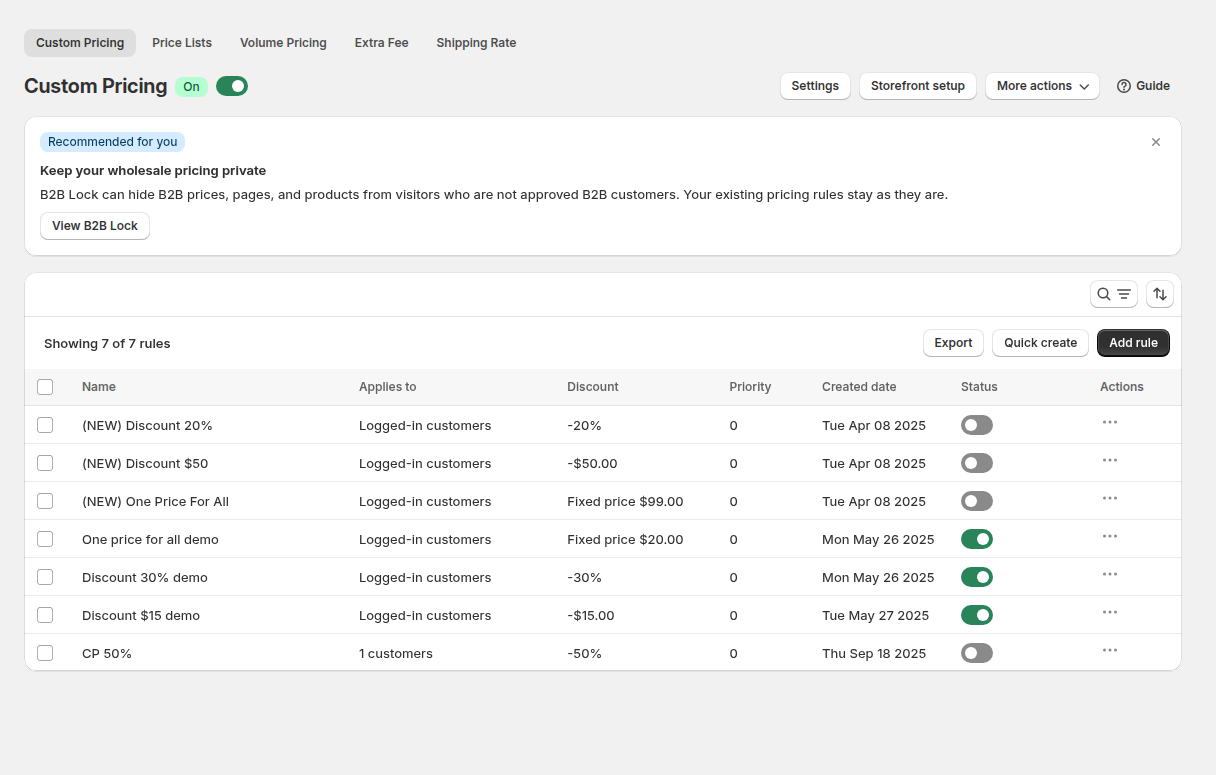
Open B2B Pricing > Custom Pricing, turn it on and click Add rule. Name the rule after the line and the discount, for example Core range, 25% off. Under Customers choose who gets it, usually a customer tag such as wholesale.
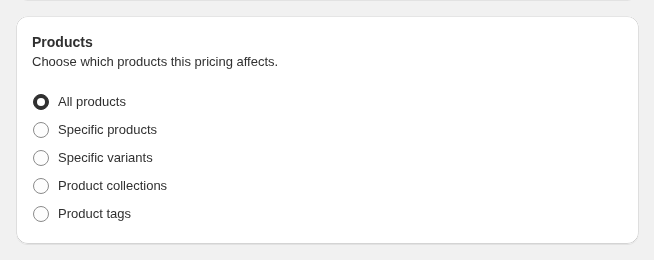
Step 3: Choose the products
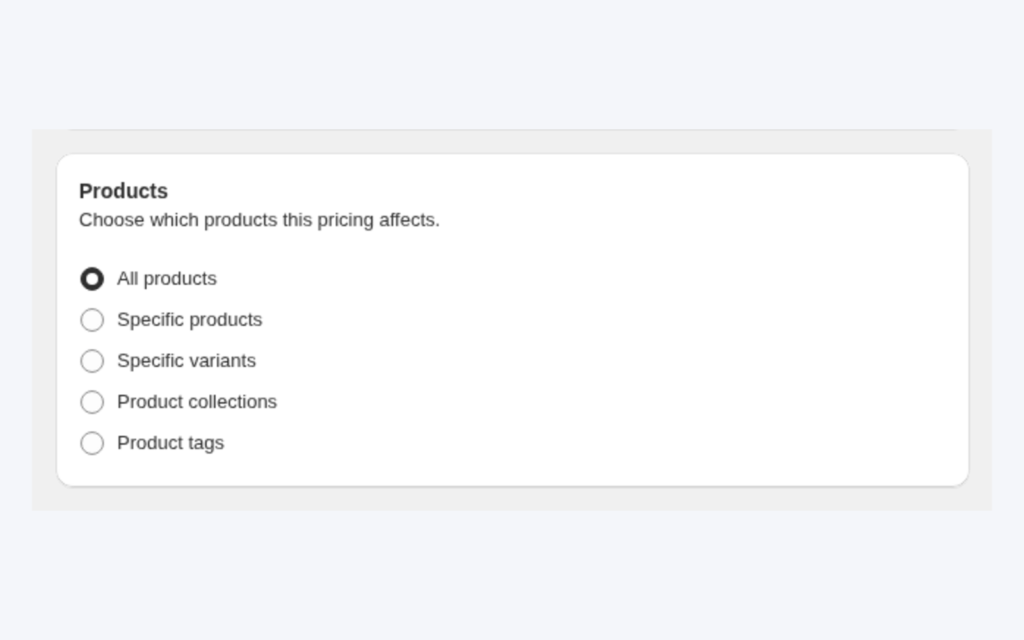
In the Products card choose Product collections and select the collection. You can instead choose product tags, specific products or specific variants. Product collections need a paid plan, product tags need Advanced or higher and specific variants need Platinum.
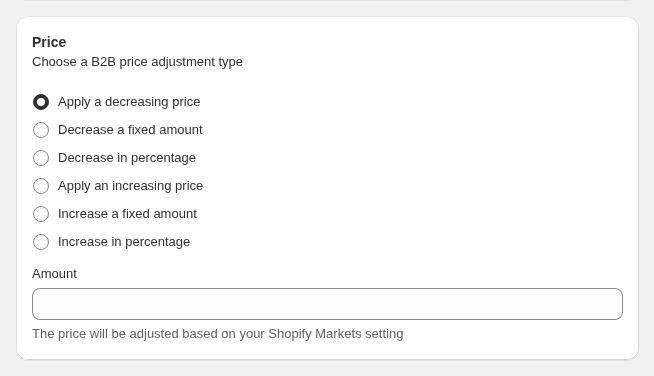
Step 4: Set the price
In the Price card choose a decrease in percentage, a decrease of a fixed amount, or a fixed price that is used only when it is lower than the current price. Repeat with a new rule for each collection.
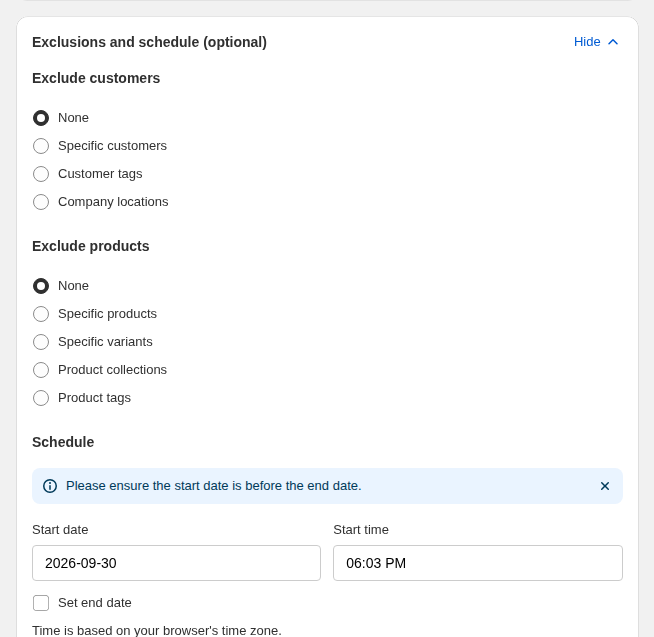
Step 5: Exclude what should keep its price
Open Exclusions and schedule with Show. Under Exclude products choose specific products, variants, collections or product tags that keep their normal price. An exclusion always wins. Excluding products, collections and tags needs Advanced or Platinum. You can also exclude customers, and set a start and end date for a seasonal offer.
Step 6: Set priority where collections overlap
A product can sit in more than one collection, so two rules can match one product. Set Priority (0 to 99) in the Advanced card: the lowest number wins, and a tie goes to the older rule. Leave gaps between numbers.
Step 7: Test on a collection page
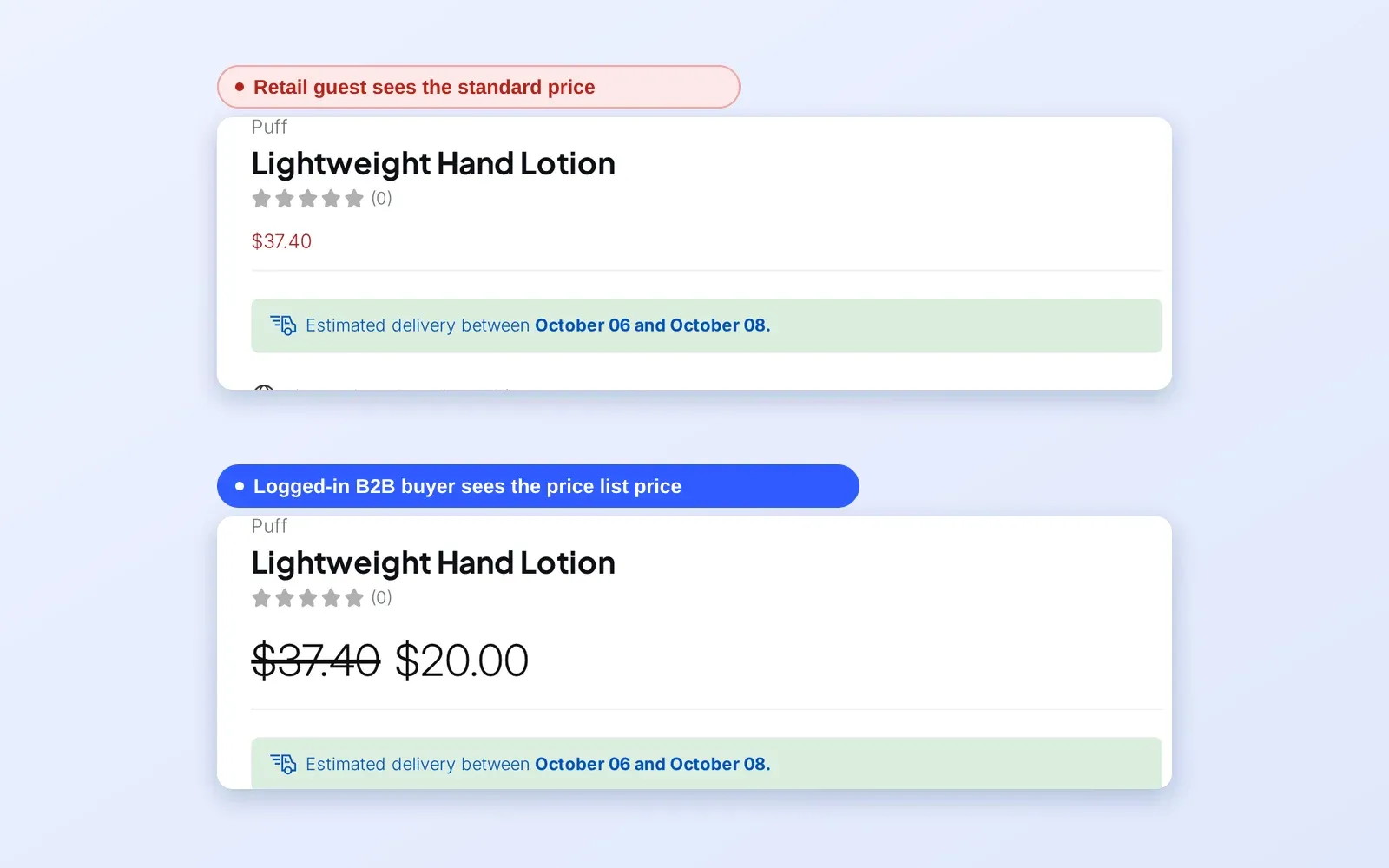
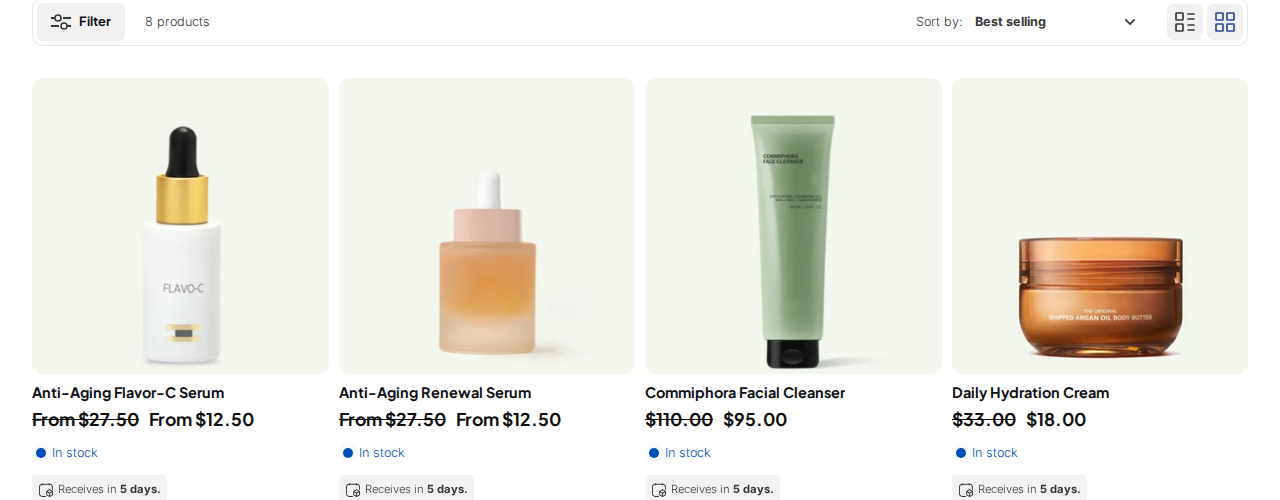
Log in as a matching test customer in a private window and open each collection. The discounted price appears next to the original price, and a guest sees retail prices.
What the buyer sees
A logged-in buyer who matches a rule sees the discounted price next to the original price, on collection pages as well as on product pages and in the cart, according to the display mode you choose in Custom Pricing settings. Products that the rule does not reach, because they are in another collection or excluded, keep their normal price. Guests see retail prices throughout.
Example: a home-goods supplier with three margin bands
This is an illustration with made-up numbers, not a customer result. A supplier gives customers tagged wholesale a different discount per collection.
| Collection | Rule | Priority | Retail price | Wholesale price |
|---|---|---|---|---|
| New arrivals | 10% off | 20 | $80.00 | $72.00 |
| Core range | 25% off | 20 | $60.00 | $45.00 |
| Clearance | Excluded from the wholesale rules; stays at its clearance price | n/a | $30.00 | $30.00 |
| Brand A (vendor collection) | 30% off | 10 | $50.00 | $35.00 |
A Brand A lamp that is also in New arrivals matches two rules. The Brand A rule has priority 10 and the New arrivals rule has priority 20, so Brand A, 30% off, wins and the price is $35.00. The supplier decided on purpose that its brand agreement beats the launch discount, and the priority numbers record that decision.
Works well with
- A tag for the buyer group. Wholesale price by customer tag is the customer side of the same rule.
- Exact prices per SKU. If one collection needs a price per product, use a price list per buyer group.
- Predictable overlaps. Which B2B rule wins explains priority.
- Bulk edits. Import wholesale prices from CSV updates many rules at once on Platinum.
PAN World Brands, a distributor that manages several brands under one umbrella, describes in its case study the challenge of providing custom pricing to different customers across various brands and products, and how it now manages pricing rules and discounts in one admin. Read the PAN World Brands story. Visit the wholesale pricing hub for the other pricing guides, and the glossary entries for wholesale price, price list and customer tag.
Limits and common mistakes
- There is no vendor condition. Use a collection of that vendor’s products, or a product tag.
- Collection membership must be current. If a product is not in the collection in Shopify, the rule does not reach it.
- Product tags in exclusions are case-sensitive. Customer tags are not. Type excluded product tags exactly as they appear on the product.
- Plan gates differ by option. The rule editor shows an upgrade message next to options your plan does not include, so check the plan before you build a large rule set.
- Overlapping collections need priorities. Without them, the older rule wins a tie, which may not be what you intended.
- Higher prices are not shown. A custom price above the original or compare-at price does not display.
- Not every product shows a strike-through. Products excluded from the rule, or not in the collection, keep their normal price.
Setup checklist
- Draw the margin bands and create one collection per band.
- Create a vendor collection for each brand that needs its own discount.
- Create one Custom Pricing rule per collection and name it clearly.
- Set priorities where a product can sit in two collections.
- Add exclusions for products that must keep their price.
- Add a schedule to seasonal offers.
- Test a product from each collection as a tagged buyer and as a guest.
Plans and requirements
Targeting collections needs a paid plan, product-tag targeting and product exclusions need Advanced or higher, and variant targeting needs Platinum. The Free plan allows one Custom Pricing rule, so a multi-collection setup starts on a paid plan. See the BSS B2B Solutions pricing page for current plan details.
You can install BSS B2B Solution from the Shopify App Store (4.9 rating from 1,185 reviews as of 2026-10-02, 14-day free trial on paid plans), read the app overview, or follow the guide to set unique prices for wholesale customers. The targeting reference explains exclusions.