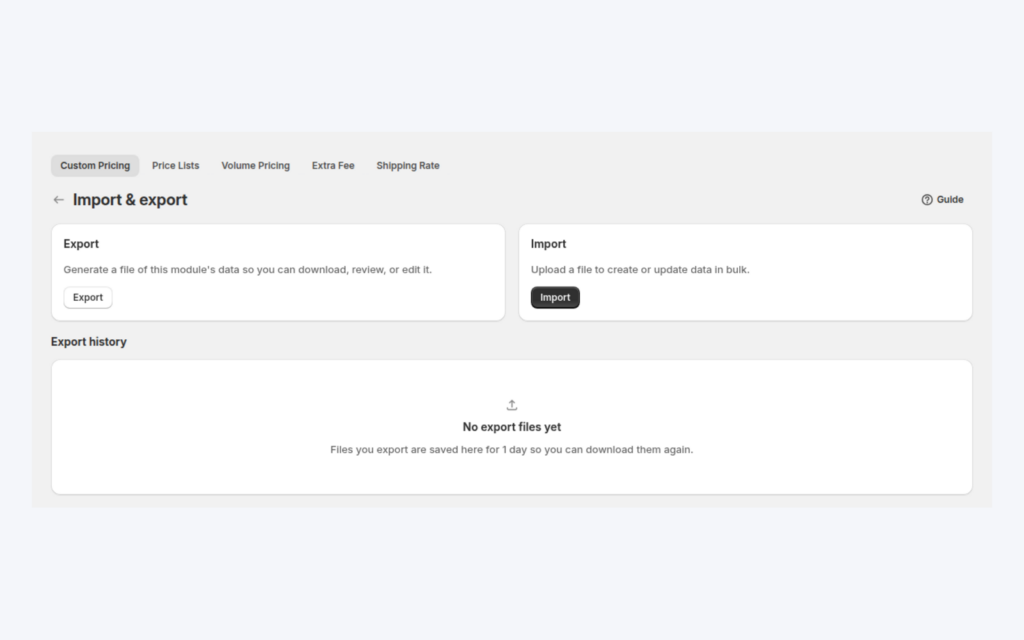
You can import wholesale prices into Shopify from a CSV file with BSS B2B Solution: export your pricing rules, edit the prices in a spreadsheet, then upload the file and let the app validate it before anything changes. The same flow works for Custom Pricing, Price Lists and Volume Pricing, so a catalog of thousands of variants and several customer groups stays manageable.
Most wholesale teams already keep their price book in a spreadsheet, because that is where supplier costs, margins and contract prices are calculated. Importing lets that sheet stay the source of your prices instead of being retyped into an admin screen, one product at a time.
Who this is for
A CSV workflow is worth setting up when:
- You manage hundreds or thousands of variants and a manual edit screen is too slow.
- Your supplier or purchasing team sends price changes as a spreadsheet, for example at the start of a season.
- You run several price groups and need to update them together, such as retailers, distributors and key accounts.
- You want a backup of your pricing rules before a big change, and a clear way back if a price turns out to be wrong.
- You migrate rules between stores, or rebuild a rule set from a master file.
Why this matters
Price changes are rarely single edits. A supplier raises costs by 4%, a season ends, or a new distributor tier is introduced, and suddenly hundreds of rows need to change on the same day. In an admin screen that is hours of repetitive work with a typo risk on every row. In a spreadsheet it is a formula and a column fill, and the formula can be reviewed before it goes live.
Validation matters as much as speed. A wrong price on a wholesale page can mean orders at a loss, and an overwritten rule can be hard to spot. An importer that checks the file first and reports row-level errors turns a risky bulk edit into a routine one.
Imagine an apparel brand with 800 variants, two customer groups and a spring price update. With a CSV flow the brand exports its rules, updates one column in the sheet, imports the file and spot-checks a few product pages as a buyer. Without it, the same update means opening each rule and editing each row.
How to import wholesale prices with BSS B2B Solution
Step 1: Export your current rules first
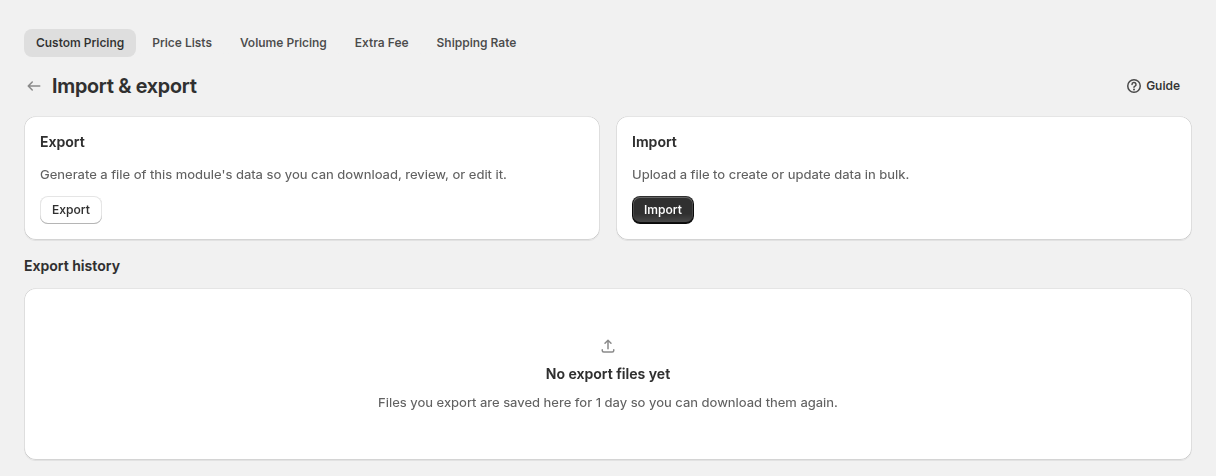
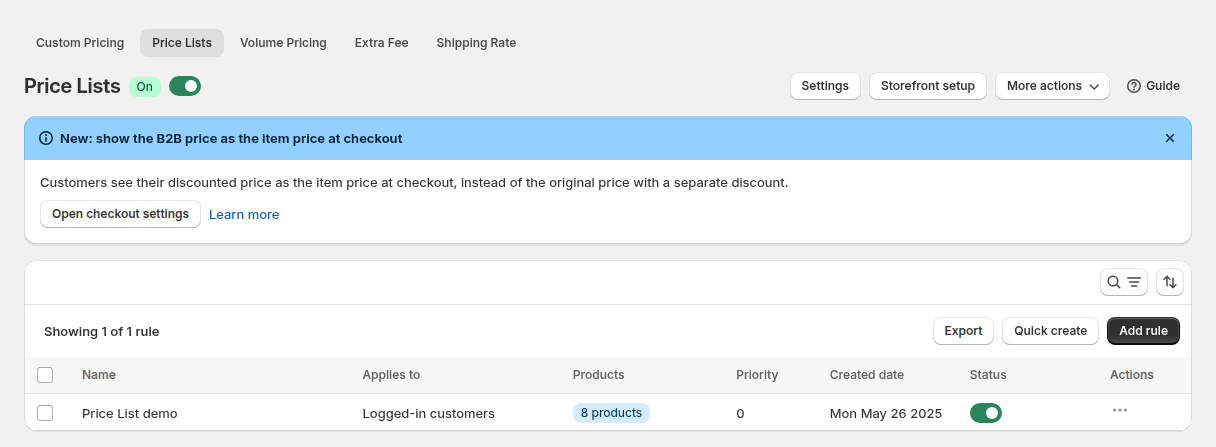
Open the module you want, Custom Pricing, Price Lists or Volume Pricing, and click Export above the rule list, or open More actions > Import & export. Choose a scope: the current page, the rules you selected, the rules matching your current filter, or all rules. Choose CSV or Excel (.xlsx). The export runs as a background job, so you can keep working. When it finishes, click the download link. Download links work for 24 hours and the Export history section lists recent files.
This file is both your backup and your template. Keep it unchanged and edit a copy.
Step 2: Edit the prices in your spreadsheet
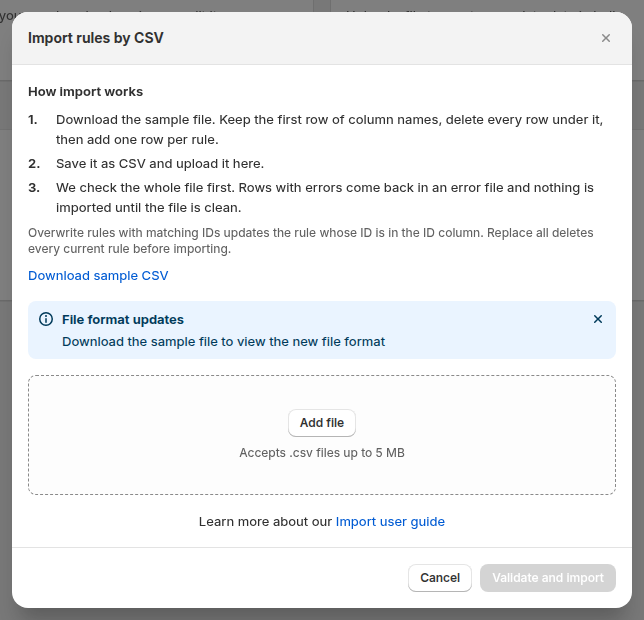
Keep the first row of column names exactly as exported. Each module has its own columns, so if you start from scratch, use the Download sample CSV button in that module’s import window. A few rules apply to every module:
- Leave the ID column blank to create a rule, and keep the exported ID to update an existing rule.
- Enter the exact text values the sample file uses, such as
Fixed priceorDecrease fixed percentage. They are case-sensitive. - Enter plain numbers in Discount value, without currency symbols or a percent sign.
- Customer emails, product titles, SKUs and tags must match what is in your store.
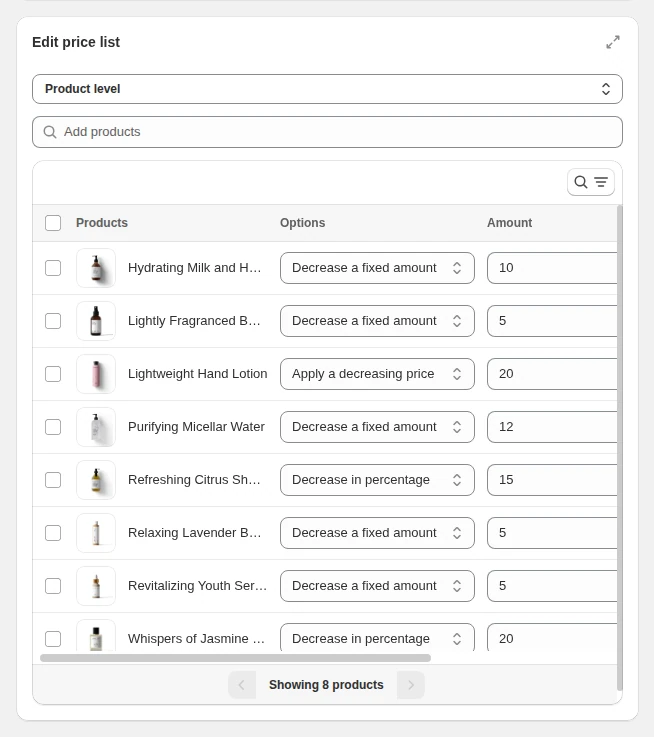
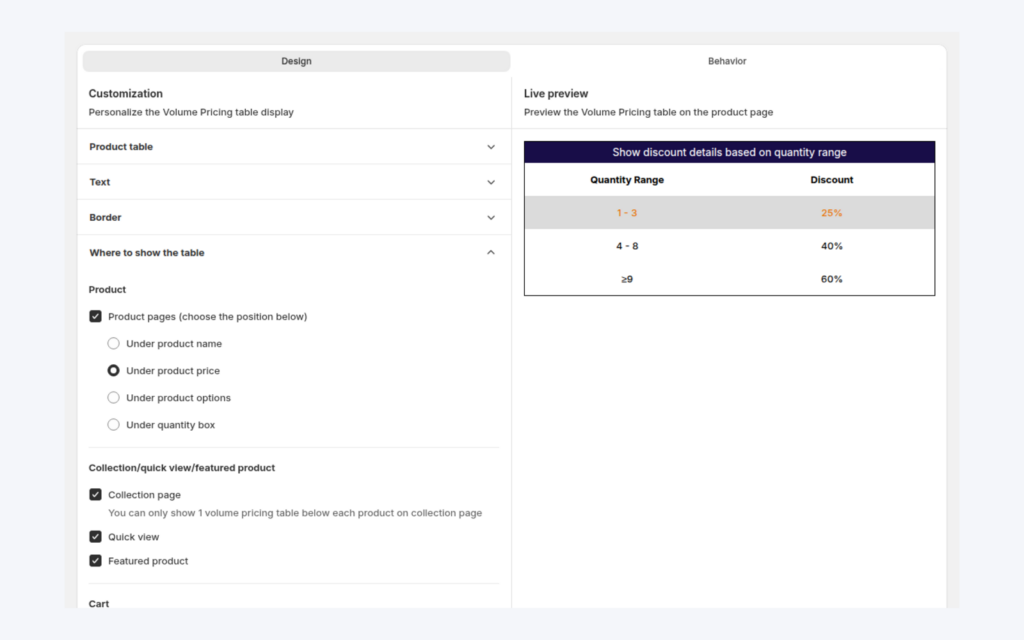
In Price List files, a rule with several products puts the rule settings on the first row and only the product, discount type and discount value on the next rows. In Volume Pricing files, each row is one tier, and the tiers of a rule share the same ID and name.
Step 3: Choose how the file is applied
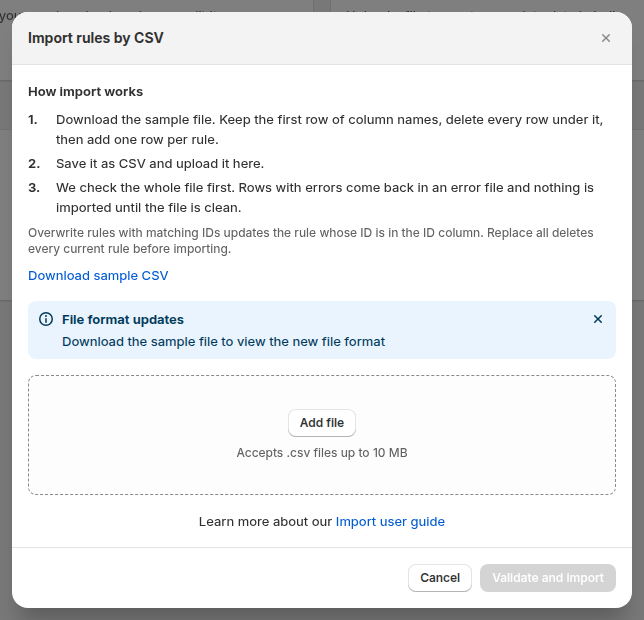
Click Import, add the file and choose a mode. Overwrite rules with matching IDs updates the rules whose IDs appear in the file and creates new rules for rows without an ID; other rules stay as they are. Replace all existing rules deletes the current rules and replaces them with the file, so export first. Click Validate and import.
Step 4: Read the result
The app validates headers and values first, then imports in the background with a progress banner. If rows fail, it shows how many and gives you an error file with the reason for each row. Fix those rows and import again. For Price Lists, rule updates are written to store metafields and typically reach the live storefront within one to three minutes, so wait a little before you test.
Step 5: Test as a buyer
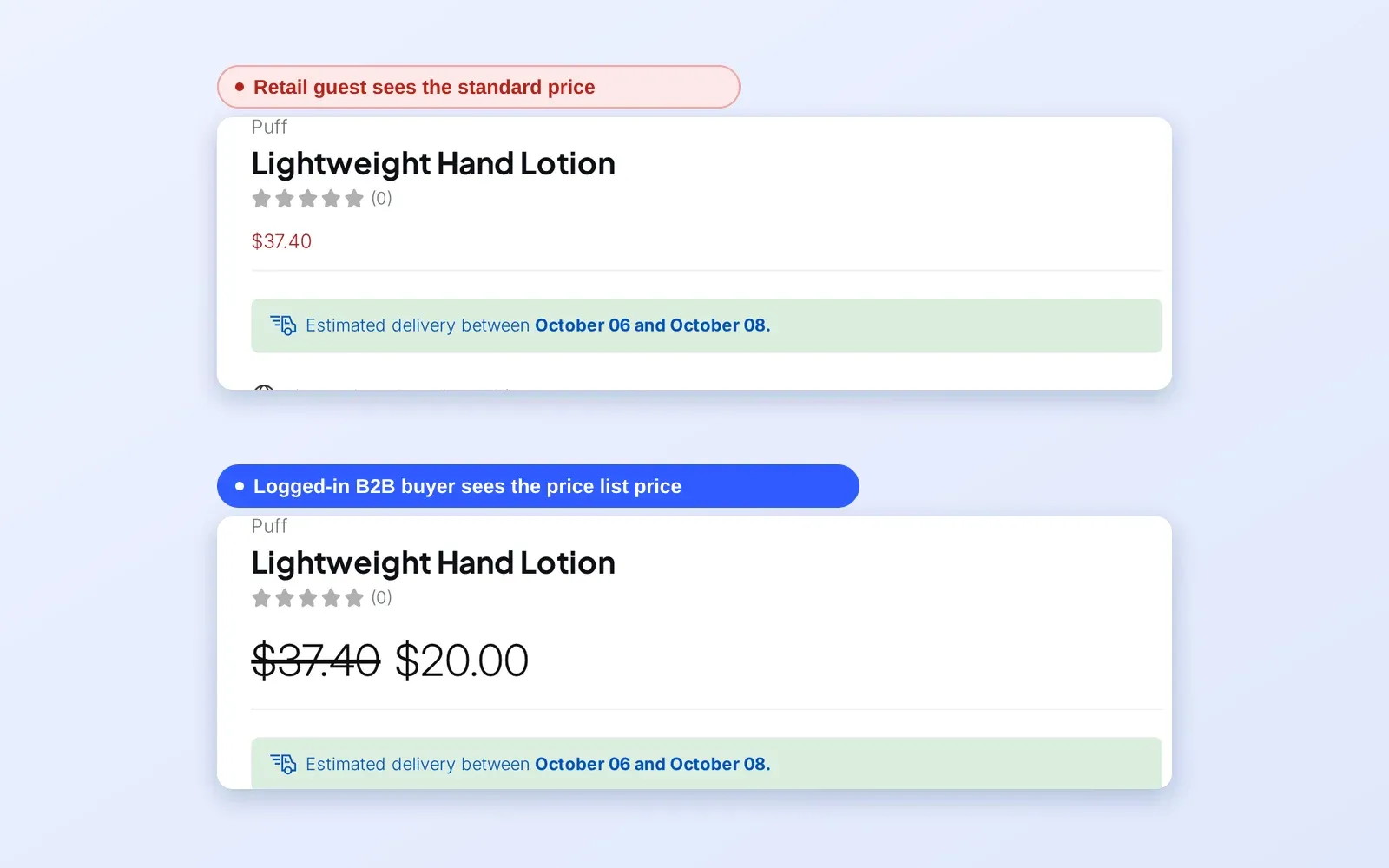
Open a few rules in the app, then open a product page as a matching buyer. Check a product with a fixed price, one with a percentage and one with a tier table.
A routine that keeps the sheet and the store in step
CSV works best as a habit, not a one-off. A routine that many teams find workable is to export before every change, name the file with the date and the module, edit a copy, and import the copy. Keep the exports in a shared folder, so that anyone can restore the previous state by importing an older file in the Overwrite mode. When a price change is large, import it first for one customer tag or one collection, check the storefront, and then import the rest. Keep one owner for the master sheet, because two people editing two copies is the fastest way to overwrite each other’s prices.
Example: a spring price update for an apparel brand
This is an illustration with made-up numbers, not a customer result. A brand keeps one Price List per group. For spring it exports the Retailers list, opens it in a spreadsheet and changes the discount columns, then imports the file in the Overwrite mode.
| Name | Customer condition | Customers | Product | Discount type | Discount value |
|---|---|---|---|---|---|
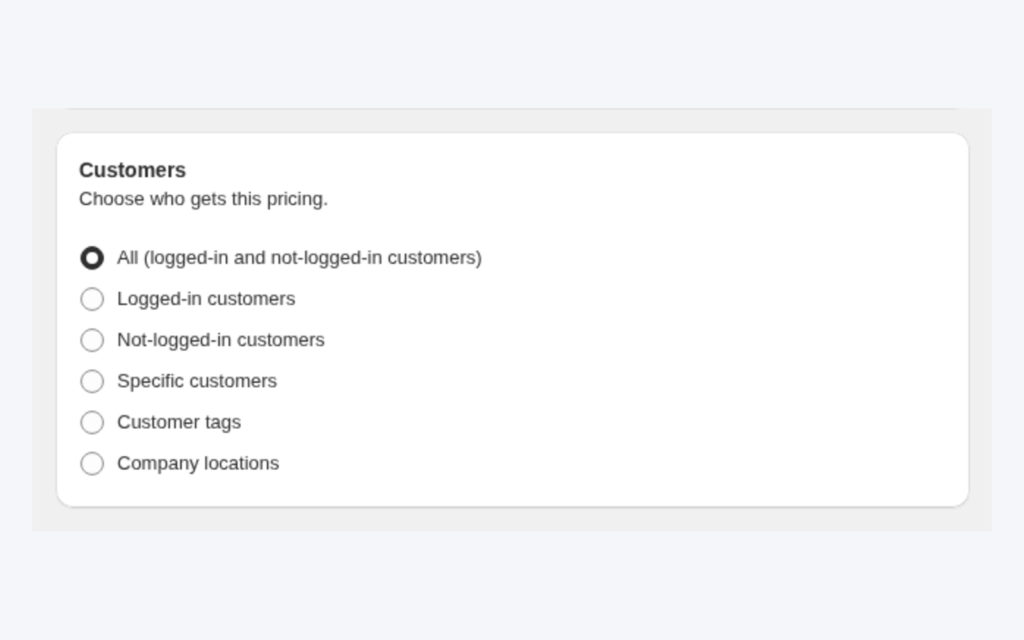
| Spring Retailers | Customer tags | retailer | Classic T-Shirt | Decrease fixed percentage | 25 |
| (same rule) | Leather Jacket | Fixed price | 120 | ||
| (same rule) | Denim Jeans | Decrease fixed amount | 15 |
The first row holds the rule settings. The next rows carry only the product, type and value, and they stay inside the same rule. If a T-shirt retails at $32, the retailer price becomes $24. The brand then checks the three products on the storefront as a tagged buyer.
Works well with
- Exact prices per segment. Start from a price list per buyer group if you have not built one yet.
- Tiers. The same CSV flow maintains tiered quantity break pricing.
- Predictable winners. When imported rules overlap, rule priority decides which price wins.
- Systems integration. For automatic syncing instead of file uploads, see sync B2B data with an ERP via the Public API.
The wholesale pricing hub links the rest of the pricing guides. Useful glossary terms are price list, wholesale price and volume pricing.
Limits and common mistakes
- Size limits differ. Custom Pricing files can be up to 5 MB. Price List and Volume Pricing files can be up to 10 MB. Split larger files and import them one after another.
- Save as CSV before uploading. The import accepts CSV, not Excel files. Excel format is available for export only.
- Do not rename or reorder the headers. A header that no longer matches the sample makes the file fail. The Price List template changed once, replacing the old exclude-variants column with two new columns, so export a fresh template if your file is old.
- Left-out columns reset. In Custom Pricing, any column you leave out of an imported row is reset to empty for that rule.
- Plan limits still apply. Importing does not bypass plan limits. For example, rows that target specific variants are published only on Platinum.
- Replace all is destructive. It removes every current rule in the module, so export first.
- One product per row. Do not list several products or SKUs in one cell of a Price List file.
- Accents in Excel. Open the CSV directly in Excel, since it is UTF-8, or use the Excel export format.
Setup checklist
- Confirm you are on a plan with import and export.
- Export the rules you are about to change and store the file.
- Download the sample CSV and compare the headers with your file.
- Edit a copy, save it as CSV, and keep the file under the size limit.
- Test with a small file of two or three rows before the full import.
- Import in Overwrite mode unless you really mean to replace everything.
- Wait a few minutes, then check products as a tagged buyer.
- Keep the error file if any rows failed, fix them and import again.
Plans and requirements
According to the BSS user guide, CSV import and export for Custom Pricing, Price Lists and Volume Pricing are part of the Platinum plan. On other plans the buttons are locked. The Free plan also limits Custom Pricing to one rule, so importing a second rule there is blocked until you edit the existing one or upgrade. Export links work for 24 hours. See the BSS B2B Solutions pricing page for current plan details.
You can install BSS B2B Solution from the Shopify App Store (4.9 rating from 1,185 reviews as of 2026-10-02, 14-day free trial on paid plans), read the app overview, or follow the price list import guide and the guide to exporting rules and data.