
How to Offer Net 30 Payment Terms on Shopify

You can offer Net 30 on Basic, Grow, Advanced and Plus. Shopify’s native payment terms, from Net 7 to Net 90, are set per company location. If your wholesale buyers are tagged customers instead of companies, BSS B2B Solution adds a Pay later button that turns the cart into a draft order with Net 30 terms.
Add a Pay later button to the cart for approved buyers and save each order as a draft for you to review. Free on development stores, 14-day trial on paid plans.
Install BSS B2B Solution See pricingLast updated October 4, 2026. Shopify facts below come from the Help Center pages linked in the text, read on that date. BSS B2B Solutions makes BSS B2B Solution, the app used in the screenshots. This guide is part of our complete guide to Shopify B2B and of the order rules and terms hub.
Key takeaways
- Net terms are native on Basic, Grow, Advanced and Plus (Shopify plan table). Deposits and partial payments are the Plus-only part.
- Native terms hang on a company location. Buyers who are plain tagged customers need an app, an invoice, or a draft order you create by hand.
- Shopify does not charge the buyer when Net 30 expires. You charge a saved card or record the payment yourself (Shopify payment terms).
- BSS B2B Solution Net Terms offers Due on receipt, Due on fulfillment, Net 7, 15, 30, 60 and 90, and date-based options. It has no Net 45 and no credit limit.
- Net 30 is credit. Approve buyers first, save orders as drafts, and set a cart minimum before you let anyone pay later.
What does Net 30 mean on Shopify?
Net 30 is a payment term: the buyer receives the goods and an invoice, and has 30 days to pay. On Shopify the clock starts on the day the order is placed. Shopify’s own wording is “All terms start from the day the order is placed” (Shopify Help Center). An order placed on March 1 with Net 30 is due on March 31. In glossary terms, Net 30 is the most common of the net terms that wholesale buyers expect.
Shopify lists four kinds of terms: no terms (payment due immediately, the default), net periods of 7, 15, 30, 45, 60 or 90 days, due on fulfillment, and a fixed date. The fixed date works on draft orders only, not on company locations.
Can you offer Net 30 on Shopify without Plus?
Yes. Shopify’s plan table marks net terms, payment reminders, vaulted credit cards, draft order to invoice and PO numbers as available on Basic, Grow, Advanced and Plus. Deposit requirements, partial payments and payment requests per fulfillment are Plus only (Shopify Help Center). Shopify announced the wider rollout on April 2, 2026 and says it is “now rolling out across all plans” (Shopify news), so confirm the feature in your own admin. Our guide to Shopify B2B without Plus has the full plan table.
Which way should you offer Net 30?
There are three practical routes. The right one depends on how you identify your wholesale buyers.
| Native payment terms | BSS B2B Solution Net Terms | Manual order or draft order | |
|---|---|---|---|
| Who gets terms | A company location | Logged-in customers, specific customers or customer tags. Guests are excluded | Whoever you create the order for |
| Where you set it | Customers > Companies > location > Payment terms | Net Terms rule in the app, plus a Pay later block in the cart | Payment section of the order |
| Terms available | Net 7, 15, 30, 45, 60, 90, due on fulfillment. Fixed date on draft orders only | Due on receipt, due on fulfillment, Net 7, 15, 30, 60, 90, end of month, day of month, custom. No Net 45 | Manual Orders: due on receipt, Net 7, 15, 30, 45, 60, 90 and fixed. Shopify draft orders: native terms |
| Buyer experience | Terms are attached to orders from that company location | Pay later button next to Checkout, address form, order saved as draft or placed | Buyer receives an invoice |
| Plan | Basic, Grow, Advanced, Plus | BSS Advanced and up (paid plan) | Native: all four plans. BSS Manual Orders: see the BSS pricing page |
| Best for | Buyers already set up as companies | Tagged wholesale customers without company setup | Phone and email orders, sales reps |
How to set up Net 30 with Shopify’s native payment terms
Native terms need a company, a location and an active customer account. Shopify says “You must activate customer accounts. You can’t use legacy customer accounts for B2B orders and customers” (Shopify Help Center). Check that before you start, because it decides whether buyers can sign in and pay later.
- In the Shopify admin, open Customers and then Companies. Create the company, or open an existing one.
- Add a location with the billing and shipping details, and assign the buyer’s customer record to it.
- Open the location, find the Payment terms section and click the edit icon. Choose Net 30.
- To change many accounts at once, select several companies and use Edit payment terms (Shopify Help Center).
- Create a draft order for the location and check that the Net 30 term shows on it. Draft orders for a company location pick up the prices, payment terms and checkout options of that company (Shopify draft orders).
If you want to review every order before it becomes final, Shopify has a checkout setting named “Submit all orders as drafts for review”. Buyers then see a banner saying payment is due when the order is confirmed, and no payment is collected at checkout. After review you can charge a saved card, send an invoice, or let the buyer pay from customer accounts (Shopify checkout settings).
How to offer Net 30 to tagged customers with BSS B2B Solution
Many wholesale stores never moved their buyers into companies. They approve a customer and add a tag such as wholesale. BSS B2B Solution Net Terms works with that setup. The buyer clicks a Pay later button in the cart, fills in an address form, and the app creates a Shopify order or draft order carrying native payment terms. The steps follow the BSS B2B Solution user guide for Net Terms. Net Terms is on the Advanced plan and up (listed at $49 per month on the App Store as of October 4, 2026).
Step 1: Turn the module on and add the Pay later button
Open Net Terms in the app and switch the module on. Make sure the app embed is on in your theme. Then click Storefront setup and Enable button on Cart page. This opens the theme editor on the cart page so you can add the Net Terms block and save. This step is required: without the block there is no button, even if your rule is active. If your theme does not show app blocks in the cart footer, the button cannot appear.
Step 2: Choose who gets Net 30
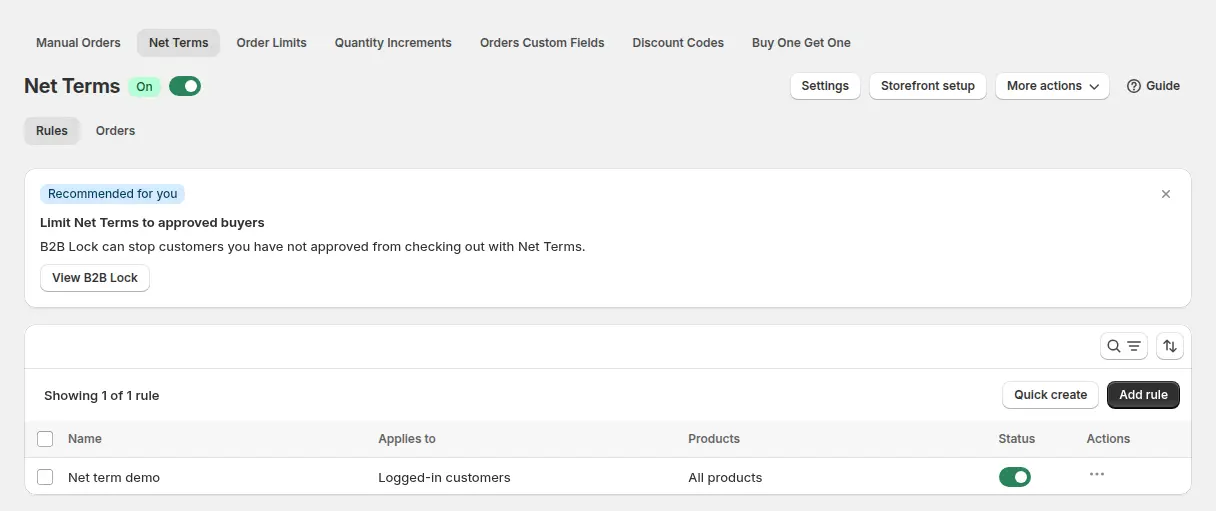
Click Add rule, name it, and set the status to Enable. In the Customers card pick logged-in customers, specific customers or customer tags. A tag is the cleanest choice: approve a buyer, tag the account, and the rule applies. Guests never see the button. If you collect applications with a registration form with approval, the form can add the tag for you.
Step 3: Choose products and an order limit
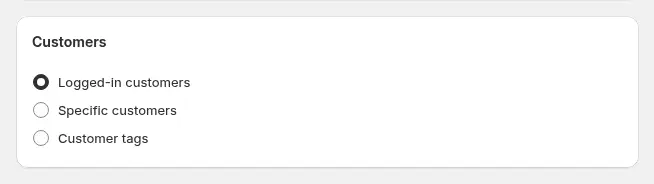
In the Products card choose all products, specific products, collections or product tags. If a cart holds items that are not eligible, the app lists them and blocks the Net Terms checkout until the cart is fixed. The optional order limit sets a minimum or maximum cart amount or quantity. Use a minimum so that Net 30 is not offered on small orders. This limit is checked in the storefront and is not a credit limit.
Step 4: Set the payment terms
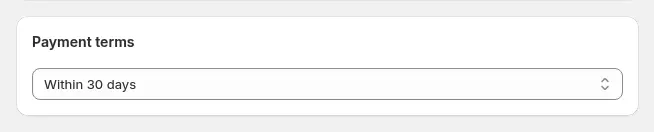
The Payment terms card offers Due on receipt, Due on fulfillment, Within 7, 15, 30, 60 or 90 days, End of month, End of month plus a number of days, End of next month, a specific day of the month, and a custom number of days, weeks or months. Pick Within 30 days for Net 30.
Step 5: Design the application form
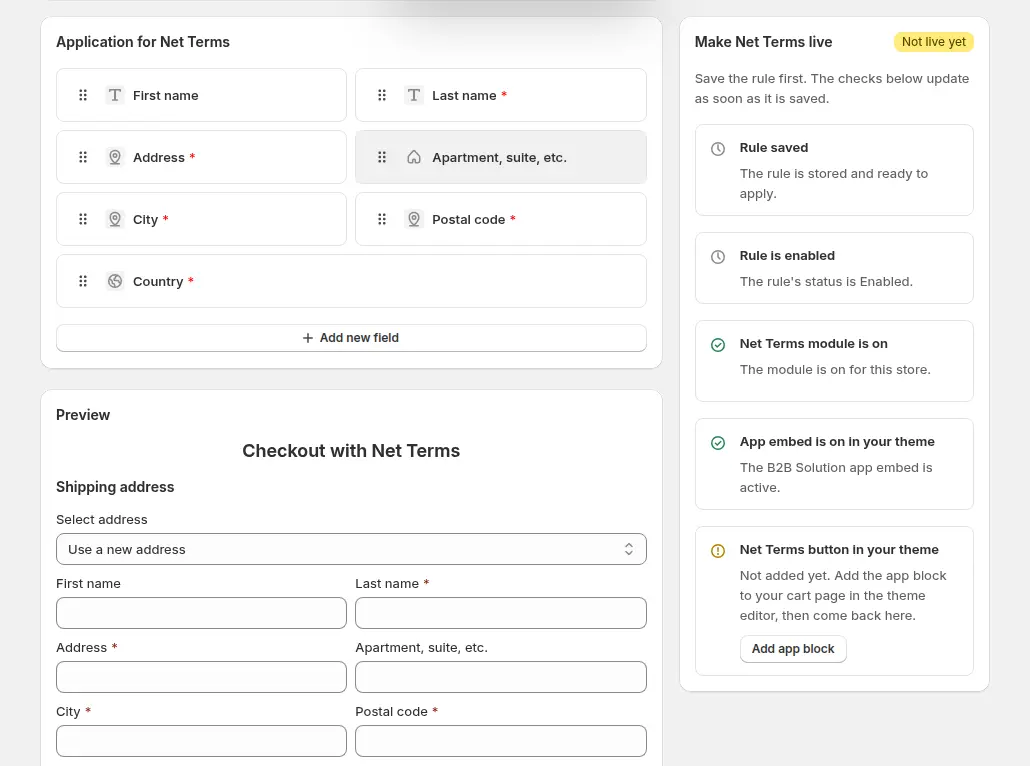
When the buyer clicks Pay later, a form collects the shipping address and any fields you add: phone, company, purchase order number, dropdowns, file upload and tax ID fields. A PO number entered here is saved to the order notes. Add the fields your accounts team needs to approve the order.
Step 6: Decide between draft orders and automatic orders
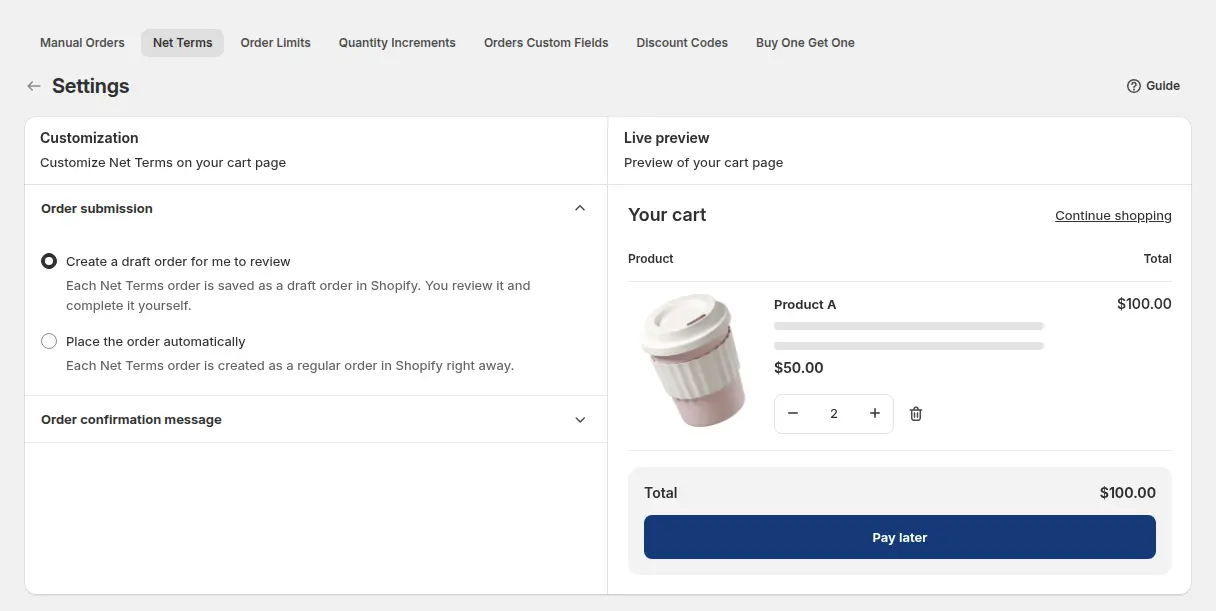
Open Settings on the Net Terms page. Create a draft order for me to review is the default and our recommendation for new accounts: each order is saved as a draft in Shopify and you complete it yourself. Place the order automatically creates a regular order straight away. In our code review, the app attaches Shopify’s own payment terms to the order, so the due date lives in Shopify and not only in the app. For draft orders the app emails the customer and notifies you; for completed orders Shopify’s own emails apply (Net Terms email guide).
Step 7: Test as a buyer
Sign in with a test account that matches the rule, add a product and open the cart. You should see Pay later below Checkout. Place a test order and open the draft in Shopify to confirm the term and the due date. Run the same test with a guest and a non-matching customer to confirm they do not see the button.
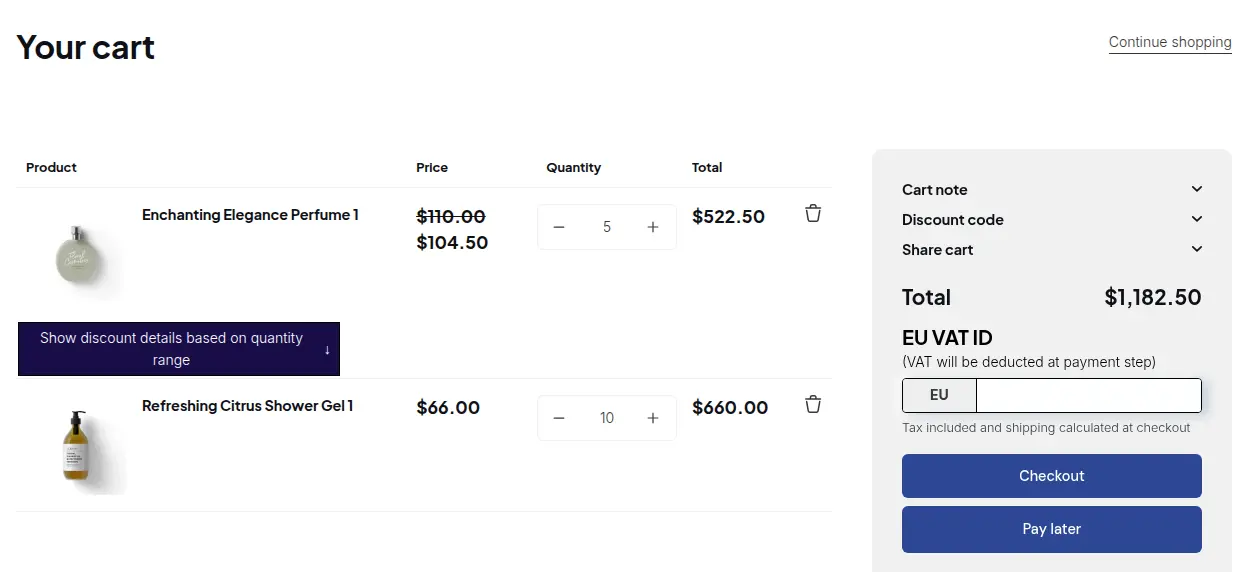
Net Terms combines with other rules. See onboarding tax-exempt buyers with Net Terms and offering Net 30 and other terms to wholesale buyers. A distributor example with customer prices and terms is in Foodservice Distributors: Customer Prices and Net Terms.
How do sales reps give Net 45 or Net 30 on phone orders?
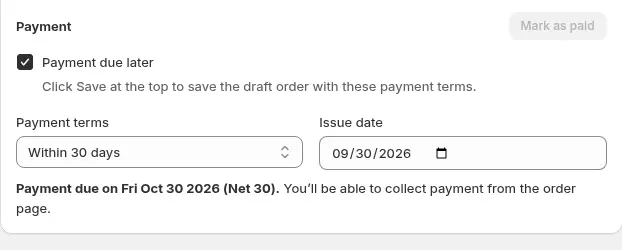
For orders you create yourself, use a Shopify draft order, or Manual Orders in BSS B2B Solution. In Manual Orders, tick Payment due later, choose the terms and set the issue date; the due date is calculated for you. Manual Orders also offers Net 45 and custom terms of 1 to 366 days, which Net Terms does not. See place orders on behalf of customers.
What happens when Net 30 is due?
Shopify does not collect automatically. Its page says “Payments aren’t automatically captured when the payment terms expire”, so you charge the saved card in the admin or record the payment (Shopify Help Center). The buyer can also sign in to customer accounts, open the order and click Pay now. After the due date the order shows as Overdue but can still be paid. Payment reminders are on the plan table for every plan, so set a routine: check the Overdue list weekly and follow up by email.
Limits to check before you promise Net 30
| Limit | What it means | What to do |
|---|---|---|
| No automatic collection | Shopify does not charge when terms expire | Keep a saved card or an invoice routine, and review Overdue orders |
| No credit limit | Shopify’s payment terms page describes none, and BSS Net Terms has none. The rule limit is a cart minimum or maximum | Approve buyers first and set a cart minimum. Watch exposure per account yourself |
| Guests excluded | BSS Net Terms applies to logged-in customers, specific customers or tags | Collect applications with a registration form and tag approved accounts |
| No Net 45 in Net Terms | Net 45 is native, and in BSS Manual Orders only | Use native terms on a company location for Net 45 |
| Cart block required | No Pay later button without the theme block | Add the block in the theme editor and test on the live theme |
| Storefront flow | Net Terms is a cart-page flow, not a Shopify checkout rule. The regular Checkout button stays | Do not describe it as enforced at checkout |
| Plus-only extras | Deposits and partial payments are Plus only | Take a deposit as a separate invoice, or move to Plus if you need it built in |
| B2B checkout limits | Shopify says Shop Pay, Apple Pay, Google Pay and Amazon Pay cannot be used with B2B, and orders max out at 500 line items | Check the considerations page before launch |
If you are on Shopify Plus and want to stop unapproved buyers at checkout, BSS B2B Lock has a checkout lock. It is Plus only and needs a paid Lock plan. It is a store-side control, not a credit check.
Net 30 launch checklist
- Customer accounts are active and are not legacy accounts.
- Buyers are identified: a company location for native terms, or a customer tag for BSS Net Terms.
- You wrote down your terms: which accounts, which minimum order, what happens on a late payment.
- Orders are saved as drafts for review until you trust the account.
- The Pay later block is on the live theme, and a guest cannot see it.
- A saved card or invoice routine is ready for the due date.
- Tax settings for the buyer are checked, for example tax exemption for resellers.
- A test order shows the right term and due date in Shopify.
Net 30 on Shopify: frequently asked questions
Can I offer Net 30 on Shopify without Plus?
Yes. Shopify’s plan table lists net terms on Basic, Grow, Advanced and Plus. Native terms are set on a company location. For tagged customers, BSS B2B Solution Net Terms adds a Pay later button in the cart.
How do I set payment terms for a company in Shopify?
Open Customers, then Companies, select the company and location, click the edit icon in the Payment terms section and choose a term such as Net 30. To change several companies at once, use Edit payment terms on the selection.
Does Shopify charge the buyer automatically when Net 30 is due?
No. Shopify says payments are not captured automatically when payment terms expire. You charge a saved card in the admin, or the buyer pays from customer accounts with Pay now. The order shows as Overdue after the due date.
Does Shopify offer Net 45?
Yes. Shopify’s net periods are 7, 15, 30, 45, 60 and 90 days. BSS B2B Solution Net Terms has Net 7, 15, 30, 60 and 90 plus date-based and custom options, but not Net 45. Net 45 exists in BSS Manual Orders.
Can I set a credit limit for Net 30 buyers?
Shopify’s payment terms page describes no credit limit, and BSS B2B Solution has none. A Net Terms rule can set a cart minimum or maximum, which is not a credit limit. Approve buyers first and track exposure yourself.
Can guests or new customers use Net Terms?
No. BSS Net Terms applies to logged-in customers, specific customers or customer tags, so a guest never sees Pay later. Collect applications with a registration form and tag the accounts you approve.
Which BSS B2B Solution plan includes Net Terms?
Net Terms is a paid-plan module, on the Advanced plan and up, listed at $49 per month on the App Store as of October 4, 2026. It is free on development stores and paid plans have a 14-day trial.
Should Net 30 orders be draft orders?
For new accounts, yes. A draft order lets you check the buyer, the items and the term before you complete the order. BSS Net Terms defaults to Create a draft order for me to review. Switch to automatic orders once you trust the account.
Can a sales rep create a Net 30 order for a buyer?
Yes. Create a Shopify draft order for the company location, or use Manual Orders in BSS B2B Solution, tick Payment due later and choose the terms. The due date is calculated from the issue date.
Next steps
Decide how you identify buyers, then pick native terms, BSS Net Terms or both. Read the order rules and terms hub for minimums and increments, and the complete guide to Shopify B2B for the other parts of a wholesale store. The credit limit and purchase order entries explain two terms buyers often ask about.
Install BSS B2B Solution to add Net Terms, registration with approval, order limits and wholesale pricing. Try it free on a development store.
Install BSS B2B Solution See the appSources
Shopify pages read on October 4, 2026. BSS facts: BSS B2B Solution user guide at docs.bss-b2b.solutions, our October 2026 review of the app’s behavior, and the Shopify App Store listing (as of October 4, 2026).
- Shopify Help Center: B2B payment terms
- Shopify Help Center: Shopify B2B features by plan
- Shopify Help Center: Requirements and considerations for using B2B
- Shopify Help Center: B2B draft orders
- Shopify Help Center: Checkout settings in B2B
- Shopify news: Shopify brings native B2B features to more merchants (April 2, 2026)
- BSS B2B Solution user guide: Set up Net Terms
- BSS B2B Solution user guide: Net Terms email notifications
You may also like

How to Uninstall a Shopify B2B or Lock App Safely: Remove Leftover Theme Code
Some Shopify apps leave code in your theme after you uninstall them. To remove a B2B or lock app safely, duplicate your […]

Shopify Markets and B2B Pricing: Wholesale Prices Per Country and Currency
Shopify Markets control currency, languages and taxes by audience, and B2B catalogs can be assigned per B2B market, with a cap on […]

How to Collect and Validate a Tax ID (EIN, ABN, GST, UK VAT) on Shopify
Shopify has a Tax ID field on company locations, but the pages we read describe no check against a tax register. BSS […]