
How to Bulk Order on Shopify With CSV Upload (Template Included)

To bulk order on Shopify with a CSV, a buyer uploads a file of SKUs and quantities and the app adds the matching variants to the cart. Shopify does not describe this, so BSS B2B Quote adds a Bulk Import button to its Quick Order page. Download the template below and test it on a development store.
Add a Quick Order page with Bulk Import to your store. Free on development stores, 14-day trial on paid plans.
Install BSS B2B Quote See pricingLast updated October 4, 2026. Shopify facts come from the Help Center pages linked in the text. BSS B2B Solutions makes BSS B2B Quote, the app in the screenshots. This guide belongs to the quick order and RFQ hub of our complete guide to Shopify B2B.
Key takeaways
- A bulk order CSV has two columns: SKU and quantity. The app reads .xlsx, .xls or .csv files.
- Shopify’s checklist names order upload via CSV as a use case for third-party apps (Shopify Help Center). Its CSV import guide covers products (CSV guide).
- Duplicate SKUs are added together. Invalid SKUs are listed while valid ones still go through.
- Matched rows go to the cart, not straight to checkout.
- The upload window says 2 MB, but we found no size check in the code, so test your largest file.
What is a bulk order CSV upload?
A bulk order CSV upload lets a buyer fill a cart from a spreadsheet instead of searching product by product. The buyer lists SKUs and quantities, uploads the file, checks what matched and adds it all to the cart. It suits restocks of 30 lines or more, orders that start in a buyer’s ERP or POS, and sales reps who keep client order sheets. A related term is the purchase order, which many buyers already keep as a spreadsheet. If you only need a page where buyers type quantities, read our Shopify quick order form guide first; this post covers the file upload.
Can you bulk order on Shopify without an app?
Not with a CSV, as far as Shopify’s documentation shows. The pages we read on October 4, 2026 say this:
- The B2B setup checklist lists “order upload via CSV” among use cases to support with third-party apps (blended store checklist).
- The quick order list is a table of a product’s variants on the product page, included on Basic, Grow, Advanced and Plus. Shopify’s page does not mention CSV or file upload (quick order list, plan table).
- Shopify’s CSV import guide is about products, not orders or draft orders (import products with a CSV).
So a store that wants buyers to send a file needs an app or a manual process. Manual means the buyer emails a spreadsheet and your team keys it into a draft order, which is slow at volume. The rest of this guide uses BSS B2B Quote, where the file upload is a button on the Quick Order page.
How to set up CSV bulk ordering on Shopify
These steps follow the BSS Create Quick Order Page and CSV upload guides. For the full page setup, including layout and search, see our quick order form guide.
Step 1: Check your theme and plan
The Quick Order page is written into your theme as a section and page template, so it needs an Online Store 2.0 theme. Turn on the app embed in the theme editor. BSS B2B Quote is free on development stores. On live stores the paid plans are Growth at $19, Business at $39 and Enterprise at $79 per month (App Store listing, October 4, 2026), and stores below Growth have been read-only in the app since June 14, 2026.
Step 2: Create and publish a Quick Order page
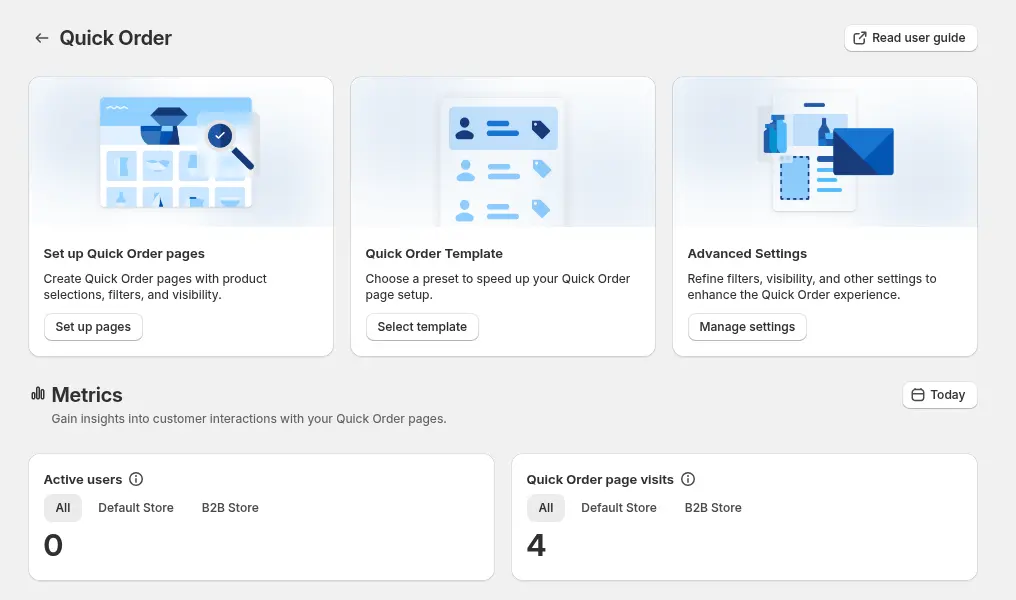
In the app open Quick Order, then Set up pages, and create a page. Choose which products it lists and who can see it, for example customers with a wholesale tag. Publish it under a handle such as /pages/bulk-order and add it to your wholesale menu.
Step 3: Give buyers a template
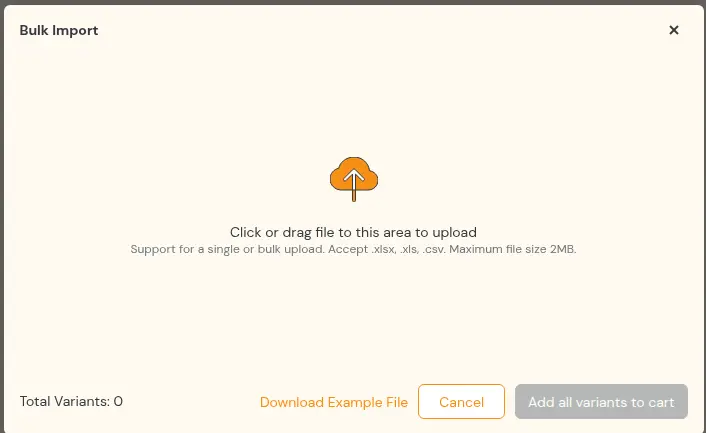
The upload window has a Download Example File link. You can also link your own template, filled with your real SKUs, from your wholesale page or welcome email. A sample is below. Download the template CSV and replace the demo SKUs.
Step 4: Buyers click Bulk Import and upload the file
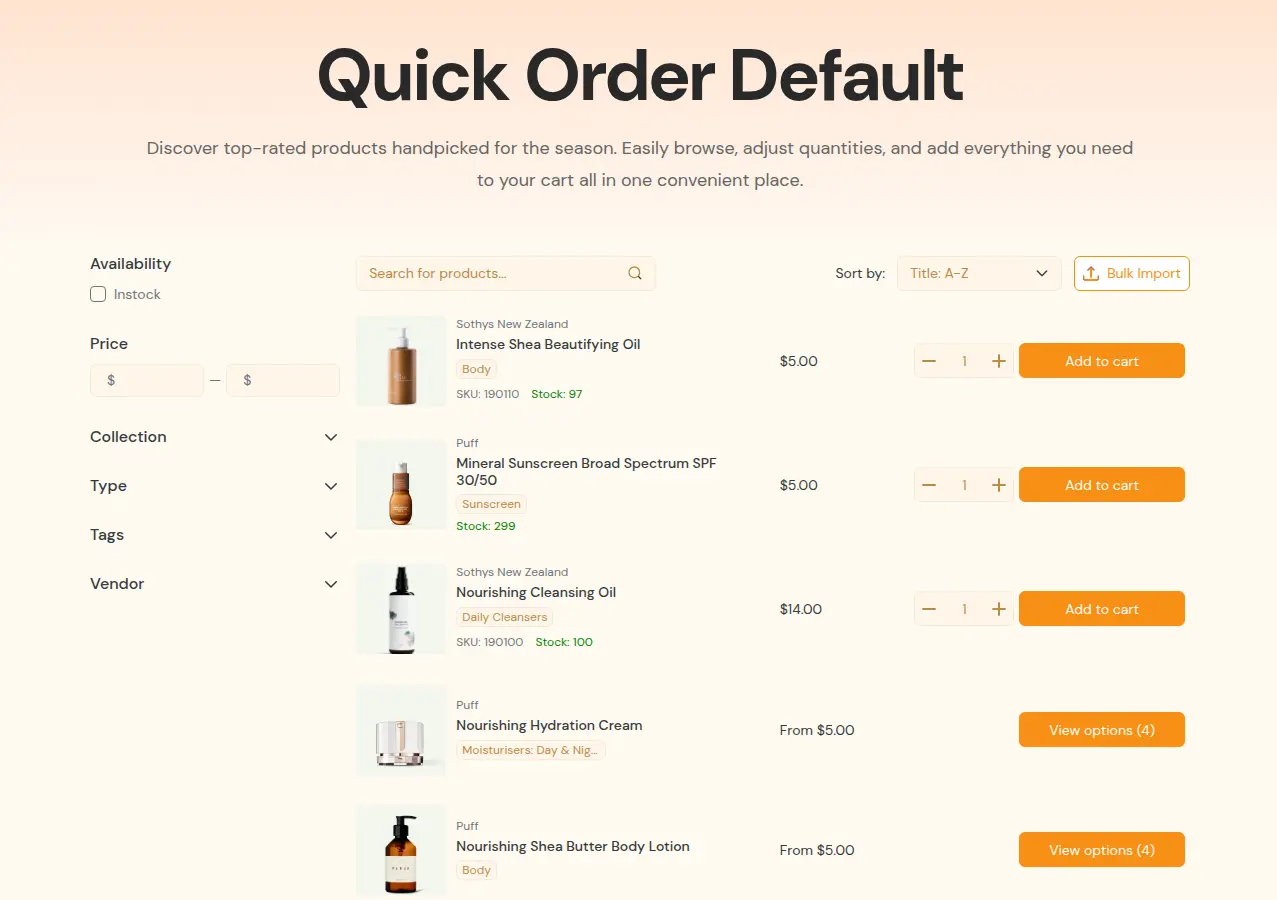
On the published page the Bulk Import button sits above the product list. It opens a window where the buyer clicks or drags a file in. Several files can be added in one session.
Step 5: Review the matched rows and add to cart
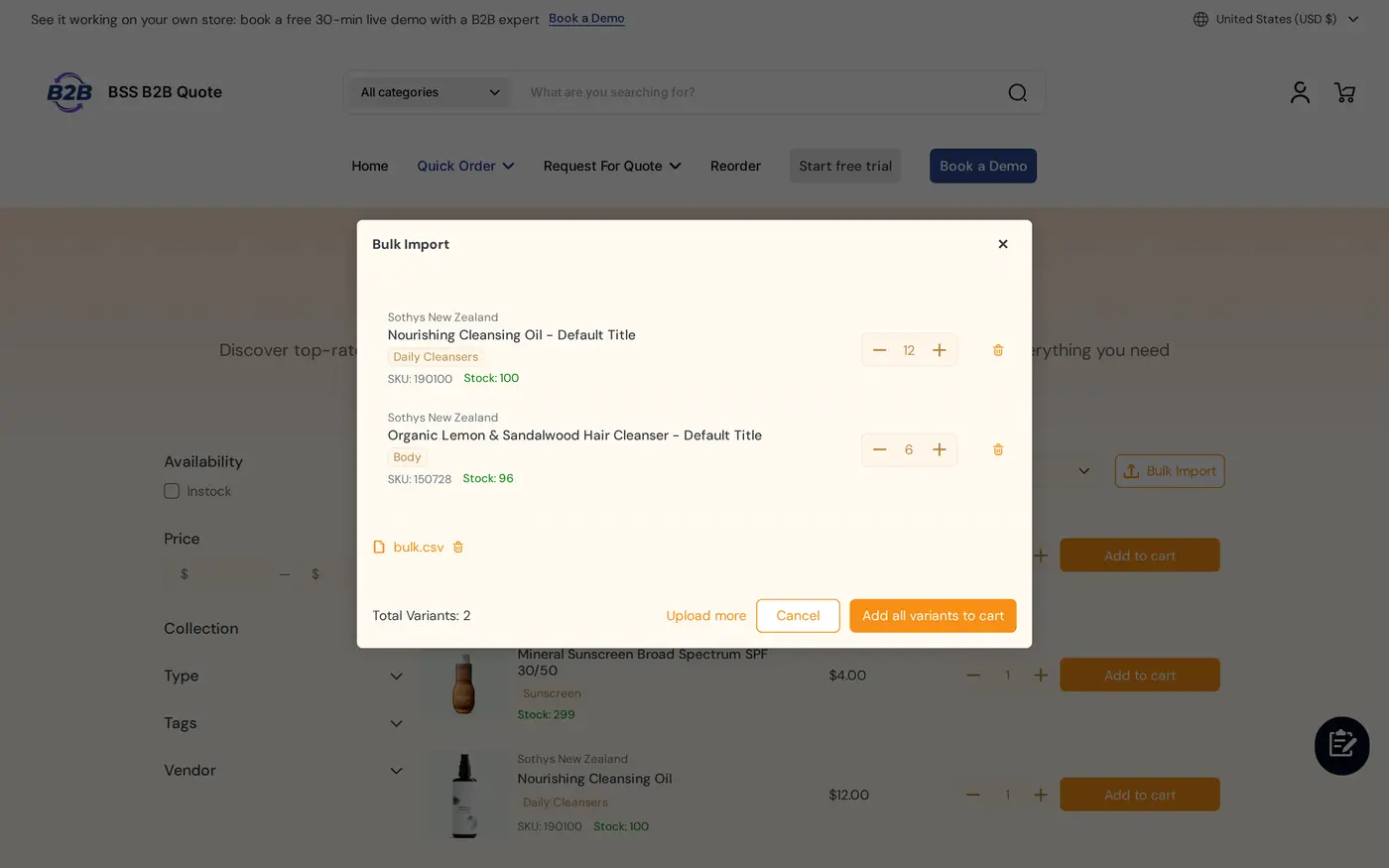
After the upload the buyer sees a table of matched products with image, title, SKU, price, stock and an editable quantity. They can change or delete a row, upload more files, then click Add all variants to cart. The cart opens as usual and the buyer checks out from there.
Bulk order CSV template: columns and format
Use one row per SKU. Download the bulk order template (CSV). Every SKU in it is a demo value, so swap in SKUs from your own catalog.
sku,quantity
DEMO-TEE-BLK-S,50
DEMO-TEE-BLK-M,100
DEMO-TEE-BLK-L,75
DEMO-HOODIE-GRY-M,24
DEMO-HOODIE-GRY-XL,20
DEMO-CAP-NVY-OS,60
DEMO-TOTE-NAT-OS,40
DEMO-TEE-BLK-M,25| Column | Accepted header names | Example | Notes |
|---|---|---|---|
| SKU | sku, variant sku, sku code, product sku, variant code, item sku, item code | DEMO-TEE-BLK-M | The variant SKU as it appears in Shopify. Copy it exactly |
| Quantity | quantity, qty, amount, order qty, order quantity, qty ordered, quantity ordered | 100 | A whole number above 0. Rows with 0 or less are skipped |
In the template, DEMO-TEE-BLK-M appears twice, with 100 and 25. The app adds duplicate SKUs together, so the buyer sees 125 for that variant. Save a CSV as UTF-8. If the buyer works in Excel, the file can stay .xlsx: the app reads the first sheet only. A general spreadsheet tip: format the SKU column as text, because programs can drop leading zeros from codes such as 00123.
What happens to each row after upload?
| Situation | Result |
|---|---|
| SKU found and in stock | Listed in the results table with an editable quantity |
| Same SKU on several rows or in several files | Quantities are added together |
| SKU not found | Listed in a warning banner. The valid rows still go through |
| Quantity 0 or less | The row is skipped |
| Variant out of stock | That variant is removed and the buyer is told in a window |
| Click Add all variants to cart | Matched rows go to the cart, not to checkout |
Our October 2026 review of the app’s code did not find a row limit in the storefront, and SKU lookup covers up to 2,500 variants. On a catalog larger than that, test an upload before you promise it. We did not verify whether SKU matching ignores upper and lower case, so tell buyers to use the SKUs exactly as shown in your store.
Limits to know before you promise it to buyers
- File size. The upload window says 2 MB per file. We found no size check in the code, so do not advertise a hard limit. Test your largest real file and ask buyers to split very large orders.
- Cart, not checkout. The BSS user guide says items go to checkout. The code adds them to the cart, so describe it that way.
- Theme. Online Store 2.0 only. After switching themes, run Theme installation in the app.
- Headless. The storefront features rely on the theme app embed, so test before using them on a headless storefront.
- Plan. Use the Growth plan or higher on a live store.
Will uploaded items show wholesale prices?
For customers who do not use Shopify’s native B2B, the Quick Order page uses BSS B2B Solution prices when both apps are installed: custom prices, quantity breaks and quantity increments. Customers who belong to Shopify B2B companies see their Shopify catalog prices. Check that the price in the results table matches the cart before you launch. A quick order row also respects quantity increments set in BSS B2B Solution, for customers outside native B2B.
Where CSV ordering fits in a wholesale store
- Weekly restock: bulk order by CSV upload shows the full flow on a demo store.
- Catalog pages with filters and search: standard quick order pages and personalized quick order pages.
- Repeat orders from history: the reorder page creates a draft order from a past order. See the reorder definition.
- Buyers who need a better price: send the list as a quote with our request for quote guide.
BSS B2B Quote is free on development stores. Create a Quick Order page, upload the template and check the cart.
Install BSS B2B Quote Read the CSV guideBulk order CSV launch checklist
- The theme is Online Store 2.0 and the app embed is on.
- The Quick Order page is published, linked in your wholesale menu and visible only to the right buyers.
- The template CSV holds real SKUs and is linked from the page or your welcome email.
- You tested a file with a duplicate SKU, an invalid SKU, a zero quantity and an out-of-stock variant.
- You tested your largest realistic file and noted the result.
- Prices in the results table match the cart.
- Buyers know the upload fills the cart and they still check out.
Shopify bulk order CSV upload: frequently asked questions
How do I bulk order on Shopify with a CSV file?
Open a Quick Order page that has Bulk Import, upload a file with a SKU column and a quantity column, review the matched rows and click Add all variants to cart. This needs an app such as BSS B2B Quote.
Does Shopify have a CSV upload for orders?
Shopify’s pages we read do not describe one. Its CSV import guide covers products, and its B2B checklist lists order upload via CSV as a use case for third-party apps.
What file types can buyers upload?
Files of type xlsx, xls and csv. The app reads the first sheet. For CSV use UTF-8 and keep one SKU column and one quantity column.
What column names does the CSV need?
One SKU column and one quantity column. Names such as sku, variant sku, quantity and qty work, and header case does not matter. The table above lists all accepted names.
What happens to duplicate or invalid SKUs?
Duplicate SKUs are added together, across rows and across files. Invalid SKUs are listed in a banner and the valid rows still go through.
Does the upload go straight to checkout?
No. Matched rows go to the cart. The buyer reviews the cart and checks out as usual.
What is the file size or row limit?
The upload window says 2 MB per file. We found no size check or row limit in the storefront code, so test your largest file and do not promise a hard limit to buyers.
Does bulk order upload need a special theme or plan?
It needs an Online Store 2.0 theme. BSS B2B Quote is free on development stores, and paid plans start at $19 per month with a 14-day trial (App Store listing, October 4, 2026).
Next steps
Download the template, add your real SKUs and run a test upload on a development store. For page layout and search, use the quick order form guide. To compare other order form tools, see Shopify wholesale order forms.
Install BSS B2B Quote for a Quick Order page with CSV upload, quotes and reorder. Pair it with BSS B2B Solution to show wholesale prices.
Install BSS B2B Quote See the appSources
Shopify pages read on October 4, 2026. BSS facts: BSS B2B Quote user guide at docs.bss-b2b.solutions, our October 2026 review of the app’s code and behavior, and the Shopify App Store listing (October 4, 2026).
- Shopify Help Center: Setup checklist for blended B2B stores
- Shopify Help Center: Adding the quick order list to your theme
- Shopify Help Center: Shopify B2B features by plan
- Shopify Help Center: Import products with a CSV file
- BSS B2B Quote user guide: CSV upload (bulk import)
- BSS B2B Quote user guide: Create Quick Order Page
You may also like

How to Uninstall a Shopify B2B or Lock App Safely: Remove Leftover Theme Code
Some Shopify apps leave code in your theme after you uninstall them. To remove a B2B or lock app safely, duplicate your […]

Shopify Markets and B2B Pricing: Wholesale Prices Per Country and Currency
Shopify Markets control currency, languages and taxes by audience, and B2B catalogs can be assigned per B2B market, with a cap on […]

How to Collect and Validate a Tax ID (EIN, ABN, GST, UK VAT) on Shopify
Shopify has a Tax ID field on company locations, but the pages we read describe no check against a tax register. BSS […]