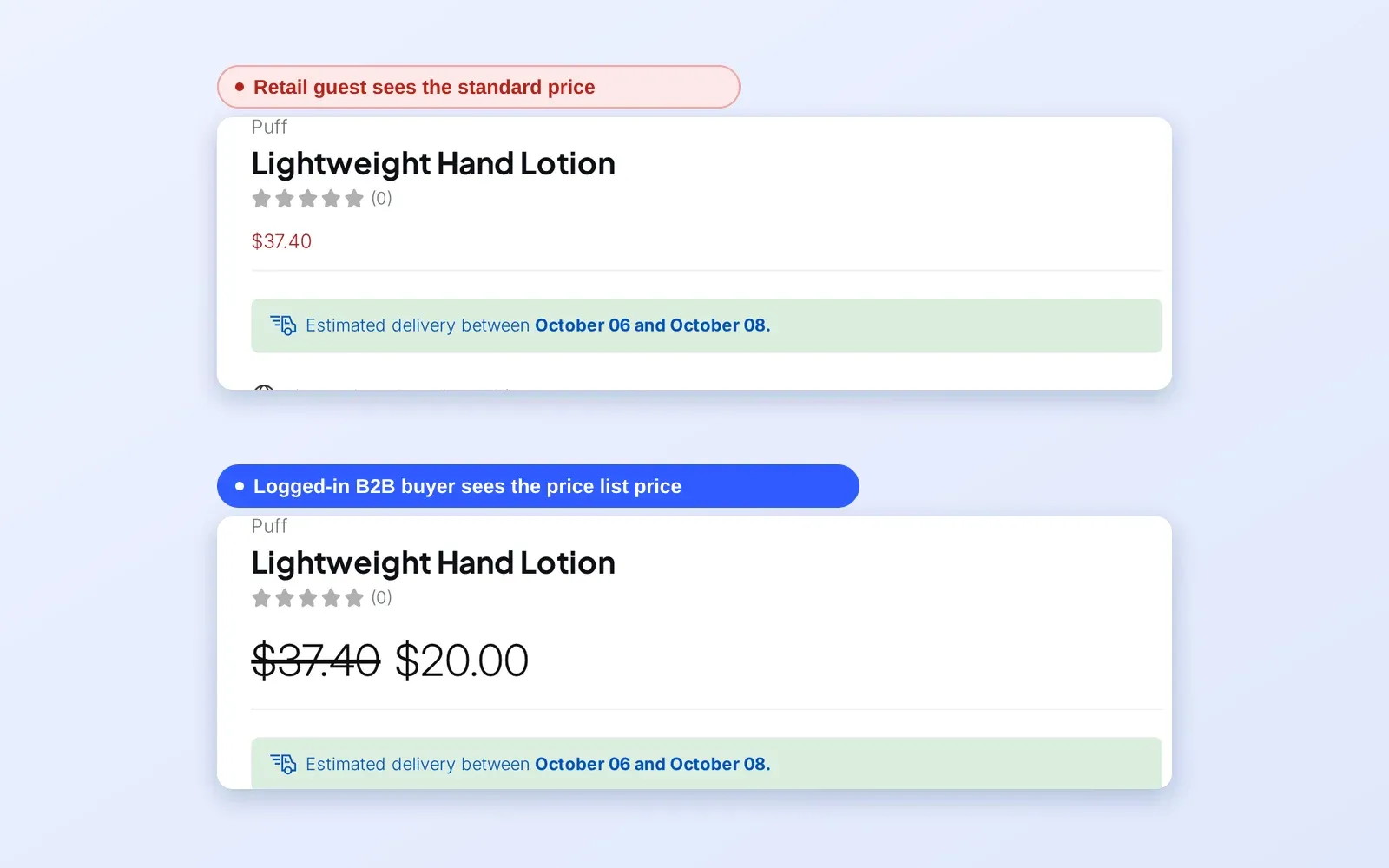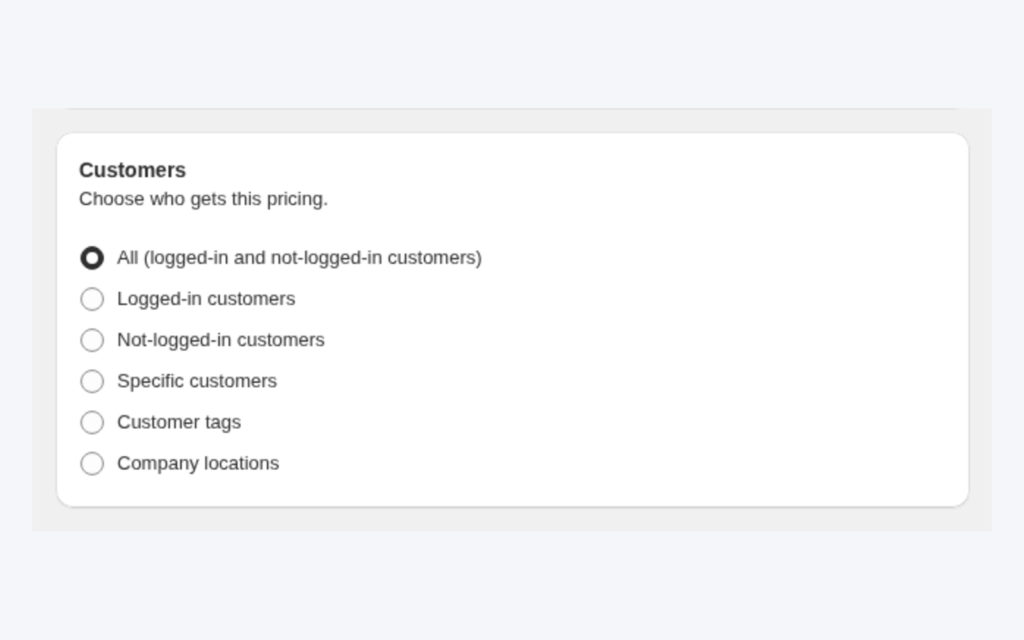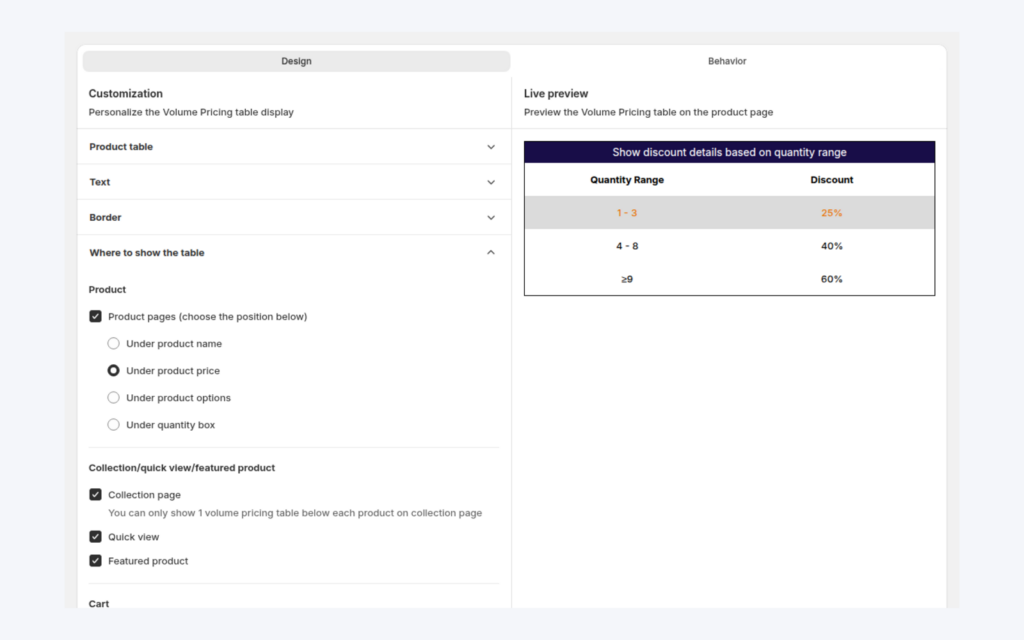
To keep wholesale prices consistent in Shopify POS, add the BSS B2B POS app to your POS device and have staff tap the B2B Price tile after the customer and products are in the cart. The tile loads your BSS B2B Solution rules and applies Custom Pricing, Price List and Quantity Break discounts to each line, so a trade customer pays the same price at the counter as on your website.
This guide is for manufacturers, wholesalers and brands that also sell in person: market stalls, a showroom, a trade counter or a pop-up. It explains who needs this, the setup in five steps, a worked example, and the limits that decide whether the tile fits your rules, including that staff must tap it and that rules aimed at collections or markets do not work at POS.
Who this is for
The POS tile fits you if several of these are true:
- Trade customers visit your showroom, trade counter, stall or warehouse and expect their wholesale price.
- Staff currently look up a price or type a discount by hand, and two people give two answers.
- You already maintain wholesale rules in BSS B2B Solution for the online store and do not want a second price list for the till.
- Your in-person trade rules are based on who the customer is (a tag or a specific account) and on products, not on a collection or a market.
- Staff attach the customer to the sale before they take payment.
If you place orders for buyers from the back office instead of at a till, see place orders on behalf of customers.
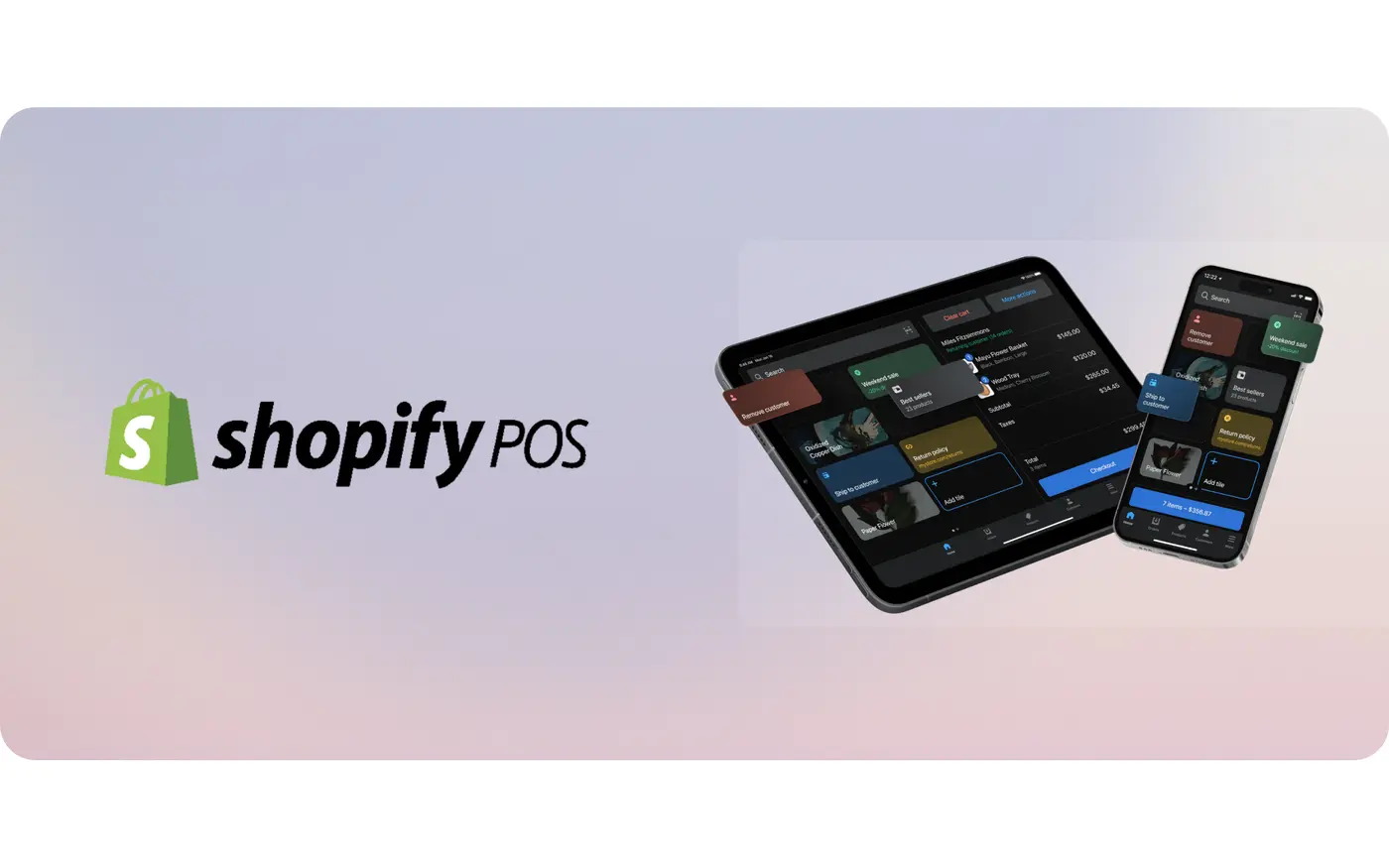
Why this matters
In person, prices get negotiated at the till. A trade buyer who bought a product online last week at the wholesale price notices when the showroom quotes something else, and a salesperson who has to guess a discount will sometimes guess low and sometimes high. Each mistake either costs margin or a conversation, and they pile up across staff, shifts and locations.
Putting the same rules behind a tile removes the guesswork. The rules are the ones you already maintain for the storefront, so there is one set of prices to keep right, and a rule change reaches the counter without anyone retraining the team on new numbers. The staff member decides when to apply the tile, which keeps a human in control of exceptions such as a walk-in who is not a trade account.
How to set it up with BSS B2B Solution
POS pricing uses the rules you already have, plus a small device setup. Check the plan first: the integration is part of the Platinum plan, and the tile shows an upgrade prompt on lower plans.
Step 1: Build the rules the till will use
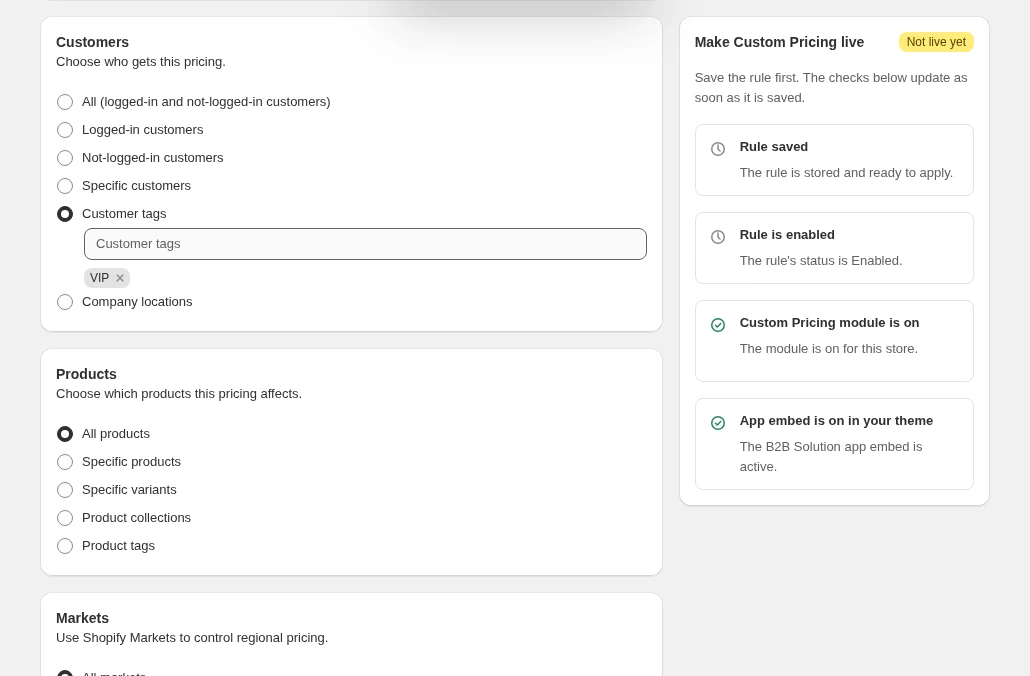
Create the Custom Pricing, Price List or Volume Pricing rule as usual, and target it at a customer tag or specific customers. At POS only the tag and customer targeting and product conditions work, so avoid specific markets and product collections in the rules you want at the till, and do not rely on company-location targeting there.
Step 2: Add the BSS B2B POS app
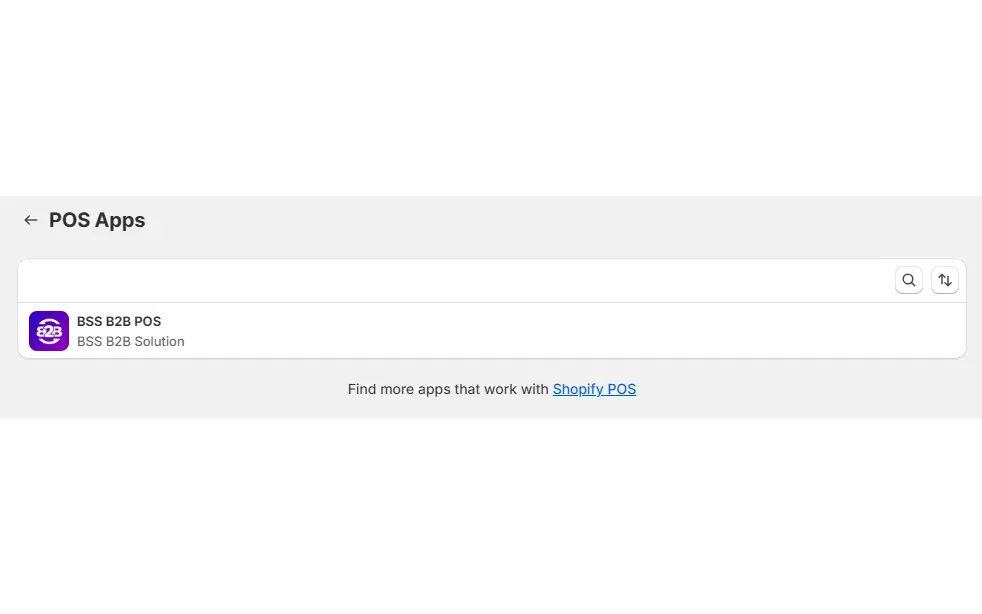
In the Shopify admin open Sales channels > POS > Settings > General > POS app and select BSS B2B POS.
Step 3: Add the smart grid tile
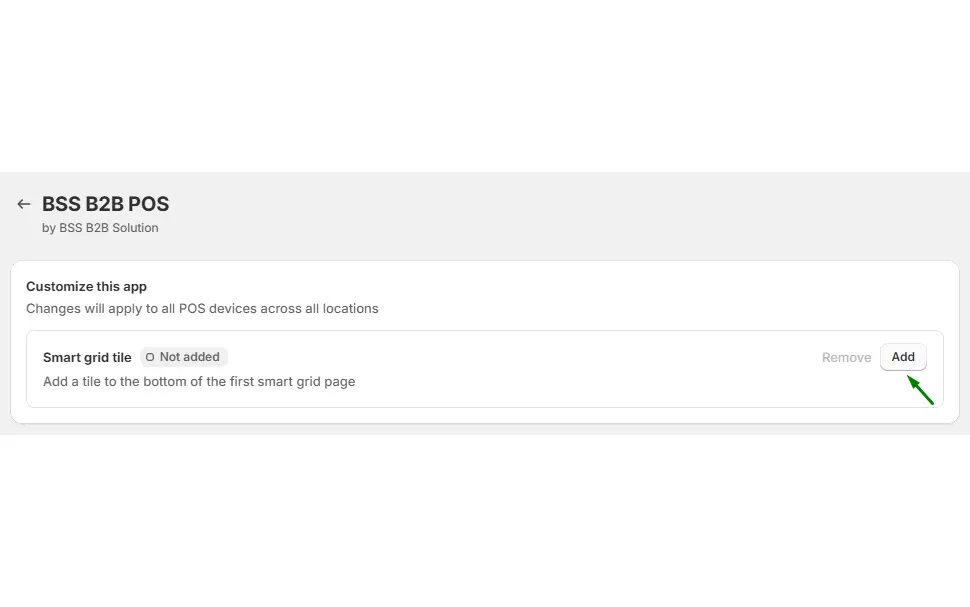
Click Add next to the smart grid tile so the B2B Price tile appears on your POS device. Do this for each device that staff use.
Step 4: Build the sale and tap the tile
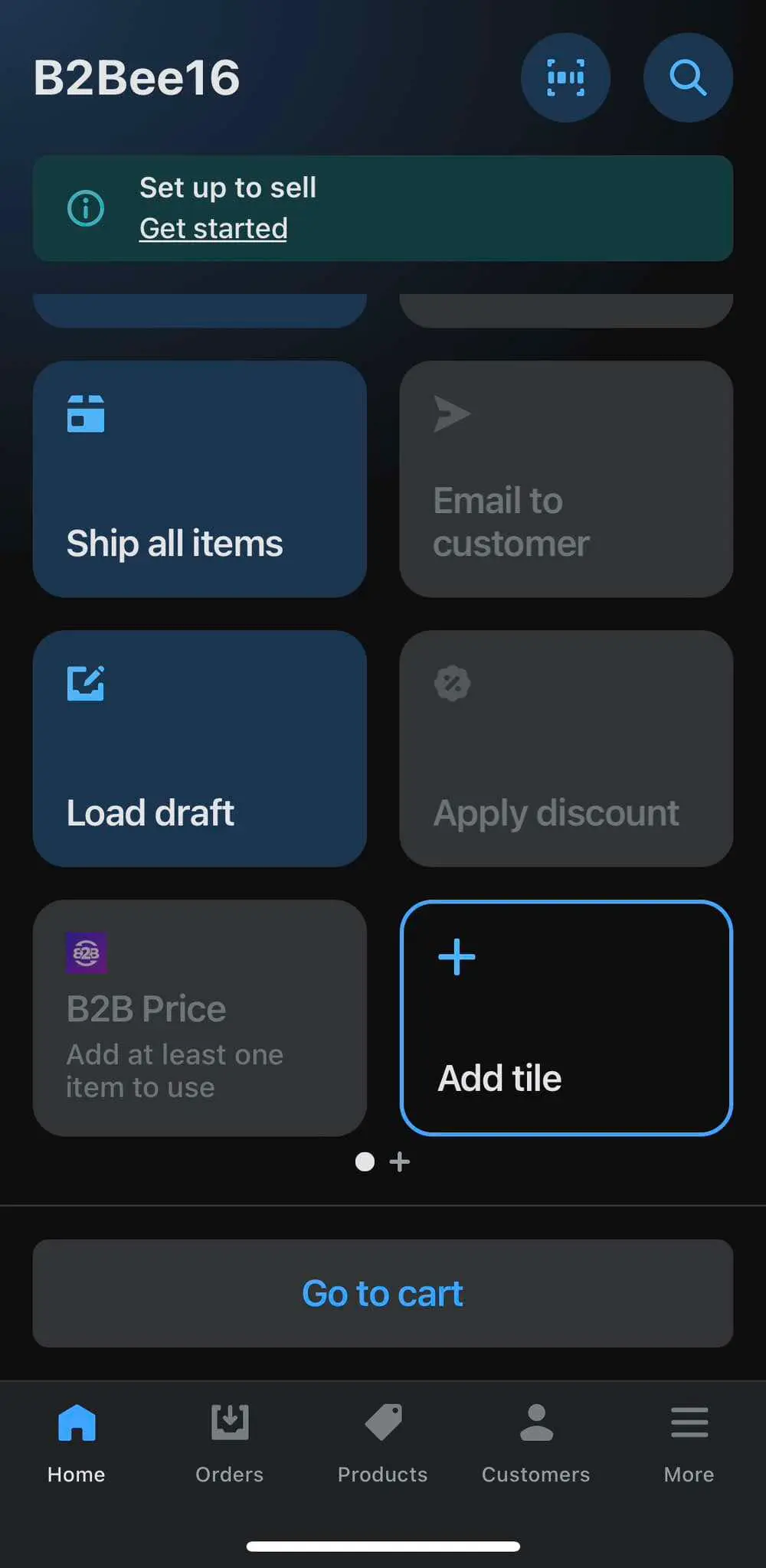
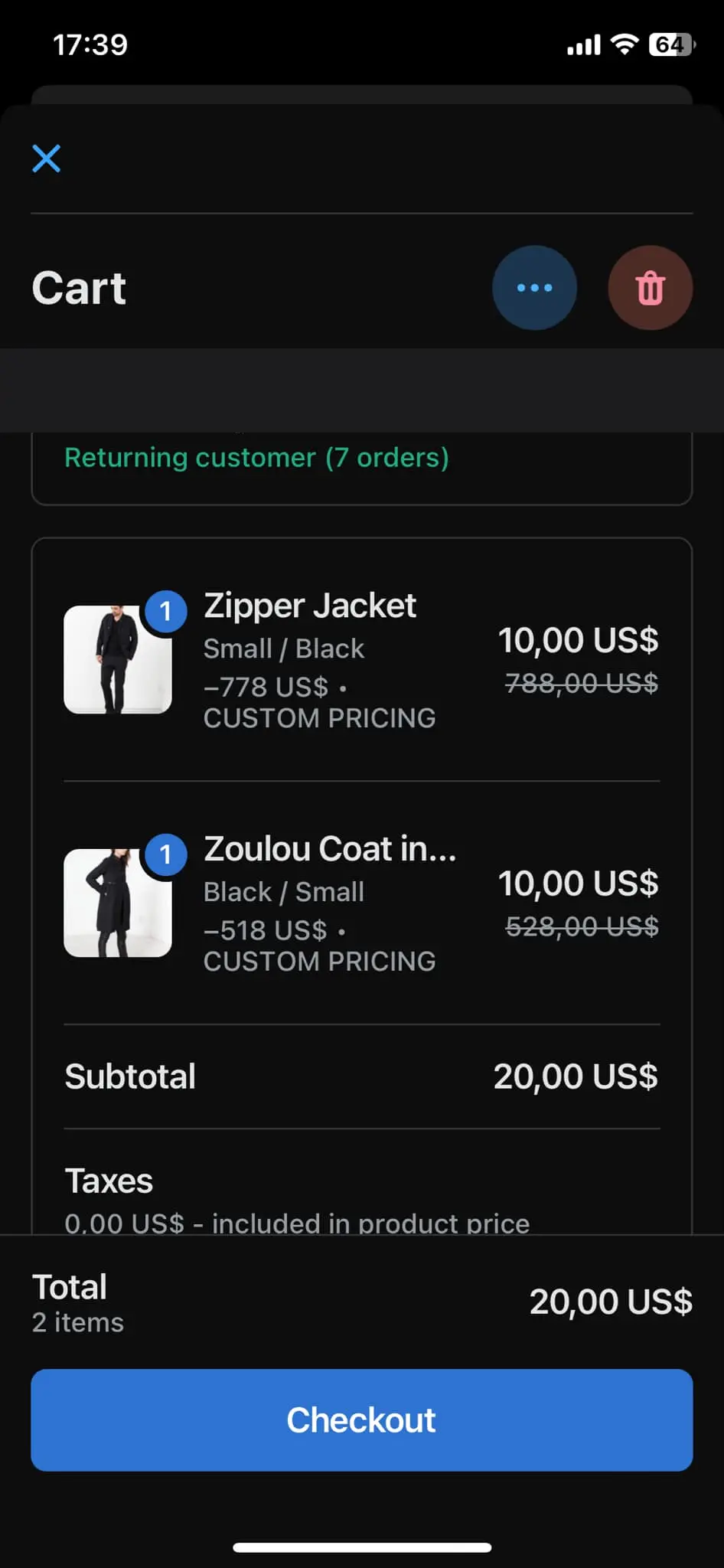
In POS add the customer and the products to the cart. The tile asks for at least one item before it is active. Tap B2B Price: the app loads your rules, matches them to the customer and the cart, and applies the discount to each line as a fixed amount, so the POS cart shows the discounted price and labels the line Custom Pricing. Tap the tile again to remove the discounts.
Step 5: Check the cart and take payment
Review the discounted lines and complete the sale as usual. If the tile shows “Couldn’t check discounts. Tap to retry”, for example after a brief network drop, tap it again, because it does not retry on its own.
What the tile decides for each line
When staff tap the tile, the app checks which of your rules match the attached customer and each product in the cart. Customer matching works on customer tags and specific customers. If a Price List rule and a Custom Pricing rule both match the same variant, the Price List is used and Custom Pricing is skipped, the same as online, and the rule priority decides between rules of the same type. Quantity Break rules apply to carts that reach a tier. Lines that match no rule keep their normal price.
Training the team
The tile is a manual step, so the process matters more than the technology. Give staff a one-line routine: attach the customer, add the products, tap B2B Price, check the lines, take payment. The step people forget most often is attaching the customer first, because without a customer there is nobody to match the rules against. Show them the retry message once, so it does not look like a fault during a busy afternoon.
Example: a ceramics maker at a trade show
This example uses illustrative numbers, not results from a real store. A ceramics manufacturer sells mugs to retailers at a trade show. Its online wholesale rule gives customers tagged `wholesale` 40% off all products. A mug retails at $25, so the wholesale price is $15.
A boutique owner, already a tagged customer, buys 24 mugs. The staff member searches for the customer, adds 24 mugs, and taps the B2B Price tile. Each line drops from $25 to $15, so the 24 mugs cost $360 instead of $600. A second visitor who is not a trade account buys one mug at $25, and the staff member does not tap the tile. A third buyer is a tagged customer who also qualifies for a quantity break tier, so the staff member checks that the cart total matches the same cart priced online before charging the card.
The maker also runs a separate rule on an “Imperfect seconds” collection. That rule targets a collection, so it does not apply at POS. The maker handles seconds by adding a tag-based rule for those products, which does work at the till.
Works well with
POS pricing reuses the rules behind your online wholesale prices:
- Customer tags: wholesale price by customer tag is the rule that most POS setups depend on.
- Price lists: B2B price list per buyer group gives each group its own fixed prices.
- Quantity breaks: tiered quantity break pricing rewards larger carts, and Quantity Break rules are supported at POS.
- Rule order: which B2B rule wins explains priority when several rules match.
- Back-office orders: place orders on behalf of customers covers orders created in the admin instead of at a till.
The wholesale pricing hub lists the pricing guides. Glossary entries that help: wholesale price, price list and quantity break.
Limits and common mistakes
- Staff must tap the tile. The discount is not applied automatically. The tile applies or removes it on demand, so train staff to attach the customer first and then tap.
- Only three pricing modules work at POS. Custom Pricing, Price List and Quantity Break are applied. BOGO, Discount Code, Extra Fee and Shipping Rate are not, so check the cart total if a promotion depends on them.
- Some rule conditions do not work at POS. Rules with specific markets or product collections do not work, and company-location rules never match. Customer tags, specific customers and product conditions without collections do work.
- It is a pricing aid, not a checkout lock. Nothing prevents staff from selling at the retail price, so treat the tile as a process your team follows.
- The tile does not retry on its own. If it cannot load the rules, tap it again before you take payment.
- Check the price at the till. Test a sale for each rule type before opening day, comparing the line prices with the same customer’s online prices.
- Platinum plan. On other plans the tile shows an upgrade prompt.
Setup checklist
- Confirm the shop is on the Platinum plan and Shopify POS is set up.
- Review each rule you want at the till and remove collection and market conditions.
- Target the rules at customer tags or specific customers.
- Add BSS B2B POS under POS app settings and add the tile on every device.
- Test a sale with a tagged customer, a retail customer and an empty cart.
- Compare each line with the same customer’s online price.
- Write a one-line staff procedure: customer, products, tap B2B Price, check the lines, take payment.
- Show staff what the retry message looks like.
Plans and requirements
The POS integration needs the Platinum plan of BSS B2B Solution, Shopify POS on your store, and the BSS B2B POS app added to each device. See the BSS B2B pricing page for plans and the 14-day free trial on paid plans. The Shopify POS guide shows the setup screens, and how rule priority works explains which rule wins. Install BSS B2B Solution from the Shopify App Store and start with one tag-based rule.