
Shopify Volume Pricing Table: Show Quantity Breaks on Product and Collection Pages

A Shopify volume pricing table lists the price at each quantity break next to the quantity box. Native B2B stores up to 10 price breaks per product, but the table needs a theme version 11.0.0 or later, or code. BSS B2B Solution draws it on product and cart pages, and on collection pages once you switch that on.
Create a Volume Pricing rule, tick the pages, and preview the table. Free on development stores, 14-day trial on paid plans.
Install BSS B2B Solution See pricingLast updated October 4, 2026. Shopify facts come from the Help Center pages linked in the text. BSS B2B Solutions makes BSS B2B Solution, the app in the screenshots. This guide belongs to the wholesale pricing hub of our complete guide to Shopify B2B. The volume pricing table use case has a short worked setup for a plumbing-supplies store.
Key takeaways
- Shopify stores the breaks, your theme shows them. Native B2B allows up to 10 price breaks per product. Volume pricing display needs a free Shopify theme version 11.0.0 or later, or added code (Shopify Help Center).
- Shopify’s display page covers the product page and the featured product section. It does not mention collection pages.
- BSS B2B Solution shows the table on product pages, the cart page and the mini cart by default. Collection pages, quick view and featured product sections are off until you tick them.
- The table is shown to buyers who match the rule. A guest does not see a table meant for a tagged buyer.
- Show fewer rows on phones. Three or four tiers read well. A long table can push Add to cart far down the page.
What is a volume pricing table?
A volume pricing table, also called a quantity break table, shows how the unit price drops as the quantity goes up: for example 1 to 4 units at $10, 5 to 11 at $9.50 and 12 or more at $9. The rule behind it is volume pricing, also called a quantity break. The table is the part buyers see. Without it, many buyers add the minimum and never learn that the next break is a few units away.
Does Shopify show quantity breaks on the product page?
Shopify can store them. In a B2B catalog you can add up to 10 price breaks per product, applied to each variant. After you apply volume pricing the price becomes fixed, and an overall adjustment on the catalog no longer applies (Quantity rules and volume pricing). You add breaks in Markets, Catalogs, by choosing a product and clicking Add in the Volume pricing column, or by importing a CSV.
Showing them is a theme question. Shopify says you can display quantity rules and volume pricing by updating your theme to the latest version, and that volume pricing is supported on free Shopify themes version 11.0.0 or later. If you do not want to update, Shopify gives code to add to the product template, and calls it an advanced tutorial (Displaying quantity rules and volume pricing). The display appears on the product page or the featured product section. The page lists a Volume Pricing title with the tiers, and a Show more button when there are three or more.
Shopify’s page does not describe a collection page display, and it does not say which customers see the table. Test your own theme with a B2B buyer account before you promise it.
Native display or an app table?
| Shopify theme display | BSS B2B Solution table | |
|---|---|---|
| Where it shows | Product page or featured product section | Product page, cart page, mini cart. Optional: collection page, quick view, featured product |
| Setup | Update to a free theme 11.0.0 or later, or add code | Tick pages in Volume Pricing, Settings. No theme edit |
| Position | Where the theme or code puts it | Under product name, price (default), options or quantity box |
| Look | Theme styling | Table style, text, border and colors, with a live preview |
| Click on a row | Not described | Sets the quantity to the minimum or maximum of the range |
| Languages | Translation strings in the theme | Table labels translated in the app, with default translations for the five most common languages |
| Who sees it | Not stated | Buyers who match the rule |
If your breaks live in native catalogs and your theme supports them, you may not need an app for the table. Add the app when you need collection page tables, a tag rule outside the catalog limit, or styling control. For the pricing logic itself read which rule wins. Our Shopify tiered pricing guide covers the setup of tiers for B2C and wholesale.
How to show a volume pricing table with BSS B2B Solution
Step 1: Create a Volume Pricing rule
The table is drawn from your rules, so you need one first. Open B2B pricing, turn Volume Pricing on and click Add rule. Pick customers, products and the tiers: each row is a range with a From and To quantity, a discount type and a value. Leave the last To empty for “and above”. Details are in the tier setup guide and in tiered quantity break pricing.
Step 2: Choose the pages
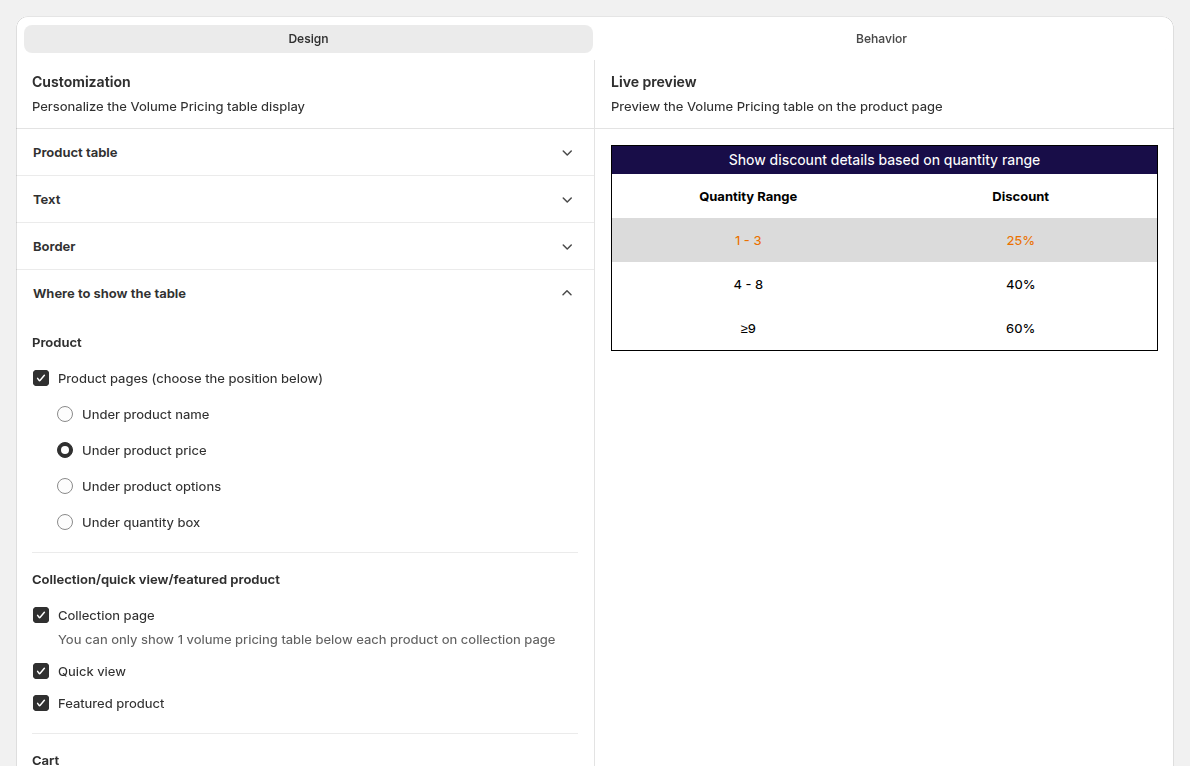
Open Volume Pricing, then Settings, and the Design tab. Under Where to show the table tick the pages. Product pages, the cart page and the mini cart are on by default. Collection page, quick view and featured product are off. Only one table can show below each product on a collection page. For product pages choose the position.
Step 3: Style the table
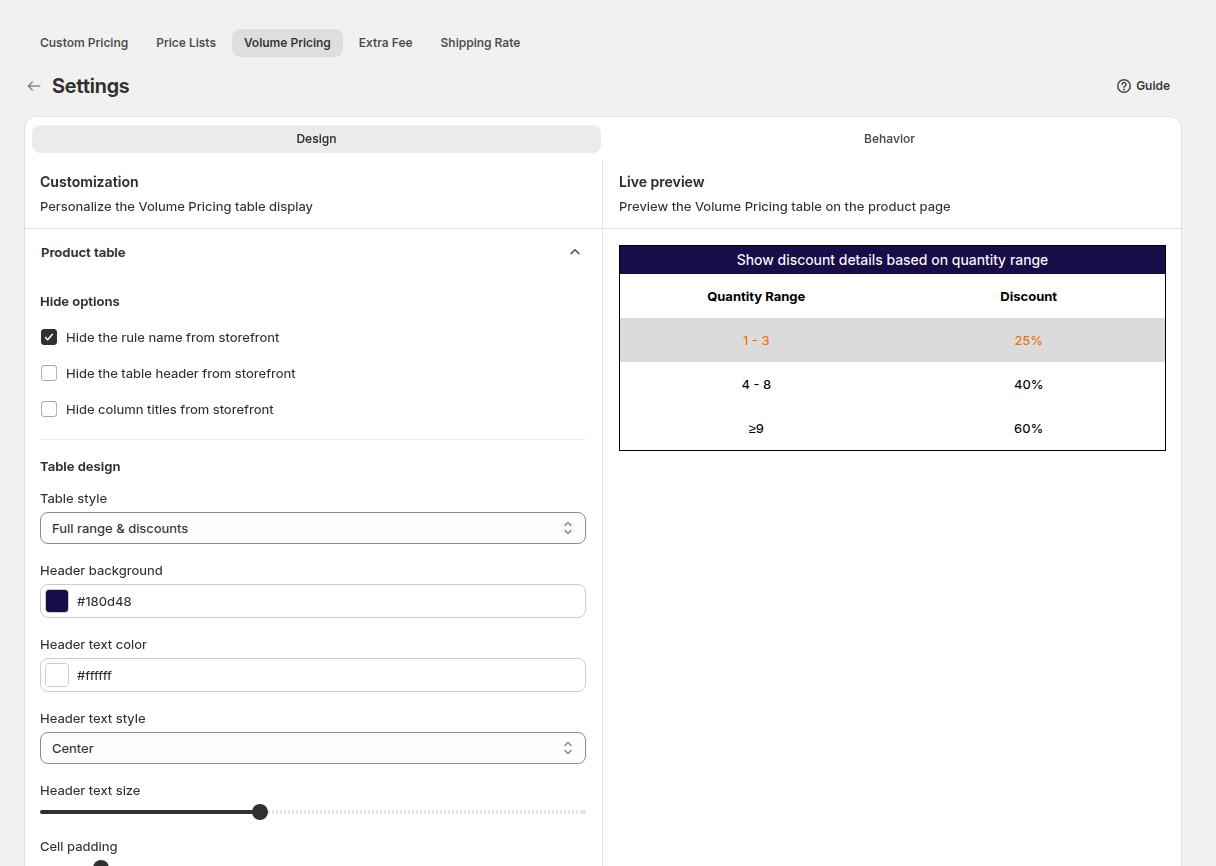
In the same tab choose a table style, the text, the borders and the colors. The settings apply to all your Volume Pricing rules, and a preview shows the result before you save.
Step 4: Decide what a click does
On the Behavior tab, Row click sets the quantity box to the maximum (default) or the minimum of the clicked range. For a range of 3 to 5, minimum sets 3 and maximum sets 5. Apply multiple rules to product pages is off by default, so each buyer sees only the table of the rule that applies to them. Turn it on to show every matching table.
Step 5: Translate the labels
If your store has several languages, open More actions, then Translations on the Volume Pricing page. Text left blank falls back to your default language. See the settings guide.
Step 6: Check the storefront
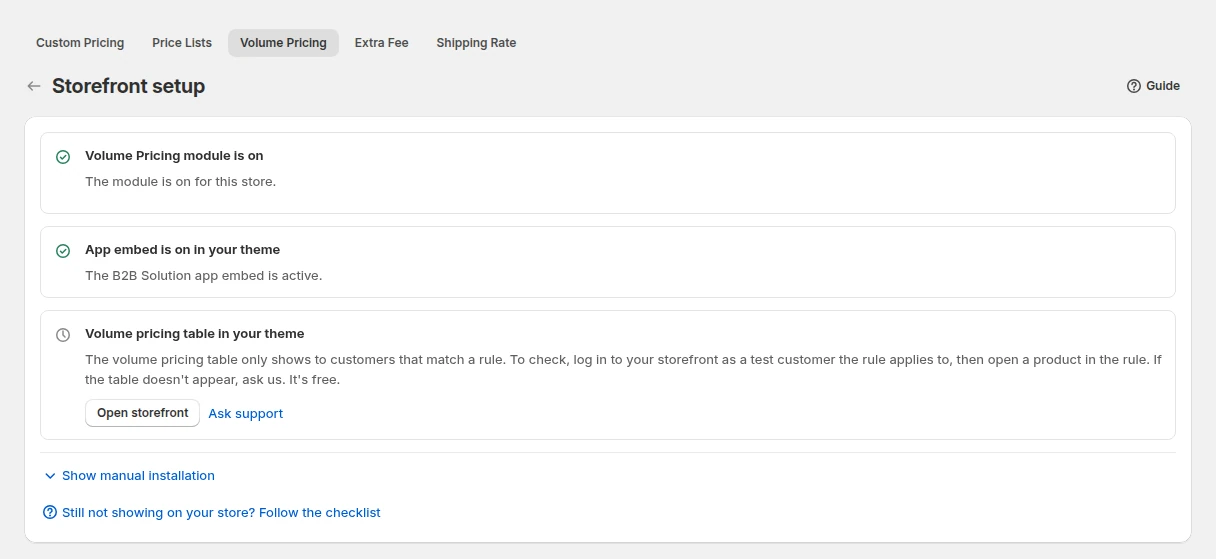
Click Storefront setup. It checks that the module and the app embed are on and links to your storefront. Then open a covered product as a buyer who matches the rule, on desktop and on a phone.
Product page, collection page or cart: where should the table go?
| Page | What the table does | Default | Tip |
|---|---|---|---|
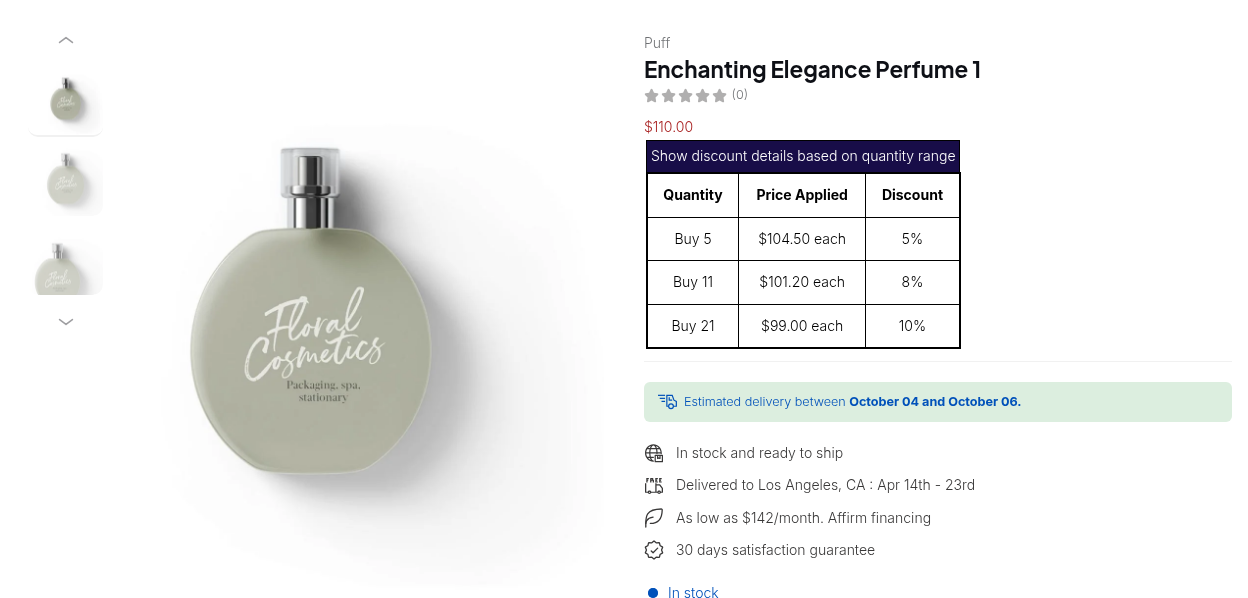
| Product page | Shows every range before the buyer picks a quantity | On | Under the price is the default. Under the quantity box keeps it next to the decision |
| Collection page | Lets buyers compare which products have breaks | Off | One table per product, so keep the style compact |
| Cart page and mini cart | Helps the buyer add one more case to reach the next break | On | The matched range is highlighted |
| Quick view and featured product | Same table in a popup or a home page block | Off | Check on your theme |
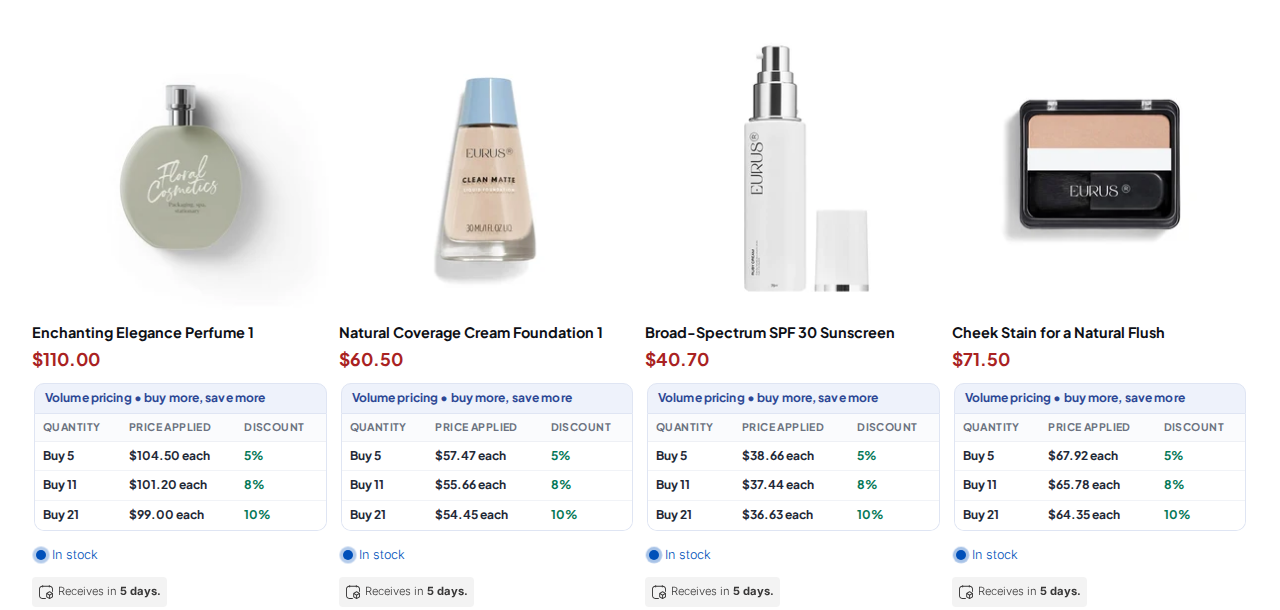
Some themes build collection cards in a way the app cannot detect automatically. If the table does not appear even when ticked, read volume pricing table not on collection pages and contact support with your theme name.
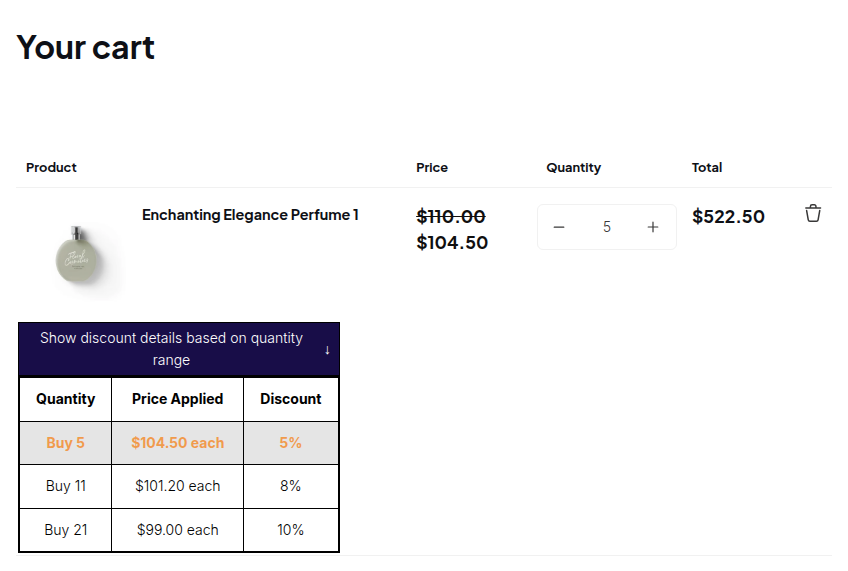
What should the table say? Quantity or value, and what counts
A table is only as clear as the rule behind it. Two settings decide what the numbers mean.
- Volume pricing type. Quantity-based tiers count items. Value-based tiers count the amount spent.
- Apply to. All eligible products in the order counts each product on its own. Entire order adds up all eligible products. All eligible product’s variants in the order counts each variant on its own.
With tiers of 5 to 20 units at 10% and 21 to 50 at 20%, a buyer who orders 45 units gets different results. Entire order: 45 units reach the higher range, so both products get 20%. Product level: product A with 35 units gets 20% and product B with 10 units gets 10%. Variant level: a variant with 8 units gets 10% and one with 3 gets none. Pick the option that matches what your table promises, and say so in the text near the table.
If the buyer also has a Price List or Custom Pricing price, the table reflects that base, because tiers come on top. See combine custom and volume pricing for numbers. If you sell in packs, pair tiers with quantity increments so a break always lands on a valid quantity.
Why is the volume pricing table not showing?
- The BSS B2B Solution app embed is on in the live theme, under App embeds. Save the theme.
- The Volume Pricing module is on under B2B pricing.
- The rule is enabled, its schedule has started and not ended, and it targets the shopper’s market.
- The product is in the rule’s scope and not excluded, and the shopper matches the customer condition. A guest does not match Logged-in customers.
- On the Free plan only your newest rule is used, and it must use the basic options.
- The page is ticked under Show Volume Pricing Table on pages.
If everything looks right, open the rule and click Save again. That re-publishes the rules to the storefront. For wider checks see why Shopify B2B prices are not showing.
Limits to know before you launch
| Limit | What it means | What to do |
|---|---|---|
| Free plan | Only the newest Volume Pricing rule is read, as a quantity rule without market, variant, collection or tag condition and without exclusions | Use a paid plan for tag, collection or market rules |
| Collection pages | One table per product, off by default, and some themes need manual work | Test on the theme you use |
| Native display | Free themes 11.0.0 or later, or code, on the product page | Update the theme or add the code |
| Shopify automatic discounts | Do not work alongside Custom Pricing or Volume Pricing | Use Discount Code rules or manual codes |
| Headless | The app depends on the theme app embed | Treat headless as unsupported until you test it |
| Small screens | Many ranges make a tall table | Keep to three or four rows on mobile |
Volume pricing table launch checklist
- The tiers match your price sheet, and the last range is open-ended.
- You chose quantity or value, and the Apply to option matches what the table says.
- The table shows on the product page and in the cart for a matching buyer, and not for a guest unless you want it to.
- Collection page tables are on only if your theme shows them cleanly.
- You checked a phone, a quick view and a product with several variants.
- The labels are translated for each store language.
Shopify volume pricing table: frequently asked questions
What is a volume pricing table?
A volume pricing table lists the price or discount for each quantity range, such as 1 to 4, 5 to 11 and 12 or more, next to the quantity box. It shows buyers the next break before they check out.
Does Shopify show volume pricing on the product page?
Shopify stores up to 10 price breaks per product in a B2B catalog. Its Help Center says volume pricing display is supported on free Shopify themes version 11.0.0 or later, or by adding code, on the product page or featured product section.
How many price breaks can a product have in Shopify?
Up to 10 price breaks per product, applied to each variant. After you apply volume pricing the price becomes fixed, and a catalog-wide adjustment no longer applies.
Can I show the table on collection pages?
In BSS B2B Solution yes: open Volume Pricing, Settings, Design, and tick Collection page. It is off by default, only one table can show below each product, and some themes need manual work.
Who sees the volume pricing table?
Buyers who match the rule. A table built for a customer tag does not show to a guest. Set the rule to All customers if everyone should see it.
Does the table work with a price list or custom pricing?
Yes. The tier comes on top of the Price List or Custom Pricing price, so the table reflects the buyer’s own base price, not the retail price.
Why is my volume pricing table not showing?
Common causes are an app embed that is off, the module off, a rule outside its schedule, a buyer who does not match the rule, a page that is not ticked in settings, or Free plan limits. Use Storefront setup to check.
How much does it cost?
BSS B2B Solution is free on development stores. Paid plans start at $29 per month with a 14-day free trial, as of the App Store listing on October 4, 2026. The Free plan reads only the newest rule with basic options.
Next steps
Create one Volume Pricing rule for a single collection, tick the product page and the cart, and view it as a tagged buyer. Then decide on collection pages. The wholesale pricing hub links the related guides, and the quantity break guide explains why breaks lift order size.
Install BSS B2B Solution to show a volume pricing table on product, cart and collection pages without editing your theme.
Install BSS B2B Solution See the appSources
Shopify pages read on October 4, 2026. BSS facts: the BSS B2B Solution user guide at docs.bss-b2b.solutions, our October 2026 review of the app’s behavior, and the Shopify App Store listing (as of October 4, 2026).
- Shopify Help Center: Quantity rules and volume pricing
- Shopify Help Center: Displaying quantity rules and volume pricing on your store
- Shopify Help Center: B2B catalogs and pricing
- BSS user guide: Settings for Volume Pricing
- BSS user guide: Set Tiered Pricing by Purchase Volume
- BSS user guide: Volume pricing tables on collection pages
You may also like

How to Uninstall a Shopify B2B or Lock App Safely: Remove Leftover Theme Code
Some Shopify apps leave code in your theme after you uninstall them. To remove a B2B or lock app safely, duplicate your […]

Shopify Markets and B2B Pricing: Wholesale Prices Per Country and Currency
Shopify Markets control currency, languages and taxes by audience, and B2B catalogs can be assigned per B2B market, with a cap on […]

How to Collect and Validate a Tax ID (EIN, ABN, GST, UK VAT) on Shopify
Shopify has a Tax ID field on company locations, but the pages we read describe no check against a tax register. BSS […]